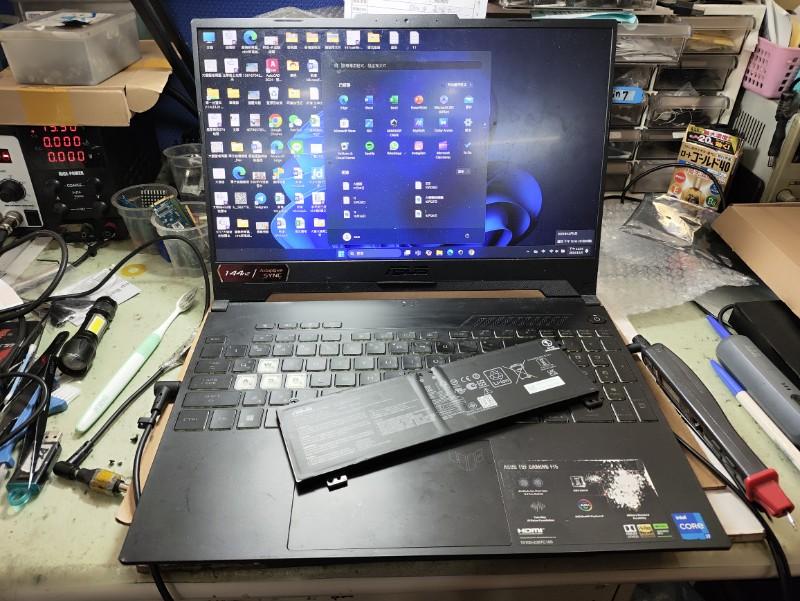
If your Dell laptop screen is flickering, blinking or going on and off, you’re not alone. This comprehensive guide, updated for 2026, explains why your Dell laptop screen flickers and provides step-by-step solutions to fix it, and explains when a Dell Laptop screen replacement may be required.
Whether you own a Dell XPS, Inspiron, or Latitude, we’ll help you troubleshoot hardware and software issues effectively.
Why Does My Dell Laptop Screen Flicker?

Screen flickering on Dell laptops, such as the Dell XPS 13 of Inspiron, can stem from hardware or software issues. Common causes include:
a. Incorrect BIOS settings.
b. Overheating or power issues.
c. Loose of damaged display cables.
d. Outdated or corrupted display drivers.
e. Software conflicts, especially on Windows or Windows 11.
This guide covers both hardware and software solutions to resolve Dell Display issues , including screen blinking, artifacts, or intermittent flickering.
Hardware or Software : Diagnose First
Before diving into fixes, determine whether the issue is hardware or software-related. Follow these diagnostic steps:
1. Perform the Flex Test
a. Slowly move your laptop lid back and forth.
Observation: If flickering worsens or stops when adjusting the lid, the issue may be a loose or damaged display cable.
Solution: A professional repair may be needed to secure or replace the cable. Book a Dell laptop display replacement now.
2. Run Dells’ LCD Self-Test
a. Disconnect all external devices, then power off your laptop.
b. Hold the D key and press the Power button to enter the LCD Self-Test mode (refer to Dell’s official support page here.)
Observation: If the screen displays solid colors without flickering, the issue is likely software-related.
Solution: Proceed to software fixes below.
3. Boot in Safe Mode
a. Restart your laptop and boot into Safe Mode (instructions on Dell’s support page here.)
Observation: Does the flickering stop in Safe Mode? If yes, a driver or software conflict is likely the cause.
Solution: Update drivers or troubleshoot software conflicts.
Software Solutions for Dell Screen Flickering
If diagnostics point to a software issue, try these fixes, optimized for Windows 10 and Windows 11.
1. Update Display Drivers.
Outdated or corrupted drivers for your Intel, AMD, or NVIDIA GPU can cause flickering.

a. Open Device Manager (search for it in Windows).
b. Expand Display Adapters, right-click your GPU, and select Update Driver.
c. Choose Search automatically for drivers or download the latest driver from Dell’s driver page.
d. Restart your laptop after updating.
Tip: If flickering persists, uninstall the driver and reinstall it from Dell’s website.
2. Adjust Panel Self-Refresh
For Intel-based Dell laptops (eg. XPS13, Inspiron) panel self-refresh can cause flickering.
a. Open Intel Graphics Command Center (download from Intel’s support page).
b. Navigate to Power > Panel Self-Refresh and disable it.
c. Apply changes and check if flickering stops.
3. Check for Software Conflicts
a. Open Task Manager (Ctrl+Shift+Esc) and close unnecessary background apps.
b. Update Windows to the latest version via Settings > Windows Update.
c. Run a malware scan using Windows Defender or trusted antivirus software to rule out viruses.
FAQ: Can a virus cause Dell laptop screen flickering? Rarely, but malware can interfere with display drivers. Run a scan to be safe.
Our technicians pinpoint cable, screen, or GPU issues in under 30 minutes.
Our technicians pinpoint cable, screen, or GPU issues in under 30 minutes.
Hardware Solutions for Dell Screen Flickering
If software fixes don’t resolve the issue, hardware problems may be the culprit and a Dell laptop display replacement Try these steps or seek professional help.
1. Check for Overheating
Overheating can cause display issues.
a. Clean air vents with a soft brush or compressed air.
b. Ensure your laptop is on a flat, hard surface to promote airflow.
c. Use a cooling pad for high-performance models like Dell gaming laptops.
2. Inspect the Display Cable
A loose or damaged cable often causes flickering, especially when moving the lid.
a. DIY Caution: Opening your laptop may void the warranty. If unsure, contact a professional.
b. Contact IndiRepair for expert cable inspection and replacement.
IndiRepair uses OEM parts. Warranty-safe. 1-day service in Mumbai.
3. Replace the Screen (Advanced)
If diagnostics confirm a faulty screen, Dell screen replacement may be necessary.

a. Refer to Dell’s repair manuals for your model (eg., XPS 15, Inspiron 14).
b. Book a screen replacement with IndiRepair for certified technicians and OEM displays.
Frequently Asked Questions
Q: Why Does My Dell Laptop Screen Flicker Only at Startup?
A: Flickering at startup often indicates driver issues or BIOS misconfiguration. Update your GPU drivers and BIOS as described above.
Q: Does Screen Flickering Happen on Windows 11?
A: Yes, Windows 11 users may experience flickering due to driver incompatibilities. Ensure your drivers are updated for Windows 11 compatibility.
Q: Can I Fix Dell Screen Flickering Myself?
A: Simple fixes like driver updates or Safe Mode checks are DIY-friendly. Hardware issues like cable or screen replacement require professional expertise.
Conclusion
Dell laptop screen flickering can be frustrating, but with the right troubleshooting, you can identify and fix the issue. Start with software solutions like updating drivers or disabling panel self-refresh. If hardware issues persist, professional diagnostics may be needed.
For expert help, contact IndiRepair for Dell screen replacement.
About the Author : Khan Rahil is a diploma holder in Computer Hardware with over 5 years of hands-on experience in laptop repairs and Senior Technician at IndiRepair. He has overseen hundreds of screen replacements, ensuring quality and customer satisfaction.
Or call +91 93218 69291 for an instant quote.
OEM parts. Certified technicians. ✓ Warranty-safe ✓ Same-day diagnosis ✓ Transparent pricing