
A HP laptop touch screen not working issue can feel confusing because the laptop appears perfectly fine otherwise. The display is clear, windows loads normally, and the keyboard and trackpad work – yet touch input either doesn’t respond at all or behaves unpredictably.
Many users assume that if the touch screen is not working, an entire HP screen replacement is needed, in reality, touch problems can originate from settings, drivers, digitizers cable, or the touch layer itself. Understanding how and when the issue started is crucial before deciding on repair.
This guide explains the most common touch screen symptoms, the actual reasons behind them, and a step-by-step process to diagnose whether the issue is software-based or required hardware repair.
We at IndiRepair, have fixed over 100 HP touch screen cases in the past years, often resolving them quickly through targeted diagnostics.
Common HP Touchscreen Not Working Problems
Before attempting any fixes, identify which situation best matches your laptop. Touch screen failures behave differently depending on the root cause.
1. HP Laptop Touch Screen Completely Not Working
In this scenario, touching the screen produces no response at all. Taps, swipes, and gestures are completely ignored, while the keyboard and mouse continue to work normally.
This usually indicates the touch driver is disabled or missing, is not being detected by the system or worst hardware-level digitizer failure.
2. HP Laptop Touch Screen Not Responding Properly
Here, touch input works inconsistently. The screen may register delayed touches, random taps, or inaccurate input.
Users often notice touch points are not aligning with finger position, ghost touches or random clicks or poor response near screen edges.
This often points to calibration issues, driver instability, or early digitizer failure.
3. HP Laptop Touch Screen Stops Working After Update
If the HP touch screen laptop’s touch screen stops working after a Windows update, the problem is usually software-related.
Updates can overwrite or disable touch drivers, causing the system to stop recognizing touch input even though the hardware is intact.
4. HP Laptop Touch Screen Works Intermittently
In this case, touch input works sometimes and fails at other times. Restarting the laptop may temporarily restore touch functionality.
This behavior often suggests a loose digitizer cable, power management conflicts, early-stage hardware failure.
5. HP Laptop Touch Screen Not Working in Certain Areas
If touch works on some parts of the screen but not others, the issue is almost always physical.
Dead zones on the screen typically indicate partial digitizer layer damage, not a Windows or driver issue, which needs a HP laptop screen replacement to resolve the issue.
How to Fix Touch Screen Not Working On HP Laptop
Step 1: Confirm the Touch Screen Is Enabled

a. Open Windows Settings → Accessibility → Touch.
b. Ensure touch input is enabled.
c. Open Device Manager.
d. Expand Human Interface Device (HID)
e. Check that HID-compliant touch screen is enabled.
If the device is disabled, enabling it may instantly fix the issue.
Step 2: Restart Touch Service and Recalibrate
a. Press Windows + R and open services.
b. Restart Human Interface Device Service.
c. Open Control Panel → Tablet PC Settings.
d. Recalibrate the touch screen.
Calibration corrects inaccurate or delayed touch response.
Step 3. Update, Roll Back, Or Reinstall Touch Drivers
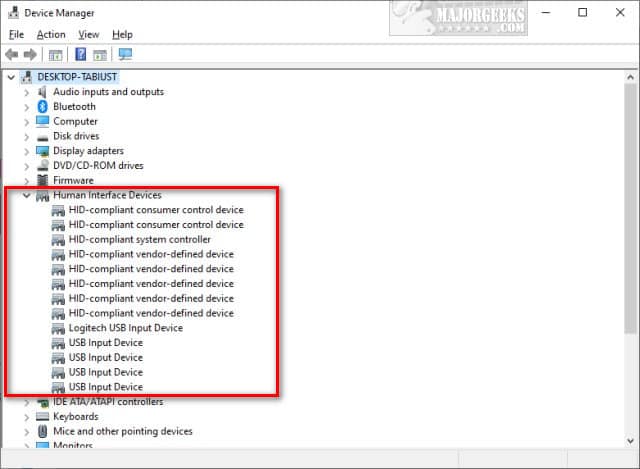
a. Open Device Manager.
b. Locate HID-compliant touchscreen.
c. Update the driver.
d. If the issue started after an update, roll back the driver
e. Restart the laptop.
Driver instability is a major cause of HP touch screen not working complaints.
Step 4: Test Touch Using BIOS or HP Diagnostics
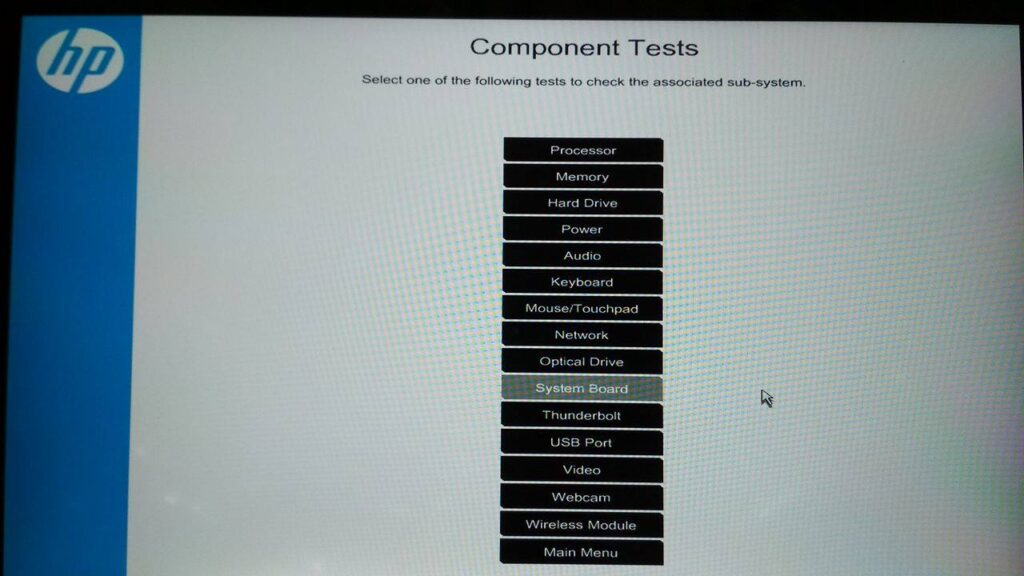
a. Restart the laptop.
b. Press ESC to open HP Startup Menu.
c. Run HP Diagnostics.
d. Check whether touch input is detected.
If touch does not work in diagnostics, the issue is hardware-related and may require HP display screen replacement.
Step 5: Check for Physical or Liquid Damage
Check the screen for:
a. Cracks or pressure marks.
b. Liquid exposure.
c. Touch failure limited to specific areas.
These signs indicate digitizer damage rather than a software issue.
What To Do If the Issue Persists
In most cases, the issue can be resolved through basic software troubleshooting. However, if the problem persists, it likely indicates a hardware fault, in which case an HP laptop display replacement may be required.
The HP screen replacement cost for all models can be found below:
Envy HP screen replacement Cost
Omen HP Screen Replacement Cost
Spectre HP Screen Replacement Cost
Pavilion HP Screen Replacement Cost
ProBook HP Display Replacement Cost
EliteBook HP Display Replacement Cost
Chromebook HP Display Replacement Cost
CONCLUSION
A HP laptop touch screen not working issue does not always mean the screen is faulty. Many problems originate from drivers, settings, or digitizers connections.By following a structured diagnosis, you can determine the correct fix – whether it’s a simple driver adjustment or a necessary repair. If your HP touchscreen not working problem persists after these steps, professional HP screen change ensures the issue is resolved safely and correctly.
At IndiRepair, we replace HP laptop screens within 24 hours using original screens, along with free pickup and drop service in Mumbai.
Written by Khan Rahil, a diploma holder in Computer Hardware with over 5 years of hands-on experience in laptop repairs and Senior Technician at IndiRepair. He has personally handled hundreds of HP screen replacements, specializing in precise compatibility checks and quality installations.