
If your Lenovo touchscreen has stopped working suddenly, it can be frustrating –especially when the display itself looks perfectly fine but taps and gestures don’t respond. Many users notice the touch screen not working on Lenovo devices even though the laptop boots normally and everything else seems functional.
The important thing to understand is that when a Lenovo touch screen does not work, it doesn’t always mean the screen needs replacement. The problem could be settings, drivers, background services, or occasionally hardware damage.
This guide walks you through structure troubleshooting – starting from simple checks you can try immediately and moving toward deeper diagnostics that help you decide whether the issue is software-related or requires professional repair.
Why Lenovo Laptop Touchscreen Not Working Happens
a. Software & Settings Issues
Sometimes touch functionality is simply disabled in system settings or affected by input configuration changes. Tablet model conflicts, accessibility features, or operating system bugs can also stop touch from registering properly without any physical damage.
b. Driver problem
Touch functionality depends on the HID (Human Interface Device) and I2C touch controller drivers to communicate with Windows. After major Windows 10 or Windows 11 updates, these drivers can become corrupted or incompatible. In many repair cases, reinstalling the HID-compliant touch screen driver restores functionality immediately without requiring hardware repair.
c. Hardware & Display Issues
The digitizer layer – the component that senses touch – can fail due to impact or wear. Loose internal cables near hinges may interrupt touch signals. If the Lenovo laptop touch screen not working issue appears after a fall or physical stress, hardware becomes more likely the issue.
d. Internal Hardware Causes
In rare cases, motherboard components or touch controller chips may fail. These problems are less common but usually show persistent issues regardless of software changes.
NOTE: At IndiRepair, we have seen touchscreen issues are most commonly reported on Lenovo IdeaPad and Yoga series laptops, especially convertible models where hinge movement can stress internal touch cables over time.
Step-by-Step Process to Fix Lenovo Touchscreen Does Not Work
Follow the steps in order. Test touch after each step before moving ahead.
Step 1: Clean Screen & Remove Accessories
Steps:
a. Clean the screen surface and remove thick protectors or gloves that may interfere with touch sensitivity.
What this tells us:
a. If nothing changes, move to software checks.
Step 2: Hard restart the laptop
Steps:
a. Shut down the laptop completely.
b. Disconnect charger and all accessories.
c. Remove battery if removable.
d. Hold the power button for 30-40 seconds.
e. Reconnect charger and power on.
What this tells us:
a. If touch works then it was a software issue.
b. If touch doesn’t work perform the next step.
Step 3: Check if Touch Is Enabled
Steps:
a. Press Windows + X
b. Open Device Manager
c. Expand Human Interface Devices
d. Look for HID-Compliant Touch Screen
e. Right click → Enable (if disabled)
What this tells us:
a. If disabled, enabling it should immediately restore touch input.
b. If it is enabled and till the touchscreen is not working move to the next step.
Step 4: Reinstall Touch Screen Driver
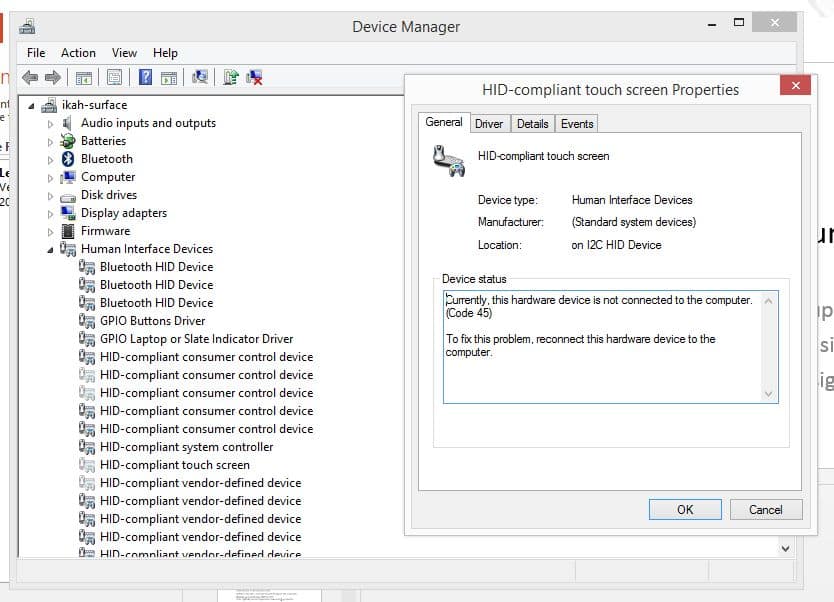
Steps:
a. Open Device Manager
b. Expand Human Interface Devices
c. Right click HID- Compliant Touch Screen
d. Select Uninstall device
e. Restart laptop
What this tells us:
a. If touch starts working, it was driver issues.
b. If it doesn’t move to the next step.
Step 5: Run Hardware Troubleshooter
Steps:
a. Open Settings.
b. Go to System → Troubleshoot.
c. Run hardware diagnostics.
d. Apply recommended fixes.
What this tells us:
a. If touch starts working, it was a system issue.
b. If it doesn’t work, move to the next step.
Step 6: Calibrate Touch Screen
Steps:
a. Search calibrate screen for pen or touch.
b. Open calibration tool
c. Click Reset
d. Recalibrate touch input
What this tells us:
a. If the touch screen works, then it was a calibration issue.
b. If the touch screen is still not working, move to the next step.
Step 7: Test In BIOS Mode
Steps:
a. Turn the laptop off
b. Turn it on and press F2 or Fn+F2 continuously.
What this tells us:
a. If touch works in BIOS, it’s likely a software issue.
b. If touch fails in BIOS, it’s likely a hardware issue.
Signs You Need Lenovo Laptop Screen Replacement
If your touch screen remains completely unresponsive even after updating or reinstalling drivers, the issue may no longer be software-related. Many users also notice that certain areas of the screen stop responding while the rest works normally – this usually points towards digitizer damage rather than a system glitch.
In some cases, the laptop may register random “ghost touches” on its own or fail to detect touch input even inside the BIOS environment, which strongly suggests a hardware fault, when multiple symptoms appear together and basic troubleshooting hasn’t helped, the touch hardware itself is likely failing and professional inspection becomes the practical next step.
Why Choose IndiRepair for Lenovo Touch Screen Issues
Touch screen issues on Lenovo laptops can occur due to several reasons, including disabled touch settings, outdated drivers, display digitizer faults, loose internal connections, or hardware damage. In many cases, the display may function normally while touch response becomes delayed, inaccurate, or completely unresponsive, making proper diagnosis important before attempting any repair.
At IndiRepair, every Lenovo laptop undergoes a detailed diagnostic process to identify the exact cause of the touch screen issue before any repair is recommended. The inspection includes checking touch drivers, display functionality, motherboard connections, digitizer performance, and internal hardware components to accurately determine whether the issue is software-related or caused by hardware failure.
For touch screen repairs and replacements, only tested and specification-compatible components are used that match the laptop’s original display quality, touch responsiveness, brightness levels, and overall user experience. This is especially important for Lenovo Yoga and premium touchscreen laptops where precision and display compatibility directly affect productivity and daily usage.
Whether the issue involves ghost touch, delayed response, unresponsive touch areas, intermittent touch failure, or complete touch screen malfunction, IndiRepair focuses on providing reliable long-term repair solutions instead of temporary fixes.
With transparent communication, experienced technicians, quick turnaround times, and pickup and drop support, IndiRepair aims to make Lenovo laptop touch screen repairs smooth, reliable, and hassle-free for users.
Frequently Asked Questions About Lenovo Touch Screen Issues
Q: Why did my Lenovo touch screen suddenly stop working?
A: A Lenovo touch screen usually stops working due to one of three reasons: driver corruption after a Windows update, the HID touch device being disabled in Device Manager, or hardware damage to the digitizer layer. In our repair cases, sudden failure without physical damage is most commonly linked to Windows updates affecting the I2C HID driver. Testing the device inside BIOS helps confirm whether the issue is software or hardware related.
Q: How do I know if my Lenovo touch screen problem is software or hardware?
A: The fastest way to diagnose this is by testing touch functionality in BIOS mode. If touch works in BIOS but not in Windows, the issue is software-related (drivers or system configuration). If touch fails even in BIOS, the digitizer or internal touch controller may be damaged. Another hardware indicator is when only certain areas of the screen stop responding.
Q: Can a Windows 11 update cause Lenovo touchscreen to stop responding?
A: Yes. Major Windows 10 and Windows 11 updates sometimes replace or modify HID-compliant touch screen drivers. This can result in the touch device disappearing from Device Manager or becoming unresponsive. Reinstalling the driver or rolling back the update often restores functionality without needing screen replacement.
Q: Why is only part of my Lenovo touch screen not working?
A: Partial touch failure usually indicates localized digitizer damage. This can happen due to pressure points, minor impact near screen edges, or internal cable stress in convertible models like Lenovo Yoga series. Software issues rarely cause partial dead zones — they typically disable touch entirely.
Q: Is it safe to keep using a Lenovo laptop with touch screen not working?
A: Yes, the laptop can still function using keyboard and trackpad if the issue is limited to touch. However, if you notice ghost touches (random screen activity without input), it’s advisable to get it checked quickly as it may indicate short circuiting within the touch layer.
Q: How much does Lenovo touch screen repair usually cost?
A: Touch screen repair cost depends on model and panel type. Standard 14-inch touch displays are generally more affordable than convertible or high-resolution IPS touch panels. Cost also depends on whether only the touch layer is affected or the entire display assembly requires replacement.
CONCLUSION
If your Lenovo touch screen not working issue appears suddenly, start with structured troubleshooting instead of assuming hardware failure. Many cases – especially when the touch screen not working on Lenovo devices happens after updates – are resolved through driver fixes, service restarts, or simple configuration changes.
However, when the Lenovo touch screen does not work even after software troubleshooting – particularly when certain areas remain dead or touch fails in BIOS – the problem is likely hardware related. At this point, professional inspection or screen replacement becomes the most reliable way to restore full functionality.
Written by Khan Rahil, a diploma holder in Computer Hardware with over 5 years of hands-on experience in laptop repairs and Senior Technician at IndiRepair. He has personally handled hundreds of Lenovo screen replacements, specializing in precise compatibility checks and quality installations.