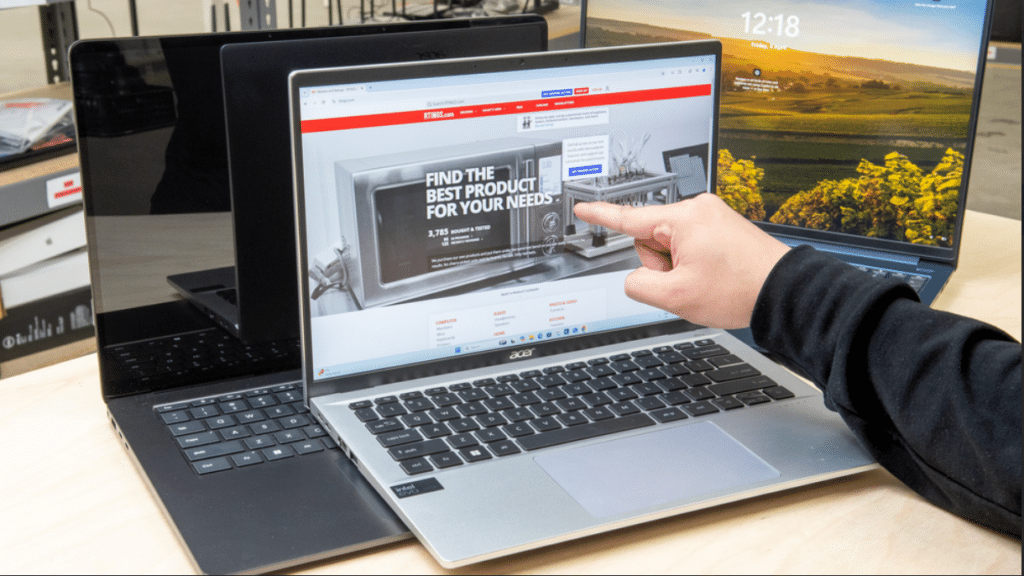
If your Acer touch screen is not working, it can be frustrating– especially when the display looks perfectly fine but doesn’t respond to touch at all. Many users face this issue after a Windows update, driver problem, or sometimes without any clear reason.
In some cases, the touch stops completely, while in others it works intermittently or only in certain areas of the screen. This makes it difficult to tell whether the issue is software-related or a hardware fault.
The important thing to understand is that a touch screen involves an additional layer called the digitizer, which sits above the display. From our repair experience at IndiRepair, we’ve seen that nearly 60–70% of Acer touch screen issues are software or driver-related, especially after Windows updates. However, cases where touch fails completely or partially (specific areas not responding) are usually linked to hardware issues like digitizer failure or internal connection faults.
Why Your Acer Touch Screen Is Not Working
When your Acer touch screen stops working the issue is usually not random– it’s caused by a break somewhere between the system detecting touch input and the screen responding to it.
If anything in this chain fails, the touch stops working – even if the display looks completely fine.
Here’s how these issues typically show up in real-world usage:
1. Touch Driver Disabled Or Corrupted
Your laptop relies on a specific driver to recognize touch input. If this driver is disabled, missing or corrupted – often after a Windows update – the system simply stops detecting touch.
2. Windows Update or Software Conflict
Major Windows updates can sometimes interfere with touch drivers, especially on laptops with integrated touch controllers. Touch stops working right after an update. This is usually fixable through driver reinstall or update rollback.
3. Digitizer Damage

The digitizer is the layer responsible for detecting touch. If it gets damaged due to pressure, impact, or wear, it stops registering input properly. The touch might not work at all or certain areas of the screen don’t respond.
4. Loose or Damaged Internal Connection
The touchscreen communicates with the motherboard through internal connectors. Over time or due to minor impact, these connections can loosen over time. This usually causes inconsistent behavior—touch may work intermittently or stop working depending on the screen position.
How to Fix Acer Touch Screen Not Working
Step 1: Restart Your Laptop
Steps:
a. Save your work
b. Hold the power button for 10-25 seconds
c. Start the laptop after 2 minutes
What this tells you:
a: Touch starts working → temporary system glitch
c. No change → continue
Step 2: Enable Touch Screen in Device Manager

Steps:
a. Right-click Start → Device manager
b. Expand “Human Interface Devices”
c. Look for “HID-compliant touch screen”
d. Right-click → Enable (if disabled)
What this tells you:
a. Touch works → it was disabled
b. Not found or still not working → move ahead
Step 3: Check if Touch Screen is Disabled in BIOS
Steps:
- Restart your laptop
- Enter BIOS (Press F2 during startup)
- Look for Touch Screen or Internal Device settings
What this tells you:
- Touch disabled → enable it and restart
- Not available → continue troubleshooting
Step 4: Update or Reinstall Touch Drivers
a. In Device Manager, right-click touch device.
b. Select Update driver
c. If issue persists, uninstall device and restart laptop
What this tells you:
a. Touch returns → driver issue
b. No improvement → continue
Step 5: Check After Windows Update/ Rollback
Steps:
a. Go to Settings →Windows Update → Update history
b. Check if issue started after recent update
c. Roll back update if needed
What this tells you:
a. Touch works after rollback → update conflict
b. Still not working → move ahead
Step 6: Clean the Screen Surface
Steps:
a. Turn off the laptop
b. Clean screen gently with microfiber cloth
What this tells you:
a. Touch improves → surface interference
b. No change → continue
Step 7: Boot into Safe Mode
Steps:
a. Restart and interrupt boot 2-3 times
b. Enter Recovery → Safe Mode
What this tells you:
a. Touch works → software/driver issue
b. Still not working → likely hardware
When Repair Or Screen Replacement is Required
Professional repair is recommended if:
a. Touch does not work even after driver reinstall
b. Certain parts of screen don’t respond
c. Screen has cracks or pressure damage
d. Touch doesn’t work in Safe Mode
e. Issue persists across all conditions
In these cases, the problem is usually within the digitizer layer, and in most laptops, this requires full screen replacement.
At this stage, a proper diagnosis is important because replacing the screen unnecessarily can increase costs. In many real cases, confirming whether the issue is with the digitizer, cable, or motherboard helps avoid incorrect repairs.
Why Choose IndiRepair for Acer Touch Screen Issues
Touch screen problems on Acer laptops can occur due to multiple reasons, including driver conflicts, display digitizer faults, loose internal connections, software glitches, or physical screen damage. Simply restarting the device or reinstalling drivers may temporarily solve the issue, but recurring touch response problems often require proper technical diagnosis.
At IndiRepair, every Acer laptop is carefully inspected to identify the exact cause of the touch screen malfunction before any repair is recommended. In many cases, the issue may not be with the display panel itself but with the touch digitizer, motherboard connection, or internal display circuitry. This detailed diagnosis helps avoid unnecessary replacements and ensures accurate repairs.
For touch screen repairs and replacements, only tested and compatible components are used that match the laptop’s original specifications. This helps maintain display responsiveness, touch accuracy, brightness levels, and overall user experience after the repair is completed.
Whether the issue is intermittent touch failure, ghost touch, unresponsive areas on the screen, or complete touch malfunction, IndiRepair focuses on providing reliable and long-lasting repair solutions instead of temporary fixes.
With transparent communication, pickup and drop support, and quick turnaround times, IndiRepair aims to make Acer laptop repairs smooth, convenient, and dependable for users across different Acer laptop models.
Frequently Asked Questions
Q.Why is my Acer laptop touch screen not working but the display is fine?
A: If everything else on the laptop is working normally, the issue is usually limited to the touch layer (digitizer) or its driver. In many real cases, if the touch suddenly stops without any physical damage, it’s often a driver or Windows-related issue. But if it remains completely unresponsive across all situations, it usually points to a hardware fault in the digitizer.
Q. How do I know if it’s a software issue or a hardware problem?
A. A simple way to check is by booting into Safe Mode. If the touch works in Safe Mode, the issue is likely caused by drivers or software conflicts. If it doesn’t work even there, it usually indicates a hardware problem, such as digitizer failure or internal connection issues.
Q. Why is only part of my touch screen not working?
A. Partial touch failure is almost always a hardware-related issue. It usually happens when a section of the digitizer is damaged due to pressure, impact, or internal wear. Software issues rarely affect only specific areas of the screen.
Q. Can the touch screen be repaired without replacing the display?
A. It depends on the laptop model. In most modern Acer laptops, the touch layer (digitizer) is fused with the display panel, which means both need to be replaced together. In rare cases where the issue is due to a loose internal connection, it may be repairable without full replacement.
Q.How much does it cost to fix an Acer touch screen not working issue?
A. The cost depends on the root cause. Software-related fixes are usually minimal, but if the touchscreen needs replacement, it typically ranges between ₹4,000 to ₹10,000+ depending on the model and whether the digitizer is integrated with the display.
CONCLUSION
An Acer touch screen not working issue is often misunderstood as a simple software problem, but in many cases, it involves the touch layer itself. While it’s always worth checking drivers and system settings, consistent touch failure– especially in specific areas or across the entire screen–usually indicates a hardware issue.
The key is to observe how the touch behaves during troubleshooting. If it responds in Safe Mode or after driver updates, the issue is likely software-related. But if it remains unresponsive under all conditions, the problem is typically within the digitizer, and replacement becomes the most reliable solution.
Identifying this early helps avoid unnecessary troubleshooting and ensures the issue is resolved correctly. In most real-world cases, once the root cause is confirmed, the solution becomes straightforward—either a software fix or a proper screen replacement to restore full touch functionality.
Written by Khan Rahil, a diploma holder in Computer Hardware with over 5 years of hands-on experience in laptop repairs and Senior Technician at IndiRepair. He has personally handled hundreds of Acer screen replacements, specializing in precise compatibility checks and quality installations