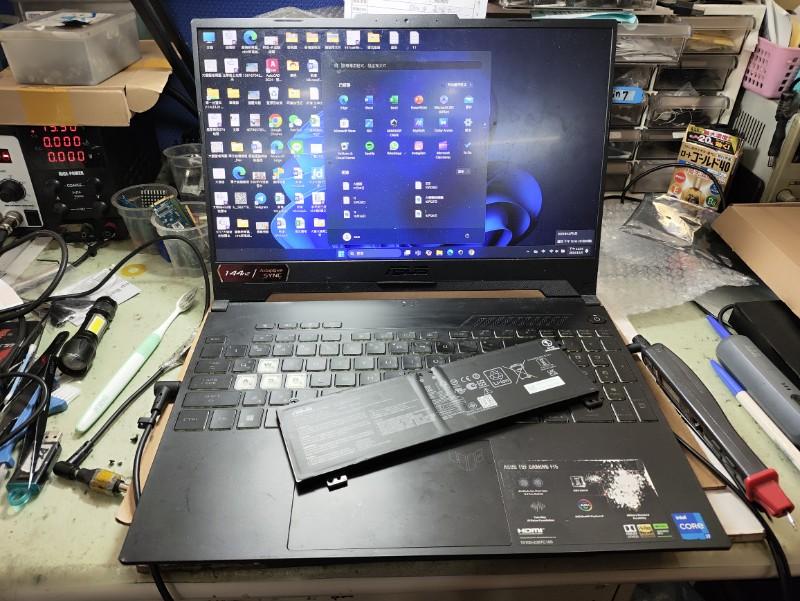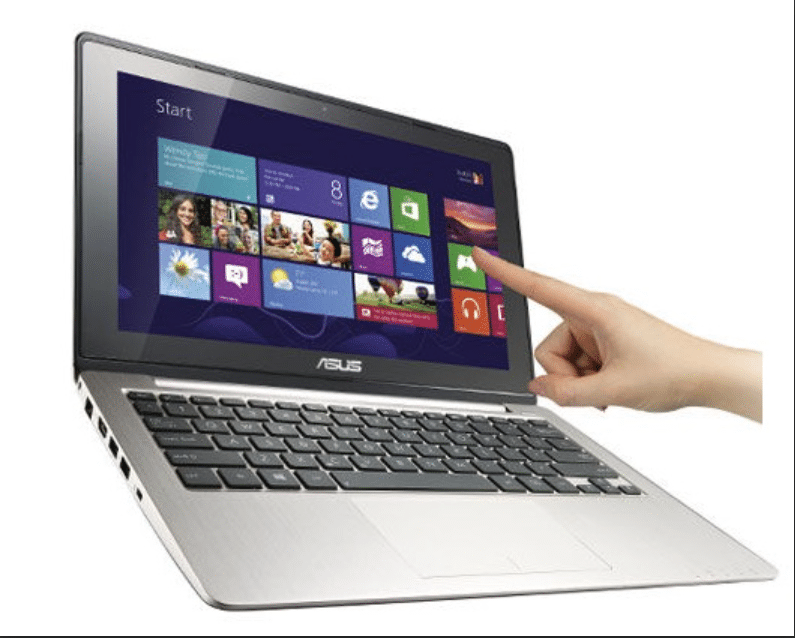
If your asus laptop touch screen is not working, it can be frustrating—especially when the display itself works perfectly but taps and gestures don’t respond. Many users face situations where the screen turns on normally, but the touch screen on an Asus laptop not working makes it difficult to navigate without an external mouse or keyboard.
In some cases, the issue appears suddenly, such as after a system update, while in others, the Asus laptop touch screen stopped working gradually or intermittently. The problem can be caused by software glitches, disabled settings, or hardware failures related to the touch layer of the screen.
Understanding the root cause is essential to applying the correct fix and avoiding unnecessary repairs.
Why Is My ASUS Laptop Touch Screen Not Working?
Touch functionality works through a digitizer layer integrated with the display panel. This digitizer detects touch input and sends signals through drivers to the operating system. If there is a failure in the digitizer, drivers, or system communication, the touch screen may stop responding even if the display is working normally.
1. Touch Screen Disabled in Device Manager
One of the most common reasons for an asus laptop touch screen not working is that the touch functionality has been accidentally disabled.
This can happen due to:
a. System updates
b. Driver conflicts
c. Manual changes in settings
2. Corrupted or Missing Touch Drivers
Touch functionality depends on specific drivers. If these drivers are corrupted or missing, the touch screen on an Asus laptop not working issue can occur even if the hardware is fine.
In real-world cases, touch issues often appear immediately after system updates, where driver conflicts prevent the touch functionality from working properly.
3. Windows Update Conflicts
Sometimes, after a Windows update, users notice their asus laptop touch screen stopped working. This usually happens due to compatibility issues between the update and existing drivers.
4. Touch Digitizer Failure

The digitizer is the layer responsible for detecting touch input. If it fails, the screen will display normally but won’t respond to touch.
This is a common hardware reason behind a persistent asus laptop touch screen not working problem. In many repair cases, digitizer failure starts with partial touch response, such as certain areas of the screen not responding, before eventually stopping completely.
5. Physical Damage or Liquid Exposure
Cracks, drops, or moisture can damage the touch-sensitive layer of the screen. In such cases, the touch screen on an Asus laptop touchscreen not working is often permanent unless repaired.
6. Loose or Damaged Internal Cable
The internal cable connecting the touch layer to the motherboard can become loose over time, especially with regular usage. This may lead to intermittent issues where the asus laptop touch screen stopped working randomly. This issue is commonly seen in laptops with heavy usage, where repeated opening and closing of the lid gradually weakens internal connections.
How to Fix ASUS Laptop Touch Screen Not Working
Before assuming a hardware issue, try these troubleshooting steps to fix the the problem.
Method 1: Enable Touch Screen from Device Manager

Steps:
- Press Windows + X
- Click Device Manager
- Expand Human Interface Devices
- Look for HID-compliant touch screen
- Right-click and select Enable (if disabled)
- Restart your laptop
Method 2: Restart the Touch Screen Driver
Steps:
a.Open Device Manager
b.Go to Human Interface Devices
c.Right-click HID-compliant touch screen
d.Click Disable device
e.Wait a few seconds
f.Right-click again → click Enable device
This can resolve temporary glitches causing the touch screen on an Asus laptop not working.
Method 3: Update or Reinstall Touch Drivers
- Open Device Manager
- Expand Human Interface Devices
- Right-click the touch screen device
- Click Update driver → choose automatic search
If the issue persists:
- Click Uninstall device
- Restart the laptop
- Windows will reinstall the driver automatically
This is effective when the asus laptop touch screen stopped working due to driver corruption.
Method 4: Run Windows Troubleshooter
- Press Windows + I
- Go to System → Troubleshoot → Other troubleshooters
- Run relevant troubleshooters
This can help identify system-level issues.
Method 5: Perform a Hard Reset
- Turn off the laptop
- Disconnect charger and all external devices
- Hold the power button for 30 seconds
- Reconnect power and turn on the laptop
This can fix temporary issues causing the asus laptop touch screen not working
Signs Your ASUS Laptop Needs Professional Repair
If the issue continues after troubleshooting, the touch screen on the Asus laptop not working may be due to hardware failure.
Common signs include:
- Touch completely unresponsive
- No improvement after driver reinstall
- Screen works but touch does not
- Touch behaving erratically
- Visible cracks or damage
These usually indicate:
- Digitizer failure
- Screen hardware issue
Why Choose IndiRepair for ASUS Laptop Touch Screen Issues
Touch screen problems on ASUS laptops can occur due to several reasons, including disabled touch settings, corrupted drivers, display digitizer faults, loose internal connections, or hardware damage. In many cases, the display may work normally while touch response becomes delayed, inaccurate, or completely unresponsive, making proper diagnosis important before any repair is attempted.
At IndiRepair, every ASUS laptop undergoes a detailed diagnostic process to identify the exact cause of the touch screen issue before recommending any repair solution. The inspection includes checking touch drivers, display functionality, motherboard connections, digitizer performance, and internal hardware components to accurately determine whether the issue is software-related or caused by hardware failure.
For touch screen repairs and replacements, only tested and specification-compatible components are used that match the laptop’s original display quality, touch responsiveness, brightness levels, and overall user experience. This is especially important for ASUS laptops with OLED panels, touchscreen displays, or premium thin-bezel designs where precision and compatibility matter significantly.
Whether the issue involves ghost touch, delayed response, unresponsive touch areas, intermittent touch failure, or complete touch screen malfunction, IndiRepair focuses on providing reliable long-term repair solutions instead of temporary fixes.
With transparent communication, experienced technicians, quick turnaround times, and pickup and drop support, IndiRepair aims to make ASUS laptop touch screen repairs smooth, reliable, and hassle-free for users.
Frequently Asked Questions - FAQs
Q: Why is my ASUS laptop touch screen not responding?
A: This can happen due to disabled touch settings, driver issues, or hardware problems. Checking Device Manager and updating drivers can often resolve the issue. If the problem persists, it may be hardware-related.
Q: How do I enable touch screen on ASUS laptops?
A: You can enable it through Device Manager by navigating to Human Interface Devices and enabling the HID-compliant touch screen option.
Q: Can a driver issue cause touch screen problems?
A: Yes, corrupted or outdated drivers are one of the most common causes of touch screen issues. Reinstalling the drivers usually resolves the problem.
Q: Does screen damage affect touch functionality?
A: Yes. Physical damage or cracks can affect the touch-sensitive layer, causing the touch screen to stop working even if the display looks normal.
CONCLUSION
An asus laptop touch screen not working issue can be caused by anything from simple settings or driver problems to more serious hardware failures. In many cases, enabling the touch screen, restarting drivers, or performing a system reset can resolve the issue quickly.
However, if the touch screen on an Asus laptop not working persists even after trying these fixes, it may indicate a hardware problem such as digitizer failure or internal damage. When the asus laptop touch screen stopped working completely and shows no improvement, professional diagnosis is often required.
By understanding the causes and following the correct troubleshooting steps, you can determine whether the issue can be fixed easily or whether it requires expert repair to restore full touch functionality.
Written by Khan Rahil, a diploma holder in Computer Hardware with over 5 years of hands-on experience in laptop repairs and Senior Technician at IndiRepair. He has personally handled hundreds of Asus screen replacements, specializing in precise compatibility checks and quality installations.