

The Dell laptop black screen issue is a frustrating problem affecting models like the Inspiron, Latitude, and XPS series. Whether you’re a student, professional, or business owner, a blank screen can disrupt your workflow. As a certified IT technician with over 5 years of experience repairing Dell laptops, I’ve resolved this issue for countless users, including a recent case where a Dell XPS 15 screen went black after a windows 11 update, fixed with a driver update in Safe Mode.
This guide explores causes, step-by-step fixes, and explains when a Dell Laptop Screen Replacement becomes necessary, citing Dell’s official support Microsoft’s troubleshooting guides.
Common Scenarios of Dell Black Screen Issues
Let’s explore why your Dell laptop screen goes blank, covering scenarios and their causes.
Problem 1 : Dell Laptop Turning On But Screen Is Blank
When the power light is on and the fan is running, but the screen remains blank, possible causes include:
a. Corrupt BIOS : A misconfigured BIOS can prevent the display from initializing.
b. Hardware Failure: Faulty components like the motherboard or screen, often requiring a Dell display screen replacement when the panel stops responding.
c. Display Driver Conflict: Incompatible GPU drivers can cause display issues.
e. Faulty RAM or Loose Components: Improperly seated RAM or cables.
Problem 2: Dell Laptop Black Screen With Cursor

A black screen with a cursor after login often points to software issues, such as:
a. Corrupted User Profile: A damaged Windows user profile.
b. Faulty Windows Explorer Process: Explorer.exe failing to load the desktop.
c. Malware or Startup Errors: Malicious software disrupting boot.
Quick Fix: Press Ctrl+Shift+Esc to open Task Manager. If it opens, click File > Run new task, type explorer.exe, and press Enter to restore the desktop.
Problem 3: Dell Laptop Black Screen on Startup
A black screen during startup, often after Windows 11 updates, may result from:
a. Fast Startup Errors: Windows Fast Startup conflicting with hardware.
b. Incompatible Updates: Recent Windows or driver updates.
c. BIOS Settings Conflict: Incorrect firmware settings.
d. Graphic Driver Issues: Conflict between integrated and dedicated GPUs (eg. NVIDIA)
This issue is common after switching between Intel and NVIDIA GPUs on models like the XPS 15. Microsoft’s official troubleshooting guide for Windows black screen issues.
Problem 4: Dell Laptop Stuck on Dell logo.

If your laptop is stuck on the Dell logo, it may indicate:
a. BIOS Corruption: Firmware issues preventing boot.
b. Incompatible Peripherals: External device causing conflicts.
c. Boot Sequence Misconfiguration: Incorrect boot order in BIOS.
Quick Fix: Disconnect all external devices, press F2 at startup to enter BIOS, and select Restore Defaults.
Problem 5: Dell Screen Goes Black But Laptop Still Running
If the screen goes blank but your hear sounds or notifications, possible causes are:
a. GPU failure: A malfunctioning graphics card.
b. Loose Screen Cable: Disconnected internal display cable.
c. Display Backlight Failure: Faulty backlight or inverter.
This is often hardware-related, requiring professional diagnostics and, in many case, Dell screen replacement.
How to Fix Dell Laptop Black Screen Issue
Here are proven steps to resolve the Dell Black screen issues, tested across models like the Inspiron 15 and major Vostro models.
Method 1: Hard Reset/ Power Drain.
A hard reset clears residual power, resolving temporary glitches.
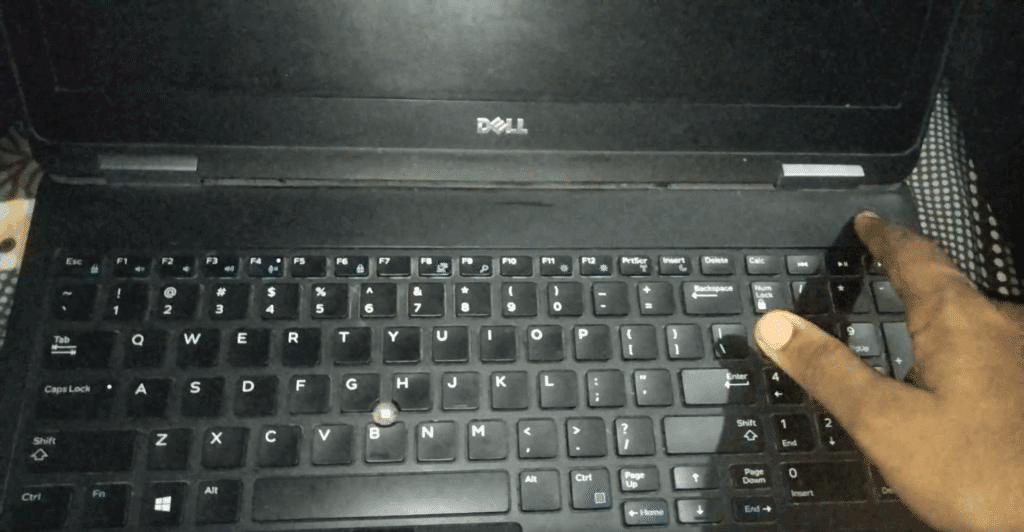
a. Unplug the charger.
b. Remove the battery (if removable).
c. Hold the power button for 30 seconds.
e. Reinsert the battery and power on.
Method 2: External Monitor Test
Test if the issue is with the internal screen.
a. Connect to an external monitor using HDMI or DisplayPort.
b. Press Windows+P and select Second Screen Only.
c. If the display works, the internal screen or cable is faulty and usually points toward a Dell laptop display replacement
Method 3: BIOS Reset.
Resetting the BIOS can resolve firmware-related issues.
a. Turn on the laptop and press F2 repeatedly to enter BIOS.
If BIOS displays, the issue lies with the OS or drivers.
Method 4: Safe Mode Boot
Booting in safe mode allows driver updates.
a. Power on and hold Shift+F8 or interrupt boot three times to access recovery.
b. Boot into Safe Mode and update GPU drivers from Dell’s driver page.
Method 5: Run Diagnostics
Dell’s built-in diagnostics can identify hardware issues.
a. Press F12 at startup and select Diagnostics.
b. Check for issues like RAM or HDD failure.
c. Guide to diagnostics here.
Case Study: A client’s Dell Inspiron 15 displayed a black screen after a Windows 11 update. A hard reset didn’t work, but booting into Safe Mode and updating the NVIDIA GPU driver resolved the issues. We fix it in under an hour, restoring full functionality.
FAQ
Q: Why Does My Dell Laptop Screen Go Blank Randomly?
A: Random blank screens may result from loose cables, outdated drivers, or Windows 11 update conflicts. Try a hard reset or update drivers in Safe Mode
Q: Can a Windows Update Cause a Black Screen?
A: Yes, incompatible windows 11 updates can conflict with Dell GPU drivers, especially on Vostro models. Boot in Safe Mode to roll back updates.
Q: How Do I Prevent Dell Black Screen Issues?
A: Regularly update drivers from Dell’s support side, avoid interrupting BIOS updates, and disconnect peripherals during boot.
CONCLUSION
Dell black screen issues, whether a blank screen with a cursor or a laptop stuck on the Dell logo, stem from software conflicts (eg. Windows 11 driver issues) or hardware failures (eg. GPU or cable problems) This guide, based on my experience and Dell’s troubleshooting resources, provides comprehensive fixes for models like the Inspiron and XPS. Regular driver updates and prompt action can keep your laptop running smoothly.
For unresolved issues, book a Dell screen changing service today and restore your laptop’s display quickly
About the author: Khan Rahil is a diploma holder in Computer Hardware with over 5 years of hands-on experience in laptop repairs and Senior Technician at IndiRepair. He has overseen hundreds of screen replacements, ensuring quality and customer satisfaction.