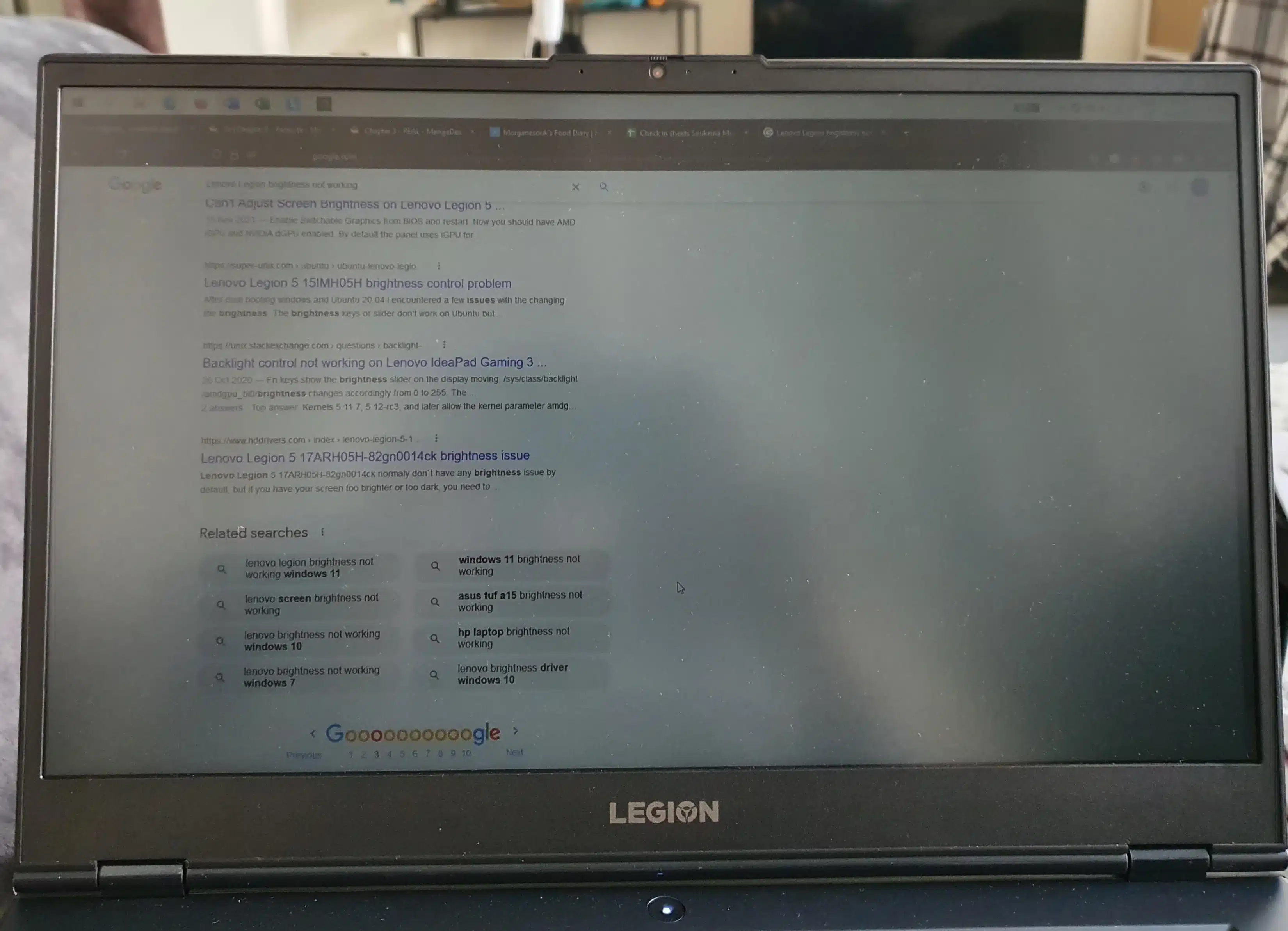

Are you struggling with a Dell laptop screen that’s too dark or dims unexpectedly? Whether it’s a Dell Inspiron screen dimming randomly, a Dell Latitude screen too dark at 100% brightness, or a Dell XPS display issues, this guide provides a comprehensive solution. As a certified technician with 5+ years of experience, I’ve resolved dim screen issues for countless users, like a recent case where a Dell XPS 15 screen was dim due to a Windows 11 driver conflict, fixed by updating the NVIDIA GPU driver.
Drawing from Dell Support and Microsoft’s power management guide, this guide covers causes, fixes and prevention tips – and explains when a Dell laptop screen replacement may be required for persistent dimming issues.
Why Does My Dell Laptop Screen Keep Dimming?
The question “Why is my Dell laptop screen so dark?” is common among Dell users. Causes include.

a. Adaptive Brightness Settings: Automatically adjusts based on lighting.
b. Display Driver Conflicts: Outdated or buggy GPU drivers.
c. Power Plan Misconfigurations: Incorrect Windows 11 power settings.
d. Faulty Ambient Light Sensor: A sensor that misreads light conditions.
e. Hardware-Level Backlight issues: Faulty backlight or display cables, when often require a Dell display screen replacement to restore proper brightness.
These issues often occur in changing lighting conditions or when switching between battery and plugged-in power.
Common Cases of Dell Laptop Screen Dimming Issues
Method 1: Disable Adaptive Brightness

a. Open Control Panel
b. Navigate to Power Options > Change Plan Settings.
c. Click Change Advanced Power Settings.
d. Expand Display > Enable Adaptive Brightness
e. Set both on Battery and Plugged In to off.
Method 2: Update Graphics Drivers

A corrupted or outdated GPU driver is a common cause of dim screen.
Update:
a. Intel UHD/Iris or Xe Graphics Drivers.
b. NVIDIA/ AMD Discrete Graphics (if applicable)
Use Device Manager or Dell SupportAssist for updates.
But if update fails a Dell laptop display replacement may be the next step.
Method 3: Check BIOS Settings
A BIOS bug may cause dim screens. To update:
a. Visit Dell Support.
b. Enter your Service Tag.
c. Download the latest BIOS update.
Caution: Ensure the battery is charged and avoid powering off during the update.
Method 4: Manually Adjust Intel Graphics Settings
a. Open Intel Graphics Command Center.
b. Navigate to Display > Color.
c. Disable Display Power Saving Technology.
d. Set brightness manually to override system settings.
Method 5: Perform a System Power Reset
Lingering power states can cause dimming issues.
Shut down your laptop completely.
b. Unplug the charger and remove the battery (if removable).
c. Hold the power button for 30 seconds.
d. Reconnect and restart.
Case Study: Resolving a Dell G Series Dim Screen
A client’s Dell G series screen was dim after a Windows 11 update, even at 100% brightness. Disabling adaptive brightness didn’t help, but updating the NVIDIA GPU driver in safe mode resolved the issues. IndiRepair completed the fix in under an hour, restoring full brightness.
FAQ
Q: Why is My Dell XPS Screen So Dim?
A: Dim XPS screens often result from outdated NVIDIA drivers or Windows 11 power settings. Update drivers in Safe Mode or disable adaptive brightness.
Q: Can Windows Update Cause a Dim Screen?
A: Yes, Windows 11 updates can conflict with Dell GPU drivers, causing dimness. Roll Back updates or reinstall drivers.
Q: How Do I Prevent Dell Screen Dimming?
A: Update drivers monthly via Dell support, avoid liquid damage, and disable adaptive brightness in power settings.
Conclusion
A dim Dell Laptop screen whether on a Latitude, Inspiron, or XPS can strain your eyes and hinder productivity. This guide, informed by Dell Support and my experience as a technician, covers software fixes (e.g. driver updates, power settings) and hardware checks (eg, backlight issues). Regular maintenance like updating Windows 11 drivers, prevents most issues.
For persistent problems, trust IndiRepair for fast, reliable Dell screen changing service handled by certified technicians.
About the Author: Khan Rahil is a diploma holder in Computer Hardware with over 5 years of hands-on experience in laptop repairs and Senior Technician at IndiRepair. He has overseen hundreds of screen replacements, ensuring quality and customer satisfaction.