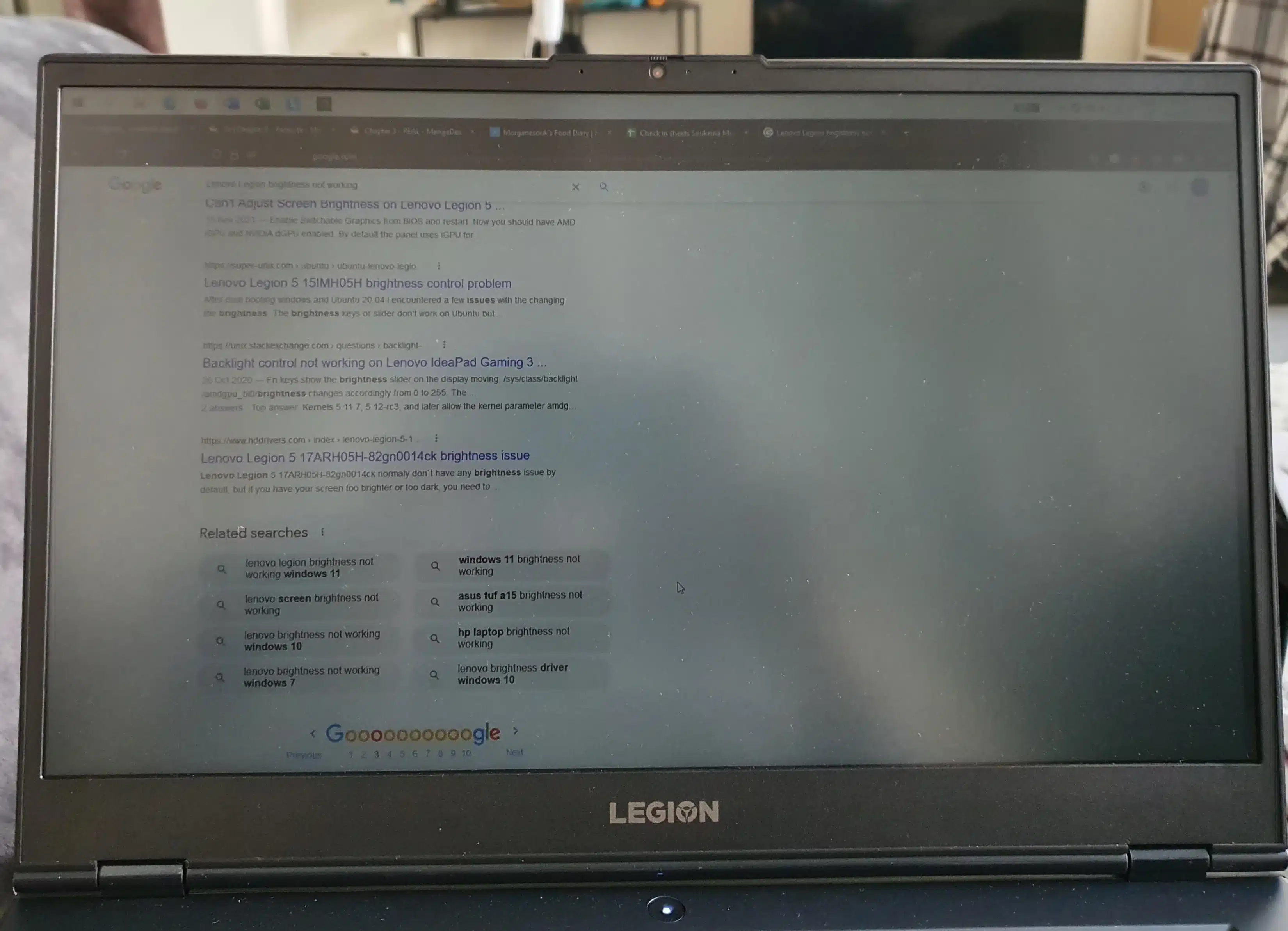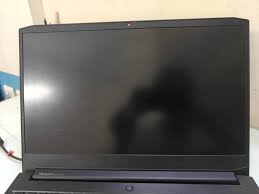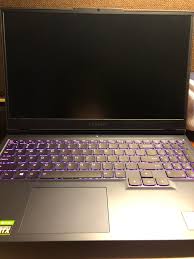

If your Dell laptop powers on but the screen remains black, you’re not alone. This common issue affects models like Dell XPS, Latitude, and Inspiron. In this comprehensive guide, written by a certified IT technician with over 5 years of experience repairing Dell laptops, we’ll explore why your Dell laptop screen is not turning on and provide-by-step solutions to fix it. Whether it’s a software glitch or a hardware fault, this guide will help you diagnose the issue– and understand when a Dell laptop screen replacement may be required.
Author’s Note: As a certified IT technician, I’ve seen many Dell Laptop users panic when their screens go black, but most issues are fixable with patience. My top tip is to start with a hard reset.
Quick Checks for a Dell Laptop Screen Not Turning On

Before diving into advanced troubleshooting, try these basic steps to identify or resolve the issue:
1. Power Source and Charger: Ensure your Dell charger is working. Test with a Dell-compatible charger if available. A faulty charger may not provide enough voltage to power the display.
2. Battery Check: For models with removable batteries (eg, some Inspiron models), remove the battery and boot using only the charger to rule out battery-related issues.
3. Peripheral Device: Disconnect all USB devices, memory cards and external hardware. Faulty peripherals can interfere with the boot process, causing a black screen.
4. External Monitor Test: Connect your laptop to an external monitor via HDMI, DisplayPort, or VGA. If the external display works, your laptop’s screen or flex cable may be damaged, often pointing toward a Dell display screen replacement.
Case Study: A client with a Dell XPS 15 (9570) reported a black screen after a power surge. By testing with an external monitor, we confirmed the internal display was faulty, saving time on unnecessary software fixes.
Related Read: Dell Laptop Screen Black : Causes, Fixes, and Prevention
Why Is My Dell Laptop Screen Not Turning On After Sleep?

Static electricity can build up and disrupt the display circuitry, especially after sleep or hibernation. A hard reset (power drain method) clears this buildup.
Step for a Hard Reset:
a. Turn off your laptop completely.
b. Unplug the charger and remove the battery (if removable).
c. Press and hold the power button for 30-60 seconds to discharge static electricity.
e. Reinsert the battery, connect the charger, and power on the laptop.
This method is particularly effective for Dell screens not turning after sleep, hibernation, or sudden shutdown.
For example, a Dell Latitude 5420 user on a Dell community forum resolved a similar issue using this technique.
Troubleshooting a Dell Laptop That Powers On But Has No Display
Method 1. Look for Signs of Life.

If your laptop is turning on but there is no display, check the following things to understand if it’s a full system failure or just a display issue:
a. Keyboard Backlight: If the keyboard lights up, the motherboard is likely operational.
b. Caps Lock/ Num Lock Test: Press these keys to see if the indicator light toggles.
c. Fan or Drive Sound: Can you hear a faint whirring or spinning? This suggests your device is booting but not displaying.
d. Beep Codes or LED Blinks: Dell laptops use diagnostics beep codes or blinking lights to signal issues. Count the blinks or beeps and refer to Dell’s official diagnostic chart.
These indicators confirm the system is turning on, but the Dell laptop screen is not turning on.
Method 2. Connect to an External Monitor.
Connecting to an external display is one of the most reliable ways to test whether your internal screen or GPU is the problem.
To test:
a. Connect your Dell laptop to an external monitor via HDMI, DisplayPort, or VGA.
b. Power the laptop and press Windows + P.
c. Select “Duplicate” Or “Second screen only”.
If the external monitor displays properly, your laptop’s display, or flexcable may be damaged.
There are high chances you might need a Dell screen replacement service.
Method 3. Boot into BIOS or Safe Mode.
If the external monitor doesn’t work or if you don’t have an external monitor, try accessing BIOS or booting into Safe Mode:
To enter BIOS:
a. Turn off the laptop.
b. Press and hold F2 while pressing the power button.
c. If the BIOS screen appears, the display is functional at hardware level.
To enter Safe Mode:
a. Force shut down the laptop 2-3 times during startup.
b. You’ll enter Windows Recovery Mode.
c. Navigate to : Troubleshoot > Advanced Options > Startup Settings > Restart > Press F4 for safe mode.
This is useful if the screen goes black only after Windows loads or wakes from sleep.
Method 4.Try BIOS Recovery.
Sometimes the BIOS itself can become corrupted, preventing boot visuals.
Steps to recover BIOS:
a. Power off the laptop.
b. Hold Ctrl + Esc keys.
c. While holding them, plug in the charger.
d. Continue holding until the BIOS recovery screen appears.
e. Follow the on-screen steps.
This fix is effective when your Dell laptop power is on but on display appears, not even the Dell logo.
Common Display Issues by Dell Series
Each Dell laptop series has unique characteristics. Below, the outline common screen issues and solutions, with insights from Dell’s support data indicating that 20% of XPS display issues in 2025 are software-related.
Dell XPS Screen Not Turning On
The Dell XPS series, known for its premium build, often faces screen issues due to flex cable wear, especially in 2018-2020 models. Common problems include:
Dell XPS turns on but the screen is black.
Dell XPS 15 screen not turning on.
Dell XPS 15 screen not turning on.
Dell XPS 15 9570 screen not turning on.
Dell XPS 15 9510 screen not turning on.
Dell XPS 13 (2025 model) screen not turning on.
Follow the troubleshooting steps above, particularly the external monitor test, to diagnose flexcable issues.
Dell Latitude Series
Dell Latitude models, designed for business use, are less prone to display issues but not immune. Common issues include:
Dell Latitude screen won’t turn on.
Dell Latitude power on but no display.
Dell Latitude 5420 screen not turning on.
The hard reset and BIOS recovery methods are particularly effective for Latitude models.
Dell Inspiron Series
Dell Inspiron laptops, known for affordability, frequently face display issues due to aging hardware. Common problems include:
Dell Inspiron screen not turning on
Dell Inspiron 15 7000 screen not turning on.
Dell Inspiron 13 7000 screen not turning on.
Dell Inspiron 15 3000 screen not turning on.
The steps in this guide should resolve most Inspiron display issues.
FAQ
Q: Why is My Dell Laptop Screen Black?
A: A black screen can result from static buildup, a faulty display, or a corrupted BIOS. Try a hard reset or external monitor test to diagnose the cause.
Q: How Do I Know If My Dell Laptop Screen Needs Replacement?
A: If an external monitor displays correctly but the internal screen remains black, the display or flex cable is likely faulty. Contact IndiRepair for a replacement.
Q: Can a Software Update Fix a Dell Black Screen?
A: Yes, software issues like driver conflicts can cause display problems. Boot into Safe Mode to check for Windows updates.
CONCLUSION
Whether you own a Dell XPS, Latitude, or Inspiron, a screen that won’t turn on is frustrating but often fixable. By checking the power source, testing with an external monitor/ System and using BIOS recovery, you can resolve most issues at home. If these steps don’t work, your Dell laptop may need a screen replacement.
Book your Dell display replacement service today and get your laptop fixed by certified techinicians within 24 hours*
About the author: Khan Rahil is a diploma holder in Computer Hardware with over 5 years of hands-on experience in laptop repairs and Senior Technician at IndiRepair. He has overseen hundreds of screen replacements, ensuring quality and customer satisfaction.