
Common Dim Screen HP Laptop Scenarios
A HP laptop screen dim issue is one of those problems that starts small but gradually becomes frustrating. The laptop works, the display is visible, yet the brightness feels unusually low – even when set to maximum. Many users describe this as a dim screen HP laptop problem where the display looks dull, washed out, or hard to see in normal lighting.
Unlike a black screen, a dim display usually means the screen is still functioning. However, ignoring the issue can lead to eye strain, reduced usability, and in some cases, complete display failure. The key is identifying whether the problem is caused by settings, software, or failing hardware.
This guide walks you through clear symptoms, real causes, and step-by-step diagnosis, so you can safely determine whether a simple adjustment or an HP laptop screen replacement is required.
At IndiRepair we’ve resolved over 150 HP dim screen cases in the past year, frequently tracing them to backlight degradation or driver conflicts.
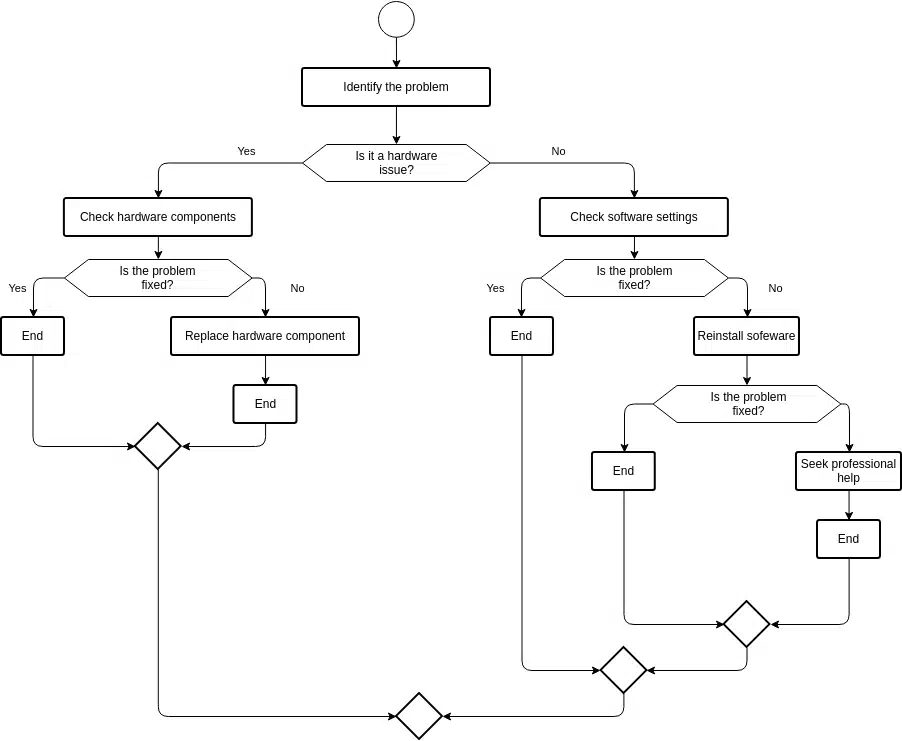
Before attempting any fixes, it’s important to understand how the dimming appears. Each scenario below describes what the user actually experiences, helping you identify the correct diagnostic path instead of guessing.
1. HP Laptop Screen Dim but Still Visible
In this scenario, the display works and content is clearly visible, but the brightness feels unusually low. The screen looks dull, washed out, or lacks contracts, especially under normal room lighting.
Users often notice that colors appear faded, white backgrounds look greyish, the screen is readable only in darker environments.
This could either mean there are issues with power settings, adaptive brightness behaviour, or early-stage screen failure which would need an HP display replacement.
2. HP Laptop Screen Dim Even at Full Brightness
Even if the brightness is set to maximum, the display does not get noticeably brighter. Function keys respond, yet the visual output barely changes.
This symptom strongly points toward a backlight degradation, backlight power limitation, internal display hardware issue.
When brightness control has little to no effect, software-only fixes are less likely to resolve the issue.
3. HP Laptop Screen Dim After Startup or Update
In this case, the screen was working normally earlier but suddenly appears dim after restarting the laptop or completing a Windows update.
Users often report the brightness reduced after login, display dull immediately after update, no physical damage prior to the issue.
This behaviour usually indicates driver conflicts, incorrect display calibration, or power profile resets caused by updates.
4. HP Laptop Screen Dim on Battery but Normal On Charge
The display appears bright and normal when the charger is connected but dims significantly as soon as the laptop runs on battery power.
This is commonly caused by HP battery optimization features, Windows power-saving profiles, adaptive brightness tied to battery usage.
This issue can be solved by troubleshooting a few settings, but if the issue still persists it’s likely that the issue is with the screen or motherboard.
How to Fix HP Laptop Dim Screen Issue
Why is my HP laptop screen so dim? Let’s walk through proven steps we’ve applied successfully on numerous customer laptops.
Step 1: Check Brightness and Disable Adaptive Brightness
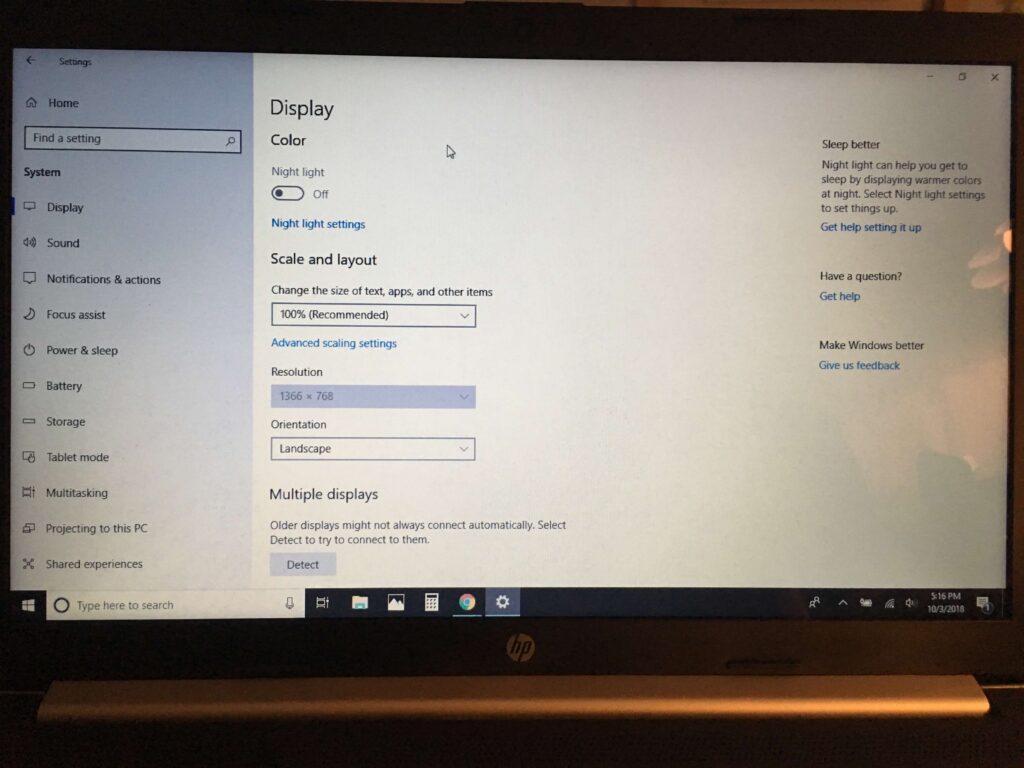
a. Use the brightness function keys to set brightness to maximum.
b. Open Windows settings → System → Display.
c. Disable adaptive brightness or content-based brightness control (if available).
Many basic hp laptop screen dim cases are resolved at this stage.
Step 2: Adjust Power and Battery Display Settings
a. Open Control Panel → Power Options.
b. Select Balanced or High Performance mode.
c. Click Change Plan Settings.
d. Ensure screen brightness is set equally high for both battery and plugged-in modes.
e. Disable battery saver mode temporarily for testing.
Step 3: Update or Reinstall Display Driver
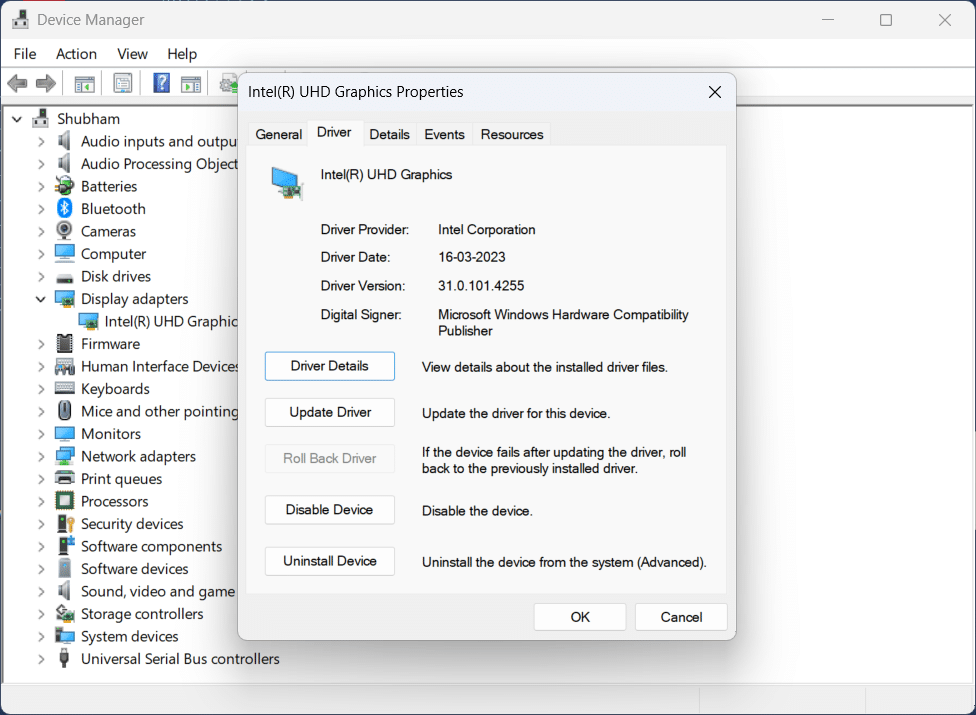
a. Press Windows + X → Device Manager.
b. Expand Display Adapter.
c. Right-click the graphic driver (Intel / AMD).
d. Update driver or uninstall and reinstall the latest stable version.
e. Restart the laptop.
Driver issues are a leading cause of HP laptop dim screen problems after updates.
Step 4: Test Using BIOS
a. Restart the laptop.
b. Press ESC or F10 to enter BIOS.
c. Observe brightness level in BIOS.
If the BIOS also appears dim, the issue is almost certainly hardware-related, needing a HP laptop display replacement.
Step 5: Perform a Flashlight Test for Backlight Failure
a. Turn the laptop on.
b. Darken the room.
c. Shine a flashlight closely at the screen.
d. Look for faint images or text.
If content is visible only under direct light, the backlight is no longer functioning properly – a classic HP screen failure.
When A Dim Screen HP Laptop Needs Repair
If brightness does not improve after troubleshooting, it is 100% a screen issue and will need a HP laptop screen replacement.
The HP screen replacement cost for all models can be found below:
Envy HP screen replacement Cost
Omen HP Screen Replacement Cost
Spectre HP Screen Replacement Cost
Pavilion HP Screen Replacement Cost
ProBook HP Display Replacement Cost
EliteBook HP Display Replacement Cost
Chromebook HP Display Replacement Cost
CONCLUSION
A HP laptop screen dim issue is an early warning sign, not a minor inconvenience. While many cases are caused by settings or driver conflicts, persistent dimming often points to backlight or screen-related problems.By following a structured diagnosis, you can apply the correct HP dim screen fix, avoid unnecessary replacements, and take action before the display fails completely.
If your laptop dim screen problem continues after these steps, professional HP screen change is the safest next step.
At IndiRepair, we replace HP laptop screens within 24 hours using original screens, along with free pickup and drop service in Mumbai.
Written by Khan Rahil, a diploma holder in Computer Hardware with over 5 years of hands-on experience in laptop repairs and Senior Technician at IndiRepair. He has personally handled hundreds of HP screen replacements, specializing in precise compatibility checks and quality installations.