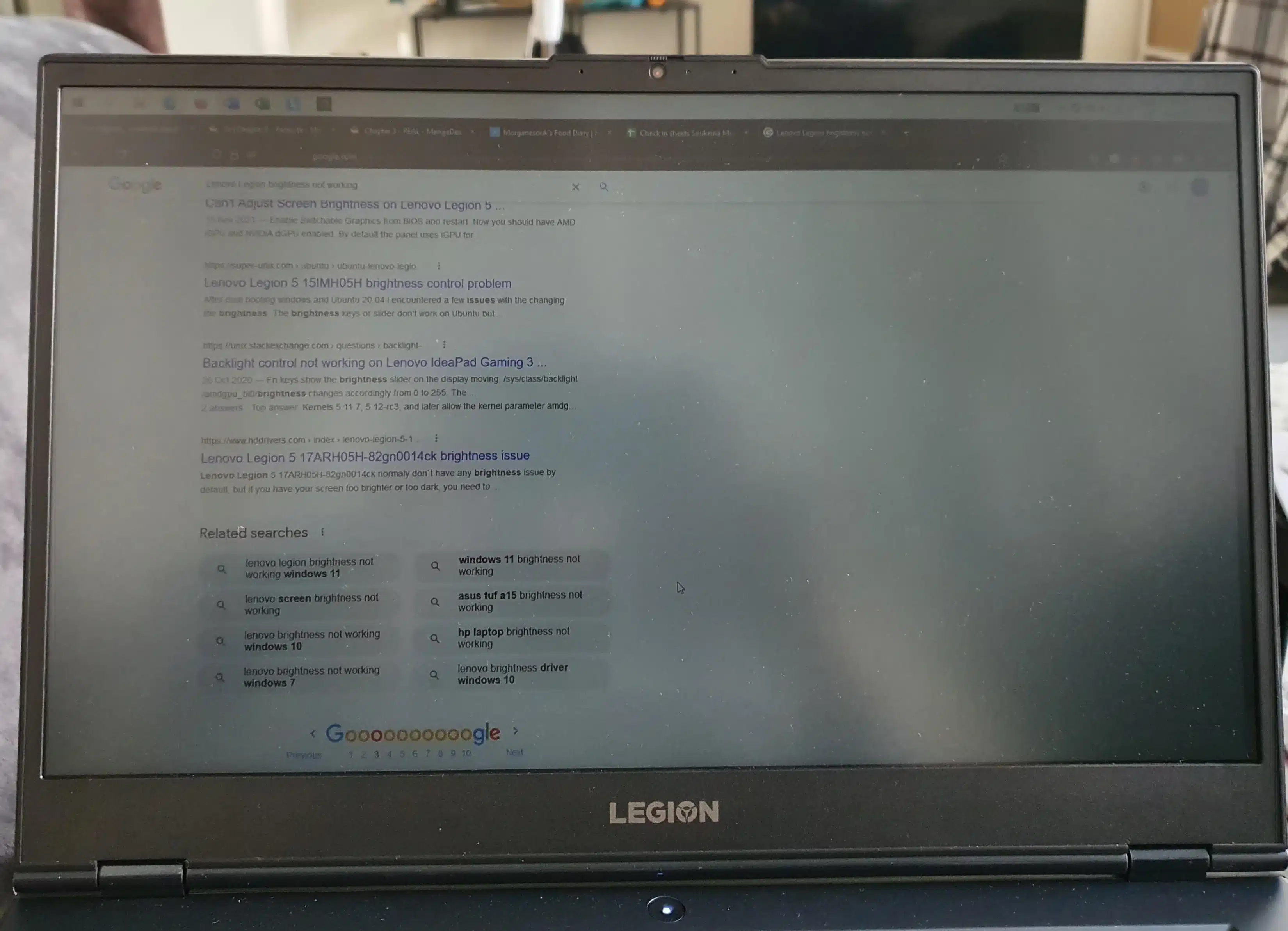
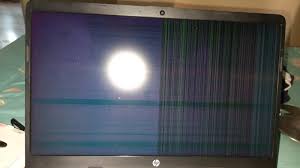
A flickering HP laptop screen can be distracting, stressful, and harmful to your eyes if ignored for long periods. Many users describe this issue as glitching HP laptop screen, blinking display, or unstable visuals that worsen over time. The good news is that HP screen flickering for laptops is not always a hardware failure. In many cases, it starts with software or settings- related issues that can be diagnosed step by step. In this guide, we’ll clearly explain why screen flickering happens, how to systematically troubleshoot it, and when HP laptop screen replacement becomes necessary.
For instance, we recently resolved a flickering issue on an HP Pavilion for a client in Mumbai, where a loose display cable was the culprit after basic driver checks failed.
Why does HP Laptop Glitching Screen Happen?
HP laptop screen flickering happens when the display output becomes unstable. This instability can originate from either software-level conflicts or physical hardware problems. Identifying the category of the issue is critical before attempting any fix. Below are the most common reasons why screen flickering happens
1. Display Driver Issues
Display drivers act as the communication between the Windows and your HP laptop’s screen. If the driver is outdated, corrupted, or incompatible with a recent Windows update the flickering of HP laptop screen happens. This is one of the most common causes of flickering HP laptop screens, especially after updates.
2. Refresh Rate Mismatch
Every HP laptop screen is designed to work at a specific refresh rate. If Windows forces a different refresh rate, the screen may flicker, blink, or show horizontal lines. This issue is common on laptops that support multiple refresh rates or external displays.
3. Loose or Damaged Display Cable
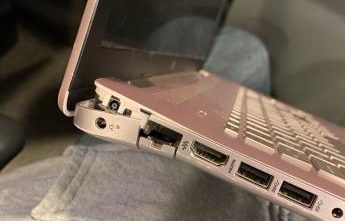
The display cable runs through the hinge area and connects the screen to the motherboard. Regular opening and closing of the lid can cause this cable to loosen or wear out. When this happens, HP laptop screen flickering often increases when the screen angle changes.
4. Faulty or Failing HP Laptop Screen
Over time, LCD or LED panels can degrade. Manufacturing defects, pressure damage, or liquid exposure can also cause internal panel failure. If the HP laptop screen flickers consistently – even before Windows loads – the screen panel itself is usually the root cause, often requiring HP display replacement.
5. Graphics Card or Motherboard Issues (Rare)
In rare cases, HP laptop glitching screen problems are linked to a failing GPU or motherboard circuit. These issues often come with additional symptoms such as overheating, random shutdowns, or system crashes. A very rare case but is possible.
Based on our experience at IndiRepair, this affects less than 5% of flickering cases we’ve handled.
HP Laptop Screen Flickering in Windows 10
A large percentage of HP screen flickering for laptops complaints are related to Windows or drivers level problems. These issues are usually reversible if addressed correctly.
On Windows 10, flickering often occurs due to incompatible graphics drivers or third-party applications interfering with display rendering. Users commonly notice this issue after installing updates. Next in the blog, we will see how to troubleshoot the issue.
Solution To Fix HP Screen Flickering Laptop
Before assuming you need a screen replacement, follow this step-by-step troubleshooting process to isolate the issue safely. Perform each step in order and move to the next one if the flickering continues. This approach helps you safely isolate whether the issue is software-related or hardware fault.
Step 1. Restart and Perform Basic Display Checks
a. Perform a hard restart to your HP laptop (i.e hold your power button for 10-15 seconds and let the device shut off).
b. Once restarted, disconnect all external devices such as USB drives, HDMI cables, external keyboards, or docks.
c. Reduce the screen brightness to around 60-70% and observe if the screen flickers.
d. Gently tap around the screen bezel (do not press hard) and check if flickering increases.
What this tells us:
a. If flickering stops: the issue was temporary or caused by an external device.
b. If flickering continues, proceed to Step 2.
Step 2. Check and Adjust Screen Refresh Rate
a. Right-click on the desktop and open Display settings.
b. Scroll down and click Advanced display.
c. Under Refresh rate, select the recommended option (usually 60Hz for most HP laptops).
d. Apply the setting and observe the screen for a few minutes.
What this tells us:
a. If flickering reduces or stops, the issue is refresh rate related.
b. If the HP laptop screen glitches again, move to step 3.
Step 3: Update, Roll Back, or Reinstall Display Drivers

a. Right-click the Start button and open Device Manager.
b. Expand Display adapters.
c. Right-click your graphics drivers and select Update driver.
d. If the issue started after a recent update, select Properties → Drivers → Roll Back Driver.
e. Restart the laptop after making changes.
What this tells us:
a. If screen flickering stops, the problem is driver-related.
b. If flickering persists, continue to Step 4.
Step 4 : Test Using an External Monitor
a. Connect your HP laptop to an external monitor or TV using HDMI or VGA.
b. Duplicate the display or extend it by Windows + P.
c. Observe both screens for flickering.
What this tells us:
a. If the external monitor works perfectly while the HP laptop screen flickers, the problem is likely the laptop screen or display cable and a professional HP laptop display replacement may be required
b. If both screens flicker, the issue may be related to drivers or the graphics chip.
Step 5: Perform BIOS or Startup Screen Test

a. Restart your HP laptop.
b. Immediately press F10 repeatedly to enter the BIOS menu.
c. Do not change any settings – simply observe the screen.
What this tell us:
a. If the HP laptop screen flickers in BIOS, the issue is hardware-related.
b. If there is no flickering in BIOS, the problem is almost certainly software.
What to Do If HP Screen Flickering Laptop Does Not Stop

If the above steps do not resolve the issue, and the screen continues to flicker – especially when opening or closing the lid– it likely indicates a damaged display cable, loose connector or a faulty screen. In such cases, an HP screen replacement may be required.
The screen replacement cost for different HP models can be found in the below listed blogs:
Envy HP screen replacement Cost
Omen HP Screen Replacement Cost
Spectre HP Screen Replacement Cost
Pavilion HP Screen Replacement Cost
ProBook HP Display Replacement Cost
EliteBook HP Display Replacement Cost
Chromebook HP Display Replacement Cost
CONCLUSION
HP screen flickering in a laptop should never be ignored, but it also doesn’t always mean a costly repair. By following a structured diagnostic approach, you can determine whether the issue is software-related or a failing screen. If your HP laptop screen flickers consistently despite troubleshooting, timely HP screen changing ensures long-term reliability and prevents further damage.
At IndiRepair, we replace HP laptop screens within 24 hours using original screens, along with free pickup and drop service in Mumbai.
Written by Khan Rahil, a diploma holder in Computer Hardware with over 5 years of hands-on experience in laptop repairs and Senior Technician at IndiRepair. He has personally handled hundreds of HP screen replacements, specializing in precise compatibility checks and quality installations.