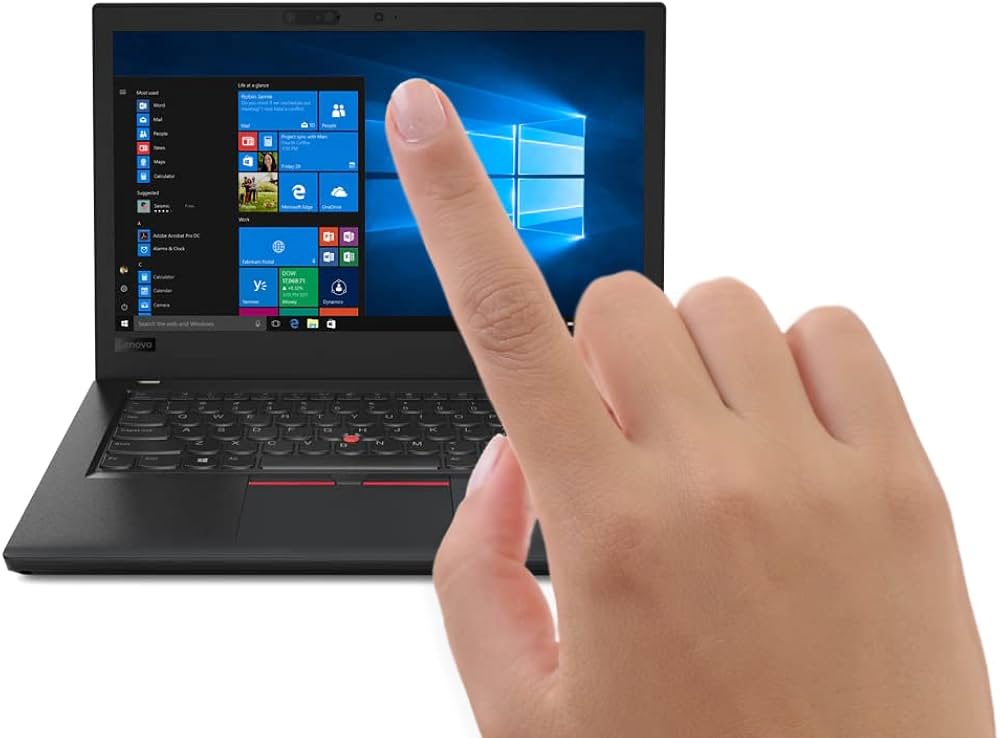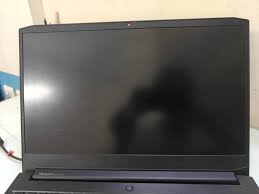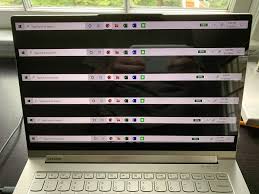
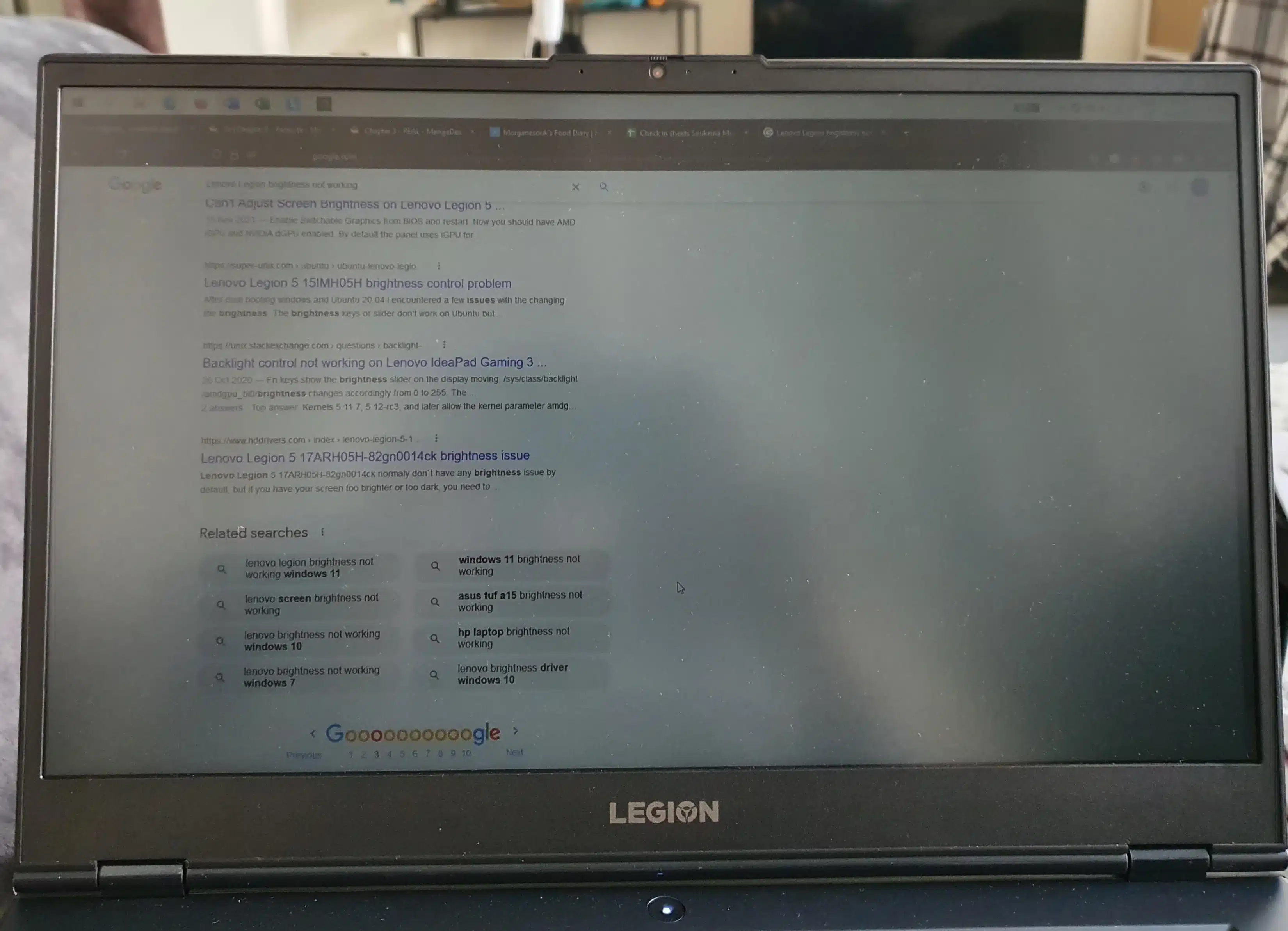
A dim laptop screen can slowly drive you crazy – you can still use your device, but everything feels darker, harder to read, and uncomfortable on the eyes. Many users notice that their Lenovo laptop works perfectly fine – keyboard, sounds, apps, everything – but the screen suddenly looks dull, faded, or extremely low brightness even at maximum settings. Sometimes the issue appears after an update, when switching from charger to battery, or randomly during normal usage.
The good news is that a dim display doesn’t always mean the screen is dying. It could be something simple like battery saver settings, adaptive brightness, or a graphics driver glitch. However, hardware issues like backlight failure or loose display cables can also cause persistent dimness. This guide walks you through a structured diagnostic process – helping you understand the exact cause, test safely step by step, and decide whether you need a quick settings fix or professional repair.
At IndiRepair, we frequently diagnose this issue in Lenovo IdeaPad and ThinkPad models, especially after Windows updates or sudden power fluctuations. In nearly half of the cases we inspect, the root cause turns out to be software-related rather than hardware failure.
Why Lenovo Laptop Screens Become Dim

a. Power & Settings Issues
One of the most common reasons is simply power configuration. Battery saver mode automatically reduces brightness to conserve energy. Adaptive brightness can also lower brightness depending on lighting conditions.
b. Software& Driver Problems
If the dimness started suddenly after a Windows update or system change, graphics drivers may be responsible. Lenovo laptops commonly use Intel UHD Graphics, AMD Radeon, or NVIDIA drivers. If these drivers become corrupted or incompatible after an update, brightness controls may stop functioning properly — even if the slider moves normally. This issue is especially common in Windows 10 and Windows 11 after major system patches.
c. Display Hardware Issue
Hardware problems usually cause consistent dimness. A failing backlight reduces the light behind the screen, making everything appear dark. A loose display cable can also limit power reaching the screen.
d. Internal Hardware Cause
Less commonly, internal components like the GPU or motherboard circuits may fail to deliver stable power to the display. These issues usually show additional symptoms beyond just dimness.
Step-by-Step Fix Guide for Dim Lenovo Laptop Screen
Follow these steps in order. After each step, observe whether brightness returns to normal
Step 1: Check Brightness Keys
Steps:
a. Increase brightness using keyboard shortcuts.
b. Open display settings and adjust brightness manually.
What this tells us:
a. Brightness changes normally → issue was accidental setting change.
b. Slider moves but brightness unchanged → possible driver problem.
Step 2: Disable Battery Saver & Adaptive Brightness
Steps:
a. Turn off battery saver mode.
b. Disable automatic or adaptive brightness feature.
c. Restart the laptop.
What this tells us:
a. The screen becomes brighter → power settings cause dimness.
b. No improvement → continue diagnostics.
Step 3: Restart Graphic Drivers
Steps:
a. Press Win + Ctrl + Shift + B.
b. The screen should briefly refresh or flicker.
What this tells us:
a. Brightness returns → temporary graphics driver crash.
b. No change → driver may need reinstall.
Step 4: Update or Reinstall Display Drivers
Steps:
a. Install the latest graphics drivers.
b. Restart after installation.
What this tells us:
a. Brightness restored → software conflict resolved.
b. Still dim → investigate hardware possibilities.
Step 5: External Monitor Test
Steps:
a. Connect the laptop to an external display.
b. Compare brightness levels.
What this tells us:
a. External display normal → internal screen is likely the issue.
b. Both dim → GPU or software issue.
Step 6: Flashlight Test
Steps:
a. Shine a flashlight at the screen while powered on.
What this tells us:
a. Faint image visible → backlight failure suspected.
b. No image → not purely a brightness problem.
Step 7: BIOS Brightness Check
Steps:
a. Enter BIOS during startup.
b. Observe brightness level.
What this tells us:
a. Dim even in BIOS → hardware-related issues.
b. Normal in BIOS → software or OS problem.
Signs Your Lenovo Screen May Need Replacement
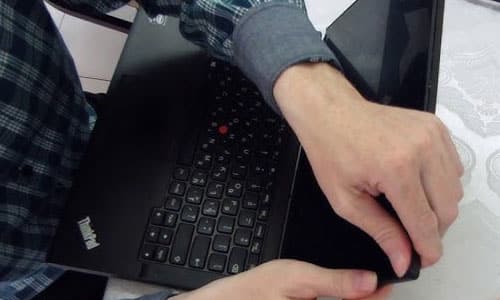
If the screen stays dim even after all troubleshooting, hardware failure becomes more likely. A faint image visible only under a flashlight usually means the backlight is failing. Uneven dark areas or shadows patches often point to internal panel damage.
If external displays look perfectly normal while the laptop screen remains dim – especially during startup or BIOS – replacement or professional repair is usually the most practical solution.
Frequently Asked Questions
Q: Why is my Lenovo laptop screen dim even at 100% brightness?
A: If your Lenovo screen remains dim even when brightness is set to maximum, the issue is usually related to a graphics driver conflict or backlight hardware failure. In software-related cases, the brightness slider moves but the screen does not visibly change. If the screen appears slightly visible only under strong light or a flashlight, the backlight may not be supplying enough illumination to the panel.
Q: Why does my Lenovo laptop screen become dim when unplugged?
A: Many Lenovo laptops automatically reduce brightness when switching to battery power to conserve energy. Battery Saver mode and adaptive brightness settings are the most common causes. You can disable these in Windows power settings to maintain consistent brightness levels whether plugged in or not.
Q: How do I know if my Lenovo backlight is failing?
A: A simple flashlight test can help. If you shine a flashlight closely at the screen and can see faint icons or desktop elements, the LCD panel is still working but the backlight is not illuminating it properly. Persistent dimness in BIOS mode also strongly indicates a hardware-related backlight issue rather than a software problem.
Q: Can a graphics driver cause screen dimness?
A: Yes. Lenovo laptops using Intel, AMD, or NVIDIA graphics drivers may experience brightness control issues after system updates. If the brightness slider moves but the display does not change, reinstalling or updating the display driver often resolves the problem.
Q: How much does Lenovo backlight or screen repair cost?
A: Repair costs depend on the exact Lenovo model and screen type (HD, Full HD, IPS, or touch panel). Software-related fixes typically cost nothing if resolved through settings or driver updates. Backlight repairs are usually more affordable than complete screen replacements. However, high-end models such as ThinkPad or Legion series may have higher panel costs due to compatibility requirements. A proper diagnosis is recommended before deciding on replacement.
CONCLUSION
A dim screen feels like a serious problem, but many cases are surprisingly simple once diagnosed properly. Start with basic checks – brightness settings, power plans, and drivers – before assuming hardware damage.
However, if the display remains consistently dim regardless of software changes, and especially if hardware tests point toward backlight or panel failure, getting a professional inspection from IndiRepair is the safest next step. Early diagnosis helps avoid bigger issues and restores normal usability faster.
Written by Khan Rahil, a diploma holder in Computer Hardware with over 5 years of hands-on experience in laptop repairs and Senior Technician at IndiRepair. He has personally handled hundreds of Lenovo screen replacements, specializing in precise compatibility checks and quality installations.