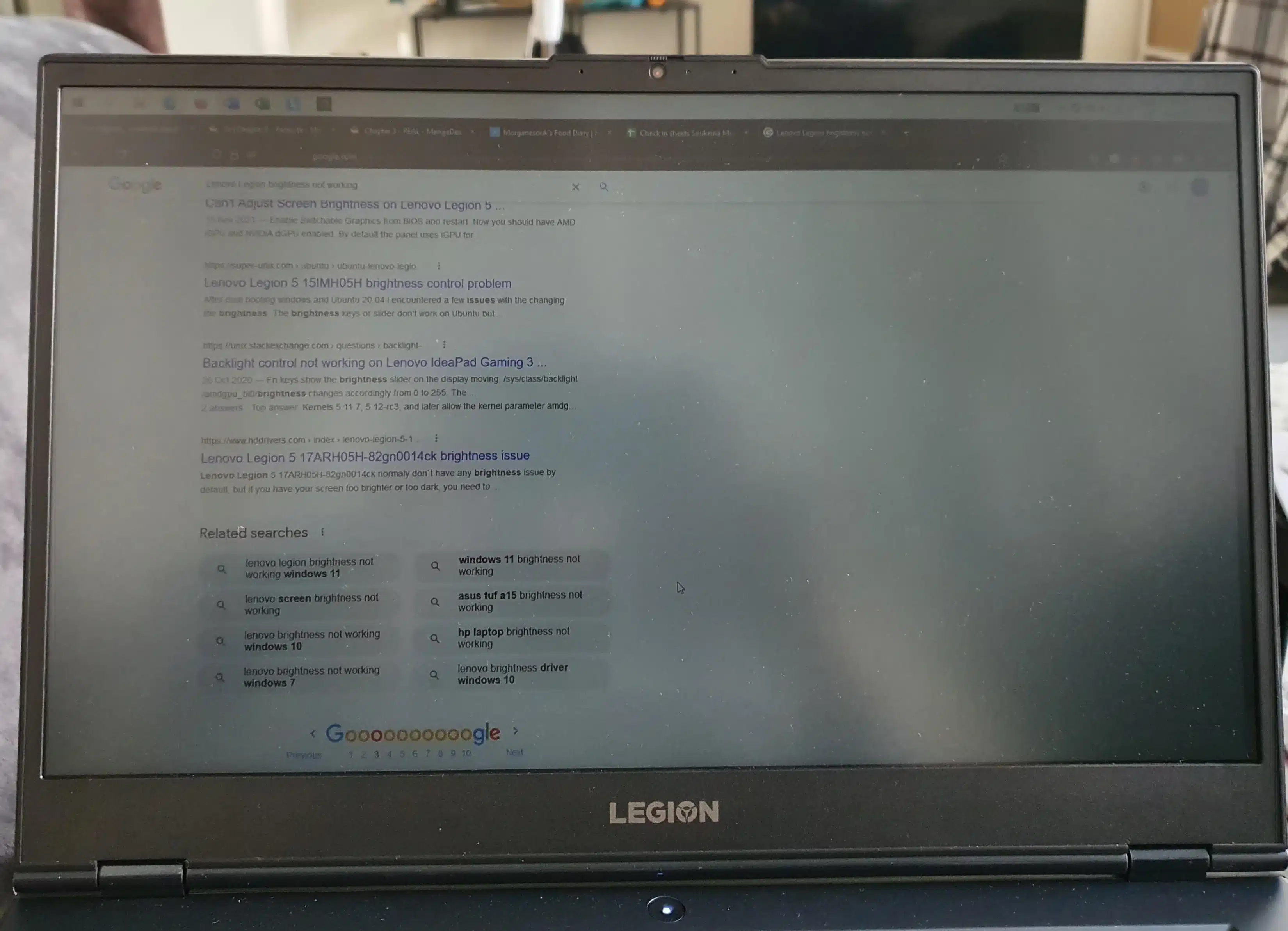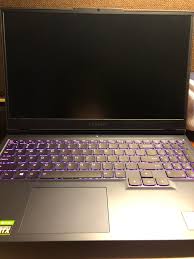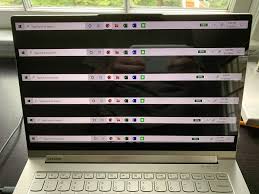
If your Lenovo screen not turning on has suddenly become a problem, you’re not alone – and it doesn’t always mean your laptop is permanently damaged. Many users notice that the laptop powers on, fans spin, or keyboard lights appear, yet the display stays completely blank. In some cases, Lenovo laptop screen not turning on can be caused by simple power glitches or software bugs. In other, hardware issues like RAM faults, loose display cables, or backlight failure may be responsible
When a lenovo screen won’t turn on, the most important thing is structure diagnosis instead of random fixes. This guide walks you through clear, step-by-step troubleshooting methods so you can identify whether the issue is related to display hardware, internal components, or operating system problems – and know exactly when professional repair is the right next step.
At IndiRepair, we frequently see Lenovo laptops come in with this exact issue — especially models like the ThinkPad and IdeaPad series. In nearly 40% of cases, the problem turns out to be a minor power or RAM issue rather than a full screen failure.
Common Lenovo Laptop Screen Won’t Turn On Scenarios
Understanding your exact symptoms helps narrow down the cause quickly:
a. Power light on but screen stays blank – laptop receives power but display or boot process may be failing
b. Keyboard lights on but no display – system may be running without video output.
c. Laptop turns on but screen doesn’t wake – common during sleep/wake software conflicts.
d. The screen stays black after sleep mode – often drivers or firmware related.
e. No startup logo appears – could indicate RAM, BIOS, or motherboard problems.
f. External monitor works but internal screen doesn’t – usually display panel or cable issue.
g. Laptop appears completely dead – potential charger, battery, or motherboard failure.
Step-by-Step Fix Guide When Lenovo Laptop Screen Won’t Turn On
Follow these steps in order. After each step, check if the screen responds.
Step 1: Hard Reset/ Power Drain
Steps:
a. Turn off the laptop fully.
b. Disconnect charger and accessories.
c. Hold the power button for 20-30 seconds.
e. Reconnect charger and power on.
What this tells us:
a. If the screen works it was a temporary power glitch.
b. If the screen is still blank continue with the other steps.
Step 2: Check Charger & Power Indicator
Steps:
a. Confirm charging light is active.
b. Inspect cable and adapter condition.
c. Try another compatible charger if possible.
What this tells us:
a. No power lights means there is a power delivery issue.
b. If lights present but no display then proceed with other steps.
Step 3: Brightness + Flashlight Test
Steps:
a. Increase brightness using keyboard shortcuts.
b. Shine a flashlight on the display while powered on.
What this tells us:
a. Faint image visible means backlight has likely failed.
b. No image means deeper hardware or boot issue.
Steps 4: External Monitor Test
Steps:
a. Connect laptop to external monitor or TV.
b. Use a display switch shortcut.
What this tells us:
a. If the external display works normally, your Lenovo laptop is successfully booting into the operating system.
b. The issue is most likely related to the internal display panel, display cable, or backlight circuit.
Step 5: RAM Reseat Test
Note: Perform this step only if you have technical expertise.
Steps:
a. Power off and unplug device.
b. Open back panel if comfortable.
c. Remove and reseat RAM stick securely.
What this tells us:
a. If the screen appears, the RAM was not seated properly.
b. If no change, move ahead with the next step.
Step 6: Safe Mode/ Recovery Boot Test
Steps:
a. Force recovery mode by interrupting boot several times.
b. Attempt safe mode startup.
What this tells us:
a. If the screen works in safe mode, it’s likely an OS issue.
b. If the screen is still blank it is more likely a hardware issue.
Step 7: BIOS Display Test
Steps:
a.Turn off the laptop.
b.Power it back on and immediately press F2 (or Fn + F2 depending on model).
c.Check if the BIOS screen appears.
What this tells us:
a. If BIOS is visible but Windows is not loading, the issue is software-related.
b. If BIOS is also not visible, it strengthens the possibility of a hardware display failure.
Signs You Need A Lenovo Laptop Screen Replacement

If your Lenovo screen still shows nothing after basic troubleshooting, a hardware issue is likely. The biggest indicator is when an external monitor works perfectly while the laptop screen stays black –meaning the system is running but the internal display isn’t. Another strong sign is seeing a faint image only when you shine a flashlight on the screen, which usually points to backlight failure rather than software problems.
You should also consider replacement if the display flickers when you move the lid, shows cracks or pressure marks, or the laptop clearly boots (sounds, keyboard lights, notifications) but no image appears internally. When multiple signs like these appear together, further DIY testing usually won’t help – a proper screen inspection or replacement becomes the practical next step.
Frequently Asked Questions
Q: Lenovo laptop screen not turning on but power light is on — what does this mean?
A: When the power light is on but the screen remains black, it indicates the motherboard is receiving power. The issue is usually related to display output failure rather than complete system shutdown. Common causes include improperly seated RAM, a failed backlight circuit, damaged display cable near the hinge, or GPU output failure. Performing an external monitor test helps confirm whether the internal screen is at fault.
Q: Why is my Lenovo laptop screen black but fan is running?
A: If the fan is spinning, the CPU is likely active. However, the system may be stuck before video initialization. This can happen due to BIOS corruption, RAM instability, or display driver crashes. A BIOS access test (pressing F2 during startup) helps determine whether the issue is hardware or software related.
Q: Lenovo screen not turning on after Windows update — can it be fixed?
A: Yes. Some Windows updates may install incompatible display drivers, causing a black screen after boot. Booting into Safe Mode and reinstalling or rolling back the graphics driver usually resolves the issue. If BIOS is visible but Windows is not, the problem is software-based rather than hardware-related.
Q: External monitor works but Lenovo screen is black — do I need screen replacement?
A: If the external display works perfectly, the laptop’s core components (CPU, GPU, motherboard) are functional. The issue is likely limited to the internal display panel, backlight, or display cable. In many such cases, screen replacement or cable repair is required.
Q: How much does Lenovo laptop screen replacement cost in India?
A: The cost depends on the model (ThinkPad, IdeaPad, Legion), screen size, and panel type (HD, Full HD, IPS, touch). Business and gaming models typically cost more due to higher-resolution panels. A professional diagnostic ensures the issue is confirmed before replacement to avoid unnecessary expense.
CONCLUSION
When dealing with a lenovo laptop screen not turning on, structured troubleshooting makes all the difference. Many issues stem from power glitches, loose components, or software conflicts that can be identified through systematic testing. Start with basic diagnostics before assuming hardware failure.
However, if your Lenovo screen won’t turn on even after these steps – especially when the laptop otherwise appears functional – a professional inspection with IndiRepair is the safest path forward. Early diagnosis helps prevent further internal damage and speeds up recovery.
Written by Khan Rahil, a diploma holder in Computer Hardware with over 5 years of hands-on experience in laptop repairs and Senior Technician at IndiRepair. He has personally handled hundreds of Lenovo screen replacements, specializing in precise compatibility checks and quality installations.