
A flickering screen Lenovo Laptop issues can be extremely frustrating, especially when it interrupts work, gaming, or online meetings. Many users notice their display blinking randomly, showing unstable brightness, or shaking visually during everyday use. In some cases, the Lenovo laptop screen flickering starts suddenly after a software update, while in others it develops gradually due to hardware wear.
The good news is that most cases of Lenovo screen flickering can be diagnosed by understanding a few key symptoms and testing basic fixes. Some problems are caused by graphic drivers or display settings, while others may involve internal cables or panel damage that requires professional repair.
This guide will help you identify symptoms, understand why a Lenovo laptop display flickering issue occurs, try practical troubleshooting steps, and learn why a screen replacement becomes necessary.
Common Signs of Lenovo Laptop Screen Flickering
A Lenovo screen flicker may appear differently depending on whether the issue is software-related or caused by hardware damage. Recognizing the early signs helps you narrow down the problem quickly.
Here are some common symptoms users experience:
a. Screen blinking or flashing intermittently
b. Display shaking or vibrating visually
c. Horizontal or vertical lines appearing with flickering
d. Brightness automatically going up and down
e. Screen flickers when opening or closing the lid
f. Lenovo laptop display flickering only while on battery power
g. Flickering while launching heavy applications on games
h. Display instability during startup or login
If your Lenovo laptop screen flickering behaves differently in various situations – such as while moving the hinge or running specific software – that detail can help identify the root cause.
NOTE: At IndiRepair we have seen that about 90% of Lenovo laptop screen flickering is caused due to backlight instability or internal screen damage.
What Causes Lenovo Laptop Display Flickering
A Lenovo screen flickering issue can originate from both software conflicts and internal hardware failures. Understanding the categories is essential before attempting repairs.
1. Software-Related Causes
Many cases of Lenovo laptop display flickering begin after system updates or driver changes.
a. Outdated or Corrupted Graphic Drivers.
Graphics drivers allow your GPU to communicate with the display panel. A corrupted driver is one of the most common causes of Lenovo screen flicker.
b. Windows Update Compatibility Issues.
Operating system updates sometimes introduce conflicts with existing display drivers, leading to unstable visuals.
c. Incorrect Refresh Rate Settings.
Using unsupported refresh rate settings can trigger visible flicker, especially on high refresh rate Lenovo Legion models.
d. Adaptive Brightness and Power Settings.
Automatic brightness features may misbehave, creating the appearance of a flickering screen Lenovo laptop problem.
e. Software Conflicts or GPU Overload.
Heavy multitasking or poorly optimized programs can cause GPU instability, resulting in temporary Lenovo screen flickering.
2. Hardware-Related Causes
If troubleshooting software doesn’t help, the issue may be physical.

a. Loose or Damaged Display Cable
Frequent opening and closing can wear down internal cables, causing flicker when the lid moves.
b. Screen Panel Damage
Internal panel damage may produce constant Lenovo laptop screen flickering along with lines or color distortion.
c. Backlight Failure
Older Lenovo laptops may experience backlight instability, causing brightness flicker or flashing.
d. Motherboard or GPU Issues.
A failing GPU can cause widespread display problems across the system.
e. Hinge Stress
Repeated hinge movement may strain internal wiring, often leading to a noticeable Lenovo screen flickering during motion.
Step-by-Step Fix Guide for Lenovo Laptop Screen Flickering
Before assuming your display is damaged, follow this structured troubleshooting process. Each step helps isolate the real cause of a Lenovo laptop screen flickering issue. Perform the steps in order and observe what changes after each one.
NOTE: After completing a step, use your laptop for 3-5 minutes to see whether the Lenovo screen flicker stops before moving to the next step.
Step 1: BIOS Test
Steps:
a. Shut down your Lenovo laptop completely.
b. Turn it back on and immediately press F2 or F1 repeatedly (depends on model).
c. Enter the BIOS/UEFI screen.
d. Stay on this screen for a few minutes and observe the display carefully.
What this tells you:
a. Flickering visible even in BIOS is likely a hardware issue.
b. No flickering in BIOS is likely a software or driver issue.
If flickering appears in BIOS, skip ahead mentally toward hardware diagnosis, but continue remaining steps to confirm.
Step 2: Update Graphic Drivers
Driver issues are one of the most common causes of Lenovo Laptop display flickering.
Steps:
a. Right-click Start → Open Device Manager
b. Expand Display Adapter
c. Right-click your graphics card → choose Uninstall Device
d. Tick “Delete driver software” if shown
e. Restart laptop
f. Visit Lenovo Support Website
g. Download latest GPU Drivers for your exact model from Lenovo Support
h. Install and restart again.
What this tells you:
a. Flickering stops → driver corruption was the cause
b. Flickering continues → move to next step
Step 3: Adjust Refresh Rate Settings
Incorrect refresh rates often trigger Lenovo screen flickering, especially on gaming laptops.
Steps:
a. Right-click desktop → Display Settings
b. Scroll down → Advance Display Settings
c. Click Display Adapter Properties
d. Go to Monitor Tab
e. Change refresh rate to recommended value
f. Apply changes
What this tells you:
a. Flickering stops → incompatible refresh rate caused instability
b. No improvement → continue troubleshooting
Step 4: Adjust Adaptive Brightness
Power management settings can mimic a flickering screen Lenovo laptop issue.
Steps:
a. Open Control Panel → Power Options.
b. Click Change Plan Settings.
c. Select Change Advance Power Settings.
d. Expand Display section.
e. Disable adaptive brightness.
f. Apply settings and restart.
What this tells you:
a. Flickering stops → brightness control conflict.
b. Flickering remains → continue to next step.
Step 6: External Monitor Test
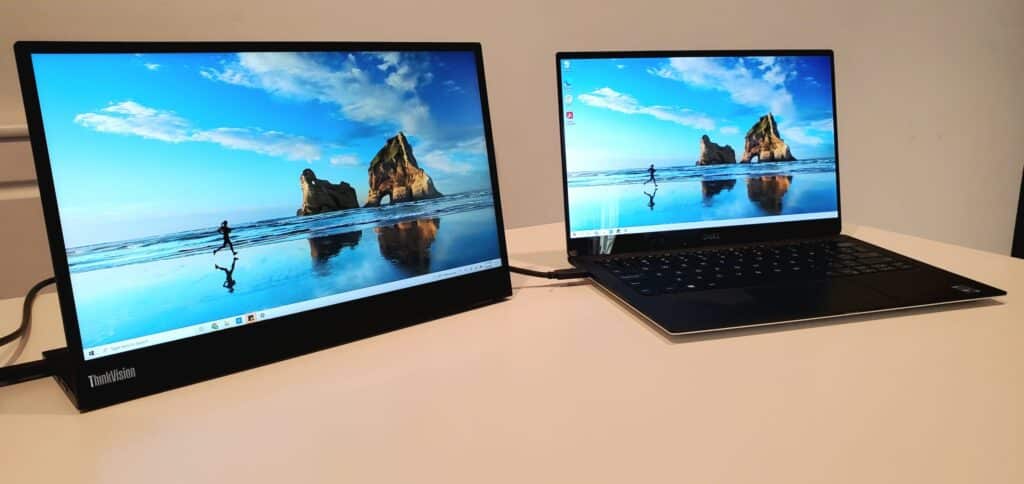
This test helps identify whether your Lenovo laptop screen flickering is caused by the display panel or internal graphics
Steps:
a. Connect HDMI cable to external monitor or TV.
b. Duplicate or extend display.
c. Observe both screens simultaneously.
What this tells you
a. External monitor stable but laptop flickers → screen panel or display cable issue.
b. Both screen flickers → GPU or motherboard problem.
Step 7: Lid Movement Test
Lenovo laptops often develop hinge-related cable wear.
Step:
a. Slowly move the laptop lid forward and backward.
b. Watch for changes in flickering intensity.
What this tells you:
a. Flickering increases during movement → damaged internal display cable.
b. No change → continue testing.
When Does a Lenovo Screen Need Replacement?

Not every flicker required a new display, but certain warning signs strongly suggest hardware damage.
You may need screen replacement if:
a. The external monitor works normally.
b. Pressure marks or cracks are visible.
c. Flickering increases when adjusting the lid.
d. Flicker appears even in BIOS or startup screens.
e. The screen randomly goes black or loses backlight.
Replacement costs vary based on display size, resolution, touch capability, and refresh rate.
All professional Lenovo screen replacements should include warranty coverage. At IndiRepair, every screen replacement is tested for brightness stability, refresh accuracy, and cable integrity before delivery and comes with 1 year warranty.
Why Choose IndiRepair for Lenovo Laptop Screen Flickering Issues
Screen flickering on a Lenovo laptop can occur due to several reasons, including outdated graphics drivers, incorrect refresh rate settings, loose display cable connections, backlight instability, overheating, or internal screen damage. In some cases, the flickering may appear occasionally, while in others the display may continuously blink, shake, or show unstable brightness during usage.
At IndiRepair, every Lenovo laptop undergoes a detailed diagnostic process to identify the exact cause of the flickering issue before any repair is recommended. The inspection includes testing the display panel, graphics drivers, refresh rate settings, motherboard output, and internal display cable connections to accurately determine whether the issue is software-related or caused by hardware failure.
For repairs and replacements, only tested and specification-compatible display panels are used that match the laptop’s original resolution, brightness levels, refresh rate support, and overall display quality. This is especially important for Lenovo gaming laptops, high-refresh-rate displays, and professional work laptops where screen stability and visual clarity directly affect the user experience.
Whether the issue involves screen blinking, brightness fluctuation, horizontal lines, flickering during lid movement, or random display instability, IndiRepair focuses on providing reliable long-term repair solutions instead of temporary fixes.
With transparent communication, experienced technicians, quick turnaround times, and pickup and drop support, IndiRepair aims to make Lenovo laptop screen repairs smooth, reliable, and hassle-free for users facing display-related issues.
Frequently Asked Questions About Lenovo Laptop Screen Flickering
Q:Why does my Lenovo laptop screen flicker only when I move the lid?
A:If flickering increases when you adjust the lid angle, the issue is usually related to the internal display cable (LVDS or eDP cable). This cable runs through the hinge area and connects the motherboard to the screen panel. Over time, repeated opening and closing can cause the cable to loosen or wear out. In such cases, driver updates will not solve the issue, and cable repair or replacement is typically required.
Q:Why is my Lenovo screen flickering after a Windows update?
A:Windows updates sometimes install generic display drivers that conflict with Lenovo-optimized drivers. This mismatch can cause display instability, refresh rate errors, or screen flashing. Reinstalling the correct driver from the official Lenovo support page usually resolves the problem. If flickering began immediately after an update, it is most likely software-related rather than hardware damage.
Q:How do I know if my Lenovo screen flickering is a hardware problem?
A:The easiest way to confirm this is by entering the BIOS menu. If flickering appears even inside BIOS, the problem is almost certainly hardware-related, such as panel failure, cable damage, or GPU malfunction. Another confirmation test is connecting an external monitor. If the external display works perfectly while the laptop screen flickers, the internal screen assembly is likely faulty.
Q:Can Lenovo screen flickering be fixed without replacing the screen?
A:Yes, in many cases it can. If the issue is caused by outdated drivers, incorrect refresh rate settings, adaptive brightness conflicts, or GPU switching errors, it can be resolved through software troubleshooting. However, if flickering is accompanied by lines, pressure marks, black patches, or brightness instability even during startup, replacement may be necessary.
Q:Is Lenovo screen flickering dangerous for the laptop?
A:Flickering itself does not usually damage the laptop immediately, but ignoring it can worsen the underlying issue. For example, a loose cable may deteriorate further, or a failing panel backlight may eventually stop working completely. Early diagnosis helps prevent complete screen failure and unexpected downtime.
Q:How much does it cost to fix Lenovo laptop screen flickering in India?
A:Repair cost depends entirely on the cause. Driver-related issues typically require no hardware cost. Display cable repairs are usually less expensive than full panel replacement. Screen replacement cost varies based on size, resolution (HD or Full HD), touch capability, and refresh rate. High-refresh and touchscreen panels are generally more expensive than standard displays.
CONCLUSION
A flickering screen Lenovo Laptop issue can stem from simple driver conflicts or deeper hardware damage. While many cases of Lenovo screen flicker are resolved through basic troubleshooting, persistent flickering – especially when linked to movement, lines, or brightness instability– may indicate internal cable or panel failure.
Early diagnosis is the best way to prevent further complications. If your Lenovo laptop screen flickering continues after software fixes, a professional inspection can quickly determine whether repair or replacement is the right solution.
Written by Khan Rahil, a diploma holder in Computer Hardware with over 5 years of hands-on experience in laptop repairs and Senior Technician at IndiRepair. He has personally handled hundreds of Lenovo screen replacements, specializing in precise compatibility checks and quality installations.