
If your Dell laptop keyboard backlight is not working, the keyboard may still type normally. That usually means the illumination problem is separate from the basic key-input function, so a dark keyboard does not automatically mean the entire keyboard needs replacement.
Settings, model compatibility, keyboard shortcuts, Windows or firmware behavior, power conditions, internal connections, and failed backlight hardware can all produce a similar symptom. Start by recording exactly what happens, then work through reversible checks before considering internal repair.
What a Dell keyboard-backlight failure means
A keyboard backlight problem means the keys or their surrounding areas are not illuminating as expected. It is different from a keyboard input problem, where letters, numbers, modifier keys, or other controls fail to register. These issues can occur together, but one does not prove the other.
Some Dell laptops are sold with backlit keyboards, while similar-looking configurations use a non-backlit keyboard. The control method, brightness behavior, timeout settings, BIOS options, and available diagnostics can also vary by exact model and configuration. Confirm the service tag, model number, and original configuration against Dell documentation before treating the missing light as a fault.
Identify whether typing is affected
Before changing settings, establish whether the symptom is limited to illumination. Record observations such as:
- Whether ordinary letters, numbers, modifier keys, function keys, and the touchpad respond normally.
- Whether the backlight was ever visible or has never worked on this laptop.
- Whether the light changes after startup, after Windows loads, or only when a keyboard control is pressed.
- Whether the symptom occurs on battery power, AC power, or both.
- Whether every key area is dark or only one section appears affected.
A Dell laptop that types normally but remains dark may have a setting, compatibility, software, connection, or backlight-hardware issue. A laptop with unresponsive, repeating, or physically damaged keys may have a broader keyboard or connection problem, but testing is still needed before a part is selected.
IndiRepair has practical experience diagnosing laptop problems and can use this symptom history as a starting point. If the issue remains unclear after safe checks, you can use the laptop keyboard repair service option for diagnosis-led assistance.
When the keyboard types normally but the light remains off, the most useful evidence is the model configuration and the point at which illumination disappears. A light that never appears, briefly appears during startup, or changes when the laptop moves can lead to different next checks.
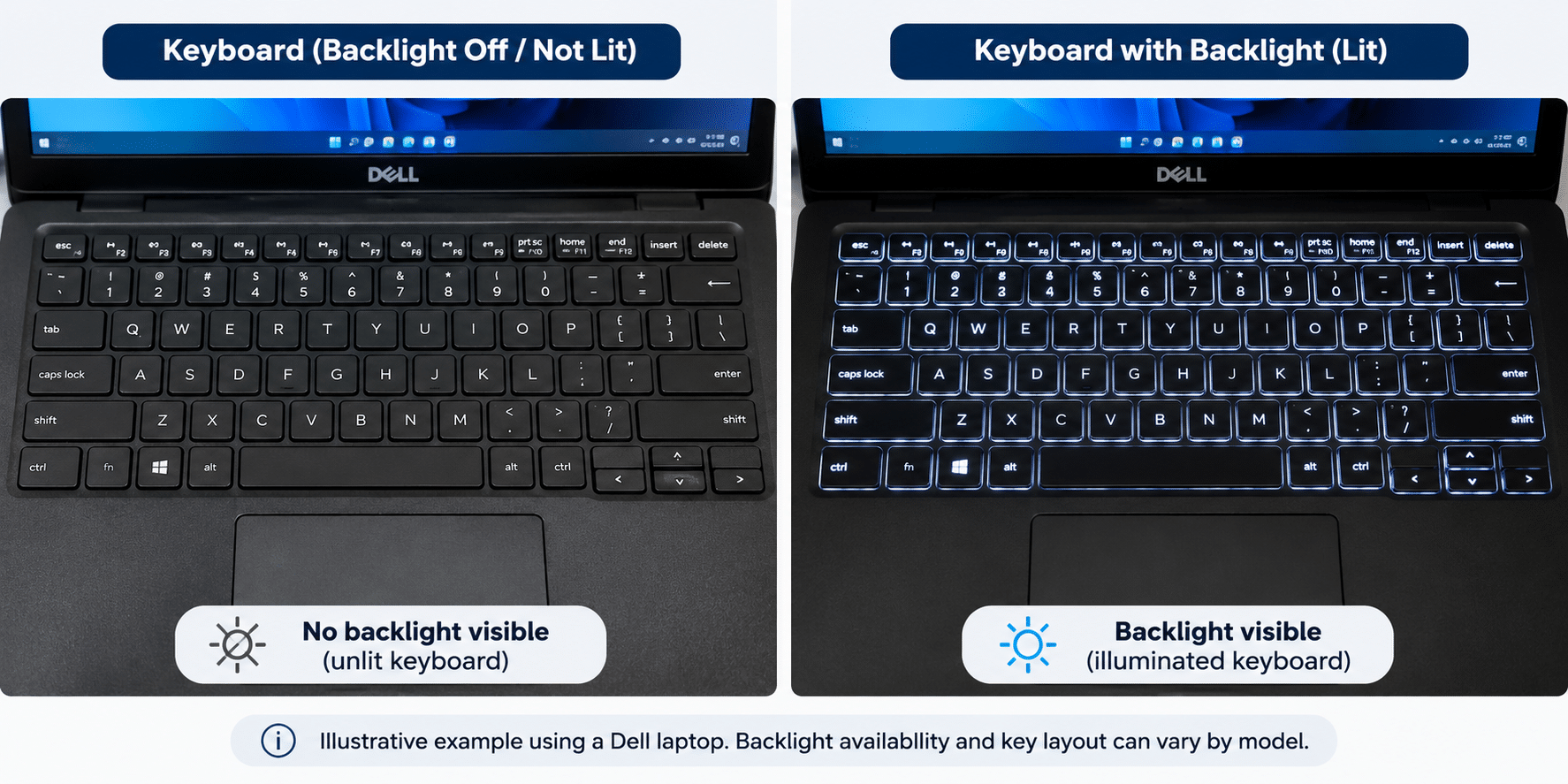
Use the image concept only as a general illustration: Dell keyboard layouts and backlight features differ by model.
Symptoms to record before changing anything
A concise symptom record makes later troubleshooting more useful and helps prevent unrelated settings from being changed. Note:
- The exact Dell model family and model number, such as an Inspiron or XPS variant, plus the service tag if available.
- Whether the original configuration is confirmed to include a backlit keyboard.
- Whether typing, the touchpad, and other keyboard functions work normally.
- Whether the backlight is always off, briefly appears, flickers, changes brightness, or works intermittently.
- Whether the problem began after an update, BIOS change, liquid exposure, impact, cleaning, battery event, or repair.
- Whether the brightness control behaves differently at the Windows sign-in screen, in firmware menus, or after a full shutdown.
Compare the symptom with a normal model-specific response
Do not assume that every Dell laptop has the same keyboard-light function. Compare the exact model and original configuration with Dell documentation before judging the response as abnormal.
| What to compare | Why it matters | How to use the result |
|---|---|---|
| Backlight support | Some configurations may use a non-backlit keyboard. | Confirm support before diagnosing a failure. |
| Brightness behavior | Supported levels and timeout behavior can vary. | Compare the observed behavior with documentation for the exact model. |
| Keyboard control | The symbol, function-key modifier, or available control may differ. | Verify the documented shortcut instead of assuming a universal Dell command. |
| Firmware and diagnostic options | BIOS menus and pre-boot tests are model-dependent. | Treat a missing option or clean test as evidence, not a complete diagnosis. |
Possible causes of a Dell keyboard backlight problem
The same dark-keyboard symptom can come from a feature mismatch, a temporary software state, or a physical fault. The categories below are possibilities, not confirmed diagnoses based on the symptom alone.
1. The installed keyboard may not support backlighting
A Dell laptop may have been sold in configurations with and without a backlit keyboard. A similar chassis or keyboard layout does not guarantee that the installed assembly includes illumination hardware. If the light has never worked, verify the original configuration before attempting software fixes.
2. The backlight may be disabled or set to a low level
The light may be off, set to its lowest available level, or controlled by a model-specific keyboard shortcut. A single key press may not switch the light fully on, and the required function-key modifier can vary. This is why the exact Dell documentation matters more than a shortcut copied from another model.
3. Windows, utilities, drivers, BIOS, or firmware may not be applying the expected state
An update, utility setting, firmware state, or embedded-controller condition can affect how the backlight command is applied. This possibility becomes more relevant when the light appears during startup but disappears after Windows loads. It does not, by itself, prove that a driver, BIOS, or motherboard component has failed.
4. A power or startup state may be affecting illumination
Some systems can behave differently on battery power, during low-power states, after sleep, or while transitioning through startup. If the light works on AC power but not on battery, that is useful evidence about the power state, but it is not a universal explanation for every Dell model.
5. The internal keyboard connection or backlight circuit may be affected
A loose or damaged ribbon connection, contamination, impact, liquid exposure, or a previous repair can affect illumination while some or all keys continue to type. Intermittent lighting, localized darkness, or a change when the palm rest moves increases the need for inspection, but does not identify the exact failed part.
6. The backlight hardware or related board-level circuitry may have failed
The keyboard backlight, keyboard assembly, or related circuitry can fail independently of the key switches. If the model supports backlighting, the control is correct, software checks do not change the result, and no light appears at any stage, hardware diagnosis becomes more appropriate. A keyboard replacement should not be assumed until compatibility, connection, and board condition have been assessed.
Separate likely setting and compatibility issues from hardware possibilities
A normally typing keyboard with no illumination keeps settings, compatibility, software, power state, connection, and backlight hardware in consideration. A keyboard that also has unresponsive or repeating keys suggests a broader issue, while flickering or movement-sensitive illumination can point toward an intermittent connection or physical fault.
These patterns narrow the possibilities but do not confirm a failed keyboard or motherboard. The next step is to make one safe change at a time and record the result.
Safe troubleshooting checks for the backlight
Use the following checks in order. They are intended to be reversible and model-conscious. Do not apply a shortcut, BIOS setting, or firmware procedure simply because it works on another Dell laptop.
- Confirm the exact model and backlight support. Find the model number or service tag and check whether the original configuration includes a backlit keyboard. If documentation shows that the laptop was not equipped with one, the absence of light is a feature limitation rather than a repair symptom. If support is confirmed, continue with the control checks.
- Locate the backlight symbol and try the documented control. Look for the keyboard key marked with a backlight symbol and use the function-key modifier only if Dell documentation for that model specifies it. Observe whether the light changes, remains off, or changes only briefly; a correct control with no response keeps software and hardware causes open.
- Try each available brightness level. Some controls cycle through more than one state rather than switching directly from off to full brightness. If one level works but another does not, record that behavior because it may indicate a setting or control issue rather than a completely failed circuit.
- Perform a full shutdown and restart. Test the control after shutting the laptop down completely, rather than only waking it from sleep. If the light returns after a full restart, a temporary power or controller state becomes more plausible; if nothing changes, continue without repeatedly forcing the same shortcut.
- Compare AC and battery behavior. Connect the approved charger if the symptom appears only on battery power, then test the light again. A change on AC is useful evidence about power management, but it is not proof that the charger or battery is the root cause. Do not use a damaged charger or continue if there is heat, smell, or visible damage.
- Review only applicable Windows or Dell settings. Check keyboard, mobility, accessibility, or Dell utility controls when the exact model and installed software provide them. Change one relevant setting at a time and avoid unrelated system changes; if the control is absent, that may simply reflect model or software differences.
- Record where the light appears in the startup sequence. Note whether illumination is visible briefly during startup, in a firmware menu, at the sign-in screen, or nowhere. A light that disappears only after Windows loads makes software, utility, firmware, or power-state behavior more plausible, while no light at any stage keeps compatibility, connection, and hardware causes in consideration.
- Stop external troubleshooting when a safety concern appears. Do not continue if there is liquid residue, a damaged key area, unusual heat, a burning smell, exposed wiring, smoke, sparks, or signs of battery swelling. Those observations require safe assessment rather than more shortcut or software testing.
Model-specific controls for Inspiron and XPS families
If you are searching for how to turn on the backlit keyboard on a Dell Inspiron 15 3000, first confirm the exact submodel and whether that configuration was sold with a backlit keyboard. The Inspiron 15 3000 family includes different configurations, so one shortcut should not be treated as universal.
Dell XPS keyboard backlight behavior can also vary by keyboard layout, firmware, and configuration. For either family, verify the documented key combination and available brightness settings for the exact service tag or model. This approach is safer than repeatedly trying an unverified command or changing firmware settings without a model-specific reference.
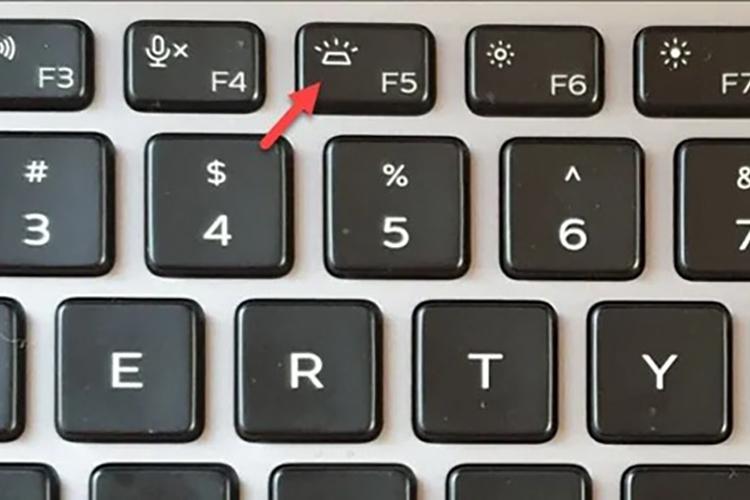
The location and appearance of the backlight symbol are illustrative only. Do not infer that every Dell keyboard uses the same key, icon, or brightness sequence.
How to interpret the troubleshooting results
Each result is a clue that narrows the possibilities. It is not automatically proof that a particular component has failed.
| Observed result | What it may suggest | What it does not prove |
|---|---|---|
| Keys type normally but no light appears | Compatibility, settings, software state, connection, or backlight hardware remain possible. | It does not prove that the whole keyboard needs replacement. |
| Both typing and illumination are affected | A broader keyboard, cable, power, liquid, impact, or board-level issue becomes more important to investigate. | It does not identify the failed part without testing. |
| Light appears during startup but disappears in Windows | Windows, a Dell utility, firmware behavior, or a power-state transition may be involved. | It does not confirm that a driver or firmware component is defective. |
| No light appears at any stage | Unsupported hardware, settings, connection, backlight hardware, or related circuitry remain possible. | It does not distinguish a configuration issue from a physical failure by itself. |
| Light flickers or changes with movement | An intermittent connection, physical damage, or failing illumination circuit deserves inspection. | It does not prove that the keyboard assembly alone is at fault. |
Use Dell diagnostics and firmware evidence carefully
- Use the exact service tag or model on Dell Support. Match BIOS, firmware, driver, and diagnostic information to the laptop rather than using instructions for a similar Dell family. A matching model reference reduces the chance of applying an irrelevant procedure.
- Review available pre-boot or built-in diagnostics. If the model provides keyboard-related tests, note their results and any codes, while verifying the menu names and supported tests in the applicable documentation. A clean test may show that basic key input works without proving that the illumination circuit is healthy.
- Review a documented BIOS or firmware illumination setting only when applicable. Record the original value before changing it and do not assume that every Dell BIOS includes the same option. If the option is absent, do not treat that absence alone as a failure.
- Apply only model-specific Dell-recommended software, drivers, or firmware. Use stable power, protect important work, and avoid the update if the source or exact model is uncertain. Firmware changes should not be used as a guess to restore a light.
- Re-test after each relevant change. Change one item at a time and record whether the light, typing, or startup behavior changed. This makes the result interpretable and prevents several unrelated changes from hiding the original cause.
- Interpret codes and clean results cautiously. A diagnostic code, missing option, or clean test is evidence to compare with model documentation; it is not automatic proof that the keyboard must be replaced or that the motherboard is healthy.
Compare with an external keyboard only when useful
An external keyboard can help establish whether Windows is accepting keyboard input, but it cannot directly test the built-in Dell keyboard’s backlight circuit. If an external keyboard works while the internal keys or illumination do not, that supports a built-in keyboard or connection investigation, while still leaving model-specific software and firmware possibilities open.
After meaningful troubleshooting, IndiRepair recommends treating every result as a clue rather than automatic proof that one component has failed. A technician can combine the symptom history, model configuration, startup behavior, and diagnostic evidence before recommending a part. If you need that next step, you can get your Dell laptop checked by IndiRepair.
Safety limits: when DIY troubleshooting should stop
External checks are appropriate when the laptop is safe to use and the procedure is documented for the exact model. Stop rather than opening the laptop or forcing a control when any of these conditions apply:
- Liquid exposure, corrosion, smoke, sparks, a burning smell, unusual heat, or visible board damage.
- Battery swelling, charging abnormalities, melting, exposed wires, or a visibly damaged charger or port.
- A damaged key area, loose-looking parts, or a keyboard that becomes less functional after a check.
- Uncertainty about the correct firmware procedure, power condition, or update source.
- A need to force keycaps, pry the keyboard, or disconnect internal cables without model-specific instructions and suitable safety precautions.
Protect important data before software or firmware changes. Do not use a risky procedure merely to restore illumination, and do not routinely open the laptop just to inspect a backlight cable.
Warning signs that need professional assessment
- The backlight failure began after liquid exposure, impact, cleaning, or an internal repair.
- The keyboard has multiple unresponsive keys, repeated input, intermittent operation, or visible physical damage.
- The light flickers with movement, changes when the palm rest is pressed, or works only intermittently.
- The laptop shows battery, charging, heat, smell, or power-management warning signs.
- Model-specific diagnostics indicate a hardware issue, or safe checks cannot distinguish software from hardware.
Professional repair and diagnosis options
A professional assessment can distinguish a configuration or software problem from a keyboard assembly fault, ribbon connection issue, backlight circuit problem, or board-level fault. This is especially useful when typing is inconsistent, there has been liquid or physical damage, or internal access is required.
When requesting an assessment, provide the exact model, service tag where appropriate, symptom history, checks already attempted, and any diagnostic results. This evidence helps avoid assuming that keyboard replacement is the first or only solution.
Choose diagnosis before replacement
A repair decision should be based on model compatibility, the symptom pattern, inspection findings, and diagnostic evidence rather than darkness alone. IndiRepair has completed 500+ laptop repairs and focuses on identifying the underlying fault before recommending a replacement.
book your Dell laptop repair with IndiRepair
If the built-in keyboard or its illumination hardware is confirmed to be faulty, replacement may be one possible outcome. Professional diagnosis can help prevent replacing the wrong part when the actual issue is a setting, connection, firmware state, or board-level problem.
Frequently Asked Questions
Q: Can I turn on the keyboard light on any Dell laptop?
A: No. The exact Dell configuration must include a backlit keyboard, and similar-looking laptops may have different keyboard assemblies. Confirm the model, service tag, and original configuration in Dell documentation before treating a dark keyboard as a failure. If backlight support is confirmed, check the documented keyboard control and available brightness levels for that model. If the keys type normally but the light remains off after the correct control is used, continue with model-specific software and diagnostic checks rather than assuming that the entire keyboard needs replacement.
Q: How do I turn on the backlit keyboard on a Dell Inspiron 15 3000?
A: Inspiron 15 3000 submodels and configurations can differ, so first verify that the particular laptop was sold with a backlit keyboard. Then locate the backlight symbol and use the documented key combination for the exact model, trying the available brightness levels rather than assuming one press switches it fully on. If there is no response, test after a full shutdown and compare startup or sign-in behavior. Avoid applying a shortcut or BIOS procedure taken from another Inspiron variant without verification.
Q: Why is my Dell keyboard backlight not working even though the keys type?
A: Keyboard illumination can use separate settings, control logic, connections, and hardware from the switches that register typing. The cause may be unsupported backlighting, a disabled or low brightness setting, a Windows or firmware state, a power condition, a loose connection, or failed illumination hardware. Normal typing does not confirm that the backlight is healthy, but it also does not automatically justify keyboard replacement. Record whether the light appears during startup and use the exact model documentation before seeking internal repair.
Q: When should I stop trying to fix a Dell keyboard light myself?
A: Stop when there is liquid or physical damage, battery swelling, unusual heat, smoke, sparks, a burning smell, exposed wiring, or a visibly damaged charger or port. You should also stop if typing becomes worse, the light changes with movement, or the next step would require opening the laptop or changing firmware without verified instructions. Repeated shortcuts cannot resolve a likely internal connection or hardware fault. In those situations, professional assessment is safer and can help identify whether the keyboard, cable, illumination circuit, or another component needs attention.
Diagnose the cause before replacing the keyboard
A Dell keyboard backlight can fail independently of normal typing. The main possibilities include unsupported hardware, brightness or keyboard settings, model-specific software or firmware behavior, power state, an internal connection, or failed backlight hardware.
- Record what works, when the light changes, and whether the issue occurs on AC power, battery power, or both.
- Confirm backlight support and use reversible controls documented for the exact Dell model.
- Interpret startup, Windows, firmware, and diagnostic results as evidence rather than a confirmed part diagnosis.
- Stop when liquid, heat, battery, physical, or internal-connection risks appear.
- Choose professional diagnosis before replacement when the cause remains uncertain or broader keyboard symptoms are present.
If your Dell laptop still has a dark keyboard after model-appropriate checks, or if typing and physical symptoms are also affected, IndiRepair can help assess the likely cause before a repair decision is made. For a diagnosis-led next step, consider Dell laptop repair with IndiRepair.