
A Lenovo laptop black screen issue can be extremely stressful – especially when your laptop powers on but nothing appears on the display. Many users report hearing the fan running or seeing indicator lights while the screen remains completely blank. Others encounter a lenovo laptop black screen after a Windows update, after waking the laptop from sleep, or right after logging in.
The key thing to understand is that not every Lenovo laptop black screen means permanent damage. In many cases, the problem is caused by software conflicts, graphics driver crashes, or temporary power glitches. However, persistent black screens can also indicate display panel failure, loose internal cables, or deeper hardware problems.
At IndiRepair, nearly 40% of Lenovo laptop black screen cases are caused by graphics driver crashes or corrupted Windows updates. Around 60% involve hardware faults such as backlight failure or loose display cables.
Common Lenovo Laptop Black Screen Issues
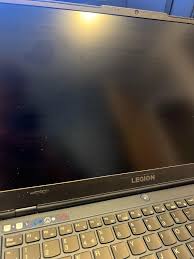
Before starting repairs, identify which situation matches your problem:
a. Black screen with visible cursor
b. Black screen after Windows update or restart
c. Powerlight is on but display is completely blank
d. Lenovo logo appears briefly, the screen goes dark
e. Laptop turns on and fan spins but screen stays black
f. Laptop boots but screen becomes black after login
g. Black screen after Windows update or restart
h. External monitor works while laptop screen stays black
i. System sounds are audible but nothing appears visually.
Understanding the exact behavior of your Lenovo laptop black screen helps determine whether you’re dealing with software or hardware failure.
This issue is commonly reported in Lenovo IdeaPad and ThinkPad series, especially after major Windows 10 or Windows 11 updates. Some models with Intel integrated graphics or NVIDIA dedicated GPUs are more prone to driver-related black screen crashes.
How To Fix Lenovo Laptop Black Screen
Follow these steps sequentially. After each step, restart the laptop and check whether the Lenovo Laptop black screen problem is resolved.
Step 1: Perform a Hard Reset
Steps:
a. Shut down the laptop completely.
b. Disconnect charger and all accessories.
c. Remove battery if removable.
d. Hold the power button for 30-40 seconds.
e. Reconnect charger and power on.
What this tells you:
a. Display returns → temporary power issue.
b. Screen still → continue troubleshooting.
Step 2: Check Screen Brightness & Backlight
Steps:
a. Increase brightness using keyboard keys.
b. Shine a flashlight closely on the screen.
c. Look for faint icons or login screens.
What this tells you
a. Faint image visible → backlight failure
b. No image → continue diagnosis
Step 3: External Monitor test
Steps:
a. Connect external monitor via HDMI.
b. Turn on laptop
c. Use display switch shortcut (Fn+ display key)
What this tells you
a. External monitor works → screen panel or cable problem
b. External monitor also black → GPU or system issue.
If both displays remain black but the system appears to boot (fan spinning, keyboard lights on), the issue may involve BIOS corruption, motherboard-level GPU failure, or a shorted display rail.
Step 4: RAM Check
Note: Please don’t perform this step if you don’t have technical expertise
Steps:
a. Turn off laptop and unplug power.
b. Open the back panel carefully.
c. Remove RAM stick.
d. Reinsert firmly or test sticks individually.
e. Power on again.
What this tells us:
a. Display returns → RAM seating problem
b. No change → move ahead
Step 5: Boot Into Safe Mode
Steps:
a. Interrupt boot 3 times to enter recovery mode.
b. Select Advanced Options → Startup Settings.
c. Boot into Safe Mode.
Results:
a. Display works → driver/software conflict
b. Still black → possible hardware issue
Step 6: Reset Graphic Drivers
Steps:
a. Press Windows + Ctrl+ Shift + B
b. Wait for system beep or screen reset.
What this tells you
a. Display returns → GPU driver crash
b. No change → continue
Step 7: Windows Startup Repair
Steps:
a. Enter Recovery environment
b. Select Startup Repair.
c. Allow the system to scan and fix boot errors.
What this tells you:
a. Laptop boots normally → software boot failure
b. Lenovo laptop black screen persists → hardware inspection needed
When Repair or Screen Replacement is Required

Professional repair is recommended if:
a. External monitor works but laptop display stays black
b. Flashlight test shows faint images
c. Screen reacts when lid moves
d. Visible cracks or pressure marks exist
e. Laptop runs normally but display never appears
Persistent Lenovo laptop black screen problem after troubleshooting typically indicates hardware failure.
Lenovo screen replacement cost typically ranges between ₹2,500 to ₹6,500 depending on the model and panel type (HD, Full HD, IPS). Touchscreen models cost higher due to integrated digitizers.
Why Choose IndiRepair for Lenovo Laptop Black Screen Issues
A black screen issue on a Lenovo laptop can occur due to several underlying problems, including display failure, graphics-related faults, RAM issues, motherboard damage, power delivery problems, or loose internal connections. In many cases, the laptop may appear to turn on with fan movement or keyboard lights while the screen remains completely blank, making proper technical diagnosis essential before attempting any repair.
At IndiRepair, every Lenovo laptop undergoes a detailed diagnostic process to identify the exact cause of the black screen issue before any repair is recommended. The inspection includes testing the display panel, graphics output, RAM, motherboard circuitry, internal display cable connections, and power-related components to accurately determine whether the issue is software-related or caused by hardware failure.
For repairs and replacements, only tested and specification-compatible components are used that match the laptop’s original display quality and performance standards. This is especially important for Lenovo gaming, business, and productivity laptops where display stability and long-term reliability directly affect the overall user experience.
Whether the issue involves a completely blank screen, black screen after startup, display flickering before blackout, no display despite the laptop running, or random screen failure during usage, IndiRepair focuses on providing reliable long-term repair solutions instead of temporary fixes.
With transparent communication, experienced technicians, quick turnaround times, and pickup and drop support, IndiRepair aims to make Lenovo laptop repairs smooth, dependable, and hassle-free for users facing startup and display-related issues.
Frequently Asked Questions
Q: Why is my Lenovo laptop screen black but the keyboard lights and fan are on?
A: If your Lenovo laptop powers on (keyboard lights, charging indicator, or fan spinning) but the screen remains black, the system is usually booting correctly. This commonly indicates a display-related issue such as backlight failure, a loose eDP/LVDS cable, or a graphics driver crash. Connecting an external monitor helps determine whether the issue is with the internal display panel or the GPU.
Q: Why does my Lenovo laptop show a black screen after a Windows 10 or Windows 11 update?
A: A black screen after a Windows update is often caused by corrupted or incompatible graphics drivers. Major updates sometimes conflict with Intel, NVIDIA, or AMD display drivers. Booting into Safe Mode and reinstalling or rolling back the graphics driver typically resolves this issue.
Q: Lenovo laptop black screen but external monitor works — what does it mean?
A: If the external monitor displays normally while the laptop screen remains black, the motherboard and GPU are functioning. This usually confirms a faulty internal LCD panel, damaged backlight, or loose display cable connection. In most cases, screen replacement is required.
Q: Can RAM cause a Lenovo laptop black screen?
A: Yes. Improperly seated or faulty RAM can prevent the system from initializing video output, resulting in a blank screen. Reseating or testing RAM modules individually can help identify whether memory is causing the no-display issue.
Q: Does a Lenovo black screen mean the motherboard is damaged?
A: Not necessarily. Most black screen issues are software-related or involve the display assembly. Motherboard failure is less common and is typically suspected only when both the internal screen and external monitor show no signal.
Q: How much does it cost to fix a Lenovo laptop black screen?
A: Repair costs depend on the root cause. Software fixes are usually inexpensive. However, screen replacement can range between ₹2,500 to ₹6,500 depending on the Lenovo model, panel type (HD, Full HD, IPS), and whether it is a touchscreen display.
CONCLUSION
A Lenovo laptop black screen may look serious at first, but a structured diagnostic process often reveals whether the problem is software-related or hardware-based. By following each troubleshooting step carefully, you can narrow down the cause and understand whether the issue can be fixed at home or requires professional inspection
If your laptop continues running while the display remains blank – especially when external monitor works – screen replacement is usually the most reliable solution.
Written by Khan Rahil, a diploma holder in Computer Hardware with over 5 years of hands-on experience in laptop repairs and Senior Technician at IndiRepair. He has personally handled hundreds of Lenovo screen replacements, specializing in precise compatibility checks and quality installations.