
When a dell laptop touchpad not working problem appears, the cursor may stop moving, tapping may fail, clicking may become unreliable, or scrolling and gestures may disappear. This symptom does not automatically prove that the touchpad hardware has failed. Settings, a lock control, Windows behavior, drivers, external devices, surface conditions, liquid exposure, internal connections, and the touchpad assembly can all produce similar results.
The safest approach is to record exactly what has stopped working, begin with reversible external and settings checks, and treat every result as evidence rather than a confirmed diagnosis. Avoid opening the laptop or repeatedly changing advanced settings until the basic checks have been completed.
If the problem remains unresolved after safe checks, professional diagnosis can help separate a software issue from a touchpad, cable, chassis, battery, or board-related fault. IndiRepair provides practical laptop diagnosis, and its service information can be reviewed through the Lenovo laptop screen replacement service page when the device needs further assessment.
What the Touchpad Symptom Means Immediately
A Dell touchpad may appear to stop working in several different ways. Cursor movement, tapping, physical clicking, two-finger scrolling, and gestures can fail separately or at the same time. A pointer that moves but will not click is a different symptom from a touchpad that is completely absent from Windows, even though both may be described as a touchpad not working on a Dell laptop.
An external mouse can provide a temporary way to use Windows, but it does not identify the failed component. Similarly, a working keyboard shows that at least one input path remains available, but it does not confirm that the touchpad itself is healthy. The useful question is whether the failure is limited to the touchpad or whether other input functions are also affected.
Record the behavior before making changes. Note whether the issue started after an update, restart, new accessory, cleaning, impact, spill, or previous repair. This record makes later results more useful and helps prevent a temporary change from being mistaken for a confirmed repair.
For readers who need an assessment after these initial observations, the safest next step is a diagnosis based on the actual Dell model and symptoms rather than an automatic replacement decision.
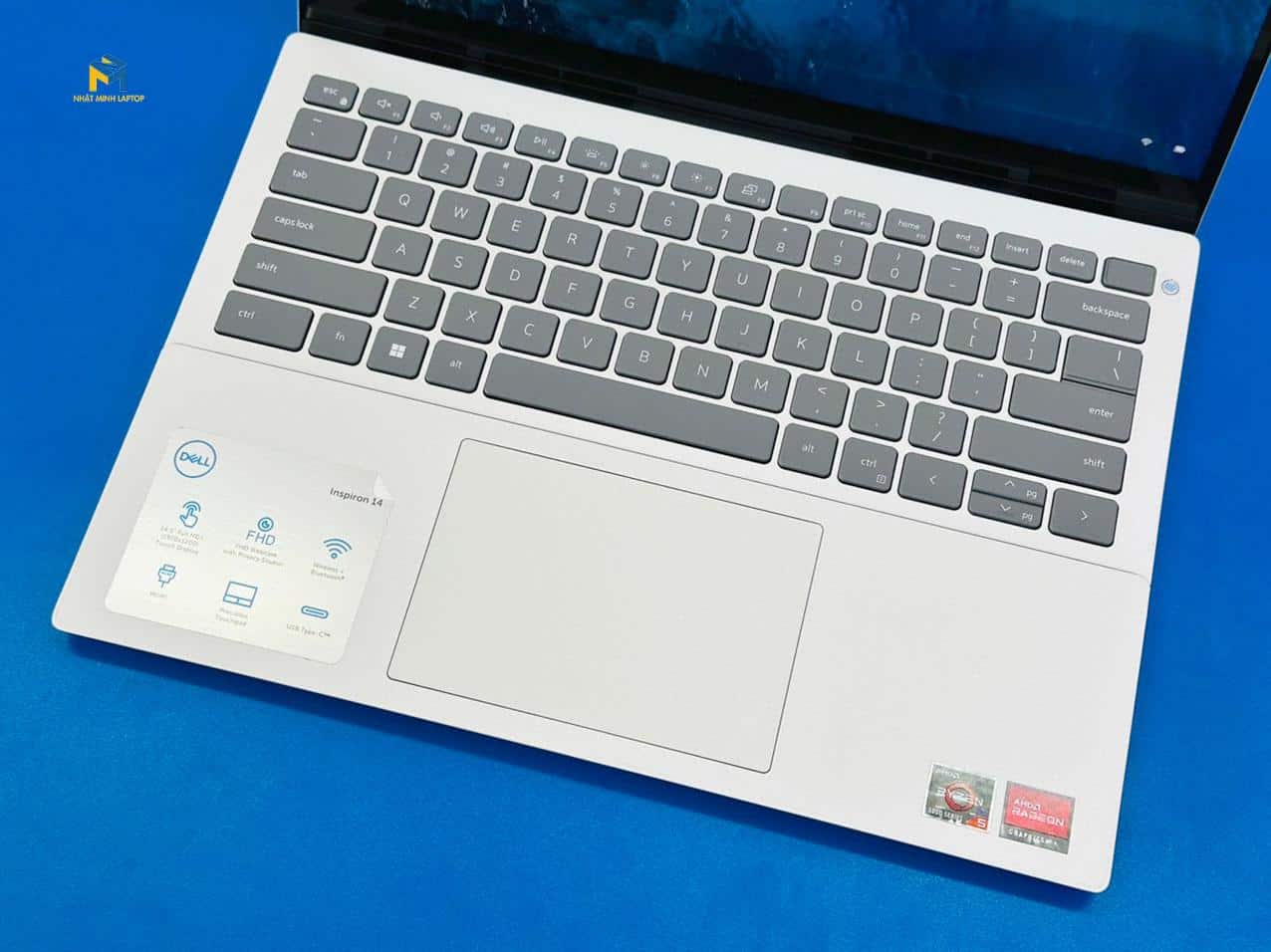
The image marker above is only a visual reference. It does not establish the condition of any particular touchpad or indicate that the touchpad assembly must be replaced.
Separate Touchpad Failure From a Broader Input Problem
Before changing drivers or system settings, compare the touchpad with other input methods. These observations narrow the possibilities, but none of them proves a particular cause by itself.
- Check whether the pointer is visible and can be moved with an external mouse.
- Record whether physical clicking works while movement does not, or whether every touchpad function has stopped.
- Note whether the keyboard responds normally and whether any available touchscreen or other pointing device behaves differently.
- Observe whether the problem is present immediately after startup or only after Windows has loaded.
Symptoms and Observations to Record
A useful symptom record can prevent unnecessary changes and gives a technician better evidence if repair becomes necessary. Describe what the touchpad does and does not do rather than recording only “not working.”
- Whether the pointer does not move, moves intermittently, jumps, or moves inaccurately.
- Whether tapping, physical clicking, two-finger scrolling, and other gestures work independently.
- Whether the problem began after a Windows update, restart, new accessory, spill, drop, cleaning, or other event.
- Whether an external mouse works and whether restarting changes the touchpad behavior.
- Whether the problem occurs only in Windows, during sign-in, or in an available pre-boot diagnostic environment.
- Whether there is a raised palm rest, cracked surface, staining, moisture, looseness, unusual heat, or difficulty pressing the touchpad.
Symptom Patterns and What They May Suggest
The following patterns can guide the next check. They are clues, not proof of a failed touchpad or a particular replacement part.
| Observed pattern | What it may suggest | Important limitation |
|---|---|---|
| The pointer does not move, but an external mouse works | A touchpad setting, driver, device-recognition issue, connection, or touchpad fault may be involved. | The external mouse confirms another input path works; it does not identify the failed touchpad component. |
| Movement works, but clicking or tapping does not | Click settings, physical pressure, surface damage, or a partial hardware issue may be relevant. | A partial failure still needs testing before repair is authorized. |
| The touchpad works intermittently | A setting conflict, driver behavior, contamination, pressure, connection, or physical damage may be involved. | Intermittent behavior can be difficult to reproduce and should be recorded carefully. |
| The failure appears only after Windows loads | Windows settings, drivers, updates, or software behavior become more plausible. | This does not completely rule out firmware, connection, or hardware problems. |
| The failure also appears in supported pre-boot testing | A physical or hardware-related issue becomes more concerning. | The exact fault still requires appropriate inspection and interpretation of the test. |
What Can Cause a Dell Touchpad to Stop Responding?
More than one cause can produce the same symptom. The categories below are arranged as a practical troubleshooting priority, not as a confirmed likelihood ranking for every Dell model.
1. Touchpad Settings or Lock State
An accidentally disabled touchpad, changed Windows setting, gesture option, or model-specific lock control can make the hardware appear unresponsive. Some Dell laptops use a documented keyboard control, indicator, or touchpad-area control, but the exact behavior varies by model. Verify the control in the laptop’s documentation instead of repeatedly pressing unidentified keys.
2. Windows or Driver Behavior
Windows may stop using the touchpad because of a changed setting, an unavailable device entry, an update, or driver behavior. A warning symbol or recent update can be useful evidence, but it is not proof of the root cause. A device may also be present but configured in a way that disables tapping, scrolling, or use alongside an external mouse.
3. External Mouse or Input Conflicts
A USB mouse, Bluetooth pointing device, receiver, dock, or other accessory may change how Windows handles the touchpad. Disconnecting a nonessential accessory is a useful comparison test. If the touchpad returns, that supports a settings or software interaction, but it does not prove that the accessory caused damage.
4. Surface Conditions, Debris, or Liquid
Dust, residue, wet fingers, moisture on the surface, or an unusual surface condition can interfere with touch detection or clicking. Liquid exposure is also a safety concern. Do not insert tools into gaps or spray cleaner directly onto the touchpad or keyboard.
5. Internal Connection or Touchpad Hardware Fault
Impact, pressure, liquid exposure, prior repair, component wear, or a damaged touchpad assembly can cause a persistent failure. An internal cable or related board issue generally requires inspection rather than repeated software changes. A raised or distorted palm rest is especially important because it may indicate a battery or chassis problem rather than an isolated touchpad fault.
Safe External and Basic Input Checks
These checks are designed to remove simple external variables without opening the laptop or changing advanced system settings. Use an external mouse temporarily if necessary, but treat it as a workaround rather than a repair.
Check the Immediate Input Environment
- Save work and restart the laptop normally. A restart can clear a temporary Windows or input-service state. After startup, test movement, tapping, clicking, scrolling, and gestures separately. If the touchpad returns, record that the behavior changed after restarting, but do not assume the underlying trigger has been identified.
- Disconnect nonessential pointing devices. Remove USB receivers, wired mice, Bluetooth pointing devices, docks, and similar accessories where practical. Retest the touchpad after Windows settles. If it changes, review the relevant setting or accessory behavior rather than assuming the accessory damaged the laptop.
- Clean and dry the surface safely. Turn the laptop off if it is safe to do so, ensure the touchpad and fingers are dry, and use safe device-cleaning practices without spraying liquid onto the computer. If there has been a spill or moisture may have entered the device, stop routine troubleshooting and follow the safety guidance below.
- Test each touchpad function separately. Check pointer movement, tapping, physical clicking, scrolling, and gestures one at a time. A single failed function points toward a different next check than a complete loss of response.
Check for an Accidental Touchpad Disablement
- Look for a documented touchpad control. Check the Dell model’s documentation for a touchpad icon, indicator, or keyboard control. Do not assume that a key combination used on one model applies to another.
- Use the documented control only when the model identifies one. Observe whether the pointer, tapping, or other touchpad functions return. A visible change supports a lock-state explanation, but the setting may need to be checked again if the issue returns.
- Continue to settings and diagnostic checks if there is no effect. A control that does nothing may be unavailable on that model, may require another system condition, or may not be related to the failure. It is not evidence by itself that the hardware has failed.
Software, Settings, and Driver Checks
Windows labels and locations can vary by version, and Dell models may expose different touchpad controls. Record the original setting before changing it, change one relevant item at a time, and retest after each change. If the touchpad returns, that supports a software-related explanation but does not establish why the setting changed.
Review Windows Touchpad Settings
- Open the Windows settings area for touchpad or pointing-device options. Use an external mouse or keyboard navigation if the touchpad cannot operate. If no touchpad option is available, record that observation rather than assuming the device is physically defective.
- Confirm that the touchpad is enabled where the setting is available. If the control is disabled, enable it and retest movement, tapping, clicking, scrolling, and gestures.
- Review behavior settings. Check options related to tapping, clicking, scrolling, gestures, and touchpad behavior when an external mouse is connected. A change in one function may not restore another, so test each function independently.
- Apply only relevant reversible changes. Avoid changing unrelated accessibility or system settings. If one change restores the touchpad, record it and consider whether an update, accessory, or user action may have changed the original setting.
Review Device Recognition and Driver State
- Open the appropriate Windows device-management view. Look for the touchpad or a related pointing-device entry. Use an external mouse or keyboard navigation if necessary.
- Note the device state carefully. Record whether the entry is disabled, missing, duplicated, or marked with a warning. These observations narrow the next step, but none is a complete diagnosis by itself.
- Use supported Windows or Dell driver options for the exact model and operating system. Prefer model-matched support information and avoid installing an unverified driver simply because its name appears similar. If rollback or download guidance is model-specific, verify it against the official support information first.
- Restart and retest after one driver-related change. Record whether the symptom improved, worsened, or stayed the same. If nothing changes, repeated driver changes are unlikely to add useful evidence without a more specific diagnosis.
Check Dell Utilities and Model-Specific Support
- Identify the exact Dell model and Windows version. Model information matters because settings, utilities, diagnostics, and supported drivers can differ.
- Check Dell’s official support resources or installed Dell utility. Look for touchpad settings and hardware diagnostics that match the model and operating system. Tool names, menus, and availability can change, so verify the current instructions rather than relying on a generic procedure.
- Follow only model-matched instructions. Do not apply BIOS, firmware, driver, or diagnostic procedures from another Dell model merely because the chassis looks similar.
- Record every diagnostic result or error identifier. Preserve the exact wording or code before moving to repair decisions. An error identifier is useful evidence, but it should be interpreted using the applicable official documentation.
Hardware and Physical-Condition Checks
External inspection can identify warning signs without requiring disassembly. Do not open a laptop that has liquid exposure, a swollen or raised battery area, unusual heat, smoke, a burning odor, or electrical damage.
Inspect the Touchpad and Palm Rest Externally
- Power down and disconnect external power when it is safe to do so. This reduces the risk of continuing to operate a device with a physical or electrical problem. Do not delay urgent safety action to complete routine testing.
- Look for visible changes. Check for cracks, gaps, looseness, staining, liquid residue, a distorted palm rest, or a touchpad surface that is lifted or unusually difficult to click. These signs justify stopping normal troubleshooting.
- Remove only loose surface dirt without probing gaps. Do not insert objects, press down on a raised area, or apply cleaner directly to the laptop. If residue cannot be removed safely, arrange an inspection.
- Stop if the chassis is swollen, hot, wet, damaged, or producing an unusual odor. These conditions may involve the battery or electrical system and require professional assessment rather than further touchpad testing.
A visible condition can explain why the touchpad feels different, but it still does not identify the exact failed part. A raised palm rest, for example, may indicate a battery or chassis issue that should be handled as a safety matter.
Consider Internal Connections Without Opening the Device
An internal connection becomes more plausible after an impact, liquid exposure, prior repair, or a touchpad that fails in more than one operating environment. However, cursor behavior alone does not confirm a loose cable, damaged assembly, or board fault. Confirming an internal problem requires an appropriate inspection by someone equipped to work safely on the exact laptop model.
Diagnostics and How to Interpret the Results
Supported diagnostics can help separate software clues from possible hardware clues, but a diagnostic result usually applies only to the test path that was examined. Record the test name, result, and any error identifier. Do not treat a passed test as proof that every touchpad function is healthy, or a missing touchpad-specific test as proof of failure.
Compare Behavior Across Startup and Operating-System Contexts
- Restart and observe the touchpad before or during normal Windows sign-in where the model allows it. If the pointer behaves differently before Windows fully loads, record that distinction. It may help separate Windows behavior from conditions that occur earlier in startup.
- Use a supported Dell pre-boot or hardware diagnostic only when it is available for the exact model. Verify the access method and test name using current model-specific support information. Do not use an unverified firmware procedure.
- Compare the diagnostic result with the Windows behavior. A touchpad that fails in both contexts raises greater concern about physical or hardware conditions, while a Windows-only symptom makes settings or drivers more plausible. Neither comparison is an infallible verdict.
- Record what the diagnostic actually reports. Note whether it recognizes the touchpad, reports an error, or provides no touchpad-specific result. A test that does not mention the touchpad may simply have tested a different component.
Interpret Common Evidence Patterns
IndiRepair recommends treating each result as a clue rather than automatic proof that one component has failed. Practical diagnosis depends on the combination of symptoms, timing, physical condition, and test results.
- A touchpad that returns after an enablement or settings change supports a settings-related explanation, although the original trigger may still need investigation.
- A touchpad that changes after a driver or Windows adjustment supports a software-related possibility, but future updates or conflicting settings may still matter.
- A touchpad that fails consistently across Windows and supported pre-boot testing increases concern about a physical or hardware issue, but inspection may still be needed to identify the exact part.
- A missing or inconsistent device entry can reflect software, firmware, connection, or hardware conditions, so it should not be treated as a standalone diagnosis.
- A raised chassis, liquid exposure, burning odor, unusual heat, or electrical behavior overrides routine troubleshooting and requires immediate safety action.
After this diagnostic stage, readers who need help preserving the evidence and identifying the next safe step can get your Lenovo laptop checked by IndiRepair. The link text reflects the supplied service page; the actual assessment should always be based on the device model and the fault observed.
Safety Warnings and DIY Stopping Points
Stop DIY troubleshooting when the laptop shows signs that could involve the battery, electrical system, liquid damage, or structural damage. Continuing to press, charge, heat, or open a physically compromised device can increase risk.
- Liquid is inside or around the laptop, or the device has recently been exposed to a spill.
- There is smoke, sparking, a burning smell, unusual heat, or visible electrical damage.
- The palm rest, touchpad, keyboard, or bottom cover is raised, separating, or distorted.
- Do not press down on a raised area, puncture the chassis, apply heat, or spray liquid into openings.
- Do not continue charging a device that shows unsafe physical symptoms.
- Avoid opening the laptop unless it is safe, the exact service information is available, and the person doing the work is qualified for the risk.
- Back up important data when the laptop remains stable and usable, but do not delay urgent safety action to complete a backup.
- Use only correct, model-appropriate power and support instructions; do not improvise connectors, replacement parts, or diagnostic procedures.
When a Software Fix Is No Longer the Right Next Move
- The touchpad remains unusable after basic settings, accessory, restart, and supported driver checks.
- The failure occurs outside the normal Windows environment or is accompanied by visible physical damage.
- The touchpad works only intermittently after movement, pressure, impact, or liquid exposure.
- The reader cannot safely identify the model-specific setting or diagnostic procedure.
When to Move From Troubleshooting to Professional Repair
Professional assessment is appropriate when safe reversible checks do not restore the touchpad, supported diagnostics suggest a hardware issue, or physical warning signs are present. A technician may need to inspect the touchpad assembly, internal connections, chassis condition, battery area, or related board circuitry depending on the evidence.
Ask for a diagnosis before authorizing a replacement. A touchpad symptom is not proof that one particular part must be changed, and a careful assessment may identify a setting, connection, or broader safety issue instead. IndiRepair has practical experience diagnosing laptop problems across 500+ laptop repairs, with the goal of identifying the underlying fault before recommending a repair.
book your Lenovo laptop repair with IndiRepair
Information to Share With a Repair Technician
- The exact Dell model and operating-system version.
- Whether movement, clicking, tapping, scrolling, and gestures fail separately or together.
- Whether an external mouse works and whether the touchpad fails outside Windows.
- Recent updates, impact, liquid exposure, cleaning, accessory changes, or prior repair.
- Diagnostic names, results, and error identifiers, without interpreting them beyond what the official tool states.
This information can make the handoff more efficient and helps prevent a technician from having to recreate every condition from memory. If the laptop has a raised chassis, liquid exposure, unusual heat, smoke, sparks, or a burning smell, state that immediately before discussing ordinary troubleshooting.
Conclusion: Treat the Touchpad Symptom as Evidence, Not a Diagnosis
A Dell touchpad that is not working may result from settings, a lock state, Windows behavior, drivers, external input conflicts, surface conditions, liquid, internal connections, or hardware faults. The safest progression is to record the exact symptom, try reversible external and settings checks, use suitable supported diagnostics, interpret the results cautiously, and escalate when the issue remains unresolved.
Stop immediately for liquid, heat, smoke, burning odor, electrical damage, or a raised or distorted chassis. Those signs can point to a safety issue beyond the touchpad and should not be handled through repeated software changes.
When the touchpad persists in failing, appears outside Windows, follows physical damage, or cannot be investigated safely, professional assessment is the appropriate next step. For diagnosis-led guidance, you can arrange Lenovo laptop repair with IndiRepair and provide the symptom record, model information, and diagnostic evidence gathered above.