
If your ASUS laptop numpad is not working, the symptom does not automatically mean that the keyboard has failed. Num Lock, an ASUS keyboard mode, Windows settings, an application, a driver, or a physical fault can all produce similar results.
The number pad may type digits, move the cursor, perform navigation commands, enter unexpected characters, or do nothing at all. ASUS NumberPad 2.0 and touchpad-integrated number pads can also use model-specific controls, so the exact activation method should be verified for the laptop model.
This guide starts with reversible checks, explains what each result may indicate, and shows when software troubleshooting is no longer enough. The goal is to separate an input-mode problem from a confirmed keyboard, touchpad, connection, or board fault.
What an ASUS Numpad Symptom Does—and Does Not—Prove
An ASUS number pad not working is an observation, not a diagnosis. The most useful first step is to record exactly what the keys do and where the problem occurs before changing settings or installing software.
Record What the Number Pad Actually Does
- Note whether the number-pad keys type digits, move the cursor, perform navigation commands, enter symbols, or remain completely unresponsive.
- Check whether every number-pad key is affected or only selected keys.
- Record whether the symptom appears in one application, across Windows, at the sign-in screen, or in another available input environment.
- Identify whether the number pad is part of the physical keyboard or is displayed through an ASUS touchpad-based NumberPad feature.
- Write down whether the problem began after a spill, drop, cleaning, Windows update, driver change, or other event.
These observations help distinguish a keyboard-state problem from a wider input failure. They do not confirm a failed part on their own.
Use the Symptom Pattern to Choose the Next Diagnostic Branch
| Observed behavior | What it may suggest | Useful next direction |
|---|---|---|
| Keys type digits only after changing Num Lock or the ASUS control | A keyboard-state or NumberPad mode issue is possible | Confirm the model-specific activation method and retest |
| Keys move the cursor or perform navigation commands | The keypad may be in a navigation mode rather than numeric mode | Check Num Lock and the active ASUS NumberPad setting |
| The numpad fails in only one application | Application focus, shortcuts, remote-session handling, or input settings may be involved | Compare the same keys in a basic text field and another application |
| The built-in numpad fails throughout Windows while another keyboard works | The built-in input path may need closer software or hardware assessment | Compare pre-Windows behavior and inspect for physical warning signs |
| The keys fail across independent environments after physical damage or liquid exposure | Physical, connection, firmware, or keyboard-hardware involvement becomes more important | Stop risky DIY work and arrange professional diagnosis |
If the symptom persists after the basic checks below, an Asus laptop repair service can help separate a configuration issue from a physical input fault without assuming that replacement is necessary.
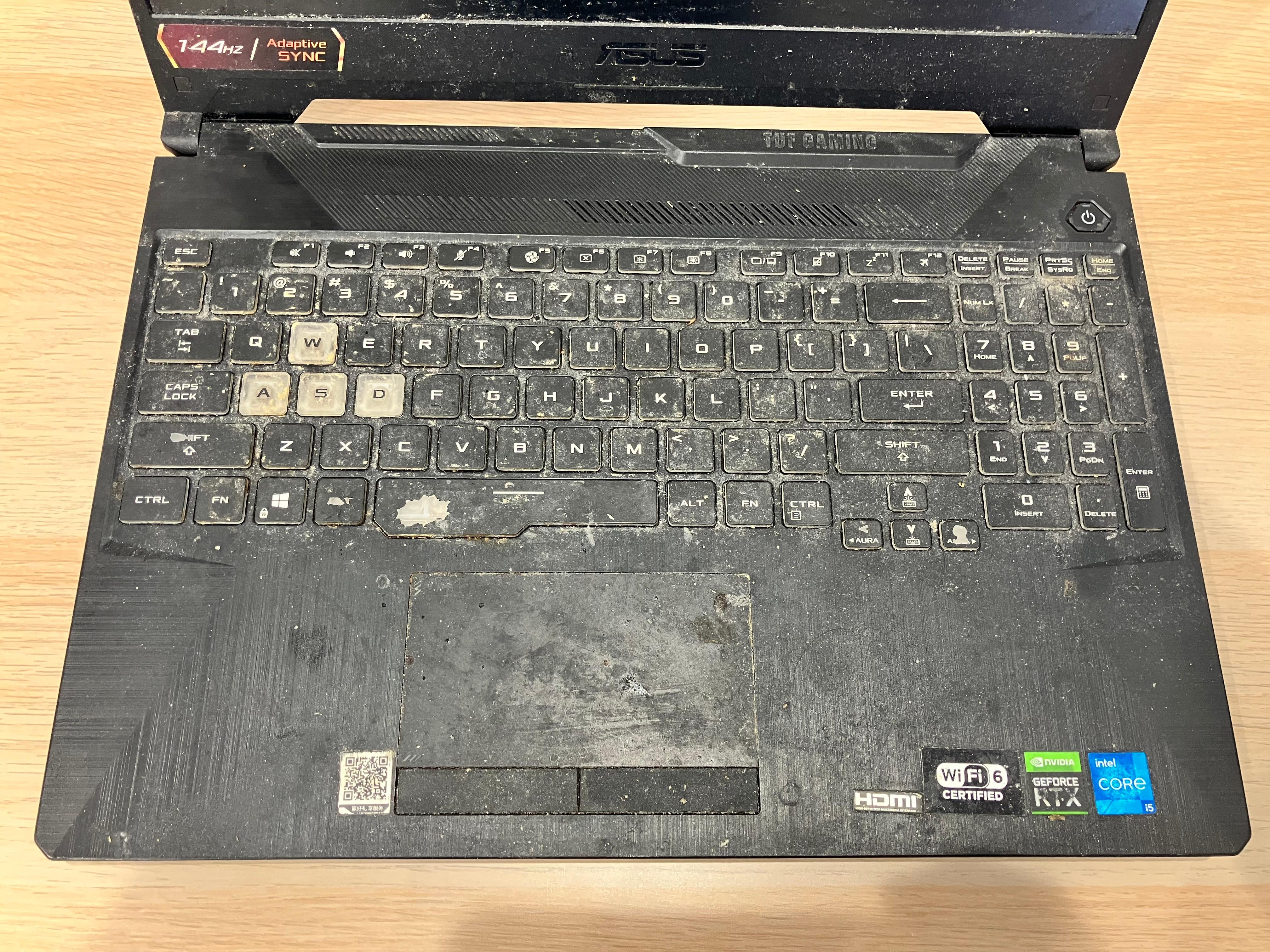
The exact ASUS layout, indicator, key combination, or touchpad gesture can vary by model. Use the markings on the laptop and the documentation for the exact model rather than applying a shortcut from a different ASUS series.
What Can Cause an ASUS Laptop Number Pad to Stop Working?
The following are possible causes to investigate, ordered from reversible input-state issues to faults that may require physical inspection. None of these possibilities is confirmed until testing supports it.
1. Num Lock or Keyboard-Mode State
Num Lock or an ASUS-specific keyboard mode can determine whether keypad keys enter digits or act as navigation controls. A keypad that moves the cursor instead of typing numbers often points toward an active mode rather than immediate hardware failure.
2. Windows Keyboard or Accessibility Settings
Windows keyboard, accessibility, or input settings can change how keys are interpreted. The available options and menu labels may vary by Windows edition and version, so a setting should be identified by its effect rather than assumed from a universal menu path.
3. Application or Input-Context Behavior
A number pad may work in a basic text field but fail in a remote desktop, virtual machine, game, terminal, spreadsheet, or other specialized application. That pattern points toward application-specific input handling rather than a laptop-wide keyboard failure.
4. ASUS NumberPad 2.0 or Touchpad-Integrated Control
Some ASUS laptops use a touchpad-integrated NumberPad feature. The feature may be activated differently from a physical keypad, and the exact behavior must be verified for the model. A touchpad number pad not turning on can involve the control method, software support, or the touchpad input path.
5. Keyboard, Input, or ASUS-Related Driver Problem
A keyboard or input driver can malfunction after a software change or update, although a driver is not automatically the cause. Use the exact ASUS model and operating-system information when checking software, and treat any improvement after a change as evidence of a software contribution rather than proof that the hardware is healthy.
6. Physical Keyboard, Touchpad, or Internal Connection Fault
Debris, liquid exposure, impact, worn key mechanisms, an internal connection problem, or broader keyboard damage can interrupt number-pad input. Visible evidence raises suspicion of a hardware issue, but identifying the failed component may require model-specific inspection.
Low-Risk Keyboard Checks to Try First
Start with controls that are reversible and do not require opening the laptop. Change one condition at a time so the result remains meaningful.
Check Num Lock and the ASUS NumberPad Control
- Identify the relevant control. Look for the Num Lock marking, indicator, keyboard combination, or touchpad-based NumberPad control shown on the ASUS laptop. If the marking is unclear, verify the exact model documentation instead of assuming that another ASUS shortcut applies.
- Toggle the control once. Test several number-pad keys in a simple text-entry field. If digits begin appearing, the original symptom was likely related to the active input mode, although the reason that mode changed may still need attention.
- Observe navigation behavior. If the keys move the cursor or perform navigation commands, record that result and retest after confirming the active numeric mode. Navigation behavior narrows the possibilities but does not prove that the keyboard is physically intact.
- Continue to software checks if nothing changes. A number pad that remains completely inactive after the correct control is tested should be compared in Windows and other input environments before a hardware conclusion is made.
Retest Without Changing Multiple Variables at Once
- Use a basic text field. Test several number-pad keys rather than relying on one key, because a single damaged key can create a misleading result.
- Record each result. Note the exact behavior after every individual change, including whether the keys type digits, navigate, or remain silent.
- Reverse unclear temporary changes. Restore a setting if it does not help or makes the symptom harder to interpret. Avoid installing multiple utilities or drivers during the same test sequence.
- Move to comparison checks when the symptom remains. Windows, application, and external-keyboard comparisons provide more useful evidence than repeatedly toggling the same control.
Check Windows Settings, Drivers, and Application Behavior
Windows and application checks help establish whether the ASUS numpad problem is system-wide or limited to a particular software environment. A setting or driver result narrows the possibilities, but it does not automatically confirm a software fault or rule out hardware involvement.
Windows and Driver Checks
- Test more than one Windows text-entry location. Use a basic text field and another standard Windows input location. If the number pad works in one location but not another, document the difference before changing drivers.
- Review relevant keyboard and accessibility settings. Use the current labels shown by the installed Windows version and note that the available options may vary. Change only a setting that clearly relates to the observed keypad behavior.
- Inspect device-management information. In Device Manager or the appropriate Windows device-management area, look for warnings beside relevant keyboard or input devices. The absence of a warning does not prove that the input path is healthy.
- Use model-specific software if a driver change is justified. Confirm the exact ASUS model and Windows version, use an appropriate trusted source, and record the original state where possible. Do not install a generic package simply because its name contains the word numpad.
- Retest after one change. If the numpad improves after a settings or driver change, treat the result as evidence that software or configuration contributed to the symptom. If no change occurs, continue with application and environment comparisons rather than repeatedly replacing drivers.
Application-Specific Behavior
- Reopen the affected application. Close and reopen the program, then compare the same keys in a simple text field. A difference between the two locations suggests that the application context matters.
- Test another numeric-input application. Record whether the number pad behaves differently in another program. If it works elsewhere, investigate the original program before pursuing laptop hardware repair.
- Check specialized input contexts. Note whether the issue occurs only in a remote desktop, virtual machine, game, terminal, spreadsheet, or similar environment. These contexts can handle keypad signals differently from ordinary Windows text fields.
- Review application shortcuts and input settings. Inspect only settings belonging to the affected application. An application-specific option should not be treated as a Windows-wide explanation.
- Document the scope of the problem. If only one application is affected, preserve that information for the application developer or support process instead of selecting a replacement keyboard from the original symptom alone.
With experience across 500+ laptop repairs, IndiRepair approaches keyboard symptoms by identifying the underlying fault before recommending a replacement. If the evidence remains unclear after the reversible checks, you can book your Asus laptop repair with IndiRepair for a diagnosis-led assessment.
Compare the Built-In Numpad With Other Input Environments
Controlled comparisons show where the failure occurs. They can distinguish a built-in input problem from an application issue, but they do not identify the exact failed component by themselves.
Use an External Keyboard or Alternate Input
- Connect a known-working external keyboard with a number pad. Test it in the same application and text field used for the built-in keypad. Keep the comparison as similar as possible.
- Compare the results. If the external keypad enters digits while the built-in keypad does not, the problem may be localized to the ASUS laptop’s built-in input path. The result does not distinguish mode, software, connection, or hardware causes on its own.
- Compare application scope. If both input devices fail in one application but work elsewhere, prioritize application or input-context investigation rather than laptop repair.
- Interpret a working external keypad cautiously. A working external device makes a built-in keypad issue more likely, but it does not prove that the motherboard, keyboard, or touchpad is the failed component.
- Disconnect the external device after testing. This prevents the external keyboard from changing the active input method or creating a misleading result during later checks.
Compare Windows and Pre-Windows Behavior When Available
- Use a safe sign-in or pre-desktop comparison. Test the keypad at the sign-in screen or another available pre-Windows input context without changing security or firmware settings unnecessarily.
- Prioritize software when the keys work before the desktop. If the keypad works before Windows loads but fails inside Windows, investigate Windows settings, drivers, and applications first.
- Increase hardware priority when the keys fail everywhere. Failure across independent environments makes physical, connection, firmware, or keyboard-hardware assessment more important, although it still does not identify the failed part automatically.
- Treat the comparison as evidence. A pre-Windows result narrows the diagnostic branch but should not be described as conclusive proof of a failed keyboard component.
- Verify model-specific ASUS diagnostics before using them. Do not apply a firmware or diagnostic procedure from another model unless the procedure is confirmed for the exact laptop.
IndiRepair recommends treating each comparison as a clue rather than as automatic proof that one component has failed. If the built-in keypad remains unresponsive across applications and environments, you can get your Asus laptop checked by IndiRepair after recording the test results.
Inspect the Keyboard Safely and Know the Limits of DIY Checks
Visible inspection can reveal evidence of debris, residue, impact, or damaged key mechanisms. It cannot reliably identify an internal connector or board fault, and persistent symptoms do not justify risky disassembly.
Visible Inspection and Safe Cleaning Limits
- Place the laptop in a safe state. Shut down the ASUS laptop before inspecting the keyboard and touchpad area, particularly if there are signs of liquid, heat, or electrical irregularity.
- Look without forcing anything. Check for visible debris, sticky residue, liquid marks, damaged keycaps, uneven key movement, or impact signs. Do not pry off keycaps or press unusually hard keys.
- Follow compatible surface-cleaning guidance only. If cleaning is appropriate for the model, use manufacturer-compatible guidance and keep liquid away from the keyboard and touchpad openings.
- Retest only when the area is dry. Do not push debris deeper into the laptop or use an unverified cleaner. A temporary improvement after cleaning does not establish that no internal damage exists.
- Stop immediately when a hazard is present. Liquid exposure, burning smell, unusual heat, swelling, sparks, smoke, melting, exposed wires, or a visibly damaged port requires professional assessment rather than further testing.
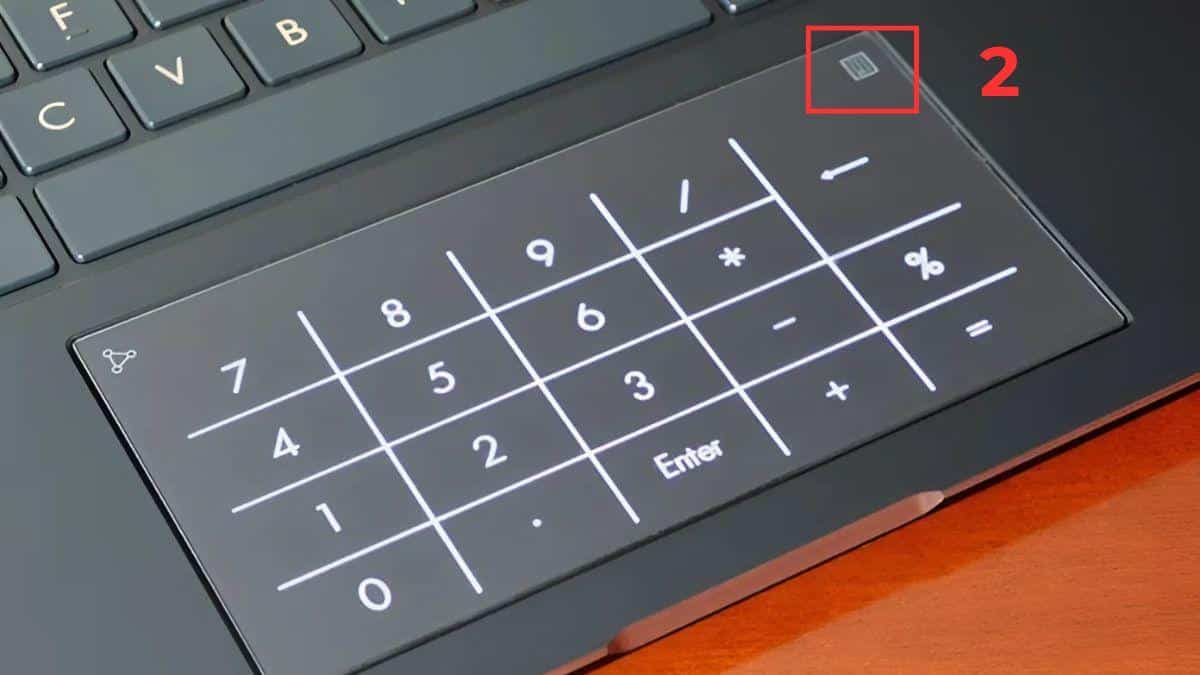
Visible inspection is different from internal repair. A laptop may need connector inspection, keyboard replacement, touchpad-integrated NumberPad diagnosis, or broader hardware testing even when no external damage is visible.
When Internal Inspection Should Stop
- Do not open the laptop solely because the numpad symptom persists after software checks.
- Do not reseat keyboard or touchpad connections unless you have model-specific knowledge, suitable tools, and appropriate safety controls.
- Stop DIY work after liquid exposure, impact, visible board damage, battery swelling, unusual heat, burning odor, or repeated intermittent failures.
- Do not use aggressive scraping, excessive force, unverified cleaners, or incompatible replacement parts.
- Leave internal connector inspection, keyboard replacement, touchpad-integrated NumberPad diagnosis, and board-level testing to a technician when the required procedure is uncertain.
When to Seek Professional Diagnosis or Repair
Professional diagnosis becomes appropriate when the numpad fails across applications and comparison environments, remains unresponsive after reversible checks, or is associated with physical damage or liquid exposure. The correct repair may involve cleaning, configuration or driver work, connection work, keyboard replacement, touchpad-integrated NumberPad repair, or broader hardware diagnosis.
Use the Evidence to Choose the Next Action
- If toggling Num Lock or the ASUS NumberPad control restores digits, continue using the corrected mode and document the model-specific control.
- If only Windows or one application is affected, prioritize settings, driver, or application support before considering hardware replacement.
- If an external keyboard works while the built-in numpad fails everywhere, arrange assessment of the built-in input path rather than assuming that the motherboard is faulty.
- If physical damage, liquid exposure, intermittent behavior, or failure across environments is present, stop escalating DIY tests and seek inspection.
- If the cause remains unclear, diagnosis is the appropriate next step. A replacement part should not be selected from the symptom alone.
Provide the technician with the exact ASUS model, Windows version, symptom pattern, recent events, settings or driver changes, and external-keyboard comparison. This evidence helps separate a mode issue from a built-in keyboard, touchpad, connector, or broader hardware problem.
Conclusion: Treat the Numpad Symptom as Evidence, Not a Diagnosis
An ASUS laptop numpad not working can result from Num Lock, a model-specific NumberPad control, Windows or application behavior, drivers, or physical damage. Start by recording whether the keys type digits, move the cursor, or fail completely. Then check the ASUS control, compare Windows and application behavior, test another input device, and inspect for visible warning signs.
Results from these checks narrow the possible causes but do not automatically confirm a driver fault, connector problem, or failed keyboard. If the issue follows liquid or impact damage, appears across environments, becomes intermittent, or cannot be resolved safely, professional diagnosis is the sensible next step. For a findings-based assessment, consider Asus laptop repair with IndiRepair.
Frequently Asked Questions
Q: How do I enable the number pad on an ASUS laptop?
A: First identify whether the ASUS laptop has a physical Num Lock control or a touchpad-integrated NumberPad feature. Use the key marking, indicator, or model-specific documentation to identify the correct control, then toggle it once and test several keys in a basic text field. If the keys still do not type digits, note whether they move the cursor or remain inactive. That result determines whether to investigate keyboard mode, Windows settings, applications, drivers, or hardware. ASUS models do not all use the same activation method, so a shortcut from another model should not be assumed to apply.
Q: Why does my ASUS number pad move the cursor instead of typing numbers?
A: Cursor movement usually means the keypad is operating in a navigation mode rather than numeric mode, although the behavior is not absolute proof of a particular fault. Check the Num Lock state and the model-specific ASUS NumberPad control, then retest several keys in a simple text field. If the keys switch to digits after the mode changes, the symptom was probably state-related. If the keys continue navigating or behave differently in different applications, compare Windows and application settings before considering physical keyboard repair.
Q: Why is my ASUS numpad not working in Windows 11 but working elsewhere?
A: If the ASUS numpad works at the sign-in screen or in another pre-Windows environment but fails after Windows 11 loads, Windows settings, accessibility options, drivers, or an application is more likely to be involved than an immediate keyboard failure. Test the keys in more than one standard text field and record whether the problem is system-wide or limited to one program. Review current Windows settings and inspect relevant device-management entries before changing drivers. Use the exact ASUS model and Windows information if a model-specific software package is needed.
Q: What should I check if ASUS NumberPad 2.0 is not working?
A: Confirm that the laptop actually uses the touchpad-integrated ASUS NumberPad feature and identify the activation control for the exact model. Check whether the touchpad itself responds normally, then test the NumberPad control and several digits in a basic text field. If the touchpad works but the NumberPad overlay does not activate, software support, mode selection, or a related input component may be involved. If both touchpad and NumberPad behavior are abnormal, record the pattern and avoid assuming that the NumberPad feature alone is faulty.
Q: Can an ASUS numberpad driver cause the number pad to stop working?
A: A keyboard, touchpad, or related input driver can contribute to numpad problems, particularly after a software change, but a driver is only one possible cause. Inspect relevant devices for warnings and confirm the exact ASUS model and Windows version before considering a driver change. Use a trusted, model-appropriate source and change one variable at a time. If the numpad improves afterward, that suggests software or configuration contributed to the symptom; it does not prove that the physical input hardware has no underlying issue.
Q: Does an ASUS numpad not working mean the keyboard needs to be replaced?
A: No. A nonworking ASUS numpad can result from Num Lock, a NumberPad mode, Windows settings, an application, a driver, debris, a connection issue, or keyboard hardware. Replacement becomes more reasonable only after reversible checks and comparisons show that the built-in input path fails consistently, especially across applications and available independent environments. Liquid exposure, impact, intermittent behavior, or visible damage should be assessed professionally. A technician should identify the failed component before selecting a keyboard, touchpad, or other replacement part.
Q: What does it mean if an external keyboard number pad works but the built-in one does not?
A: A working external number pad shows that the application and at least one input device can generate numeric input, which makes a built-in ASUS input-path problem more likely. The comparison does not identify whether the cause is an inactive mode, Windows or driver behavior, an internal connection, the keyboard assembly, or a touchpad-integrated NumberPad feature. Test both devices in the same text field and application, then compare behavior at another available input environment. If the built-in pad remains unresponsive everywhere, professional inspection is more useful than repeatedly installing generic drivers.