
If your Acer trackpad is not working, the symptom does not automatically mean the touchpad hardware has failed. A disabled setting, keyboard toggle, Windows behaviour, driver problem, external mouse conflict, debris, liquid, a loose internal cable, or physical damage can produce similar results.
Start by recording exactly what works and what does not. Note whether the pointer moves, clicks register, scrolling works, and gestures respond. Then use reversible checks before considering a repair. Each result is a clue rather than a confirmed diagnosis, and testing should stop immediately if the laptop shows electrical or physical warning signs.
When basic checks do not identify the cause, a diagnosis-led service is safer than replacing parts based only on the symptom. IndiRepair can help assess the wider laptop problem, including cases where the touchpad symptom is accompanied by other hardware concerns. You can also review the Lenovo laptop screen replacement service page when seeking IndiRepair support for a laptop inspection.
What the Trackpad Symptom Means and What to Record
An Acer laptop trackpad not working may indicate a complete input failure, but it may also be a partial problem affecting only movement, clicking, scrolling, or gestures. The symptom alone cannot confirm that the trackpad assembly is defective.
Exact settings and keyboard combinations can vary by Acer model and Windows version. Before changing anything, record the conditions under which the Acer touchpad stopped working. This information helps separate an input-state problem from a software or physical fault.
- Whether the pointer moves at all when a finger slides across the built-in trackpad.
- Whether left-clicking, right-clicking, tapping, scrolling, and multi-finger gestures work independently.
- Whether an external USB or Bluetooth mouse works normally.
- Whether the problem began after a Windows update, restart, new accessory, cleaning, drop, pressure, or liquid exposure.
- Whether the trackpad works intermittently or fails every time Windows loads.
These observations do not prove a specific fault. For example, an external mouse working while the built-in trackpad remains inactive may point toward a touchpad setting, driver, cable, or assembly issue, but further checks are needed.
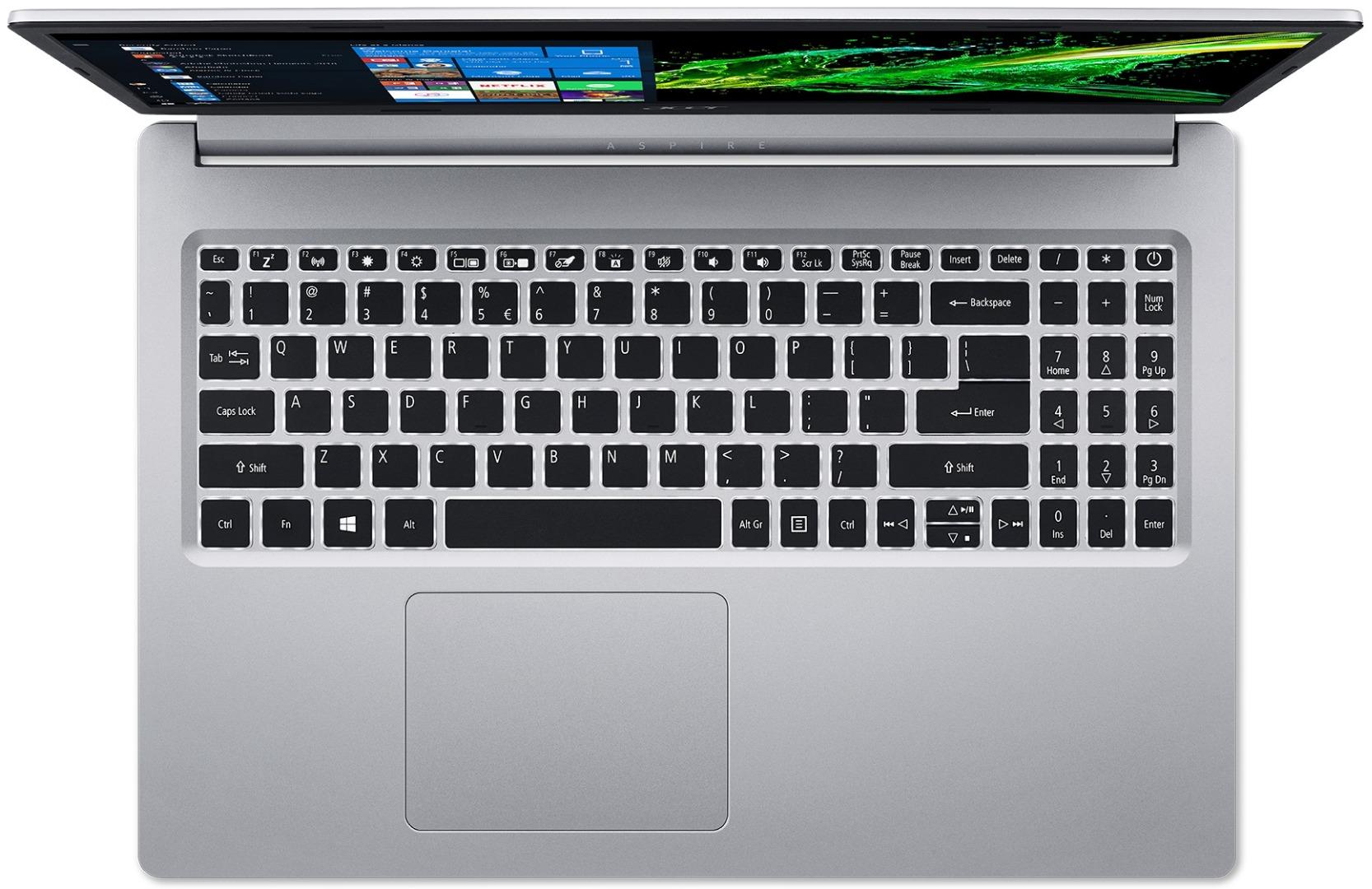
The built-in trackpad is separate from an external mouse, so testing both devices helps identify whether the problem affects one input device or Windows input more broadly.
Possible Causes of an Acer Touchpad That Has Stopped Working
Several causes can create the same Acer touchpad not working symptom. The categories below are possibilities, not confirmed diagnoses. Safe checks should narrow them down before replacement is considered.
1. The Touchpad Is Disabled in Windows or by a Keyboard Toggle
Windows settings or an Acer keyboard control may disable the built-in touchpad while the rest of the laptop continues working normally. A completely still pointer with no obvious physical damage is consistent with this possibility, although it does not prove that the setting is the cause.
2. Windows or the Touchpad Driver Is Not Communicating Correctly
A touchpad driver is software that helps Windows communicate with the pointing hardware. A recent update, restart, corrupted configuration, or unsupported driver change may cause the touchpad to disappear, show a warning, or stop responding after Windows loads.
3. An External Device or Input Setting Is Affecting Recognition
A connected USB mouse, Bluetooth pointing device, or related input setting may change how the built-in touchpad behaves. If the touchpad works after accessories are disconnected, that relationship is useful evidence, but it does not establish whether the accessory or the laptop configuration is responsible.
4. Dirt, Moisture, a Loose Connection, or Hardware Damage Is Present
Debris, liquid residue, impact, pressure, a loose internal cable, or a failed touchpad assembly can cause partial, intermittent, or complete loss of function. A raised trackpad, changed clicking feel, case separation, or failure after a drop makes physical inspection more important. Symptoms alone cannot safely confirm a loose cable or failed assembly.
Safe Troubleshooting Checks to Try First
Use the following checks in order because they are external and reversible. An external mouse or keyboard can help with navigation, but do not open the laptop merely to reseat a cable unless you have the appropriate experience and the laptop is safe to handle.
- Disconnect nonessential devices. Unplug USB accessories and temporarily disconnect Bluetooth mice or other pointing devices, then test the built-in trackpad. If the trackpad returns, reconnect devices individually to see whether one accessory changes the behaviour. Treat that result as a configuration clue rather than proof of a failed trackpad.
- Check for an Acer touchpad keyboard icon. Look across the function keys for a visible touchpad symbol and use the applicable toggle only when the icon or the model documentation identifies it. Because Acer key combinations vary, do not repeatedly try unverified combinations. If the pointer returns after the correct toggle, confirm whether the touchpad remains enabled after a restart.
- Confirm the Windows touchpad setting. Using an external mouse or keyboard navigation, open the available Windows touchpad settings and confirm that the device is enabled. Avoid changing unrelated options. If the setting is already enabled but the trackpad remains inactive, continue to software and driver checks instead of repeatedly altering settings.
- Restart Windows normally. Restart the laptop and wait until Windows has fully loaded before testing pointer movement, clicking, scrolling, and gestures. A temporary input-state problem may clear after a normal restart. If the Acer touchpad remains unusable, the unchanged result makes a persistent setting, driver, connection, or hardware issue more plausible.
- Clean only the accessible surface. Turn the laptop off if practical and wipe the trackpad gently with a soft, dry, lint-free cloth. Do not spray cleaner directly onto the laptop or push debris into gaps. If the touchpad is raised, wet, distorted, or unusually hot, do not continue cleaning or pressing it.
- Test each input function separately. Check movement, clicking, scrolling, tapping, and gestures rather than treating the symptom as one undifferentiated failure. If movement works but clicking does not, the problem may differ from a complete trackpad failure. Record the pattern before moving to software diagnostics.
Check Trackpad Settings and Keyboard Toggle State
The simplest explanation for an Acer touchpad not working on a laptop is that the device is disabled through Windows or a model-specific keyboard control. Confirm the state once, observe whether it survives a restart, and avoid unrelated system changes.
- Confirm that the Windows touchpad control is enabled. If the control is disabled, enable it and test movement, clicks, scrolling, and gestures. If the control switches back off after restarting, record that behaviour because it may indicate a software or configuration problem rather than a simple accidental toggle.
- Look for the visible touchpad symbol on the function keys. Use only the documented or clearly identified control for the specific Acer model. If no symbol or model guidance is available, do not guess at a key combination or alter firmware settings.
- Compare a setting change with the actual result. If the touchpad works after enabling a setting, the disabled state was relevant, but an intermittent hardware problem is not automatically ruled out. If the setting is enabled and the touchpad remains inactive, move to Windows and driver checks.
- Compare movement, clicking, scrolling, and gestures. A partial response can reveal that the Acer laptop touchpad is not completely inactive. Record which functions fail so a later assessment does not treat a limited gesture problem as a total hardware failure.
Check External Devices and Basic Windows Behaviour
External devices can create a simple input conflict, while Windows can also experience a temporary failure to initialise the touchpad. These checks do not require opening the laptop or making an irreversible change.
- Unplug nonessential USB devices. Leave only the accessories needed for navigation, then test the built-in trackpad. If it works, reconnect devices one at a time and note whether a particular device changes the symptom.
- Disconnect a Bluetooth mouse temporarily. Turn off or disconnect the external pointing device and test the Acer trackpad again. A change after disconnection suggests an input-management or configuration relationship, not automatic proof that the trackpad has failed.
- Restart Windows before changing drivers. A normal restart can distinguish a temporary Windows behaviour from a persistent issue. If the touchpad remains unavailable after the restart, continue with the software checks rather than repeatedly rebooting.
- Record the accessory comparison. Note whether the external mouse works while the built-in trackpad does not, and whether the external mouse also fails. This distinction helps determine whether the issue is isolated to the trackpad or affects broader input handling.
Software, Driver, and Diagnostic Checks
If settings, accessories, and a restart do not restore the Acer notebook touchpad, move carefully to Windows and driver diagnosis. The aim is to observe how Windows identifies the device, not to make multiple unverified changes at once.
- Check Device Manager for a touchpad or pointing-device entry. Look for a touchpad, pointing-device, or human-interface entry and note whether it is missing, disabled, or marked with a warning. Labels vary by Windows version and model, so an unfamiliar name is not by itself proof of failure.
- Use only normal supported driver options. If Windows provides an update or reinstall option for the relevant device, use the built-in process and record what changes. Avoid downloading unverified driver packages because an incorrect package can add a separate software problem.
- Review the timing of updates. If the touchpad stopped working immediately after a Windows or driver update, note that timing. Use only supported rollback or recovery options when available, and avoid removing several drivers as an experiment.
- Test at the Windows sign-in screen. Compare trackpad behaviour before and after signing in. If the touchpad works at sign-in but fails inside the user session, software settings or a background conflict become more plausible. If it fails consistently, continue with the remaining evidence rather than assuming hardware failure.
- Use an available pre-boot diagnostic carefully. If the Acer model provides a firmware or hardware-diagnostic environment that tests the pointing device, follow the model documentation and do not change firmware settings merely for testing. The availability and wording of these tools vary.
- Run a supported pointing-device diagnostic when available. Record the exact result instead of treating a generic pass as proof that every touchpad function is healthy. A diagnostic may test only selected functions and may not reproduce an intermittent fault.
- Compare Windows and diagnostic results. If the trackpad works outside Windows but not inside Windows, settings, drivers, updates, or software conflicts become more plausible. If it fails consistently in Windows and available pre-boot diagnostics, hardware or an internal connection becomes more plausible, but professional inspection is needed for confirmation.
- Avoid destructive recovery as an early test. Do not reset Windows, modify firmware, or remove multiple drivers merely to see whether the symptom changes. Those actions can complicate diagnosis, remove useful evidence, or create new problems.
Interpret Windows and Driver Results
The most useful diagnostic result is the relationship between where the touchpad works and where it fails. The table below gives cautious interpretations, not guaranteed diagnoses.
| Observation | What it may suggest | Reasonable next step |
|---|---|---|
| The touchpad is shown as disabled | A Windows setting or input-state issue is possible. | Enable the supported control and retest all functions. |
| The device entry is missing or shows a warning | Windows may not be communicating correctly with the device, or a recent system change may be relevant. | Review supported drivers and the timing of updates without using unverified packages. |
| The touchpad works in a diagnostic environment but not in Windows | A Windows setting, driver, update, or software conflict becomes more plausible. | Focus on supported Windows-level checks and preserve the observed result. |
| The touchpad fails in Windows and available pre-boot diagnostics | A hardware or internal-connection concern becomes more plausible. | Seek professional inspection rather than repeatedly changing software settings. |
IndiRepair has practical experience diagnosing laptop problems across 500+ laptop repairs. That experience supports a diagnosis-first approach: a device entry, setting, or test result should be treated as evidence to interpret, not as automatic proof that one part needs replacement.
book your Lenovo laptop repair with IndiRepair
Hardware Signs and Safety Stop Conditions
Physical or electrical warning signs change the troubleshooting approach. Stop testing and disconnect power when the laptop has been exposed to liquid or shows signs of swelling, unusual heat, sparks, smoke, a burning smell, melting, exposed wires, or a visibly damaged charger or port.
- Do not press on a raised or swollen trackpad.
- Do not continue charging a laptop that may have battery or electrical damage.
- Do not spray cleaner into the trackpad or laptop gaps.
- Do not open the chassis solely to reseat an internal cable without appropriate experience.
- Do not assume that surface drying proves a laptop affected by liquid is safe internally.
Visible and Behavioural Clues That Need Caution
A trackpad that feels raised, catches, clicks differently, works only when pressed in one area, or stopped responding after impact deserves more caution than an isolated software symptom. These observations can indicate physical damage or pressure near the trackpad, but they do not identify the failed component by themselves.
- Stop immediately after liquid exposure, sparks, smoke, burning odour, unusual heat, or suspected battery swelling.
- Stop applying pressure if the trackpad is raised, distorted, or unusually difficult to click.
- Seek inspection after a drop, hinge damage, case separation, or intermittent response that basic checks do not resolve.
- Do not assume that a clean surface or successful restart rules out internal damage.
IndiRepair recommends treating physical clues as reasons to preserve safety and seek inspection, not as an invitation to continue escalating DIY tests. After meaningful troubleshooting, you can get your Lenovo laptop checked by IndiRepair for a diagnosis-led assessment.
When to Seek Professional Repair or Diagnosis
Professional assessment is appropriate when safe settings, accessory checks, a restart, supported Windows checks, and available diagnostics do not restore reliable trackpad function. Help should be sought sooner when liquid, impact, swelling, unusual heat, sparks, burning smells, case separation, or other physical warning signs are present.
- Provide the exact Acer model and the date or situation when the symptom began.
- Explain whether movement, clicking, scrolling, tapping, or gestures fail independently.
- State whether an external mouse works and whether disconnecting it changes the trackpad.
- Describe recent Windows updates, driver changes, drops, pressure, cleaning, or liquid exposure.
- Share any Device Manager observation or diagnostic result without presenting it as a confirmed diagnosis.
An assessment may distinguish between a configuration issue, software or driver problem, cable or connector issue, touchpad assembly fault, or a wider system problem. Replacement is not automatically required. Back up important data when the laptop is stable and safe to use, but do not continue operating or charging it when electrical or battery warning signs are present.
Conclusion: Diagnose Before Replacing the Trackpad
An Acer trackpad not working is a symptom with several possible causes, including a disabled setting, keyboard toggle, Windows or driver behaviour, accessory conflict, contamination, loose connection, or hardware damage. The safest order is to record the symptom, try reversible settings and connection checks, interpret Windows and diagnostic results, and then decide whether professional assessment is needed.
Liquid, swelling, unusual heat, sparks, burning smells, and significant impact are stop conditions. If the Acer laptop touchpad remains unreliable after safe checks, IndiRepair can provide diagnosis-led guidance rather than assuming a replacement is needed. For the next repair decision, consider Lenovo laptop repair with IndiRepair and describe the exact symptoms and safety conditions before any work is recommended.
Frequently Asked Questions
Q: Why is my Acer touchpad not working while an external mouse works?
A: An external mouse working only proves that Windows can receive input from that mouse; it does not confirm that the Acer touchpad has failed. The built-in touchpad may be disabled in Windows, turned off by a model-specific keyboard toggle, affected by a driver problem, or disconnected internally. Check the touchpad setting, disconnect the external mouse temporarily, and compare movement, clicking, scrolling, and gestures. If the touchpad remains inactive while the external mouse works, preserve that observation for a driver check or professional diagnosis rather than assuming that a replacement is required.
Q: How can I tell whether my Acer laptop touchpad is disabled or physically damaged?
A: A disabled touchpad may return to normal after the supported Windows control or model-specific keyboard toggle is enabled, while physical damage may produce intermittent response, unusual clicking, a raised surface, or failure after impact or liquid exposure. These patterns are clues rather than proof. Check settings once, test the functions separately, and compare Windows behaviour with any supported diagnostic environment. Stop immediately if the trackpad is raised, hot, wet, distorted, or accompanied by a burning smell, because continued pressure or charging may be unsafe.
Q: What should I check if the Acer touchpad stopped working after a Windows update?
A: First record whether the timing is immediate and whether the touchpad works at the Windows sign-in screen or in an available pre-boot diagnostic environment. Check the Windows touchpad control and Device Manager for a missing, disabled, or warning-marked pointing-device entry. Use only supported built-in update, reinstall, rollback, or recovery options when available, and avoid downloading unverified drivers or removing several drivers at once. If the touchpad works outside Windows but not after sign-in, software or configuration is more plausible; if it fails everywhere, professional inspection may be needed.
Q: How do I enable or disable the touchpad on an Acer laptop?
A: Use the touchpad control in the available Windows settings, and check the keyboard for a clearly marked touchpad symbol. The exact Acer key combination can vary by model, so use the model documentation or the visible icon rather than guessing. If you enable the setting and the touchpad still does not work, test movement, clicking, scrolling, and gestures separately, then continue with accessory and driver checks. Do not change unrelated Windows settings or firmware options simply to test the trackpad.
Q: Should I keep troubleshooting an Acer trackpad after liquid exposure or a drop?
A: No. Liquid exposure, a drop, unusual heat, sparks, smoke, a burning smell, case separation, or a raised trackpad should be treated as a stop condition. Disconnect power when it is safe to do so, avoid pressing the trackpad, and do not continue charging or spraying cleaner onto the laptop. Surface drying does not prove that internal parts are safe. A professional inspection can assess possible internal damage more safely than repeated software tests or opening the chassis without appropriate experience.
Q: When does an Acer laptop touchpad problem require professional repair?
A: Seek professional diagnosis when the touchpad remains unreliable after checking supported settings, disconnecting external devices, restarting Windows, and reviewing available driver or diagnostic results. Professional help is also appropriate immediately after liquid exposure, impact, swelling, unusual heat, sparks, burning smells, or case separation. Provide the Acer model, failed functions, start date, accessory behaviour, recent updates, physical incidents, and diagnostic observations. Those details help distinguish a configuration problem from a driver issue, internal connection concern, touchpad fault, or wider laptop problem.