
If your Acer laptop keyboard is not working, the symptom may affect sign-in, typing, shortcuts, or only a few keys. It does not automatically prove that the keyboard assembly has failed. Windows settings, a keyboard layout, an application, an external device, debris, liquid exposure, an internal connection, or a hardware fault can produce similar behavior.
The safest approach is to record the exact symptom first, then work through reversible checks before considering repair. The results can narrow the possibilities, but a confirmed diagnosis may require inspection of the built-in keyboard, its connection, and related hardware.
What an Acer Keyboard Problem Does and Does Not Confirm
An Acer laptop keyboard that does not respond is a symptom rather than a diagnosis. A complete keyboard failure, a few inactive keys, repeated characters, delayed input, or shortcut problems each provide different clues, but no single pattern proves that a particular component has failed.
| Observed pattern | What it may suggest | What it cannot confirm |
|---|---|---|
| Every built-in key appears unresponsive | A software, connection, or hardware input-path problem | That the keyboard assembly or system board is definitely faulty |
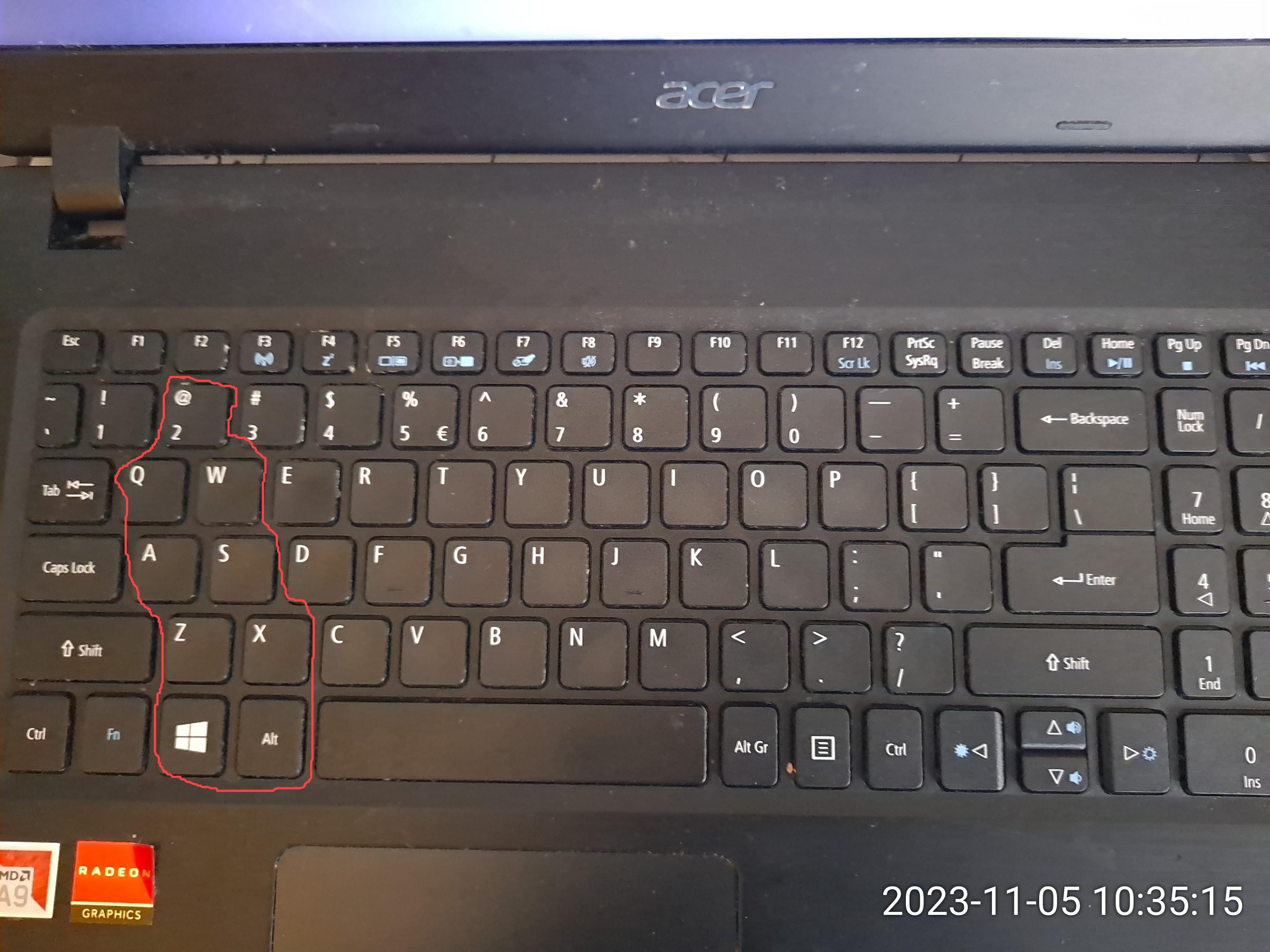
| One key or a small group of keys fails | Debris, residue, worn key mechanics, or a localized hardware issue | That cleaning or replacement will certainly solve the problem |
| Keys work intermittently or produce repeated characters | Contamination, a developing hardware fault, or intermittent software interference | Which internal component is responsible |
| Keyboard works outside one application | An application, shortcut, language, or input-context problem | That the entire laptop keyboard is healthy in every situation |
| Problem began after a spill, impact, update, or cleaning | A relevant environmental, physical, or software change | The full extent of any internal damage |
Timing is useful evidence. Note whether the Acer keyboard issue began after a Windows change, a spill, cleaning, pressure on the laptop, new software, or connection of another device. A timeline helps separate a possible trigger from a confirmed fault.
IndiRepair approaches keyboard complaints by comparing the symptom pattern with the test results instead of assuming that every case requires keyboard replacement. If early observations already suggest a physical fault, you can review the laptop keyboard repair service after preserving your work and noting what happened.
Symptoms and Observations to Record Before Troubleshooting
Record the keyboard behavior before changing settings or removing anything. A precise description is more useful than simply reporting that an Acer laptop has a not working keyboard.
- Identify whether the entire built-in keyboard is affected, or whether the problem is limited to a key, a group of keys, the number pad, or special-function keys.
- Record whether keys produce no input, incorrect characters, repeated characters, delayed input, or input only when pressed firmly.
- Check whether the keyboard responds at the Windows sign-in screen, in another application, or after a restart. Treat each result as evidence rather than proof.
- Note whether the touchpad, display, power button, and other input methods continue to work.
- Record recent liquid exposure, crumbs, dust, a drop, pressure on the lid, system updates, driver changes, or newly installed software.
- Note whether a known-working USB or Bluetooth keyboard behaves differently, if one is available.
- Preserve important work and avoid repeatedly pressing affected keys if liquid or physical damage is suspected.
Possible Causes of an Acer Laptop Keyboard Failure
The same Acer notebook keyboard problem can have more than one possible explanation. The categories below help organize the investigation; they do not replace a confirmed diagnosis.
1. Settings, Layout, or Accessibility Changes
Keyboard layouts, accessibility options, function-key behavior, and other Windows input settings can make key presses appear unusual or unavailable. A layout mismatch may produce unexpected characters, while an accessibility setting may change how repeated or held keys are processed.
Compare the observed behavior with the settings currently shown on the laptop. Avoid changing several options at once because doing so can remove useful evidence about which setting, if any, affected the keyboard.
2. Windows, Driver, or Application Interference
A recent update, driver state, startup utility, or application can interfere with keyboard input. If the keyboard works in one application or environment but not another, the difference suggests a software or context issue, although it does not identify the exact cause.
If the Acer keyboard fails consistently across available environments, software becomes less likely, but hardware is still not confirmed without further diagnosis. A restart may clear a temporary system state while leaving an intermittent physical fault unchanged.
3. Debris, Liquid, or Physical Damage
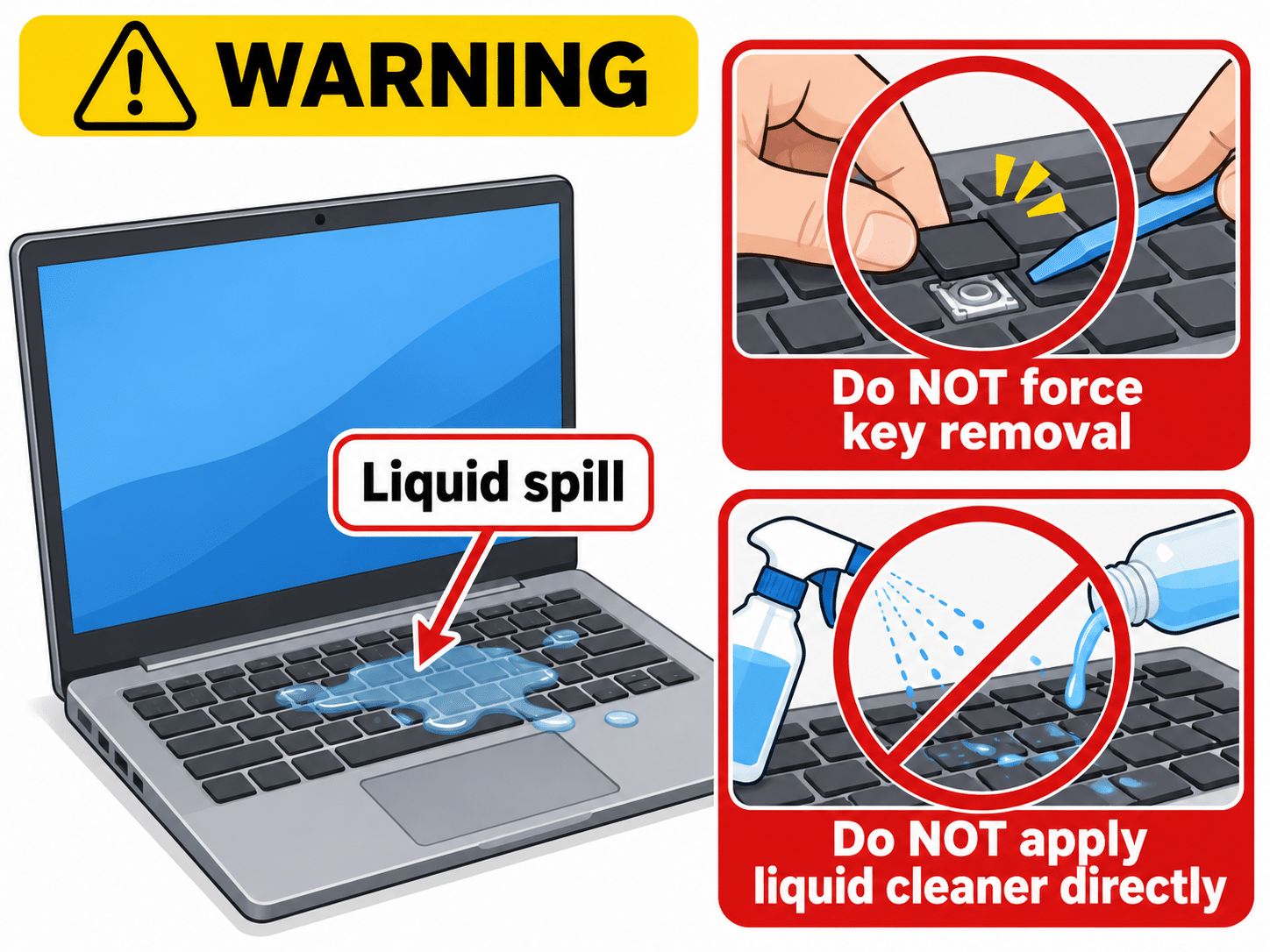
Crumbs, dust, sticky residue, discoloration, lifted keycaps, uneven key travel, and impact marks can support a physical explanation for individual or grouped key failures. A liquid spill deserves greater caution because moisture can affect contacts and other internal components beyond the visible key area.
- Visible debris may affect individual keys, but a clean-looking keyboard can still have an internal problem.
- Do not force a stuck key or remove keycaps without model-appropriate guidance.
- Do not continue normal testing after a spill, especially if the laptop becomes warm, smells unusual, or behaves unpredictably.
4. Internal Connection or Keyboard Hardware Fault
An internal keyboard cable or connector issue, a faulty keyboard assembly, or a related system-board problem may affect all or part of the built-in keyboard. A pattern that continues after safe software checks and external-input comparisons can justify professional inspection.
Keys that do not respond do not, by themselves, prove that the keyboard assembly needs replacement. A technician may need to assess the internal connection and related circuitry before selecting repair, cleaning, replacement, or another intervention.
How to Troubleshoot the Keyboard Safely
Work from the least invasive checks to the more informative comparisons. Keep each test separate, record the result, and stop if the laptop shows signs of liquid or electrical damage.
Software and Settings Checks
- Save work where possible and restart the Acer laptop once. A restart can clear a temporary application or system state. If the keyboard works afterward, the change suggests a temporary software condition, but it does not prove that the hardware is healthy. If the failure returns, continue with the comparison checks rather than repeatedly restarting.
- Test the affected keys at the sign-in screen and in more than one application. If the keys work in one context but not another, the difference points toward an application, layout, or Windows input issue. If the same keys fail everywhere you can safely test, a physical input-path concern becomes more plausible.
- Review the active keyboard layout and relevant accessibility or keyboard settings in Windows. Use the settings currently available for your Windows version rather than relying on an assumed menu path. Change one relevant setting at a time, then retest the original symptom so the result remains interpretable.
- Disconnect unnecessary input devices and accessories. Remove USB devices, docking accessories, and other external input hardware where practical, then test the built-in keyboard again. A change after disconnection suggests an interaction or context problem, but it does not establish that the internal keyboard is defective.
- Check for available Windows or driver changes only through normal system tools. Record what was changed and whether the symptom improved, worsened, or stayed the same. Avoid unverified driver downloads, firmware changes, or system resets merely because the Acer keyboard is not working.
- Compare environments before reinstalling drivers or resetting Windows. A keyboard that works outside one application but not inside it should be investigated as a context-specific problem. A keyboard that fails broadly may need hardware assessment, but software and internal connection faults can still overlap.
External Keyboard and Connection Comparison
- Connect a known-working USB keyboard directly to the Acer laptop if one is available. Avoid a hub or docking station for this comparison where practical. If the external keyboard works, it can provide temporary access and shows that at least one input path works under the tested conditions.
- Test the external keyboard at the sign-in screen and inside Windows. If it works in both places while the built-in keyboard remains unresponsive, the problem may be limited to the internal input path. The result still cannot distinguish the keyboard assembly from its cable, connector, or related board circuitry.
- If using Bluetooth, confirm that the external device has power and is paired. A Bluetooth failure may be unrelated to the built-in keyboard, so a direct wired comparison is usually easier to interpret when available.
- Compare the external result with the original built-in keyboard pattern. Record which keys fail and in which environments. A working external keyboard is useful evidence, not a complete diagnosis of the Acer laptop keyboard.
- Remove the external device after testing and check whether the original behavior changes. If disconnecting it changes the symptom, investigate the accessory or connection context before assuming that the internal keyboard requires replacement.
Cleaning and Physical Inspection Without Opening the Laptop
- Shut down the laptop and disconnect external power before inspecting the key area. This reduces the chance of continuing operation while checking for visible physical problems. If the laptop has been exposed to liquid, do not treat shutdown as permission to resume testing.
- Look for visible debris, residue, displaced keycaps, or abnormal key travel. Do not force, twist, or pry affected keys. Uneven movement can support a mechanical concern, but visual inspection cannot reveal the full condition of the internal contacts.
- Use only a model-appropriate, non-invasive cleaning method. Check Acer documentation for the exact model before using compressed air or attempting any keycap removal. Never apply liquid cleaner directly to the keyboard.
- Retest only when there is no sign of liquid or electrical damage. If visible debris was removed safely but the same keys remain inactive, the result suggests that further inspection may be needed rather than more forceful cleaning.
Model-Appropriate Diagnostic Comparison
- Identify the exact Acer model and Windows version. Model-specific instructions and available diagnostic options can differ, so do not rely on a procedure intended for another Acer laptop.
- Check Acer documentation or available built-in diagnostic options. Verify exact key combinations and menu paths before using them. Do not invent a shortcut or change firmware settings based on a generic instruction.
- Test keyboard response outside the normal Windows session only when the model instructions are confirmed. If the same keys fail in that alternate environment, concern about the physical input path increases. If the keyboard works there, Windows, drivers, settings, or applications become more plausible.
- Record the result and return to normal use without changing firmware settings unnecessarily. A pre-boot or alternate-environment result is evidence, not a complete component-level diagnosis. Professional inspection may still be needed to identify the failed part.
IndiRepair recommends treating each result as a clue rather than automatic proof that one component has failed. After meaningful troubleshooting, readers who still have an Acer laptop not working keyboard can get your Acer laptop checked by IndiRepair for diagnosis-led guidance.
How to Interpret the Results and Set the Hardware Boundary
Diagnostic evidence becomes useful when the symptom, test environment, and timing are considered together. A single successful restart or external keyboard test can narrow the possibilities, but neither result identifies every internal component.
| Pattern after safe checks | What it may suggest | What remains unconfirmed |
|---|---|---|
| One key is affected | Debris, residue, key mechanics, or localized contact damage | Whether cleaning, a key-level repair, or keyboard replacement is appropriate |
| A whole row or area is affected | A shared contact path, connector issue, or keyboard assembly problem | Which part of that path has failed |
| All built-in keys fail while an external keyboard works | A problem limited to the internal input path | Whether the keyboard, cable, connector, or board circuitry is responsible |
| Input is intermittent | A developing connection, contamination, hardware, or software problem | Whether the fault will remain stable or worsen |
| Failure occurs only in one application | An application, shortcut, layout, or input-context conflict | Whether the keyboard works correctly in every other situation |
| Failure begins only after Windows loads | A Windows, driver, setting, or startup-software difference | Whether an intermittent hardware issue is also present |
| Failure follows liquid exposure | Possible contamination or internal liquid damage | The full extent of damage, even if some keys still work |
A working USB keyboard proves that the external input device works under the tested conditions; it does not prove that the built-in keyboard alone is broken. Similarly, a keyboard that works after a restart may have experienced a temporary software state, but intermittent hardware remains possible if the symptom returns.
Safety Warnings and When DIY Troubleshooting Should Stop
Stop routine testing when the keyboard problem may involve liquid, heat, or electrical damage. Continuing to power or manipulate an affected laptop can increase risk and may obscure the original evidence.
- Stop after liquid exposure, especially when the laptop is warm, smells unusual, shows corrosion, or behaves unpredictably.
- Do not open the laptop, disconnect an internal cable, remove the keyboard assembly, or use tools around the battery unless the exact model procedure and safety requirements are verified.
- Do not force stuck keys, pry off keycaps, pour cleaner onto the keyboard, or repeatedly power on a device that may contain liquid.
- Stop immediately for smoke, a burning odor, swelling, unusual heat, sparks, melting, exposed wires, or other electrical damage.
- Escalate when the keyboard failure prevents access to important data, continues across safe comparisons, or appears alongside display, power, touchpad, or other hardware symptoms.
- Remember that opening a laptop can create additional damage and may affect applicable support terms. Check the relevant Acer documentation before performing model-specific work.
When to Choose Professional Acer Keyboard Repair
Professional assessment is appropriate when safe software checks do not resolve the problem, the symptom keeps returning, several key groups fail, or physical or liquid damage is suspected. A technician can assess the keyboard assembly, internal connection, and related hardware before deciding whether cleaning, repair, replacement, or another intervention is suitable.
- Provide the exact Acer model and describe whether the issue affects all keys, selected keys, or a specific area.
- Share when the problem began and whether it followed an update, spill, impact, cleaning, or accessory connection.
- Explain which applications and environments were tested, including whether an external keyboard worked.
- Include any visible damage, unusual heat, odor, error message, or related touchpad, display, or power symptom.
- Base the service decision on the diagnosis rather than assuming that a keyboard assembly must be replaced.
With experience across 500+ laptop repairs, IndiRepair focuses on identifying the underlying fault before recommending a component change. book your Acer laptop repair with IndiRepair
Frequently Asked Questions
Q: Does an Acer laptop keyboard that is not working always need replacement?
A: No. The symptom can result from Windows settings, a keyboard layout, application interference, an external-device conflict, debris, liquid exposure, an internal connection, or a failed keyboard component. A replacement becomes one possible outcome only after the symptom pattern and safe test results support a hardware diagnosis. If the keyboard works in another application or after a temporary system change, replacement may not be appropriate. Persistent failure across safe environments, visible damage, or liquid exposure is a reason to seek professional assessment rather than guessing which part to replace.
Q: Why is my Acer laptop keyboard not working while an external keyboard works?
A: A working external keyboard shows that the external input path works under the tested conditions. It may suggest that the problem is limited to the built-in keyboard path, but it does not distinguish between the internal keyboard assembly, its cable, connector, or related board circuitry. Test the external keyboard at sign-in and inside Windows, record the result, and avoid treating the comparison as proof of a specific failed part. Professional inspection is useful if the built-in keyboard remains unresponsive.
Q: What should I do if only some keys on my Acer keyboard do not work?
A: Record the exact keys and whether they form a group, produce repeated characters, or work only with firm pressure. Shut down the laptop before a gentle visual inspection for debris, residue, displaced keycaps, or uneven travel. Do not force keys, pry off keycaps, or apply liquid cleaner. If safe cleaning guidance does not resolve the pattern, or if the issue follows a spill or impact, arrange an assessment because localized symptoms can still involve internal contacts or connections.
Q: Can restarting fix a keyboard that is not working on an Acer laptop?
A: A restart can clear a temporary Windows, application, or system-state problem, so the keyboard may work afterward. That improvement does not confirm that the hardware is healthy. If the keyboard fails again, note when the failure returns and whether it appears only in a particular application or after Windows loads. Repeated restarts are not a substitute for diagnosis, especially when the symptom is intermittent or began after liquid exposure, impact, or another physical event.
Q: What should I do if liquid was spilled on my Acer laptop keyboard?
A: Stop normal keyboard testing and disconnect external power when it is safe to do so. Do not apply heat, pour cleaner onto the keyboard, repeatedly power on the laptop, or assume that working keys mean there is no internal damage. Liquid can affect contacts and other components beyond the visible spill area. If the laptop shows unusual heat, odor, smoke, sparks, or unpredictable behavior, stop handling it and seek appropriate professional guidance. Provide the spill timing and symptoms during assessment.
Q: When should I stop troubleshooting and seek Acer keyboard repair?
A: Stop when liquid, smoke, burning odor, swelling, unusual heat, sparks, melting, exposed wires, or suspected internal damage is present. Professional help is also appropriate when the keyboard continues to fail after safe software and external-input comparisons, when several key groups are affected, or when access to important data is blocked. Avoid opening the laptop unless the exact model procedure and safety requirements are verified. A diagnosis can determine whether the appropriate response is cleaning, connection work, repair, replacement, or another solution.
Conclusion: Treat the Symptom as a Diagnostic Starting Point
An Acer laptop keyboard not working is a symptom, not proof that the keyboard assembly has failed. Record the exact pattern, test reversible software and settings possibilities, compare an external keyboard where relevant, and inspect only without invasive actions.
- Escalate after liquid exposure, burning odor, unusual heat, swelling, sparks, or suspected internal damage.
- Seek assessment when safe checks do not resolve the problem or when the failure keeps returning.
- Use the test results to guide a repair decision instead of assuming that replacement is required.
IndiRepair can help evaluate unresolved Acer notebook keyboard problems using the recorded symptoms and diagnostic results. When professional assessment is the sensible next step, consider Acer laptop repair with IndiRepair without assuming a particular repair outcome in advance.