
If your Acer keyboard backlight is not working, the dark keyboard does not automatically mean that the keyboard has failed. The light may be disabled, set to its lowest level, controlled by a different model-specific shortcut, affected by Windows or Acer software, or interrupted by a power-state problem. A physical fault is also possible, especially after liquid exposure, impact, or keyboard replacement.
The safest approach is to identify the exact Acer model, record what changed, try reversible keyboard and restart checks, review compatible Windows and Acer controls, and then decide whether the symptom needs professional assessment. Avoid opening the laptop simply because the Acer laptop keyboard light is not turning on.
What the Acer keyboard-backlight symptom means
An Acer keyboard backlight is a separate lighting function from ordinary key input. A laptop can type normally while its illumination remains off, so normal typing does not prove that the backlight control or lighting circuit is healthy. Conversely, a dark keyboard does not prove that the keyboard needs replacement.
The exact keyboard shortcut, brightness behavior, available lighting effects, and supporting software depend on the Acer model and installed keyboard configuration. Record the full model or product number before following model-specific instructions, because Acer Aspire and Acer Nitro configurations can differ substantially.
Symptoms to record before changing settings
- Whether the keyboard types normally even though its illumination is absent.
- Whether the backlight worked previously or was never visibly available.
- Whether the symptom began after a Windows update, restart, sleep event, spill, drop, overheating event, or repair.
- Whether the documented backlight key produces an on-screen indicator, utility response, or any visible change.
- Whether the problem occurs on battery power, AC power, or both.
- Whether every key area is dark or only one section has lost illumination.
- Whether an Acer control application shows lighting controls or reports an error.
These observations are evidence, not a confirmed diagnosis. They help distinguish a control or software problem from a possible connector, keyboard, or backlight-circuit fault.
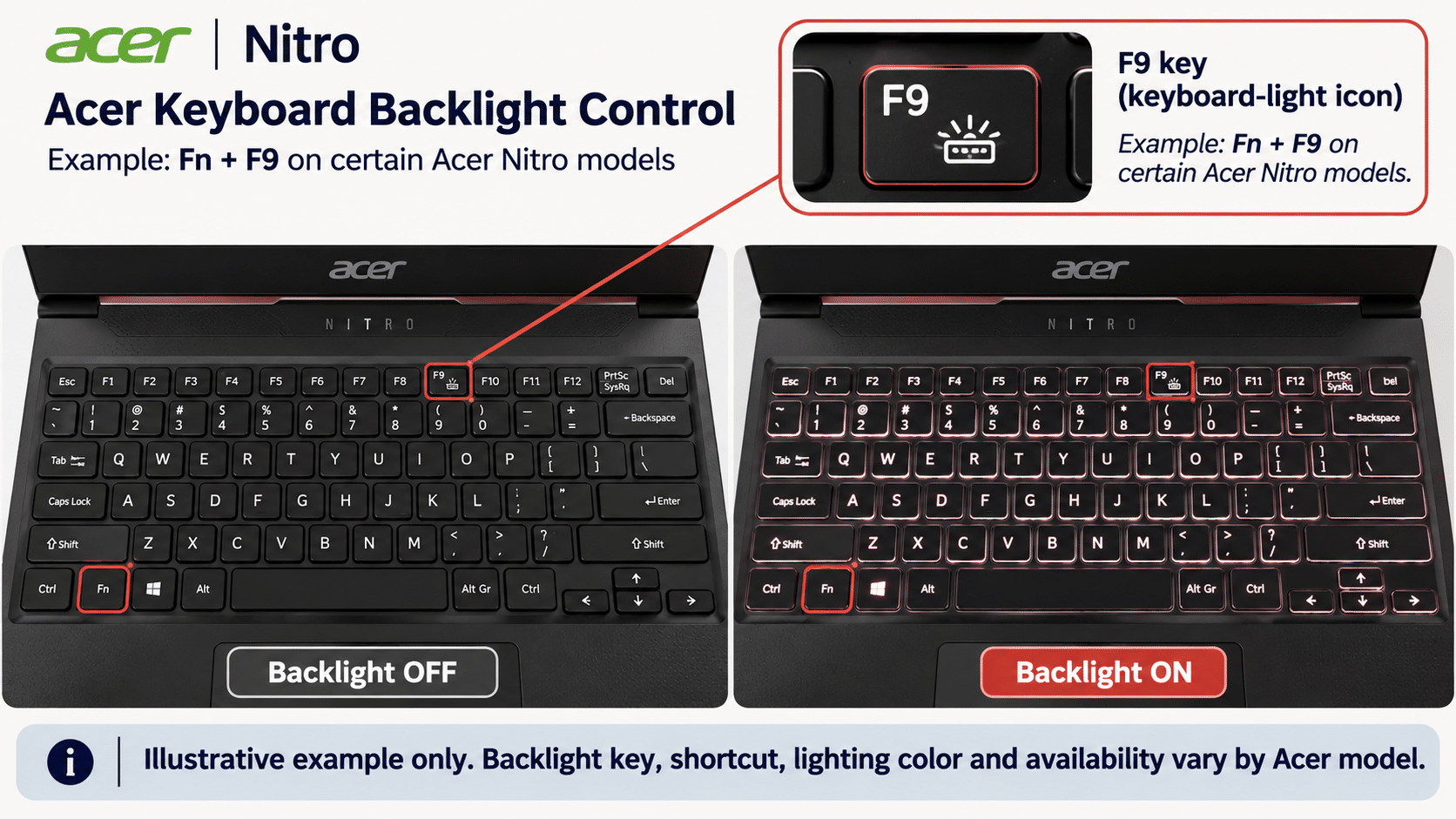
If the keyboard works but the illumination remains absent after the documented control and a normal restart, you can consider a laptop keyboard repair service for diagnosis rather than buying a replacement part based only on the symptom.
Possible causes of an Acer keyboard backlight failure
The following are possible causes of an Acer keyboard backlight failure. They are not confirmed faults until the exact model, software state, and hardware condition have been checked.
1. Backlight control or brightness setting is disabled
The backlight may be switched off, set to its minimum brightness, or controlled by a different function-key combination than expected. Acer does not use one universal shortcut for every laptop, so the symbol printed on the keyboard and the documentation for the exact model matter.
2. The model or installed keyboard does not support illumination
Some Acer configurations have a non-backlit keyboard, while other configurations in the same product family may include lighting. An Acer Aspire keyboard backlight may therefore behave differently from another Aspire variant. An Acer Nitro 5 can also vary by generation and keyboard configuration, so the full product number should be verified before assuming a feature is supported.
3. Windows, an Acer utility, or a control component is interfering
Windows settings, keyboard-related drivers, Acer utilities, firmware interactions, or a recent update may prevent the lighting command from working. On supported Nitro systems, NitroSense may provide relevant controls, but a missing control can also indicate unsupported hardware, an installation issue, or a different control method. It is not conclusive by itself.
4. A sleep, restart, or battery power state has left the control unresponsive
A backlight command may stop responding after sleep, hibernation, fast startup, or a change between AC and battery power. If a full restart restores the light temporarily, a temporary software or power-state issue becomes more plausible, although that result does not prove the underlying cause.
5. A gaming or lighting profile is overriding the expected behavior
Supported Acer gaming systems may apply performance, battery-saving, gaming, or lighting profiles. A profile can change when the backlight operates or which controls are available. The exact behavior depends on the model and installed software, so avoid applying instructions intended for a different Nitro generation.
6. The keyboard, connector, or backlight circuit has a physical fault
A damaged keyboard membrane, internal cable, connector, backlight circuit, or related board connection can leave the keys functional while the illumination remains dark. Persistent failure across restarts and documented controls, uneven lighting, or a symptom that began after impact or repair makes hardware assessment more appropriate.
7. Liquid, heat, swelling, or electrical damage makes continued testing unsafe
Liquid exposure, corrosion, burning smell, smoke, sparks, unusual heat, swelling, melting, or exposed wiring can indicate a safety issue rather than an ordinary settings problem. Stop using the laptop and avoid charging or opening it until it has been assessed.
How to troubleshoot the backlight safely
Use the simplest reversible checks first. Do not repeatedly force key combinations, install unverified firmware, or open the laptop merely because the Acer keyboard light is not turning on.
Easy keyboard and power-state checks
- Identify the model-specific backlight control. Find the backlight symbol on the Acer keyboard or confirm the intended control in documentation for the exact model. Do not assume that a shortcut found for one Acer laptop applies to another. If no backlight symbol or supported feature is documented, model support should be verified before further troubleshooting.
- Try the documented toggle once. Use the documented key or function-key combination and observe whether the keyboard, an on-screen indicator, or an Acer utility responds. A response makes a control or software explanation more plausible; no response does not by itself prove a failed keyboard.
- Check the documented brightness command. If the model supports more than one brightness level, use the documented brightness control to determine whether the light is simply at its lowest setting. If the indicator changes but the keys remain dark, record that distinction for later diagnosis.
- Perform a normal Windows restart. Save work and restart the laptop normally, then repeat the documented backlight control after Windows has fully loaded. A restored light points toward a temporary software or power-state issue, while continued failure means the model-support and hardware checks remain relevant.
- Compare battery and AC behavior cautiously. Test both power states only when the laptop, charger, and charging port show no warning signs. If the light changes only when AC power is connected or removed, record the pattern rather than assuming that the battery is defective.
Check the symptom without opening the laptop
- Test several ordinary keys. Type in a text field to determine whether normal key input works. Functional typing with absent illumination narrows the symptom to the lighting or its control, but it does not identify the failed component.
- Separate the backlight symptom from other abnormalities. Note whether the touchpad, display, startup process, and other keyboard functions behave normally. Multiple simultaneous abnormalities suggest a broader system, power, or physical problem and justify more cautious testing.
- Observe startup and wake behavior. Record whether the light appears briefly during startup, after waking, or when an Acer utility opens. A temporary flash is useful evidence about power-state behavior, but it does not confirm that the backlight circuit is healthy.
- Disconnect nonessential USB devices. Remove nonessential peripherals, restart normally, and repeat the documented control if the problem began after a peripheral change. If the symptom remains unchanged, reconnect devices only after the test is complete.
- Record the model and test results. Write down the exact model number, Windows version, recent changes, power state, and response to each safe check. A clear history helps prevent incompatible driver, utility, or keyboard recommendations.
Software, model-support, and diagnostic checks
Software checks are useful after the physical keyboard and model support have been considered. Windows 11, Acer utilities, drivers, firmware, and BIOS or UEFI behavior differ by model, so use official documentation for the exact Acer product before changing system components.
Review Windows and Acer controls
- Confirm the Windows version and recent changes. Note whether the Acer keyboard backlight stopped working after a Windows update, restart, or other software change. A clear timing relationship makes software investigation more relevant, but it does not prove that an update caused the fault.
- Check the Acer utility documented for the exact model. Open the supported Acer control application, if one is documented, and see whether keyboard-light controls are present and responsive. Missing controls may indicate unsupported hardware, an installation problem, or a different control method.
- Review NitroSense only when it applies to the model. If the exact Nitro system documents NitroSense for lighting control, check whether the laptop is recognized and whether the expected controls are available. NitroSense keyboard light not working can reflect an application or configuration issue, but the application alone cannot confirm a hardware failure.
- Review relevant devices and support resources carefully. Check Device Manager and Acer’s official support information for relevant keyboard, system-control, chipset, or hotkey components. Do not remove devices unnecessarily, because an unverified removal can create additional problems.
- Record versions before changing software. Write down the current driver, utility, and firmware versions before installing or rolling back anything. Confirm compatibility with the exact product number, and do not treat a BIOS or firmware update as a casual first fix.
Verify model support and configuration
- Find the complete product number. Read the model information from the laptop, system information, or official Acer support materials. A broad name such as Aspire or Nitro 5 is not enough to establish identical keyboard features.
- Compare the documented keyboard features. Check whether the exact configuration includes a backlit keyboard and identify the documented shortcut or brightness behavior. This is the most reliable way to address how to turn on the keyboard light on an Acer laptop without applying a universal shortcut incorrectly.
- Check for a previous keyboard replacement. If the keyboard was replaced, confirm whether the installed part was intended for the same backlight configuration. A physically compatible-looking keyboard can still differ in lighting support or connector arrangement.
- Verify utility and firmware requirements. Use official model documentation to confirm any required Acer utility, driver, BIOS, or firmware relationship. Avoid unverified procedures because an incompatible update can create additional startup or input problems.
- Keep model differences in mind. Do not infer that every Acer Aspire or Acer Nitro 5 variant uses the same backlight shortcut, color behavior, timeout, or software control.
Interpret the results without overdiagnosing
The result of a check is a clue, not automatically a confirmed diagnosis. Use the pattern of symptoms to decide whether further external testing is reasonable or whether inspection is more appropriate.
| Observation | What it may suggest | What it does not prove | Next safe decision |
|---|---|---|---|
| Keys type normally, but no light appears | A disabled control, unsupported feature, software issue, connector problem, or backlight-circuit fault | It does not prove that the whole keyboard needs replacement | Verify model support, repeat the documented control after restart, then consider assessment if the symptom persists |
| The documented control produces no response | An incorrect shortcut, missing control component, unsupported configuration, or physical fault | It does not identify which component has failed | Confirm the exact product number and compatible Acer software before considering hardware work |
| The light returns after a full restart | A temporary Windows, utility, or power-state issue | It does not prove that the issue cannot return | Record the event and monitor whether it follows sleep, hibernation, or a software change |
| The Acer utility has no lighting controls | Unsupported hardware, an installation issue, or another model-specific control method | It does not prove that the utility is broken or the keyboard is damaged | Compare the exact configuration with official model information |
| Only one keyboard zone is dark | A local lighting, membrane, connector, or keyboard-assembly problem | It does not confirm the precise failed part | Stop escalating DIY work and arrange inspection if the pattern persists |
| The problem began after liquid exposure or impact | Possible physical or electrical damage | It does not make continued powered testing safe | Stop using the laptop and seek assessment rather than continuing software troubleshooting |
With experience across 500+ laptop repairs, IndiRepair focuses on identifying whether a persistent keyboard-light symptom points to control software, the keyboard assembly, an internal connection, or another related fault before recommending a repair.
book your Acer laptop repair with IndiRepair
Hardware signs and safety limits
Stop testing and disconnect power where it is safe to do so if the Acer laptop shows liquid exposure, smoke, sparks, a burning smell, unusual heat, swelling, cracking, melting, exposed wires, or visible electrical damage. These signs can indicate a safety problem rather than an ordinary keyboard setting.
- Do not continue charging a laptop with a damaged charger, visibly damaged port, burning smell, smoke, sparks, or extreme heat.
- Do not press repeatedly on a swollen or distorted laptop base.
- Do not dry liquid damage with direct heat or attempt to puncture, squeeze, or manipulate a swollen battery.
- Do not probe internal electrical contacts or repeatedly bend a damaged charging connector.
- Do not open the laptop merely to reseat a keyboard connector unless you have the appropriate skills, tools, and model-specific service information.
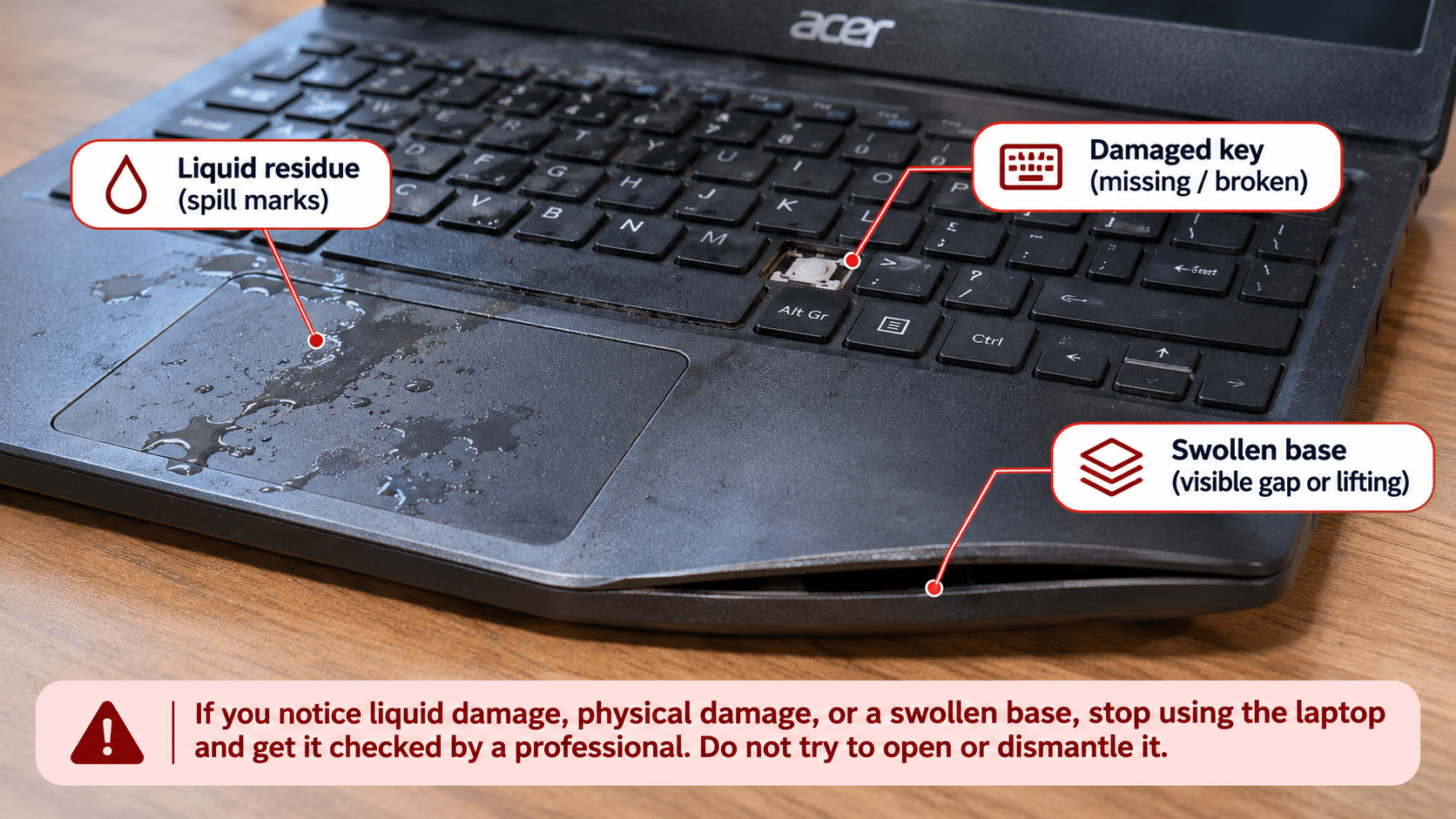
Possible hardware indicators include a backlight problem that survives documented controls and restarts, partial or uneven illumination, recent impact or liquid exposure, or a replacement keyboard that does not match the original configuration. These indicators increase the need for assessment, but they do not identify the failed component without inspection.
When professional repair is appropriate
Professional assessment becomes appropriate when the documented toggle, brightness check, normal restart, model-support verification, and compatible software checks do not restore the light. Assessment should happen sooner when liquid, impact, corrosion, burning smell, swelling, overheating, or visible damage is involved.
A technician may need to distinguish among the keyboard assembly, backlight connection, internal cable, board-level lighting circuit, software state, and an incompatible replacement part. IndiRepair recommends treating each test result as diagnostic evidence rather than assuming that a dark keyboard automatically requires replacement.
If the symptom persists after safe external checks, you can get your Acer laptop checked by IndiRepair. Provide the exact model number, when the problem began, recent updates or repairs, any liquid or impact history, and the results of the checks already completed.
Frequently Asked Questions
Q: How do I turn on the keyboard light on an Acer laptop?
A: Use the backlight symbol and shortcut documented for the exact Acer model rather than relying on one universal key combination. Some Acer keyboards use a function-key command, while some configurations may not include a backlight at all. Check whether the command changes brightness, produces an on-screen response, or affects an Acer utility. If the documented control produces no response, restart Windows normally and verify model support before changing drivers or firmware. A missing light after those checks is a symptom that still needs interpretation, not automatic proof of keyboard failure.
Q: Why is my Acer keyboard backlight not working in Windows 11?
A: Windows 11 may be part of the timing, but it is only one possible cause. The model may use a different shortcut, the keyboard may not support illumination, an Acer utility or control component may be missing, or a sleep and restart state may have left the command unresponsive. Confirm the exact product number, check the documented control, restart normally, and review compatible Acer software without removing devices unnecessarily. If the keyboard types normally but the light remains absent after these checks, a connector, keyboard, or backlight-circuit issue may require inspection.
Q: What should I check when an Acer Nitro 5 keyboard backlight is not working?
A: First verify the exact Nitro 5 generation and keyboard configuration, because Nitro models do not all have identical lighting controls. Use the documented shortcut, check whether the expected lighting controls appear in NitroSense when that application applies to the model, and perform a normal restart. Record whether the light behaves differently on battery and AC power, provided there are no safety warnings. If only part of the keyboard is dark, or the problem began after impact, liquid exposure, or keyboard work, stop escalating software changes and arrange a hardware assessment.
Q: Does every Acer Aspire laptop have a keyboard backlight?
A: No. Keyboard features can vary between Acer Aspire configurations, even when the family name is the same. The absence of an illuminated keyboard may therefore reflect the original specification rather than a failure. Check the full product number and official model information for backlight support, the intended shortcut, and any required control software. If the laptop previously displayed a backlight and it stopped after an update, repair, spill, or impact, treat that change as a diagnostic clue and investigate the control and physical condition separately.
Q: Does a working keyboard with no backlight mean the keyboard needs replacement?
A: No. Normal typing with no illumination can result from a disabled setting, a model-specific shortcut issue, missing Acer software, a temporary power state, an incompatible replacement keyboard, an internal connection, or a backlight circuit. Confirm that the model supports lighting, try the documented control, restart normally, and review compatible software before deciding on a part. If the light remains absent, partial, or uneven, professional inspection can distinguish a keyboard assembly problem from a connector or board-related fault.
Q: Is it safe to keep using an Acer laptop after liquid exposure or a burning smell?
A: No. Liquid exposure, burning smell, smoke, sparks, swelling, unusual heat, melting, or visible electrical damage should be treated as a safety boundary, not as a normal backlight troubleshooting problem. Stop using the laptop and disconnect power only if doing so is safe. Do not charge it, apply heat, press on a swollen area, or open it without appropriate expertise. Continued powered testing can worsen damage or create a safety risk, so arrange assessment and provide the technician with the event history.
Conclusion: interpret the symptom before choosing a repair
A dark Acer keyboard is an observation, not automatic proof that the keyboard or backlight hardware has failed. Confirm the exact model and feature support, use the documented toggle and brightness controls, restart Windows, compare relevant power-state behavior, and review compatible Acer software before drawing a conclusion.
- Persistent failure after safe external and software checks supports professional assessment.
- Partial illumination, a post-repair symptom, or a mismatch between the installed and original keyboard increases the need to inspect the hardware.
- Liquid, smoke, sparks, burning smell, swelling, unusual heat, or visible damage means DIY testing should stop immediately.
When the backlight remains inactive or internal damage may be involved, IndiRepair can assess whether the issue relates to the keyboard, connection, lighting circuit, or another cause. For a diagnosis-led next step, consider Acer laptop repair with IndiRepair rather than assuming that replacement is required before inspection.