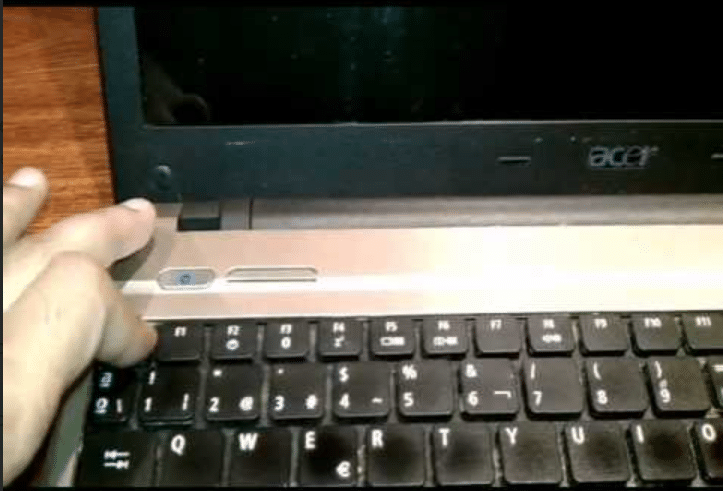
An Acer laptop black screen issue can be frustrating – especially when the laptop powers on but nothing appears on the display. In many cases, users notice the fan spinning, keyboard lights turning on, or charging indicators working normally, but the screen remains completely blank.
This issue can occur in different situations – after a windows update, after waking the laptop from sleep, or even randomly during normal use. The confusion comes from not knowing whether it’s a simple software glitch or deeper hardware problem.
The important thing to understand is that not every Acer laptop black screen means serious damage. In our repair experience at IndiRepair, a significant number of cases are caused by driver crashes or temporary system issues, while the rest involve hardware faults like display panel failure or loose internal cables.
Common Acer Laptop Black Screen Scenarios
Before starting troubleshooting, identify which situation matches your case:
a. Black screen with cursor visible
b. Screen is completely black but power light is on
c. Laptop turns on, fan spins, but no display
d. Acer logo appears briefly, then screen goes black
e. Black screen after Windows update or restart
f. Screen goes black after login
g. External monitor works but laptop screen is blank
h. Keyboard lights or sounds are active but no display.
Understanding this helps determine whether you’re dealing with a software issue or hardware failure.
How to Fix Acer Laptop Black Screen
A laptop display works through a sequence — the system initializes through RAM, the GPU processes visuals, signals pass through the display cable, and the screen panel renders the output. A failure at any stage in this chain can result in a black screen.
Follow these steps one by one. After each step, check if the issue is resolved.
Step 1: Perform a Hard Reset
Steps:
a. Turn off the laptop completely
b. Disconnect charger and all accessories
c. Remove battery (if removable)
d. Press and hold the power button for 30-40 seconds
e. Reconnect charger and turn on the laptop
What this tells you:
a. Display comes back → temporary power glitch
b. Still black → move to next step
Step 2: Check Brightness & Backlight
Steps:
a. Increase brightness using keyboard keys
b. Shine a flashlight closely on the screen
c. Look carefully for faint icons or login screen
What this tells you:
a. Faint image visible → backlight failure
b. No image → continue troubleshooting
Backlight failure is a common issue where the screen is working but not illuminated, making it
Step 3: External Monitor Test
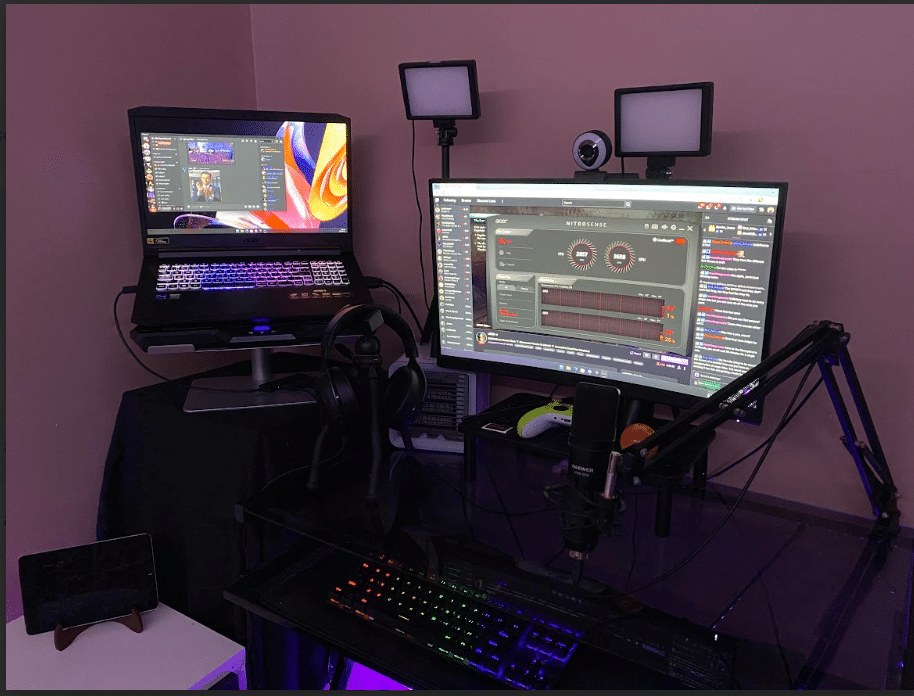
Steps:
a. Connect laptop to external monitor or TV via HDMI
b. Turn on the laptop
c. Use display switch shortcut (Fn + display key)
What this tells you:
a. External display works → screen panel or cable issue
b. External display also black → deeper system issue
If the external display works normally, it confirms that the GPU is functioning correctly and the issue is limited to the laptop’s screen or display cable.
If the external display works, your laptop is not dead– the issue is limited to the screen.
Step 4: Reset Graphic Driver
Steps:
a. Press Windows + Ctrl + Shift + B
b. Wait for a beep or screen refresh
What this tells you:
a. Display returns → driver crash
b. No change → continue
<h3> Step 5: Boot into Safe Mode </h3>
Steps:
a. Restart laptop and interrupt boot 2-3 times.
b. Enter Recovery → Advance Options → Startup Settings
c. Select Safe Mode
What this tells you:
a. Display works → driver or software issue
b. Still black → likely hardware issue
Step 6: Check RAM (Advance Step)
Note: Perform only if comfortable
Steps:
a. Turn off and unplug laptop
b. Open back panel
c. Remove RAM and reinsert firmly
d. Turn on laptop
What this tells you:
a. Display returns → RAM seating issue
b. No change → move ahead
Step 7: Run Startup Repair
Steps:
a. Enter Recovery mode
b. Select Startup Repair
c. Let system diagnose and fix issues
What this tells you:
a. Laptop boots normally → software issue fixed
b. Black screen persists → hardware inspection required
When Repair or Screen Replacement is Required
Professional repair is recommended if:
a. External monitor works but laptop screen stays black
b. Flashlight test shows faint display
c. Screen reacts when opening/closing lid
d. Black screen persists after all troubleshooting
e. Laptop is running but display never appears
In such cases, the issue is usually with the screen panel or display cable, and replacement is often the most reliable solution.
Why Choose IndiRepair for Acer Laptop Black Screen Issues
A black screen issue on an Acer laptop can happen due to multiple reasons, including display failure, RAM issues, motherboard faults, graphics chip problems, loose internal connections, or power-related hardware failures. In some cases, the laptop may appear to turn on while the screen remains completely blank, making proper technical diagnosis essential before attempting any repair.
At IndiRepair, every Acer laptop is carefully inspected to identify the exact cause of the black screen issue rather than immediately replacing the display. The diagnosis process includes checking the screen panel, display cable, RAM, graphics output, motherboard circuitry, and power delivery components to ensure the actual problem is identified accurately.
For repairs and replacements, only tested and compatible components are used that match the laptop’s original specifications. Whether the issue is related to a damaged display, faulty backlight, motherboard failure, or GPU-related malfunction, the focus is on restoring the laptop’s original functionality and long-term reliability.
Particular attention is given to Acer gaming and performance laptops where display responsiveness, graphics performance, and thermal stability are critical for smooth usage. Proper repair standards help prevent recurring black screen problems after servicing.
With transparent communication, pickup and drop support, and quick turnaround times, IndiRepair aims to provide a smooth and dependable repair experience for Acer laptop users facing screen and startup issues.
Frequently Asked Questions
Q. Why is my Acer laptop screen black but the fan and lights are on?
A. If your laptop is powering on but the screen is black, it usually means the system is running but not displaying output. This is commonly caused by display issues like a faulty screen panel, loose cable, or sometimes a graphics driver crash.
Q. Why does my Acer laptop show a black screen after a Windows update?
A. This is often due to driver conflicts or corrupted updates. Windows updates can sometimes interfere with graphics drivers, causing the screen to go black. Booting into Safe Mode and reinstalling the driver usually resolves this.
Q. The external monitor works but the laptop screen is black – what does it mean?
A. This confirms that your laptop’s internal components are working properly. This issue is limited to the screen, backlight, or display cable, and in most cases, requires screen repair or replacement.
Q. Can RAM cause a black screen on Acer laptops?
A. Yes, if the RAM is loose or faulty, the system may fail to initialize properly, resulting in no display. Reseating or testing RAM can help identify this issue.
Q. How much does it cost to fix an Acer laptop black screen?
A. It depends on the cause. Software issues are usually inexpensive to fix, while screen replacement typically costs between ₹2500 to ₹7000 depending on the model and panel type.The exact cost depends on your laptop model, screen type, and whether the issue is related to the display panel or internal components.
CONCLUSION
An Acer laptop black screen doesn’t always mean the laptop has completely failed – it usually points to a specific break in the display chain, whether that’s a temporary driver issue or a hardware fault like a damaged screen or loose cable.
The key is not trying random fixes, but understanding what each symptom is telling you. If the display comes back during basic steps like driver reset or Safe Mode, the issue is likely software-related. But if the screen remains black while the laptop is clearly running – especially when an external monitor works – the problem is almost always within the screen assembly itself.
In most real cases, hardware-related black screen issues are confirmed, they don’t resolve on their own and require proper repair or replacement. Identifying this early helps avoid unnecessary trial and error and gets the laptop back to working condition faster.
If your laptop screen remains black after trying all the basic steps, it’s best to get it professionally diagnosed instead of continuing trial-and-error fixes. At IndiRepair, we provide quick and reliable Acer laptop diagnostics along with pickup and drop service, helping you identify and resolve the issue without unnecessary delays.
Written by Khan Rahil, a diploma holder in Computer Hardware with over 5 years of hands-on experience in laptop repairs and Senior Technician at IndiRepair. He has personally handled hundreds of Acer screen replacements, specializing in precise compatibility checks and quality installations.