ASUS laptop battery error codes and warning messages can indicate a charging problem, missing battery detection, reduced battery health, or a power-management communication issue. A warning does not automatically mean the battery needs replacement. The charger, cable, charging port, software, firmware, or internal charging hardware may also be involved.
This guide explains what the message can tell you, how to work through safe checks, and how to interpret Windows and MyASUS results without jumping to a diagnosis. If there is swelling, smoke, a burning smell, liquid exposure, or extreme heat, skip troubleshooting and stop using and charging the laptop.
What Does an ASUS Laptop Battery Error Code Mean?
An ASUS battery error code is a diagnostic clue reported by software, firmware, or the laptop’s power-management system. Some reports contain an identifier; others are plain-language messages rather than actual codes.
There is no single code interpretation that should be assumed to apply across every ASUS laptop and diagnostic tool. The exact meaning depends on the full message, model, operating system, firmware, and reporting application. A Windows device error, for example, is not automatically an ASUS battery-health code.
- A battery warning may appear even while the laptop still runs normally.
- The percentage may remain unchanged, jump unexpectedly, or disagree with actual runtime.
- Windows may report that the laptop is plugged in but not charging.
- The battery may appear as missing or not detected.
- The laptop may shut down unexpectedly or show an abnormal MyASUS diagnostic result.
The most useful starting evidence is the exact wording or identifier, where it appeared, the full model number, the current charge level, and whether the charger was connected. A screenshot preserves details that a description such as “battery error” misses.
A message describes what the system observed. It does not, by itself, identify which component caused that observation.
What the Battery Message Can and Cannot Confirm
The following distinctions help prevent unnecessary battery replacement. These are message categories, not a universal ASUS error-code dictionary.
| Observation | What it may indicate | What it cannot confirm |
|---|---|---|
| Plugged in, not charging | A charge limit, temperature-related pause, unsuitable adapter, connection problem, battery fault, or charging-circuit issue | That the battery has failed or that incoming power is adequate |
| Battery-health warning | Reduced battery condition or an abnormal health assessment | A universal replacement threshold without the tool’s definition and supporting symptoms |
| Battery not detected | A communication, driver, firmware, battery-connector, battery, or motherboard issue | That a new battery alone will restore detection |
| MyASUS diagnostic warning or failure | An abnormal result in the particular test performed | That every other part of the charging system is working correctly |
| Percentage changes or unexpected shutdowns | Battery deterioration, reporting problems, or another power fault | A specific failed component without further testing |
The context matters as much as the label. A charging pause at a configured limit is different from a battery that keeps losing charge while idle on a compatible adapter.
If the evidence points toward a battery problem, Asus laptop battery replacement service is a relevant next step for assessment, rather than assuming every warning requires a replacement.
Why Does an ASUS Battery Error Appear?
The following are possible causes, not confirmed diagnoses. Several can produce the same warning, and more than one fault can exist at the same time.
1. Power Adapter, Cable, or Outlet Problems
A laptop may receive insufficient or intermittent power from an unsuitable adapter, a damaged cable, or a faulty outlet. A connector fitting physically does not establish electrical compatibility.
- No charging indicator can suggest that power is not reaching the laptop, although indicator behavior varies by model.
- An error appearing with only one adapter makes that adapter or its cable more suspicious.
- USB-C charging depends on the laptop’s supported charging port and the documented requirements for both the power source and cable.
2. Charging Port or Connection Faults
A loose, obstructed, bent, or damaged charging connection can interrupt power and resemble a battery failure.
- Charging that changes during ordinary cable movement suggests a connection problem, but does not distinguish the cable from the socket.
- A plug that does not seat normally or a visibly damaged port needs assessment rather than force.
- Inserting objects into the port or repeatedly bending the connector can worsen the damage.
3. Windows, Driver, or Power-Management Communication Failure
Windows and ASUS software rely on communication with the laptop’s power-management hardware. A temporary state or driver problem can produce an incorrect or missing battery reading.
- A warning that begins after a software change or disappears after restarting makes a software explanation more plausible.
- A supported battery-care setting can intentionally limit charging; ordinary Windows power modes mainly affect energy use rather than set a charge ceiling.
- A successful driver refresh does not establish that the battery has normal capacity or that an intermittent hardware fault is absent.
4. Battery Health or Internal Battery Fault
Battery deterioration or an internal protection condition can affect charging, runtime, and detection. These conditions need more context than a single percentage reading.
- Short runtime, sudden percentage drops, and shutdowns while charge remains displayed strengthen concern about battery condition.
- A persistent health warning alongside matching symptoms is more informative than either observation alone.
- There is no universal replacement percentage or cycle-count rule to infer from an undefined ASUS diagnostic status.
5. BIOS, Firmware, or ASUS System-Control Issue
Firmware and supported ASUS system-control components help manage battery detection and charging. A communication issue or software mismatch may affect what Windows or MyASUS reports.
- Available features and update procedures differ by model and software version.
- A missing diagnostic feature is not, on its own, a failed battery test.
- Firmware updates require verified model-specific instructions and stable power; they are not a safe experiment on a laptop that keeps shutting down.
6. Internal Charging Circuit, Connector, or Motherboard Fault
If the error persists with known-good compatible external equipment, internal hardware becomes a stronger possibility. The battery connector, charging circuitry, or motherboard may be involved.
- A persistent detection error can involve either the battery or the system that communicates with it.
- A laptop operating on adapter power does not prove that its battery-charging circuit works.
- Internal connector inspection and board-level testing belong with a qualified repair professional, not routine home troubleshooting.
7. Physical Damage, Liquid Exposure, or Overheating
Impact, liquid contamination, excessive heat, and battery swelling can create both charging errors and safety risks. Software fixes cannot make damaged equipment safe.
- Case separation or a raised touchpad may indicate swelling and requires prompt assessment.
- Scorching, melted plastic, unusual odor, or heat concentrated at the charging connection are stop-use signs.
- Liquid exposure can affect charging hardware even when the laptop initially appears to work.
IndiRepair has completed 500+ laptop repairs and has practical experience diagnosing laptop problems. The useful distinction here is between an observed warning and the underlying fault: assessment should establish the repair need before a replacement is selected.
If you need help establishing that cause, you can book your Asus laptop battery replacement with IndiRepair.
How to Troubleshoot the ASUS Battery Error Safely
Begin with external checks, then move to software and available diagnostics. Save open work before any restart or shutdown. These checks are appropriate only when the laptop, charger, and port show no physical safety concerns.
External Power Path
- Capture the original warning. Record the exact text, any code, the application displaying it, the model number, and whether the charger is connected. Note any previously observed difference between battery and adapter operation; do not deliberately disconnect power if the laptop is unstable. This establishes a baseline for later comparisons.
- Visually inspect the equipment before reconnecting it. Look for cable damage, exposed wires, bent connectors, contamination, discoloration, liquid traces, or a loose port. Do not insert tools into the socket. Damage means the equipment needs assessment, not another charging attempt.
- Try a suitable outlet with a documented compatible adapter. With undamaged equipment, connect the original or known-compatible charger directly to a working wall outlet. Observe the charging indicator and Windows status. A change makes the previous outlet or power arrangement more suspicious; no change means further checks are needed.
- Verify the charging port and cable requirements. For USB-C models, use the model’s ASUS documentation to establish which port accepts charging and what power source and cable are suitable. If a documented alternative charging port works, record that result rather than assuming the battery caused the original problem.
- Stop if an unsafe condition appears. Sparking, burning odor, extreme heat, or a damaged connection ends this sequence. Disconnect wall power only if safe. With smoke or fire, move away and contact emergency services rather than handling the laptop.
Windows Battery Detection and Charging Settings
- Restart Windows normally after saving your work. Compare the battery icon and original warning after restarting. A restored reading supports a temporary communication issue, but the warning returning later warrants further investigation.
- Observe detection and charging separately. With the compatible adapter connected, note whether Windows recognizes the battery and whether its percentage changes over a reasonable observation period. Detection without charging and no detection at all are different clues; preserve that distinction in your notes.
- Review supported battery-care settings. Check Windows for relevant power notices and the supported ASUS utility for a charging limit or battery-care mode, if available. A stable charge near the configured limit may be intentional. A missing battery or falling charge is not explained simply by that limit.
- Inspect battery-device status in Device Manager. Record any warning and its exact device-status text. Use the applicable Microsoft or ASUS support procedure before refreshing or reinstalling a battery-related device driver. Avoid third-party driver tools and unrelated device changes; a device-status code needs its own interpretation.
- Compare results after any supported driver change. Restart if the procedure requires it, then review detection, percentage, and charging again. If nothing changes, continue to diagnostics instead of repeatedly removing the same driver.
MyASUS Battery and System Diagnostics
- Locate diagnostics supported by your model. Open MyASUS or the ASUS diagnostic utility documented for the laptop. Look for available battery or system tests. If the feature is absent, consult the model’s support documentation; absence is not a battery failure result.
- Run the relevant available test. Follow its on-screen requirements for adapter connection and test conditions. Use battery, adapter, or charging tests only where offered. A test that cannot complete is different from a completed test that reports a fault.
- Preserve the full result. Save the exact advisory text, status, and reference identifier. Compare them with the original warning and actual charging behavior. A battery-health result and a Windows detection error may describe different parts of the problem.
- Interpret the wording using matching ASUS guidance. Check documentation for the model and diagnostic tool. An undefined reference identifier should not be translated into a component diagnosis using an unrelated online code list. An unclear or recurring result is a reason for assessment.
A MyASUS battery diagnostic error is useful evidence, but a single warning does not establish that the battery is the only faulty component.
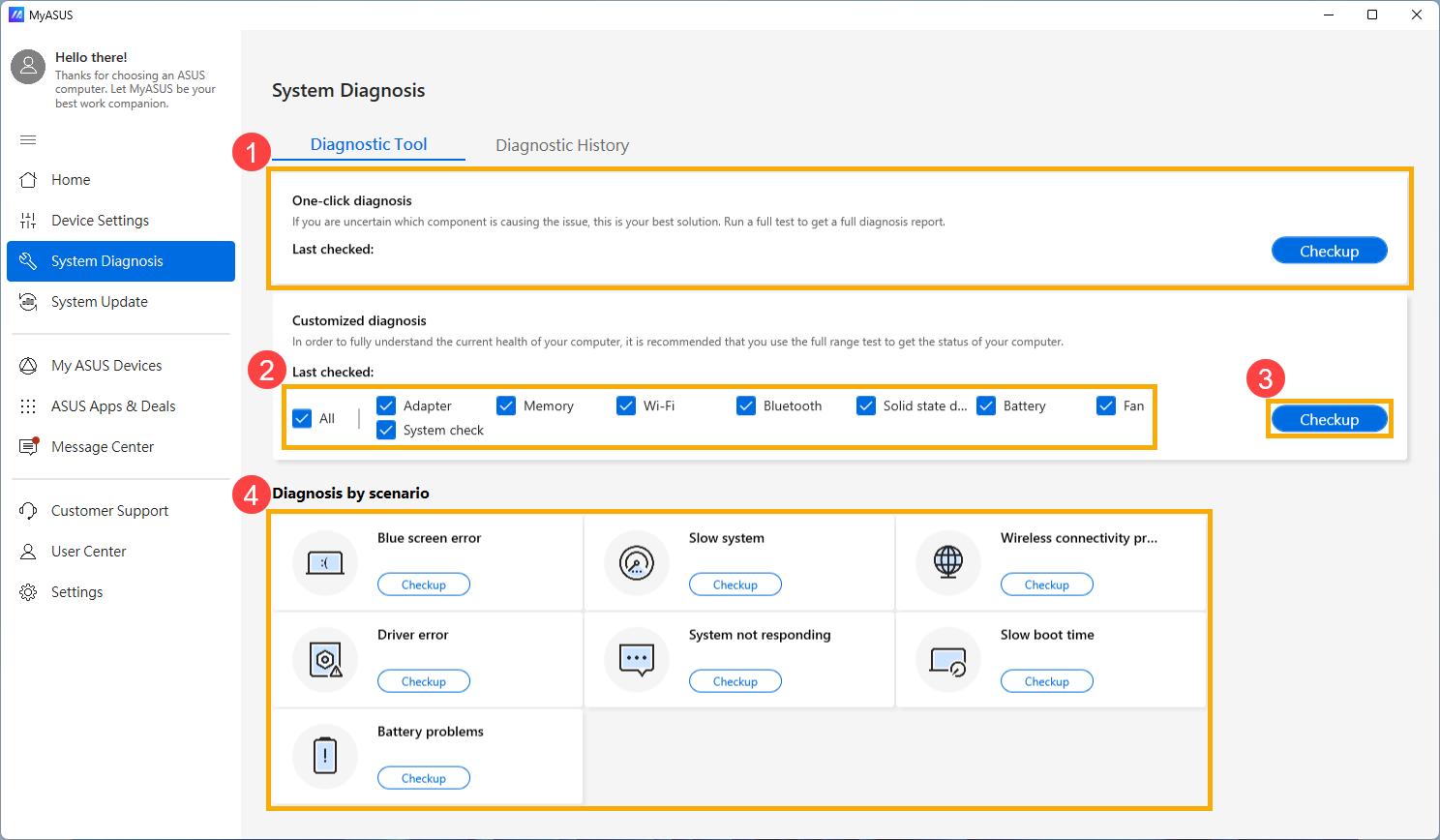
The actual result text is more useful than an illustration of a made-up code. Keep it available when comparing later tests or arranging repair.
BIOS, Firmware, and ASUS Update Considerations
Important: Do not begin a BIOS or firmware update when power is unreliable, the laptop shuts down unexpectedly, or there are physical safety concerns. Do not bypass an updater’s battery or power requirements.
- Identify the installed versions and full model. Record the BIOS, Windows, and MyASUS versions using the supported system-information tools. A similar product name is not enough to establish that a firmware package matches.
- Review the matching ASUS documentation. Look for applicable power, battery, charging, or system-control guidance and update notes. If there is no relevant guidance, do not assume that flashing firmware is the next necessary fix.
- Apply an update only when applicable and safe. Use the verified package for the exact model, meet all ASUS prerequisites, and follow the documented procedure without interrupting it. If stable power cannot be assured, defer the update to professional assessment.
- Recheck the original symptom after restarting. Compare the exact warning and charging behavior, not merely the new version number. An unchanged result means the update did not resolve the observed issue; it does not identify the remaining faulty part.
Model-Specific Power Reset
- Confirm the appropriate ASUS reset procedure first. Power-reset instructions can differ in adapter connection and button timing. Use guidance for the exact model rather than a generic hold-the-button duration. If the procedure is unclear, skip it.
- Prepare the laptop safely. Save work, shut down normally, and remove external accessories. Disconnect or retain the adapter exactly as the applicable ASUS procedure specifies. Swelling, liquid exposure, unusual heat, odor, or damage means no reset attempt.
- Carry out only the documented external reset. Do not open the chassis or disconnect a built-in battery solely for this check. The purpose is to clear a possible temporary controller state, not repair defective hardware.
- Start the laptop and compare the result. Reconnect the compatible charger as directed and review the same warning. If detection or charging returns, monitor for recurrence; if it does not, avoid repeated resets and move to diagnosis.
How to Interpret ASUS Battery Diagnostics
The strongest interpretation combines the exact result with real charging behavior, adapter compatibility, physical condition, and model-specific guidance. A diagnostic pass is not a guarantee that the entire charging system is fault-free.
| Result pattern | What it may suggest | Appropriate next action |
|---|---|---|
| Warning disappears after restart and normal charging returns | A temporary software or power-management state | Monitor for recurrence if there are no safety concerns. |
| Battery test passes, but charging remains unreliable | An adapter, port, firmware, or charging-path issue outside the test’s scope | Compare compatible external equipment and arrange assessment if the fault persists. |
| Health warning persists alongside poor runtime or sudden charge drops | Battery deterioration becomes more likely | Arrange battery assessment before selecting a replacement. |
| Battery remains undetected after supported software checks | Battery, connection, firmware, or internal communication hardware trouble | Seek diagnosis rather than assuming a driver or battery replacement will fix it. |
| Diagnostic test cannot start or finish | Unmet test conditions, unavailable features, software trouble, or a system fault | Confirm prerequisites and preserve the failure details; do not label it a confirmed battery failure. |
Battery-Health Results
A health assessment concerns battery condition. It is not interchangeable with a charging-path test or a battery-detection result.
- The tool’s exact status definition matters more than a guessed interpretation of “poor,” “abnormal,” or another advisory.
- A persistent health warning with matching runtime problems provides stronger evidence than a warning alone.
- Swelling or other physical damage takes priority over any software result, including a pass.
Battery-health information is most useful when it agrees with the laptop’s observed behavior.
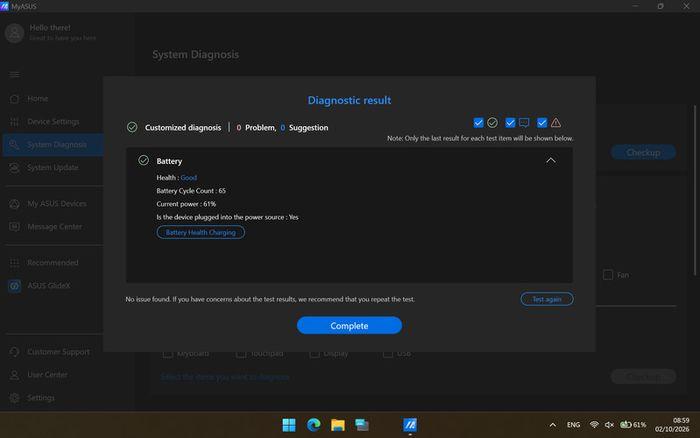
No undefined status should be converted into a universal battery-health percentage or an automatic replacement rule.
Adapter, Port, and System Results
| Observed pattern | Likely area for investigation | Important limitation |
|---|---|---|
| Error occurs only with one adapter | That adapter, its cable, or its compatibility | The comparison adapter must be known-good and suitable for the model. |
| Charging changes during ordinary cable movement | Cable, plug, or laptop socket | Movement does not identify which connection is faulty; deliberate wiggling can worsen damage. |
| Error persists across compatible known-good adapters | Laptop-side port, battery, control system, or charging hardware | This does not identify a particular motherboard component. |
| Battery is detected, but charging pauses at a configured limit | Supported battery-care behavior | A limit does not explain every charging error or shutdown. |
Next-Step Decisions
- Monitor only a genuinely resolved warning. Normal charging, consistent detection, and no safety concerns support observation rather than immediate replacement. Save the earlier result in case the warning returns.
- Repeat only the check affected by a change. After changing a compatible adapter or correcting a supported setting, compare the original symptom under similar conditions. This makes the result meaningful without repeating unrelated tests.
- Arrange battery assessment when health evidence agrees. A persistent abnormal health result plus poor runtime or charge instability makes battery deterioration more plausible. Compatibility and the rest of the charging path still need confirmation.
- Escalate persistent detection or charging faults. Errors that survive safe external and software checks need hardware diagnosis. Bring the model details, exact code, screenshots, and a short account of what changed during testing.
IndiRepair’s practical diagnostic experience is relevant here: a changed result helps narrow the fault, while an unchanged warning leaves several possibilities open. The evidence should guide the repair rather than the wording “battery error” alone.
If those possibilities remain unresolved, you can get your Asus laptop battery checked by IndiRepair.
When Should You Stop DIY Troubleshooting?
Stop using and charging the laptop when physical safety signs appear. A passing diagnostic or disappearing warning does not make a damaged battery, charger, or port safe.
- Battery swelling, case lifting, or a touchpad pushed upward
- Smoke, sparks, burning odor, melting, or extreme heat
- Liquid exposure, exposed wiring, or a visibly damaged charger or port
- A charging connection that is loose, hot, or electrically unstable
- Persistent faults that require opening the chassis, testing internal circuits, or repairing connectors
Do not press, puncture, bend, freeze, disassemble, or attempt to repair a lithium-ion battery. Do not continue moving a damaged charging connector. Disconnect power only if safe; smoke or fire calls for moving away and contacting emergency services, not further tests.
Software checks are unlikely to resolve physical damage. They also become less useful when the same fault persists after supported checks with known-good compatible power equipment. Professional diagnosis can separate a battery problem from an adapter, port, connector, charging-circuit, or motherboard fault.
Battery Replacement Versus Broader Hardware Repair
- Battery replacement: More relevant when health results, runtime symptoms, and assessment consistently point to the battery.
- Adapter or port work: More relevant when power depends on the adapter or connection and testing confirms that fault.
- Internal hardware diagnosis: Appropriate when reliable external power is available but detection or charging still fails.
- Compatibility assessment: Necessary before fitting a replacement battery; the model and applicable part requirements must match.
No battery replacement should be presented as a guaranteed cure for an ASUS battery-not-detected error before its cause has been established.
Frequently Asked Questions
Q: Does an ASUS battery error code always mean the battery needs replacement?
A: No. The warning may describe a charging interruption, missing communication, a software problem, or reduced battery health. An unsuitable adapter or damaged port can produce symptoms that look like battery failure. Replacement becomes more relevant when diagnostic findings and actual behavior consistently point to the battery, such as a persistent health warning alongside poor runtime. The exact message, the tool reporting it, and checks with compatible equipment help establish that distinction. Physical damage requires assessment regardless of what the code says.
Q: What should I check first when my ASUS laptop shows a battery warning message?
A: Physical safety comes first. Swelling, smoke, liquid exposure, electrical damage, or extreme heat means normal troubleshooting is inappropriate. For an otherwise safe laptop, the most useful starting evidence is the exact warning, full model number, charge level, and whether external power was connected. The external-power checks above then help establish whether a suitable adapter and sound connection are available. This prevents a vague warning from being mistaken for a battery diagnosis and gives later software checks a reliable baseline.
Q: Why does my ASUS laptop say the battery is not detected?
A: It means the reporting system cannot currently recognize or communicate with the battery as expected. Possible explanations include a temporary Windows state, battery-device driver trouble, firmware communication, a battery fault, or an internal connector or motherboard issue. It is different from a detected battery that simply is not charging. A restart and supported detection checks can help narrow the problem, but a persistent error needs assessment. Opening the chassis to reseat a built-in battery is not a routine user troubleshooting step.
Q: Why is my ASUS laptop not charging even though the charger is connected?
A: Being connected does not prove that the charger is supplying suitable power or that the charging path works correctly. A supported charging limit may intentionally pause charging, while an unsuitable adapter, faulty cable, damaged port, temperature condition, or internal fault may prevent it. The distinction depends on context: a stable charge at a configured limit is different from steady battery loss while idle. USB-C models also require the documented charging port and suitable power equipment; not every USB-C connection supports laptop charging.
Q: Can a Windows driver or power setting cause an ASUS battery error?
A: A driver or temporary power-management communication issue can affect how Windows detects and reports the battery. A supported ASUS battery-care setting can also explain an intentional charging pause, although ordinary Windows power modes are not generally charge-limit controls. A result that improves after restarting or following a supported driver procedure makes software involvement more plausible. It does not prove that battery capacity is normal or rule out intermittent hardware trouble. Persistent warnings are better assessed through combined evidence than repeated driver reinstalls.
Q: How can I use MyASUS to check for a battery diagnostic error?
A: MyASUS may provide battery or system diagnostics on supported models, but the available features vary. The MyASUS troubleshooting sequence above covers locating supported tests, following their on-screen conditions, and saving the full result. A missing feature is not a failed battery test, and a test that cannot complete should not be interpreted as a confirmed battery fault. The useful output is the exact advisory or identifier together with the laptop’s charging behavior. Model-specific ASUS documentation is the reference for unclear terminology.
Q: Is it safe to keep using an ASUS laptop with a battery health warning?
A: A health warning alone cannot establish whether continued use is safe. Reduced capacity without physical symptoms differs from swelling, extreme heat, odor, or instability. Any physical danger sign requires stopping use and charging rather than relying on a software result. Even without those signs, a persistent health warning deserves assessment because runtime may be unreliable and unexpected shutdowns can cause data loss. Keeping important files backed up is sensible, but it is not a substitute for investigating the warning or damaged equipment.
Q: When should I stop troubleshooting and seek professional ASUS battery repair?
A: Professional help is appropriate immediately for swelling, liquid exposure, smoke, electrical damage, or extreme heat. It is also appropriate when detection or charging errors persist after safe external checks and supported software troubleshooting, especially with known-good compatible equipment. Internal connector checks and board-level diagnosis require suitable training and tools. The exact warning, diagnostic results, model details, and test history help a technician distinguish battery replacement from adapter, port, firmware, or charging-circuit work without assuming the battery is responsible.
Conclusion:
ASUS laptop battery error codes identify an abnormal observation, not automatically a failed battery. The safest repair decision comes from combining the message with charging behavior, supported diagnostics, and the condition of the power equipment.
- The exact message and reporting tool establish what the warning actually describes.
- External-power checks provide context for Windows and MyASUS findings.
- Model-specific documentation governs supported settings, resets, and firmware procedures.
- Persistent errors need diagnosis; swelling, liquid damage, and electrical danger signs end DIY testing.
When safe checks do not resolve the issue, professional assessment can establish whether the battery or another part of the charging system needs attention. For a diagnosis-led next step, consider Asus laptop battery replacement with IndiRepair rather than replacing a component on the strength of an error message alone.
About the Author: Khan Rahil is a diploma holder in Computer Hardware with over 5 years of hands-on experience in laptop repairs and Senior Technician at IndiRepair. He has overseen hundreds of screen replacements, ensuring quality and customer satisfaction.