If your ASUS laptop battery percentage is not increasing while the charger is connected, the number may remain at 0%, stop at 60% or 80%, or appear unchanged for a long time. This does not automatically mean the battery has failed. A charging limit, insufficient input power, heat, Windows reporting, firmware, or battery wear can all produce similar symptoms.
Start with safe external checks and battery-health evidence before buying a replacement. The goal is to distinguish an intentional charging ceiling or slow net charging from a genuine battery, charger, port, or internal charging fault.
Where available, keep a record of the displayed percentage, the Windows charging message, whether the laptop is under heavy load, and whether it can run after the charger is removed. These details make later diagnosis more reliable.
Why Is Your ASUS Laptop Battery Percentage Not Increasing?
A laptop can show that it is plugged in without increasing its stored charge. “Plugged in,” “charging,” and “battery percentage increasing” describe related but different states. An exact recurring ceiling can also be intentional, especially when a battery-care setting is active.
1. A Battery-Care Setting Is Limiting Charge
Some supported ASUS models provide battery-care controls that limit charging to a lower ceiling, such as 60% or 80%, to reduce the time the battery spends fully charged. The available modes and labels vary by model and software version, so a stable percentage alone cannot prove that a setting is enabled.
If the ASUS laptop battery is stuck at 60 percent or the ASUS laptop battery is stuck at 80 percent, check the available ASUS battery-health controls before assuming there is a hardware fault. If the percentage stops at the same level every time while the laptop otherwise works normally, an intentional limit is one plausible explanation. Check the exact model’s documentation or supported ASUS utility for confirmation.
2. The Charger or Connection Cannot Supply Enough Power
An ASUS laptop plugged in but not increasing in percentage may be receiving too little usable power. Possible causes include a damaged adapter or cable, a loose connection, an unsuitable charger, a damaged charging port, or a dock that does not provide the required power.
A connector fitting physically does not establish electrical compatibility. On supported USB-C models, the adapter, cable, selected port, and dock must all support the laptop’s charging requirements. With barrel connectors, voltage, polarity, connector specification, and rated output also matter.
For model-specific replacement options, you can review Asus laptop battery replacement service after the basic power path has been checked. A battery replacement should not be treated as the automatic answer when the charger or charging port may be responsible.
3. Heavy Workloads or Temperature Are Restricting Charging
When the laptop is running demanding applications, much of the incoming power may be used immediately by the processor, graphics hardware, display, and other components. The battery may then charge very slowly or appear unchanged even though the adapter is supplying power.
Battery protection can also restrict charging when operating conditions are outside the supported temperature range. A comparison while the laptop is cool and idle, or fully shut down, can help narrow the cause. If the percentage increases only when the laptop is idle or off, that suggests a power-budget or thermal factor, but it does not by itself prove that the battery is healthy.
4. Windows Reporting or Firmware Is Not Updating Correctly
A stale displayed percentage can differ from the battery’s actual behavior. Windows power management, firmware, or the laptop’s embedded controller may affect charging control or reporting. This possibility becomes more relevant when the percentage jumps suddenly, runtime does not match the displayed number, or the laptop behaves normally despite an apparently frozen reading.
However, a reporting issue is different from a battery that cannot power the laptop when disconnected. If the computer shuts down immediately after the charger is removed, the battery may have little usable output, although the charger, battery connection, or internal charging path can still be involved.
5. Battery Wear or an Internal Charging Fault
A worn or faulty battery may not accept or retain charge. Persistent 0% can therefore indicate a battery problem, but it can also result from a damaged adapter, poor battery connection, charging-port damage, or a motherboard charging fault. The symptom alone is not a confirmed diagnosis.
Stop routine testing if you notice swelling, case separation, unusual localized heat, smoke, or a burning smell. Those signs require a safety response rather than continued attempts to charge or calibrate the battery.
With experience across 500+ laptop repairs, IndiRepair focuses on separating battery symptoms from charger, port, and charging-circuit faults before recommending a repair.
Book your Asus laptop battery replacement with IndiRepair
Near the opening of a diagnosis, an unchanged Windows percentage should be treated as an observation rather than proof of battery failure.
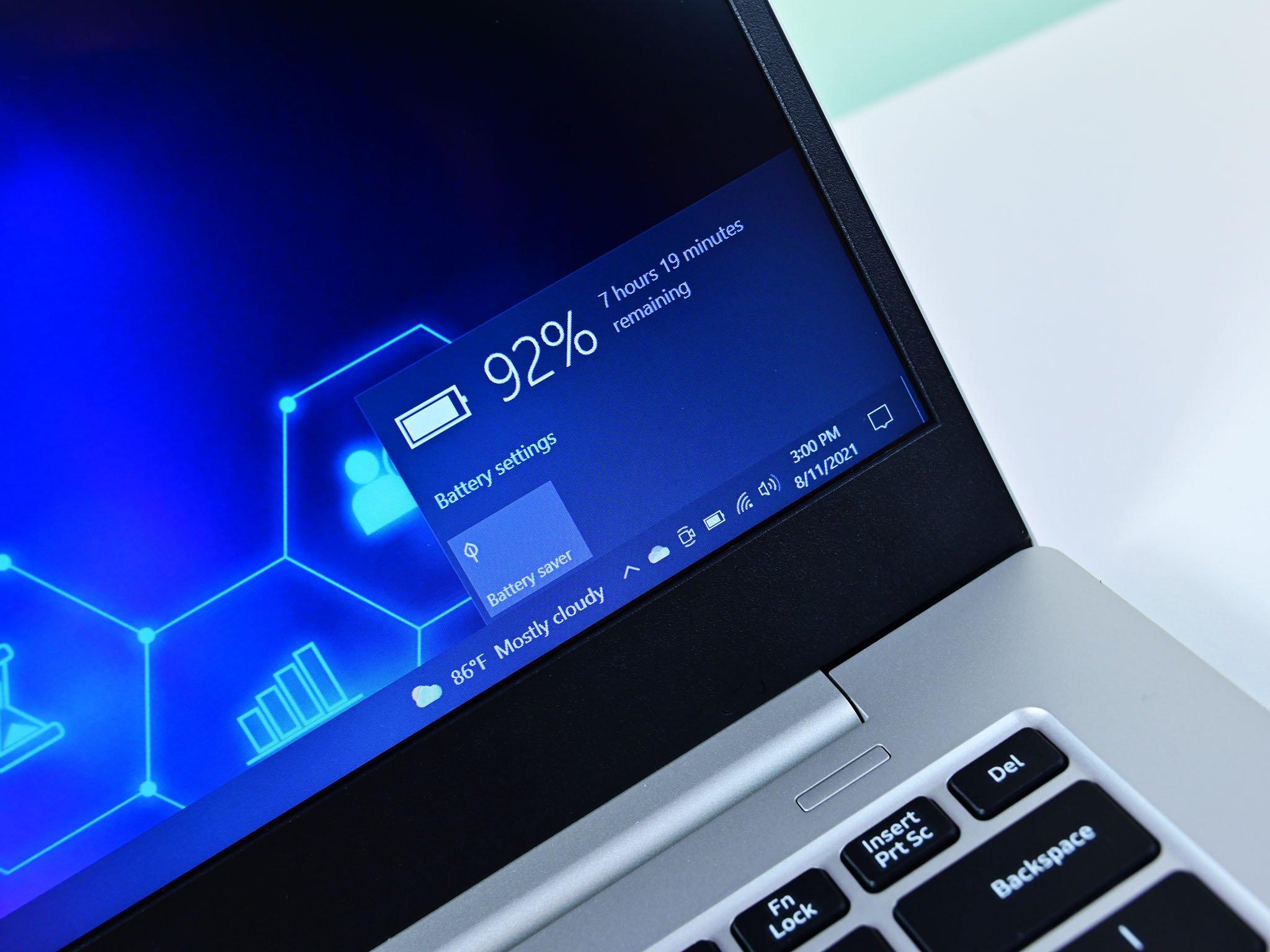
The safest next step is to change one condition at a time and record what happens.
How to Troubleshoot the Charging Problem Safely
Do not continue charging experiments if the laptop or accessory shows physical damage. For a laptop without warning signs, use the checks below in order, changing one condition at a time so each result remains meaningful.
- Stop using or charging the laptop if there is swelling, case separation, smoke, a burning smell, exposed wiring, melting, liquid exposure, or abnormal heat.
- Disconnect power only when it is safe to do so, and keep damaged batteries and chargers away from further use.
- Do not open a sealed battery pack, bypass battery protection, probe live internals, or force a connector into the port.
External Power Path and Charger Compatibility
These checks address the outlet, adapter, cable, and accessible charging port without exposing internal electronics.
- Confirm the outlet and reseat accessible connections. If appropriate, shut down the laptop, check that the outlet works, and reconnect the adapter firmly. Observe whether the charging message changes without repeatedly bending or repositioning the cable.
- Inspect the external equipment safely. Disconnect power before visually checking the adapter, cable, and laptop port for fraying, melting, bent parts, debris, or looseness. Do not use metal tools or liquids to clean the port.
- Compare the adapter with the exact model requirements. Check the adapter label against official ASUS documentation for the model. For barrel connectors, compatibility includes voltage, polarity, connector specification, and adequate rated output; a matching physical fit is not enough.
- Check USB-C charging requirements if applicable. Confirm that the selected port supports charging, the adapter provides suitable USB Power Delivery support, and the cable is appropriate. Bypass a dock for this comparison when possible.
- Test a confirmed-compatible adapter and cable if available. Compare the charging behavior without using damaged accessories. If the symptom changes, the original power path remains a likely area for diagnosis.
Use official ASUS documentation for model-specific charger requirements and to verify whether USB-C charging is supported. Avoid assuming that another ASUS adapter is compatible simply because it fits.
Charging Limits, Workload, and Temperature
These checks help distinguish an ASUS battery charging but percentage not increasing from a configured limit or a laptop that is consuming nearly all incoming power.
- Check the available ASUS battery-care controls. Open the supported MyASUS or ASUS battery-health feature if it is available for the exact model, and look for an enabled charging limit. Interface names and options can vary.
- Use a supported full-charge option only when needed. If the utility provides a full-charge setting, select it temporarily and observe whether charging resumes. A battery-care mode is not automatically a defect.
- Reduce the immediate workload. Close demanding applications, disconnect unnecessary peripherals, and place the laptop on a hard, ventilated surface so heat and power demand are easier to compare.
- Record the percentage during an idle comparison. Note the percentage before and after a reasonable observation interval while the laptop is idle, then compare it with charging while fully shut down if the problem continues.
- Interpret the difference cautiously. If charging increases only while idle or off, revisit charger compatibility, workload, and temperature. That result does not by itself prove that the battery is either healthy or defective.
Exact setting labels, supported modes, and navigation should be verified for the specific ASUS model. Avoid relying on universal temperature thresholds or promised charging times.
A verified screenshot can help readers understand where a model-specific charging limit may appear, but a screenshot from a different model should not be presented as universal.
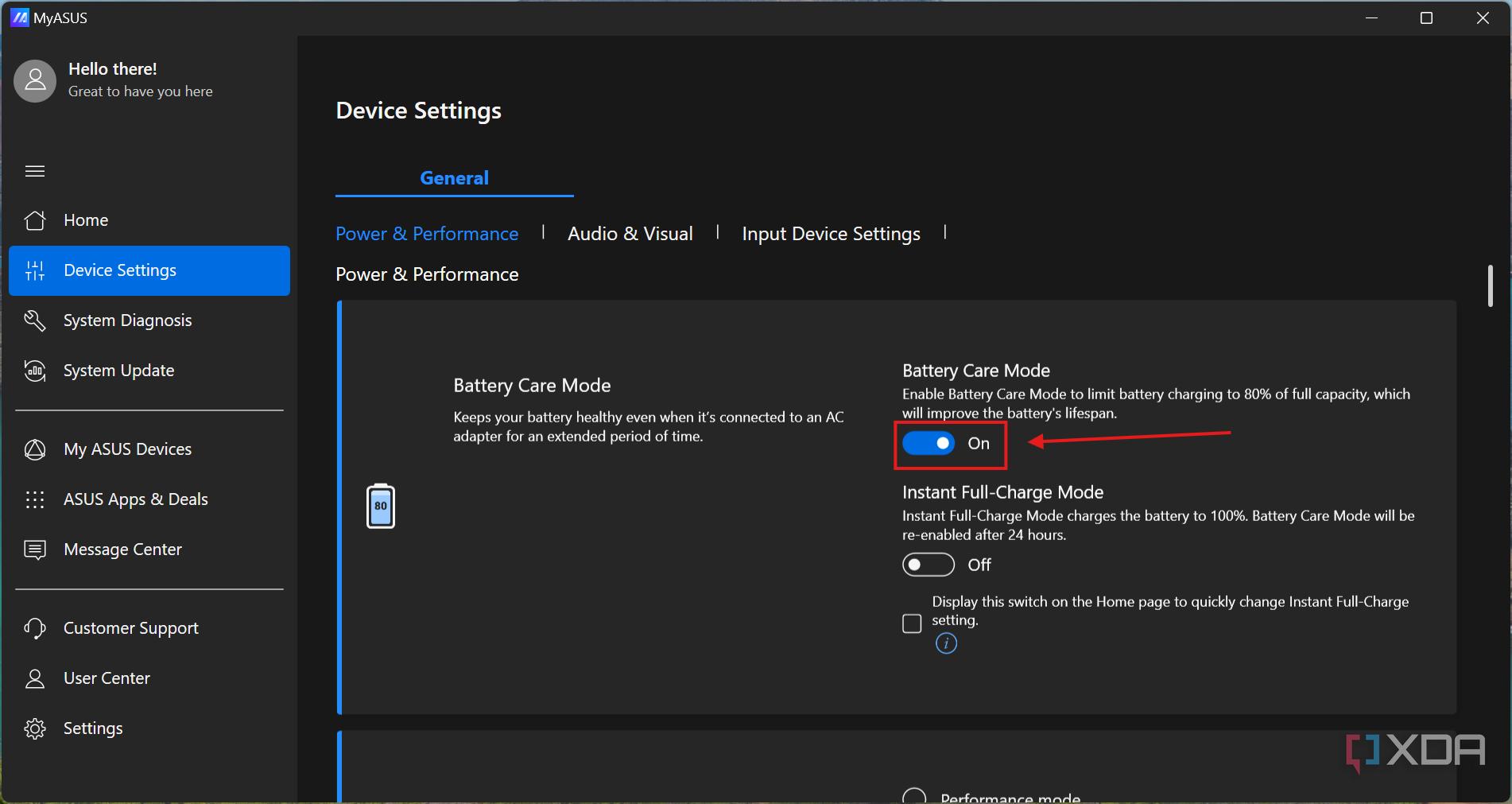
Place any model-specific procedure after confirming that the setting shown applies to the laptop being tested.
Windows Reporting and Model-Specific Power Management
Software checks can help when the displayed percentage conflicts with observed runtime or changes abruptly. They should not replace evidence from the power path and battery behavior.
- Restart Windows and compare the reading. Record the displayed percentage before restarting, then compare it with the earlier record and with the laptop’s observed runtime.
- Run supported ASUS battery diagnostics. Use MyASUS diagnostics if they are available for the exact model, and save the result or error message. Do not treat an unavailable tool as evidence that the battery has failed.
- Check official ASUS guidance for applicable updates. Look for model-specific power-management or driver guidance rather than installing third-party driver utilities that may not match the laptop.
- Follow only a verified power-reset procedure. If ASUS provides an embedded-controller or power-reset procedure for the exact model, follow that documentation. Do not rely on a universal button-hold duration or disconnect an internal battery without verified instructions.
- Consider firmware updates only when officially relevant. A BIOS update should be considered only when official guidance supports it and stable power and all prerequisites are available. Defer it if power is unreliable or the required battery charge is unavailable.
After these checks, IndiRepair recommends treating each result as a clue rather than automatic proof that one component has failed. For example, charging while powered off may point toward workload or power delivery, while immediate shutdown when unplugged may indicate inadequate usable battery output.
Get your Asus laptop battery checked by IndiRepair
How to Check Battery Health and Interpret Charging Results
Battery health describes how much charge the battery can store now compared with its original design estimate. Charging status describes what the laptop is doing at a particular moment. These are related but not interchangeable.
A Windows battery report can provide useful capacity and usage evidence, but it cannot independently prove that the adapter, charging port, or internal charging circuit is working correctly. Combine the report with observed runtime, charging behavior, and any supported ASUS diagnostic result.
Battery-Report and Runtime Evidence
The following checks can provide context without turning one reported value into an automatic replacement decision.
- Generate the report. In Windows, open Command Prompt and run
powercfg /batteryreport. Open the HTML file at the location reported by the command. - Compare capacity fields. Review Design Capacity and Full Charge Capacity. Full Charge Capacity is an estimate of current storage ability, not the current percentage and not a universal pass-or-fail result.
- Review the available history. Check capacity history, recent usage, and cycle count when those fields are present. Some fields may be missing, and estimates can fluctuate.
- Compare the report with real behavior. Note normal-use runtime, percentage jumps, unexpected shutdowns, and any supported ASUS diagnostic result. A report that looks normal does not rule out a charger or port problem.
- Test unplugged operation carefully. If there are no safety warning signs, save your work before briefly observing unplugged operation. Avoid repeated forced shutdowns or deliberate deep discharge.
- Base replacement decisions on combined evidence. Consider capacity, runtime, charging behavior, and diagnostic results together rather than relying on a universal health percentage or battery age alone.
A battery report is most useful when it answers a specific question: does the battery appear able to store and deliver usable energy, or is the main problem still somewhere in the charging path?
An annotated report can make the difference between Design Capacity and Full Charge Capacity easier to understand, but sample values must be labeled as illustrative.
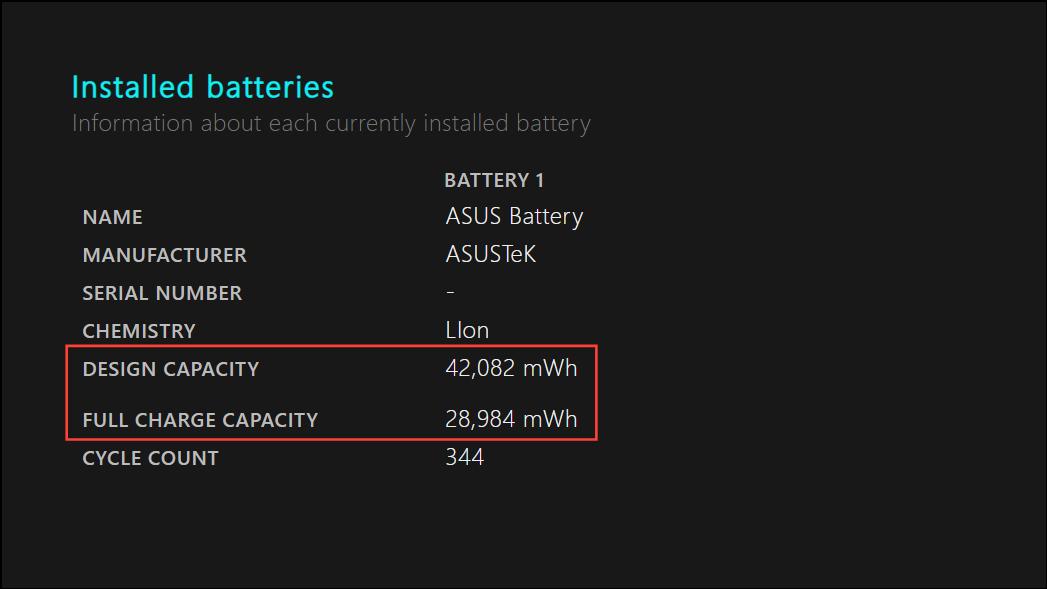
What Different Charging Patterns Suggest
Observed patterns can narrow the possibilities, but they are not conclusive diagnoses on their own.
| Observed pattern | Plausible interpretation | Evidence limitation |
|---|---|---|
| Stable at 60% or 80% with a matching enabled limit | Likely intentional battery-care behavior | The setting and supported mode still need to be confirmed for the exact ASUS model. |
| Slow increase near full charge | Potentially normal charge tapering | A slow increase does not rule out a power-path issue if charging remains abnormal at lower levels. |
| Flat under load but increasing while off | Possible power-budget or thermal limitation | This does not definitively prove that the charger or battery is healthy. |
| Persistent 0% with immediate shutdown when unplugged | Little or no usable battery output | The underlying cause may still be the battery, connection, charger, or charging circuitry. |
| Abrupt percentage changes or unexpectedly short runtime | Possible reporting inconsistency or battery deterioration | Further evidence is needed to separate a reporting issue from reduced battery capacity. |
| No increase with a confirmed-compatible supply, no enabled limit, and normal temperature | Unresolved battery or charging-path fault | Professional diagnosis may be needed to distinguish the battery from the port or internal charging circuit. |
When to Stop Troubleshooting and Seek Repair
Stop routine troubleshooting and seek help when the laptop or charging equipment presents a safety risk. Do not continue charging experiments in the presence of:
- Battery swelling or case separation
- Smoke, sparks, melting, or a burning smell
- Liquid exposure or exposed wiring
- Extreme or sharply localized heat
- A visibly damaged charger, cable, or charging port
Battery replacement becomes more reasonable when poor usable capacity or runtime is supported by battery-report evidence, ASUS diagnostics, or consistent behavior indicating that the battery cannot store or deliver energy. A stuck percentage by itself is not enough.
Charging-path repair may be more relevant when the port is loose or intermittent, a confirmed-compatible power supply does not resolve the issue, or symptoms point toward internal charging circuitry. Replacing the battery will not fix every charging fault.
For a technician, useful information includes the exact model identifier, adapter label details, charging observations, battery report, diagnostic messages, and whether the percentage changes while the laptop is idle or shut down.
IndiRepair can help evaluate the evidence before a replacement decision is made. If the available results point toward the battery rather than the charger or charging circuit, consider Asus laptop battery replacement with IndiRepair. The correct replacement must be confirmed for the exact model, and no part, price, availability, or outcome should be assumed before diagnosis.
Frequently Asked Questions
Q: Will Changing the Windows Power Mode Remove an ASUS Charging Limit?
A: Usually, Windows power mode and an ASUS battery-care limit serve different purposes. Windows power mode mainly affects performance and energy use, while an ASUS charging ceiling controls how far the battery is allowed to charge on supported models. Lowering power use may help the battery gain charge while the laptop is under load, but it will not necessarily remove a 60% or 80% limit. Check the available ASUS battery-health control for the exact model, and verify whether the ceiling is enabled before treating the behavior as a fault.
Q: Should I Drain the Battery Completely to Fix a Stuck Percentage?
A: No. Deliberately draining a battery completely is not a universal fix for an ASUS battery percentage that is not increasing, and it cannot restore worn storage capacity. If calibration is relevant to a particular model, it should follow verified ASUS guidance and should not be used as a substitute for checking the charger, settings, temperature, or battery condition. Avoid repeated forced shutdowns and deep-discharge attempts, especially if the battery has swelling, unusual heat, or other safety symptoms.
Q: Can I Keep Using the Laptop While the Percentage Is Stuck?
A: It depends on the cause and the laptop’s physical condition. A confirmed battery-care limit with normal operation is different from an unresolved fault that leaves the laptop unable to run safely when unplugged. Do not continue using or charging the laptop if you notice swelling, case separation, abnormal heat, smoke, sparks, burning smells, liquid damage, exposed wires, or a damaged port or charger. Even without those signs, save work frequently because a battery that cannot hold usable charge can cause sudden shutdowns.
Conclusion
An ASUS laptop battery percentage not increasing can result from a charging limit, inadequate input power, heavy workload, temperature, Windows or firmware reporting, battery wear, or an internal charging fault. A percentage stuck at 0%, 60%, or 80% is an important clue, but it does not establish battery failure by itself.
Work through the power path first, then check charging settings and operating conditions, review battery-health evidence, and seek professional diagnosis when the results remain unclear. IndiRepair brings practical experience from laptop repair work and can help separate a battery replacement decision from a charger, port, or charging-circuit problem.
Safety warning signs override routine troubleshooting. If the laptop is physically damaged, unusually hot, swollen, smoking, or giving off a burning smell, stop testing and seek appropriate assistance rather than repeatedly trying to charge it.
About the Author: Khan Rahil is a diploma holder in Computer Hardware with over 5 years of hands-on experience in laptop repairs and Senior Technician at IndiRepair. He has overseen hundreds of screen replacements, ensuring quality and customer satisfaction.