
If your HP laptop keyboard backlight is not working, the missing illumination does not automatically mean the whole keyboard has failed. The keyboard may still type normally while the lighting control, Windows software, firmware behavior, keyboard connection, or backlight hardware has a problem. Start by confirming that the exact HP model supports a backlit keyboard, then try safe reversible checks and compare what happens inside Windows with what happens during startup when possible.
Record the exact symptom before changing settings. Note whether the keys type normally, whether the light is completely absent or intermittent, and whether the problem began after an update, sleep event, spill, impact, cleaning, or repair. These observations are evidence that can narrow the cause, but none of them confirms a failed component on its own.
What Does an HP Laptop Keyboard Backlight Problem Mean?
An HP laptop keyboard backlight problem usually means that the keys remain usable but the lettering or spaces between the keys do not illuminate. The light may be dim, uneven, intermittent, stuck at one brightness, or absent altogether. The exact control and available lighting behavior vary between HP models, so a control that works on one Pavilion or ProBook may not apply to another model.
Some HP laptops are sold without a backlit keyboard. Confirm the exact product identifier and original keyboard configuration in the appropriate HP documentation before treating a dark keyboard as a fault. A broad product name such as HP Pavilion, HP notebook, or HP ProBook is not enough to establish that the installed keyboard includes lighting.
| Observed symptom | What it may mean | What it does not prove |
|---|---|---|
| Keys type normally but remain dark | The issue may be limited to the lighting control, software, firmware, connection, or backlight circuit. | It does not prove that the complete keyboard needs replacement. |
| Only some sections illuminate | Uneven lighting can justify checking for a lighting assembly, connection, or physical fault. | It does not identify the failed part without further testing. |
| The light responds to a documented control but stays dim or intermittent | The control path may work while the lighting hardware or connection remains unstable. | A temporary response does not confirm that the problem is resolved. |
| Several keys also fail to register | The problem may involve the keyboard assembly, cable, connector, controller, liquid exposure, or physical damage. | It does not establish whether the keyboard or another internal component is responsible. |
Backlight-Only Symptoms Versus Keyboard Input Failure
A working keyboard with no illumination points toward the backlight control path rather than automatically indicating complete keyboard failure. Normal typing is useful evidence because it shows that at least the key-input function is operating, but the lighting circuit can still have a separate fault.
Typing problems, unresponsive function keys, touchpad problems, liquid exposure, or visible damage increase the need for professional assessment. An external keyboard can provide context about Windows input, but it cannot independently confirm the condition of the internal HP keyboard or its backlight.
What to Confirm Before Changing Settings
- Record the exact HP product family and model identifier rather than relying only on a broad name such as Pavilion or ProBook.
- Look for a keyboard-light symbol on a function key or another dedicated control, but do not assume that every HP model uses the same key.
- Note whether the laptop is connected to AC power, running on battery, waking from sleep, starting from a cold boot, or operating normally in Windows.
- Confirm whether the keyboard has ever illuminated on this specific laptop. A keyboard that was never backlit may simply match the original configuration.
Use the exact model documentation when identifying how to turn on an HP laptop keyboard light. Search phrases such as “HP Pavilion 15 notebook keyboard light” may describe a broad family, but they do not replace checking the exact product configuration.
When a persistent dark backlight needs more than a settings check, IndiRepair can assess whether the symptom is limited to illumination or points toward a keyboard-related fault through its laptop keyboard repair service.
A clear photo of the keyboard-light control can help document the symptom, but the icon and key location must match the exact HP model.
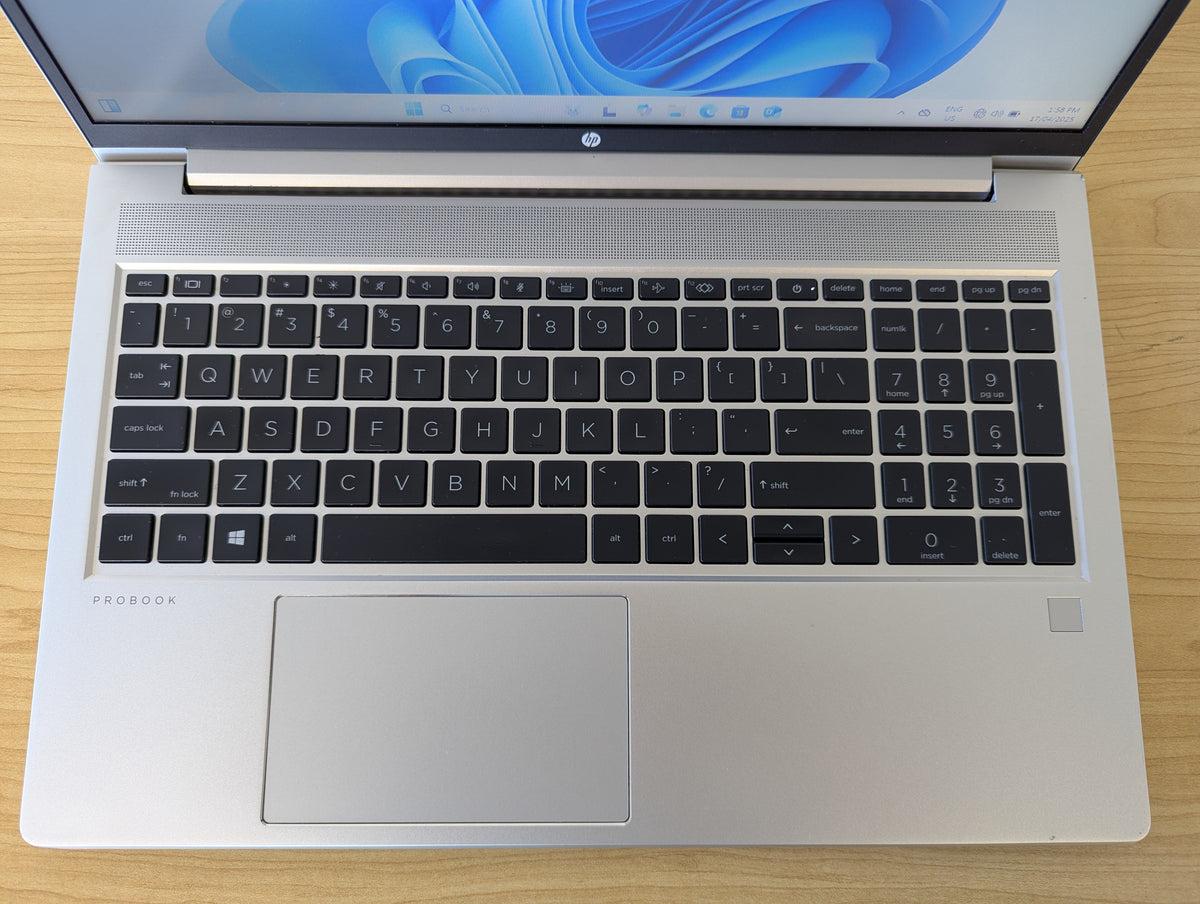
Keep the model identifier with the photo or symptom record so that a control found on one HP keyboard is not mistakenly applied to another.
Which Symptoms and Evidence Should You Record?
The most useful record separates what the laptop does from what the symptom might mean. Write down whether all keys type normally, whether only selected keys fail, or whether the internal keyboard is not responding. Also record whether the light is absent, dim, uneven, intermittent, briefly visible, or fixed at one brightness.
- Whether the documented keyboard-light control produces any change.
- Whether an on-screen indicator or other response appears after the control is used.
- Whether the light is visible during startup, in firmware setup, or only after Windows loads.
- Whether the issue began after a Windows update, driver change, firmware update, sleep or hibernate event, spill, impact, cleaning, or repair.
- Whether the laptop behaves differently on AC power and battery power.
- Whether an external keyboard works normally in Windows, while treating that result as context rather than proof of an internal fault.
How to Interpret Common Observation Patterns
| Observation pattern | Possible interpretation | Useful next direction |
|---|---|---|
| Typing works and the backlight never responds | Model support, the control key, software, firmware, or the lighting circuit may require investigation. | Confirm the model and test the documented control before assuming hardware failure. |
| Typing works and the light returns after restart | A temporary Windows, sleep-state, or firmware-control condition may be involved. | Monitor whether the symptom returns and compare restart behavior with sleep or hibernate. |
| Typing and illumination fail after liquid exposure or impact | Internal hardware damage becomes more plausible. | Stop repeated testing and arrange an assessment rather than opening the laptop. |
| The light works before Windows but not after sign-in | Windows settings, a utility, a driver, or power-management behavior may be involved. | Review model-specific software and repeat the test after an approved change. |
| The light is absent both before Windows and inside Windows | Model support, firmware, control, or hardware investigation may be appropriate. | Use the result as evidence, not as a standalone confirmation of a failed component. |
What Can Cause an HP Keyboard Backlight to Stop Working?
The cause may be a configuration difference, a control problem, a Windows or firmware condition, or an internal physical fault. The categories below are possible causes, not confirmed diagnoses. Testing is needed to distinguish them.
1. The HP Model or Installed Keyboard May Not Support Backlighting
Not every HP laptop includes a backlit keyboard, and some replacement keyboards do not match the lighting capability of the original part. A missing keyboard-light icon, an original product specification that does not list backlighting, or a recent replacement can explain why the keyboard remains dark without indicating a new failure.
2. The Keyboard-Light Control or Brightness Mode May Be Inactive
The documented control may cycle through brightness states, require a function-key modifier, or depend on the model’s function-key mode. Pressing an unrelated function key repeatedly will not establish a diagnosis. The exact model documentation should identify the intended control and any model-specific behavior.
3. Windows, an HP Utility, a Driver, or Power Management May Affect the Control
A Windows update, HP keyboard-control utility, hotkey component, keyboard-related driver, sleep state, hibernate state, fast startup behavior, or battery-saving condition may affect how the backlight control responds. A restart that restores the light temporarily may indicate a software contribution, but it does not prove that software is the only cause.
4. Firmware or Startup-State Behavior May Affect the Lighting
Firmware settings and startup behavior can affect keyboard controls before Windows loads. If the light behaves differently in a pre-Windows environment, that difference is useful evidence. Firmware procedures and updates must match the exact HP model and should be based on current official HP documentation.
5. The Backlight Assembly, Cable, Connector, or Controller May Have a Physical Fault
The lighting hardware may fail while key input continues to work. Other possible internal areas include the keyboard cable, connector, keyboard controller, or a related board-level circuit. A dark backlight alone is not enough to identify which of these areas is responsible.
6. Liquid, Impact, Contamination, or Incompatible Replacement Hardware May Be Involved
Liquid exposure, impact, corrosion, contamination, pressure on the keyboard, a recent repair, or an incompatible replacement part can affect illumination and key input. Delayed or intermittent symptoms can occur even when typing initially continues. A replacement should match the exact laptop configuration rather than only the general HP family name.
Control and Model-Configuration Causes
The answer to “how do I turn on the keyboard light on an HP notebook?” depends on the exact model. Identify the keyboard-light icon and follow the documented control for that laptop. Some controls toggle the light, while others cycle through brightness states. Function-key mode can also change how the control is activated.
- Confirm that the exact keyboard configuration includes a backlight.
- Use the documented key or control instead of assuming one universal HP shortcut.
- Check whether the control changes brightness rather than simply switching the light on or off.
- Do not treat the absence of illumination as a fault when the original configuration did not include a backlit keyboard.
Windows, Driver, Utility, and Firmware Causes
Windows or HP support software may influence hotkey behavior, but the exact utility name and compatible version depend on the model. Review the relevant software without installing an unverified package based only on a generic search result. A temporary improvement after a restart or software change is evidence of a possible software contribution, not proof that the hardware is healthy.
- Review current Windows keyboard, accessibility, power, and device settings using the version-appropriate path.
- Identify the HP hotkey or support software relevant to the exact model before changing it.
- Check keyboard-related devices for warning indicators without removing devices unnecessarily.
- Use official HP documentation for any firmware setting or update that applies to the exact laptop.
Physical and Internal Hardware Causes
Internal hardware becomes more relevant when the backlight remains absent in multiple environments, the symptom changes when the chassis or keyboard area moves, or the problem follows liquid exposure, impact, or a recent repair. A keyboard replacement may be appropriate only after diagnosis confirms that the keyboard assembly or its lighting hardware is the likely failed component.
- The keyboard backlight or its internal lighting assembly may be faulty.
- The keyboard cable or connector may be loose, damaged, contaminated, or corroded.
- The keyboard controller or related board-level circuit may require specialist assessment.
- A replacement keyboard may lack backlighting or may not be compatible with the exact laptop configuration.
Safe Troubleshooting and Diagnostic Checks
Work from low-risk, reversible checks toward more informative comparisons. After every action, record what changed and what did not change. A result should be treated as a clue unless additional evidence supports a confirmed diagnosis.
Check the Keyboard Control and Backlight Mode
- Confirm model support. Check the exact HP product identifier and verify that the installed keyboard is intended to have a backlight. If the model documentation does not list backlighting, the dark keyboard may reflect the original configuration rather than a failed light.
- Identify the documented control. Look for the keyboard-light symbol and use the control specified for that model. Avoid assuming that a key combination used on another HP Pavilion or HP ProBook will work on this laptop.
- Test the documented brightness behavior. Press the control as described in the model documentation and observe whether the light toggles, cycles through levels, or produces no response. A response suggests that the control path can operate, but it does not rule out an intermittent lighting fault.
- Check function-key behavior only when documented. If the model requires a function-key modifier or a particular function-key mode, test that documented variation once. If nothing changes, stop trying unrelated combinations and move to the next diagnostic comparison.
- Record input and lighting separately. Confirm whether typing remains normal while the light stays dark. Normal typing supports a backlight-only symptom, but it does not prove that every keyboard component is healthy.
Restart and Compare Different Power States
- Perform a normal restart. Save work and restart through the operating system rather than repeatedly forcing the laptop off. A changed result after a normal restart may indicate a temporary Windows or power-state condition.
- Test the documented light control after startup. Check the backlight before opening many applications so that the result is easier to compare. If the light returns, note whether it remains available during normal use.
- Compare restart with wake-from-sleep behavior. Test whether the symptom appears after sleep or hibernate but not after a full restart. A difference points toward state-management behavior, although it does not identify the exact software or firmware cause.
- Compare AC and battery operation. Observe whether the light behaves differently when plugged in and when running on battery. This comparison may reveal a power-state relationship, but it does not by itself diagnose a charger, battery, or power fault.
- Record temporary recovery. If the light returns only briefly, write down when it disappears again. Recurrence after sleep, sign-in, or a particular power transition can help guide further software or hardware diagnosis.
Check Windows and HP Keyboard-Control Software
- Review relevant Windows settings. Check current keyboard, accessibility, power, and device settings for options that may affect keyboard behavior. Menu names and locations vary by Windows version, so use the current system interface rather than an outdated universal path.
- Identify the model-specific HP utility. Review installed HP support or hotkey software and verify that it applies to the exact laptop before changing or reinstalling anything. An unverified package can create a second software problem.
- Inspect keyboard-related device status. Use the relevant Windows device area to look for warning indicators. Do not remove a keyboard device unnecessarily, because removal may change input behavior without addressing the lighting circuit.
- Apply only an approved software change. If official model-specific guidance identifies a compatible driver or utility change, make that change and restart. A restored light suggests that software contributed to the symptom, but continued monitoring is still necessary.
- Repeat the same control test. Use the identical documented keyboard-light control after restarting. A consistent improvement is more informative than a single temporary response.
Use HP Startup, Firmware, or Diagnostic Evidence
- Consult exact model documentation. Find the model-specific instructions for accessing firmware setup or built-in diagnostics. Do not assume that one startup key or diagnostic procedure applies to every HP laptop.
- Observe behavior before Windows loads. Check whether the keyboard light or documented control behaves differently during startup or in the available pre-Windows environment. A light that works before Windows but not after sign-in points toward a possible software or power-state difference.
- Record any diagnostic result precisely. If an HP diagnostic environment provides keyboard-related information, record the exact test name and result. A generic pass or fail does not necessarily identify a lighting component.
- Compare both environments. The same symptom inside and outside Windows may justify firmware or hardware investigation, while a difference between the environments gives software or power-state behavior more weight. Neither pattern alone proves the failed part.
- Exit without unverified changes. Leave firmware settings unchanged unless the exact model documentation supports a specific adjustment. Do not begin a firmware update if power is unstable, the laptop freezes, or the instructions do not clearly match the model.
Inspect Only What Can Be Checked Without Opening the Laptop
- Shut down safely before visual inspection. Examine the keyboard surface and surrounding area only after the laptop has been safely shut down or restarted. This reduces the chance of turning a simple observation into additional damage.
- Look for external warning signs. Check for liquid residue, damaged keys, lifted keycaps, contamination, pressure marks, or impact evidence without inserting tools under the keys. A clean-looking surface does not rule out internal damage.
- Use conservative cleaning guidance. Follow compatible manufacturer guidance and avoid liquids, force, or aggressive air near the keyboard. Do not remove keycaps merely to investigate a dark backlight.
- Stop if unsafe symptoms appear. Stop testing if there is swelling, smoke, sparking, burning smell, unusual heat, melting, exposed wiring, liquid ingress, or a visibly damaged charger or port.
- Interpret the inspection cautiously. External inspection can document evidence but cannot confirm the condition of an internal cable, connector, controller, or lighting assembly. Arrange an assessment when the symptom remains unresolved.
A supporting image can show the keyboard-light icon and a safe external inspection area, but it should not suggest that the laptop needs to be opened during initial troubleshooting.
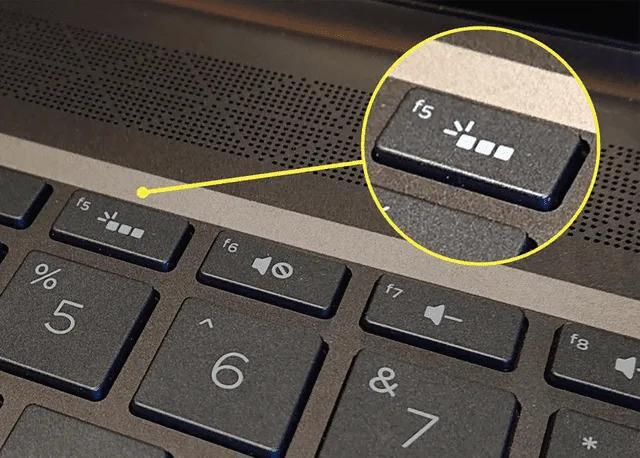
After completing these checks, treat the result as diagnostic evidence rather than an automatic replacement decision.
With experience across 500+ laptop repairs, IndiRepair focuses on separating a backlight-only symptom from a wider keyboard, connection, firmware, or board-level concern before recommending a replacement.
book your Hp laptop repair with IndiRepair
When Should You Stop Troubleshooting?
Stop troubleshooting and seek assessment when continued testing could increase damage or when the evidence points beyond a simple lighting setting. A dark backlight after safe checks is not a reason to probe connectors, force keycaps, or open the laptop without the appropriate experience and model-specific information.
- Stop after liquid exposure, smoke, sparks, burning smell, unusual heat, swelling, melting, exposed wires, or visible electrical damage.
- Stop when the keyboard, touchpad, display, charging behavior, or other functions fail at the same time, especially after an impact or spill.
- Do not force keycaps, probe connectors, short contacts, or use a damaged charger to test the backlight.
- Do not install an unverified BIOS update, hotkey package, driver, or replacement keyboard based only on a generic HP model name.
- Do not continue firmware work if the laptop loses stable power, freezes during the process, or the documentation does not match the exact model.
- Back up important data before repair or firmware-related work whenever the laptop remains usable.
Signs That the Problem Is No Longer a Simple Lighting Setting
- The keyboard does not type reliably as well as failing to illuminate.
- The symptom changes when the laptop chassis, palm rest, or keyboard area is touched or moved.
- The problem followed liquid exposure, a drop, pressure on the keyboard, or a recent repair.
- The backlight flickers, shows uneven sections, or works intermittently after repeated restarts.
- The issue persists in Windows and in the available pre-Windows or diagnostic environment.
These signs increase the value of an internal diagnosis, but they still do not identify the failed component without appropriate inspection.
When Is Professional Diagnosis or Keyboard Repair Appropriate?
Professional diagnosis is appropriate when the documented control, restart, Windows checks, and model-specific diagnostic comparisons do not restore the backlight. A technician may need to distinguish between the keyboard assembly, cable or connector, controller or board-level circuit, firmware behavior, software, and an incompatible replacement part.
IndiRepair recommends treating each result as a clue rather than automatic proof that the keyboard has failed. If the backlight remains absent and internal hardware is suspected, you can get your Hp laptop checked by IndiRepair so the exact model and symptom history can be considered before a replacement decision.
- Provide the exact HP model and product identifier.
- Explain whether the keyboard still types normally.
- State whether the backlight was ever confirmed to work on this laptop.
- Describe whether the symptom appears before Windows loads, only in Windows, or intermittently.
- Report any recent update, firmware change, spill, impact, cleaning, or keyboard replacement.
- Share which controls, restarts, software checks, and diagnostic observations produced a change.
What Information to Share for an Accurate Assessment
An accurate assessment is easier when the technician receives a concise record rather than only the statement that the HP keyboard light stopped working. Include the model identifier, the date or circumstances of the change when known, and whether normal typing continued throughout the problem.
Also share whether the light worked during startup, whether a restart restored it, whether AC and battery behavior differed, and whether the laptop experienced liquid, pressure, impact, cleaning, or a previous keyboard repair. These details help separate model configuration from a control, software, firmware, or hardware issue.
Frequently Asked Questions
Q: Why is my HP laptop keyboard backlight not working while the keys still type normally?
A: Normal typing shows that the key-input function is operating, but it does not confirm that the keyboard lighting circuit is healthy. The backlight may be disabled by a model-specific control, affected by Windows or HP utility behavior, interrupted by a sleep or power-state condition, or affected by firmware, a cable, connector, or lighting assembly. Confirm that the exact model includes a backlit keyboard, test the documented control, restart normally, and compare behavior before Windows loads when possible. If the light remains absent across those checks, professional diagnosis can identify whether replacement is actually necessary.
Q: How do I turn on the keyboard light on an HP laptop or HP notebook?
A: Use the keyboard-light control documented for the exact HP model. The location of the light icon, the need for a function-key modifier, and whether the control cycles through brightness levels can vary between models. Do not assume that a shortcut found for an HP Pavilion 15 notebook or another HP notebook applies to your laptop. First confirm that the product configuration includes a backlit keyboard. If the documented control produces no response, record whether typing works normally and continue with model-specific restart, Windows, and pre-Windows checks rather than repeatedly trying unrelated keys.
Q: Does every HP Pavilion or HP ProBook have a backlit keyboard?
A: No. HP product families can include different configurations, and a general name such as Pavilion or ProBook does not confirm that a particular laptop has a backlit keyboard. Check the exact product identifier and the original configuration documentation. A missing light icon, a keyboard that never illuminated, or a replacement keyboard without lighting may indicate a configuration difference rather than a fault. If the keyboard definitely illuminated before and then stopped, the control, software, firmware, connection, or lighting hardware should be investigated.
Q: Can a Windows update or HP driver stop the keyboard backlight from working?
A: A Windows update, HP hotkey utility, keyboard-related driver, or power-management condition may affect how the backlight control behaves on some models. The exact software path must be verified for the specific laptop, so avoid installing a generic package based only on the HP brand. Compare the light before Windows loads with its behavior after sign-in. If the backlight works outside Windows but not after sign-in, software or power-state behavior becomes more plausible. A restart or approved software change that restores the light is useful evidence, but continued monitoring is still important.
Q: What does it mean if the keyboard backlight is absent before Windows starts?
A: A backlight that remains absent before Windows loads may justify checking model support, firmware behavior, the keyboard control, and internal hardware. That observation provides stronger evidence against a Windows-only setting, but it does not identify a failed component by itself. Some models may not illuminate in every startup or diagnostic environment, and the exact behavior must be checked against model documentation. Record whether the keys type, whether the light ever appears, and whether the symptom followed liquid exposure, impact, or a repair before seeking a hardware assessment.
Q: Does a missing HP keyboard backlight mean the keyboard needs replacement?
A: No. A dark backlight can result from model configuration, a control mode, Windows software, firmware, sleep-state behavior, a cable or connector, or the lighting assembly itself. Replacement should follow diagnosis rather than the symptom alone, especially when all keys type normally. Confirm the exact model, test the documented control, perform safe restart and software checks, and compare behavior outside Windows where possible. If the backlight remains absent or other keyboard functions fail, a technician can determine whether the keyboard assembly is the likely fault and whether a compatible replacement is appropriate.
Q: When should I stop troubleshooting an HP keyboard backlight problem?
A: Stop when the laptop shows liquid exposure, smoke, sparks, burning smell, unusual heat, swelling, melting, exposed wiring, a damaged charger or port, or other unsafe symptoms. Stop also when typing, the touchpad, display, charging behavior, or other functions fail after an impact or spill. Do not probe connectors, force keycaps, open the laptop solely to confirm a suspected light fault, or install unverified firmware. If safe model-specific checks fail and the light remains absent in more than one environment, professional diagnosis is a safer next step.
Conclusion: Treat the Missing Backlight as a Symptom, Not a Diagnosis
An HP laptop keyboard backlight that is not working does not automatically mean the complete keyboard has failed, particularly when typing remains normal. Confirm that the exact model supports backlighting, identify the documented control, record the behavior, try reversible Windows and restart checks, and compare Windows with pre-Windows behavior when possible.
Stop after unsafe symptoms, liquid or physical damage, unstable firmware conditions, or failed low-risk checks that leave an internal fault possible. IndiRepair can help assess whether the unresolved problem involves the keyboard assembly, connection, firmware, software, or another internal component. For a diagnosis-led next step, consider Hp laptop repair with IndiRepair before approving a keyboard replacement.