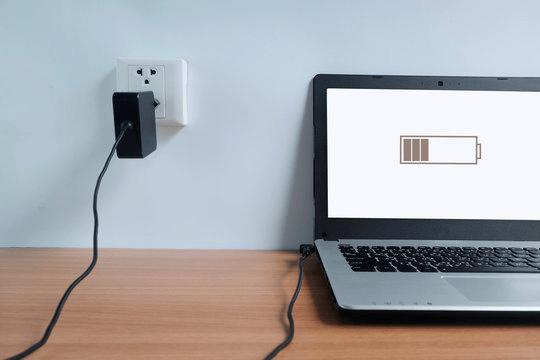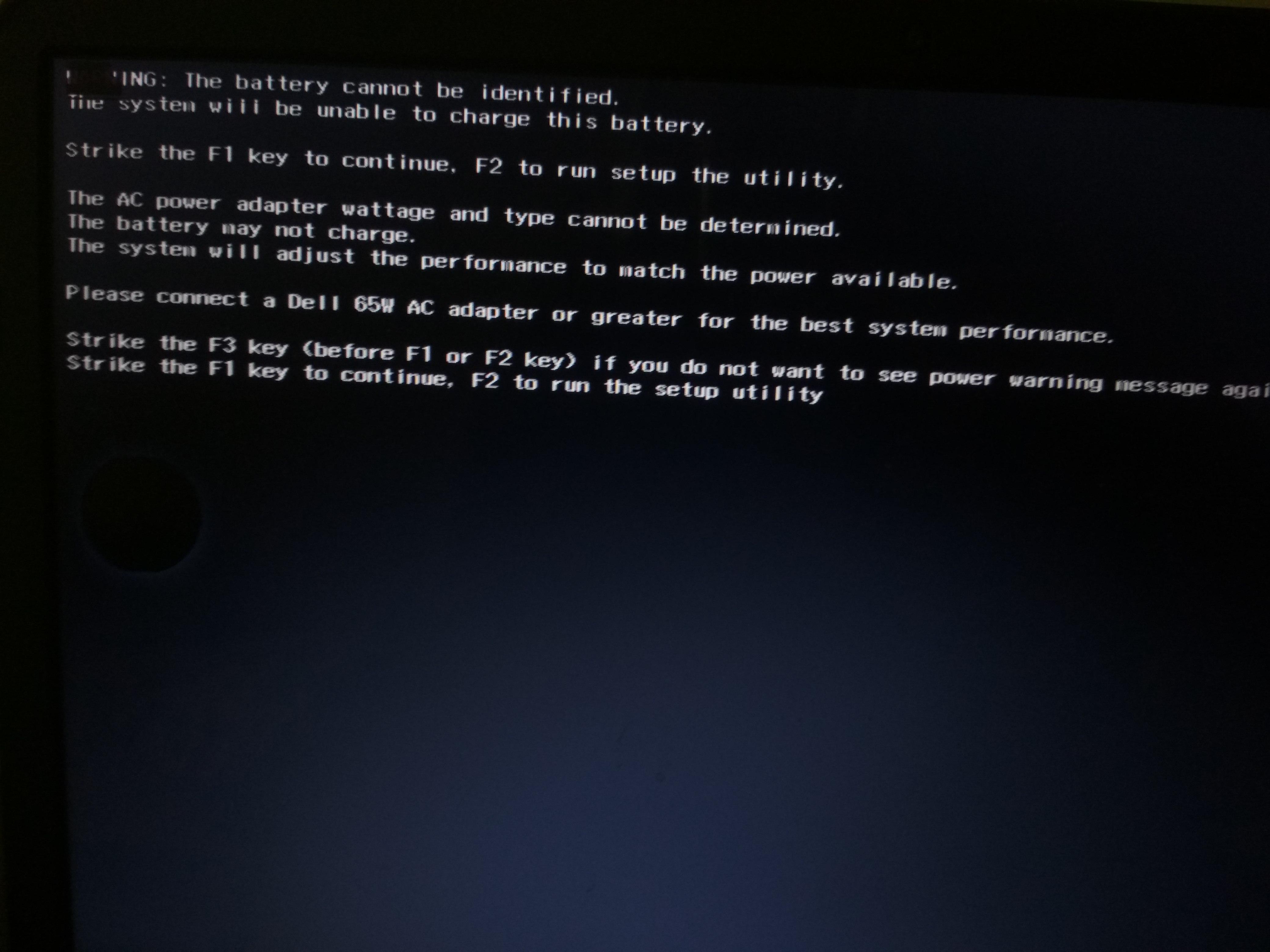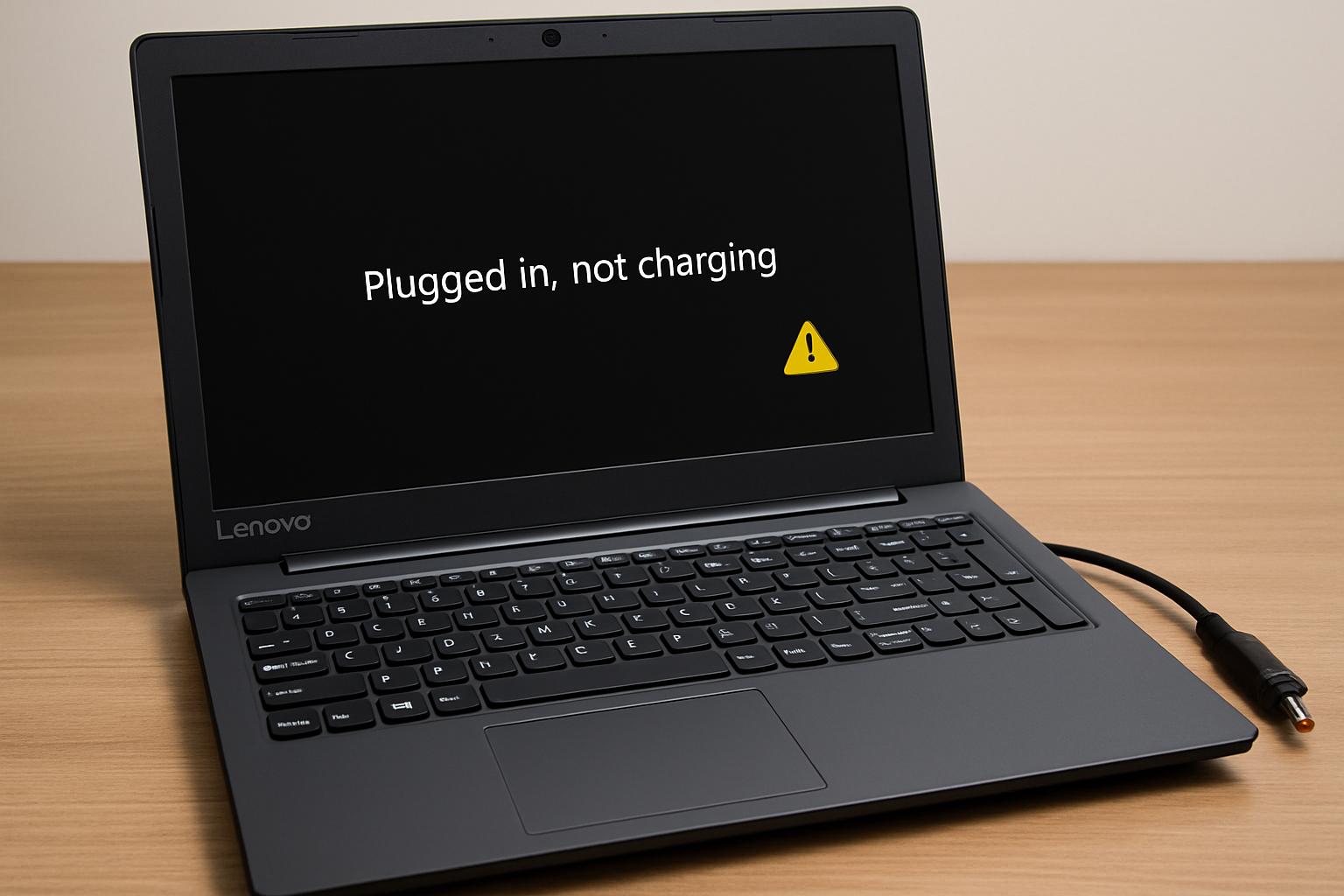

If your HP laptop is plugged in but the battery percentage is not increasing, charging very slowly, no not detecting the charger at all, the issue may be related to the charger, battery, charging port, motherboard, or power management system.
At IndiRepair, HP laptop charging issues are among the most frequently diagnosed repair problems we see across Pavilion, Victus, Envy, and ProBook series laptops. In many cases, users initially assume the battery has failed, but the actual issue may originate from the charging port, charger wattage mismatch, or motherboard charging IC. Proper diagnosis is important because replacing the wrong component can increase unnecessary repair costs.
The problem can range from a minor software issue to a failing battery or motherboard charging circuit. Understanding the symptoms carefully is important because the troubleshooting steps differ depending on how the laptop behaves.
Common Signs Your HP Laptop Is Not Charging
Charging problems do not always appear in the same way. Some HP laptops stop charging completely, while others charge intermittently or get stuck at a certain battery percentage.
Here are some of the most common symptoms users experience.
1. HP Laptop Plugged In But Not Charging
This is one of the most common situations where the charger is detected, but the battery percentage does not increase. You may see the charging icon on the taskbar, but the laptop remains stuck at the same percentage for hours.
2. HP Laptop Charges Very Slowly
In some cases, the battery charges extremely slowly when the laptop is connected to power. This may happen due to low wattage charger, battery degradation, overheating, power consumption or motherboard power delivery issues.
3. HP Laptop Only Works While Plugged In
If the laptop shuts down immediately after disconnecting the charger, the battery may no longer be able to hold charge properly. This usually indicates severe battery wear or internal battery failure.
4. Battery Percentage Stuck

Sometimes the battery may stop charging beyond a certain percentage such as 0%, 1%, 79%. HP laptops with battery optimization settings may intentionally limit charging, but persistent charging limits can also indicate battery health issues.
Why Is Your HP Laptop Not Charging
There are several possible reasons why an HP laptop will not charge. Some are related to external accessories like the charger, while others involve internal hardware components.
1. Faulty Charger Or Power Adapter
A damaged charger is one of the most common causes of charging issues. Over time, laptop adapters may develop cable breaks, bent pins, loose connectors. Using a charger with the incorrect wattage can also prevent proper charging. Many HP laptops require specific adapter wattage to charge efficiently.
We also frequently see situations where duplicate or low-quality replacement charger cause intermittent charging problems. Some HP laptops may display charging warnings or charge extremely slowly when the adapter does not provide the correct voltage or smart pin communication required by the motherboard.
2. Damaged Charging Port

The charging port experiences constant physical stress during daily use. Repeated plugging and unplugging may loosen the DC jack or damage internal solder points.
Signs of charging port damage include, charging only at certain angles, loose charger connection, charger disconnecting randomly.
In some cases, the charging port itself is fine but the motherboard connector underneath becomes damaged.
3. Battery Health Degradation
Laptop batteries naturally degrade over time. Most lithium-ion batteries begin losing performance after several hundred charging cycles.
As battery health declines, you may notice rapid battery drain, slow charging, random shutdowns or swelling. If your battery is not charging on your HP laptop after years of usage, battery wear is a strong possibility.
Battery wear usually becomes more noticeable after 2–4 years of regular usage depending on charging habits, heat exposure, and overall cycle count. High internal temperatures and continuous heavy workloads can accelerate lithium-ion battery degradation significantly
4. HP Battery Driver Or Software Issues.
Windows battery drivers and power management systems occasionally malfunction after updates or improper shutdowns.
This can lead to a situation where the charger is detected incorrectly, battery percentage freeze, charging stops unexpectedly.
Corrupted battery drivers can sometimes be fixed through reinstalling or updating the power management drivers.
5. BIOS or Firmware Problems
The BIOS controls hardware-level power communication between the charger, motherboard, and battery.
Outdated or corrupted BIOS settings may interfere with battery detection, charging regulation, thermal protection.
Some HP laptops also include adaptive charging features that intentionally limit charging under certain conditions to extend battery lifespan
6. Motherboard Charging IC Failure
In more serious cases, the issue may originate from the motherboard itself.
Modern laptops contain charging ICs and power delivery circuits responsible for regulating voltage, communicating with the battery and controlling charging behavior.
If these components fail, the HP laptop battery may not charge even when the charger and battery are working properly.
How To Fix An HP Laptop That is Not Charging
Before considering battery replacement or motherboard repair, there are several troubleshooting steps you can try safely.
1. Check the Charger And Cable
Inspect the charger carefully for:
a. Cuts
b. Bends
c. Exposed wires
d. Loose connectors
If possible, test the laptop with another original HP charger of the correct wattage.
Many charging problems occur simply because the adapter is no longer delivering stable voltage.
2. Inspect the Charging Port
Check whether the charging connector feels loose or unstable.
Dust, debris, or bent internal pins may interrupt charging communication between the charger and motherboard.
Avoid forcing the charger into the port, as this can worsen internal damage.
3. Restart the Laptop
Temporary software glitches may interfere with charging detection.
A complete shutdown followed by restarting the system can sometimes restore proper power management functionality.
4. Update or Reinstall Battery Drivers

To reinstall battery drivers:
a. Open Device Manager
b. Expand “Batteries”
c. Uninstall:
i. Microsoft AC Adapter
ii. Microsoft ACPI- Compliant Control Method Battery
d. Restart the laptop.
Windows will automatically reinstall the battery drivers during reboot.
If Windows updates recently installed before the charging issue started, reinstalling battery drivers can often restore proper battery communication between the operating system and motherboard controller.
5. Run HP Hardware Diagnostics
HP laptops include built-in hardware diagnostics that can test battery health and charging behavior.
You can access diagnostics by:
a. Restarting the laptop
b. Pressing Esc or F2 during startup
c. Opening HP PC hardware Diagnostics
Battery testing may reveal battery wear, calibration problems, charging failure, or battery replacement warnings.
6. Update the BIOS
An outdated BIOS can occasionally create charging inconsistencies. However, BIOS updates should only be performed carefully and while connected to stable power.
Interrupting a BIOS update may damage the motherboard firmware.
Steps:
a. Connect your HP laptop to the charger.
b. Press Windows + R and type msinfo32.
c. Note down your HP laptop model number.
d. Check the current BIOS version in System Information.
e. Visit HP Support.
f. Search for your exact HP laptop model.
g. Download the latest BIOS update available for your laptop.
h. Close all running applications before starting the update.
i. Run the BIOS update file and follow the on-screen instructions.
j. Do not turn off or unplug the laptop until the BIOS update completes successfully.
7. Remove Static Power
Sometimes residual electrical charge affects hardware communication.
You can perform a hard reset by:
a. Shutting down the laptop
b. Disconnecting the charger
c. Holding the power button for 15-20 seconds
d. Reconnecting the charger
e. Powering the laptop back on
This can help reset certain embedded controller functions
HP Laptop Plugged In But Not Charging
Many users report situations where the charging icon appears, but the battery percentage does not increase.
If your HP laptop will not charge when plugged in, possible reasons include:
a. Battery health degradation
b. Smart charging limitations
c. Incorrect adapter wattage
d. Motherboard charging IC issues
Some HP laptops intentionally stop charging beyond 80% to reduce long-term battery wear. However, if charging remains stuck at low percentages for extended periods, the battery may require inspection.
If the laptop only chargers intermittently or disconnects randomly, the charging port or internal motherboard circuitry may also be involved.
How Charging Issues Are Diagnosed At IndiRepair
At IndiRepair, we first check the basic components responsible for charging, including the charger, charging cable, and charging port. Many HP laptop charging issues are caused by loose charging ports, damaged adapters, or batteries that have degraded over time. Our technicians also test the battery health to check whether the battery is holding charge properly or showing signs of failure.
If the issue is not related to the charger or battery, we then move to advanced motherboard-level diagnostics. This includes checking the charging IC, power delivery circuit, and internal components responsible for battery charging. By diagnosing the exact fault properly, we can identify whether the issue is caused by the battery, charging port, or motherboard before recommending the appropriate repair solution.
Frequently Asked Questions
Q. Why is my HP laptop plugged in but not charging?
A. If your HP laptop is plugged in but not charging, the issue may be caused by a faulty charger, battery health degradation, charging port damaged, outdated battery driver, or motherboard charging circuit problems. In some cases, HP battery optimization settings may also limit charging temporarily.
Q. Why won’t my HP laptop charge even when connected to the charger?
A. An HP laptop may fail to charge due to a damaged power adapter, loose charging port, worn-out battery, BIOS issues, or motherboard charging IC failure. Testing the charger and checking battery health can help identify the exact cause.
Q. Why is my HP laptop battery charging very slowly?
A. Slow charging on an HP laptop is commonly caused by low wattage chargers, battery wear, overheating, heavy background usage, or power management issues. Using the original HP adapter usually helps maintain proper charging speed.
Q. Can a bad battery stop an HP laptop from charging?
A. Yes. A degraded or damaged battery can prevent an HP laptop from charging properly. Common signs include rapid battery drain, charging stuck at a certain percentage, overheating, or the laptop only working while plugged in.
Q. How do I know if my HP laptop battery needs replacement?
A. Your HP laptop battery may need replacement if it drains quickly, does not hold charge, overheats, swells physically, or fails HP battery diagnostics. Many laptops also display battery warning messages when battery health becomes poor.
Q. Can motherboard issues cause HP laptop charging problems?
A. Yes. Charging problems can also be caused by motherboard-level faults such as damaged charging ICs, faulty power rails, or voltage regulation issues. In such cases, the laptop may not detect the charger or charge intermittently.
CONCLUSION
An HP laptop not charging can be caused by several different issues ranging from simple charger problems to battery failure or motherboard-level charging faults.
Understanding the exact symptoms is important because charging problems often behave differently depending on the failed component. In some situations, basic troubleshooting may solve the issue. In others, the laptop may require professional battery or motherboard diagnosis.
If your HP laptop battery is not charging consistently, charging very slowly, or only working while plugged in, identifying the root cause early can help prevent further hardware damage and reduce repair costs later.