Seeing a black line on laptop screen HP users rely on daily can be alarming and often time might need a HP display replacement. The line may appear suddenly, stay fixed in one place, or slowly spread across the display. In some cases it’s thin and barely noticeable; in others it’s thick enough to disrupt work completely. The key thing to understand is that a black line on the laptop screen can be caused by both software-related issues and hardware faults. This guide follows a step-by-step, chronological approach so you can safely check what’s causing the problem and know exactly what to do next.
For example, we recently diagnosed a black vertical line on an HP Envy for a client in Mumbai, where a loose display cable was the issue after software checks.
Causes of Black Line On HP Display
Before fixing the issue, it helps to understand what usually causes black lines to appear on the laptop display. These causes broadly fall into software-related problems and physical hardware faults.
1.Software or Display Driver Issues
Display drivers control how your laptop’s motherboard communicates with the screen. If a driver becomes outdated, corrupted, or incompatible after an update, visual issues such as a black line on the laptop screen can appear. These problems usually don’t cause physical damage and are often reversible.
2. Loose or Damaged Display Cable

The display cable runs through the hinge area and connects the screen to the motherboard. Over time, repeated opening and closing of the lid can loosen or damage this cable. When this happens, users often notice the black line changing position or intensity when the screen angle is adjusted.
3. Physical Damage to the Screen
Pressure on the screen, accidental drops, or even closing the lid with an object on the keyboard can damage the internal layers of the display. This type of damage commonly results in a permanent black line on the screen, needing an HP laptop screen replacement.
4. Failing LCD or LED Screen Panel
As screens age, individual pixels or entire columns of pixels can fail. This leads to fixed black lines that do not change regardless of software settings or restarts. In such cases, the display panel itself is failing, needing an HP display replacement.
5. Graphics Card Issues (Rare)
In rare situations, a faulting graphics chip or motherboard component can cause abnormal display output. This usually comes with additional symptoms like overheating, screen freezing, or random shutdowns.
In our experience at IndiRepair, this accounts for less than 10% of black lines cases we’ve repaired.
How to Fix Black Line on HP Laptop Display
Follow the steps below in order. After completing each step, check whether the black line is still visible. Only move to the next step if the issue persists.
Step 1: Restart and Perform Basic Display Checks
a. Save your work and hard restart the HP laptop (that is hold you power button for 10-15 seconds)
b. Once restarted, disconnect all external devices such as USB drivers, HDMI cables, and docking stations.
c. Adjust the screen brightness up and down slightly.
e. Gently tilt the screen forward and backward and observe the black line.
What this tell us:
a. If the black line disappears, the issue was temporary or caused by an external device.
b. If the black line remains unchanged, continue to Step 2.
Step 2: Check Display Drivers and Screen Settings
a. Right-click on the desktop and open Display settings.
b. Confirm the screen resolution is set to the recommended value for your HP laptop.
c. Open Device Manager, expand Display adapters, and update the graphics driver.
d. If this issue started after an update, roll back to the previous drivers version.
What this tell us:
a. If the black line disappears after adjusting settings or drivers, the issue was software-related.
b. If the black line persists, move to Step 3.
Step 3: Connect an External Monitor

a. Connect your HP laptop to an external monitor or TV using HDMI or VGA.
b. Duplicate or extend the display using Windows + P.
c. Observe both screens carefully.
What this tells us:
a. If the external monitor shows no black line while the laptop screen does, the laptop screen or display cable is the problem.
b. If the black line appears on both screens, this issue may be related to the graphics hardware.
Step 4: Perform BIOS or Startup Screen Test
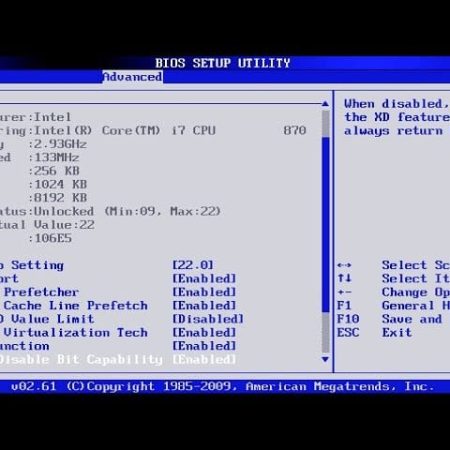
a. Restart the HP laptop.
b. Press F10 repeatedly during startup to enter the BIOS.
c. Do not change any settings – simply observe the screen.
What this tells us:
a. If the black line is visible in the BIOS, the issue is with the screen and an HP laptop display replacement is needed.
b. If the line is not visible in the BIOS, the problem is likely software-based.
Step 5: Inspect for Screen or Cable Damage
a. Slowly open and close the laptop lid while watching the black line.
b. Apply very light pressure around the screen edges (do not press hard).
c. Note whether the line flickers, moves, or changes thickness.
What this tells us:
a. Changes during movement strongly indicate a damaged display cable or screen panel.
b. A fixed, unchanging line usually points to screen panel failure.
What to Do If the Black Line on HP Screen Persists
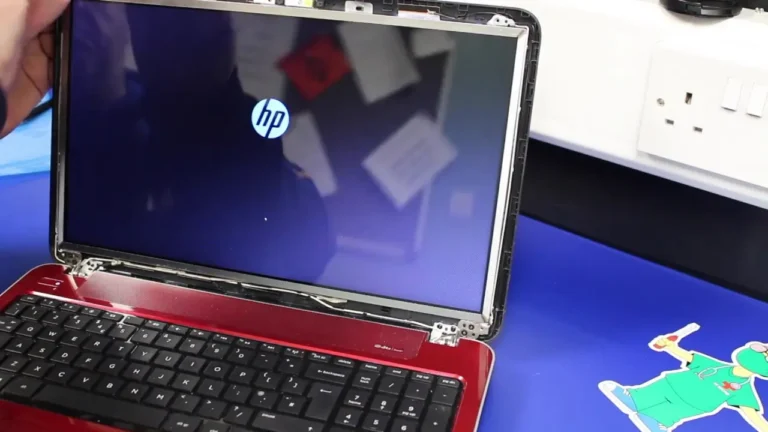
If the black line on laptop screen HP users experience remains after all the steps above, the issue is almost certainly hardware-related and an HP screen replacement is required especially when the black line is visible in BIOS or is invisible in the external monitor.
In very rare cases, cable adjustments or replacement may fix the issue. However, if the display panel itself is damaged, replacement is the only permanent solution.
The cost of replacing an HP laptop screen depends on the model, screen size, resolution, screen replacement cost for all models can be found below:
Envy HP screen replacement Cost
Omen HP Screen Replacement Cost
Spectre HP Screen Replacement Cost
Pavilion HP Screen Replacement Cost
ProBook HP Display Replacement Cost
EliteBook HP Display Replacement Cost
Chromebook HP Display Replacement Cost
Why Choose IndiRepair for Black Line on HP Laptop Screen
When it comes to a black line on an HP laptop screen, the cause matters just as much as the fix. A line that appears after a drop is very different from one caused by a failing pixel column or a loose display cable — and treating them the same way leads to unnecessary costs or repeat problems.
At IndiRepair, the approach begins with a structured, symptom-based diagnosis. Before any replacement is recommended, the technician checks whether the line is visible on an external monitor, whether it shifts when the lid angle changes, and whether a driver or software reset resolves it. This rules out the most common software causes first.
Only when hardware failure is confirmed does the replacement process begin. HP laptop screens vary significantly in connector type, panel specification, and resolution — even across laptops that look identical. At IndiRepair, the replacement panel is matched precisely to your laptop’s original specifications, not just the screen size, so you avoid the flicker, brightness issues, or backlight failures that come from installing an incompatible display.
Replacements are completed within 24 hours using tested panels, with free pickup and drop service across Mumbai.
CONCLUSION
A black line on an HP laptop screen does not always mean immediate screen replacement, but it should never be ignored. By following a step-by-step approach, you can identify whether the issue is software-related or a failing screen. If the black line persists after all checks, replacing the HP screen is the safest way to restore display quality and prevent further damage.
At IndiRepair, we replace HP laptop screens within 24 hours* using original screens, along with free pickup and drop service in Mumbai.
Written by Khan Rahil, a diploma holder in Computer Hardware with over 5 years of hands-on experience in laptop repairs and Senior Technician at IndiRepair. He has personally handled hundreds of HP screen replacements, specializing in precise compatibility checks and quality installations.