Noticing straight horizontal or vertical lines on your HP laptop screen can be stressful and alarming. These lines may appear as thin bands, thick dark stripes, or colored lines that stay fixed in one place. Whether it’s a horizontal line on laptop screen HP, or sharp vertical lines on HP laptop screen, this issue usually indicates a deeper display-related problem.
For instance, we recently fixed persistent vertical lines on an HP Omen for a gamer in Mumbai, tracing it to panel failure after software checks
This guide is written like a technician-assisted checklist. You’ll move step by step, ruling out software issues first and gradually narrowing it down to hardware. If none of these steps work, the only way to resolve this issue would be a new HP laptop screen replacement.
Causes of Horizontal and Vertical Lines on HP Laptop Screen
Before jumping into fixes, it’s important to understand why horizontal or vertical lines appear. Each cause leaves behind slightly different symptoms, and recognizing these patterns helps avoid unnecessary trial-and-error.
1. Graphics Driver or Software- Level Conflicts
One of the most common non-hardware causes is a conflict between Windows updates and graphic drivers.When drivers become corrupted, outdated, or incompatible, the GPU may incorrectly render pixel rows or columns. Which often results in such lines being visible.
2. Incorrect Display Resolution or Refresh Rate
HP laptop screens are calibrated to work within specific resolutions and refresh-rate limits. When the system is forced to operate outside these limits, the panel may struggle to refresh pixels evenly, causing horizontal bands and lines that worsen at certain brightness levels.
3. Loose, Worn or Damaged Display Cable
Inside every HP laptop, a display cable connects the screen to the motherboard through the hinge. Over time, regular opening and closing of the lid can wear this cable. Though cable related issues are very rare but are possible.
4. Physical Pressure or Impact Damage
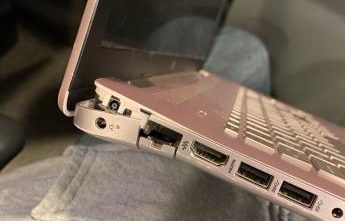
Even without visible cracks, pressure damage can permanently affect the LCD layers beneath the glass. Common triggers include closing the lid on an object, dropping the laptop, or carrying it loosely in a bag. If the screen is damaged, software fixes will not work and you will need an HP display replacement.
5. LCD/LED Panel failure
The most serious cause is internal panel failure. When an entire row or column of pixels stops responding, it creates a perfectly straight horizontal or vertical line. If the internal screen is failing only a professional HP display replacement will help.
How to Fix Horizontal and Vertical Lines on HP Display
Step 1: Restart and Perform Basic Display Checks
a. Hard restart your HP laptop (i.e. hold the power button for 10-15 seconds and let the device shutdown, once the device shutdowns turn it on)
b. Disconnect all external devices (USB drivers, HDMI cables, docking stations).
c. Slowly adjust the screen angle and brightness.
What this tells you:
a. If the line disappears or changes while adjusting the lid, the issue may be cable-related or temporary.
b. If the line stays fixed, move to Step 2.
Step 2: Verify Screen Resolution and Refresh Rate
a. Right-click on the desktop → Display settings.
b. Set the resolution to the Recommended option.
c. Open advanced display settings and ensure the refresh rate matches your HP laptop screen specifications.
What this tells you:
a. Incorrect settings can trigger hp laptop horizontal lines on screen, especially thin flickering bands.
b. If there’s no improvement, continue to Step 3.
Step 3: Update, Roll Back, or Reinstall Display Driver
a. Open Device Manager → Display adapters.
b. Update the graphics driver.
c. If the issue started after a recent update, roll back to the previous stable version.
d. Alternatively, download the correct driver directly from HP’s official support site.
What this tells you:
a. Driver conflicts are common reasons for both horizontal and vertical lines on HP laptop screens.
b. If lines persist, proceed to Step 4.
Step 4: Test Using an External Monitor
a. Connect your HP laptop to an external monitor or TV using HDMI or VGA.
b. Duplicate the screen using Windows + P.
What this tells us:
a. If the external display is clear, the laptop screen is faulty needing an HP laptop display replacement.
b. If the lines are visible on the external monitor as well, the graphic card or motherboard is an issue.
Step 5: BIOS or Startup Screen Test
a. Restart the laptop.
b. Enter BIOS by pressing F10 or ESC during the laptop
What this tells us:
a. If horizontal or vertical lines are visible in the BIOS, it’s a hardware issue and you will need a HP screen replacement to resolve this issue.
What to Do If HP Laptop Horizontal Lines On Screen Persists
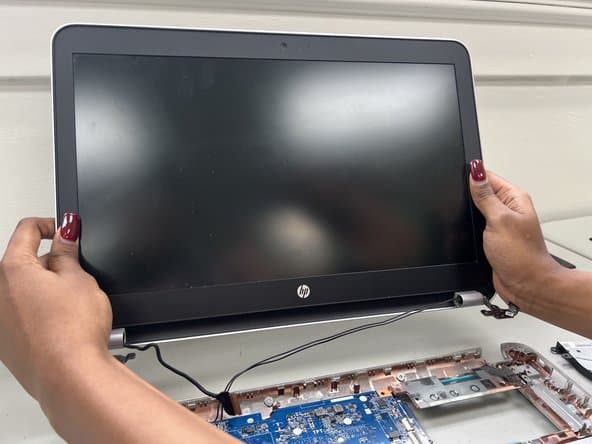
If the lines remain constant, appear in BIOS, and do not change with settings or drivers, the LCD panel has failed and can not be resolved using software troubleshooting. Making HP screen replacement a necessity.
The replacement cost for HP screen can vary on screen size resolution, touchscreen, non touch screen and even model wise. To get an exact cost for your HP mode; check out the blogs below:
Envy HP screen replacement Cost
Omen HP Screen Replacement Cost
Spectre HP Screen Replacement Cost
Pavilion HP Screen Replacement Cost
ProBook HP Display Replacement Cost
EliteBook HP Display Replacement Cost
Chromebook HP Display Replacement Cost
Why Choose IndiRepair for HP Laptop Horizontal Lines on Screen
Horizontal or vertical lines on an HP laptop screen can originate from something as simple as a driver conflict or as serious as internal panel failure — and only a proper diagnosis can tell the difference. Replacing the screen without ruling out software causes wastes money; ignoring hardware failure causes the problem to worsen.
At IndiRepair, the diagnostic process follows a clear, step-by-step flow. The technician first checks if the lines appear on an external monitor, adjusts the screen angle to detect cable-related movement, and verifies that the resolution and refresh rate are set correctly for the HP model. Only if lines persist across all these checks is a hardware replacement confirmed.
HP laptops use a range of display panels and connector types across generations. Even two HP models with the same screen size may require completely different replacement panels. IndiRepair ensures the replacement panel is compatible with your laptop’s original specifications — resolution, panel type, and connector — so the repair restores full display quality without introducing new issues.
CONCLUSION
Horizontal and vertical lines on an HP laptop screen are rarely random. By following this structured, step-by-step process, you can confidently identify whether the issue is software-related or a clear sign of screen failure. If troubleshooting doesn’t resolve the problem, timely screen replacement can restore display clarity and prevent further internal damage.
At IndiRepair, we replace HP laptop screens within 24 hours using original screens, along with free pickup and drop service in Mumbai.
Written by Khan Rahil, a diploma holder in Computer Hardware with over 5 years of hands-on experience in laptop repairs and Senior Technician at IndiRepair. He has personally handled hundreds of HP screen replacements, specializing in precise compatibility checks and quality installations.