A Lenovo laptop battery charging slowly does not automatically mean the battery has failed. An unsuitable charger, heavy workload, heat or an intentional charging limit can leave the percentage rising very slowly—even when Windows says the laptop is plugged in.
The safest approach is to compare the power source and charging conditions first, then review Lenovo settings, Windows software and battery health. The checks below help separate a normal charging slowdown from a charger, battery, port or internal hardware problem.
What Slow Charging Means on a Lenovo Laptop
The adapter supplies power to both the laptop and its battery. When applications consume much of the available power, less remains for charging. Temperature protection, charging controls, battery condition and the charging circuitry also affect the rate.
- The battery percentage increases, but much less than it normally does under similar conditions.
- Windows or the laptop displays a slow-charger or weak-adapter warning.
- Charging slows during gaming, video work or other demanding tasks.
- Charging is noticeably faster when the laptop is idle or shut down.
These symptoms differ from a battery that is not detected, a percentage that never rises, or a battery that loses charge rapidly after unplugging. A percentage that stops at a configured limit may represent intentional battery protection rather than slow charging.
Charging also normally slows as the battery approaches full capacity. There is no universal charging time for every Lenovo laptop: the exact model, adapter, starting percentage, battery condition, workload and charging settings all matter.
If the evidence eventually points to battery deterioration, IndiRepair’s Lenovo laptop battery replacement service is a relevant next step. Slow charging alone is not enough reason to replace the battery.
Why Is My Lenovo Laptop Charging So Slowly?
The pattern of the slowdown helps narrow the possibilities. These are possible causes, not confirmed diagnoses.
1. Insufficient or Incompatible Charger Power
An underpowered, incompatible or damaged adapter may run the laptop but leave little power for the battery. A third-party adapter is not automatically faulty, but its compatibility must be verified. A connector that fits does not prove that the electrical requirements are correct.
2. Heavy Workload and Connected Devices
Gaming, video processing, background updates and connected accessories can consume much of the adapter’s output. If your Lenovo laptop is charging slowly while you are using it but improves when idle, workload or limited available power becomes more likely.
3. Charging Limits and Power Settings
Supported Lenovo battery-care or conservation settings can intentionally stop charging below full capacity. Windows power modes mainly affect energy consumption rather than universally setting a charge limit. A repeatable stop near the same percentage is an important clue.
4. Software, Driver or Firmware Problems
Windows power components, Lenovo utilities, drivers or firmware can sometimes affect charging management or the displayed battery reading. A problem appearing after an update deserves investigation, but timing alone does not prove the update caused it.
5. Battery Wear, Temperature Protection or Reporting Errors
A worn battery may show poor runtime or health warnings alongside unusual charging behavior. Excessive heat can cause charging to slow or pause for protection. An inaccurate percentage reading may also make charging appear slower than it is; none of these possibilities should be assumed from one reading.
6. Cable, Port or Internal Charging Faults
A worn cable, damaged connector, loose port, debris or liquid damage can restrict or interrupt power delivery. Internal charging-circuit faults are another possibility when suitable chargers produce the same problem. Charging that works only at an angle is especially suggestive of a connection problem.
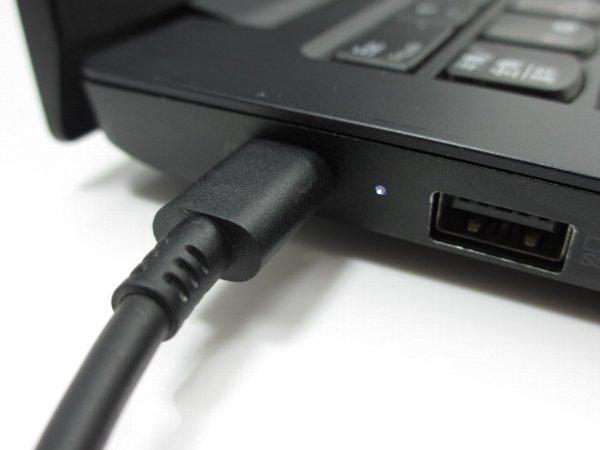
The charger, cable and port form one power path. Testing them separately is more informative than assuming the battery is responsible.
IndiRepair has completed 500+ laptop repairs and has practical experience diagnosing laptop problems. For a slow-charging complaint, evidence from the power source, workload and battery condition provides a better basis for repair decisions than the charging percentage alone.
If you need help separating these possibilities, you can book your Lenovo laptop battery replacement with IndiRepair.
How to Troubleshoot a Lenovo Laptop Charging Slowly
Work through the reversible checks first. Comparisons are most useful at similar starting percentages and temperatures, away from a nearly full battery or an intentional charge limit. Any swelling, smoke, burning smell, sparks, liquid exposure or visible electrical damage overrides the tests below.
- Record a baseline. Note the Lenovo model, charger details, battery percentage, charging message and current workload. Observe the change over a consistent interval, such as 20–30 minutes. This is a comparison window, not a promised charging time. A repeatable pattern is more useful than a single percentage reading.
External Power Path
- Use a known-working wall outlet. Connect the suitable charger directly, bypassing an unverified extension, power strip, dock or hub. If charging improves under otherwise similar conditions, the bypassed accessory or power source deserves attention before software changes.
- Verify adapter compatibility. Compare its label with the requirements in official Lenovo documentation for the exact model. Power rating, connector requirements and supported power delivery must match the laptop’s needs. If compatibility is uncertain, resolve that before further testing; a higher advertised wattage alone does not establish suitability.
- Inspect the unplugged charger and cable. Look for fraying, exposed wires, bent connectors, melting or discoloration. Visible damage means the accessory should not be used for another comparison. Do not repair a damaged charging cable with tape and continue charging.
- Compare a known-good compatible charger. Keep workload, starting charge range and observation time similar. Improvement points toward the original adapter or cable, although it does not identify which one failed. No improvement means usage, settings, battery condition and the laptop’s power path remain under consideration.
- Verify the complete USB-C arrangement. Confirm that the selected port supports charging and that the adapter and cable meet the model’s requirements. For this comparison, connect directly rather than through a dock, and remove other loads from a shared charger. Improvement suggests insufficient delivered power or a compatibility issue in the previous arrangement.
USB-C describes the connector shape, not a universal charging capability. The charger, cable and laptop must support a suitable power arrangement; a dock may also reserve power for itself and attached devices.
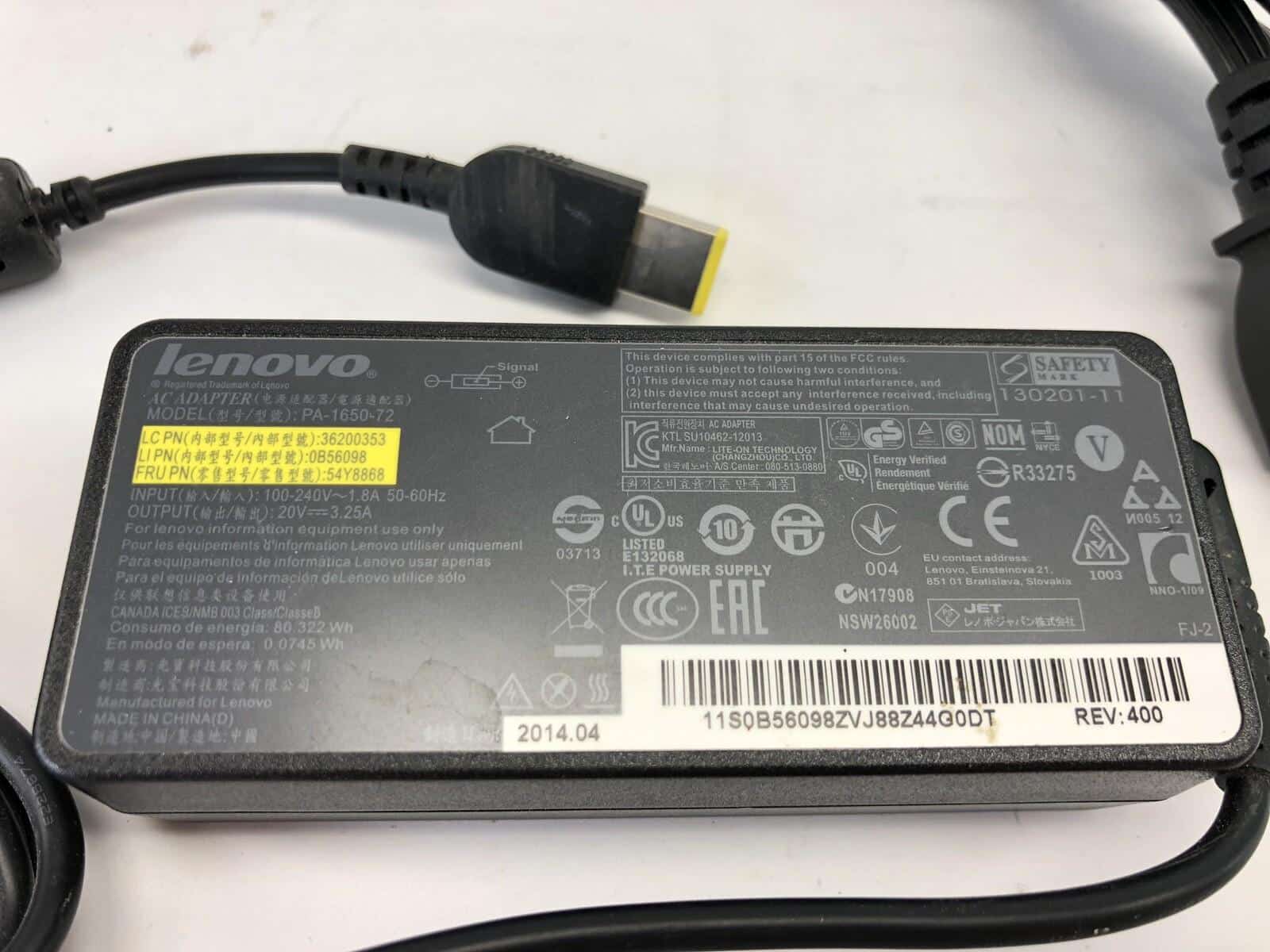
If Lenovo USB-C slow charging persists with a verified direct charger and suitable cable, repeating the same accessory test is less useful than moving to workload and charging controls.
Laptop Usage, Heat and Charging Settings
- Reduce the workload. Save your work, close demanding applications and disconnect unnecessary USB accessories. Compare charging while idle over the same interval. A stronger percentage increase suggests that system demand was using much of the available power; persistent slow charging warrants the next comparison.
- Compare charging while shut down. Note the percentage, shut down normally and leave the suitable charger connected for a comparable interval before restarting. A substantial improvement points toward workload, heat or active power management, but an underpowered charger can show the same pattern. Sleep is a less reliable comparison because background activity can continue.
- Allow ordinary operating heat to settle. Place the laptop on a firm, ventilated surface and allow it to cool naturally before retesting. Improvement supports a temperature-related contribution. Extreme heat, an unusually hot connector or a burning smell requires stopping, not another test. Do not use a freezer or apply moisture to cool the laptop.
- Review Windows power and battery information. Look for charging warnings, unusually high background activity and a power mode that increases demand. If reduced activity improves charging, workload is a useful lead. Windows settings do not expose a hardware charge limit on every Lenovo model.
- Review supported Lenovo charging controls. In Lenovo Vantage or the appropriate installed Lenovo utility, check for conservation, charge-threshold or battery-care settings. Names and availability vary by model. If a configured limit matches the stopping percentage, that is likely intentional. Any temporary change should follow Lenovo’s guidance; rapid charging is not available on every model and is not a repair for faulty hardware.
A battery that consistently stops at its configured threshold is behaving differently from one that rises slowly throughout the charge range.
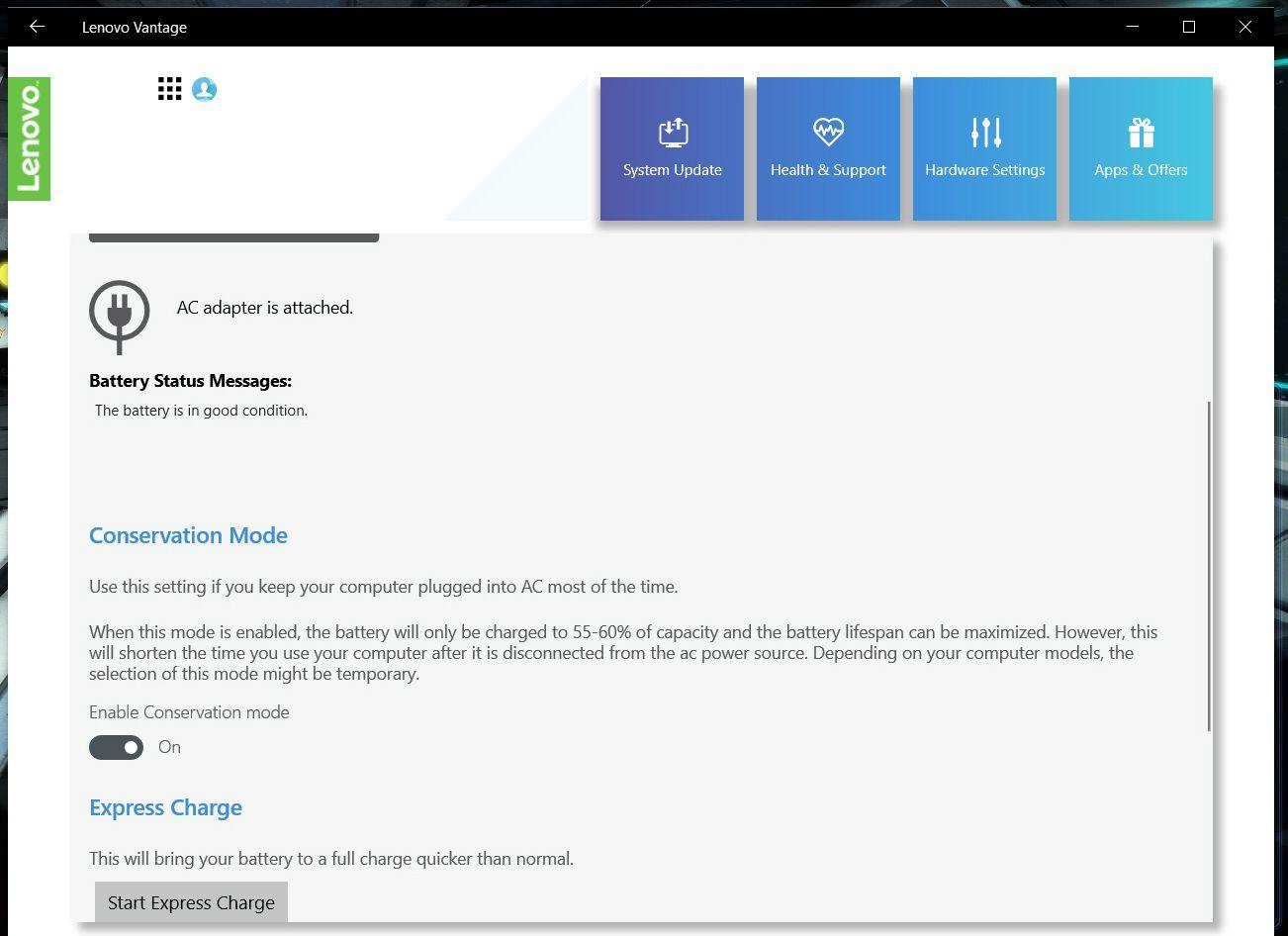
If charging remains slow while cool and shut down, with no relevant threshold active, Windows workload alone is unlikely to explain it.
Windows, Lenovo Software, Drivers and BIOS
- Restart Windows normally. Save your work first, then compare the charging message and percentage trend after restarting. A sudden reading correction may indicate stale reporting rather than faster physical charging. If the same slow trend returns, continue with model-specific checks.
- Review supported updates. With a safe, stable power connection, install appropriate Windows updates and Lenovo-recommended power-management or driver updates for the exact model. Retest afterwards. Improvement suggests a software contribution; unrelated driver packages and generic driver-updater tools are not useful substitutes.
- Review Device Manager for warnings. Note warning icons or error details associated with battery or power-related entries. These indicate an issue worth investigating, not proof that the battery is defective. Avoid removing drivers blindly; use the error details and Lenovo guidance to identify the relevant supported package.
- Consult model-specific Lenovo diagnostics. Review the available battery information and support guidance through Lenovo Vantage or official Lenovo documentation, where supported. Record warnings rather than dismissing them. A normal result narrows the evidence but cannot rule out every intermittent hardware fault.
- Treat BIOS and firmware updates as conditional. Only consider a relevant update for the exact model after reviewing Lenovo’s instructions and prerequisites. Do not begin if power is intermittent, the battery cannot meet the update requirements or the laptop is unstable. A firmware update is not a safe substitute for repairing an unreliable power connection.
Lenovo battery slow charging on Windows 11 can involve software, but a Windows reinstall is not a sensible first response. Slow charging while shut down also makes a purely Windows-based explanation less likely.
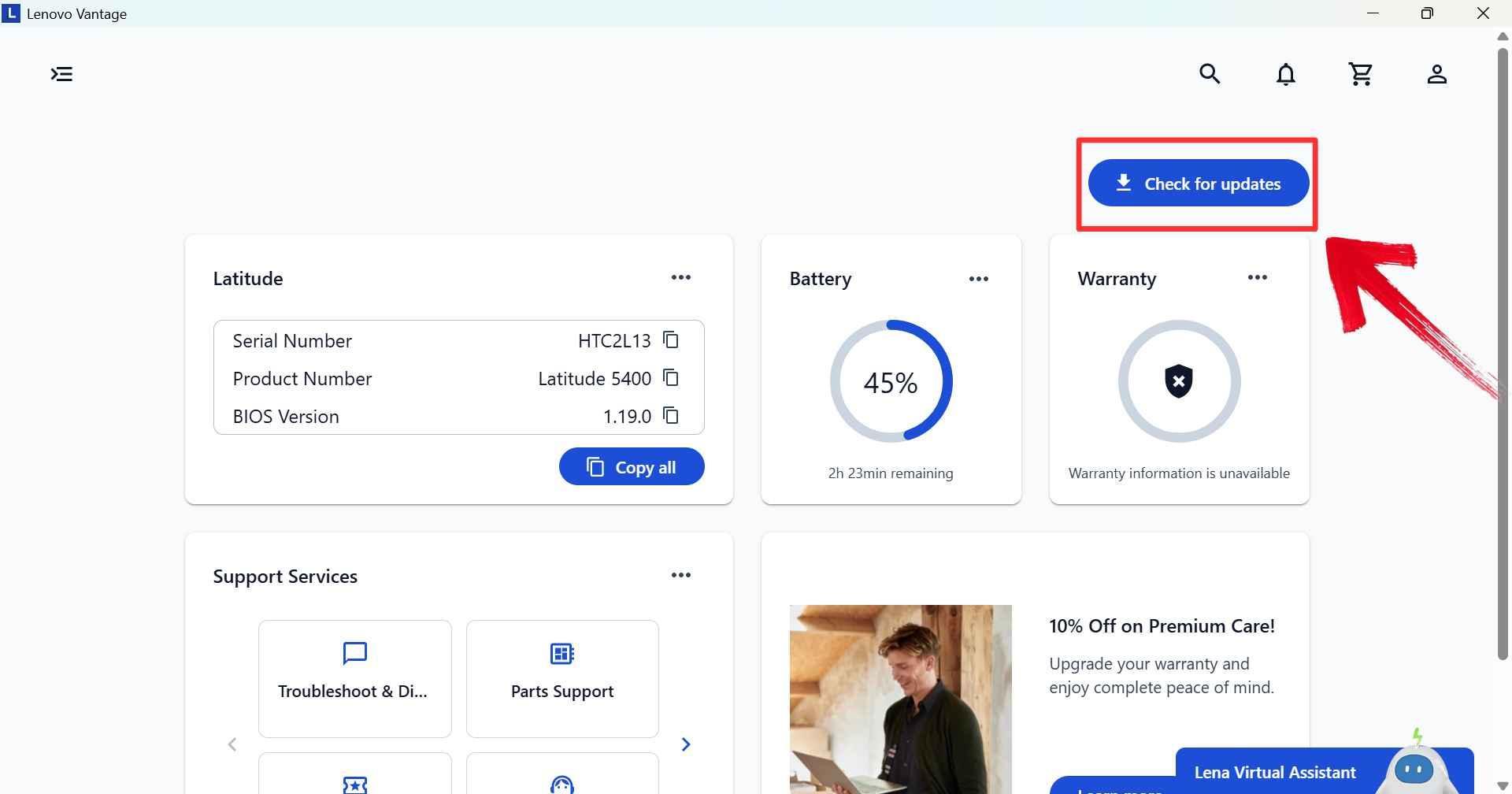
Unchanged behavior after appropriate software checks shifts attention back toward the charger, battery, port and internal charging hardware without confirming which one is responsible.
Battery Health and Available Diagnostics
- Run the supported battery diagnostic. Use the tool available for your exact Lenovo model and record its result or error code. A battery warning supports further battery evaluation. A passing result is useful evidence, but does not guarantee that charging works normally under every condition.
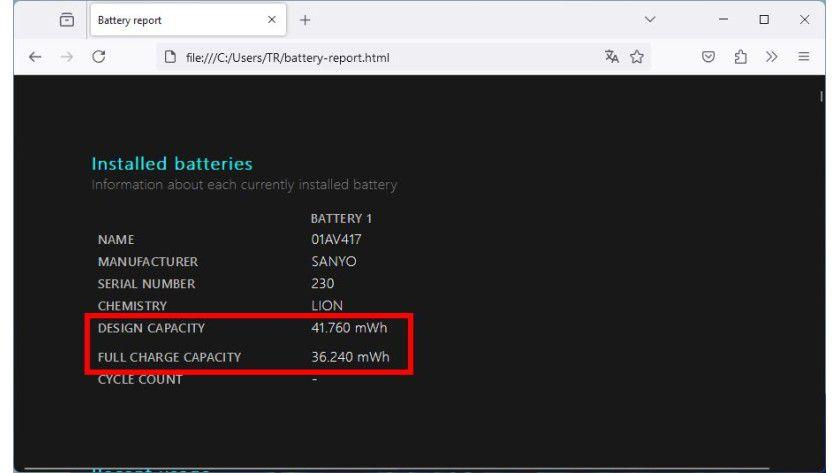
- Review a Windows battery report. In Windows Terminal or Command Prompt, run
powercfg /batteryreportand open the report at the displayed location. Compare design capacity with full-charge capacity and review recent usage. Reduced full-charge capacity suggests wear, but the report does not directly confirm an adapter, cable or charging-circuit fault. - Compare runtime with your usual experience. If safe, observe unplugged use at a comparable brightness, workload and power mode. Much shorter runtime alongside reduced capacity strengthens the case for battery wear. Normal runtime with slow charging keeps other power-path causes in consideration; there is no need to discharge the battery to empty.
- Consider recalibration only for a reporting concern. If the percentage jumps or appears inconsistent, consult the exact model’s Lenovo guidance. Use a recalibration procedure only if supported and the battery has no physical warning signs. Calibration may improve reporting accuracy; it cannot restore worn cells. Repeated deep discharges are not a general fix.
- Compare the charging pattern across percentages. Note whether the slowdown happens throughout charging, only near full capacity or at a configured threshold. A slowdown near full can be normal, while slow progress throughout the range deserves further investigation. Do not disable protection settings merely to force a result.
Battery-health information is strongest when considered alongside runtime and repeatable charging behavior, rather than as an isolated number.
A health warning supports professional evaluation. Swelling or deformation is a stop-use condition, not a reason to continue collecting diagnostic readings.
Port, Cable and Internal Hardware Symptoms
- Visually inspect the disconnected port. With the laptop shut down and charger unplugged, use ordinary lighting to look for debris, bent parts, discoloration or a displaced connector. Do not probe inside, insert metal tools or attempt to straighten contacts. Visible damage calls for inspection rather than another charging test.
- Observe normal connection stability. Only if everything appears undamaged, reconnect normally and watch for charging interruptions during ordinary use. Do not deliberately wiggle or bend the connector. If charging changes with incidental movement or works only at an angle, stop using that connection and arrange inspection.
- Compare a supported alternative connection if available. A detachable, verified suitable USB-C cable or another documented charging-capable port can help isolate the fault. Change one variable at a time. Improvement narrows the problem to the original arrangement; do not try ports or cables whose charging suitability is unknown.
- Record persistent warnings and physical symptoms. Note intermittent charging, weak-adapter messages or unusual warmth with a known-good compatible charger. These details help a technician distinguish connection faults from battery problems. Burning odor, sparks, severe heat or visible damage means no further testing.
Angle-dependent charging or a physically loose port is not normally resolved by changing Windows power settings.
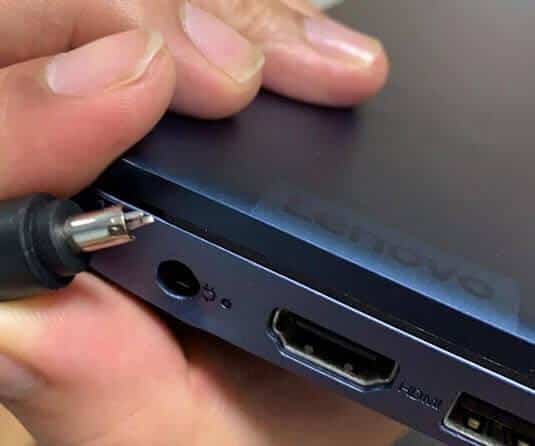
Internal charging faults require appropriate inspection and testing. External symptoms cannot establish that the motherboard, charging board or battery has failed.
Interpret the Results and Choose the Likely Repair Path
The following patterns help prioritize the next decision. None should be treated as a confirmed component diagnosis on its own.
| Observed result | More likely area | Recommended next action |
|---|---|---|
| Charging improves with a known-good compatible charger | Original adapter, cable or power-delivery arrangement | Verify the original accessory’s compatibility and condition before replacing it. |
| Charging improves substantially while idle or shut down | Workload, heat or insufficient adapter headroom | Compare workload and cooling conditions, and confirm the adapter meets model requirements. |
| Charging stops consistently at a configured limit | Intentional battery-care setting | Confirm the threshold in the supported Lenovo utility; replacement is not indicated by this alone. |
| Battery warning, reduced capacity and poor runtime occur together | Battery deterioration | Arrange battery evaluation and verify the correct part before replacement. |
| Charging is intermittent or angle-dependent | Connector, cable or charging port | Stop manipulating the connection and arrange physical inspection. |
| No improvement after suitable power, settings and software checks | Battery, port or internal charging hardware | Request diagnosis rather than repeating resets or purchasing parts by guesswork. |
Symptom Patterns and Diagnostic Confidence
- Charger or cable evidence: Improvement with a verified replacement is more persuasive than a weak-adapter message alone.
- Workload or heat evidence: Improvement when cool and idle supports these causes, but does not rule out an insufficient adapter.
- Settings or software evidence: A matching charge threshold or repeatable Windows-only pattern is more useful than simply noticing the issue after an update.
- Battery evidence: Reduced capacity, poor runtime and diagnostic warnings together support battery evaluation. Physical deformation requires immediate stop-use precautions.
- Port or internal hardware evidence: Intermittency, looseness or persistent trouble with suitable power makes hardware inspection appropriate.
Battery replacement is justified by battery-specific findings, not simply because the laptop takes too long to charge. Charger and cable replacements also need verified compatibility. Port or motherboard-level faults require inspection rather than repeated software resets, and component selection should follow the exact Lenovo model documentation.
For an IndiRepair assessment, these comparison results provide useful diagnostic context. A symptom is a clue; a confirmed diagnosis requires evidence that identifies the failing area.
If the results remain unclear, you can get your Lenovo laptop battery checked by IndiRepair before purchasing a replacement battery.
When to Stop DIY Troubleshooting
Safety takes priority over completing the checks. Disconnect external power only if it is safe to do so; do not handle equipment that is smoking, sparking or dangerously hot.
- Immediate stop-use signs: Smoke, burning smell, sparks, melting, exposed wires, severe abnormal heat or liquid exposure. Active smoke or fire requires keeping clear and contacting emergency assistance.
- Battery damage: Swelling, leaking, cracking, a raised trackpad or a visibly deformed case. Do not press the case closed, squeeze the battery or attempt removal yourself.
- Damaged connections: A loose, burnt or visibly damaged port or charger. Forced connectors, inserted tools and repeated angle adjustments can worsen the damage.
- Unreliable update conditions: Intermittent power or unexpected shutdowns make BIOS and firmware updates inappropriate until the power issue is resolved.
- Repair boundaries: Internal battery removal and board-level charging repairs require suitable skills and equipment; opening the laptop is not part of these home checks.
- Data protection: A current backup is advisable before repair or major software changes, provided the laptop can be operated safely. A backup is not a reason to keep using an unsafe battery.
When Professional Lenovo Battery or Charging Repair Is Appropriate
Professional diagnosis becomes useful when the slow-charging problem persists despite suitable power, light workload, normal temperature and appropriate settings—or when safe testing is not possible.
- A technician may need to distinguish battery wear from a damaged port, faulty adapter path, charging-board problem, motherboard fault or inaccurate reporting.
- The appropriate solution may be a compatible charger or cable, battery replacement, port repair or internal hardware service, depending on confirmed findings.
- Useful details for the repair provider include the exact Lenovo model, adapter information, charging messages, health results and whether charging improves while shut down.
- Port looseness, liquid history, abnormal heat and charging interruptions are important context even if they occur only occasionally.
IndiRepair can help with a diagnosis-first repair decision. Battery replacement is relevant when battery condition supports it; a healthy battery will not correct a damaged power connector or an unsuitable adapter.
Frequently Asked Questions About Slow Lenovo Laptop Charging
Q: Why is my Lenovo laptop charging slowly while I am using it?
A: The adapter powers the laptop as well as charging the battery. Demanding applications, background tasks and connected accessories can leave less power available for charging, while additional heat may also reduce the charge rate. A noticeably better result when idle or shut down supports this explanation, but it can also occur with an underpowered adapter. The workload comparison and compatibility checks above help distinguish the two. Slow charging even while cool and shut down deserves investigation beyond normal application demand.
Q: Why is my Lenovo laptop charging slowly on Windows 11?
A: Background activity, Lenovo battery-care settings, power-management software or inaccurate battery reporting can contribute. Windows 11 itself is not enough evidence of the cause, and not every Lenovo exposes charging limits in the same place. Windows battery information and the supported Lenovo utility provide complementary clues. A charge level held at a configured threshold is different from genuinely slow charging. Model-specific software checks are useful after external power is verified; a laptop that also charges slowly while shut down may have a cause outside Windows.
Q: Can a USB-C charger make a Lenovo laptop charge slowly?
A: Yes. A USB-C charger may fit but fail to provide the power arrangement required by the laptop. The cable, selected port, dock and any shared charger output also matter. Some USB-C ports do not accept charging, and an adapter’s advertised output is not necessarily the power reaching the laptop through a dock. The direct-charger comparison described above is useful when the charger and cable are verified against the exact model’s requirements. Lenovo USB-C slow charging is not, by itself, proof of battery failure.
Q: Does slow charging mean my Lenovo battery needs replacement?
A: No. Charger compatibility, workload, heat, charging limits, software and port condition can all cause similar symptoms. Replacement becomes more appropriate when battery diagnostics, substantially reduced capacity and poor runtime support battery deterioration. A Windows battery report helps assess capacity but does not confirm the entire charging system is healthy. Swelling or other physical battery damage requires stopping use rather than continuing comparisons. Where the evidence is mixed, professional diagnosis helps avoid buying a battery that leaves the original slow-charging problem unchanged.
Conclusion
A Lenovo laptop battery charging slowly can have several explanations, and battery failure is only one of them. The most useful evidence comes from suitable external power, comparable idle and active charging, supported settings and software checks, battery-health information and safe visual inspection.
Persistent slow charging, intermittent connections or hardware warnings warrant diagnosis before parts are replaced. For help deciding whether the battery or another part of the charging system needs attention, consider Lenovo laptop battery replacement with IndiRepair.
About the Author: Khan Rahil is a diploma holder in Computer Hardware with over 5 years of hands-on experience in laptop repairs and Senior Technician at IndiRepair. He has overseen hundreds of screen replacements, ensuring quality and customer satisfaction.