Is your Lenovo laptop battery percentage not increasing even though it is plugged in? The display may stay at the same number, stop at a particular level, or show charging without any visible gain. This does not automatically mean the battery has failed.
An unsuitable charger, loose connection, charging limit, temperature restriction, inaccurate Windows reading, firmware issue, or worn battery can explain the symptom. This guide starts with safe external checks before moving to settings, diagnostics, and repair decisions.
Safety comes first: swelling, smoke, burning smells, or damaged charging equipment make routine troubleshooting inappropriate. Stop using and charging the laptop rather than continuing tests.
Why Is the Battery Percentage Not Increasing?
A plugged-in indication means the laptop recognizes external power; it does not prove that enough power is reaching the battery to increase its charge. Even a charging message does not confirm a sustained gain in stored energy.
Battery percentage is an estimate of the charge currently available. Battery health describes the battery’s condition and usable capacity. A stuck percentage alone tells you neither whether the battery is worn out nor which component needs repair.
Insufficient Power or an Interrupted Charging Connection
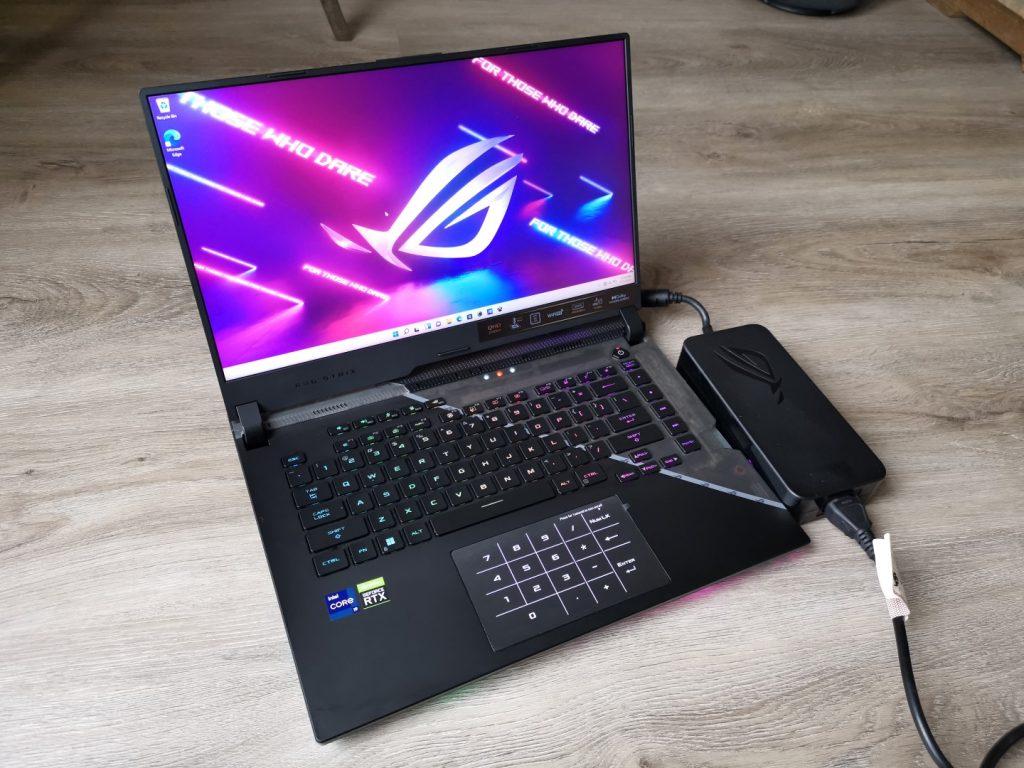
The adapter must power the laptop and provide enough additional power for charging. An incompatible or insufficient adapter, damaged cable, limited dock connection, or poor connector contact can prevent that extra power from reaching the battery.
Intermittent charging, a connector that feels loose during normal use, or charging that improves only when the laptop is shut down are useful clues. A direct connection with a verified model-compatible adapter helps distinguish an external power problem from a battery fault.
Charging Limits and Temperature Protection
Supported Lenovo models may offer conservation settings or charge thresholds that deliberately stop charging below full capacity. A predictable plateau matching an enabled setting can be normal; unpredictable interruptions or sudden shutdowns are different symptoms.
Unsuitable battery temperature can also pause charging. Warmth alone does not identify the cause, and neither the available charging settings nor their thresholds are universal across Lenovo laptops.
Windows Reporting, Firmware, and Battery or Charging-Circuit Faults
A stale Windows reading or power-management problem may make the percentage appear stuck. BIOS/UEFI—the laptop’s system firmware—also participates in hardware control, although charging-related firmware issues and fixes depend on the exact model.
Worn cells, battery electronics, or an internal charging-circuit fault are other possibilities. Short unplugged runtime, unexpected shutdowns, and failure to charge with a verified compatible adapter strengthen the case for further diagnosis, but no single observation confirms the faulty part.
If these distinctions point toward a battery issue, IndiRepair’s Lenovo laptop battery replacement service is an option to consider after the safe checks below.
How to Troubleshoot the Charging Problem Safely
Work through the external power checks first, then charging settings and supported diagnostics. Stop once the cause is established; advanced actions are not necessary when a matching charge limit already explains the plateau.
- Stop use and charging if the case is swollen, the trackpad is lifting, or there is excessive localized heat.
- Smoke, sparks, burning smells, melting, exposed wires, liquid exposure, or a visibly damaged port or charger also rule out routine testing.
- Disconnect external power only if it is safe to do so. Do not handle smoking or extremely hot equipment.
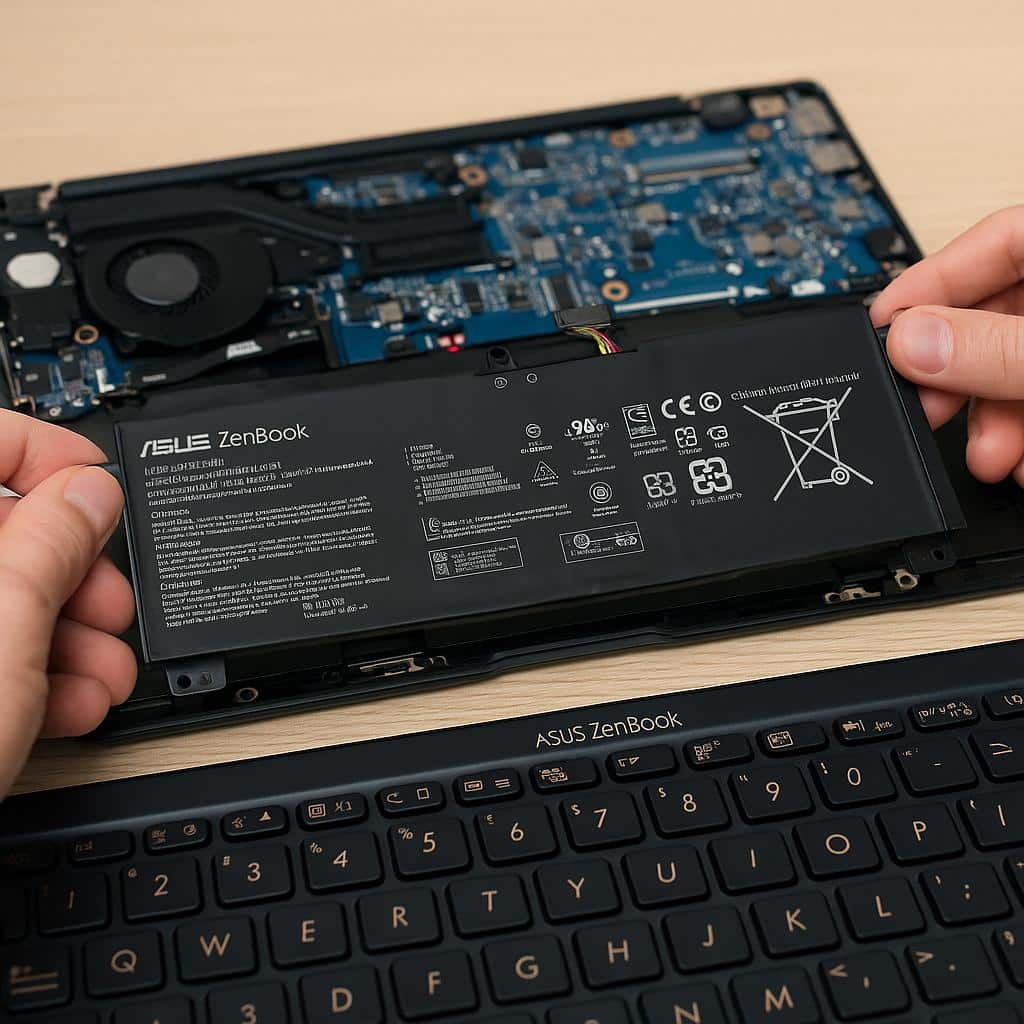
- Do not press, puncture, open, or repeatedly test a suspect battery. Professional handling is appropriate for physical damage.
External Power and Connector Checks
- Record the starting condition. Save your work and note the displayed percentage, charging message, and any adapter warning. This gives you a baseline for comparing results.
- Use a direct power connection. If there are no warning signs, try a known-working wall outlet and connect the adapter directly to the laptop rather than through a dock or hub. Improvement suggests the bypassed power path needs attention.
- Inspect the equipment with power disconnected. Visually examine the adapter, cable, and laptop connector for damage or obvious obstruction. Do not use metal tools, liquids, forced insertion, or connector-wiggling tests. Visible damage means testing should stop.
- Confirm model compatibility. Compare the exact laptop model and adapter details with official Lenovo documentation. For USB-C charging, the selected port must support charging, and both adapter and cable must meet the documented power requirements. A barrel connector fitting physically does not establish electrical compatibility.
- Compare a known-good supply if available. Reconnect securely and test with a verified model-compatible adapter and cable. Do not substitute a random charger. If charging resumes, the original adapter, cable, or dock path becomes the stronger suspect.
- Compare charging at lower load. With adequate ventilation and no abnormal heat, close demanding applications or shut down the laptop. Record the starting percentage and compare it after a measured interval, such as 20–30 minutes. If the laptop is hot, let it return to normal room conditions first; do not actively chill it.
- Interpret the difference cautiously. Charging only while off or under light load suggests a power-budget, temperature, or power-management issue. Continue with settings checks rather than treating this result as proof that the battery or adapter has failed.
IndiRepair has completed 500+ laptop repairs and has practical experience diagnosing laptop problems. For a stuck charge percentage, separating the external power path from battery condition is important before deciding whether replacement is justified.
If you would prefer help establishing the cause, you can book your Lenovo laptop battery replacement with IndiRepair.
Lenovo Charging Settings and Windows Power Management
- Inspect supported charging settings. Open the Lenovo utility supported by your model, such as Lenovo Vantage where applicable. Look for conservation settings or charging thresholds. Use the model’s documentation because feature availability and menu labels vary.
- Compare the setting with the plateau. If an enabled limit matches the percentage where charging stops, the laptop may be operating normally. If you need a fuller charge, temporarily change the limit using the supported controls and observe the result. Charging may not resume immediately if the model also uses a lower restart threshold.
- Restart Windows. Save your work, restart, and compare the percentage and adapter status again. A corrected reading suggests a reporting issue, but continued observation is needed to confirm that charge is actually increasing.
- Apply relevant supported updates. With reliable power, install applicable Windows updates and model-specific Lenovo power-management or chipset updates through supported channels. Avoid third-party driver tools and unrelated driver changes.
- Use documented battery-device guidance if reporting remains inconsistent. Follow only troubleshooting instructions applicable to your model and Windows version. Do not indiscriminately remove battery or power-management devices; device re-detection is not a repair for damaged hardware.
- Compare under consistent conditions. Recheck with the same adapter, workload, and charge-limit settings. Changing one factor at a time makes it easier to identify what affected the result.
A charging-limit screenshot is useful only when its model or utility version is identified. It should not be treated as a universal Lenovo interface.
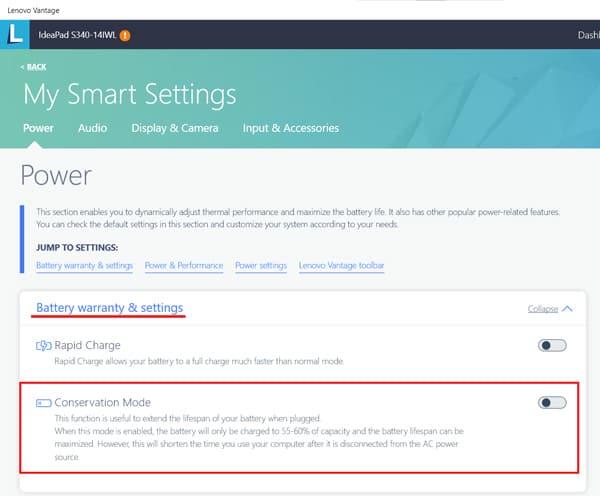
If no matching limit is enabled, the unchanged percentage still needs an explanation from the power, temperature, reporting, or hardware evidence.
Model-Specific Firmware and Power-State Diagnostics
- Establish whether firmware is relevant. Identify the exact model and installed BIOS/UEFI version, then review official model-specific release notes for charging-related fixes. A stuck percentage alone is not a reason to update firmware.
- Check update prerequisites. Consider an update only with stable power and all manufacturer battery requirements satisfied. Never bypass a minimum-charge safeguard or flash firmware while the power connection is unreliable.
- Prepare before any supported update. Save work and ensure any required device-encryption recovery key is accessible. Follow Lenovo’s exact model-specific prerequisites rather than a generic firmware procedure.
- Use only documented reset methods. A power reset or emergency-reset feature is appropriate only when Lenovo documents it for that model. Do not probe an unidentified hole, assume a universal button-hold duration, or open an internal-battery laptop for this check.
- Stop if safe requirements cannot be met. A laptop stuck at a low percentage may be unsuitable for a firmware update. Leave that work to professional diagnosis instead of forcing the update.
What Battery-Health Results and Charging Patterns Mean
Useful diagnosis combines charging behavior, battery-health estimates, supported diagnostic results, and adapter testing. A Lenovo laptop battery percentage stuck at one value is an observation—not a complete diagnosis.
Battery-Health Evidence
- Generate a Windows battery report. Run
powercfg /batteryreportin Command Prompt or Terminal. If Windows requires elevated permissions, use an administrator window. Open the report file at the location shown by the command. - Compare the capacity figures. Where available, review design capacity and full charge capacity. Design capacity represents the intended new-battery capacity; full charge capacity estimates what the battery can currently hold. A lower full charge capacity suggests wear, not necessarily the cause of the present charging failure.
- Review the history. Look for unexpected drops and inconsistent charge readings in recent usage and battery history. Missing fields or limited history reduce what can be concluded from the report.
- Run a supported battery diagnostic. Use the diagnostic available for your exact Lenovo model and record its result or error code. Utility availability varies, so consult official model documentation rather than assuming every laptop offers the same test.
- Compare with normal unplugged use only when safe. If there is adequate charge and no safety concern, compare the report with the runtime you normally experience. Do not force a deep discharge or unplug a laptop already stuck at zero just to test whether it shuts down.
- Reserve gauge reset for suspected reporting errors. Consider a manufacturer-supported procedure only if the battery is otherwise safe and the guidance applies to your model. Calibration may improve the estimate; it cannot restore worn cells and is not a routine first-line fix.
Capacity figures are most useful alongside symptoms and diagnostic results. There is no universal capacity ratio that proves why a battery percentage will not rise.
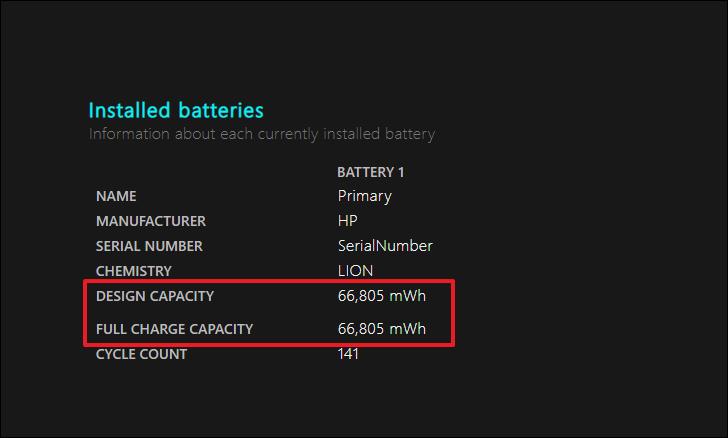
A battery can have reduced capacity and still charge normally. Conversely, apparently reasonable capacity figures do not rule out an adapter, connector, or charging-circuit problem.
Charging Patterns and Their Diagnostic Meaning
A repeatable plateau matching an enabled threshold is consistent with an intentional limit. That differs from a percentage that freezes unpredictably or accompanies unstable adapter detection.
Improvement with a verified compatible adapter points toward the original adapter, cable, or dock path. It does not automatically justify replacing the battery.
Charging while off but not during heavy use suggests insufficient available power, temperature effects, or power management. The result narrows the investigation without isolating one failed component.
Short runtime together with reduced reported capacity supports battery wear. Intermittent adapter detection, however, also keeps the connector and external power path under suspicion.
Persistent failure with a known-good compatible supply and no active charge limit leaves the battery, connector, and internal charging circuitry as candidates for professional testing.
In a diagnostic discussion with IndiRepair, these results are useful clues rather than automatic proof of battery failure. If the evidence remains mixed, you can get your Lenovo laptop battery checked by IndiRepair before choosing a replacement part.
When Does the Battery Need Replacement or Professional Repair?
The repair decision should follow the evidence. Replacing a battery will not resolve a damaged charger, unreliable port, or internal charging fault.
- Battery replacement becomes more appropriate when supported diagnostics indicate a battery fault, or reduced capacity and poor runtime materially affect use, after power-supply and charging-limit issues have been considered.
- Swelling or physical battery damage needs prompt professional handling. Further charging experiments are inappropriate, regardless of the displayed percentage.
- Loose or damaged ports and unstable adapter detection need power-path diagnosis. Failure with a known-good compatible supply may require connector or internal charging-circuit testing rather than battery replacement alone.
- No single percentage or age determines replacement. A displayed charge level, capacity ratio, or laptop age alone cannot establish that a new battery is required.
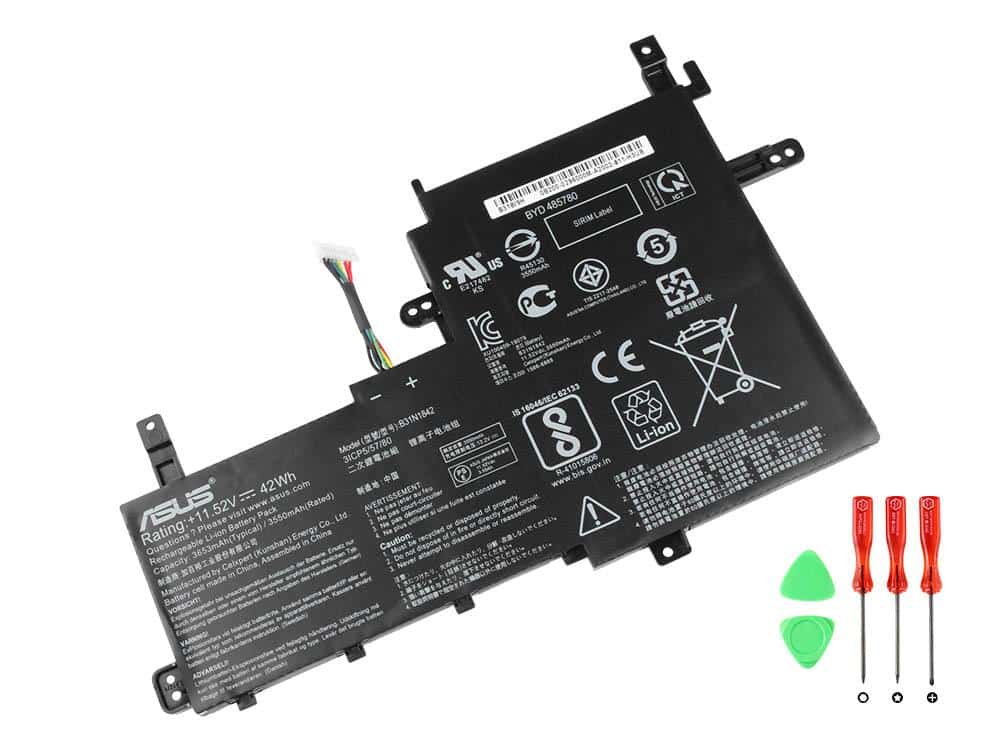
- Replacement compatibility is model-specific. The exact laptop model and supported battery part matter; similar dimensions or connector appearance are insufficient.
- A clear symptom record helps the technician. Useful details include the model, adapter specifications, plateau percentage, charge-limit status, diagnostic results, and differences between charging while on and off.
If your findings support a battery issue, Lenovo laptop battery repair with IndiRepair offers a next step for discussing a compatible replacement. When the cause remains uncertain, diagnosis should come before a parts decision.
Frequently Asked Questions
Q: Why is my Lenovo laptop battery stuck at 0 percent?
A: A persistent zero reading can result from inadequate power, a battery fault, inaccurate reporting, or an internal charging issue. Running successfully on the adapter proves that the laptop receives some external power—not that the battery receives or stores charge. Safe comparison with a verified compatible supply and review of supported diagnostics can help narrow the cause. If zero persists, professional testing is more useful than repeated charging attempts. Avoid unplugging it as a shutdown test, forced firmware updates, deep-discharge attempts, and indefinite unattended charging.
Q: Is it normal for a Lenovo battery to stop at 60 or 80 percent?
A: It can be normal when the percentage matches an enabled charging limit on a supported model. A Lenovo laptop battery stuck at 60 percent or 80 percent is not, by itself, proof that such a limit is active. Available settings and thresholds vary by model, and neither number is universal. The relevant evidence is whether the supported utility shows a matching limit and whether charging behaves consistently with it. Without that match, charger compatibility, temperature, reporting, and battery-health findings still matter. Sudden shutdowns or intermittent charging deserve separate attention.
Q: Does battery calibration fix a percentage that will not rise?
A: A manufacturer-supported gauge-reset procedure may improve an inaccurate charge estimate in some circumstances. It does not repair a defective charger, damaged connector, failed charging circuit, or worn battery cells. Calibration is therefore not the first response to a percentage that stays unchanged. It is more relevant when readings jump or disagree with runtime after simpler causes have been considered. Any procedure should follow the exact model’s documentation; a generic full-discharge cycle can cause unnecessary shutdowns and is inappropriate for a swollen, damaged, or persistently zero-charge battery.
Conclusion
A non-increasing battery percentage is a symptom, not a battery-failure diagnosis. The useful progression is external power checks first, charging settings and supported diagnostics next, then an evidence-based repair decision. Temperature, reporting, and model-specific firmware can also explain why the displayed charge remains unchanged.
IndiRepair can be considered when safe checks leave the cause unresolved or the evidence supports replacement. Physical warning signs require professional attention instead of further experiments, while an intentional charging limit may mean no repair is needed at all.
About the Author: Khan Rahil is a diploma holder in Computer Hardware with over 5 years of hands-on experience in laptop repairs and Senior Technician at IndiRepair. He has overseen hundreds of screen replacements, ensuring quality and customer satisfaction.