
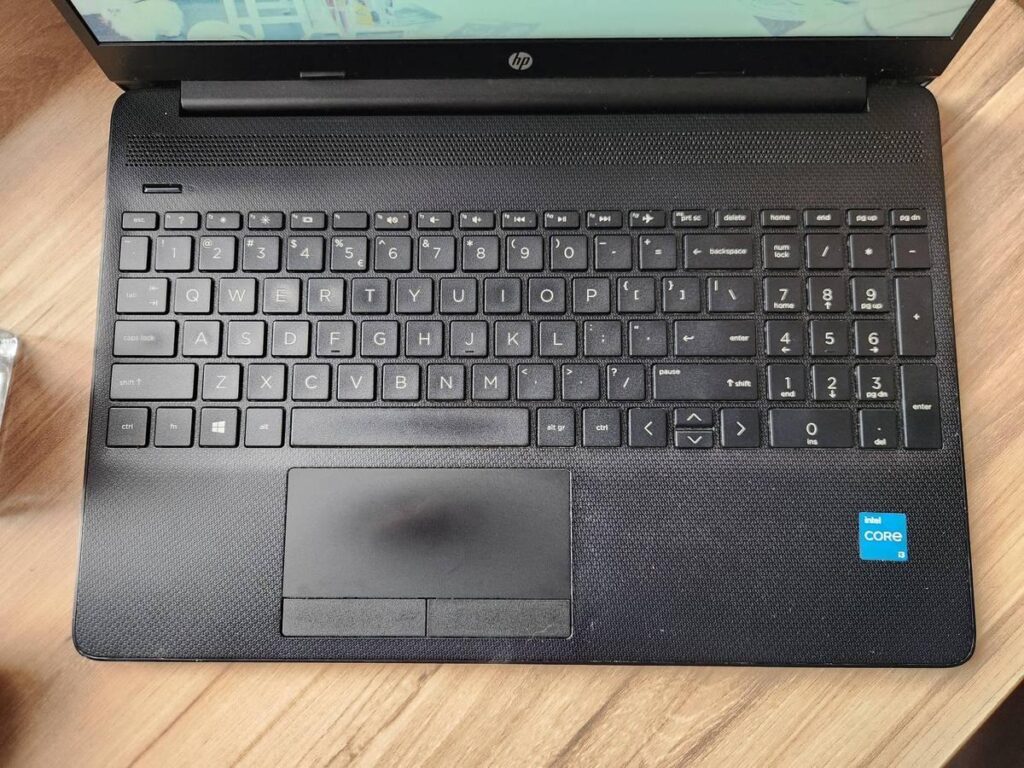
An HP laptop keyboard not working can prevent you from signing in, typing documents, or using keyboard shortcuts. The symptom alone does not prove that the keyboard has failed. Windows settings, drivers, an individual application, an external keyboard connection, debris, liquid exposure, a loose internal connection, or a hardware fault can produce similar behavior.
The safest approach is to record the exact symptom first, perform reversible checks, and interpret each result as evidence rather than a confirmed diagnosis. The checks below help show whether the problem is limited to the built-in keyboard, affects Windows input more broadly, or requires professional assessment.
What Does an HP Laptop Keyboard Problem Actually Mean?
An HP keyboard problem may affect every key, a group of keys, function keys, the number pad, or typing inside only one application. A keyboard that works intermittently provides different diagnostic evidence from a keyboard that stopped after a spill or fails before Windows loads.
The keyboard symptom identifies a problem somewhere in the input path, but it does not identify the failed component. The timing, pattern, physical condition, and behavior with another keyboard are more useful than the general statement that the HP keyboard is not working.
Symptoms to Record Before Changing Anything
Write down the behavior before changing settings or installing updates. A clear symptom record can prevent a temporary software change from hiding evidence that a technician may need.
- Whether every key is affected or only one key, a key group, function keys, or the number pad.
- Whether the built-in keyboard stopped suddenly, works intermittently, or has gradually become less responsive.
- Whether Windows responds to a connected USB or Bluetooth keyboard.
- Whether the issue appears at the sign-in screen, in Windows, in several applications, or in only one application.
- Whether the problem began after a Windows update, software change, spill, impact, unusual heat, or visible debris.
IndiRepair recommends starting with the symptom pattern before assuming that an HP laptop keyboard replacement is necessary. For readers who need help after these initial observations, a laptop keyboard repair service can assess the symptom without treating every nonresponsive keyboard as an automatic replacement case.
Use the following image only as a general reference for identifying whether the issue affects the whole keyboard, a key group, or a specific key.
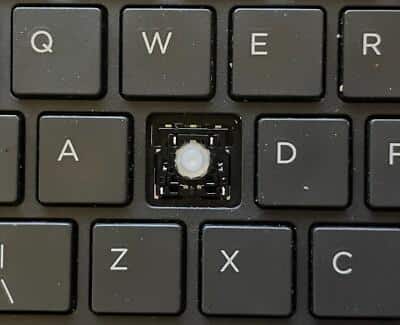
Do not press damaged keys repeatedly or insert objects under keycaps while inspecting the keyboard. Physical force can turn a minor keycap problem into a larger mechanical or electrical problem.
Possible Causes of an HP Laptop Keyboard Not Working
Several different problems can create the same HP laptop keyboard symptom. The categories below are possibilities, not confirmed diagnoses; the troubleshooting checks later in this guide help narrow them down.
1. Keyboard Lock or Accessibility Settings
Keyboard-lock states, function-key behavior, Filter Keys, and other accessibility settings can change how key presses are handled. A settings problem may affect certain keys, repeated-key behavior, or typing responsiveness without indicating a failed keyboard assembly.
- Only selected keys or repeated keystrokes behave unusually.
- Function keys behave differently from letter and number keys.
- The physical keyboard appears intact and the problem began after a settings change.
Windows menu names and locations vary by version, so verify the exact setting and path in the Windows version installed on the HP laptop.
2. Windows, Driver, or Application Problems
A keyboard driver is software that helps Windows communicate with the physical keyboard. A Windows update, sign-in-state problem, driver issue, or corrupted configuration may interfere with typing, while an application-specific text-entry problem can make the keyboard appear broken when the rest of Windows is working.
- Typing fails in one application but works in another.
- The issue began after a Windows or software change.
- An external keyboard also has trouble inside the same application but works elsewhere.
These clues make software more plausible, but none of them independently proves that the driver or application is the cause.
3. External Keyboard, USB, or Bluetooth Connection Problems
A wireless keyboard has its own power, pairing, receiver, and connection variables. An external keyboard that fails does not prove that the built-in HP keyboard is defective, because the fault may involve the receiver, USB port, Bluetooth connection, battery, or pairing state.
- A USB keyboard fails only through one port, hub, or adapter.
- A wireless keyboard is not powered, paired, or connected to its receiver.
- The built-in keyboard works while an external keyboard does not.
Keep the built-in keyboard symptom separate from an HP wireless keyboard not working. They may be two unrelated input problems.
4. Debris, Liquid, or Physical Damage
Dust, crumbs, sticky residue, liquid exposure, impact, damaged keycaps, and exposed or bent parts can interfere with keyboard movement or electrical signals. Liquid may affect components beneath the visible keyboard area, so a small spill should not be treated as proof that the damage is limited to one key.
- Keys feel sticky, physically damaged, or unusually difficult to press.
- The symptom began after a spill, impact, or visible contamination.
- The laptop shows smoke, sparks, unusual heat, a burning smell, melting, or exposed damage.
Smoke, sparks, a burning smell, unusual heat, or exposed damage are stop conditions. They are not reasons to continue pressing keys or applying software fixes.
5. Loose Internal Connection
The built-in keyboard communicates with the laptop through an internal connection. A loose or damaged connection may cause intermittent input, a change after movement, or symptoms after an impact or previous repair, but those clues do not confirm that the connection is at fault.
- Keyboard input comes and goes without a clear Windows change.
- The symptom appeared after movement, impact, or another repair.
- Safe software checks do not change the behavior.
Opening an HP laptop to inspect an internal connection should not be the first DIY action. Model-specific disassembly can create additional damage and may complicate later diagnosis.
6. Keyboard or Motherboard Hardware Fault
A failed keyboard assembly, damaged keyboard circuitry, or a related system-board input path can cause an HP laptop keyboard to stop responding. However, failure inside Windows alone does not prove a hardware fault because Windows settings and drivers can produce the same symptom.
- The built-in keyboard consistently fails after safe software and settings checks.
- The keyboard fails in more than one suitable diagnostic environment.
- Physical damage, liquid exposure, or other laptop functions are affected at the same time.
These observations justify professional assessment. They do not automatically prove that keyboard replacement is the correct repair.
Safe Troubleshooting Checks Before Considering Repair
Work from the least invasive checks to the more informative diagnostic comparisons. Preserve unsaved work where possible, avoid forcing damaged keys, and stop immediately if the laptop shows signs of liquid or electrical damage.
Basic External and Symptom Checks
- Save work if possible and record the scope of the problem. Note whether every key, a key group, or only one application is affected. A narrow or application-specific symptom points toward a different diagnostic path from a complete failure.
- Disconnect unnecessary external devices. Remove unneeded USB devices and temporarily separate an external keyboard from the test. This prevents a receiver, hub, adapter, or other device from being mistaken for the built-in keyboard problem.
- Inspect the keyboard without applying force. Look for debris, liquid, damaged keycaps, unusual heat, smoke, or a burning smell. If any hazardous sign is present, stop testing and prioritize safe shutdown and professional assessment.
- Perform a normal Windows restart only when no hazard is present. A restart can clear a temporary input or sign-in-state problem, but it cannot repair liquid damage or a physically damaged keyboard.
- Retest after the restart and record the result. If typing returns, the change suggests a temporary software state, not a confirmed permanent fix. If the symptom remains, continue with controlled settings and input comparisons.
Windows and Keyboard-Setting Checks
- Test typing in more than one safe application or text field. If typing works in one application but not another, the application or its text-entry state becomes more plausible than a complete keyboard hardware failure.
- Review Windows keyboard and accessibility settings. Check options such as Filter Keys and related input settings through the current Windows interface. If a setting is changed, note the original state so the result remains clear.
- Check whether a keyboard-lock or function-key state is affecting the observed keys. Avoid unsupported model-specific key combinations; consult the appropriate HP documentation if the exact key behavior is unclear.
- Use the on-screen keyboard only as a temporary navigation method. If the on-screen keyboard lets you sign in or type, Windows can accept virtual input, but that result does not prove that the physical keyboard has failed.
- Restart and retest after one confirmed settings adjustment. A changed result makes the setting more relevant, while no change means the investigation should continue rather than assuming that the setting was the cause.
Driver and Update Checks
- Check Windows Device Manager or applicable hardware settings for keyboard warnings. A warning may support a software or communication problem, but the absence of a warning does not rule out a physical fault.
- Review when the symptom began compared with recent software changes. A close timing relationship with a Windows or other relevant update is useful evidence, but timing alone does not establish causation.
- Apply only appropriate, trusted updates. Use reliable Windows or HP support sources and create a recovery option where available before changes that could affect system behavior.
- Restart and retest after one meaningful change. Testing one change at a time keeps the result interpretable and makes it easier to reverse an unhelpful change.
- Avoid unverified driver utilities or opening the laptop to replace a driver. Driver software is handled within the operating system; opening the chassis is not a normal first step for a suspected driver issue.
Built-In Versus External Keyboard Testing
- Connect a known-working USB keyboard directly to the HP laptop if one is available. Avoid relying on an unverified hub or adapter because the connection accessory can introduce another possible fault.
- Check a wireless keyboard’s own power and connection state. For an HP wireless keyboard or another wireless model, check its power, receiver connection, or Bluetooth pairing according to that keyboard’s instructions.
- Test typing in the same application or sign-in context. Using the same context makes the comparison more meaningful than testing the external keyboard in an unrelated program.
- Interpret a working external keyboard as evidence that Windows can receive some keyboard input. This makes a built-in keyboard, its connection, or its circuitry more plausible, but it does not prove that the built-in keyboard alone has failed.
- Interpret an external keyboard that also fails as a reason to investigate broader input causes. Windows, the application, USB ports, Bluetooth, pairing, or the external device may be involved, so do not replace the laptop keyboard immediately based on that result.
After these checks, IndiRepair recommends treating each result as a clue rather than automatic proof that one component has failed. With experience across 500+ laptop repairs, IndiRepair focuses on separating software behavior, connection problems, and physical keyboard faults before recommending a repair. If the symptom remains unresolved, you can book your Hp laptop repair with IndiRepair for a diagnosis-led assessment.
How to Separate Windows Problems from Hardware Problems
Pre-Windows behavior can help distinguish software from hardware, but no single test is conclusive. A keyboard that responds before Windows loads makes a Windows, driver, settings, or application issue more plausible; a keyboard that fails across suitable environments increases concern about the keyboard, connection, or related hardware.
| Observation | What it may suggest | What the result cannot confirm |
|---|---|---|
| The built-in keyboard works before Windows loads but not inside Windows. | Windows settings, drivers, updates, or application behavior become more plausible. | It cannot prove that Windows is the only cause or that the physical keyboard is perfect in every operating condition. |
| The keyboard fails in more than one suitable pre-Windows or diagnostic environment. | A keyboard assembly, internal connection, or related hardware issue becomes more concerning. | It cannot identify the exact failed part without model-appropriate diagnosis. |
| A known-working external keyboard types normally. | Windows can receive some keyboard input, making the built-in keyboard path more suspicious. | It cannot prove that the built-in keyboard alone has failed because settings and environment differences may remain. |
| Both the built-in and external keyboards fail in Windows. | A Windows, application, port, pairing, or broader input problem becomes more plausible. | It cannot prove that the laptop keyboard hardware is healthy. |
Use Pre-Windows and HP Diagnostic Evidence Carefully
BIOS or UEFI is the laptop’s pre-Windows firmware environment. Access methods and available keyboard tests vary by HP model, so use the exact model’s HP support documentation instead of assuming that one startup key or diagnostic procedure works on every HP laptop.
- Check HP support documentation for the exact model first. Confirm the appropriate pre-Windows keyboard or hardware diagnostic procedure before attempting it.
- Observe whether the keyboard responds in the pre-Windows environment. If it works there but not in Windows, investigate settings, drivers, updates, and applications before treating the keyboard as failed.
- Record failure across suitable environments as evidence for professional assessment. Consistent failure outside Windows increases concern about hardware or an internal connection, but does not identify the precise component.
- Do not remove covers or disconnect internal cables because a diagnostic result is unclear. Internal inspection requires model-specific knowledge and precautions and should not be used as a casual follow-up test.
- Record any diagnostic code or message exactly as displayed. Verify its meaning against HP documentation or provide the exact message to a repair professional rather than guessing at its interpretation.
What Each Test Result Can and Cannot Confirm
| Test result | Useful interpretation | Diagnostic boundary |
|---|---|---|
| A working external keyboard types in the same Windows session. | Windows can receive keyboard input, so the built-in keyboard path deserves closer attention. | The result does not independently confirm a failed built-in keyboard. |
| The built-in keyboard works before Windows loads but fails after sign-in. | Windows settings, drivers, updates, or an application are plausible areas to investigate. | The result does not exclude intermittent hardware behavior. |
| The built-in keyboard works intermittently. | A loose connection, physical damage, contamination, or an unstable software state may be involved. | Intermittence alone cannot distinguish a connection fault from software behavior. |
| The problem began after liquid exposure. | Liquid-related damage is a significant possibility even if only a few keys are affected. | The visible symptom cannot show how far liquid may have travelled inside the laptop. |
IndiRepair can use the observed environment changes, timing, external-keyboard comparison, and any recorded HP diagnostic message to narrow the fault. If you have completed safe checks but still cannot tell whether the cause is Windows or hardware, you can get your Hp laptop checked by IndiRepair.
When Should You Stop DIY Keyboard Troubleshooting?
Stop DIY testing when continued use could worsen liquid, electrical, thermal, or physical damage. Software changes should not continue when they are obscuring evidence of a spill, impact, burning smell, or unstable hardware.
- Liquid exposure, smoke, sparks, a burning smell, unusual heat, swelling, melting, or exposed conductors are present.
- The charger, port, keyboard, or laptop case shows severe visible damage.
- The laptop is unstable or showing broader symptoms beyond keyboard input.
- You would need to remove the laptop cover, disconnect an internal cable, or manipulate the motherboard to continue.
- The laptop may have liquid or electrical damage and repeatedly powering it on could add risk.
When a hazard is present, prioritize safe shutdown and disconnect external power when it is safe to do so. Do not puncture, squeeze, or handle a swollen battery, and verify any model-specific battery guidance through appropriate HP documentation or a qualified repair professional.
Conditions That Require Professional Assessment
- The keyboard remains nonfunctional after safe settings and software checks.
- The problem is intermittent, spreading, or associated with other laptop functions.
- A spill, impact, corrosion, burning smell, unusual heat, or visible damage occurred.
- The keyboard does not respond in relevant pre-Windows or diagnostic environments.
- Continuing would require opening the chassis or manipulating an internal keyboard connection.
When Is Professional HP Laptop Keyboard Repair Appropriate?
Professional diagnosis is appropriate when safe checks do not resolve the symptom, physical or liquid damage is suspected, or an internal connection or system-board input path cannot be assessed safely. A proper assessment should distinguish a keyboard assembly issue from a settings, software, connection, or broader hardware problem before recommending replacement.
The repair decision may depend on the exact HP model, keyboard layout, physical condition, data needs, and whether other components are affected. The presence of the symptom alone does not establish that the keyboard must be replaced.
- Request assessment after unresolved software and settings checks rather than repeatedly changing unrelated system components.
- Seek help promptly after liquid exposure, impact, visible damage, unusual heat, smoke, or a burning smell.
- Provide diagnostic observations so the repair professional can avoid repeating unclear or risky tests.
- Consider a keyboard replacement service only if assessment indicates that the keyboard assembly is the appropriate repair path.
What to Tell a Repair Technician
- The exact HP model, if available.
- When the symptom began and whether it was sudden or intermittent.
- Whether all keys, selected keys, or one application are affected.
- Whether an external keyboard worked and in which environment.
- Any recent Windows or software change, spill, impact, repair, heat event, or visible damage.
- Any HP diagnostic message or code recorded exactly as displayed.
Frequently Asked Questions
Q: Why is my HP laptop keyboard not working?
A: The symptom can result from Windows settings, accessibility options, drivers, an application, an external-device mix-up, debris, liquid exposure, a loose internal connection, or a keyboard or motherboard fault. The pattern matters: a problem in one application suggests a different path from a keyboard that fails before Windows loads. Record which keys fail, when the problem began, whether a known-working external keyboard works, and whether there was a spill or impact. Those observations narrow the possibilities, but only a suitable diagnostic assessment can confirm the failed component.
Q: How can I tell whether my HP keyboard problem is caused by Windows or hardware?
A: Compare behavior in more than one application and, where appropriate for the model, in a pre-Windows or HP diagnostic environment. If the built-in keyboard works before Windows loads but fails after sign-in, Windows settings, drivers, updates, or an application become more plausible. If the keyboard fails consistently across suitable environments, hardware or an internal connection becomes more concerning. Neither result identifies the exact fault by itself, so avoid treating a single test as proof.
Q: Can a keyboard driver make an HP laptop keyboard stop typing?
A: A Windows driver or related software problem can interfere with communication between Windows and the keyboard, although a driver issue is only one possibility. A recent update, a warning in Windows hardware settings, or failure limited to Windows can make software more plausible. Test another application, review relevant settings, and use trusted update sources rather than unverified driver utilities. If the keyboard also fails before Windows loads or after physical damage, software changes are less likely to resolve the underlying problem.
Q: What should I do if my HP EliteBook keyboard is not working?
A: Treat an EliteBook keyboard symptom the same way initially: record the affected keys, test another application, review safe Windows settings, and compare the built-in keyboard with a known-working external keyboard. Do not assume that every EliteBook model uses the same startup keys, diagnostic menus, or internal design. Check the exact model’s HP documentation before attempting pre-Windows diagnostics. If the keyboard fails across suitable environments, the issue is intermittent, or the laptop has suffered liquid or physical damage, professional assessment is safer than opening the chassis.
Q: Why is my HP wireless keyboard not working?
A: An HP wireless keyboard has separate power, pairing, receiver, and connection variables, so its failure does not automatically indicate a problem with the built-in laptop keyboard. Check the wireless keyboard’s power and follow its own pairing or receiver instructions. Test it directly without an unnecessary hub or adapter when possible, and compare its behavior with the laptop’s built-in keyboard. If the built-in keyboard works but the wireless keyboard does not, investigate the wireless device and connection separately.
Q: Does a working external keyboard prove that my built-in HP keyboard has failed?
A: No. A working external keyboard proves that Windows can receive some keyboard input in that test context, which makes the built-in keyboard path more suspicious. It does not independently confirm a failed keyboard assembly because different drivers, connections, settings, or environments may be involved. Test the external keyboard in the same application or sign-in context and record whether the built-in keyboard behaves differently before Windows loads. A professional diagnosis may still be needed to separate the keyboard, internal connection, and system-board input path.
Q: Should I keep testing an HP laptop keyboard after a liquid spill?
A: No. Continued typing and repeated power-on attempts can worsen a liquid-related problem, and the visible keyboard symptom does not show whether liquid has reached internal components. Prioritize safe shutdown and disconnect external power when it is safe to do so. Do not spray cleaner into the keyboard, force keys, probe the laptop, or open the chassis without model-specific knowledge and precautions. Because liquid damage can progress beyond the affected keys, seek professional assessment rather than relying on a temporary return of typing.
Q: When does an HP laptop keyboard need professional repair or replacement?
A: Professional assessment is appropriate when safe Windows and settings checks do not resolve the problem, the keyboard fails in relevant pre-Windows environments, the symptom is intermittent, or liquid, impact, visible damage, unusual heat, or a burning smell is involved. An assessment should first determine whether the cause is the keyboard assembly, an internal connection, software, or another hardware path. Replacement may be suitable only when the diagnosis supports it. Avoid opening the laptop simply because the keyboard is not typing.
Conclusion: Diagnose the Cause Before Replacing the Keyboard
An unresponsive HP laptop keyboard is a symptom, not a confirmed diagnosis. The cause may be a setting, Windows or driver behavior, an application, an external-device connection, debris or liquid, an internal connection, or a keyboard or system-board hardware fault.
Begin by recording the symptom, then perform low-risk external, Windows, settings, and connection checks. Compare built-in and external keyboard behavior, use model-appropriate pre-Windows or HP diagnostic evidence where available, and treat every result as a clue rather than automatic proof of failure.
Stop testing for liquid exposure, smoke, sparks, burning smell, unusual heat, swelling, exposed damage, or any situation that would require opening the laptop. When safe checks do not resolve the problem, IndiRepair can help move from uncertain symptoms to a diagnosis-led decision. If assessment indicates that keyboard assembly work is appropriate, consider Hp laptop repair with IndiRepair rather than assuming replacement is required before the cause is known.