
If your HP laptop keyboard is not working after a Windows update, the update may be related, but it does not prove that the keyboard has permanently failed. Windows settings, an HP laptop keyboard driver, an application, a connected peripheral, an internal connection, or an existing hardware fault can produce similar symptoms.
The safest approach is to record what works, remove external variables, try reversible Windows checks, compare the built-in keyboard with another input method, and use HP or pre-Windows diagnostics where available. Stop testing if the laptop shows liquid, electrical, battery, heat, or internal damage.
What the Update-Related Keyboard Symptom Means
An HP laptop keyboard that stops typing after an update may fail everywhere or only in a particular Windows environment. The keyboard may work at sign-in but stop working after Windows loads, or it may fail even before sign-in. That difference is useful evidence because it helps separate a Windows input problem from a fault affecting the built-in keyboard itself.
A driver is software that helps Windows communicate with a hardware device. A driver or update problem can affect how keyboard input is recognized, but the same symptom can also come from accessibility settings, an application, a USB device, a loose internal connection, debris, liquid, or physical wear.
Before changing drivers or resetting Windows, record the original behavior. Preserving this evidence makes later results easier to interpret and reduces the chance of changing several variables at once.
- Whether every key fails or only selected groups, such as letters, number-row keys, arrow keys, modifier keys, or function keys.
- Whether the keyboard works at the sign-in screen, inside Windows, in one application, or nowhere.
- Whether the touchpad, display, power button, and other built-in controls still work normally.
- Whether the failure began immediately after the update restart or appeared later.
- Whether an on-screen keyboard or known-working external keyboard accepts input.
- Whether the laptop has a history of liquid contact, impact, unusual heat, pressure, or intermittent keyboard behavior.
These observations identify the symptom, not the confirmed cause. A professional diagnosis or a repeatable test may still be needed before replacing the keyboard.
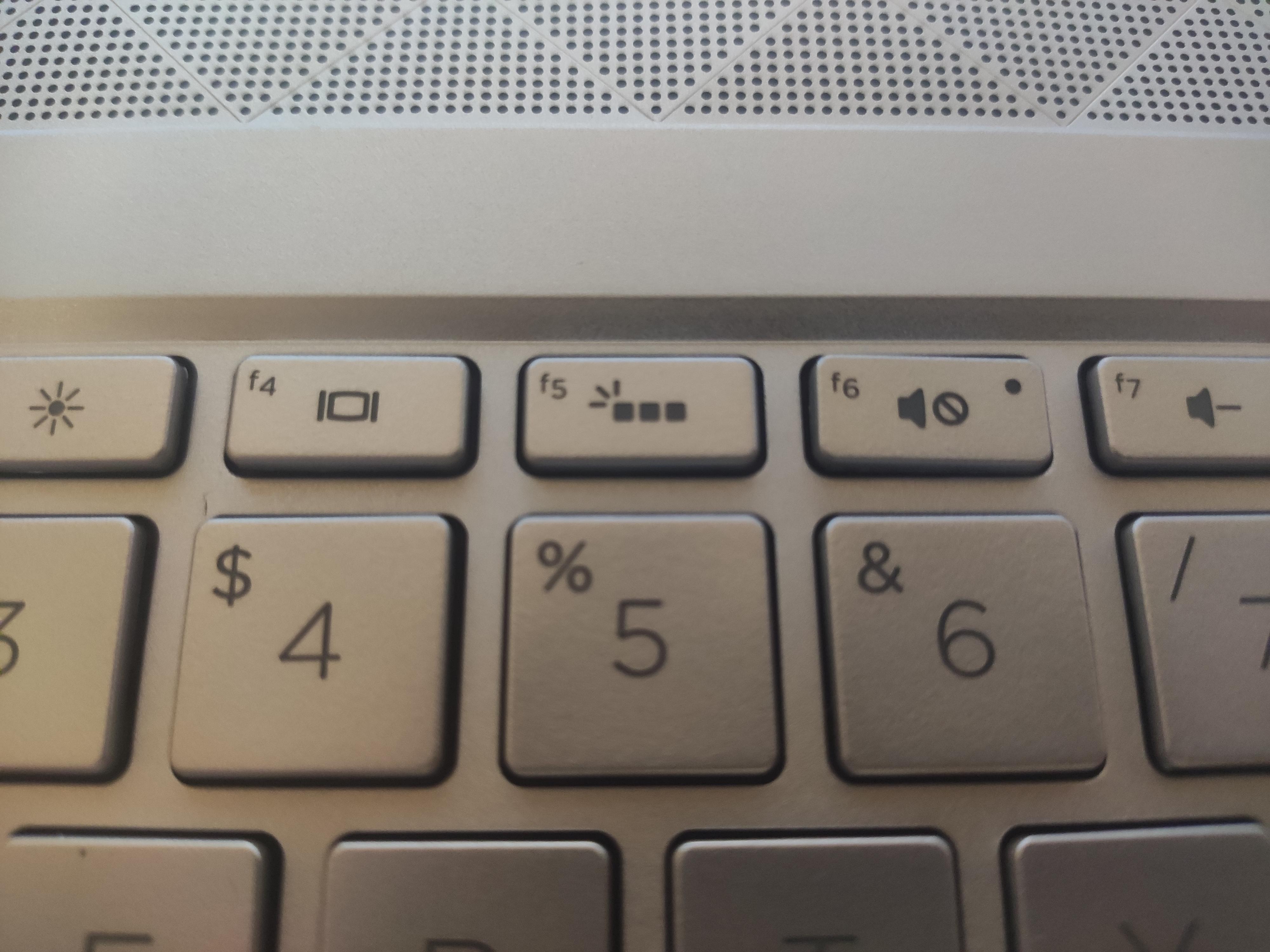
If the keyboard remains unusable after simple external checks, you can arrange a laptop keyboard repair service assessment without assuming that a replacement is automatically required.
Possible Causes of an HP Keyboard That Stops Working
The following categories are possible explanations rather than confirmed diagnoses. The update may have caused a software change, exposed an existing fault, or simply happened close to the time the keyboard problem became noticeable.
1. Software, Windows, and Application Causes
Software causes are more plausible when the keyboard works in one environment but not another, or when a reversible Windows change restores typing. Windows 11 menu names and recovery options can vary by release and device configuration.
- A Windows update or keyboard-driver behavior may prevent normal input or change how the built-in keyboard is recognized.
- Keyboard accessibility or input settings may alter key response, timing, or the way Windows interprets keystrokes.
- A particular application, sign-in environment, utility, or background program may intercept or reject keyboard input.
- A pending update, incomplete restart, or temporary Windows input problem may make the failure appear more persistent than it is.
2. External Devices and Internal Connection Causes
Connected equipment can complicate testing, while an internal connection problem can interrupt communication between the built-in keyboard and the laptop. Either condition may affect every key, selected keys, or produce intermittent behavior.
- A USB device, dock, hub, wireless receiver, or other peripheral may interfere with input or complicate the comparison.
- A loose or damaged internal keyboard connection may interrupt communication with the system.
- An intermittent connection issue may cause the keyboard to work temporarily and then stop responding.
3. Debris, Liquid, and Keyboard Hardware Causes
The update may only have coincided with a physical fault or exposed a problem during the restart. Hardware evidence becomes more important when the keyboard fails outside Windows, shows visible damage, or has a history of liquid or impact exposure.
- Debris beneath keys may prevent individual keys from moving or registering.
- Liquid exposure may damage the keyboard, its connection, or other internal components even if the failure appeared later.
- Wear, impact, pressure, or a pre-existing keyboard fault may become noticeable after the update restart.
- A motherboard or embedded-controller fault may affect keyboard communication and require advanced diagnosis.
How to Troubleshoot the Keyboard Safely
Work from the least disruptive checks toward stronger evidence. Save important work first. If signing in or typing is difficult, use Windows’ on-screen keyboard or a known-working external keyboard temporarily. Do not pour liquid onto the keyboard, apply heat, force stuck keys, or open the laptop during these initial checks.
Start with Low-Risk External Checks
- Record the symptoms and arrange another input method. Note which key groups fail before changing anything. If an on-screen or external keyboard works, use it for the remaining checks. This provides a way to sign in and type, but it does not identify whether the built-in keyboard is defective.
- Disconnect nonessential peripherals. Remove USB devices, hubs, docks, wireless receivers, and other accessories, then test the built-in keyboard directly. If typing returns, reconnect devices individually to identify a possible input conflict; if nothing changes, continue without treating the result as proof of hardware failure.
- Restart the laptop normally when it is stable. Observe whether the keyboard responds at the sign-in screen and whether it stops after Windows loads. A change after restarting supports a temporary or software-related possibility, while identical failure at every stage requires broader testing.
- Test several key groups. Compare letters, number-row keys, modifier keys, arrows, and function keys rather than relying on one key. A small group of failed keys can suggest localized physical damage, while complete failure needs comparison in another environment.
Check Windows and Update-Related Software Behavior
Software checks are most useful when the HP laptop keyboard works in one context but not another, or when the problem started directly after a reversible update or settings change. Exact paths can differ between Windows releases, so follow the labels shown on the affected laptop rather than relying on a generic menu path.
- Review keyboard accessibility and input settings with the on-screen keyboard. Look for settings that can affect key response or interpretation. If changing a relevant setting restores typing, repeat the original key-group test to confirm improvement rather than assuming one successful keystroke proves the issue is fixed.
- Test more than one application and the sign-in screen when possible. If the keyboard fails only in one application, that application or a background utility becomes more likely than a complete keyboard failure. If every Windows application shows the same result, continue with device and pre-Windows checks.
- Inspect the keyboard device in Device Manager or the applicable Windows device-management area. Record any warning indicator, device status, or recent change before modifying the device. A warning supports further driver investigation, but a normal status does not guarantee that an intermittent hardware connection is healthy.
- Review available update or driver recovery options only when Windows presents them for that device. A rollback, uninstall, update, or recovery option may be relevant after a recent change, but the correct choice depends on the Windows version and device state. Do not remove a driver or interrupt recovery without a usable alternative input method.
- Restart after one reversible software change and repeat the same key tests. Improvement after a settings, driver, or update-related change supports a software path. No improvement means the software theory remains possible but makes connection, hardware, or broader system testing more important.
Driver and Update Recovery Considerations
Driver recovery should be treated as a controlled diagnostic change, not a guaranteed fix. An update-related symptom can persist even when the driver is not the root cause.
- Record the current driver or update information. Capture the information Windows makes available before changing it. The record helps identify what changed and provides context if the recovery option does not help.
- Choose the least disruptive available recovery option. Follow the prompts for the specific Windows version and avoid using an unrelated driver or generic firmware procedure. If no relevant option is presented, do not force one.
- Restart and compare both input methods. Test the built-in keyboard and the external keyboard in the same Windows locations used earlier. A change affecting only one input method is more informative than a general improvement that was not tested consistently.
- Return to the recorded state when the available recovery process permits it. If a change creates new symptoms or has no effect, use the supported reversal option rather than making several additional changes at once.
Compare the Built-In Keyboard with an External Keyboard
An external keyboard can show whether Windows is receiving input through another connection path. It is useful evidence, but it cannot by itself prove that the built-in keyboard assembly has failed.
- Connect a known-working external keyboard directly to the HP laptop. Avoid a hub or dock for the first comparison so fewer connection variables are involved.
- Type in the same Windows location and applications used for the built-in keyboard. Consistent testing makes the comparison more meaningful than testing each keyboard in a different environment.
- Compare the results. Record whether all external keys work, whether only one application accepts input, or whether neither keyboard works. An external keyboard working normally shows that Windows can receive at least some keyboard input, but it does not rule out every Windows, firmware, or system-board issue.
- Keep the result as evidence rather than a final diagnosis. If only the built-in keyboard fails across applications, its connection or assembly deserves closer inspection. If both keyboards fail, investigate the Windows or broader input path before authorizing keyboard replacement.
Use HP or Pre-Windows Diagnostics Where Available
A test outside the normal Windows environment can help determine whether the symptom follows the laptop before Windows loads. Startup keys and diagnostic menus vary by HP model, so use the current instructions for the specific model rather than assuming one universal key sequence.
- Note the HP model information. Use the model details when checking HP documentation or selecting the applicable startup diagnostic route. This reduces the risk of applying instructions intended for a different device.
- Open the HP hardware diagnostic or startup menu documented for that model. Perform this only when the laptop is stable and do not force keys, connectors, or panels. If the built-in keyboard cannot open the menu, record that observation and use the available alternative guidance.
- Run the available keyboard or input-related test. Follow the displayed instructions without opening the laptop or performing electrical tests. A failure reproduced before Windows loads increases concern about the keyboard connection or hardware.
- Record the displayed result, reference code, or failure indication exactly. A successful pre-Windows test is useful evidence, but it does not eliminate every intermittent or Windows-only problem. Share the result with a repair professional if the keyboard remains unusable.
How to Interpret the Results
No single observation proves the cause in every HP laptop. The strongest diagnosis comes from repeating the same comparison after each change and separating software evidence from evidence that follows the built-in keyboard across environments.
| Observation | What it supports | What it does not prove |
|---|---|---|
| The keyboard works after a restart. | A temporary Windows or input state may have been involved. | It does not prove the update caused the problem or that the keyboard is permanently healthy. |
| Only one application is affected. | An application, utility, or application-specific input setting becomes more likely. | It does not rule out an intermittent keyboard fault outside that application. |
| A reversible driver or settings change restores typing. | The Windows or driver path is supported by the result. | It does not prove that no physical fault exists. |
| An external keyboard works normally. | Windows can receive at least some keyboard input through another path. | It does not conclusively prove that the built-in keyboard assembly is defective. |
| Both the built-in and external keyboards fail. | A broader Windows, system, or input-path issue becomes more plausible. | It does not identify the exact system component at fault. |
| The built-in keyboard fails before Windows loads. | A connection or hardware problem becomes more concerning, especially when the failure is consistent. | It does not identify whether the assembly, cable, controller, or system board is responsible. |
| HP diagnostics report a keyboard-related hardware issue. | Professional hardware diagnosis is appropriate. | It does not automatically establish that keyboard replacement is the only repair. |
Evidence That Favors a Windows or Driver Path
Further software-focused investigation is reasonable when the keyboard works outside the affected application or improves after a reversible Windows change.
- The keyboard works at sign-in, in a pre-Windows environment, or in another application but fails only in one Windows context.
- A restart, settings adjustment, driver recovery action, or update-related change restores typing.
- An external keyboard shows the same application-specific or Windows-specific behavior.
- The symptoms change after software loads rather than remaining identical from startup.
Evidence That Favors a Built-In Keyboard or Internal Hardware Path
Professional hardware diagnosis becomes more appropriate when the built-in keyboard fails consistently across environments or physical evidence is present. These observations support a hardware path but do not determine the exact part without inspection.
- The built-in keyboard fails consistently outside Windows while an appropriate diagnostic indicates a keyboard-related fault.
- The symptom follows the built-in keyboard across applications and input environments while an external keyboard works normally.
- Liquid exposure, impact, damaged key structure, intermittent connection behavior, or prior physical damage is present.
- Both the built-in and external keyboards fail, suggesting a broader system, Windows, or input-path issue rather than proving that the keyboard assembly is defective.
After meaningful troubleshooting, IndiRepair recommends treating each result as evidence rather than automatic proof that one component has failed. With experience across 500+ laptop repairs, IndiRepair focuses on identifying the underlying fault before recommending a replacement.
book your Hp laptop repair with IndiRepair
When to Stop Troubleshooting and Seek Professional Repair
Stop DIY testing immediately when the laptop shows signs of electrical, battery, liquid, or internal damage. Continued powering or repeated testing can worsen damage that is not visible from the keyboard surface.
- Liquid exposure, smoke, sparks, a burning smell, melting, or exposed wires.
- A swollen battery, lifting chassis, unusual heat, repeated shutdowns, or unstable operation.
- A visibly damaged keyboard, port, charger, internal area, or connector.
- Impact damage or a keyboard that has become intermittent after pressure or physical stress.
- A relevant HP diagnostic failure or consistent pre-Windows keyboard failure.
Do not pour cleaning fluid onto the keyboard, use heat to dry liquid, force stuck keys, probe electrical components, repeatedly bend a damaged connector, or open the laptop without appropriate model-specific service information and safety knowledge. Back up important data when possible before repair or recovery work.
Professional Diagnosis and Repair Options
Seek professional help when safe software checks do not restore typing, when the keyboard fails pre-Windows diagnostics, or when liquid, impact, connection, or system-board evidence is present. Provide the update timing, recorded key behavior, external-keyboard comparison, diagnostic result, and visible damage history.
Ask for diagnosis of the keyboard assembly, internal connection, and related system hardware before authorizing replacement. A keyboard replacement may be appropriate when testing identifies a failed built-in keyboard assembly, but the update timing alone is not enough to justify replacement.
IndiRepair can review the diagnostic evidence and help determine whether the next step is software recovery, connection inspection, keyboard repair, or a replacement assessment. Readers who need a diagnosis-led next step can get your Hp laptop checked by IndiRepair.
Frequently Asked Questions
Q: Can a Windows update make an HP laptop keyboard stop working?
A: A Windows update can be related to keyboard settings, driver behavior, input recognition, or an incomplete restart, so the timing is a useful clue. The timing does not prove that the physical keyboard is damaged. Test the keyboard at sign-in, in more than one application, and with a known-working external keyboard. If a reversible settings or driver recovery change restores typing, the software path becomes more likely. If the built-in keyboard fails before Windows loads or HP diagnostics report a hardware issue, professional inspection is more appropriate than repeatedly changing Windows settings.
Q: Why is my HP laptop keyboard not typing while an external keyboard works?
A: An external keyboard working normally shows that Windows can receive at least some keyboard input through another connection path. The result makes a built-in keyboard connection or assembly problem more plausible, especially if the built-in keyboard fails across applications and before Windows loads. It does not conclusively prove that the keyboard assembly is defective because the two devices may use different connection paths and drivers. Test both keyboards in the same applications and record whether the built-in keyboard has any response before arranging a hardware diagnosis.
Q: How do I tell whether the HP laptop keyboard driver is the problem?
A: A driver issue is more plausible when the keyboard works outside the affected Windows context, the problem began after a recent software change, Windows shows a relevant device warning, or a supported reversible driver or update action restores typing. No single indicator is conclusive. Record the current device information before changing anything, use only the recovery options Windows presents for that device, restart, and repeat the same key tests. If the keyboard also fails before Windows loads, driver changes are unlikely to explain the entire problem.
Q: What if the keyboard does not work before Windows starts?
A: Consistent failure in a pre-Windows environment increases concern about the built-in keyboard, its internal connection, or related hardware because normal Windows settings and applications have not loaded yet. Use the HP model-specific diagnostic route where available and record any displayed result or reference code. A successful pre-Windows test does not eliminate an intermittent or Windows-only problem, while a relevant failure supports professional diagnosis. Do not open the laptop or attempt connector work merely because the update happened shortly before the keyboard stopped responding.
Q: When should I replace an HP laptop keyboard?
A: Replace an HP laptop keyboard only after testing provides reasonable evidence that the built-in keyboard assembly is the failed component. Useful evidence can include consistent failure across applications and pre-Windows environments, physical keyboard damage, liquid or impact history, or a relevant HP diagnostic result. An external keyboard working by itself is not absolute proof, and an update-related symptom is not enough to justify replacement. A repair professional should distinguish the keyboard assembly from its connection and related system hardware before recommending the part.
Conclusion: Diagnose Before Replacing the Keyboard
An HP laptop keyboard that stops working after an update may involve Windows settings, a driver, an application, an external device, an internal connection, or hardware. The update is an important timing clue, not a final diagnosis.
Start by recording the symptoms, removing external variables, testing reversible Windows possibilities, comparing input methods, and using appropriate HP or pre-Windows evidence. Stop when liquid, battery, electrical, heat, impact, or internal damage signs appear.
When safe checks do not restore typing, professional diagnosis can prevent an unnecessary replacement and identify whether the fault involves the keyboard, its connection, or another system component. For a diagnosis-led repair path, consider Hp laptop repair with IndiRepair.