
HP laptop keyboard malfunctioning can appear as unresponsive keys, incorrect characters, repeated input, or intermittent operation. The symptom does not confirm that the keyboard itself has failed. Settings, Windows or application problems, debris, liquid exposure, an internal connection, or a damaged keyboard assembly can produce similar behavior.
The safest approach is to record the exact pattern, perform reversible checks, compare the built-in keyboard with another input method where useful, and interpret the results before considering repair. Whether the HP laptop keyboard is not working at all or only a few keys are affected, the pattern helps narrow the possible cause.
What HP Laptop Keyboard Malfunctioning Can Mean
HP laptop keyboard malfunctioning describes abnormal keyboard input rather than a confirmed diagnosis. A keyboard may ignore keystrokes, enter the wrong characters, repeat a character, or fail only in a particular application. These differences determine which checks are useful.
A keyboard replacement may be premature when the behavior is caused by a keyboard layout, accessibility setting, application, or temporary Windows issue. Conversely, consistent failure of the built-in keyboard across several environments can justify professional inspection of the keyboard, its connection, and related hardware.
If the initial checks indicate a physical keyboard issue, readers can review a laptop keyboard repair service after documenting the affected keys and test results.
Use the symptom pattern to distinguish the following observations:
- All or most keys do not respond.
- Only selected keys or a recognizable group of keys fail.
- A key works intermittently or needs unusual pressure.
- The keyboard types wrong letters, symbols, or characters.
- The keyboard types automatically or repeats characters without an intentional press.
- The behavior appears only in one application, text field, or user account.
- The built-in keyboard fails while an external keyboard works, or both keyboards behave the same way.
- The keyboard fails at sign-in or before Windows loads, rather than only after Windows starts.
Each pattern changes the relative likelihood of a settings, software, contamination, connection, or hardware cause, but no single symptom proves which component has failed.
An image can help identify whether the problem affects one key, a cluster, or the complete keyboard, but an image alone cannot confirm a hardware fault.
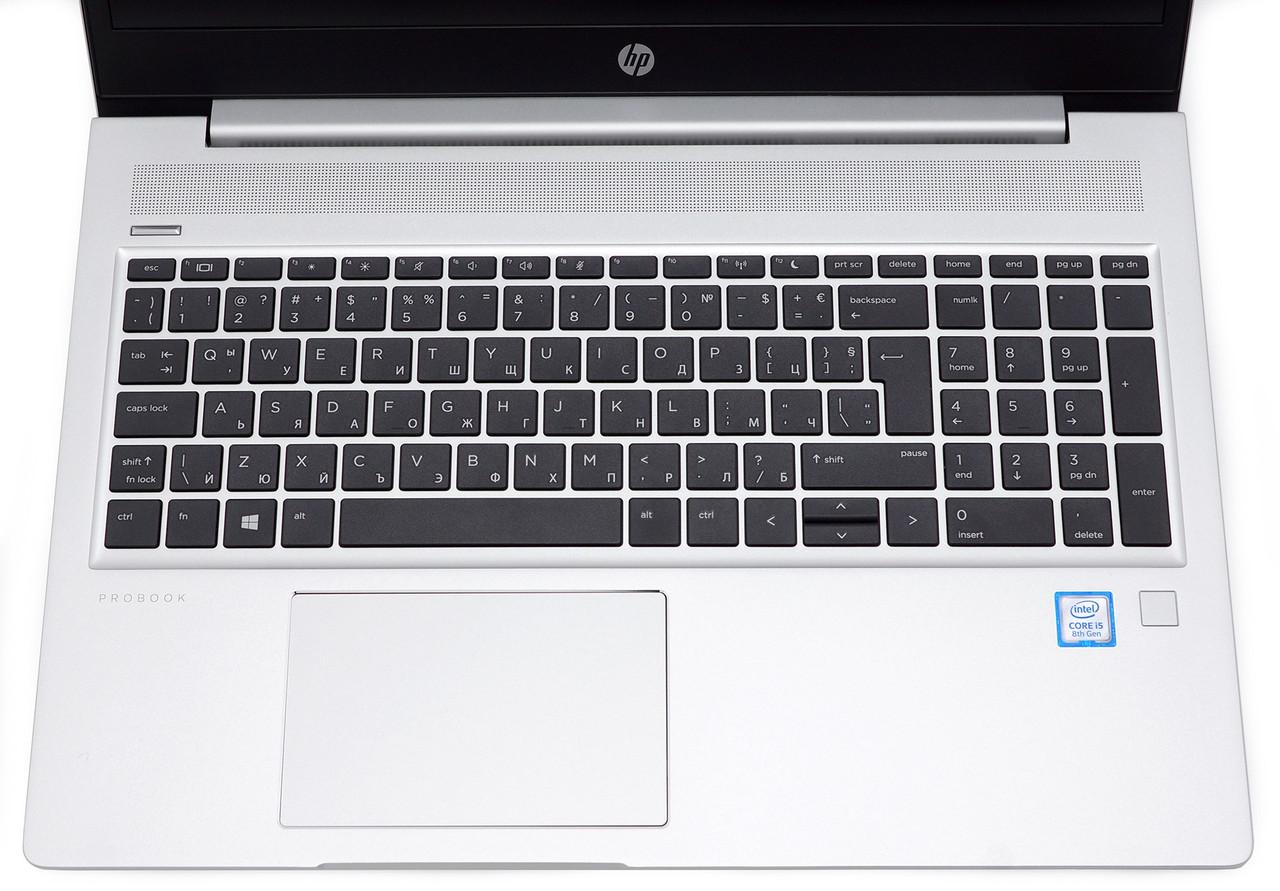
Continue with reversible checks rather than removing keycaps or opening the laptop simply because a key group appears to be affected.
Symptoms That Should Be Distinguished
An HP laptop keyboard problem is easier to diagnose when the behavior is described precisely. “The keyboard is not working” could mean that one key is mechanically stuck, that Windows is interpreting input incorrectly, or that the entire built-in keyboard path has failed.
Selected-key failure may point toward localized debris, a damaged key mechanism, or a keyboard assembly problem. Wrong letters may indicate a layout or input-setting issue, although hardware and software faults remain possible. Automatic typing can result from a stuck key, contamination, application behavior, or an internal fault.
Symptoms to Record Before Changing Anything
Record the original behavior before changing settings or installing updates. A concise symptom record gives later checks a reference point and helps a technician avoid repeating inconclusive tests.
- Which keys fail, and whether the affected keys form a recognizable pattern.
- Whether keystrokes are ignored, delayed, duplicated, repeated, or replaced by different characters.
- Whether the behavior is constant or intermittent.
- Whether movement, pressure, heat, or a particular application triggers the problem.
- Whether the issue began after a spill, cleaning, impact, update, software installation, or another identifiable event.
- Whether an external keyboard or the on-screen keyboard behaves normally.
- Whether the issue appears at the Windows sign-in screen, in an available pre-Windows test environment, or only after Windows starts.
- The exact unexpected characters or repeated input, provided that recording them does not expose private information.
- Any visible debris, liquid residue, lifted keycap, cracked area, or physical deformation.
A photo is useful only when it documents visible residue, debris, key damage, or chassis deformation. A photo cannot establish whether an internal keyboard cable or controller is functioning correctly.
Possible Problems or Causes
The following categories explain why an HP laptop keyboard may malfunction. They are possible causes, not confirmed diagnoses, and more than one category can apply to the same symptom.
1. Windows Settings or Keyboard Layout Mismatch
A selected keyboard layout or input language can make familiar keys produce unexpected letters or symbols. This possibility becomes more relevant when the keyboard responds consistently but the characters are wrong. A layout mismatch is less likely to explain keys that produce no input in every application.
2. Accessibility or Keyboard-Related Settings
Accessibility and keyboard settings can affect response timing or how keystrokes are interpreted. These settings may make an HP laptop keyboard appear delayed or unresponsive without any physical damage. A settings check can test this possibility without opening the laptop.
3. Windows, Driver, Application, or Background-Software Issue
A driver, Windows process, application, or background utility may interfere with keyboard input after the operating system loads. If the keyboard works in one application but not another, or works before Windows starts but fails inside Windows, a software context becomes more plausible.
4. Debris, Contamination, or Liquid Exposure
Debris or a sticking key can cause selected keys to fail or produce repeated input. Liquid exposure is more serious because residue and moisture can affect more than the key mechanism. Do not continue normal testing after a spill if the laptop is powered, unusually hot, producing a burning smell, or showing other electrical symptoms.
5. Loose or Damaged Internal Keyboard Connection
An internal connection issue can cause intermittent or localized keyboard failure, particularly after movement or physical impact. Confirming this possibility usually requires model-specific disassembly, so the reader should not pry open the laptop or reseat an internal cable without appropriate guidance and repair experience.
6. Damaged or Worn Keyboard Assembly
The key mechanism, membrane, keyboard controller, or broader keyboard assembly may be damaged or worn. Consistent failure of the same built-in keys across applications and after a restart increases suspicion of a localized hardware fault, but the exact failed part still requires inspection.
7. Broader Windows, Firmware, or System-Input Problem
A wider system-input issue may affect both the built-in keyboard and other input methods. Similar wrong characters or automatic typing on an external keyboard makes a keyboard-only explanation less certain and shifts attention toward settings, software, firmware, or another system-level cause.
How Cause Categories Relate to Symptom Patterns
Symptom patterns guide the next diagnostic branch, but they do not prove a particular cause. The comparison below shows what each observation may suggest and what evidence could weaken that interpretation.
| Observed pattern | More plausible possibilities | Evidence that changes the interpretation |
|---|---|---|
| Selected keys fail consistently | Debris, a damaged key mechanism, an internal connection issue, or a localized keyboard fault | If the same keys work normally in every environment, software or application context becomes more relevant. |
| Most or all built-in keys fail | Keyboard connection, keyboard assembly, Windows input, or broader system issue | A normal external keyboard may increase suspicion of the built-in keyboard path; matching external failure suggests a wider issue. |
| Letters or symbols are wrong | Keyboard layout, language, accessibility, application, or hardware interpretation issue | If wrong characters occur before Windows or on another keyboard, a Windows-only explanation becomes weaker. |
| Characters repeat or appear automatically | Stuck key, contamination, software input behavior, or hardware trouble | Visible key obstruction supports a mechanical possibility, while matching behavior on an external keyboard suggests a broader input cause. |
| Failure occurs only in one application | Application, text-field, account, or software context | Failure in other applications or before Windows loads weakens an application-only explanation. |
| Failure appears before Windows loads | Built-in keyboard path, hardware, firmware, or model-specific system issue | A professional or manufacturer-guided diagnostic is still needed before selecting a replacement. |
Safe Troubleshooting and Diagnostic Checks
Use reversible checks first, and stop immediately if the laptop shows signs of electrical or physical danger. Do not continue testing after active liquid exposure, smoke, sparks, a burning smell, unusual heat, swelling, melting, exposed wires, or a visibly damaged charger or port.
- Preserve the symptom record. Save the affected-key list and, if possible, close sensitive applications before testing repeated or automatic input. This reduces the chance that unintended keystrokes alter documents or settings.
- Restart the HP laptop normally. Check whether the same keys fail after a clean restart. If the behavior disappears, record the improvement but continue monitoring because a recurring problem may still require diagnosis.
- Test more than one text field or application. If the keyboard fails in only one application, compare another standard text field before changing system settings. Application-specific failure points toward software context rather than immediately proving hardware damage.
- Check the selected keyboard layout and language. When letters or symbols are wrong but keystrokes are otherwise recognized, confirm that the active layout matches the physical keyboard. A layout check is evidence gathering, not proof that the layout caused the problem.
- Review relevant accessibility and keyboard settings. Look for changed options that could affect response or interpretation. Avoid changing unrelated settings, and record any adjustment so the result can be reversed.
- Test an alternate input method. Use the on-screen keyboard or a compatible external keyboard if available. Record whether the alternate method works normally, shows the same wrong characters, or also produces automatic input.
- Compare behavior at sign-in or in an available pre-Windows environment. Use only normal sign-in or diagnostic functions and avoid changing firmware settings unnecessarily. Failure before Windows makes an application-only explanation less likely.
- Use official HP guidance only after confirming the exact model. If the model provides a keyboard or hardware diagnostic, follow the applicable HP instructions rather than assuming that every model uses the same access method. The correct diagnostic name and procedure depend on the device.
- Inspect the keyboard surface under good lighting. Look for debris, a visibly stuck key, liquid residue, a lifted keycap, or physical deformation without pressing forcefully or removing parts.
- Clean only loose surface debris when there is no liquid exposure. Power down appropriately and use gentle external cleaning that does not force debris deeper into the laptop. Do not pour cleaner onto the keyboard or use a wet cloth.
- Check for pending updates only when the laptop is stable. Updates may be relevant when the symptom pattern suggests software, but an unstable laptop or a device with physical damage should be assessed before attempting changes that could interrupt normal operation.
- Retest the original keys after each meaningful change. Record whether the behavior improved, worsened, or stayed the same. Changing several variables together makes the result difficult to interpret.
- Avoid unsafe disassembly. Do not remove keycaps, open the laptop, reseat internal cables, or apply liquid cleaners without suitable tools, model-specific instructions, and appropriate repair experience.
External Keyboard and Pre-Windows Comparison
An external keyboard comparison can separate the built-in keyboard path from broader input behavior, but it cannot identify the exact failed internal component by itself.
- Connect a known-good compatible external keyboard. Do not change unrelated settings while making the comparison.
- Test the external keyboard in the same application. Use the same text field where the built-in keyboard failed so the comparison is meaningful.
- Compare behavior at sign-in or in another available pre-Windows environment. Perform this only when practical and without changing firmware configuration.
- Record the external-keyboard result. Note whether it works normally, produces the same wrong characters, or also types automatically.
- Interpret normal external input cautiously. Normal external-keyboard behavior increases suspicion of the built-in keyboard path, but it does not establish whether the fault is the keyboard assembly, internal connection, or another related part.
- Interpret matching problems as broader evidence. If both keyboards show the same behavior, investigate Windows, settings, firmware, application, or system-input causes before assuming that the built-in keyboard alone needs replacement.
How to Interpret the Results
A troubleshooting result is a clue rather than automatic proof. The strongest diagnosis comes from several consistent observations, such as the same keys failing across applications, the behavior surviving a restart, and a normal external keyboard working in the same environment.
| Result after checking | What it may suggest | Practical next step |
|---|---|---|
| The issue improves after restart or a settings correction | A temporary software or configuration issue becomes more plausible. | Record the change and monitor for recurrence rather than assuming the hardware is permanently repaired. |
| The issue occurs in one application only | An application, text field, account, layout, or software context may be involved. | Compare another application and avoid requesting keyboard replacement based on one program. |
| The same built-in keys fail across applications after restart | Localized contamination, key damage, an internal connection issue, or keyboard hardware becomes more plausible. | Inspect externally and arrange model-specific professional assessment if the problem persists. |
| Automatic typing continues without a visible obstruction | A stuck mechanism, contamination, software input, or hardware fault remains possible. | Stop forceful key testing and compare an external keyboard before deciding on repair. |
| The built-in keyboard fails before Windows while an external keyboard works | The built-in keyboard path becomes more suspect. | Preserve the evidence and seek inspection before selecting a replacement part. |
| Both built-in and external keyboards show the same behavior | A wider settings, Windows, firmware, application, or system-input issue becomes more plausible. | Investigate the shared environment rather than assuming the built-in keyboard is the only fault. |
IndiRepair approaches these results as diagnostic evidence rather than automatic proof of one failed component. After meaningful checks, readers can get your Hp laptop checked by IndiRepair with the model information and symptom record available.
Evidence That Suggests a Built-In Keyboard Fault
A built-in keyboard fault becomes more plausible when several independent observations point in the same direction. Even then, the exact repair scope should be confirmed before a replacement is selected.
- The built-in keyboard fails consistently while a compatible external keyboard works normally.
- The same keys fail across multiple applications and after a restart.
- The problem is present outside the normal Windows application environment or in an applicable pre-Windows test.
- Visible physical damage, liquid evidence, a stuck mechanism, or a history of impact is present.
- The exact HP model and keyboard layout can be confirmed for inspection and parts compatibility.
Safety Limits and When to Seek Repair
Stop home testing and seek professional assessment when a keyboard problem follows liquid exposure, physical damage, electrical symptoms, or persistent failure that safe checks cannot explain. Continued power or repeated input testing can increase risk after a spill or short-related symptom.
- Stop if liquid has reached the keyboard, especially while the laptop is powered or charging.
- Stop if the laptop or keyboard is swollen, cracked, severely deformed, unusually hot, or melting.
- Stop if there is smoke, a burning smell, sparks, exposed wiring, or other visible electrical damage.
- Do not force stuck keys, pry off keycaps, pour cleaner onto the keyboard, or open the laptop without suitable model-specific guidance.
- Do not use a visibly damaged charger or repeatedly bend a damaged charging connector while troubleshooting.
Professional assessment is appropriate when the HP laptop keyboard remains faulty after safe checks, the issue returns, the built-in keyboard fails consistently across applications and environments, or the problem began after liquid or impact. The repair scope may involve cleaning, an internal connection, a keyboard assembly, or another related component. The exact HP model and keyboard layout must be confirmed before sourcing a replacement.
With experience across 500+ laptop repairs, IndiRepair focuses on identifying the underlying fault before recommending a replacement. If safe testing points toward professional assessment, readers can book your Hp laptop repair with IndiRepair without assuming that replacement is required.
Repair or Replacement Decision Guidance
Diagnosis should support the repair decision. A replacement is not automatically appropriate when the symptom is intermittent, application-specific, or also affects an external keyboard.
- Seek diagnosis before replacement when the behavior changes between applications or is shared by multiple input devices.
- Consider keyboard-focused inspection when only the built-in keyboard is affected across multiple contexts and safe checks do not change the behavior.
- Confirm the exact HP model and keyboard layout before sourcing a keyboard assembly.
- Ask whether the suspected fault involves the keyboard assembly, its internal connection, contamination, or another system component.
- Provide the symptom record and test results instead of requesting replacement based only on the phrase “keyboard malfunctioning.”
Frequently Asked Questions
Q: Why is my HP laptop keyboard not working?
A: An HP laptop keyboard may stop responding because of a Windows or application issue, changed keyboard settings, debris, liquid exposure, an internal connection problem, or damaged keyboard hardware. First record whether all keys or only selected keys fail, then compare more than one application and restart the laptop. An external keyboard can show whether the wider Windows input environment is working, but it cannot identify the exact internal fault. If the built-in keyboard remains unresponsive across applications or fails before Windows loads, professional inspection is safer than opening the laptop without model-specific guidance.
Q: Why is my HP laptop keyboard typing wrong letters?
A: Wrong letters or symbols often make the active keyboard layout or input language worth checking, especially when every key responds consistently. The same symptom can also result from an application, accessibility setting, background software, or a hardware interpretation problem. Test the affected keys in another text field and compare the built-in keyboard with an external keyboard if available. If the wrong characters appear in multiple environments or on both keyboards, a simple layout mismatch becomes less certain and broader software or system-input diagnosis may be needed.
Q: What should I do if my HP laptop keyboard is typing automatically?
A: Automatic typing can be caused by a stuck key, debris, liquid residue, software input behavior, or a hardware fault. Save your work, close sensitive applications, and inspect the keyboard surface without forcing the keys or removing keycaps. Restart the laptop and compare the behavior in another application. An external keyboard comparison can show whether the symptom is limited to the built-in keyboard. If automatic input follows liquid exposure, burning smell, unusual heat, or visible damage, stop using the laptop and seek professional assessment instead of continuing to test it.
Q: Can an external keyboard help identify an HP laptop keyboard problem?
A: Yes, an external keyboard provides a useful comparison, but it does not prove which internal component has failed. If the external keyboard works normally while the built-in keyboard fails in the same application, suspicion increases around the built-in keyboard path, its connection, or its assembly. If both keyboards produce the same wrong characters or automatic input, Windows, settings, firmware, the application, or a broader system-input problem becomes more plausible. Record the result and use it as evidence for diagnosis rather than treating it as a complete repair test.
Q: What should I do if liquid was spilled on my HP laptop keyboard?
A: Stop normal use and avoid repeated testing after liquid reaches an HP laptop keyboard. Liquid can create residue or electrical damage that may worsen while the laptop is powered or charging. Do not pour cleaner onto the keyboard, force keys, or open the laptop without appropriate repair experience. Move away from unsafe power sources only if doing so is safe, and seek professional assessment. The amount and type of liquid, the time since exposure, and whether the laptop was powered affect the diagnostic situation, so provide those details to the technician.
Q: Do I always need an HP laptop keyboard replacement when keys stop working?
A: No. A replacement is not always necessary because settings, Windows, an application, debris, contamination, or an internal connection can produce similar symptoms. Replacement becomes a more relevant consideration when the same built-in keys fail consistently across applications and after safe checks, particularly when an external keyboard works normally. The exact HP model and keyboard layout should be confirmed before selecting a part. A professional diagnosis can determine whether cleaning, connection work, keyboard repair, or replacement is the appropriate scope.
Conclusion
HP laptop keyboard malfunctioning is a symptom with several possible explanations, not a confirmed keyboard failure. Record the exact behavior, perform reversible checks, compare relevant input paths, and interpret the combined evidence before choosing a repair.
Seek professional assessment when the issue persists after safe checks, appears before Windows, follows liquid or physical damage, or cannot be explained by settings and application tests. IndiRepair can provide Hp laptop repair with IndiRepair as an option for model-specific inspection and repair guidance.
The correct repair scope should be confirmed before any HP keyboard replacement is selected. That approach helps distinguish a settings or software problem from a keyboard assembly, connection, contamination, or related system fault.