
If the touchpad on your HP Pavilion is not working, the cursor may stop moving, clicking may fail, scrolling may disappear, or gestures may become unreliable even though Windows and the rest of the laptop still run normally. The problem may be a disabled touchpad, a Windows setting, a driver issue, a temporary software fault, or physical damage.
A USB or Bluetooth mouse can provide temporary cursor control, while keyboard navigation can help you reach Windows settings if no mouse is available. This guide moves from simple reversible checks to settings, driver checks, diagnostics, and hardware considerations. The correct fix depends on evidence from your specific HP Pavilion rather than on the symptom alone.
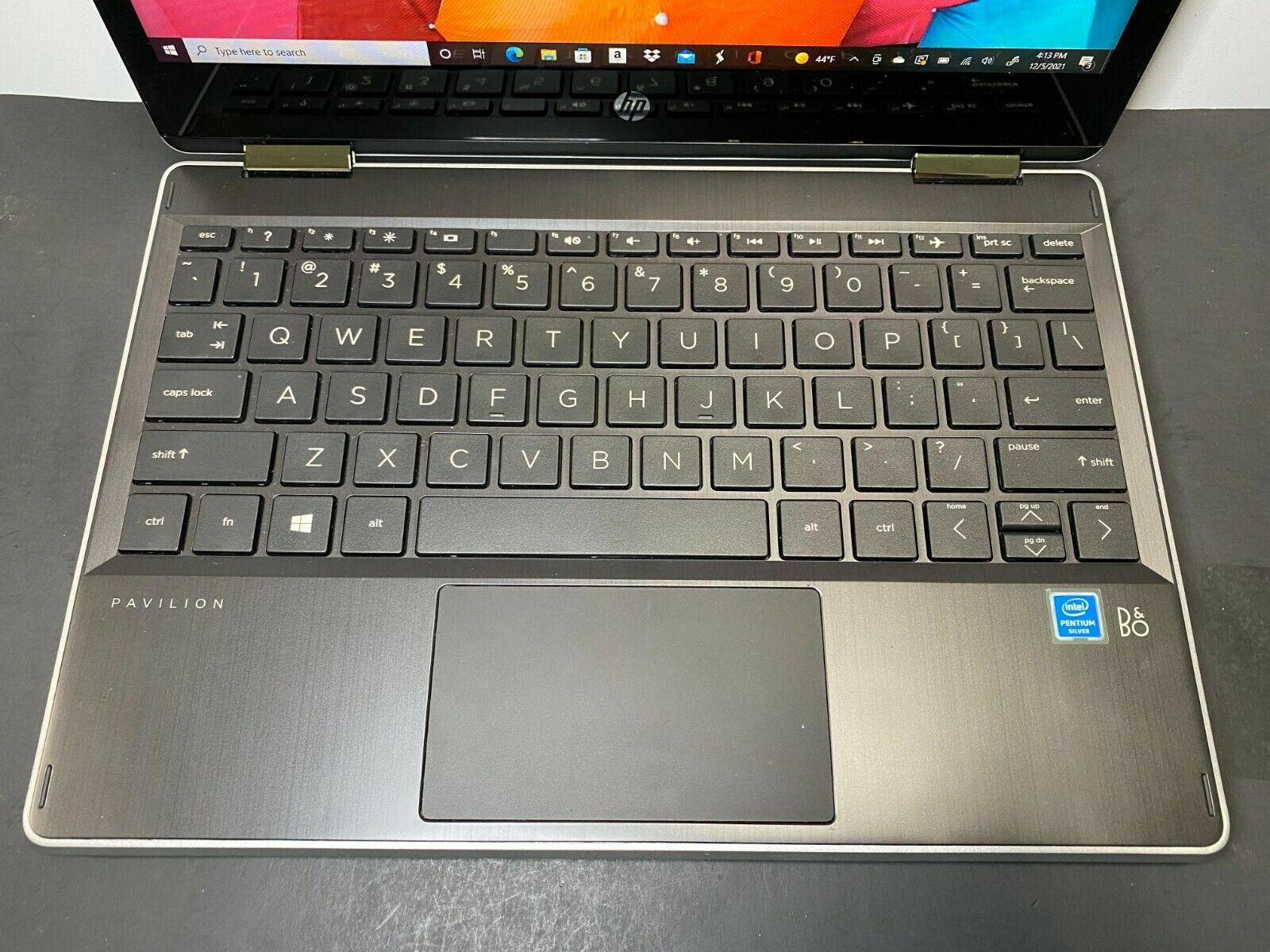
Recognise the HP Pavilion Touchpad Symptom
“HP Pavilion touchpad not working” can describe several different symptoms. Identifying exactly what has stopped working helps separate a complete input failure from a problem affecting only clicking, scrolling, or gestures.
- The cursor does not move. A completely unresponsive pad may be disabled, unrecognised by Windows, affected by a driver problem, or suffering from a hardware fault.
- The cursor moves but clicking does not work. This pattern can point to a click mechanism, touchpad surface, setting, or physical pressure problem rather than a total loss of touchpad input.
- The touchpad works intermittently. Response that changes after restarting, waking the laptop, or pressing near the palm rest may indicate an unstable software or hardware connection.
- Scrolling or gestures are missing. Basic movement may still work when gesture settings or the appropriate pointing-device driver is unavailable.
- The touchpad stops responding after sleep or restart. A temporary Windows input-service or driver state may be involved, although repeated failures require further investigation.
- The touchpad works only when an external mouse is connected. An external mouse can provide control for testing, but its presence does not prove that the touchpad itself is healthy.
A working keyboard or external mouse shows that at least one input method is available, but it does not confirm the cause of the touchpad failure. HP Pavilion models can use different touchpad controls, firmware, and Windows versions, so exact keys and menu labels may vary.
If inspection suggests that the problem may involve the display area, chassis, or another physical component, IndiRepair can also provide information about its Hp laptop screen replacement service.
Possible Causes of an HP Pavilion Touchpad Failure
The following are possible causes of an HP laptop touchpad not working. They are diagnostic categories, not confirmed findings. A later test may rule out one or more of them.
1. The Touchpad Is Disabled
An HP Pavilion touchpad may be disabled through a touchpad control, keyboard function, Windows setting, or an option that changes touchpad behaviour when a mouse is connected. The exact control depends on the model, so one shortcut should not be treated as universal.
2. A Windows Input Setting Is Preventing Response
Windows may have the touchpad switched off or configured not to operate while another pointing device is connected. A user-account configuration can also change how the touchpad behaves without affecting the rest of the laptop.
3. The Touchpad Driver Is Missing or Corrupted
A missing, outdated, incompatible, or corrupted pointing-device driver can prevent Windows from recognising the touchpad or can remove advanced functions such as scrolling and gestures. A warning symbol or missing device entry is useful evidence, but it does not by itself confirm a hardware fault.
4. Windows or Resume Software Has Entered an Unresponsive State
A Windows update, restart, sleep-and-wake event, or temporary input-service problem may leave the touchpad unresponsive. If a normal restart restores the pad, the result suggests a temporary software state rather than proving that the hardware is fully healthy.
5. The Touchpad Surface or Internal Connection Has a Fault
Dirt, moisture, cracks, looseness, a damaged surface, a loose internal connection, or another hardware fault can affect cursor movement or clicking. Intermittent response and failure in more than one software environment make hardware diagnosis more appropriate.
6. Battery Swelling or Case Distortion Is Affecting the Touchpad Area
A swollen battery can press against the palm rest or touchpad area and distort the case. A raised, separating, or unusually tight touchpad area is a safety warning, not a reason to press harder or continue testing. Power down the laptop and seek professional advice instead.
Start with Safe, Reversible Touchpad Checks
These checks are designed to establish whether the HP Pavilion touchpad has a temporary input problem or an obvious disabled-control issue. They do not require opening the laptop or changing internal parts.
- Save open work and restart the Pavilion normally. A restart can clear a temporary input-service or sleep-and-wake problem. If the touchpad works after restarting, note when the failure returns; repeated recurrence may justify driver or system investigation rather than repeated restarts.
- Disconnect unnecessary USB input devices and test again. Some settings change touchpad behaviour when a mouse is connected. Keep an external mouse available if keyboard navigation is difficult, but compare the touchpad with and without unnecessary input devices. If the touchpad remains unavailable in both situations, continue to the settings and driver checks.
- Inspect the touchpad and palm rest without applying force. Look for moisture, dirt, cracks, looseness, a raised surface, or visible case distortion. A dry, clean surface may resolve simple contamination, but liquid exposure, swelling, unusual heat, or a separating case requires powering down and stopping DIY work.
- Check the touchpad-disable control used by the specific Pavilion model. Some HP laptops use a touchpad area or keyboard control, but the location and activation method vary. Use the model’s documentation when possible rather than repeatedly pressing function keys at random. If the control changes the touchpad indicator or response, test movement and clicking again.
- Test movement, left clicking, right clicking, scrolling, and gestures separately. Cursor movement with failed clicking suggests a different problem from a completely dead pad. Basic movement without scrolling or gestures may indicate a settings or driver limitation, while failure of every function calls for broader software or hardware checks.
Check Windows Touchpad Settings and Drivers
When the simple checks do not restore the HP Pavilion touchpad, review Windows input settings and device recognition. Menu names can differ between Windows versions and updates, so verify the available path on the laptop rather than relying on an exact menu sequence from another model.
Review Touchpad and Mouse Settings
Windows settings can disable the touchpad or alter its behaviour when a mouse is connected. Make one relevant change at a time, then test the result so the evidence remains clear.
- Open the Windows Settings area for touchpad or mouse input. Use an external mouse or keyboard navigation if necessary. Search within Windows Settings for “touchpad” if the menu structure is not immediately clear.
- Check whether the touchpad control is enabled. Also review any option that disables the touchpad when a mouse is connected. If the control is already enabled, avoid changing unrelated settings and continue with device recognition.
- Apply only the relevant setting change and test the cursor and clicks. If movement returns, test scrolling and gestures separately because basic cursor control does not confirm that every touchpad feature is configured correctly.
- Note whether the touchpad settings page is missing or cannot be changed. A missing control can be a clue that Windows is not recognising the appropriate device or driver. Repeatedly toggling unrelated options is unlikely to solve that condition.
- Compare the available menu with the installed Windows version and Pavilion documentation. The commonly searched question “how to enable touchpad on an HP laptop running Windows 10” does not have one universal key or menu path for every HP model. Use the exact model information when checking HP documentation.
Check the Touchpad or Pointing-Device Driver
Device management can show whether Windows recognises the touchpad. A disabled entry, warning symbol, missing entry, or recent driver change can guide the next step, but each observation needs to be interpreted alongside the physical symptoms.
- Open the Windows device-management area. Use an external mouse or keyboard navigation if the touchpad is unavailable. Look for a touchpad, pointing-device, or related human-interface entry without assuming that every Pavilion uses the same label.
- Check for a disabled device, warning symbol, missing entry, or changed driver status. A disabled entry may support a settings explanation, while a warning symbol may indicate a driver or device-recognition problem. A missing entry does not prove that the touchpad hardware has failed.
- Use enable, update, roll-back, or uninstall-and-restart options only when their purpose is clear. Keep an external input method available before changing a driver. Prefer software intended for the exact HP Pavilion model and installed Windows version, and avoid unverified driver-download sites.
- Restart the Pavilion after a driver change and test the touchpad again. Record whether movement, clicking, scrolling, or gestures return. If nothing changes and the device remains absent or flagged, further driver toggling is unlikely to establish a confirmed diagnosis.
- Check the current HP support process for the exact model before installing anything. Model-specific compatibility requirements and available driver options can change, so do not assume that a driver for another Pavilion or another Windows version is suitable.
Run Diagnostics and Interpret the Result
Available HP or Windows diagnostics can provide useful evidence, but no diagnostic route identifies every touchpad fault. The result should be considered alongside the symptom pattern, settings checks, and physical inspection.
Use Available HP or Windows Diagnostics
- Save work and prepare an external mouse or keyboard navigation. A diagnostic may require interaction outside the normal Windows session, so arrange an alternative input method before beginning.
- Use the available HP hardware diagnostic or Windows troubleshooting option related to pointing devices or input hardware. The diagnostic name and access method vary by Pavilion model, firmware version, and operating system. Follow the model-specific instructions rather than assuming one key combination applies to all HP laptops.
- Follow the prompts and record the exact result. Write down any error code, failed component name, or message instead of paraphrasing it. Exact wording can help a technician distinguish an input-recognition issue from a general Windows symptom.
- Return to Windows and test the touchpad again. If the pad works in a diagnostic environment but not in Windows, the contrast points more strongly toward settings, drivers, or the operating system. If it fails in both environments, hardware becomes more concerning, although the result is still not an automatic final diagnosis.
- Verify the supported diagnostic route for the exact Pavilion model. An unavailable or inconclusive test does not prove that the touchpad is healthy. Treat diagnostic limitations as uncertainty and use professional testing when the symptom remains unresolved.
Interpret the Evidence Before Choosing a Repair Path
The pattern below helps connect observations with reasonable next steps. A possible cause becomes a confirmed fault only after suitable testing or inspection establishes it.
| Observation | What it may suggest | Practical next step |
|---|---|---|
| The touchpad works in diagnostics but not in Windows. | Windows settings, a driver, or an operating-system input problem is more likely. | Review settings and model-specific drivers before considering hardware service. |
| The touchpad fails in Windows and available diagnostics. | A hardware or device-recognition problem becomes more likely, but the diagnostic result still needs interpretation. | Record the result and arrange professional diagnosis if safe checks have already been completed. |
| The touchpad is missing from Windows device management. | Windows may not be detecting the device, or the relevant driver may be unavailable. | Verify the correct Pavilion driver and escalate if the device remains absent. |
| A repeatable error code or failed component is reported. | The code provides stronger evidence than the symptom alone, but it may still require model-specific interpretation. | Keep the exact code and provide it to a repair professional or use the appropriate HP documentation. |
| The touchpad responds intermittently or only when the palm rest is moved. | An unstable connection, physical pressure, or touchpad assembly fault is possible. | Stop forcing the surface and seek inspection if the behaviour continues. |
| Cursor movement works but clicking fails. | The click mechanism, touchpad setting, or physical surface may be affected while sensing still works. | Check relevant settings, then arrange hardware assessment if clicking remains unavailable. |
| The palm rest is raised, cracked, wet, unusually hot, or separating. | Battery swelling, liquid damage, or another safety-related hardware condition may be present. | Power down safely and do not continue DIY testing. |
After meaningful troubleshooting, IndiRepair recommends treating each result as a clue rather than automatic proof that one component has failed. With experience across 500+ laptop repairs, IndiRepair focuses on connecting the symptom, software evidence, diagnostic result, and physical condition before recommending the next repair step.
book your Hp laptop repair with IndiRepair
Know When to Stop DIY Troubleshooting
Stop investigating the HP Pavilion touchpad yourself and seek professional advice when the laptop shows a safety warning or when repeated software checks have not produced a reliable improvement.
- Power down and stop using the laptop if the battery appears swollen, the case is raised, or the palm rest is separating.
- Stop immediately after liquid exposure, smoke, sparks, a burning smell, unusual heat, melting, or exposed wires.
- Do not press on a distorted touchpad or force a loose, cracked, or damaged surface back into place.
- Avoid opening the laptop or disconnecting internal parts unless you have appropriate tools and verified model-specific repair information.
- Back up important data before substantial driver changes, system recovery, or hardware service whenever the laptop remains usable.
- Escalate when the touchpad fails after settings and driver checks, fails in available diagnostics, or works intermittently in a way that prevents dependable use.
Decide Whether Professional Repair Is Appropriate
Professional diagnosis is appropriate when safe software checks do not restore the touchpad or when physical symptoms make further testing unsafe. A technician may need to distinguish among a touchpad assembly fault, cable or connector issue, chassis or battery-related pressure, liquid damage, and an unresolved software problem.
Before requesting an assessment, record the exact HP Pavilion model, installed Windows version, date or event when the failure began, whether the problem followed an update or spill, the checks already attempted, and any diagnostic result. Ask for a diagnosis before authorising hardware work and confirm how personal data will be handled.
Repair suitability depends on the laptop’s condition, age, remaining software support, data requirements, and the cost of an alternative computer. IndiRepair can help assess the available evidence without assuming that every HP laptop touchpad problem requires the same repair.
get your Hp laptop checked by IndiRepair
Frequently Asked Questions
Q: How do I enable the touchpad on an HP laptop running Windows 10?
A: Open the available Windows touchpad or mouse settings and check whether the touchpad is enabled. Also review any setting that disables the pad when a mouse is connected. HP Pavilion models do not all use the same keyboard control or menu wording, so do not assume that one shortcut works everywhere. If the touchpad setting is missing, cannot be changed, or does not restore movement and clicking, check whether Windows recognises the pointing device and review the correct driver for the exact Pavilion model.
Q: Why is my HP Pavilion touchpad not working after a restart or Windows update?
A: A restart or update can leave an input service, device setting, or pointing-device driver in an unresponsive state. First check whether the touchpad is enabled and whether its behaviour changes when an external mouse is disconnected. If the problem began immediately after a software change, compare the device entry and driver status with the previous state where possible. A repeated failure after every restart is not confirmed proof of a hardware fault, but it justifies checking the model-specific driver and using an available diagnostic.
Q: What should I do if my HP laptop touchpad is missing from Windows settings?
A: A missing touchpad option may mean that Windows is not recognising the relevant device or driver, although it does not by itself confirm that the touchpad hardware has failed. Use an external mouse or keyboard navigation to inspect device management for a pointing-device entry, warning symbol, or disabled device. Check the appropriate driver information for the exact HP Pavilion model and Windows version. If the device remains absent after a suitable restart and compatible driver check, professional diagnosis can help separate a software-recognition problem from a hardware or connection fault.
Q: How can I tell whether an HP laptop touchpad problem is caused by a driver?
A: Driver evidence may include a missing pointing-device entry, a warning symbol, a recent driver change, or a touchpad that works in a diagnostic environment but not in Windows. These observations suggest a software-recognition issue but are not conclusive on their own. Use a compatible driver intended for the exact Pavilion model and installed Windows version, then restart and test movement, clicking, scrolling, and gestures separately. If the device remains absent or fails outside Windows as well, continued driver changes are unlikely to provide a confirmed diagnosis.
Q: Why does my HP Pavilion touchpad move the cursor but not click?
A: Cursor movement with failed clicking indicates that sensing may still work while the click mechanism, touchpad setting, or physical surface has a separate problem. Check whether both left and right clicking fail, and review relevant Windows touchpad settings without changing unrelated options. Inspect the palm rest for cracks, looseness, raised areas, or liquid damage, but do not press harder on a distorted surface. If clicking remains unavailable after software checks, the touchpad assembly or its connection may need professional inspection.
Q: Can an external mouse help diagnose an HP laptop trackpad problem?
A: Yes. An external mouse gives you reliable cursor control so you can review Windows settings, device management, and diagnostics without depending on the touchpad. Disconnecting unnecessary input devices can also show whether a setting changes touchpad behaviour when a mouse is connected. However, an external mouse does not repair or confirm the touchpad fault. If the mouse works while the touchpad remains absent, intermittent, or physically distorted, continue with touchpad-specific checks rather than treating the working mouse as proof that the laptop has no hardware issue.
Q: Should I open my HP Pavilion if the touchpad is still not working?
A: Do not open the HP Pavilion as a first response to an unresponsive touchpad. Internal work can be risky when the laptop has a swollen battery, liquid exposure, stored electrical energy, or damaged connectors, and model-specific disassembly procedures vary. Stop immediately if the case is raised, hot, wet, cracked, or separating. If safe settings, driver checks, and available diagnostics do not restore reliable input, provide the model and diagnostic evidence to a repair professional instead of forcing the touchpad or disconnecting internal parts without suitable information and tools.
Q: When does an HP laptop touchpad problem require professional repair?
A: Professional repair becomes appropriate when the touchpad remains unavailable after safe settings and driver checks, fails in available diagnostics, works only intermittently, or shows physical damage. Swelling, liquid exposure, burning smell, unusual heat, sparks, melting, exposed wires, and case distortion require stopping use rather than continuing DIY troubleshooting. A technician can compare the symptom with software evidence and inspect possible touchpad, connector, chassis, battery-pressure, or liquid-damage causes. IndiRepair recommends diagnosis before authorising hardware work, because the symptom alone does not identify the failed component.
Final Steps for an HP Pavilion Touchpad That Is Not Working
Work through the problem in order: identify whether movement, clicking, scrolling, or gestures have failed; check for a disabled touchpad; review Windows settings; investigate the correct driver; run an available diagnostic; and then assess whether hardware inspection is needed. The exact controls and diagnostic paths must be verified for the specific HP Pavilion model and Windows version.
IndiRepair can provide a diagnosis-first next step when the touchpad remains unavailable, physical damage is visible, or the laptop has liquid exposure, swelling, unusual heat, or another safety warning. Hp laptop repair with IndiRepair should begin with understanding the evidence rather than assuming a guaranteed repair or a particular failed part.
Stop using the laptop if it is swollen, wet, unusually hot, damaged, smoking, sparking, or unsafe to handle. A safe professional assessment is more appropriate than pressing on a distorted touchpad or continuing unverified internal repairs.