
A Dell laptop keyboard not working can prevent sign-in, typing, shortcuts, and normal computer use, but the symptom alone does not prove that the keyboard hardware has failed. Settings, Windows, drivers, external devices, contamination, internal connections, and keyboard faults can create similar symptoms.
The safest approach is to record exactly what happens, begin with reversible checks, compare the built-in keyboard across different environments, and stop before testing could worsen liquid or electrical damage. A Dell laptop keyboard not responding only inside one application requires a different investigation from a keyboard that fails before Windows loads.
What the Dell keyboard symptom can mean
The keyboard may be completely unresponsive, may have only selected keys affected, or may work in one environment but not another. Each pattern provides evidence, but no single observation confirms the failed component by itself.
| Observed symptom | What it may suggest | Important limitation |
|---|---|---|
| All built-in keys fail in Windows | Windows settings, drivers, an input conflict, an internal connection, or keyboard hardware may be involved. | The symptom does not distinguish software from hardware without comparison testing. |
| Only one key or a group of keys fails | Debris, residue, key damage, keyboard matrix behavior, or localized hardware damage may be relevant. | The key pattern does not identify one exact component. |
| The keyboard works in one application but not another | An application setting, shortcut conflict, or software input issue is more plausible. | Other environments still need to be tested before reaching a conclusion. |
| The built-in keyboard fails before Windows but an external keyboard works | An internal keyboard path, connection, or assembly problem becomes more plausible. | The result does not prove that the keyboard assembly alone has failed. |
| The keyboard and display fail together | A broader startup, power, system-board, or electrical issue may be involved. | This should not be treated as an isolated keyboard problem without further assessment. |
Symptoms to record before changing anything
Record the original behavior before changing settings, installing drivers, cleaning the keyboard, or disconnecting hardware. A clear symptom record helps separate evidence from assumptions and gives a repair professional a more useful starting point.
- Note whether every key, one key, a group of keys, function keys, the number pad, or only shortcuts are affected.
- Check whether the keyboard works at the sign-in screen, inside Windows, in a web browser, and in other applications.
- Record whether an external USB or Bluetooth keyboard works and whether the touchpad, display, power button, and indicator lights behave normally.
- Note recent liquid exposure, crumbs, impact, dropped objects, system updates, driver changes, new applications, or external device connections.
- Take a clear reference photo if keycaps, staining, residue, swelling, or physical damage may be relevant.
IndiRepair uses this kind of symptom-based information to separate a keyboard input problem from a wider laptop fault. If the display is also affected, the appropriate assessment may extend beyond the keyboard alone.
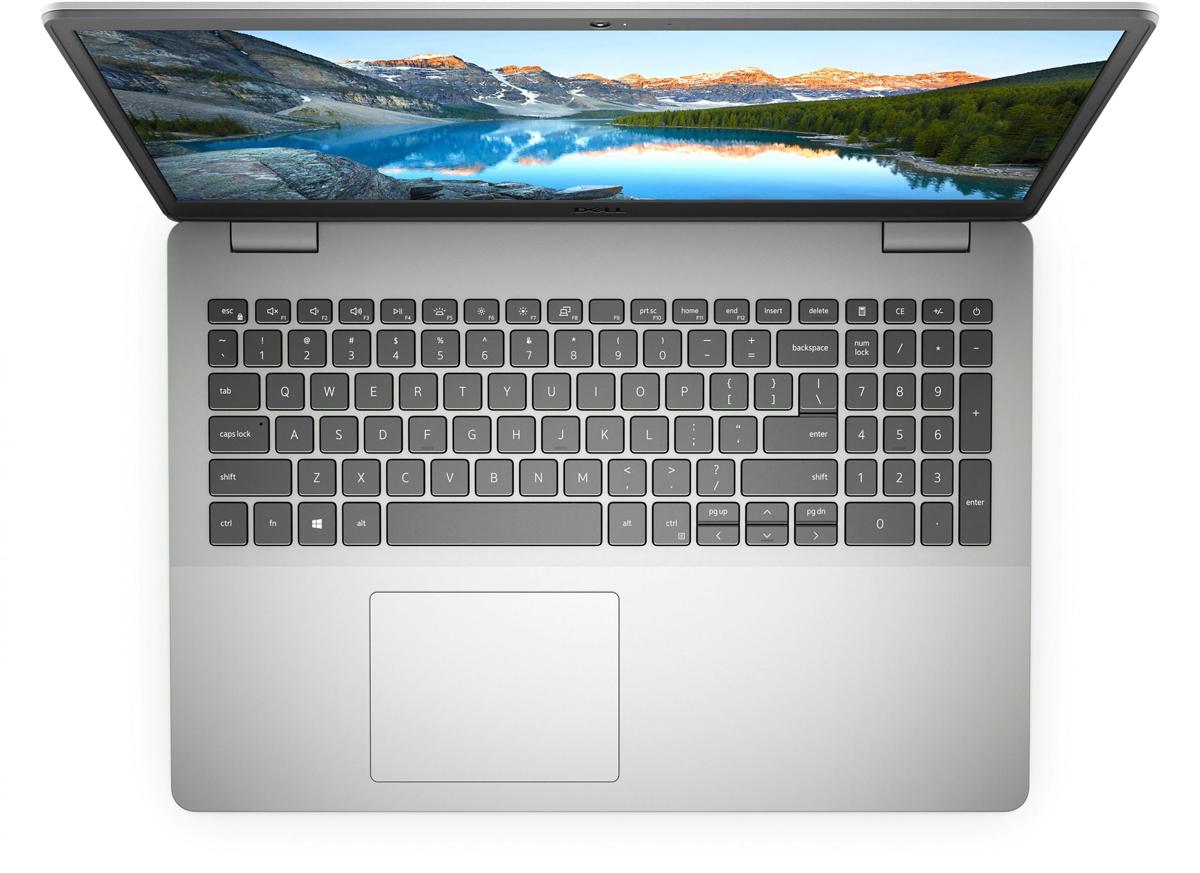
A working external keyboard can demonstrate that the Dell laptop is accepting some keyboard input, while a failure of both keyboards may point toward Windows, startup, power, or system-level causes. Neither result independently confirms a specific internal part.
Dell laptop screen replacement service
Possible causes of a Dell laptop keyboard not working
Similar keyboard symptoms can come from different underlying problems. The following categories make a cause more or less plausible, but confirmation normally requires comparison testing or model-specific diagnosis.
1. Settings and keyboard-lock behavior
Keyboard-related accessibility or input settings can affect typing, key combinations, or the behavior of selected keys. Function-key behavior, Num Lock, and model-specific keyboard modes can also make some keys appear unavailable without proving that the whole keyboard is defective.
- A setting may affect only shortcuts, function keys, or the number pad rather than every alphanumeric key.
- A model-specific keyboard mode or shortcut should not be assumed to apply to every Dell laptop.
- If the same keys fail at sign-in and outside Windows, a simple Windows setting becomes less likely, although it is not completely ruled out.
2. Windows, drivers, or application problems
Windows input settings, a driver state, a recent update, a background utility, or one application can prevent keyboard input from behaving normally. A keyboard that fails only in one application points toward that application or its input handling rather than an immediate hardware conclusion.
- A recent software change is useful evidence, but it does not prove that the change caused the fault.
- A standard external keyboard can serve as a comparison tool, but it does not prove that the internal Dell keyboard is the only failed part.
- Driver removal or reinstallation should not be treated as a guaranteed fix, especially when the keyboard also fails before Windows loads.
3. External keyboard, USB, or Bluetooth issues
An external keyboard can have its own cable, receiver, battery, pairing, USB-port, or compatibility problem. If both the built-in and external keyboards fail, the investigation should broaden instead of assuming that the internal keyboard is defective.
- A USB keyboard may be affected by the port, cable, receiver, or the laptop’s operating environment.
- A Bluetooth keyboard may be affected by power, pairing, or connection state.
- A working external keyboard narrows the possibilities toward the built-in input path but does not identify whether the cause is a cable, connector, assembly, or board circuit.
4. Debris, liquid, or physical damage
Crumbs, dust, sticky residue, displaced keycaps, impact, and liquid exposure can cause one key, a group of keys, or the entire keyboard to behave incorrectly. Liquid can travel beyond the key surface, so a laptop that still partly works after a spill should not automatically be considered safe.
- Visible residue or a key that feels mechanically different supports a physical investigation.
- Delayed symptoms after liquid exposure may indicate damage that is not visible from above.
- Do not use household liquids, sharp tools, aggressive pressure, or heat to clean or dry the keyboard.
5. Internal connection or keyboard hardware faults
A persistent failure outside Windows, a localized failure after impact, visible damage, or a response to movement can make an internal connection or keyboard assembly fault more plausible. An internal cable problem and a failed keyboard assembly can produce overlapping symptoms.
- No single key pattern proves which internal component has failed.
- Opening the chassis or reseating internal parts requires the correct Dell model-specific procedure and appropriate power and electrostatic precautions.
- Professional diagnosis becomes appropriate when safe external checks cannot isolate the cause or when physical damage is present.
How to troubleshoot the keyboard safely
Work from the least invasive checks toward more specific software and diagnostic comparisons. Record the outcome of each check so that a result is treated as evidence rather than automatic proof.
External and reversible checks
- Preserve the original symptom record. Note whether every key, selected keys, shortcuts, or function keys are affected. This pattern provides a baseline for interpreting later changes.
- Disconnect unnecessary peripherals. Remove docks, receivers, USB devices, and other accessories, then retest without changing internal hardware. If the keyboard works afterward, an accessory or connection conflict becomes more plausible, but the accessory must still be tested separately.
- Check the rest of the laptop. Observe the touchpad, display, power behavior, and indicator lights. Normal operation of those components makes an isolated keyboard issue more plausible, while simultaneous failures broaden the diagnostic scope.
- Try a known-working external keyboard if available. Test it in the same environment as the built-in keyboard. A working external device shows that the laptop can receive some input, while failure of both devices suggests a wider software or startup issue.
- Stop ordinary testing if liquid exposure is suspected. Do not keep power-cycling the laptop to see whether the keyboard recovers. Follow the safety boundaries instead because surface drying does not prove that internal circuitry is safe.
Windows and software checks
- Compare the sign-in screen with Windows. If the keyboard works at sign-in but fails after Windows loads, settings, drivers, or an application become more plausible. If it fails in both environments, software-only explanations become less likely.
- Test more than one application. Enter text in a basic text field and in the application where the failure was first noticed. A failure limited to one application points toward that application’s configuration or input handling.
- Review relevant input settings. Check keyboard, accessibility, language, and input settings for the installed Windows version. Change only settings connected to the symptom, then compare the result with the original record.
- Restart normally when there is no safety concern. A restart can clear a temporary Windows or application state. If the keyboard remains unchanged after restart, the result makes a transient software state less likely but does not identify a hardware fault.
- Review recent software changes. Note Windows, driver, firmware, or application changes that preceded the problem. Use supported rollback or update options only when the procedure is verified for the Dell model and Windows version.
Built-in versus external keyboard comparison
- Test both keyboards in the same account and application. Keeping the environment consistent makes the comparison more meaningful than testing each keyboard in unrelated conditions.
- Try another safe external connection when available. A different USB port or supported connection method can help separate an external keyboard problem from a laptop input problem.
- Record the exact comparison. Write down whether both keyboards fail, only the built-in keyboard fails, or only selected keys fail. The result narrows possibilities but does not prove a specific component.
- Broaden the investigation if the display also fails. A Dell laptop display not working at the same time as the keyboard may indicate a startup, power, or system-level problem rather than an isolated keyboard failure.
After experience with 500+ laptop repairs, IndiRepair treats comparison results as diagnostic clues rather than automatic proof that one component needs replacement.
book your Dell laptop repair with IndiRepair
Software, settings, and external-device checks
Supported and reversible checks can help determine whether the keyboard problem follows a Windows session, a user account, an application, or the whole laptop. Settings names and driver procedures vary by Windows version and Dell model, so avoid applying a universal shortcut or menu path.
Review input behavior inside Windows
- Compare sign-in, a basic text field, and the affected application. Different results identify an environment-specific pattern and make a single application or Windows session more relevant.
- Identify the affected key types. Check whether only shortcuts, function keys, number-pad input, or all alphanumeric keys fail. A limited pattern can point toward settings or localized physical damage.
- Review accessibility and keyboard input settings. Change only settings related to the symptom and record what was changed. Unrelated system changes make later interpretation more difficult.
- Restart and retest only when the laptop is physically safe. If there is liquid, unusual heat, swelling, burning smell, or electrical instability, skip the restart and seek assessment instead.
- Close the affected application and compare again. If input returns after the application closes, the application becomes a stronger suspect than the built-in keyboard, although further software investigation may still be needed.
Review drivers and recent software changes
- Record recent changes. Note the date and nature of Windows, driver, firmware, or application changes. A timeline is useful evidence but does not establish causation.
- Inspect supported device status information. Use available Windows or Dell tools without deleting devices or changing unrelated settings. Error information may help direct the next check.
- Use only verified update, rollback, or reinstall procedures. The correct process depends on the exact Dell model and operating system, so check current Dell documentation before applying a model-specific change.
- Restart and compare with the baseline. If the result changes, software involvement becomes more plausible. If the keyboard also fails before Windows loads, continued Windows changes are unlikely to resolve the entire issue.
- Stop software changes when physical damage is present. Liquid, impact, burning smell, or a failing display requires physical and broader system assessment rather than repeated driver experiments.
Hardware and physical-condition checks
Visual inspection can support a diagnosis but cannot rule out hidden damage. Keep physical checks conservative, especially when liquid, heat, electrical instability, or a damaged connector may be involved.
Inspect the keyboard without opening the laptop
- Shut down or disconnect power when safe. Do not handle a laptop with suspected electrical damage as though it were an ordinary cleaning task.
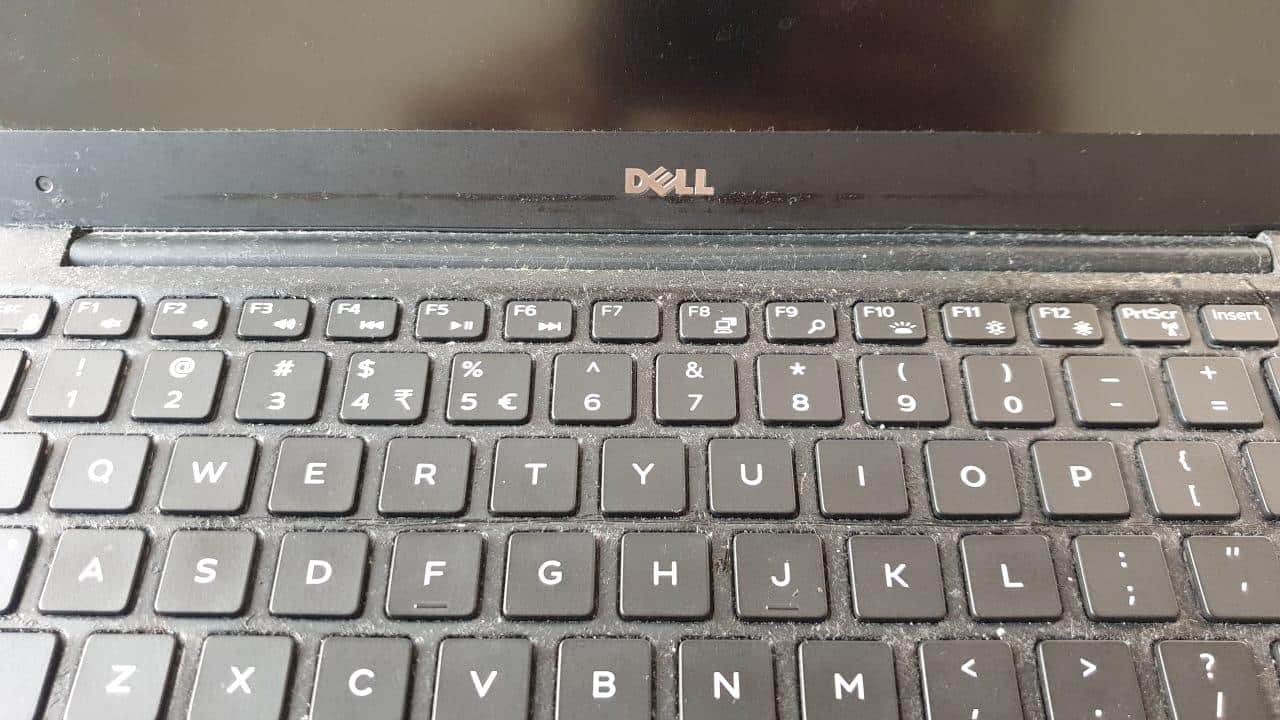
- Look for visible evidence. Check for missing or tilted keycaps, sticky residue, debris between keys, cracks, discoloration, swelling, or impact marks without pressing forcefully on damaged areas.
- Use only model-appropriate low-force cleaning guidance. If no liquid damage is suspected, follow verified Dell model instructions. Do not assume that a generic cleaning method is safe for every keyboard design.
- Avoid invasive cleaning. Do not force keycaps, insert sharp objects, spray liquid into the keyboard, or use heat to dry suspected liquid damage.
- Photograph relevant evidence. A clear photo preserves the condition before further handling and can help a repair professional assess whether cleaning, connection work, or assembly diagnosis is appropriate.
Assess possible liquid or electrical damage
Liquid exposure can damage more than the key surface, and repeated power-on attempts can complicate the situation. Surface drying does not establish that the laptop is electrically safe.
- Stop if liquid entered the keyboard or laptop.
- Stop if the device smells burnt, becomes unusually hot, smokes, sparks, swells, or shows charring.
- Do not continue repeated power-on attempts to see whether the keyboard recovers.
- Keep the device away from further moisture and seek qualified assessment.
Consider internal connection or assembly work
Internal cables, connectors, the keyboard assembly, and related circuitry may require model-specific diagnosis. Opening the laptop can introduce additional risks and can make the original evidence harder to interpret.
- Professional assessment is appropriate when the built-in keyboard fails outside Windows.
- Professional assessment is appropriate when liquid, impact, residue, or missing key hardware is visible.
- Professional assessment is appropriate when safe external checks do not isolate the cause.
Diagnostics and interpretation of results
Built-in, external, pre-Windows, and Dell model-specific tests can show where the symptom occurs. They narrow the possibilities but do not always identify the failed component without physical inspection.
Built-in, external, and pre-Windows evidence
| Test result | What it may suggest | What it cannot prove |
|---|---|---|
| Built-in keyboard works before Windows but fails in Windows | Software, settings, drivers, or an application become more plausible. | It does not completely rule out intermittent hardware. |
| Built-in keyboard fails before Windows while an external keyboard works | An internal keyboard path issue becomes more plausible. | It does not identify whether the cause is the connector, cable, assembly, firmware, or board circuitry. |
| Both built-in and external keyboards fail | Startup, power, Windows, or system-level causes deserve broader investigation. | It does not prove that the keyboard hardware is healthy. |
| Only selected keys fail | Contamination, physical key damage, matrix behavior, or localized hardware damage may be relevant. | The pattern does not identify one exact internal part. |
| Keyboard and display fail together | A broader power, startup, system-board, or electrical issue may be present. | It does not justify replacing the keyboard without wider diagnosis. |
Dell model-specific diagnostics
- Identify the exact Dell model and service tag. Model identification is important because pre-boot tests, indicators, menus, and available procedures can differ.
- Use current Dell support documentation for that model. Locate any available pre-boot assessment or keyboard-related test and verify the instructions before starting.
- Record displayed results exactly. Copy any reference code, message, or failed component category without translating it into a stronger diagnosis than the test provides.
- Compare the diagnostic result with other observations. Use Windows behavior, external-keyboard behavior, and physical evidence together rather than treating one test as a complete component-level diagnosis.
- Use display-related procedures only when model-specific. If the display is unavailable, follow verified guidance for indicators or an external display instead of applying an unverified key combination.
IndiRepair recommends treating a diagnostic code or pre-Windows result as part of the evidence. If the keyboard and display fail together, a broader laptop assessment may be more appropriate than immediately ordering a keyboard.
get your Dell laptop checked by IndiRepair
Safety warnings and DIY stopping conditions
Stop DIY troubleshooting when the laptop shows signs of liquid or electrical damage, when broader startup symptoms appear, or when the next action requires uncertain disassembly. Protecting the device and stored data is more important than completing another keyboard test.
- Stop for liquid exposure, burning smell, smoke, sparks, swelling, unusual heat, melting, or visible charring.
- Stop if the laptop repeatedly powers off or shows electrical instability.
- Stop if the display and keyboard fail together and normal startup behavior cannot be established.
- Do not force keycaps, probe connectors, use liquids or heat, or open the chassis without the correct model-specific procedure and suitable precautions.
- Do not keep powering a potentially liquid-damaged laptop merely to see whether the keyboard recovers.
- Check applicable device, warranty, and repair terms before invasive work rather than assuming universal conditions.
When to stop testing immediately
- Liquid entered the keyboard or laptop.
- The device smells burnt, becomes unusually hot, smokes, sparks, or shows swelling.
- The keyboard and display stop working together and normal startup cannot be safely assessed.
- The next proposed action requires force, disassembly, sharp tools, heat, or unverified model-specific instructions.
Choosing professional repair for a Dell keyboard problem
Professional diagnosis is appropriate when safe reversible checks do not resolve the problem, the keyboard fails outside Windows, physical or liquid damage is suspected, or internal work is required. The final service may involve contamination assessment, safe cleaning, connection inspection, keyboard assembly replacement, or broader hardware diagnosis.
A keyboard replacement should not be assumed before the fault is isolated. The exact Dell model, symptom pattern, physical condition, and diagnostic findings determine whether replacement is suitable or whether another internal or system-level issue needs attention.
Repair decision factors
- Whether the keyboard fails only in Windows or also before Windows loads.
- Whether an external keyboard works consistently.
- Whether one key, a group of keys, or the complete built-in keyboard is affected.
- Whether liquid, residue, impact, missing key hardware, or other visible damage is present.
- Whether the display, power behavior, or other input devices are also affected.
- Whether the owner has the model-specific tools, instructions, and experience needed for safe internal work.
What to provide for a repair assessment
- The exact Dell model and service tag where appropriate.
- The original symptom record and the date the issue began.
- Results from Windows, external-keyboard, and pre-Windows or Dell diagnostics.
- Details of liquid exposure, impact, residue, updates, or recent repairs.
- Photos of visible damage or affected keys.
- Any diagnostic code or message copied exactly as displayed.
Readers who have completed safe checks or found physical damage can ask IndiRepair to assess whether the next step is cleaning, connection inspection, keyboard repair, replacement, or a broader diagnosis. The assessment should determine the repair path rather than assume replacement in advance.
Frequently Asked Questions
Q: Why is my Dell laptop keyboard not working but the touchpad is?
A: The touchpad and keyboard can use separate input paths, so a working touchpad does not prove that the keyboard is healthy. Possible causes include Windows or accessibility settings, a driver or application issue, contamination, an internal keyboard connection, or keyboard hardware damage. Compare the keyboard at the sign-in screen, in more than one Windows application, with an external keyboard, and in suitable Dell pre-Windows diagnostics. If the keyboard fails in every environment or physical damage is visible, professional inspection is more useful than repeatedly changing settings.
Q: What should I do if only some keys on my Dell laptop are not working?
A: Record the exact keys and check whether the same pattern appears at sign-in, in Windows, and in more than one application. Look for debris, sticky residue, tilted keycaps, or impact without forcing the keys or inserting tools between them. A localized pattern may involve contamination, key damage, keyboard matrix behavior, or another hardware fault, but the pattern alone cannot identify the failed part. Persistent localized failure, especially after liquid exposure or impact, should be assessed before attempting keycap removal or opening the laptop.
Q: Can an external keyboard help diagnose a Dell laptop keyboard problem?
A: Yes. An external keyboard can show whether the Dell laptop accepts some keyboard input in the same Windows environment. If the external keyboard works while the built-in keyboard does not, the internal input path becomes more suspicious, but the result does not prove that the keyboard assembly itself has failed. A cable, connector, firmware condition, or related board circuit may produce a similar symptom. If both keyboards fail, broaden the investigation to Windows, startup, power, and system-level causes.
Q: What if my Dell laptop display and keyboard are both not working?
A: Treat simultaneous display and keyboard failure as potentially broader than an isolated keyboard problem. Check safe external signs such as power behavior and indicator activity, then use only Dell model-specific startup or diagnostic guidance. An external display may be relevant only when the procedure is verified for the exact model. Stop immediately for liquid exposure, burning smell, smoke, sparks, swelling, unusual heat, or repeated power instability. A professional assessment may need to examine power, startup, system-board, and display-related causes together.
Q: Should I replace the Dell keyboard myself?
A: DIY replacement depends on the exact Dell model, its construction, the required tools, the available instructions, and evidence that the keyboard assembly is actually the failed part. Replacement is not a reliable first step when the laptop has liquid damage, a damaged connector, a display problem, or symptoms that also occur before Windows loads. Opening the chassis can create additional damage or safety risks. If fault isolation is uncertain, professional assessment can determine whether cleaning, connection work, keyboard replacement, or broader repair is appropriate.
Q: Can a Dell keyboard problem be caused by Windows or a driver?
A: Yes. Windows settings, accessibility options, drivers, updates, background utilities, and a single application can affect keyboard input. Software involvement becomes more plausible when the keyboard works at sign-in or before Windows but fails after Windows loads, or when only one application is affected. Review relevant settings and recent changes, then use supported model-appropriate update or rollback procedures. If the keyboard fails before Windows, has visible damage, or stopped after liquid exposure, software changes are unlikely to explain the entire problem.
Q: Is it safe to clean a Dell laptop keyboard after liquid exposure?
A: Liquid exposure requires more caution than ordinary surface cleaning because fluid can reach internal components. Do not spray liquid, apply heat, force keycaps, repeatedly power-cycle the laptop, or assume that a dry surface means the device is safe. Stop testing when liquid has entered the keyboard and seek qualified assessment. Record what liquid was involved and when the exposure occurred, and photograph visible evidence if it can be done safely. Internal cleaning or repair should follow model-specific procedures.
Conclusion: use the evidence before choosing a repair
A Dell laptop keyboard not working is a symptom, not a confirmed diagnosis. The cause may involve settings, Windows, external devices, contamination, internal connections, keyboard hardware, or a broader startup or power problem.
- Record the exact key pattern and the environments where the keyboard works or fails.
- Perform low-risk external and software checks before considering physical work.
- Compare the built-in keyboard with a known-working external keyboard and suitable Dell diagnostics.
- Interpret every result as evidence rather than proof of one failed component.
- Stop for liquid, electrical warning signs, simultaneous display failure, or uncertain disassembly.
When safe checks do not resolve the problem, IndiRepair can help assess whether the Dell laptop needs keyboard repair, connection inspection, cleaning assessment, replacement, or broader diagnosis. A diagnosis-led approach avoids promising a replacement before the actual fault is understood.