
When a Lenovo laptop keyboard not working is the problem, the keyboard itself may not be the part that has failed. Windows settings, drivers, an application, an external device, debris, liquid exposure, an internal connection, or keyboard hardware can all create similar symptoms. The safest approach is to identify the exact pattern first and then work through reversible checks.
Record whether all keys fail or only selected keys, whether the problem is constant or intermittent, whether typing fails in one application or across Windows, and whether the built-in keyboard responds before Windows loads. These observations provide useful clues, but none of them alone confirms a specific failed component. Avoid opening the laptop prematurely, and stop testing if there is liquid, smoke, burning smell, unusual heat, swelling, sparks, or exposed electrical damage.
What the Lenovo Keyboard Symptom Means
A keyboard that appears unresponsive may have an input-state or settings problem rather than a physical defect. A Windows or driver issue may begin after startup, while an application-specific problem may affect typing in only one program or field. External keyboards, USB accessories, Bluetooth devices, and docking equipment can also alter the symptom.
The distinction between every key failing, a group of keys failing, intermittent input, and application-specific failure changes which checks are useful. A keyboard that works before Windows loads but stops responding after sign-in makes a Windows, settings, or driver explanation more plausible. It does not, by itself, prove that the physical keyboard is healthy.
With practical experience across 500+ laptop repairs, IndiRepair focuses on identifying the underlying fault before recommending a replacement.
book your Lenovo laptop repair with IndiRepair
Symptoms to Record Before Testing
- Whether every key is affected or only a group, such as letters, number-row keys, function keys, arrow keys, or the spacebar.
- Whether the Lenovo laptop keyboard problem started suddenly or became unreliable gradually.
- Whether the keyboard works intermittently or changes when the laptop is moved, pressed, or adjusted at the hinge.
- Whether typing fails in Windows, at the sign-in screen, in one application, in a browser, or only in a particular text field.
- Whether a known-working external USB or Bluetooth keyboard works while the built-in keyboard does not.
- Whether there was recent liquid contact, a drop, pressure on the keyboard, cleaning, a Windows update, a driver change, or a new accessory.
A symptom record helps separate a general Lenovo keyboard not working issue from a problem affecting one application, one key group, or one input path.
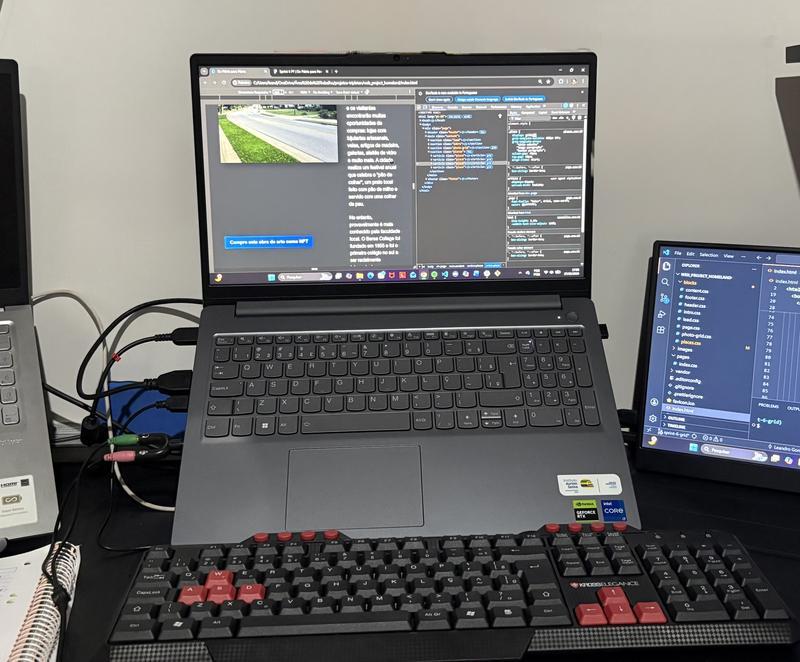
The image would only help identify the built-in keyboard and distinguish it from an external device; it would not establish whether the cause is software, contamination, a connection, or hardware damage.
Possible Causes of a Lenovo Laptop Keyboard Not Working
The following are possible problem categories, not confirmed diagnoses. The same symptom can have different causes on a ThinkPad, IdeaPad, or another Lenovo configuration.
1. Keyboard Settings or Input-State Issues
An enabled accessibility option, changed language or input setting, function-key behavior, or another input-state change can make the keyboard behave unexpectedly. Someone searching for how to unlock keyboard of Lenovo laptop may actually be dealing with a setting rather than a locked physical keyboard.
Clues include a keyboard that works in some contexts, changed behavior after a shortcut, or failure limited to particular functions rather than every key. Exact shortcuts and settings can vary by Lenovo model and Windows version, so avoid assuming that one universal key combination applies to every laptop.
2. Windows, Driver, or Update Problems
A driver is software that helps Windows communicate with hardware. If the keyboard works before Windows loads but fails after startup, Windows, settings, or driver behavior becomes more plausible. A recent update, restart, software installation, or device change is useful context, but it is not proof that the event caused the failure.
A Lenovo IdeaPad keyboard stopped working after an update may still have a physical problem, while a software issue can occur without any recent update. The timing and comparison results matter more than the timing alone.
3. Application-Specific Input Behavior
If typing fails only in one application, browser field, game, remote session, or account screen, the built-in keyboard may not be defective. The application may have lost input focus, a field may reject certain characters, or a remote session may not be passing keystrokes normally.
Testing a simple text field and another application can show whether the issue is limited to one software environment. A ThinkPad keyboard not working in one program is a different diagnostic situation from a keyboard that fails everywhere.
4. External Devices, Docks, or Input Conflicts
USB devices, Bluetooth keyboards, docking equipment, and other accessories can affect the way input is handled. An external keyboard may also make the laptop usable while the built-in keyboard remains unresponsive, but that comparison does not automatically prove that replacement is required.
ThinkPad and IdeaPad are different Lenovo product families, and their keyboard behavior, firmware options, and diagnostic tools can vary by model. Do not assume that a procedure for one family applies unchanged to another.
5. Debris, Liquid, or Contamination
Debris can affect individual keys or make key travel feel abnormal. Liquid exposure is more serious because it can cause immediate or delayed electrical damage, even when the keyboard appears to recover temporarily. Visible debris does not prove that cleaning will resolve the problem, and a clean-looking surface does not rule out contamination beneath the keys.
6. Loose or Damaged Internal Connection
An internal keyboard connection may be loose or damaged after an impact, pressure, hinge movement, or previous service. Intermittent behavior that changes when the laptop is moved can make this category more plausible, but it cannot safely confirm the condition of an internal cable from the outside.
7. Keyboard Hardware Failure
A failed keyboard assembly or related hardware may affect one key group, several keys, or the entire built-in keyboard. A persistent failure across applications and operating-system contexts makes a hardware or connection issue more plausible, especially when an external keyboard works. Confirmation may still require inspection, measurement, or controlled replacement testing by a technician.
Settings and Input-State Causes
When only particular functions behave differently, check the relevant input and accessibility settings using the current Windows interface. The exact menu names and locations may differ by Windows version. Avoid changing several settings at once, because doing so can make it harder to identify which change affected the symptom.
- A keyboard that works in some fields but not others may indicate an application or input-focus issue.
- A changed function-key or shortcut behavior may be related to settings or model-specific input behavior.
- Failure of every key across several contexts makes a simple settings explanation less certain.
Windows, Driver, and Update Causes
Software causes are more plausible when the keyboard responds before Windows loads but stops after startup, or when the issue began after a software or device change. Use the current Windows tools and Lenovo support material for the exact model rather than relying on a generic menu path.
- Record the timing of the failure and any recent update or restart.
- Check whether the symptom affects all applications or only one.
- Review device recognition and driver information before making changes.
- Avoid firmware changes or driver removal when the model-specific instructions are unclear.
Application and External-Device Causes
Typing that fails only in one program, browser field, remote session, or game may not indicate a built-in keyboard fault. A dock or external device may also change the symptom. Disconnecting nonessential accessories and comparing input in more than one context can narrow the possibilities without opening the laptop.
- A successful external keyboard test shows that Windows can receive input through that device, but it does not identify the condition of the built-in keyboard.
- Failure in one application only points toward application behavior or input focus, although it does not rule out every hardware issue.
- Different results at sign-in and inside Windows should be recorded separately.
Debris, Liquid, Connection, and Hardware Causes
Physical causes become more important when selected keys fail persistently, key travel feels abnormal, the symptom follows movement, or there has been liquid exposure or impact. Do not pry off keycaps, pour cleaning fluid into openings, or attempt internal cable work as a routine first response.
- Liquid exposure can create an electrical hazard or delayed corrosion.
- A damaged connection may require model-specific disassembly and inspection.
- A failed keyboard assembly may need replacement, but replacement should not be assumed before diagnosis.
How to Troubleshoot the Keyboard Safely
Start with reversible external observations before changing drivers, resetting software, or opening the laptop. Record what happens after each check. A result narrows the possibilities, but it should be treated as evidence rather than automatic proof of a particular fault.
External and Easiest Checks
- Save the symptom record. Note whether any keys, indicator lights, or touchpad functions respond. If some keys work, record the pattern because a failed group can point toward a different cause from a completely unresponsive keyboard.
- Restart the laptop normally if it is safe. A restart can clear a temporary input or application state. If the keyboard works afterward, the result suggests a transient software condition, but it does not explain every recurrence. Do not restart after liquid exposure or when there is smoke, burning smell, unusual heat, swelling, or other electrical danger.
- Disconnect nonessential external devices. Remove USB accessories, Bluetooth input devices, docks, and other recently connected equipment when their connectors appear undamaged. Test the built-in keyboard again and note whether the symptom changes. A change points toward an input conflict or accessory path, but it does not prove that the keyboard is healthy.
- Test several key types in a simple text field. Compare ordinary letters, modifier keys, navigation keys, the spacebar, and any affected group. If only a group fails, record the exact group; if every key fails, compare the result with the sign-in or pre-Windows context before drawing a conclusion.
- Inspect the surface without prying or applying fluid. Look for liquid residue, lifted keys, cracks, unusual gaps, or visible debris. External inspection can reveal a reason to stop, but a clean surface does not rule out an internal fault.
- Observe intermittent behavior without deliberately flexing the laptop. If movement, pressure, or hinge position changes the symptom, stop repeated testing because a damaged connection may be involved. Record what happened and seek model-appropriate assessment rather than trying to reseat an internal cable yourself.
Windows, Settings, Driver, and Application Checks
- Test more than one application. Type in a basic text field and another safe application. If the keyboard fails only in one program, check that program’s focus and input behavior before treating the issue as a laptop-wide failure.
- Compare the sign-in screen with the Windows desktop. If the keyboard works at sign-in but not after entering Windows, software, settings, or driver behavior becomes more plausible. If it fails in both places, a purely application-specific explanation becomes less likely, though this still does not confirm a hardware fault.
- Review keyboard, accessibility, language, and input settings. Use the current Windows interface and avoid relying on an unverified menu path. Change one relevant setting at a time, then retest so the effect can be identified.
- Use an on-screen or external keyboard as a comparison tool. These options can help you enter text and operate Windows, but they do not prove that the built-in keyboard needs replacement. Compare the result across the same applications and fields.
- Review device recognition and driver information. Check the applicable Windows device tools or Lenovo support utility and record the current state before making changes. A warning or missing device can be useful evidence, but it may have more than one explanation.
- Use only trusted, model-appropriate updates or driver actions. Follow current Lenovo and Windows guidance for the exact model. Avoid removing drivers, changing firmware, or using unofficial tools when the instructions or safety context are unclear.
Software and External-Device Isolation
Comparison tests help separate a built-in keyboard issue from a Windows, application, accessory, or input-path issue. An external keyboard can keep the laptop usable and provide useful evidence, but it cannot independently identify whether the built-in keyboard, its connection, or software is at fault.
Compare Input Paths Without Opening the Laptop
- Connect a known-working compatible external keyboard only when it is safe. Do not use a damaged cable, connector, or accessory. If the laptop has electrical danger signs, stop instead of connecting another device.
- Test the external keyboard in the same applications and fields. If it works where the built-in keyboard fails, a built-in keyboard, connection, or keyboard-specific issue becomes more plausible, although software and firmware explanations remain possible.
- Compare the built-in keyboard across contexts. Record whether it fails everywhere, only after startup, only in one application, or only in a particular input mode. A consistent pattern is more useful than a single successful or failed test.
- Disconnect the external device and repeat the comparison after a safe restart. If the symptom changes, record the change rather than assuming the accessory caused the original fault. If nothing changes, continue with model-appropriate diagnostic guidance.
- Use the comparison to decide the next level of help. Persistent built-in keyboard failure across applications and contexts supports professional assessment, but it does not automatically establish that a replacement keyboard is required.
Interpret the Comparison Results
| Observation | What it may indicate | What it cannot confirm |
|---|---|---|
| Typing fails in one application only | Application behavior, input focus, or a field-specific issue | It does not confirm that the Lenovo keyboard hardware is healthy or faulty |
| Typing fails across Windows applications | A broader Windows, driver, input-state, connection, or hardware issue | It does not identify the exact failed component |
| Keyboard fails before Windows loads | A physical keyboard, connection, firmware, or model-specific input issue becomes more plausible | It does not prove that the keyboard assembly alone needs replacement |
| Only selected keys or a key group fail | Possible contamination, key mechanism damage, matrix or connection issue | It does not distinguish among those causes without further assessment |
| Failure changes after laptop movement | A loose or damaged connection becomes more plausible | It does not justify flexing the laptop or opening it without suitable guidance |
| An external keyboard works while the built-in keyboard does not | A built-in keyboard, connection, or keyboard-specific issue becomes more plausible | It does not rule out software or firmware causes or prove replacement is needed |
IndiRepair recommends treating each comparison as a clue rather than automatic proof that one component has failed. If the built-in keyboard remains unreliable after safe checks, you can get your Lenovo laptop checked by IndiRepair with the symptom pattern and test results available for review.
Model-Appropriate Lenovo Diagnostics
Lenovo model families and individual configurations may provide different firmware, support, and diagnostic options. A ThinkPad and an IdeaPad should not be assumed to use identical key combinations, menus, or utilities. Check Lenovo’s official support material for the exact model when a model-specific procedure is required.
Pre-Windows and Windows-Based Diagnostic Contexts
- Identify where the keyboard responds. Check whether it works at the sign-in screen or in an available pre-Windows diagnostic or firmware interface without relying on an unverified model-specific shortcut. A failure in both contexts makes a purely Windows-based explanation less likely.
- Check current Lenovo support guidance for the exact model. Use the model identifier and verify any diagnostic menu name, key combination, or Lenovo utility before relying on it. Procedures can vary between configurations and software versions.
- Compare pre-Windows and Windows results. Failure only after startup makes software or settings more plausible, while failure in both contexts increases the importance of connection and hardware assessment. Neither result alone is a confirmed diagnosis.
- Record any diagnostic message exactly. Include the model identifier, the wording of the message, and when it appeared. This information can help a technician or support provider interpret the result without repeating unnecessary tests.
- Stop if the process requires unsafe internal work. Do not open the laptop, disconnect an internal battery, handle liquid-damaged hardware, or change firmware without suitable model-specific instructions and a safe working condition.
When to Stop DIY Troubleshooting
Routine testing should stop when the problem may involve an electrical or liquid-related hazard. Continuing to press keys, restart the laptop, or connect accessories can increase damage or risk in those situations.
- Smoke, sparks, a burning smell, unusual heat, swelling, exposed wires, melting, or visible electrical damage.
- Liquid exposure, residue, suspected corrosion, or a spill that reached the keyboard or openings.
- A visibly damaged charger, connector, keyboard surface, or laptop port.
- Intermittent behavior that changes after movement, impact, pressure, or hinge adjustment.
- A persistent failure across applications and safe software checks with no clear reversible explanation.
If the laptop remains safe and usable, back up important data. Do not delay safety action to complete a backup when there is smoke, heat, liquid, sparks, or another electrical warning.
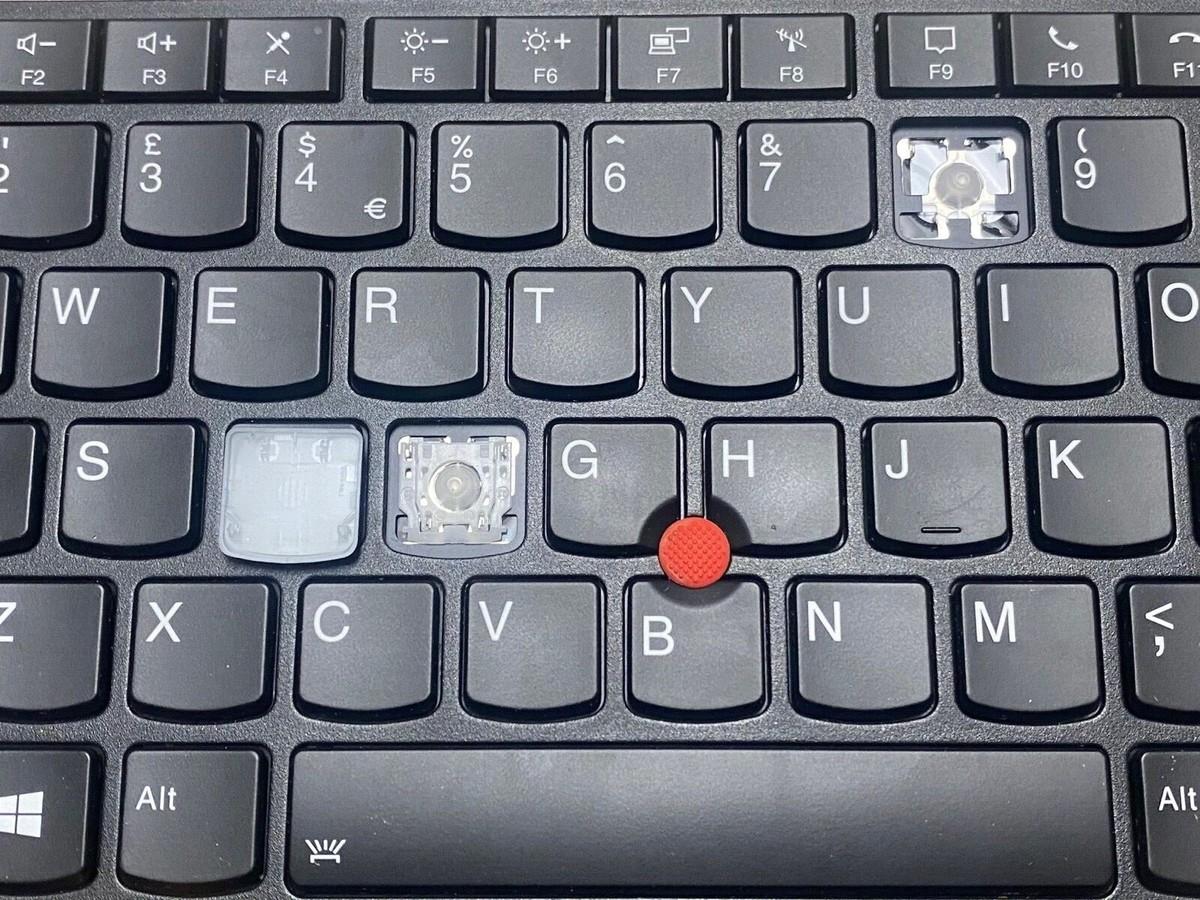
External documentation can help communicate the condition, but internal cable inspection, keyboard removal, corrosion assessment, and board-level diagnosis should be left to a technician with model-appropriate procedures.
Physical Inspection Limits
- Safe external observations include liquid residue, damaged or lifted keys, cracks, unusual heat, odor, and changes in behavior when the laptop is moved.
- Internal connection inspection and keyboard removal require model-specific disassembly procedures and should not be treated as routine troubleshooting.
- A clean-looking keyboard can still have an internal fault, so the absence of visible damage does not rule out professional repair.
When Professional Repair Is Appropriate
Professional assessment becomes appropriate when safe software and external-device checks do not restore the built-in keyboard, when selected key groups fail persistently, or when liquid, impact, pressure, or visible damage is involved. A technician can distinguish among keyboard assembly failure, an internal connection problem, contamination, and related laptop hardware issues rather than assuming that replacement is required.
Provide the model information, symptom timing, liquid or impact history, application comparison, external-keyboard result, and any diagnostic messages. The appropriate service may be diagnosis, a cleaning assessment, connection work, or keyboard replacement depending on the findings.
Repair Decision Factors
- Whether all keys, selected keys, or intermittent key groups are affected.
- Whether the problem appears before Windows loads, only after startup, or only inside one application.
- Whether an external keyboard provides input while the built-in keyboard remains unresponsive.
- Whether liquid, impact, pressure, unusual heat, odor, or visible damage is involved.
- Whether continued testing could increase risk or interfere with work or study.
IndiRepair has practical experience diagnosing and repairing laptop problems, but a replacement should not be promised before the underlying cause is confirmed. For persistent built-in keyboard symptoms, consider laptop keyboard repair service as a next step toward model-appropriate assessment.
Frequently Asked Questions
Q: How do I unlock the keyboard of a Lenovo laptop?
A: There is no single universal unlock procedure for every Lenovo laptop. First identify whether all keys fail or only certain functions, then compare typing in more than one application and at the sign-in screen. A changed input setting, accessibility option, function-key behavior, or application issue may resemble a locked keyboard. If the keyboard fails everywhere, including before Windows loads, broaden the diagnosis to a connection or hardware problem. Avoid unverified shortcuts that may vary by model and Windows version, and check Lenovo guidance for the exact model if a model-specific setting is suspected.
Q: Why is my Lenovo ThinkPad keyboard not working but an external keyboard works?
A: This comparison makes a built-in keyboard, internal connection, or keyboard-specific issue more plausible, but it does not prove that replacement is required. Software and firmware causes can still affect the built-in input path. Record whether the built-in keyboard also fails at sign-in or before Windows loads, whether all keys or only a group fail, and whether the symptom changes after a safe restart. If the built-in keyboard remains unresponsive across applications and contexts, professional inspection is appropriate rather than opening the ThinkPad without model-specific guidance.
Q: What should I do if my Lenovo IdeaPad keyboard stopped working suddenly?
A: Note what happened immediately before the failure, including a restart, update, new accessory, impact, pressure, or liquid exposure. If there are no safety warning signs, disconnect nonessential external devices, restart normally, and compare typing in more than one application and at the sign-in screen. If only one program is affected, investigate application input behavior. If the failure affects the entire laptop or follows liquid, heat, or physical damage, stop routine testing and seek assessment. A sudden failure can be software-related or hardware-related, so timing alone does not confirm the cause.
Q: How can I tell whether the problem is Windows or the Lenovo keyboard hardware?
A: Compare the keyboard in more than one application and, where practical, at the sign-in screen or an available pre-Windows diagnostic context. Failure only after Windows starts makes software, settings, or driver behavior more plausible. Failure before Windows loads as well makes a physical keyboard, connection, or firmware-related issue more important to investigate. An external keyboard can provide a useful comparison, but it does not independently identify the failed component. Treat every result as evidence and record the pattern before changing drivers or attempting internal work.
Q: When should I stop troubleshooting a Lenovo laptop keyboard problem?
A: Stop immediately when there is smoke, a spark, burning smell, unusual heat, swelling, exposed wiring, melting, liquid exposure, or a visibly damaged port, charger, or keyboard. Do not keep pressing keys, restarting, or applying liquid cleaner after a spill. You should also stop escalating DIY checks when the symptom changes with movement, follows an impact, or persists across applications and safe software checks. At that point, preserve the symptom record and seek professional assessment. A technician can determine whether the next step is diagnosis, cleaning assessment, connection work, or keyboard replacement.
Conclusion
A Lenovo laptop keyboard not working is a symptom, not a confirmed diagnosis. Possible explanations include settings, Windows or drivers, application behavior, external devices, contamination, internal connections, and keyboard hardware. The most useful evidence is the exact key pattern, timing of failure, application comparison, external-keyboard comparison, and safe pre-Windows or Windows diagnostic context.
- Record the symptom before changing anything.
- Complete safe, reversible external and software checks.
- Compare applications and input devices without assuming the result proves a replacement is needed.
- Use model-appropriate Lenovo guidance for ThinkPad, IdeaPad, and other configurations.
- Stop immediately for liquid, smoke, sparks, burning smell, swelling, unusual heat, or exposed damage.
When the built-in keyboard remains unreliable or internal damage is suspected, a diagnosis-first approach is safer than guessing. IndiRepair can help assess the symptom and determine whether the appropriate next step is connection work, cleaning assessment, keyboard repair, or replacement. You can explore Lenovo laptop repair with IndiRepair without assuming in advance which repair will be required.