
If your Lenovo keyboard is not working after a Windows update, the update may have changed a driver, input setting, or system component, but the timing does not prove that the keyboard hardware has failed. The failure may affect every key, selected keys, keyboard shortcuts, sign-in typing, or only one application.
The safest approach is to record the exact symptom first, compare Windows and application behavior, test another input method, and then review reversible software changes. Avoid forcing keys, opening the laptop, or repeatedly changing drivers before you know what works and what does not.
Immediate Symptom Framing and Safety Note
A Lenovo laptop keyboard that stopped working after an update can have a software-related problem, a settings problem, an application-specific issue, or a physical fault that became noticeable at the same time. A complete failure is diagnostically different from a few dead keys, delayed input, unexpected characters, or shortcuts that no longer respond.
- Use the Windows on-screen keyboard or a compatible external keyboard only as a temporary way to sign in, record evidence, and continue safe checks.
- Note whether the touchpad, display, power button, and other Windows functions still respond.
- Do not press unusually hard on keys or repeatedly bend the laptop around the palm rest to test for a connection issue.
- Stop testing and seek professional help if there is liquid exposure, smoke, sparks, burning odor, swelling, exposed damage, melting, or unusual heat.
IndiRepair can help when basic evidence suggests that the built-in keyboard needs closer assessment rather than more unplanned software changes. A useful first step is a diagnosis-led laptop keyboard repair service request that includes the Lenovo model and the symptoms observed.
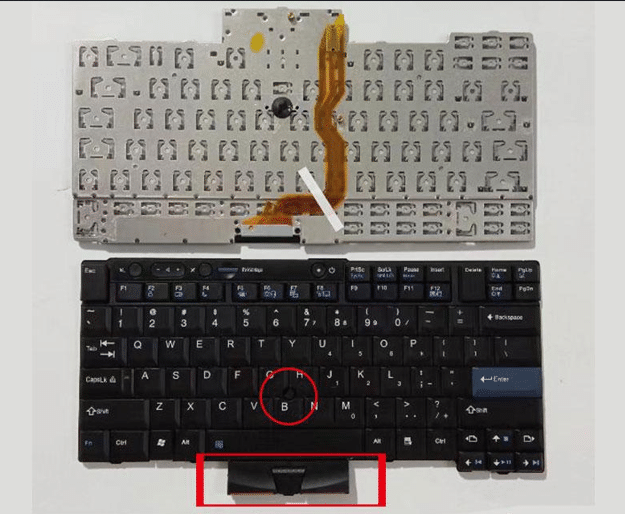
The image marker illustrates symptom identification only. A visible affected area does not confirm whether the cause is Windows, a driver, a keyboard connection, or the keyboard assembly itself.
What the Post-Update Keyboard Symptom Can Mean
The symptom pattern helps narrow the investigation, but no single observation proves the cause. A keyboard that works at sign-in but fails in one application points in a different direction from a keyboard that fails before Windows loads or has a group of physically unresponsive keys.
| Observed pattern | What it may suggest | Evidence to collect |
|---|---|---|
| Every built-in key fails in Windows | A Windows input, driver, device-recognition, connection, or hardware issue remains possible. | Compare sign-in behavior, external keyboard input, Device Manager status, and any suitable pre-Windows test. |
| Only selected keys or one area fail | A localized keyboard, contamination, wear, or internal connection issue becomes more plausible, although software cannot be ruled out. | Record the exact keys and whether their behavior changes with movement or pressure. Do not press harder to test. |
| Typing fails only in one application | The application, focus, extension, remote session, layout, or input handling may be involved. | Test a basic Windows text field and another application. |
| Keys produce unexpected characters | A keyboard layout, language, accessibility, or application context may be affecting interpretation rather than key detection. | Compare the selected layout and behavior in more than one text field. |
| The keyboard fails outside normal Windows use | A Windows-only explanation becomes less likely if a valid model-appropriate test confirms the same failure. | Use only documented Lenovo or pre-Windows diagnostics for the exact model. |
Classify the Failure Before Changing Anything
Record the original behavior before uninstalling a device, rolling back an update, or changing keyboard settings. Preserving the starting evidence makes later results easier to interpret.
- Record the affected keys. Check whether letters, numbers, modifier keys, arrow keys, and function-related keys behave differently. A complete failure and a localized group of dead keys do not carry the same diagnostic meaning.
- Check the rest of the laptop. Note whether the touchpad, mouse, display, power controls, and Windows interface respond. If an external input method works, use it to document the symptoms rather than assuming the built-in keyboard is physically damaged.
- Record the timing. Write down whether the Lenovo keyboard failed immediately after the update, after a restart, or after another event such as cleaning, impact, or liquid exposure. Timing is useful evidence but is not confirmation of causation.
- Compare different contexts. Test the sign-in screen, Windows Search, a simple text field, a browser, and another application where practical. A failure limited to one context should not be treated as a laptop-wide keyboard failure.
Use Symptom Patterns as Evidence, Not Proof
- A working external keyboard shows that Windows can accept keyboard input, but it does not identify whether the built-in keyboard, its connection, or its device entry is at fault.
- A failure limited to one application makes an application or input-context issue more plausible than a complete laptop keyboard failure.
- A failure that appears before Windows loads can make a Windows-only cause less likely, provided the test is appropriate for the Lenovo model.
- Intermittent response deserves careful attention because movement, debris, liquid exposure, wear, or a connection problem may be involved.
Symptoms to Record Before Troubleshooting
A short symptom record prevents repeated changes from obscuring the original problem. Include the model family if known, such as IdeaPad, without assuming that all Lenovo models use the same keyboard hardware or diagnostic menus.
- The Lenovo model and serial information if available.
- The Windows version and approximate update time.
- Whether the keyboard is fully unresponsive, partly responsive, intermittent, delayed, or producing unexpected characters.
- Whether typing fails at sign-in, in Windows Search, in a browser, in a text editor, or only in one application.
- Whether an external keyboard, on-screen keyboard, touchpad, and mouse work.
- Any liquid exposure, impact, cleaning, keyboard replacement, repair, or pressure around the palm rest.
- Any error message, Device Manager change, restart behavior, or change after completing or undoing an update-related action.
Possible Causes of a Lenovo Keyboard That Stops Working After an Update
A Lenovo keyboard that stopped working after an update may have a software or hardware cause. The following categories are possibilities to investigate, not confirmed diagnoses.
1. Windows Update or Incomplete Update State
A Windows update or restart may have changed input behavior, installed a component that does not work correctly with the current system state, or left an update process incomplete. Review the update history and symptom timing before claiming that a particular update caused the failure. The update may be related, coincidental, or only the event that made an existing issue noticeable.
2. Keyboard Driver or Device-Entry Problem
Windows uses device software and system entries to communicate with the built-in keyboard. A driver can be changed, disabled, missing, or malfunctioning after an update. A driver issue is more plausible when the device status changes with Windows configuration, but reinstalling a driver is not a universal fix for every Lenovo keyboard failure.
3. Keyboard Settings, Layout, or Accessibility Change
Keyboard layouts, language selection, accessibility features, and input services can change how keystrokes are interpreted. These settings may explain unexpected characters or changed shortcuts, but they are less likely to explain a localized group of physically dead keys. Compare behavior in a simple Windows text field before treating the keyboard as damaged.
4. Application-Specific Input Problem
A browser, remote desktop session, virtual machine, extension, security tool, or application setting can interfere with typing in its own context. If the Lenovo keyboard works in Windows Search or a basic text field but fails in one program, the application or its input context deserves attention before hardware replacement is considered.
5. Physical Keyboard, Connection, or Contamination Fault
A keyboard assembly, internal connection, debris, liquid exposure, wear, or board-level issue can fail independently of Windows. Selected keys, a local keyboard area, intermittent response, or behavior that changes after movement may justify hardware assessment. Do not open the laptop unless the exact model procedure, power-isolation requirements, data protection, and safety implications are known.
6. Firmware or Pre-Windows Behavior
Firmware, embedded-controller behavior, or a model-specific pre-Windows issue may need consideration when the keyboard also fails outside ordinary Windows use. Any Lenovo-specific firmware or diagnostic procedure must be verified for the exact model before it is attempted. An uncertain pre-Windows result should be treated as unresolved evidence, not as proof of a particular board failure.
Windows, Driver, and Settings Causes
A keyboard driver allows Windows to communicate with the built-in keyboard, while settings determine how detected keystrokes are interpreted. A change after a Windows 11 update can therefore be relevant, but the device state and symptom pattern should support that conclusion.
- Check whether Windows recognizes a keyboard-related device and reports an error or disabled state.
- Compare the selected language and keyboard layout if characters are wrong rather than absent.
- Consider accessibility and input settings when key behavior changes across Windows contexts.
- Use an appropriate Windows or Lenovo-provided source if a driver reinstall is later justified.
Application and Input-Context Causes
Typing that fails in only one application may reflect focus, extensions, remote sessions, virtual machines, or application-specific input handling. A simple Windows text field provides a cleaner comparison than a complex program with its own keyboard shortcuts.
- Unexpected characters may relate to layout or language selection rather than a dead keyboard.
- A browser or remote session may capture shortcuts differently from Windows itself.
- An application restart can be useful evidence about that application, but improvement does not prove that the built-in keyboard has no hardware issue.
Physical and Internal Hardware Causes
Hardware assessment becomes more relevant when the same keys fail across multiple applications, the response is intermittent, or physical warning signs are present. A technician should distinguish the keyboard assembly from its internal connection and other surrounding hardware before replacement is recommended.
- Localized key failures can indicate a problem in a particular keyboard area.
- Liquid, impact, contamination, or visible chassis damage may require professional handling.
- A keyboard can fail independently of a Windows update even when the timing appears connected.
- Routine internal disassembly is not recommended without model-specific instructions and appropriate safety controls.
Low-Risk Troubleshooting and Diagnostic Checks
Work through reversible checks first. Each action should produce an observation that helps decide whether to continue with Windows troubleshooting, investigate an application, or seek hardware diagnosis.
Complete Basic and External Checks
- Restart the laptop normally if Windows is responsive. Save available work before restarting. If the keyboard returns after the restart, the system may have had a temporary input or update-state problem; record that improvement rather than assuming the underlying cause is permanently resolved.
- Test different groups of keys. Try letters, numbers, modifier keys, arrow keys, and function-related keys without applying extra force. If only a local group fails, record the pattern because it may carry more hardware significance than a complete Windows input failure.
- Use the on-screen keyboard or a known-working external keyboard. If Windows accepts input from another method, the operating system is still processing keyboard input. That result narrows the investigation but does not by itself prove that the built-in keyboard needs replacement.
- Disconnect unnecessary peripherals. Remove nonessential USB devices and confirm that an external keyboard is securely connected and recognized. If the external keyboard also fails, investigate Windows input or the connection before focusing only on the built-in keyboard.
Check Windows and Application Input
- Compare more than one simple text field. Test Windows Search, a basic text editor, and another uncomplicated input area. If typing works in these fields but not in one program, investigate that program’s focus, extensions, settings, or session environment.
- Check the selected keyboard layout and language. This check is relevant when keys produce unexpected characters or shortcuts rather than no response. A layout correction may restore expected characters, while it will not repair a physically unresponsive key.
- Compare another available Windows user context. Use another account or basic Windows environment only when it is already available and changing accounts will not affect important data. A difference between contexts supports a settings or profile-related explanation.
- Restart the affected application. If the keyboard works after the application restarts, treat the result as evidence about that application rather than proof that all keyboard hardware is healthy.
Review Windows Update and Device State
- Review Windows Update history. Record the relevant update date and compare it with the first failure. A close timeline increases suspicion of an update relationship, but it does not identify which component changed or exclude a coincidental hardware fault.
- Check the keyboard-related device entry in Device Manager. Use an external keyboard or on-screen keyboard if necessary. Look for recognition, status messages, or a disabled state, while allowing for differences in menu labels between Windows versions.
- Test an available driver rollback only when evidence supports it. A rollback is most informative when the keyboard worked before a documented driver change and the option is available. If no relevant change occurs, avoid repeating the same action and reassess the evidence.
- Reinstall the keyboard driver only from an appropriate Windows or Lenovo-provided source. Restart as requested and compare the result with the original symptom. A driver reinstall can address a device-state problem, but it cannot repair liquid damage, a failed keyboard assembly, or an internal connection.
Consider Update Recovery and Model-Appropriate Diagnostics
- Confirm that the update remains the strongest lead. Compare the recorded timing, Device Manager state, application behavior, and external-keyboard result before changing the update state.
- Review any available Windows recovery or uninstall option. Read the available warnings and consider data protection before using recovery. If the option is unavailable or its effect is unclear, do not force a recovery path.
- Run only a documented Lenovo or pre-Windows keyboard diagnostic for the exact model. Lenovo model families can differ in diagnostic access and interpretation. If the correct procedure is not known, use official Lenovo documentation or seek professional assistance rather than guessing.
- Stop when the result is unclear. Repeated driver changes or recovery attempts can make the original evidence harder to interpret. Preserve the update history, messages, and observed behavior for the next diagnostic stage.
How to Interpret the Troubleshooting Results
The result of a check is evidence, not automatically a confirmed diagnosis. A software change that restores typing increases suspicion of a Windows-related cause, while a persistent built-in keyboard failure across contexts increases the value of hardware assessment.
| Result | More likely interpretation | Practical next step |
|---|---|---|
| The built-in keyboard fails, but an external keyboard works | Windows can process keyboard input, while the built-in keyboard, its device state, connection, or hardware remains under investigation. | Review device state and software evidence, then consider hardware diagnosis if the built-in keyboard remains unresponsive. |
| Typing fails only in one application | An application, focus, extension, session, or input-context issue is more plausible than a complete laptop keyboard failure. | Compare a basic Windows text field and investigate the affected application. |
| The keyboard improves after a driver rollback or update recovery | The Windows update or driver state may be related, but the exact component responsible is not proven. | Record the change and avoid unnecessary further modifications while the system is working. |
| The same keys fail across applications and suitable diagnostic contexts | A keyboard assembly, connection, or related hardware fault becomes more plausible. | Stop repeated software changes and arrange a diagnosis-led inspection. |
| The evidence is mixed or the test is unavailable | The cause remains unresolved rather than automatically being software or hardware. | Provide the symptom record and update history to a technician for further testing. |
Software-Leaning Results
Software investigation remains reasonable when the keyboard works in one Windows context but not another, changes after a documented driver or update-state action, or produces unexpected characters linked to a layout. An external keyboard and the on-screen keyboard working at the same time show that Windows is still accepting some input, but they do not settle the built-in keyboard diagnosis.
- The problem is limited to one application or user context.
- A documented driver or update-state change alters the symptom.
- Keyboard layout or language changes explain unexpected characters.
- The built-in keyboard works in a valid pre-Windows or sign-in context but fails only after Windows loads.
Hardware-Leaning or Unresolved Results
Further software changes become less useful when the same built-in keys fail in every relevant context, the problem is intermittent or localized, or liquid, impact, visible damage, and unusual heat are involved. A failed software recovery does not prove that the keyboard must be replaced, but it supports a more direct hardware assessment.
- The same key group fails across multiple Windows applications.
- The symptom changes with movement or pressure around the keyboard area.
- The keyboard has liquid exposure, impact, contamination, visible damage, or unusual heat.
- The device state and diagnostic evidence require technical interpretation.
IndiRepair recommends treating each test result as a clue rather than automatic proof that one component has failed. After meaningful software and input checks, readers can get your Lenovo laptop checked by IndiRepair with the model, exact key symptoms, update timing, and test results ready.
When to Stop DIY Troubleshooting
Stop self-testing when the laptop presents a safety concern, when physical damage is visible, or when repeated software changes have not altered a stable built-in keyboard failure. Continuing to use a device with a possible electrical, battery, heat, or liquid-related problem is not a safe way to complete more keyboard tests.
- Liquid exposure, swelling, smoke, sparks, burning odor, melting, or extreme heat.
- Exposed wires, a visibly damaged keyboard or chassis, or a damaged power-related port or charger.
- Repeated driver changes with no improvement and increasingly strong evidence of a built-in keyboard or internal connection issue.
- Uncertainty about opening the laptop, isolating power, protecting data, or following the exact model procedure.
- An unclear diagnostic result that could lead to unnecessary replacement or firmware changes.
Information to Prepare for a Technician
A technician can interpret the problem more efficiently when the original evidence is preserved. Do not describe the Windows update as the confirmed cause unless testing has established that relationship.
- Lenovo model and serial information if available.
- The exact keys or key groups affected.
- When the failure started and which Windows update was installed around that time.
- Whether the keyboard works at sign-in, in multiple applications, with an external keyboard, or in a suitable pre-Windows diagnostic.
- Any liquid, impact, cleaning, repair, or intermittent behavior.
Professional Repair or Diagnosis Transition
Professional diagnosis becomes appropriate when the built-in Lenovo keyboard remains unreliable after suitable reversible checks, when physical damage is suspected, or when the available evidence cannot distinguish a keyboard fault from an internal connection or board issue. Diagnosis should come before automatic replacement, especially when the Windows update remains a plausible software or configuration factor.
With experience across 500+ laptop repairs, IndiRepair focuses on identifying the underlying fault before recommending a repair path. Readers can book your Lenovo laptop repair with IndiRepair and provide the model, affected keys, update timing, and completed checks.
When Keyboard Replacement May Be Considered
- Replacement may be considered only after the keyboard itself, its connection, and relevant surrounding hardware have been assessed.
- The model-specific part and installation method must be verified before a replacement recommendation is made.
- A technician should explain whether the symptom is consistent with the keyboard assembly or another internal component.
- If the update remains a plausible cause, software recovery should not be abandoned solely because the timing was unusual.
A repair decision depends on the Lenovo model, symptom pattern, physical condition, internal findings, and the feasibility of restoring reliable input. IndiRepair does not need to assume a replacement is required before those facts are checked.
Conclusion: Restore Typing Without Assuming Hardware Failure
A Lenovo keyboard not working after a Windows update is not automatically proof of a damaged keyboard. The update timing is an important clue, but the diagnosis should be based on the full pattern: which keys fail, where the failure occurs, whether another keyboard works, what Windows reports, and whether a suitable recovery changes the result.
- Record the exact symptom and update timing.
- Compare sign-in, Windows, and application behavior.
- Use external input and the on-screen keyboard as diagnostic aids.
- Review settings, device state, driver evidence, and update recovery options cautiously.
- Stop when physical warning signs, unresolved internal faults, or repeated unsuccessful changes make professional diagnosis safer.
If safe checks do not restore dependable typing, or if hardware warning signs are present, consider Lenovo laptop repair with IndiRepair. A diagnosis-led decision can help avoid unnecessary keyboard replacement while addressing a genuine hardware fault when the evidence supports it.
Frequently Asked Questions
Q: Why did my Lenovo keyboard stop working after a Windows 11 update?
A: A Windows 11 update may coincide with a changed keyboard driver, device state, input setting, or incomplete restart, but the timing does not prove that the update damaged the keyboard. The failure may also be caused by an application, keyboard layout, internal connection, liquid exposure, wear, or another hardware issue that became noticeable at the same time. Compare the built-in keyboard with an external keyboard, test more than one Windows text field, review update history, and check the keyboard-related device state. If the same keys remain unresponsive everywhere, hardware diagnosis becomes more appropriate.
Q: How can I tell whether the problem is a Lenovo keyboard driver or a hardware fault?
A: A driver or Windows cause is more plausible when the keyboard works in one context, changes after a documented driver or update recovery, or fails only after Windows loads. A hardware cause becomes more plausible when the same keys fail across applications and suitable pre-Windows testing, the response is intermittent, or liquid, impact, contamination, or visible damage is present. An external keyboard working does not prove the built-in keyboard is defective; it only shows that Windows can process another input device. Treat rollback or reinstall results as evidence rather than a guaranteed diagnosis.
Q: What should I do if my Lenovo laptop keyboard works with an external keyboard but not by itself?
A: Use the external keyboard temporarily to save work and record the symptom. Then compare the built-in keyboard in several Windows applications, check whether the keyboard-related device is recognized, and review the timing of the Windows update. External-keyboard success narrows the problem toward the built-in keyboard, its device state, internal connection, or related settings, but it does not identify the exact fault. If software checks do not change the built-in keyboard or selected keys fail consistently, avoid opening the laptop without model-specific knowledge and arrange a professional inspection.
Q: Can I reinstall the Lenovo keyboard driver if the built-in keyboard is not responding?
A: You may be able to review or reinstall the keyboard device through Windows using an external keyboard or the on-screen keyboard, but reinstalling a driver is appropriate only when the device evidence supports a software problem. Use an appropriate Windows or Lenovo-provided source, follow the available restart instructions, and compare the result with the original symptom. A driver reinstall will not repair liquid damage, a failed keyboard assembly, or an internal connection. If the device state is unclear or the keyboard fails outside Windows as well, stop making repeated changes and seek model-appropriate diagnosis.
Q: Why does my Lenovo keyboard work in some applications but not others?
A: Application-specific failure can result from focus, keyboard shortcuts, extensions, remote desktop sessions, virtual machines, language settings, or the application’s own input handling. Test Windows Search or a basic text field and compare the result with the affected program. If typing works in simple Windows fields, the laptop-wide keyboard is less likely to be completely unresponsive. Restarting or reviewing the affected application may help, but an improvement inside one program does not prove that every keyboard function is healthy. Investigate system-wide behavior before considering hardware repair.
Q: When should I stop troubleshooting and have the Lenovo keyboard professionally diagnosed?
A: Stop DIY troubleshooting after liquid exposure, smoke, sparks, burning odor, swelling, unusual heat, exposed damage, melting, or a visibly damaged chassis or port. Professional diagnosis is also appropriate when the same built-in keys fail across applications, software recovery does not change the symptom, the problem is intermittent, or you cannot safely access model-specific diagnostic procedures. Preserve the Lenovo model, affected keys, update timing, error messages, and test results. A technician can then distinguish a keyboard assembly issue from an internal connection, board problem, or unresolved Windows cause before recommending repair.