
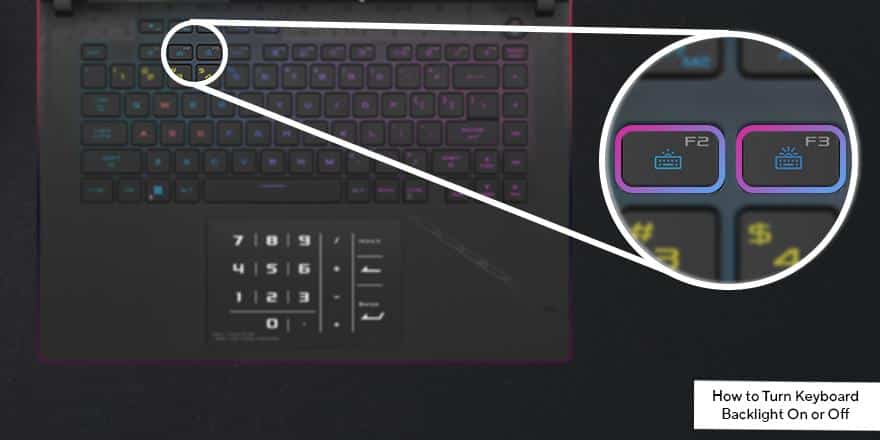
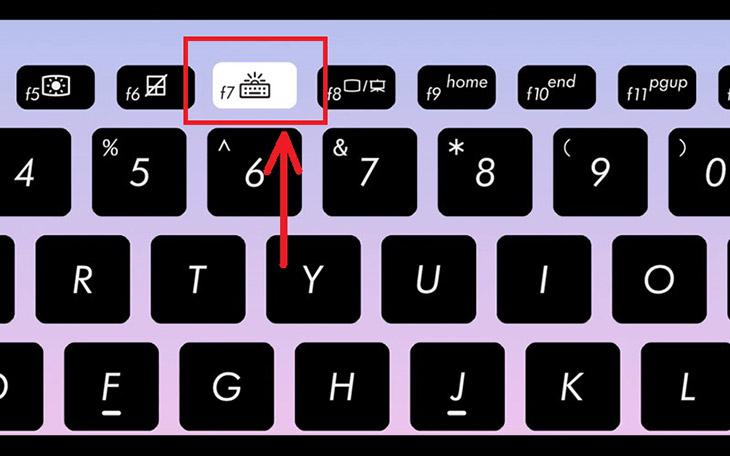
If you are searching for how to on keyboard light in ASUS laptop, first identify the key with a keyboard-backlight or illumination symbol and use the model-specific key or key combination associated with it. ASUS keyboard-light controls vary by model, so one shortcut should not be treated as universal.
A dark keyboard does not automatically mean the keyboard has failed. The backlight may be controlled by a function key, ASUS software, a Windows setting, firmware behavior, or model support. Confirm the exact ASUS model and check whether the keyboard has a backlight symbol before changing drivers or opening the laptop.
If the correct control is confirmed but the keyboard remains dark, IndiRepair can help with a laptop keyboard repair service after the basic checks have been completed.
How to Turn On the ASUS Keyboard Backlight
To turn on an ASUS laptop keyboard light, locate the keyboard-backlight icon on the function row or another key, then press the model-specific key or the documented Fn combination. Depending on the model, repeated presses may cycle through off, low, high, or another supported brightness state.
Some ASUS laptops provide an ASUS control application or another supported control panel for keyboard illumination. The exact application, menu, and shortcut depend on the model and operating system, so check official ASUS documentation for the precise instructions rather than installing an unrelated utility.
Identify the Correct Keyboard Control
The correct control is normally identified by a keyboard-light, illuminated-keyboard, or similar symbol. If no symbol is present, the ASUS model may not include a backlit keyboard, or the control may be documented in the model’s specifications rather than printed clearly on the keyboard.
- Confirm the full ASUS model name or number. Check the laptop label, system information, purchase documentation, or the model information shown in the operating system. The exact model is essential because ASUS keyboard controls differ across product lines.
- Inspect the function row and nearby keys. Look for a keyboard-light or illumination icon instead of assuming that every function key controls the backlight.
- Test the documented direct key or Fn combination. Use the control specified for the exact ASUS model. Do not assume that a shortcut used on another ASUS laptop will work on yours.
- Press the control deliberately and observe the keyboard. A supported model may change between brightness levels or switch the light off after repeated presses. If there is no response, record the result rather than repeatedly pressing unrelated keys.
- Verify that the model was sold with a backlit keyboard. If no backlight icon or supported setting exists, confirm the feature in official ASUS specifications before treating the dark keyboard as a fault.
A clear photograph of the keyboard area can help identify the symbol and surrounding controls, but the photograph cannot confirm whether a particular ASUS model includes a backlight.
Once the model and control are known, the next step is to determine whether the dark keyboard is a control problem, an unsupported feature, a software issue, or a hardware fault.
What a Non-Working Keyboard Backlight Does—and Does Not—Confirm
An ASUS keyboard that remains dark confirms only that the expected illumination is not visible under the current conditions. The symptom alone does not prove that the keyboard, motherboard circuit, cable, or backlight layer has failed.
| Observation | What it may suggest | What it does not prove |
|---|---|---|
| No response to the identified backlight control | The wrong control, function-key mode, unsupported model, software setting, or a fault may be involved. | It does not prove that the keyboard needs replacement. |
| Keys type normally but the light stays off | The typing circuit may be working while the lighting control or backlight system has a separate issue. | It does not rule out software, firmware, cable, or lighting-layer problems. |
| The light appears before Windows loads but disappears afterward | Windows settings, ASUS software, or a driver-related control path may be affecting the light. | It does not identify a particular driver or utility as the confirmed cause. |
| The keyboard has no backlight symbol or supported setting | The model may not have been sold with a backlit keyboard. | It does not prove that the backlight is hidden or disabled. |
| Several keyboard functions fail after liquid exposure or impact | An internal keyboard, cable, connector, or broader system fault becomes more concerning. | It does not identify the failed component without inspection. |
Observations to Record Before Changing Settings
- Whether the exact ASUS model includes a backlit keyboard.
- Whether a backlight icon or related control is visible.
- Whether the keys type normally and whether other function-key controls respond.
- Whether the light appears during startup or another pre-Windows state.
- Whether the symptom is constant, intermittent, limited to one brightness level, or associated with physical damage or liquid exposure.
Recording these observations prevents unrelated software changes and gives a repair provider better evidence if the ASUS keyboard backlight remains unavailable.
Possible Causes of an ASUS Keyboard Backlight Failure
1. Incorrect Backlight Control or Function-Key Mode
The backlight may be working, but the wrong key or key combination may be pressed. Function-key mode can also change how a key behaves. This possibility is more likely when the keyboard types normally and other keyboard functions work.
2. Unsupported Backlit Keyboard Configuration
Not every ASUS laptop includes an illuminated keyboard. A missing backlight icon or absent lighting option may reflect the original model configuration rather than a failure. Confirming the exact model prevents an unsupported feature from being treated as a repair fault.
3. ASUS Utility or Windows Setting Problem
An ASUS control utility, keyboard setting, accessibility option, or other Windows control path may be unavailable or unable to communicate with the keyboard-light function. This possibility becomes more relevant when the light worked previously or behaves differently before and after Windows starts.
4. Driver or Recent Software Change
A Windows update, ASUS system component, keyboard-related driver, or other recent software change can interfere with model-specific hotkeys. The timing of the symptom is useful evidence, but it does not by itself identify which software component caused the problem.
5. Firmware or Pre-Windows Control Limitation
Firmware behavior can affect how the keyboard backlight is exposed before or after Windows loads. Model-specific documentation is important because firmware menus and supported procedures are not identical across ASUS laptops.
6. Internal Keyboard or Backlight Hardware Fault
A keyboard assembly, backlight layer, cable, connector, or related internal circuit may be faulty. Liquid exposure, impact, visible damage, flickering that changes when the chassis moves, or failure of several keyboard functions increases concern, but a confirmed diagnosis requires appropriate testing.
How the Cause Categories Differ
- A shortcut or function-key issue affects the control path and may leave normal typing unaffected.
- A model-support issue explains why no backlight icon or supported setting exists.
- A software or driver issue may appear after a Windows, ASUS utility, or system-component change.
- A hardware issue becomes more plausible when physical damage, liquid exposure, connection symptoms, or multiple keyboard failures are present.
Low-Risk Troubleshooting for the Keyboard Light
Use the following reversible checks before changing drivers, updating firmware, or opening the ASUS laptop. Each result is evidence that narrows the diagnosis; it is not automatically proof of a failed part.
- Save open work and confirm normal operation. Make sure the ASUS laptop is stable before testing the lighting control. If the system is freezing or showing broader electrical symptoms, preserve your data and address those symptoms before repeating keyboard shortcuts.
- Confirm the exact model and supported keyboard layout. Compare the model with official ASUS documentation. If the specifications do not list a backlit keyboard, the dark keys may reflect the original configuration rather than a fault.
- Press the identified backlight key or model-specific Fn combination. Watch for any change in brightness or illumination. A response indicates that the light and control path are at least partly functional, while no response means that model support, function-key mode, software, firmware, or hardware still needs consideration.
- Check documented function-key or function-lock behavior. Use only the controls described for the ASUS model. If changing the documented mode makes the backlight control respond, the original symptom was likely related to key-mode behavior rather than a failed keyboard.
- Restart the laptop and retest the same control. A restart can clear a temporary software state. If the light returns after restarting, note that the symptom may be software-related; if it remains dark, continue with model-support and software checks instead of assuming the result confirms hardware failure.
- Test typing and other function-row controls. Normal typing with an inactive light points toward a narrower illumination or control issue. If typing and several function controls also fail, stop repeating backlight shortcuts and consider broader keyboard or connection troubleshooting.
- Record each result before moving to another check. Note the model, control used, startup behavior, typing behavior, and any recent update, spill, drop, or repair. A written record makes later diagnosis more efficient.
Use Results to Choose the Next Check
| Result | Reasonable interpretation | Next direction |
|---|---|---|
| The light changes after the correct control is identified. | The original problem was likely related to the shortcut, function-key mode, or uncertainty about the control. | Record the working control and continue normal use. |
| The keys type normally but the light never responds. | The typing system may work while the lighting control, software, firmware, or backlight hardware does not. | Check model support, ASUS software, drivers, and firmware guidance. |
| The light appears before Windows but not after Windows starts. | Software, settings, or a driver-related control path may be involved. | Investigate supported Windows and ASUS components using the exact model. |
| The light never appears on a confirmed backlit model. | Firmware or hardware becomes more plausible, but the result does not identify the failed component. | Document the checks and consider professional diagnosis. |
| Typing and several keyboard controls also fail. | The symptom may be broader than a backlight-only problem. | Stop repeating illumination shortcuts and arrange a more complete keyboard assessment. |
Check ASUS Software, Windows Settings, Drivers, and Model Support
Software checks are appropriate after the model-specific keyboard control has been tested. Use the exact ASUS model and operating system when reviewing documentation, because installing a component intended for a different model can create additional problems.
- Verify that the ASUS model supports a backlit keyboard. Check official ASUS specifications or support documentation. If the model does not list the feature, software changes are unlikely to create a backlight that was not included.
- Review the ASUS control application or utility supplied for the model. If the model provides a supported keyboard-light or illumination setting, check whether the feature is disabled. Do not install an unknown utility simply because it claims to control ASUS keyboard lights.
- Review relevant Windows settings only when applicable. Keyboard, accessibility, power, or device settings may affect some configurations, but not every Windows setting controls ASUS keyboard illumination. Change only settings that are documented for the model.
- Check applicable keyboard-related components and drivers. Use the exact model on the ASUS support page and review the relevant system-control, hotkey, chipset, or keyboard component. Avoid choosing a driver solely because its name resembles the required component.
- Compare the symptom with recent software changes. If the backlight stopped after a Windows update, ASUS utility change, driver installation, or firmware event, record the timing and follow the manufacturer’s supported recovery guidance.
- Restart after an approved software change and retest. A changed result suggests that the software control path may have been involved. If nothing changes, avoid repeating random installations and move toward a diagnosis based on model support and physical evidence.
- Avoid unofficial utilities and mismatched firmware. Unknown hotkey programs and firmware intended for another ASUS model can introduce risks that are disproportionate to the original lighting symptom.
Model Support and Firmware Behavior
Some ASUS keyboard-light symptoms differ between supported and unsupported configurations or between Windows and pre-Windows environments. A backlight that works before Windows but disappears after startup points toward software or driver behavior, while a confirmed supported keyboard that remains dark in every appropriate environment needs deeper diagnosis.
- Check the model’s official specifications or service documentation. Confirm that a backlit keyboard was included rather than relying on the appearance of a similar ASUS laptop.
- Observe pre-Windows behavior only through a safe, documented method. If the model provides a supported startup or firmware environment, note whether the backlight responds there. Do not experiment with undocumented firmware procedures.
- Prioritize software checks when the light works before Windows. This result suggests that the physical lighting system can operate in at least one environment, although it does not identify the exact Windows component involved.
- Document a persistent failure on a supported model. If the keyboard remains dark despite the correct control and reversible software checks, stop changing settings repeatedly and arrange professional assessment.
With experience across 500+ laptop repairs, IndiRepair focuses on identifying the underlying fault before recommending a keyboard replacement or another component change.
book your Asus laptop repair with IndiRepair
Hardware Clues and Diagnostic Interpretation
A backlight-only failure can have several explanations, including a lighting layer, connector, control path, software issue, or firmware behavior. The missing light is a symptom; it becomes a confirmed hardware diagnosis only after appropriate testing rules out supported controls and reversible software causes.
- Recent liquid exposure, a drop, pressure damage, visible keyboard damage, or a loose-feeling area makes internal inspection more important.
- Flickering that changes when the chassis or keyboard area moves can indicate a connection or physical issue, but it does not identify the failed component.
- Normal typing with absent lighting may indicate a narrower illumination problem, although software and firmware causes remain possible.
- An external keyboard can show whether Windows accepts keyboard input normally, but it cannot prove that the internal ASUS backlight circuit is healthy.
- A missing light alone does not prove that a keyboard replacement is required; the correct repair depends on the model and diagnostic findings.
When the Evidence Points Beyond a Simple Shortcut Issue
- Stop repeating shortcut combinations. Once the correct model-specific control has been confirmed and tested, repeated presses are unlikely to add useful evidence.
- Compare illumination with typing and other keyboard functions. A light-only symptom follows a different diagnostic path from several failed keyboard functions.
- Record physical and timing evidence. Include liquid, impact, hinge, cable, chassis, update, or intermittent symptoms in the service description.
- Arrange a professional assessment when safe checks are exhausted. A supported model that remains unlit, especially with physical symptoms, should be assessed rather than opened without model-specific repair knowledge.
IndiRepair recommends treating each result as a diagnostic clue, not automatic proof that one component has failed. That distinction helps prevent an unnecessary replacement when the cause is actually a setting, software component, connection, or unsupported configuration.
get your Asus laptop checked by IndiRepair
Safety Limits and When to Stop DIY Troubleshooting
Keyboard-light troubleshooting should remain limited to safe, reversible checks unless you have the correct model-specific repair procedure and appropriate skills. Do not open the ASUS laptop merely to test illumination or disconnect internal cables without understanding the risks.
- Do not open the laptop, disconnect internal cables, or handle the battery just to test a keyboard light without the correct model-specific procedure.
- Do not continue using or charging a laptop that shows signs of liquid exposure until it has been assessed safely.
- Do not force keys, pry up keycaps, or apply cleaning liquid around the keyboard while diagnosing illumination.
- Do not install unofficial firmware, mismatched drivers, or unknown keyboard-control utilities.
- Stop DIY checks if the laptop shows swelling, smoke, sparks, burning smell, melting, exposed wires, extreme heat, or a visibly damaged charger or port.
- Back up important data before major software or firmware changes and follow the manufacturer’s instructions.
DIY Stop Conditions
- The ASUS model is confirmed to support a backlight, but it remains inactive after the correct control and reversible software checks.
- The laptop has experienced liquid exposure, impact, hinge damage, or visible keyboard damage.
- The keyboard, touchpad, function controls, or other internal devices are also behaving abnormally.
- The next proposed action requires opening the laptop or changing firmware without model-specific confidence.
- You cannot identify the correct model-specific control or compatible software.
When Professional ASUS Keyboard Repair Makes Sense
Professional diagnosis is appropriate when a supported ASUS keyboard remains unlit after safe control and software checks, or when liquid, impact, connection, or broader keyboard symptoms are present. A technician can distinguish among a keyboard assembly fault, cable or connector issue, lighting circuit problem, firmware or software issue, and a broader system fault.
The appropriate repair may be a software correction, internal connection repair, keyboard assembly replacement, or another model-specific solution. A replacement should not be promised before the exact model and diagnostic findings are known.
- Provide the full ASUS model name or model number.
- Explain whether the keyboard types normally.
- State whether a backlight icon or supported control is present.
- List the model-specific control and software checks attempted.
- Explain whether the light appeared during startup or another pre-Windows state.
- Report any liquid exposure, drop, pressure, repair, update, or intermittent behavior.
When safe checks point toward an internal keyboard or connection fault, consider Asus laptop repair with IndiRepair and provide the symptom history rather than assuming that replacement is the only possible outcome.
Frequently Asked Questions
Q: How do I turn on the keyboard light in an ASUS laptop?
A: Find the keyboard-backlight or illumination icon on the ASUS keyboard and use the direct key or model-specific Fn combination documented for that laptop. Some models cycle through brightness levels when the control is pressed repeatedly. Because ASUS shortcuts vary, do not assume a combination from another model will work. If no icon or lighting option exists, confirm whether the exact ASUS model was sold with a backlit keyboard before troubleshooting software or hardware.
Q: Why is my ASUS keyboard backlight not working even though the keys type normally?
A: Normal typing shows that the main key-input function may be working, but it does not confirm that the backlight control path is healthy. Possible explanations include an incorrect shortcut, function-key mode, unsupported model configuration, ASUS software, Windows or driver behavior, firmware, or a separate lighting-layer fault. Confirm the model and correct control first, then compare behavior before and after Windows starts. Persistent failure on a supported model may require professional diagnosis.
Q: What should I do if my ASUS keyboard has no backlight icon?
A: Check the exact ASUS model specifications or official documentation to determine whether a backlit keyboard was included. Similar-looking ASUS laptops can have different keyboard configurations, so the absence of an icon may indicate that the feature was not installed. Do not download a keyboard-light utility to create an unsupported feature. If official documentation confirms a backlit keyboard despite the missing marking, record the model information and seek model-specific guidance.
Q: Can ASUS software or a driver update stop the keyboard light from working?
A: It is possible for an ASUS control utility, Windows component, hotkey-related driver, or recent system change to affect how the keyboard-light command is handled. The timing of an update is useful evidence but does not prove which component caused the symptom. Use the exact ASUS model and operating system when checking supported drivers or utilities. Avoid unofficial hotkey programs and mismatched firmware, then restart and retest after an approved change.
Q: How can I check whether my ASUS laptop supports a backlit keyboard?
A: Identify the full model number and compare it with the official ASUS specifications, documentation, or product information for that exact configuration. Inspect the keyboard for a backlight symbol, but do not rely on the symbol alone because markings differ. If the specifications do not list a backlit keyboard or the lighting control, the dark keys may reflect the original configuration rather than a failure.
Q: Does a missing ASUS keyboard light mean the keyboard must be replaced?
A: No. A missing light is a symptom, not a confirmed diagnosis. The cause may be an incorrect control, unsupported model, software or driver issue, firmware behavior, cable or connector problem, lighting-layer fault, or keyboard assembly failure. A technician should consider the exact model, typing behavior, startup behavior, physical history, and results of safe checks before recommending a replacement.
Q: What does it mean if the keyboard backlight works before Windows starts but not afterward?
A: This pattern suggests that the physical lighting system can operate in at least one environment and that Windows settings, ASUS software, or a driver-related control path may be affecting the light after startup. It does not identify the exact software cause. Record the different behavior, check only model-supported components, and avoid random driver or firmware installations. If the issue continues, provide the startup-versus-Windows result to a repair provider.
Q: When should I stop troubleshooting an ASUS keyboard light and seek professional repair?
A: Stop DIY checks when the supported ASUS model remains unlit after the correct control and reversible software checks, or when the laptop has liquid exposure, impact, visible damage, burning smell, sparks, swelling, extreme heat, or several failing keyboard functions. Opening the laptop without the correct model-specific procedure can create additional damage. Provide the model number and your observations so the repair assessment can focus on the correct control, software path, connection, or keyboard hardware.
Conclusion: Confirm the Model, Test Safely, Then Escalate
An ASUS keyboard backlight that does not turn on is a symptom rather than a complete diagnosis. The explanation may be the model-specific shortcut, function-key mode, unsupported keyboard configuration, ASUS software, Windows or driver behavior, firmware, or an internal hardware fault.
- Confirm the exact ASUS model and whether it supports a backlit keyboard.
- Identify and test the documented backlight control without assuming a universal shortcut.
- Check reversible settings, ASUS software, Windows components, drivers, and relevant manufacturer guidance.
- Compare behavior during startup and after Windows loads, then record related keyboard symptoms.
- Stop DIY work when physical damage, liquid exposure, electrical warning signs, or persistent supported-model failure points toward professional diagnosis.
When safe checks have failed or hardware clues are present, IndiRepair can assess the ASUS model and symptom history before discussing the appropriate repair path. For diagnosis-led support, contact IndiRepair through Asus laptop repair with IndiRepair.