
[ IMAGE : https://indirepair.in/wp-content/uploads/2026/11/asus-2.jpg ]
If your ASUS laptop keyboard is not working after a Windows or other update, the update may have changed a driver, setting, ASUS utility, or compatibility state. However, update timing does not prove that the keyboard needs replacement. A physical keyboard, connector, or system-board fault can appear at the same time.
Start by recording which keys fail, when the failure occurs, and whether an external keyboard works. Then use reversible checks before changing drivers or firmware. If the laptop has liquid exposure, unusual heat, a burning smell, smoke, swelling, sparks, or visible damage, stop using it and avoid repeated testing.
What Does an ASUS Keyboard Failure After an Update Mean?
An ASUS keyboard failure after an update can mean different things depending on where and how the failure appears. A completely unresponsive keyboard, a few dead keys, delayed input, incorrect characters, and failure in only one application are different symptoms that require different checks.
If the keyboard works before Windows loads but stops responding after Windows starts, a Windows setting, driver, service, or application conflict becomes more plausible. If the keyboard fails before Windows loads as well, firmware, the keyboard assembly, its connector, or another hardware component deserves more attention.
The safest diagnostic path moves from external and reversible checks toward Windows recovery, model-appropriate pre-Windows testing, and professional assessment. No single fix restores keyboard input on every ASUS model, so each result should be treated as evidence rather than a confirmed diagnosis.
Record the Exact Keyboard Behavior
Record the symptom before changing settings or reinstalling software. A clear symptom record helps separate a Windows-only problem from a broader input or hardware problem.
- Note whether every key fails or whether only a group is affected, such as letter keys, function keys, number-row keys, or arrow keys.
- Record whether the keyboard works at the Windows sign-in screen, in a basic text editor, in one application, or only intermittently.
- Check whether a known-good external USB or Bluetooth keyboard provides normal input.
- Record whether the failure began after a restart, update installation, driver change, BIOS or firmware change, or application installation.
- Note any liquid exposure, impact, pressure on the laptop, unusual heat, or loose-feeling key.
These observations can help a technician reproduce the problem and reduce unnecessary driver or firmware changes. If you need help distinguishing software symptoms from a physical fault, IndiRepair provides a laptop keyboard repair service after the initial checks have been considered.
Why the Update Timing Matters but Does Not Prove the Cause
A keyboard problem that appears only after Windows loads makes a software or driver explanation more likely, but it does not eliminate an intermittent connector or keyboard fault. A restart can also change when an existing hardware problem becomes noticeable.
A keyboard problem that is present before Windows loads makes a Windows setting or application conflict less likely. The exact ASUS model still matters because keyboard assemblies, firmware interfaces, utilities, and available diagnostics vary across models.
Symptoms to Record Before Changing Settings
Before attempting an ASUS keyboard driver update or rollback, record the available evidence. These details are especially useful when the keyboard is not working after a Windows 11 update.
- Record the ASUS model and Windows version if they are available, without changing BIOS or firmware settings.
- Note whether the touchpad, power button, display, and other input methods still work.
- Record whether the Windows on-screen keyboard or an external keyboard provides usable input.
- Note whether the failure is constant, intermittent, limited to certain keys, or triggered by sleep, restart, docking, or a particular application.
- Keep the update name, approximate installation time, and any recent driver, ASUS utility, BIOS, firmware, or application changes.
If the symptom changes when a dock or external device is removed, record that result rather than assuming the internal keyboard has failed. A changed symptom identifies a useful test result, but it does not identify the exact responsible device.
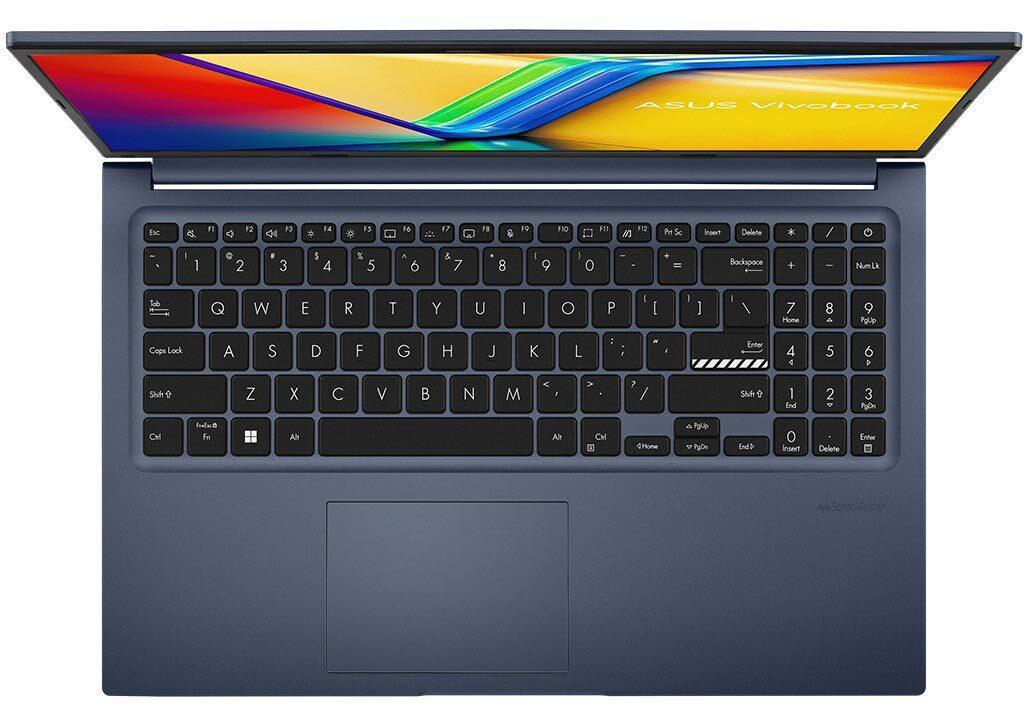
This type of image is useful only for identifying keyboard areas. It cannot confirm whether a specific ASUS laptop has a driver problem, a failed keyboard matrix, or a damaged connector.
Use a Symptom-versus-Meaning Record
| Observation | What it may make more plausible | What it cannot confirm |
|---|---|---|
| An external keyboard works normally | A built-in keyboard, internal connection, driver, or firmware issue becomes more relevant. | It does not prove that the internal keyboard needs replacement. |
| The built-in keyboard fails only after Windows loads | A Windows setting, driver, service, or application conflict becomes more plausible. | It does not completely rule out an intermittent hardware fault. |
| The keyboard fails before Windows loads | A physical keyboard, connector, firmware, or system-board issue becomes more plausible. | It does not identify which hardware component has failed. |
| Only a group of keys fails | A keyboard matrix, connector, contamination, or localized physical fault may be involved. | It does not rule out a less common software or input-mapping problem. |
| Liquid or impact damage is visible | Physical damage becomes a priority for inspection. | It does not show the full extent of internal damage. |
The table guides the next check; it does not replace model-specific diagnosis. A confirmed fault requires appropriate testing that matches the ASUS model and the observed behavior.
What Can Cause an ASUS Keyboard to Stop Working After an Update?
The following are possible problem categories, ordered from common software explanations toward physical causes. The update may have caused a change, exposed an existing weakness, or simply occurred near the time the fault became visible.
1. Windows Update, Keyboard Driver, or Device-Recognition Problem
A Windows update can alter the state of a keyboard device or change how Windows identifies related system components. A device warning, changed behavior immediately after restart, or improvement after a supported rollback can support this possibility.
2. Keyboard Accessibility, Input, or Layout Setting
Settings such as Filter Keys, keyboard language, or layout choices can change how input behaves. These settings can explain delayed input or unexpected characters, but they do not normally prove that the physical keyboard is damaged.
3. ASUS Utility, Hotkey Component, Firmware, or BIOS Compatibility Issue
Model-specific ASUS software or firmware can affect special keys and related keyboard functions. Exact compatibility must be verified for the laptop model before installing a package or considering firmware changes. A universal ASUS keyboard driver should not be assumed to exist for every model.
4. Application or Background-Software Conflict
A keyboard may work in Windows generally but fail in one application, user account, remote session, overlay, remapping utility, or security-controlled environment. When only one program is affected, replacing the keyboard is premature.
5. External-Device, Docking, or Connection Issue
A dock, USB device, Bluetooth device, or other peripheral can complicate testing or interfere with input. Removing nonessential peripherals can show whether the symptom changes, but a change alone does not identify which device caused it.
6. Physical Keyboard, Connector, Liquid, or System-Board Problem
A damaged key matrix, loose connector, contamination, impact, liquid exposure, or system-board fault can cause the same symptom as an update-related software problem. Hardware becomes more plausible when the same keys fail before Windows loads, the symptom changes when the chassis moves, or visible damage is present.
Software, Driver, Settings, and Application Causes
- Software causes become more plausible when the keyboard works before Windows loads, responds in another user context, or improves after a restart or supported rollback.
- A keyboard driver update may be relevant, but Windows may also depend on broader system or chipset components. Do not assume every ASUS model has a separate downloadable keyboard driver.
- A settings or application explanation becomes more plausible when only certain shortcuts, layouts, or programs are affected.
- A software clue does not rule out an intermittent connector or keyboard fault.
Physical and Hardware Causes
- Hardware causes become more plausible when the same keys fail in pre-Windows testing, the failure changes when the chassis is moved, or liquid or impact damage is present.
- A single row, cluster, or repeating group of failed keys may require keyboard and connector testing rather than repeated driver changes.
- The ASUS VivoBook family includes different configurations, so the model name alone does not identify the cause or the correct replacement part.
- Do not open the laptop, disconnect the battery, or reseat a keyboard cable merely to confirm a suspected fault unless qualified repair personnel are performing the work.
Low-Risk Troubleshooting Actions
Work through these actions in order and record what changes. The goal is to preserve evidence while starting with checks that are reversible and do not require opening the ASUS laptop.
Start with External and Session Checks
- Restart Windows normally. Save work and restart the responsive laptop instead of repeatedly forcing power off. Test the keyboard at the sign-in screen and again after the desktop loads. If input returns, the result supports a temporary session or power-state issue; if the failure remains, continue without assuming a hardware diagnosis.
- Disconnect nonessential peripherals. Remove docks, USB devices, and other peripherals, then test the built-in keyboard directly on the laptop. If the symptom changes, a peripheral interaction becomes possible, so reconnect devices one at a time later rather than replacing the keyboard immediately.
- Test more than one application. Use a basic text field and another ordinary application. If the keyboard works in one program but not another, investigate the affected application, account, remote session, or input context instead of treating the built-in keyboard as confirmed defective.
- Use temporary alternate input. Open the Windows on-screen keyboard or connect a known-good external keyboard with the touchpad or mouse. Alternate input helps continue diagnosis, but its success does not by itself prove that the built-in keyboard has failed physically.
Check Windows Input and Accessibility Settings
- Review accessibility settings. Check keyboard accessibility options, including Filter Keys and related settings, and record any option that changed after the update. If changing a reversible option alters the symptom, the setting is a useful lead, not a complete diagnosis.
- Confirm the keyboard language and layout. Verify that Windows is using the intended language and layout, especially when keys produce unexpected characters rather than no input. Correct characters after the change support a layout explanation.
- Compare another Windows context. Test a basic text field and, where practical, another Windows account or clean application context. If input works in one context but not another, focus on account settings or background software before changing hardware.
- Restart after a reversible setting change. Record whether the keyboard returns, remains completely unresponsive, or becomes intermittent. A changed result supports a software path, while no change means only that the setting did not resolve the symptom.
Review, Roll Back, or Reinstall the Keyboard Device
- Inspect keyboard-related devices in Device Manager. Use the mouse or alternate keyboard to look for warnings, missing devices, or recent changes. Device labels can vary by ASUS model and Windows version, so an absent warning does not prove that the keyboard hardware is healthy.
- Review Windows Update history. Identify the update or driver change that preceded the failure. If a supported rollback option is available and appropriate, consider it only after protecting important work and understanding what the rollback may change.
- Redetect the relevant keyboard device when appropriate. If the device is clearly identified and a reinstall is suitable, uninstall only that relevant device through the normal Windows interface and restart Windows so it can redetect the device. Do not treat this as permission to remove unrelated system components.
- Use the exact ASUS support page for model-specific software. Verify the complete model and operating system, then check whether ASUS provides a keyboard, hotkey, chipset, or related component package. Do not download an unverified driver or assume that one ASUS keyboard driver works across models.
- Record the result. Restored input supports a software explanation, while no change does not prove that the keyboard hardware is defective. A failed reinstall is evidence for the next diagnostic stage, not a final diagnosis.
Check Recent Software or Update Changes
- Note the exact recent change. Use Windows Update history or available system records to identify the update, ASUS utility, application, or firmware change that preceded the problem. Precise timing helps compare cause and coincidence.
- Consider a supported recovery option. If a restore point or update rollback is available, back up important work and review what may be reverted before proceeding. Improvement after recovery supports a software relationship but does not prove that the update alone caused the fault.
- Compare behavior with recent background software closed. Use the application’s normal settings to close or disable recently added input, remapping, overlay, remote-access, or security software for a controlled test. If the keyboard works afterward, identify the conflicting program before changing other system components.
- Avoid risky system modifications. Do not use registry cleaners, unofficial driver tools, or firmware packages that are not clearly matched to the exact ASUS model. These changes can make the original symptom harder to diagnose.
After completing the reversible checks, IndiRepair recommends treating the result as a clue rather than automatic proof that one component has failed. With experience from 500+ laptop repairs, IndiRepair focuses on separating Windows behavior from internal keyboard and connector symptoms before recommending a replacement.
book your Asus laptop repair with IndiRepair
Diagnostic and Pre-Windows Checks Where Model-Appropriate
Pre-Windows testing can help distinguish a Windows-only symptom from a broader keyboard or firmware problem, but the available menus and procedures differ by ASUS model. Verify the correct method for the exact laptop before using a boot menu, UEFI, BIOS, or ASUS diagnostic environment.
Compare Keyboard Behavior Before Windows Loads
- Reach an appropriate pre-Windows environment. Shut down or restart normally and use the verified method for the exact ASUS model to reach a boot menu, UEFI, BIOS, or diagnostic environment. Do not rely on an unverified key combination or change firmware settings.
- Test only available navigation or text-entry functions. Use the keyboard to navigate without changing firmware options. Successful navigation shows that some input is being recognized, but it does not exercise every key or certify the entire keyboard.
- Interpret a Windows-only failure cautiously. If the keyboard works before Windows but fails after Windows starts, a Windows driver, setting, service, or application explanation becomes more plausible. Continue with software recovery rather than assuming replacement is required.
- Reduce software experimentation when pre-Windows input also fails. Failure in the pre-Windows environment makes a physical keyboard, connector, firmware, or system-board explanation more plausible. Arrange appropriate assessment instead of repeatedly removing drivers.
Use an External Keyboard as a Comparison
- Connect a known-good external keyboard directly. Connect it to the laptop rather than through a dock when possible, and test it at sign-in and in a basic Windows text field.
- Compare the two input paths. If the external keyboard works while the built-in keyboard fails, prioritize built-in keyboard detection, driver, connector, and hardware checks. This comparison does not distinguish those possibilities by itself.
- Interpret failure of both keyboards. If both input devices fail, investigate Windows input behavior, USB or Bluetooth behavior, broader system issues, or firmware before concluding that the built-in keyboard alone is defective.
After these comparisons, get your Asus laptop checked by IndiRepair if the built-in keyboard remains unusable or the evidence points outside ordinary Windows settings. A professional assessment can compare the symptom with the model’s internal keyboard path without treating the update timing as proof of a replacement fault.
Safety Warnings and DIY Stopping Points
Stop troubleshooting and seek appropriate assistance if the laptop shows signs of physical or electrical danger. Repeated restarts and driver changes cannot safely resolve liquid damage, exposed wiring, or a failing power component.
- Stop using the laptop and disconnect power where safe if there is liquid exposure, a burning smell, unusual heat, smoke, swelling, sparking, melting, exposed wiring, or visible damage.
- Do not pry off keys, spray liquid or cleaner into the keyboard, force a connector, or open the chassis merely to confirm a suspected fault.
- Do not continue repeated restarts, driver removals, or firmware experiments when the keyboard is deteriorating or the laptop is unstable.
- Back up important data before recovery actions, update rollbacks, or service.
- Escalate when the keyboard fails in pre-Windows testing, when a key group remains dead after software checks, when movement changes the symptom, or when liquid or impact is involved.
When the Evidence Supports Stopping DIY Troubleshooting
- A software reset, driver review, or supported update rollback produces no change and the symptom appears across applications.
- The built-in keyboard fails before Windows loads or an external keyboard comparison consistently points to the internal input path.
- There is liquid, impact, corrosion, a loose chassis component, or a history of a repair or hinge event.
- The exact ASUS model or the correct firmware and driver package cannot be identified safely.
- The laptop is needed for important work and continued experimentation could risk data, settings, or firmware stability.
Professional Diagnosis and Repair Options
Professional diagnosis should begin by reproducing the symptom and reviewing the update timing, affected keys, application behavior, external-keyboard result, and pre-Windows result where appropriate. The inspection should consider the keyboard path before recommending replacement.
- A software recovery may be appropriate when the keyboard works outside Windows or responds after a supported driver or update change.
- A driver or firmware investigation may be relevant when the model-specific software state changed, but firmware work should not be treated as a casual first-line fix.
- A connector or keyboard inspection becomes more relevant when the built-in keyboard fails consistently, a key group is dead, or the symptom changes with movement.
- Liquid or corrosion assessment is important when exposure or contamination is suspected.
- Keyboard replacement may be considered when testing supports a failed keyboard assembly, subject to model-specific inspection.
Share the ASUS model, operating system version, update timing, affected keys, external-keyboard result, pre-Windows result, and any liquid or impact history. These details help a repair provider assess whether the likely remedy concerns software, a connector, a keyboard assembly, firmware, or another component.
Choose Diagnosis Before Replacement When the Cause Is Unclear
- Prefer diagnosis first when the failure appeared immediately after an update but has not been tested outside Windows.
- Consider replacement only when testing indicates a failed keyboard assembly or physical damage and the model-specific inspection supports that conclusion.
- Ask the repair provider to explain whether the proposed work addresses the keyboard assembly, connector, software state, firmware issue, or another component.
If reversible software checks do not restore the built-in keyboard, or if physical damage is possible, Asus laptop repair with IndiRepair can be considered as a diagnosis-led next step. IndiRepair does not need the update timing alone to establish the fault; the useful decision comes from comparing the observed input paths and test results.
Frequently Asked Questions
Q: Why is my ASUS keyboard not working after a Windows 11 update?
A: A Windows 11 update can coincide with a changed keyboard device state, accessibility setting, language layout, ASUS utility, or application conflict. A physical keyboard or connector problem can also become noticeable at the same time. Check whether the keyboard works at sign-in, in more than one application, and in a model-appropriate pre-Windows environment. If it works before Windows loads but fails afterward, software becomes more plausible. If it fails before Windows loads too, reduce repeated driver changes and arrange hardware or firmware assessment.
Q: How do I reinstall an ASUS keyboard driver safely?
A: First identify the relevant keyboard device in Device Manager and review recent changes. If a device reinstall is appropriate, uninstall only the relevant device through the normal Windows interface and restart so Windows can redetect it. This process is different from downloading an unofficial driver. For ASUS-provided software, use the official support page for the exact laptop model and operating system, and verify whether the required package is a keyboard, hotkey, chipset, or related component driver. A reinstall that does not help does not by itself prove physical keyboard failure.
Q: Does an external keyboard prove that my ASUS keyboard needs replacement?
A: No. An external keyboard proves that an alternate input path works under the tested conditions, but it cannot distinguish an internal keyboard fault from a driver, connector, firmware, or Windows recognition problem. Compare the external keyboard with the built-in keyboard at sign-in, in a basic text field, and where model-appropriate before Windows loads. If the built-in keyboard fails in every environment while the external keyboard works, hardware becomes more plausible, but the exact failed component still requires suitable diagnosis.
Q: When should I stop troubleshooting an ASUS VivoBook keyboard?
A: Stop when there is liquid or impact damage, a burning smell, unusual heat, visible damage, worsening behavior, or failure in a pre-Windows environment. It is also sensible to stop when reversible Windows checks produce no improvement and the failure affects the same key group across applications. VivoBook configurations differ, so the family name alone is not enough to select drivers, firmware, or replacement parts. Back up important data and seek model-specific diagnosis rather than opening the chassis or repeatedly experimenting with firmware.
Conclusion: Interpret the Evidence Before Replacing the Keyboard
An ASUS laptop keyboard that stops working after an update may involve Windows settings, drivers, ASUS software or firmware, an application, peripherals, or hardware. The update provides timing evidence, not a confirmed diagnosis.
Record the exact symptoms, try reversible external and Windows checks, compare input paths, use model-appropriate pre-Windows testing, and interpret each result before choosing a repair. When the keyboard remains unusable, fails outside Windows, or shows physical damage, stop DIY work and seek professional diagnosis.
For a diagnosis-led next step, Asus laptop repair with IndiRepair is appropriate to consider when safe software checks have not restored the built-in keyboard or when the evidence suggests a physical fault. The goal is to identify the underlying cause before authorizing a replacement.