
If your Acer keyboard is not working after an update, the cause may be a Windows setting, keyboard driver, firmware change, application conflict, external device, or an unrelated hardware fault. The timing suggests a possible software connection, but it does not prove that the update physically damaged the keyboard.
Start by recording exactly what fails, then use reversible checks that do not require opening the laptop. Compare the built-in keyboard with other input methods and treat each result as evidence rather than as a confirmed diagnosis. If you need hands-on help after these checks, an early option is an laptop keyboard repair service.
What the Post-Update Keyboard Symptom Can Mean
An Acer laptop keyboard that produces no input is different from a keyboard with only a few failed keys or a keyboard that fails in one application. The distinction matters because a system-wide input failure points toward a different set of causes than an application-specific problem.
An update can affect device drivers, Windows input settings, accessibility behavior, firmware initialization, or application compatibility. A keyboard can also stop responding after an update by coincidence if it already had liquid exposure, impact, contamination, wear, or an intermittent internal connection.
The diagnostic goal is to determine whether the failure follows the built-in keyboard, Windows, a particular application, an external input path, or the laptop hardware. No single symptom confirms which component has failed.
What the Symptom Can and Cannot Confirm
| Observation | What it may suggest | What it cannot confirm |
|---|---|---|
| No built-in keys respond anywhere in Windows | A driver, input subsystem, firmware, keyboard connection, or keyboard assembly issue may be involved. | It does not prove that the update or the keyboard hardware is defective. |
| Only selected keys or a group of keys fails | A keyboard-matrix, contamination, wear, or physical connection issue becomes more plausible. | The failed component cannot be identified from the key pattern alone. |
| Typing works in Windows but not in one application | An application, overlay, remote session, shortcut utility, or input-capture conflict may be involved. | It does not establish that the Acer keyboard itself is damaged. |
| An external keyboard works while the built-in keyboard does not | Windows can receive keyboard input, so the built-in input path deserves closer attention. | It does not by itself prove that only the keyboard assembly has failed. |
Exact behavior can vary by Acer model, Windows version, update type, and keyboard design. A model-specific firmware problem should therefore be checked against the exact Acer model and official support guidance.
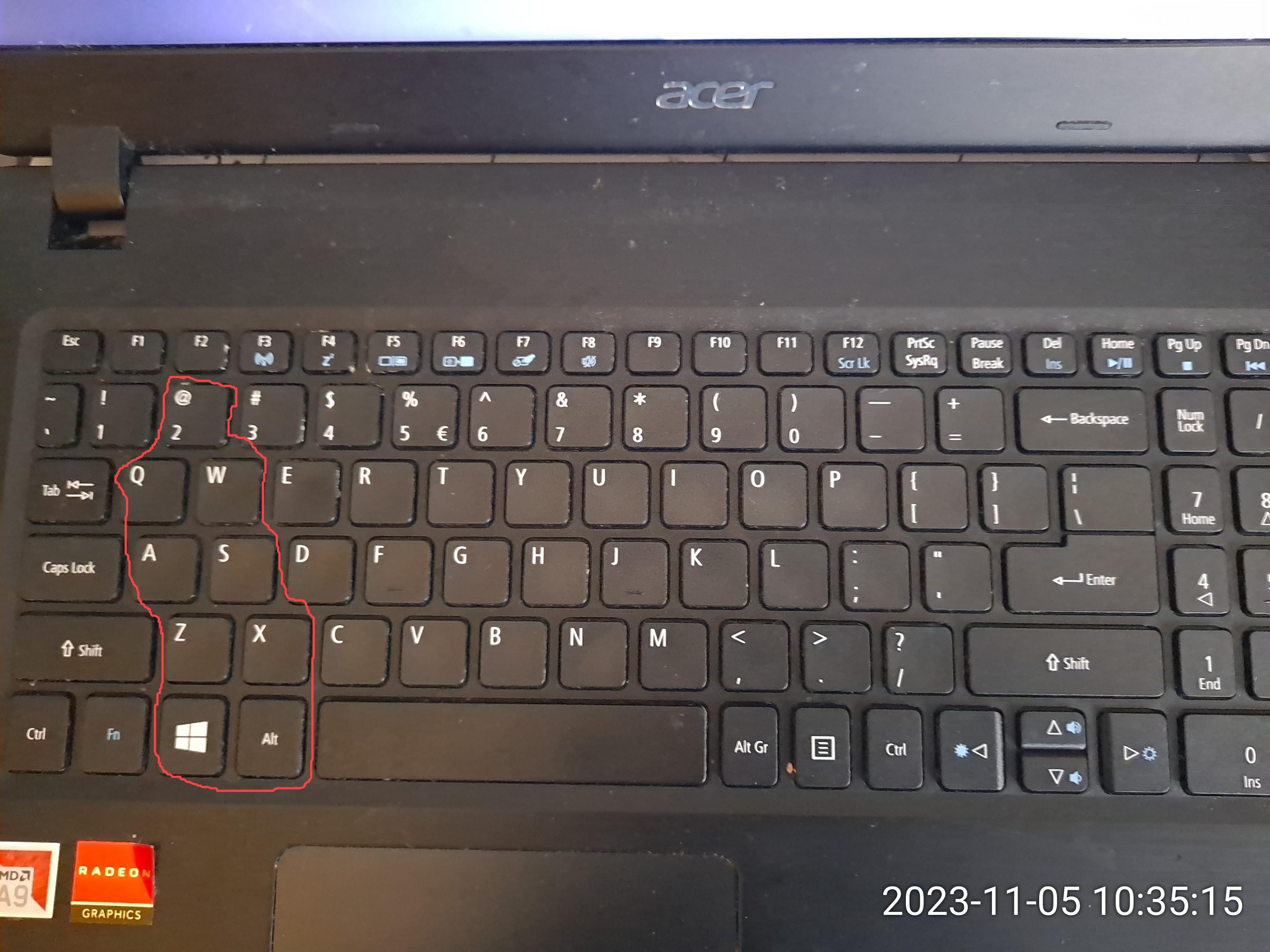
Use the symptom record and comparison results to decide whether further software checks are reasonable or whether physical diagnosis is more appropriate.
Symptoms to Record Before Changing Settings
A short symptom record prevents later changes from being confused with the original failure. Note the following observations before uninstalling drivers, changing settings, or attempting recovery procedures.
- Whether every built-in key fails or only a group such as letter keys, function keys, arrow keys, or the number row.
- Whether the keyboard works at the sign-in screen, in Windows settings, in a basic text field, or only inside a particular application.
- Whether the touchpad, mouse, display, power button, and other laptop functions work normally.
- Whether the problem began after a Windows update, driver update, firmware update, or application update.
- Whether the laptop has had liquid exposure, a drop, pressure on the keyboard, unusual heat, or intermittent keyboard behavior.
- Whether an external keyboard or mouse is available and whether either device responds.
Possible Causes of an Acer Keyboard That Stopped Working
The following categories cover the main explanations for an Acer keyboard stopped working after an update. They are possible causes, not confirmed diagnoses.
- Windows or keyboard-driver change: A Windows update or device-driver change may affect how the built-in keyboard is detected or interpreted.
- Input or accessibility setting: A keyboard layout, accessibility feature, input redirection, or related setting may have changed after the update.
- Firmware or model-specific behavior: Firmware initializes hardware differently from Windows drivers. The Acer Aspire Switch 10e keyboard not working after a firmware update should be treated as a model-specific case requiring verification against Acer support information.
- Application or background utility conflict: A browser, game, remote session, overlay, hotkey tool, or device-control utility may intercept input in one environment.
- External input-path problem: A dock, USB device, wireless receiver, Bluetooth device, or other peripheral may create a wider keyboard and mouse problem.
- Physical keyboard or system fault: Liquid, impact, contamination, an internal connection, the keyboard assembly, or the system board may be involved independently of the update.
Update, Driver, and Firmware Behavior
Windows updates, device-driver changes, and firmware updates affect different system layers and should not be treated as the same event. Identifying the exact update type is important before selecting a recovery option.
If the problem followed a firmware update, confirm the exact Acer model and use only the relevant official Acer instructions. Do not reinstall, roll back, or interrupt firmware without verified model-specific guidance, because an incorrect package or interrupted process can create additional startup or hardware problems.
Windows Settings and Application Input
A keyboard can appear unusable when Windows input is redirected, accessibility behavior changes, or the selected layout does not match the expected keys. A layout mismatch usually changes which characters appear rather than making every key electrically silent, so the exact symptom remains important.
If the Acer laptop keyboard works in a basic Windows text field but fails in a browser, game, remote session, security tool, or other application, the application environment is more suspicious than the built-in keyboard. Recently installed utilities, overlays, and hotkey tools should be considered without assuming that any one of them is responsible.
External Devices and Physical Keyboard Faults
If the mouse and keyboard fail together after an update, the wider Windows input path, USB or Bluetooth connection, dock, receiver, or power-management behavior deserves attention. The problem may not be limited to the Acer keyboard.
If an external keyboard works while only the built-in keyboard fails, the built-in keyboard path becomes more suspicious. That result still does not identify whether the keyboard assembly, internal connection, firmware, or system board is responsible.
Safe Troubleshooting Checks Without Opening the Laptop
Use the following low-risk checks in order. Each action is reversible and should produce an observation that helps narrow the possibilities.
Reversible Input and Power Checks
- Restart Windows normally when possible. Save available work and use the normal restart option rather than repeatedly forcing the laptop off. If the keyboard works after restarting, a temporary Windows or driver state may have been involved; if nothing changes, continue without assuming the hardware has failed.
- Test the built-in keyboard in a basic text field. Try more than one simple Windows text-entry area and note whether the same keys fail everywhere. A failure across several fields is more significant than a failure limited to one application.
- Check the rest of the input system. Test the touchpad or mouse and observe whether the screen, power controls, and other functions respond. A wider failure makes a single damaged keyboard less certain and calls for broader input-path checks.
- Disconnect nonessential peripherals. Remove unnecessary USB devices, docks, receivers, and other external input devices, then test again. If the keyboard returns, reconnect devices individually to identify whether one peripheral or connection is associated with the symptom.
- Inspect the keyboard under good lighting. Look for visible debris, liquid signs, lifted keycaps, corrosion, or impact marks without prying off keys or opening the laptop. Visible damage raises the value of professional inspection and makes repeated software changes less useful.
- Use an external keyboard or the Windows on-screen keyboard temporarily. Use an available alternative only to navigate or compare input behavior. A working external keyboard proves that Windows has an available input route, but it does not prove that the built-in keyboard is permanently damaged.
- Record each result before making another change. Keeping a simple record preserves the diagnostic sequence and prevents a later symptom from being mistaken for the original problem.
Basic Windows Input Checks
- Use an alternative input method only where necessary. The on-screen keyboard or an external device can help you reach Windows settings without changing the built-in keyboard.
- Compare more than one application. Type in a basic Windows field and another application. If typing works in one environment but not another, application input capture is more plausible than a total keyboard failure.
- Review the active keyboard layout and relevant accessibility settings. Record the current state before changing anything. A corrected setting may restore expected behavior, while no improvement points toward another cause.
- Close or avoid recently added input utilities, overlays, and remote sessions. If the keyboard works after leaving one environment, investigate that software rather than replacing hardware immediately.
Software and Update-Related Checks
Software investigation is appropriate when the laptop remains stable and the symptom appeared close to a recorded Windows, driver, firmware, or application change. Keep model-specific actions conservative and reversible until the exact Acer model and update type are confirmed.
Windows and Keyboard Driver Review
- Identify the triggering event. Determine whether the change was a Windows update, keyboard or chipset driver update, firmware update, or application installation. The event type determines which official instructions may be relevant.
- Review update history and recent changes. Use an alternative input method if necessary and compare the recorded timing with the first keyboard failure. A close timeline supports investigation but does not prove causation.
- Check Windows device information for keyboard detection or warnings. A detected device with no warning does not prove that the hardware is healthy, and a warning does not by itself identify the failed component.
- Use only official, model-appropriate recovery guidance. Follow a supported driver rollback or reinstall instruction only after confirming the Acer model and operating system. Avoid generic files from unverified sources.
- Restart and retest after a supported software change. Record whether the keyboard works at sign-in, throughout Windows, or only in a particular application. A partial change in behavior is useful evidence, not a final diagnosis.
Firmware and Model-Specific Guidance
Firmware-related keyboard symptoms require more caution than ordinary application troubleshooting. A firmware update may affect hardware initialization, but the timing alone cannot establish that the firmware is defective.
- Confirm the exact Acer model identifier before using firmware or recovery material.
- Use the manufacturer’s instructions for the relevant model and update type; any exact recovery sequence must be verified for that device.
- Do not assume that a firmware update caused the failure merely because the keyboard stopped responding afterward.
- Stop if the procedure requires uncertain files, unsupported tools, forced power actions, or opening the device.
Compare the Built-In Keyboard With Other Input Devices
Controlled comparisons help separate a built-in keyboard problem from a wider Windows or external-device issue. The results narrow the possibilities but do not replace component-level diagnosis.
| Test pattern | More plausible direction | Important limitation |
|---|---|---|
| Built-in keyboard fails but an external keyboard works | Built-in keyboard path, keyboard assembly, connection, or model-specific handling. | The system board or firmware may still be involved. |
| Both keyboards fail | Windows input handling, a wider system problem, or an unsuitable external test device. | The external keyboard may not be compatible or correctly connected. |
| Mouse and keyboard fail together | USB, Bluetooth, dock, receiver, power-management, or wider Windows behavior. | It is not automatically a keyboard-only fault. |
| On-screen keyboard works | Windows can accept virtual input, while physical input remains unresolved. | Virtual input does not identify the physical failed component. |
| Keyboard fails only in one application | Application settings, input capture, overlay, or compatibility issue. | The application may be exposing an intermittent problem rather than causing it. |
| No input works in an available pre-Windows test environment | Firmware or hardware becomes more concerning. | Model-specific test behavior must be verified before drawing conclusions. |
Perform a Controlled Input Comparison
- Test the built-in keyboard in a basic text field. Record which keys respond and whether the result is consistent across fields.
- Connect one known-working compatible external keyboard. Test the same text field rather than changing several variables at once. A difference between the two devices narrows the issue toward the built-in input path.
- Test the touchpad or mouse separately. If pointer control also fails, investigate the wider input path before focusing only on the keyboard.
- Compare sign-in, Windows, and multiple applications. A change between environments can point toward software or input capture, while a consistent failure remains compatible with several causes.
- Interpret the pattern as evidence rather than proof. Use the comparison to decide whether further software review or professional hardware assessment is the safer next step.
Hardware Observations and Diagnostic Limits
Safe observation can show when physical diagnosis deserves priority, but software testing cannot confirm a failed keyboard connector, keyboard assembly, or system board by itself.
- Visible liquid residue, corrosion, impact marks, lifted keys, or changing behavior when the palm rest is pressed can raise concern about physical damage.
- A repeating group of failed keys may indicate a keyboard-matrix or connection issue, but the pattern alone does not identify the failed part.
- An external keyboard working while the built-in keyboard remains unresponsive narrows the issue toward the built-in input path, although firmware and system-board causes remain possible.
- A keyboard that fails in every available environment may need professional diagnosis, especially when the laptop also shows other abnormal behavior.
- Model-specific diagnostics, pre-Windows tests, and recovery options should be verified for the exact Acer model before use.
Use Diagnostic Results as Evidence, Not Proof
Each test changes the relative likelihood of software, external input, firmware, or hardware causes. For example, a working external keyboard demonstrates an available input route, but it does not automatically establish that the built-in keyboard alone has failed.
An unsuccessful comparison can also be misleading if the external device is incompatible, the test environment is incomplete, or the laptop has a wider system issue. A confirmed diagnosis requires appropriate inspection and testing of the relevant hardware and software layers.
With experience across 500+ laptop repairs, IndiRepair focuses on identifying the underlying fault before recommending a replacement. That approach is especially useful when an Acer keyboard stops responding immediately after an update but the evidence does not yet distinguish software from hardware.
book your Acer laptop repair with IndiRepair
Safety Warnings and Stop Conditions
Stop DIY troubleshooting when the laptop shows signs of electrical, liquid, thermal, or physical damage. Continuing to apply software changes cannot safely resolve every keyboard failure.
- Stop if liquid has reached the keyboard or laptop, especially if the device is warm, smells unusual, shuts down unexpectedly, or behaves erratically.
- Do not pry off keycaps, force an internal connector, insert tools into the keyboard, or open the laptop solely to confirm a suspected connection issue.
- Do not interrupt a firmware update or apply firmware intended for a different Acer model.
- Do not repeatedly force power-offs unless normal shutdown is unavailable and the situation requires it.
- Stop software changes if the symptom worsens, new startup problems appear, or the device becomes unstable.
- Back up accessible data before invasive repair, firmware recovery, or any action that could affect system availability.
- Seek professional diagnosis when the laptop contains important data, has liquid or impact damage, is covered by a service agreement, or cannot be safely tested.
When DIY Troubleshooting Should Stop
- The built-in keyboard remains unusable after reversible checks and suitable software review.
- The issue affects other input devices or laptop functions and the cause is not clear.
- The keyboard shows signs of liquid exposure, impact, corrosion, overheating, or intermittent electrical behavior.
- A firmware-related symptom cannot be matched confidently to official guidance for the exact Acer model.
- The next proposed action requires opening the laptop, disconnecting internal parts, or using uncertain recovery media.
Professional Repair or Assessment Options
Professional assessment becomes appropriate when the Acer laptop keyboard remains unresponsive after safe checks, the failure pattern suggests a physical input-path problem, or the laptop has liquid or impact history.
A useful diagnosis should distinguish whether the problem is limited to the keyboard assembly, involves an internal connection, relates to firmware or the system board, or remains software-based. Provide the exact Acer model, update type and date, symptom record, external-input comparison, and any liquid or impact history.
IndiRepair recommends diagnosis before replacement because a keyboard replacement may not resolve a Windows, firmware, connector, or system-board problem. The repair provider may need to inspect the laptop before confirming whether replacement or another repair is appropriate.
get your Acer laptop checked by IndiRepair
Choose Diagnosis Before Replacement
- A keyboard replacement may be relevant when testing indicates a fault in the built-in keyboard assembly.
- A replacement may not address the problem if the cause is Windows, firmware, an internal connection, or the system board.
- The service request should describe both the timing after the update and the results of the safe checks.
Frequently Asked Questions
Q: Why is my Acer keyboard not working after a Windows update?
A: A Windows update may change a keyboard driver, input setting, accessibility behavior, or compatibility with another utility. The timing makes a software cause possible, but it does not prove that Windows caused the failure. Test the keyboard in more than one basic text field, compare it with an external keyboard if available, and check whether the touchpad and mouse still work. If the built-in keyboard fails everywhere while other functions remain normal, driver or built-in keyboard-path problems are both possible. If liquid, impact, or intermittent behavior is present, physical diagnosis should take priority over repeated software changes.
Q: Can an Acer keyboard stop working because of a driver update?
A: Yes, a driver change can affect how Windows detects or interprets a keyboard, although a driver entry that appears normal does not prove that the hardware is healthy. Compare the timing of the failure with Windows update history and device information. Use only official, model-appropriate guidance for a supported driver recovery or reinstall, and confirm the Acer model and operating system first. If a supported software change produces no improvement and an external keyboard works, the built-in input path may need inspection rather than additional generic driver changes.
Q: What does it mean if my Acer laptop keyboard is not working but an external keyboard works?
A: A working external keyboard shows that Windows can receive keyboard input through at least one route. That result makes the built-in keyboard, its connection, firmware handling, or related system-board circuitry more suspicious, but it does not identify the failed component. Test the built-in keyboard in several simple text fields and note whether only selected keys fail or every key is silent. Avoid opening the laptop or forcing a connector. If the built-in keyboard remains unusable, provide the comparison result to a repair provider so the diagnosis can focus on the internal input path.
Q: Why are both the Acer mouse and keyboard not working after an update?
A: When a mouse and keyboard fail together, the problem may involve a USB or Bluetooth connection, dock, wireless receiver, power-management behavior, or a wider Windows input issue rather than only the built-in keyboard. Disconnect unnecessary peripherals and test the touchpad, a basic text field, and one known-working external device where possible. If pointer control and keyboard input both fail, a single keyboard replacement is not a confirmed solution. Record whether the display and other laptop functions remain normal, then seek diagnosis if the wider input problem persists.
Q: What should I do if my Acer Aspire Switch 10e keyboard stopped working after a firmware update?
A: Treat this as a model-specific firmware and input problem. Confirm the exact device identifier and update type, then consult official Acer guidance for that model before attempting any rollback, recovery, or reinstallation. Do not use firmware intended for another device, interrupt a firmware process, or follow an uncertain recovery sequence. A keyboard failure after firmware timing does not by itself prove that the firmware is defective. If the device remains stable, record the symptom and compare available input paths; if it becomes unstable or the next action requires risky recovery, stop and seek professional assessment.
Q: How can I tell whether the problem is the Acer keyboard or Windows?
A: Compare the built-in keyboard in multiple applications and, if available, compare it with an external keyboard. If typing works in Windows through an external keyboard but the built-in keyboard fails consistently, the built-in input path becomes more suspicious. If both keyboards fail, investigate Windows, the external test device, and the wider system. If the built-in keyboard fails only in one application, application input capture is more plausible. These comparisons narrow the possibilities but do not confirm a connector, keyboard assembly, firmware, or system-board fault without appropriate inspection.
Q: Should I replace my Acer keyboard if it stopped working after an update?
A: Do not assume replacement is required solely because the failure followed an update. A keyboard replacement may help when testing confirms a fault in the built-in keyboard assembly, but it will not necessarily resolve a Windows, firmware, connector, or system-board problem. First record the failure pattern, test more than one input environment, and review suitable official software guidance. If the built-in keyboard remains unusable, provide those results to a repair provider and request diagnosis before authorizing a component replacement.
Q: When should I stop troubleshooting an Acer laptop keyboard and seek repair?
A: Stop when reversible checks do not restore the built-in keyboard, other input functions fail, the laptop has liquid or impact damage, the device becomes unstable, or the next step would require opening the laptop or changing firmware with uncertain instructions. Smoke, sparks, burning smell, melting, exposed wires, unusual heat, and visible liquid are immediate stop conditions. IndiRepair can assess the symptom history and input comparisons without assuming that replacement is required. Professional diagnosis is particularly important when the laptop contains important data or the keyboard failure is accompanied by other system problems.
What to Do Next
An Acer keyboard not working after an update does not by itself confirm either a defective update or a failed keyboard. Record the exact symptoms, perform reversible checks, compare the built-in keyboard with other input paths, review suitable Windows or model-specific guidance, and interpret every result cautiously.
If the keyboard remains unusable, other input functions fail, liquid or impact is involved, or the next step would require opening the laptop or changing firmware, professional assessment is the safer choice. Share the exact Acer model and symptom history when requesting help, and choose Acer laptop repair with IndiRepair for a diagnosis-led assessment rather than assuming that a replacement is automatically needed.