
An ASUS keyboard not working can mean a complete loss of input, selected dead keys, delayed typing, repeated characters, or intermittent response. The symptom alone does not prove that the built-in keyboard has failed. Windows settings, drivers, applications, connected devices, debris, liquid, loose connections, and internal hardware can produce similar behavior.
Before trying a fix, record exactly what happens and when it started. Safe diagnosis should move from reversible external and software checks toward physical inspection. Each test provides a clue, not a confirmed diagnosis.
What Does an ASUS Keyboard Not Working Symptom Mean?
An ASUS laptop keyboard may be completely inactive or may fail only in certain keys, applications, or conditions. The first diagnostic objective is to identify the scope of the symptom: every key, one key group, the sign-in screen, one application, or the entire laptop.
- All built-in ASUS laptop keyboard keys appear inactive.
- Only selected keys, rows, columns, modifier keys, function keys, or the number pad are affected.
- Keys work intermittently, repeat characters, produce unexpected input, or respond slowly.
- The keyboard works at the sign-in screen but stops working inside one Windows application.
- The problem began after an update, restart, sleep or wake event, cleaning attempt, impact, or liquid exposure.
An on-screen keyboard or external keyboard can help you continue using the laptop and compare input paths. However, a working external keyboard does not automatically prove that the built-in ASUS keyboard is physically damaged.
For persistent symptoms that need a closer assessment, you can use the laptop keyboard repair service option after documenting the behavior.

A visual keyboard reference can show where key groups and visible damage may appear, but no photograph can confirm whether the fault is caused by software, a connection, contamination, or an internal component.
Symptoms That Need Different Diagnostic Paths
The exact pattern matters because an ASUS laptop keyboard malfunction affecting one application requires a different investigation from a repeated group of dead keys across the entire system.
- A complete keyboard failure may involve settings, Windows input, a connection, or a broader system problem.
- A consistent row, column, or group of dead keys can increase suspicion of contamination, a keyboard assembly fault, or an internal connection problem.
- Repeated or incorrect characters may relate to software, stuck keys, debris, or physical damage.
- A keyboard that works only after restarting may be affected by software, background utilities, or sleep and wake behavior.
- A symptom that follows liquid or impact should be treated as a possible physical fault even if some keys still work.
Record the Keyboard Symptoms and Timeline First
Write down the affected keys and the conditions under which they fail before changing settings or installing drivers. A clear timeline helps separate a sudden ASUS keyboard problem laptop symptom from a gradual hardware issue.
- Record whether every key, selected keys, a row, a column, modifier keys, function keys, or the number pad is affected.
- Note whether the keyboard is silent, produces wrong characters, repeats input, responds slowly, or works only after a restart.
- Record whether the problem followed a Windows or driver update, new application, restart, sleep or wake event, impact, cleaning, or liquid exposure.
- Note whether the touchpad, display, power button, charging behavior, and other input devices work normally.
- Record whether the built-in keyboard responds before Windows loads, at the sign-in screen, in another application, or only with an external keyboard.
- Preserve error messages and avoid repeatedly forcing keys or restarting after suspected liquid exposure.
Observations That Change the Likely Diagnosis
The following observations do not confirm a repair requirement, but they can make some explanations more or less plausible.
| Observation | What it may suggest |
|---|---|
| The problem occurs in only one application. | Application settings, shortcuts, remapping, or software interference may be more likely than a confirmed keyboard failure. |
| The keyboard fails at the sign-in screen or before normal Windows use. | The issue is less consistent with one Windows application, although the exact hardware or system cause remains unconfirmed. |
| The same group of keys fails repeatedly. | A keyboard assembly, connection, contamination, or related physical issue becomes more plausible. |
| The issue began immediately after liquid exposure or impact. | Physical damage should be considered even when the keyboard still partly works. |
| An external keyboard works normally. | At least one input path is available, but the result does not identify whether the built-in fault is software, connection-related, or hardware-related. |
Possible Causes of an ASUS Laptop Keyboard Failure
An ASUS laptop keyboard malfunction can have several causes. The categories below progress from reversible explanations to faults that may require internal inspection. A possible cause is not the same as a confirmed diagnosis.
1. Settings or Input-Mode Changes
Keyboard layout, language, accessibility options, function-key behavior, or other input settings can change how keys behave without indicating physical failure. Unexpected characters or altered function keys are especially compatible with a settings-related explanation.
2. Windows or Driver Problems
A damaged, outdated, incompatible, or temporarily malfunctioning keyboard driver or Windows component may prevent expected input. A recent system change can be useful evidence, but it does not prove that the driver is responsible.
3. Application-Specific Interference
An application, shortcut configuration, remapping utility, or background tool may affect keyboard input in one environment. If the ASUS keyboard works elsewhere, investigate the affected application before treating the symptom as a hardware failure.
4. External-Device or Connection Conflicts
A connected keyboard, dock, USB accessory, or wireless input device can complicate testing or redirect expected input. Disconnecting nonessential devices helps establish whether the built-in keyboard behaves differently on its own.
5. Debris, Liquid, or Contamination
Material beneath keys or liquid reaching the keyboard area can cause stuck, intermittent, repeated, or dead-key symptoms. Liquid-related damage can continue developing, so partial operation after a spill should not be treated as proof that the laptop is safe to keep testing.
6. Loose or Damaged Internal Connections
The internal keyboard connection or assembly may be affected by movement, impact, prior service, or wear. Internal connectors vary by ASUS model, so a connection issue should not be diagnosed from symptoms alone.
7. Keyboard Assembly or System-Board Hardware Fault
An internal component may require specialist testing, repair, or replacement when safe software checks do not change the symptom. The correct repair depends on the exact model and the confirmed source of the failure.
How the Cause Categories Differ
Settings and software causes become more plausible when the problem changes after a restart, appears only in Windows, or is limited to one application. Physical causes become more plausible when the same keys fail across environments, visible damage is present, or the problem follows liquid or impact.
- A device-specific symptom should be documented rather than assumed to apply to every ASUS model.
- A driver change, external-keyboard test, or visual inspection is evidence, not conclusive proof of a particular fault.
- Model-specific BIOS, firmware, or disassembly instructions should be checked against the exact ASUS model and current manufacturer documentation.
Safe Troubleshooting for an ASUS Keyboard That Is Not Responding
Start with low-risk checks and record what changes after each one. Do not remove keycaps, open the laptop, spray cleaner into the keyboard, or apply force to stuck keys as part of routine troubleshooting.
Start With Reversible External Checks
- Save work if possible and observe the laptop. Check whether the touchpad, display, and other controls respond normally. If the entire laptop is frozen, the symptom may involve the broader system rather than the keyboard alone. Use the on-screen keyboard if necessary to record the result.
- Disconnect nonessential input devices. Remove or disable external USB, Bluetooth, docking, or wireless keyboards and related accessories, then test the built-in keyboard again. If the behavior changes, the external-device path may have been contributing to the confusion.
- Restart the laptop normally when no liquid or electrical hazard is suspected. A temporary Windows or background-process problem may clear after a restart. If the keyboard works briefly and then fails again, record how long it remains functional and investigate repeatability rather than assuming the issue is fixed.
- Test several key types. Try ordinary letters, modifier keys, arrow keys, function keys, and any affected group. A consistent pattern is more useful diagnostically than testing one key in isolation.
- Use the on-screen keyboard when needed. This can help you sign in, search settings, or preserve notes while the physical keyboard remains unavailable. It provides an alternative input method but does not identify the cause of the built-in failure.
Check Windows, Settings, and Drivers
- Review keyboard-related settings. Check whether the keyboard layout, language, accessibility options, or function-key behavior changed. If correcting a setting restores normal input, document the change because it points toward configuration rather than confirmed hardware failure.
- Test more than one application. Compare a basic text field with the application where the problem was first noticed. If the ASUS keyboard works in one application but not another, investigate application shortcuts, remapping, and software interference first.
- Review recent Windows or driver changes. Use only supported update, rollback, or repair options that match the laptop and operating system. Avoid downloading unverified drivers or utilities because an unrelated installation can create additional input problems.
- Restart after a software change. Test the same keys in the same applications used during the initial observation. A repeatable improvement strengthens the software hypothesis, while no change means the investigation should continue.
- Test without a suspected ASUS utility or remapping tool when appropriate. Change only the relevant setting and record the result. Do not alter unrelated system settings, because broad changes can make later diagnosis harder.
Compare the Built-In Keyboard With an External Keyboard
- Connect a known-working external keyboard. Use a compatible connection and allow the laptop to recognize it. If the external keyboard also fails, investigate Windows or the broader laptop state rather than focusing only on the built-in keyboard.
- Test the same applications and key functions. Compare ordinary letters, shortcuts, and the functions that failed on the built-in keyboard. Matching conditions make the comparison more useful.
- Compare both input paths. If the external keyboard works while the built-in keys remain inactive, the laptop has at least one working input path. That result still does not identify whether the built-in problem is software, connection-related, or hardware-related.
- Disconnect the external device and repeat a limited built-in test. A changed result may indicate an input conflict, while an unchanged result keeps several software and physical causes possible.
- Record the comparison for later assessment. Include which keys worked, which applications were tested, and whether the sign-in screen behaved differently. This evidence can help a technician reproduce the ASUS keyboard not working symptom.
Use Diagnostic Results to Narrow the Problem
A test result usually makes a cause more or less likely; it rarely confirms a repair requirement by itself. Compare behavior across applications, the sign-in screen, restarts, and external input devices before deciding that the keyboard assembly must be replaced.
What Common Test Outcomes May Suggest
| Test result | Reasonable interpretation | Next diagnostic direction |
|---|---|---|
| The keyboard works in one application but not another. | Application settings, shortcuts, or software interference are possible. | Compare application settings and background tools before pursuing hardware repair. |
| The keyboard works after a restart but later stops. | Software, background utilities, or sleep and wake behavior may be involved. | Record when the failure returns and review recent software changes. |
| An external keyboard works while built-in keys remain affected. | One input path is working, but the built-in fault remains unconfirmed. | Continue separating software behavior from internal keyboard or connection faults. |
| The same key group fails across applications and environments. | Physical contamination, a connection issue, or a keyboard assembly fault becomes more plausible. | Stop repeated testing if there is damage or liquid exposure and arrange assessment. |
| No input device works and the laptop is otherwise unresponsive. | The problem may involve the broader system rather than a keyboard-only failure. | Preserve data when safe and seek diagnosis for the wider symptom. |
IndiRepair recommends treating every result as diagnostic evidence rather than automatic proof that one component has failed. After meaningful software and external-device comparisons, you can get your Asus laptop checked by IndiRepair if the built-in keyboard remains unreliable.
Inspect the ASUS Keyboard and Physical Condition Safely
Visible debris, damaged keycaps, liquid residue, uneven keys, or impact marks can support a physical-fault hypothesis, but visible evidence may not reveal internal damage. Keep inspection external unless you have the correct technical skill, tools, and model-specific documentation.
External Visual Inspection
- Shut down the laptop before inspecting the surface when normal operation is not needed. This reduces the chance of accidental input while you examine the keyboard.
- Look for visible debris, lifted keycaps, liquid marks, uneven keys, or impact-related gaps. Compare affected keys with nearby unaffected keys without pressing forcefully.
- Record whether the affected keys form a pattern. A row, column, or repeated group can be useful evidence, but it does not establish which internal part has failed.
- Use only safe, manufacturer-compatible cleaning guidance verified for the exact ASUS model. Do not pour or spray liquid into the keyboard, and do not use aggressive tools beneath the keys.
- Stop the inspection if abnormal conditions appear. Liquid inside the laptop, unusual heat, odor, swelling, sparking, or other electrical symptoms require safety-first assessment rather than more cleaning.
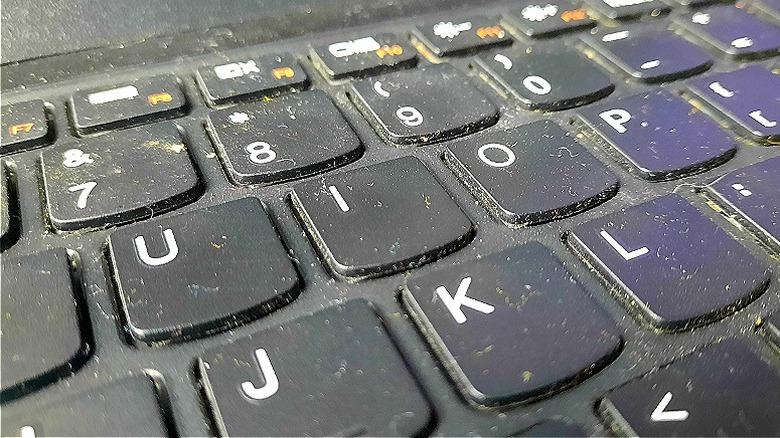
A visible keyboard fault does not establish whether only the keyboard assembly, an internal connection, or a board-level component is affected.
Internal Connection and Keyboard Assembly Limits
- Internal connectors and keyboard assemblies vary by ASUS model and may require disassembly.
- Opening the laptop without the correct procedure can create additional damage or make later diagnosis more difficult.
- Reseating a connection or replacing a keyboard should not be presented as a guaranteed fix before the cause is confirmed.
- Professional assessment is appropriate when software checks do not change the symptom or when the cause cannot be identified safely.
Stop DIY Troubleshooting When Safety Conditions Apply
Keyboard troubleshooting should stop when continued testing could worsen physical damage or create an electrical risk. A partially working keyboard after a spill is not necessarily safe to use.
- Stop using the laptop and avoid repeated power-on testing after significant liquid exposure or suspected liquid entry.
- Stop if there is heat, burning odor, smoke, sparking, swelling, visible electrical damage, melting, or unusual charging behavior.
- Do not force stuck keys, remove keycaps without model-specific guidance, pour cleaner into the keyboard, or use aggressive tools.
- Do not continue software troubleshooting if the laptop is unstable, repeatedly shutting down, or showing broader hardware symptoms.
- Back up important data when the laptop is stable and accessible, but do not delay professional help when continued operation may worsen damage.
Situations That Need Prompt Assessment
- Liquid exposure, even when the ASUS keyboard still partly works.
- Impact or pressure damage followed by intermittent or grouped key failure.
- A keyboard fault accompanied by charging, display, power, heat, or shutdown symptoms.
- A laptop that requires repeated forced shutdowns because normal input is unavailable.
- Uncertainty about safe disassembly or the correct procedure for the exact ASUS model.
When to Seek Professional ASUS Laptop Keyboard Repair
Seek professional diagnosis when the built-in keyboard remains faulty across applications or environments after reversible software and external-device checks. Professional assessment is especially appropriate for liquid exposure, impact, repeated or grouped dead keys, visible damage, suspected internal connection problems, or symptoms involving other laptop functions.
With experience across 500+ laptop repairs, IndiRepair focuses on identifying the underlying fault before recommending a replacement. You can book your Asus laptop repair with IndiRepair when persistent or physically caused symptoms need assessment.
A technician may need to distinguish among settings, drivers, the keyboard assembly, internal connections, contamination, and other hardware before recommending ASUS laptop keyboard repair. A replacement should not be assumed until the exact model and cause have been evaluated.
What to Provide for a More Useful Assessment
- The exact ASUS model information, if available.
- The affected keys or key groups and whether the problem is intermittent.
- The date and circumstances of onset, including updates, spills, impact, or prior service.
- Results from restart, application, sign-in-screen, and external-keyboard comparisons.
- Photos of visible damage or residue when taking photos is safe.
Conclusion: Treat the Symptom as a Clue, Not a Diagnosis
An ASUS keyboard not working may result from settings, Windows or drivers, applications, external devices, debris, liquid, internal connections, or keyboard hardware. The safest approach is to record the exact behavior, perform reversible checks, compare environments and input devices, and interpret every result cautiously.
- Use software and external-device checks before considering internal work.
- Document the exact keys, applications, timing, and environmental conditions.
- Stop DIY troubleshooting when liquid, impact, electrical, heat, or broader hardware symptoms are present.
- Seek professional assessment when the built-in keyboard remains unreliable or physically damaged.
IndiRepair can help assess persistent ASUS keyboard malfunction without assuming that every symptom requires replacement. For unresolved or physical faults, consider Asus laptop repair with IndiRepair after the safe checks above.
Frequently Asked Questions
Q: Why is my ASUS laptop keyboard not responding while the touchpad still works?
A: A working touchpad shows that the laptop is receiving at least some input, but it does not identify why the built-in keyboard is inactive. Possible explanations include keyboard settings, Windows or driver problems, an application conflict, a disconnected or damaged keyboard connection, contamination, or a failed keyboard assembly. Test the keyboard in more than one application and compare it with an external keyboard. If the same keys remain inactive across environments, especially after liquid exposure or impact, the evidence increasingly supports professional inspection rather than repeated software changes.
Q: Can an external keyboard help diagnose an ASUS keyboard that is not working?
A: Yes. An external keyboard provides a comparison point and can help you determine whether the laptop accepts input through another path. If the external keyboard also fails, the issue may involve Windows, the laptop’s broader system state, or the connection being used. If the external keyboard works while the built-in keyboard remains affected, the built-in input path deserves further investigation. That result does not prove that the internal keyboard itself has failed because software and internal connection problems can produce the same pattern.
Q: What if the ASUS keyboard works at the sign-in screen but not in Windows applications?
A: This pattern makes a single-application setting, Windows configuration, remapping utility, or background software issue more plausible than a fault limited to the physical keys. Test another application and check whether the problem is limited to one program or input field. Review recent software changes without installing unverified utilities. The sign-in-screen result is useful evidence, but it is not absolute proof that the keyboard hardware is healthy because some faults can appear only under particular operating conditions.
Q: What should I do if my ASUS ZenBook keyboard stopped working after a spill?
A: Stop normal use and avoid repeatedly powering on or testing the laptop after liquid exposure. Do not pour cleaner into the keyboard, force keys, or open the device unless you have the correct model-specific skills and procedure. A keyboard that still works partly after a spill may have hidden or developing damage. Preserve important information only if the laptop is stable and safe to operate, then arrange professional assessment. Liquid can affect the keyboard, internal connections, or other components, so replacing keys alone may not address the confirmed fault.
Q: Should I replace the ASUS laptop keyboard if only a few keys are not working?
A: Not necessarily. A few dead keys can result from debris, contamination, a damaged key mechanism, a keyboard assembly fault, or an internal connection problem. Software is also possible when the symptom changes by application or setting. Record which keys are affected and whether they form a row, column, or other pattern. Avoid removing keycaps without verified model-specific guidance. If the same keys fail across applications and after safe checks, professional diagnosis can determine whether cleaning, connection work, keyboard repair, or replacement is appropriate.
Q: Can a Windows or keyboard driver problem cause an ASUS laptop keyboard malfunction?
A: Yes. A damaged, incompatible, or temporarily malfunctioning Windows component or keyboard driver can interfere with input. Software is more plausible when the keyboard works in some environments, changes after a restart, or stops after an update or utility installation. Use supported options that match the ASUS model and operating system, and compare the same keys after each change. If the symptom remains identical across applications and environments, or began after liquid or impact, software is less likely to be the only cause.
Q: Is it safe to remove ASUS laptop keyboard keys to clean underneath them?
A: Key mechanisms and keyboard construction vary across ASUS models, and removing keycaps without the correct guidance can break clips or create a second fault. Use only safe cleaning instructions verified for the exact model, and never introduce liquid into the keyboard. If a key is lifted, uneven, stuck, or associated with liquid residue, stop forceful cleaning and document the condition instead. Professional assessment is safer when the keyboard has physical damage, when several keys are affected, or when you are uncertain about the correct disassembly method.