
If your dell keypad not working problem has appeared suddenly, do not assume that the built-in keyboard has failed. A keypad symptom can result from a keyboard-lock setting, Windows or driver behavior, an application, a connected device, debris, liquid exposure, or an internal hardware fault.
First identify whether the problem affects every key, a group of keys, the numeric keypad, function keys, or only one application. Note whether the keys work at the sign-in screen, after Windows loads, or in another environment. This record makes later troubleshooting more useful.
Immediate Symptom and Safety Framing
A nonworking Dell keypad is a symptom, not a confirmed diagnosis. The main keyboard, numeric keypad, function row, and touchpad use different input paths, so similar-looking symptoms can have different causes.
- Stop using the laptop if there is smoke, sparking, unusual heat, a burning smell, swelling, exposed wiring, melting, or visible electrical damage.
- After liquid exposure, do not repeatedly press keys or power the laptop on just to test it. Record what happened and seek professional guidance.
- Do not remove keycaps, open the chassis, apply cleaning fluid, or force a key while the cause remains unclear.
For an early comparison or access solution, a laptop keyboard repair service can assess the input path without assuming that replacement is automatically required.
What Does a Dell Laptop Keypad Problem Actually Mean?
The affected input area provides an important clue. A Dell laptop keys not working symptom may involve the entire keyboard, only adjacent keys, the number pad, modifier keys, or function keys. A Dell laptop touchpad not working symptom should be recorded separately because the touchpad may have a different setting, driver, connection, or physical fault.
If keys work in one application but not another, the application may have focus, shortcut, or input-handling behavior that is unrelated to a complete keyboard failure. Delayed, repeated, intermittent, or incorrect characters also provide different clues from keys that never respond.
Symptoms to Record Before Changing Anything
Write down the behavior before changing multiple settings. Useful observations include:
- Which individual keys or key groups are affected.
- Whether the number pad, function keys, modifier keys, or top row behaves differently.
- Whether the problem is constant, intermittent, delayed, repeating, or dependent on how a key is pressed.
- Whether the failure appears at sign-in, only after Windows loads, or only in one application.
- Whether it began after a spill, drop, cleaning, update, or connection of a peripheral.
Capture the behavior without repeatedly forcing a key that feels stuck. This information can distinguish a possible software issue from a physical or internal problem.
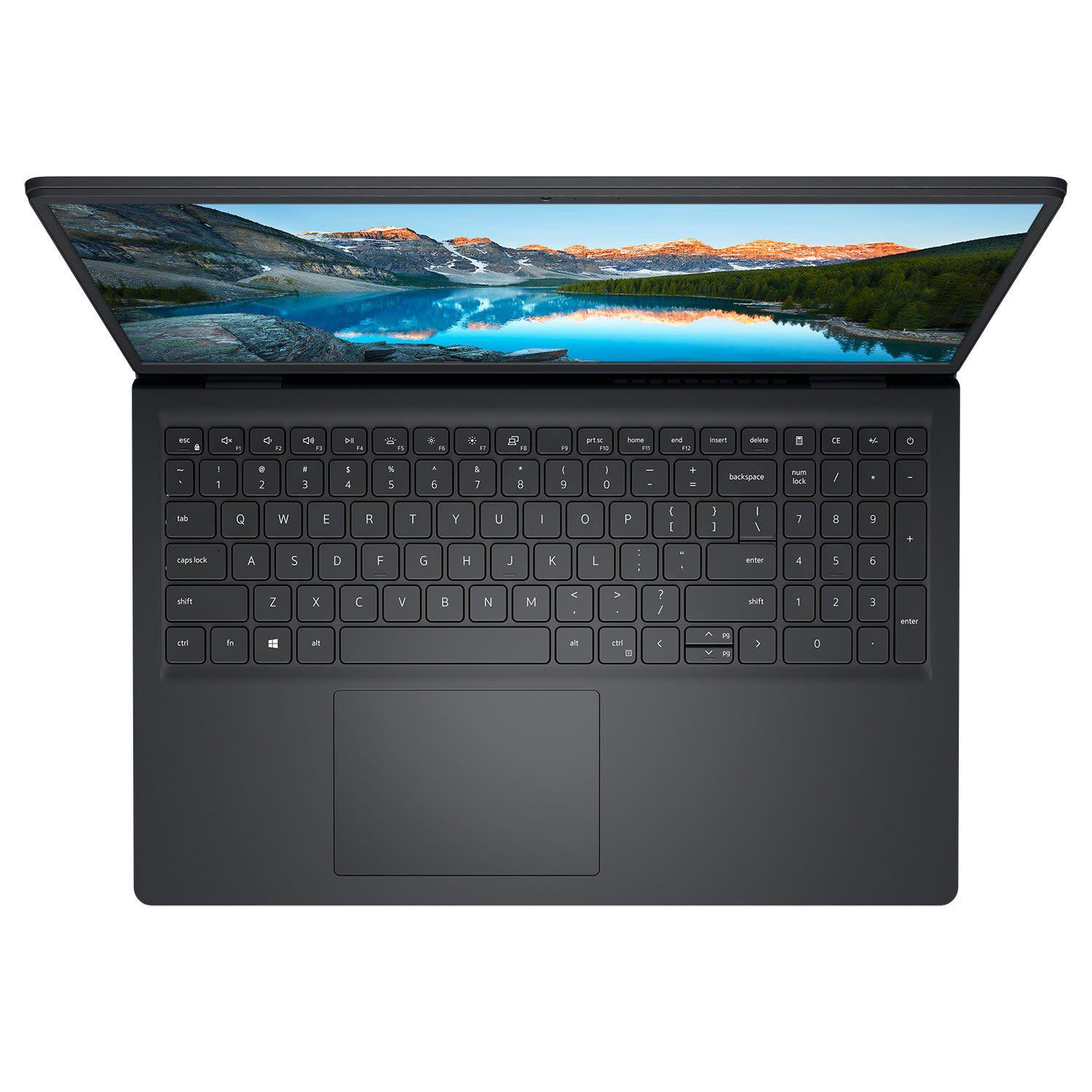
Once the symptom has been recorded, use reversible checks first. Avoid changing several unrelated settings at the same time because that can remove useful evidence.
Possible Causes of a Dell Keypad Not Working
The following are possible problem categories, not confirmed findings. A single observation can narrow the possibilities but usually cannot identify the failed component by itself.
1. Settings or Keyboard-Lock Behavior
A setting can resemble a failed keypad, particularly when only the numeric keypad, function keys, or a specific input mode is affected. Number-lock behavior may change whether the numeric keypad produces numbers or navigation input. Function-key modes, keyboard shortcuts, and accessibility settings can also alter how certain keys respond.
If you are searching for a laptop keypad locked Dell fix, use the exact Dell model and Windows version when checking settings. Available options and menu names may differ. A setting change that restores input is useful evidence, but it does not rule out an underlying physical problem.
2. Windows, Driver, or Application Problems
A driver helps Windows communicate with hardware, so a Windows or driver issue can affect input without proving that the keyboard itself is damaged. Keys that work at sign-in but stop responding after Windows loads may point toward software, settings, accessibility behavior, or an application.
Failure only inside one application supports checking that application’s focus, shortcuts, and input settings before treating the issue as a hardware failure. Use Windows and Dell support information appropriate to the exact model rather than relying on an unrelated menu path.
3. External Keyboard, USB, or Bluetooth Connection Problems
A USB keyboard, Bluetooth keyboard, wireless receiver, docking station, or hub can create confusion about which input device is failing. An external keyboard may restore access or provide a comparison, but its behavior does not by itself diagnose the built-in Dell keypad.
- If only the external device fails, consider its connection, power, pairing, receiver, or hub.
- If the built-in keyboard fails while the external keyboard works, treat that as evidence about separate input paths, not automatic proof of a replacement requirement.
- Record a Dell notebook touchpad not working symptom separately from keyboard behavior.
4. Debris, Liquid, or Physical Damage
A key that is loose, tilted, cracked, stuck, or mechanically different from nearby keys may indicate a local physical problem. Dust or crumbs can affect a small area, while liquid exposure can cause delayed or intermittent behavior even if the keyboard works briefly afterward.
- Do not use liquid cleaners or pour anything into the keyboard.
- Do not force a key mechanism or remove keycaps during an initial inspection.
- Remember that a clean-looking keyboard can still have internal damage.
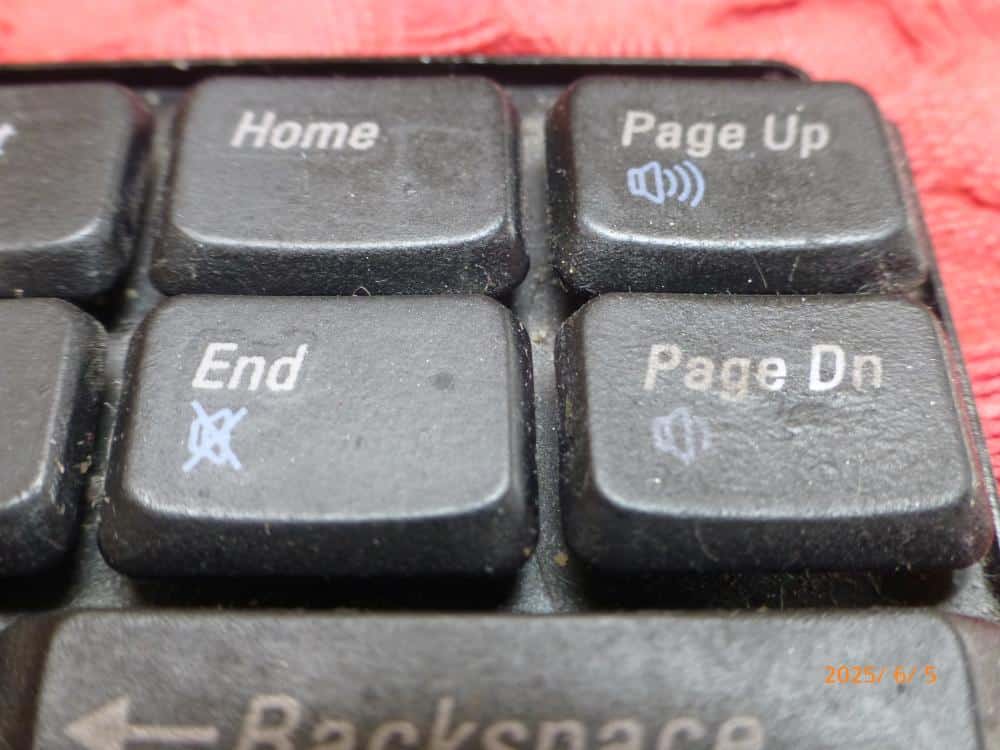
5. Internal Connection or Keyboard Hardware Faults
A repeating pattern of failed keys, persistent complete failure, or symptoms that remain outside one Windows application may justify hardware assessment. Internal connections, the keyboard assembly, or related system hardware may be involved, but symptoms alone do not confirm which component has failed.
Do not deliberately press the palm rest or keyboard area to reproduce an intermittent fault. If the problem requires opening the laptop to inspect an internal connection, professional assessment is safer than an improvised internal test.
With practical experience across 500+ laptop repairs, IndiRepair focuses on identifying the underlying fault before recommending a replacement.
book your Dell laptop repair with IndiRepair
How to Troubleshoot the Dell Keypad Safely
Use the checks below in an easiest-first order. Record the result after each meaningful check. Stop immediately if there has been liquid exposure or if the laptop shows smoke, sparks, swelling, burning smell, unusual heat, or visible electrical damage.
Start With External and Reversible Checks
- Confirm the affected keys. Compare the failed keys with nearby keys without pressing forcefully. A single key may suggest a localized mechanical issue, while a patterned group may need broader assessment.
- Disconnect unnecessary input devices. Remove USB, Bluetooth, wireless, docking, or hub-connected keyboards and then test the built-in keypad. If the behavior changes, the connected device or input path may be relevant.
- Restart only when the laptop is safe to use. If there are no liquid or electrical warning signs, restart and note whether the keypad works immediately or fails again after Windows loads. A changed result is a clue, not proof of a permanent fix.
- Use an external keyboard for access or comparison. Test the same kind of input that failed on the built-in keypad. If the external keyboard works, Windows may still be receiving input, but the built-in fault remains unconfirmed.
- Inspect the surface visually. Look for debris, loose keys, residue, or liquid signs without applying fluid or removing keycaps. Stop testing if damage is visible or liquid may have entered the device.
Check Windows, Settings, and Application Behavior
- Test at sign-in and in more than one application. Note where the keys work and fail. Working at sign-in but not in Windows can point toward settings, drivers, or accessibility behavior, while failure everywhere supports further assessment.
- Check number-lock and function-key behavior. Use the Dell model and Windows version as references because exact controls and menu names vary. If changing the relevant mode restores input, record the result rather than changing several other settings.
- Review relevant Windows keyboard and accessibility settings. Change only settings connected to the symptom and retest after each meaningful change. This preserves a clearer cause-and-effect record.
- Consider an available Windows or Dell driver update. Do this only when the laptop is stable and the update source is appropriate. Record the update or driver version and whether the same keys respond afterward.
- Check an application-specific failure. If the issue occurs in only one program, review its focus, shortcuts, and input settings before attributing the problem to the Dell keyboard.
Compare With an External Keyboard
- Connect a known-working compatible external keyboard. Use a suitable connection method and allow the system to recognize it. If it does not work, investigate the external connection before drawing conclusions about the built-in keypad.
- Test the same input category. Compare letters with letters, number-pad input with number-pad input, or function keys with function keys. This makes the comparison more meaningful.
- Compare the result in the same Windows session and application. If the external device works in the same context, the built-in path deserves closer attention, although the exact internal fault is still unknown.
- Record the result without treating it as a final diagnosis. An external keyboard proves that another input path works; it does not identify whether the built-in issue is a connector, keyboard assembly, contamination, or another fault.
- Document touchpad behavior separately. If the Dell laptop touchpad not working symptom occurs as well, record when it began and whether it changes in the same environments. Keyboard and touchpad problems may involve different input paths.
Inspect the Physical Condition Without Opening the Laptop
- Power down and disconnect external power only when safe. Do not handle or continue testing a device showing smoke, sparks, swelling, burning smell, extreme heat, or other electrical danger.
- Observe the affected keys and exterior. Look for liquid, residue, cracks, lifted areas, impact marks, or unusual key movement. These observations support a physical assessment but do not identify the exact failed part.
- Avoid risky cleaning or mechanical work. Do not spray cleaner, pour liquid, use sharp tools, force a key, or remove keycaps during this inspection.
- Stop after liquid exposure or suspected internal damage. Repeatedly powering on the laptop can complicate assessment. Arrange professional guidance instead of continuing home tests.
IndiRepair recommends treating each result as a clue rather than automatic proof that one component has failed. After meaningful troubleshooting, readers can get your Dell laptop checked by IndiRepair when the symptom remains unreliable or its cause is unclear.
Diagnostics and Interpretation
These comparisons help narrow the diagnostic category. None of them, by itself, confirms a particular failed component.
| Observation | What it may suggest | Limitation of the evidence |
|---|---|---|
| All built-in keys fail | A settings, software, connection, or keyboard-level issue may be involved. | It does not identify whether the fault is inside Windows, at a connection, or in the keyboard assembly. |
| A localized group of keys fails | A key mechanism, local contamination, or patterned hardware issue may be possible. | The pattern alone cannot confirm contamination or a specific internal component. |
| Keys work at sign-in but fail in Windows | Settings, drivers, accessibility behavior, or applications may be relevant. | It does not completely rule out intermittent hardware behavior. |
| Keys fail at sign-in and in several applications | A persistent input-path or hardware issue becomes more plausible. | Further testing is still needed before authorizing replacement. |
| External keyboard works while the built-in one does not | Another input path is functioning, so the built-in path warrants attention. | It does not distinguish a connector, keyboard assembly, contamination, or another fault. |
| The issue began after liquid exposure or impact | Physical or liquid-related damage may be relevant. | A brief return to normal operation does not prove that damage is absent. |
Interpret the Main Test Results
- Compare a failed key with a neighboring group. A localized symptom may point toward a key mechanism or local contamination, but it does not prove either cause.
- Compare sign-in with Windows. A change between environments may suggest software or settings. Persistence in multiple environments strengthens the case for assessment.
- Compare the built-in and external keyboards. This shows whether another input path works, but it cannot identify the exact internal fault.
- Compare several applications. Failure in only one application supports application-level investigation before hardware replacement.
- Review the symptom timeline. Updates, new peripherals, debris, liquid, and impact are useful clues, not definitive evidence.
Use Dell or Windows Diagnostics Only When Supported
For a model-specific Dell diagnostic or firmware test, use documentation for the exact Dell model and current Windows version. Do not rely on an unverified key combination or menu path. Record the diagnostic name, result, and date rather than simply stating that the laptop passed or failed.
- A diagnostic may not reproduce an intermittent fault.
- A passing result does not necessarily explain an application-specific problem.
- A failed result should be interpreted with the symptom history and other tests.
- Do not claim that a particular Dell Inspiron model has a known keyboard defect without independent verification.
When DIY Troubleshooting Should Stop
Stop home troubleshooting when continuing could worsen damage or create a safety risk.
- Liquid has entered the laptop, especially if it remains powered or behaves unusually.
- There is smoke, sparking, a burning smell, unusual heat, swelling, melting, exposed wiring, or visible electrical damage.
- Continuing would require force, cleaning fluid, keycap removal, or repeated pressing of a stuck key.
- The keyboard remains unreliable after safe software and external checks, particularly when multiple or patterned keys are affected.
- The laptop must be opened to inspect an internal connection and you are not qualified to perform that work safely.
Back up accessible data before repair when this can be done safely. Do not delay urgent safety action just to complete a backup.
Professional Repair Options
Professional assessment is appropriate when the issue persists across safe checks, follows liquid or impact exposure, or may involve an internal connection or keyboard assembly. Provide the repair professional with the affected key list, symptom timeline, exact Dell model, liquid or impact history, test results, and any diagnostic messages.
- Ask for diagnosis before authorizing replacement because the same symptom can have software, connection, contamination, and hardware causes.
- Consider replacement only after assessment identifies a keyboard assembly or related hardware problem.
- Do not assume that a working external keyboard proves the built-in keyboard must be replaced.
Frequently Asked Questions
Q: Can a Dell keypad work at sign-in but stop working in Windows?
A: Yes. That change can point toward a Windows setting, accessibility option, driver, or application behavior because the operating environment changes after sign-in. It is useful evidence, but it does not rule out every intermittent hardware issue. Test the affected keys in more than one application and record exactly where they work and fail before changing several settings. If the problem remains across multiple applications or starts appearing at sign-in as well, seek further diagnosis rather than assuming a software-only cause.
Q: What should I check if only some keys on my Dell laptop do not work?
A: Record whether the keys are adjacent, part of the number pad, or associated with one function. Check whether the behavior changes between sign-in, Windows, and different applications, and look for visible debris, liquid signs, loose keys, or impact damage without forcing anything. A localized pattern can suggest a mechanical or physical issue, but it is not a confirmed diagnosis. If the pattern persists across environments or follows a spill or drop, stop testing and arrange professional assessment.
Q: How can I tell whether my Dell laptop keypad is locked?
A: A lock or input-mode setting is more plausible when only the numeric keypad or function-key behavior is unusual while other keys work normally. Check the number-lock and function-key behavior using instructions for the exact Dell model and Windows version. Observe whether the keys produce different input rather than no response at all. If changing the relevant mode does not help, or if several unrelated keys fail, continue with broader software and hardware checks instead of assuming the keypad is locked.
Q: Is a Dell laptop keyboard replacement immediately necessary?
A: No. A nonworking keypad can result from settings, Windows, an application, an external device, debris, liquid, an internal connection, or the keyboard assembly. Safe checks should come before replacement, unless there is an urgent safety issue that requires stopping immediately. Replacement becomes a consideration after diagnosis identifies a keyboard or related hardware fault. A repair professional should review the symptom pattern and test results first, because replacing the keyboard may not resolve a software or connection problem.
Q: What should I do if the Dell keyboard and touchpad are both not working?
A: Record the keyboard and touchpad symptoms separately because they may use different input paths, settings, or hardware. An external keyboard can help you regain control and compare input, but it does not diagnose the touchpad or built-in keyboard. Check whether both symptoms began after the same update, peripheral connection, impact, or liquid exposure. If the laptop has electrical warning signs, stop using it. If both devices remain unreliable after safe checks, professional diagnosis is more appropriate than repeatedly changing settings.
Q: Should I keep testing a Dell laptop keyboard after a liquid spill?
A: No. Repeatedly powering on the laptop or pressing keys after liquid exposure can complicate the damage and may create a safety risk. Stop testing, avoid applying heat or cleaning fluid, and do not open the chassis unless you are qualified to do so safely. Note what liquid was involved, where it reached the laptop, and when the exposure occurred. Seek professional guidance, particularly if the laptop shows unusual behavior, heat, burning smell, smoke, or other electrical warning signs.
Conclusion
A Dell keypad not working is a symptom rather than proof that the keyboard has failed. The cause may involve settings or lock behavior, Windows or an application, an external input path, debris or liquid, an internal connection, or keyboard hardware.
- Record the affected keys and distinguish keyboard symptoms from touchpad symptoms.
- Check reversible settings and connections before considering hardware replacement.
- Compare sign-in, Windows, applications, and an external keyboard carefully.
- Stop immediately for liquid exposure, smoke, sparks, burning smell, swelling, unusual heat, or visible damage.
When safe checks do not resolve a persistent or patterned failure, diagnosis is more useful than guesswork. For readers who need a diagnosis-led next step, consider Dell laptop repair with IndiRepair before authorizing a replacement.