
To learn how to turn on a backlit keyboard on Lenovo, first confirm that the exact laptop configuration includes keyboard lighting and then follow the documented control for that model. Lenovo laptops do not all use the same keyboard layout, shortcut, or software setting. A dark keyboard light may indicate an unsupported feature, an incorrect keyboard mode, a software or firmware issue, or a hardware fault.
Identify the exact Lenovo model before trying repeated key combinations. Check the keyboard for a backlight symbol, compare the physical configuration with Lenovo documentation, and record whether the keyboard still types normally. The checks below move from reversible controls to software, firmware, diagnostic, safety, and repair guidance.
Does the Lenovo Laptop Support a Keyboard Backlight?
The correct way to turn on a Lenovo keyboard light depends on the exact model, keyboard configuration, and documentation supplied for that laptop. A shortcut that works on one Lenovo family may not apply to another, so model identification is more reliable than assuming a universal key combination.
Start With the Model-Appropriate Activation Check
The fastest safe test is to identify the laptop and use the documented backlight control once. This avoids confusing an unsupported keyboard with a failed backlight.
- Identify the exact Lenovo model or machine type. Use the laptop label, Windows system information, or Lenovo support information to record the model. The product-family name alone may not identify the installed keyboard.
- Check the model’s Lenovo documentation. Look for the documented keyboard-backlight control and confirm whether the control uses an Fn-layer or another keyboard mode. Do not rely on a shortcut found for a different Lenovo series.
- Press the documented control once. Observe whether the backlight turns on, changes brightness, cycles between available states, or produces no response. A change confirms that the control is being recognized, but no response does not yet confirm a hardware failure.
- Continue with support and software checks if the control does nothing. Repeatedly forcing unrelated key combinations is unlikely to restore an unsupported feature and may make the original symptom harder to interpret.
Confirm That the Keyboard Actually Has Backlighting
A Lenovo laptop can belong to a product family that was sold with different keyboard configurations. The family name alone does not prove that the individual laptop has a backlit keyboard.
- Inspect the key legends. Look for a keyboard-backlight symbol or another model-specific indicator. The absence of a visible symbol is useful evidence, but it should be compared with the exact model documentation.
- Compare the physical keyboard with official specifications or documentation. Verify that the installed configuration lists a backlit keyboard rather than assuming every unit in the same range includes one.
- Check for configuration differences. Some Lenovo product families may have more than one keyboard option. Confirm the configuration of the laptop in front of you, not only the name of the product family.
- Treat an undocumented feature as potentially unavailable. If the exact model has no documented backlight and no physical indication, the dark keyboard light may represent an unsupported feature rather than a broken component.
The visible keyboard layout and backlight control should always be verified against the exact Lenovo model before a repair is considered.
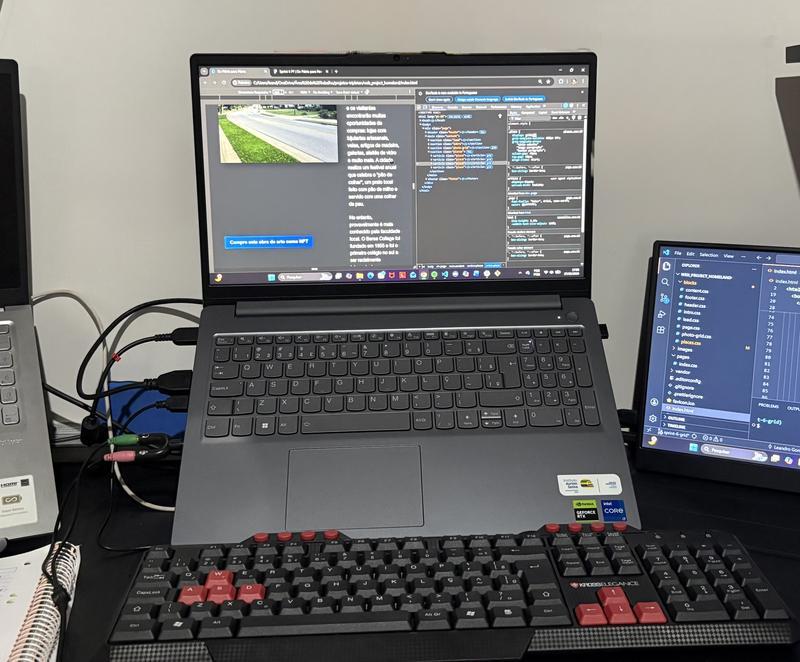
The available image catalog does not include a keyboard-specific image, so this marker should be replaced with a suitable visual showing how to identify a possible keyboard-backlight symbol on a Lenovo keyboard.
After these basic checks, readers who suspect a physical keyboard fault can use a laptop keyboard repair service for model-specific assessment rather than assuming that every dark backlight requires replacement.
What the Lenovo Keyboard Backlight Symptom Means
A dark backlight alone does not prove that the Lenovo keyboard has failed. The most useful evidence is whether the keys type normally, whether the light ever worked, when the symptom appears, and whether other built-in input devices are affected.
Symptoms to Record Before Troubleshooting
- Whether normal keyboard keys type correctly in Windows.
- Whether the backlight has ever been observed working on this laptop.
- Whether the light changes during startup, after sign-in, or only after the documented control is pressed.
- Whether the issue began after a Windows update, Lenovo software change, firmware update, liquid exposure, impact, or cleaning.
- Whether the built-in touchpad, an external keyboard, or other input devices also behave abnormally.
Compare the Observation With the Likely Meaning
The following comparisons help separate a backlight-only symptom from a wider keyboard or input problem. Each observation suggests a direction for testing, but none of these observations alone confirms the failed component.
| Observation | What it may suggest | What it does not confirm |
|---|---|---|
| The backlight is dark, but all keys type normally. | An unsupported feature, incorrect control, keyboard-mode issue, software setting, or backlight-specific fault. | It does not prove that the entire keyboard needs replacement. |
| The built-in keyboard does not respond in Windows. | A keyboard-mode, driver, firmware, connection, or internal keyboard problem. | It does not identify whether the keyboard, connector, or another board-level component is at fault. |
| The keyboard and touchpad fail together. | A broader input, settings, software, firmware, or hardware issue affecting more than the backlight. | It does not establish one universal cause. |
| The backlight works intermittently. | An inconsistent control, software state, power-state behavior, connection, or hardware fault. | It does not prove that a loose cable is the cause. |
| The keyboard or palm rest shows liquid, impact, cracking, or lifting. | Physical damage that may require internal inspection. | It does not make opening the laptop safe for an untrained user. |
Possible Causes of a Lenovo Keyboard Backlight Failure
1. The Lenovo Configuration Does Not Include a Backlit Keyboard
The exact Lenovo configuration may use a non-backlit keyboard, even when another version in the same product family includes keyboard lighting. If the documentation does not list a backlight and the keyboard has no corresponding indicator, the light may be unavailable rather than defective.
2. The Wrong Keyboard Control or Keyboard Mode Is Being Used
The documented control may require an Fn-layer or a model-specific keyboard mode. Using a shortcut from another Lenovo series can produce no response even when the laptop is functioning normally.
3. Windows or Lenovo Software Is Affecting the Keyboard Control
Windows settings, accessibility behavior, power-state behavior, or Lenovo device-management software may affect how a keyboard control is recognized. The relevant settings and software vary by model and installed Windows version.
4. A Driver, Firmware, or BIOS/UEFI Compatibility Issue Is Interfering
A keyboard or hotkey driver, firmware package, BIOS/UEFI setting, or update-related compatibility problem may prevent the documented control from working. Model-specific documentation is necessary before changing firmware or system packages.
5. The Keyboard, Backlight Circuit, or Internal Connection Has a Hardware Fault
Wear, liquid, impact, contamination, a damaged connector, or a failed keyboard or backlight circuit can cause the light or the entire keyboard to stop responding. Internal hardware cannot be confirmed from a dark light alone.
6. A Broader Input Problem Is Affecting the Keyboard and Touchpad Together
If the Lenovo keyboard and touchpad stop working at the same time, the backlight symptom may be part of a wider input problem. The combined symptoms require broader testing rather than a backlight-only fix.
How to Use the Cause List
These causes are possibilities, not a confirmed diagnosis. Use the recorded symptoms and the results of safe checks to prioritize the most likely direction. A nonresponsive backlight does not by itself prove that a keyboard replacement is needed.
Safe Troubleshooting and Diagnostic Checks
Work from the least invasive checks toward model-specific software and diagnostic evidence. Each result is a clue: a result may increase concern about a particular area without proving that a component has failed.
Recheck the Documented Control and Keyboard Mode
- Reconfirm the exact model-specific backlight instruction. Compare the control with Lenovo documentation for the exact model. If the documented control differs from the shortcut being used, test the documented control instead.
- Check the required Fn or function-key behavior. Confirm whether the model expects an Fn-layer or another keyboard mode. If the control works after the correct mode is selected, the earlier symptom was likely related to control recognition rather than a failed backlight.
- Test the documented control under the model’s stated operating conditions. If the documentation identifies a relevant power or operating-state condition, follow that condition and avoid assuming it applies universally.
- Observe the exact response. A brightness change or cycling state suggests that the control and backlight are being recognized. No response means the next checks should address support, software, firmware, or hardware evidence.
Check Windows and Lenovo Software Controls
- Review available Windows keyboard and accessibility settings. Look for settings that may affect keyboard behavior, but verify the exact path for the installed Windows version rather than relying on a generic menu guide.
- Check Lenovo’s official support or device-management software. If the model lists software with keyboard or hotkey controls, look for a keyboard-light setting. Do not install an application solely because it is intended for a different Lenovo model.
- Review keyboard-customization tools. If a third-party tool controls function keys, close it or temporarily remove its effect only when the change is reversible and the software can be restored. A change in behavior can show that a software conflict was involved.
- Restart Windows and retest the documented control. Record any setting changed before restarting. If the light returns after the restart, the symptom may have been a temporary software state; if nothing changes, continue with driver and firmware evidence.
Check Drivers, Firmware, and Startup Behavior
- Check Lenovo’s official support resources for the exact model. Look for applicable keyboard, hotkey, chipset, BIOS, or firmware updates, and verify that each package matches the machine type.
- Record current driver and firmware information. Keeping the original versions documented makes it easier to identify what changed and communicate the history to a repair technician.
- Install only model-specific updates. Follow the manufacturer’s power, backup, and interruption instructions. Do not begin a firmware update when the correct package or safe operating conditions are uncertain.
- Retest after the system fully restarts. Compare the backlight, keyboard input, and touchpad behavior with the original symptom. A changed result suggests a software or firmware relationship, but it does not eliminate the possibility of an underlying hardware fault.
Use External and Diagnostic Evidence
- Test the built-in keyboard during startup or in a manufacturer-provided diagnostic environment when available. A keyboard that responds outside Windows but not inside Windows points more strongly toward software or driver behavior, while failure in multiple environments increases concern about the built-in device or its connection.
- Compare the built-in keyboard with a known-working external keyboard. If external input works in Windows while the built-in keyboard does not, the result increases concern about the built-in keyboard path. It does not identify the exact failed part.
- Check whether the built-in touchpad is also affected. Record whether the touchpad and keyboard failed together. Simultaneous failure may indicate a broader input issue rather than an isolated backlight control problem.
- Use every result as evidence rather than proof. The combination of startup behavior, Windows behavior, external input, touchpad response, and physical history helps narrow the diagnosis before internal repair is considered.
After meaningful troubleshooting, IndiRepair recommends treating each result as a diagnostic clue rather than automatic proof that one component has failed. With experience across 500+ laptop repairs, IndiRepair focuses on identifying the underlying fault before recommending a replacement.
If the model supports backlighting but the documented control and safe checks do not restore it, you can get your Lenovo laptop checked by IndiRepair with the test results available for review.
Safety Limits: When to Stop DIY Troubleshooting
External settings and observation checks are generally safer than opening the laptop. Stop troubleshooting and seek professional assessment when the device shows signs of electrical, liquid, battery, physical, or firmware risk.
- Stop if liquid exposure or corrosion is visible or suspected.
- Stop if the laptop shows smoke, sparks, a burning smell, unusual heat, swelling, or melting.
- Stop if the keyboard or palm rest is lifted, cracked, or badly damaged.
- Stop if a firmware update failed, was interrupted, or left the laptop behaving abnormally.
- Do not pry off keycaps, disconnect internal cables, remove the keyboard, or open the laptop when the correct procedure is uncertain.
- Back up important data before changes that may affect system startup, firmware, or device configuration.
- Use only manufacturer-specific instructions for internal work, and do not use a damaged charger or repeatedly bend a damaged charging connector.
Stop Conditions for Immediate Escalation
- Liquid or corrosion is visible or suspected.
- The laptop shows heat, smoke, sparks, swelling, or a burning odor.
- The keyboard or palm rest is physically lifted, cracked, or severely damaged.
- A firmware update failed, was interrupted, or caused abnormal startup behavior.
- The exact Lenovo model or safe internal procedure cannot be identified.
When Professional Lenovo Keyboard Repair Makes Sense
Professional diagnosis becomes appropriate when the exact Lenovo model supports backlighting but the documented control, software checks, and safe diagnostic evidence do not restore it. Repair decisions depend on whether the fault is limited to the keyboard, the backlight circuit, an internal connector, firmware behavior, or a broader input-board issue.
A keyboard replacement should not be treated as confirmed until the failed component and compatible repair option have been assessed. A repair request is more useful when it includes the model, symptom timeline, tested controls, software changes, and any liquid or impact history.
Information to Give the Repair Technician
- The exact Lenovo model or machine type.
- Whether the model documentation confirms a backlit keyboard.
- Whether typing works, the backlight alone fails, or both functions fail.
- Whether the touchpad is also affected.
- Any liquid exposure, impact, recent update, or firmware event.
- Which documented controls, software checks, startup tests, and external keyboard tests were attempted.
IndiRepair can assess the evidence before deciding whether the problem calls for keyboard work or a broader hardware investigation. Readers who need diagnosis can book your Lenovo laptop repair with IndiRepair without assuming in advance that replacement is required.
Frequently Asked Questions
Q: How do I turn on the keyboard light on a Lenovo laptop?
A: Identify the exact Lenovo model, confirm that the installed keyboard supports backlighting, and use the backlight control documented for that model. The control may use an Fn-layer or another model-specific keyboard mode. Do not assume that a shortcut found for one Lenovo family works on every laptop. If the documented control produces no response, check whether the keyboard has a backlight symbol, review applicable Lenovo software settings, and continue with safe driver or diagnostic checks before concluding that the keyboard has failed.
Q: Why is my Lenovo IdeaPad keyboard light not working?
A: A Lenovo IdeaPad keyboard light may not work because the specific configuration does not include backlighting, the wrong control or keyboard mode is being used, Windows or Lenovo software is affecting the command, or the keyboard hardware has a fault. First compare the exact model with Lenovo documentation and inspect the keyboard for the relevant symbol. If normal typing also fails, or if the touchpad stopped working at the same time, investigate the wider input symptoms instead of treating the dark light as an isolated fault.
Q: Can a Lenovo keyboard and touchpad stop working at the same time?
A: Yes, a Lenovo keyboard and touchpad can become unresponsive together, but simultaneous symptoms do not identify one confirmed cause. The combination may relate to settings, drivers, firmware, an input connection, liquid or impact damage, or another internal fault. Record whether both devices fail during startup as well as in Windows, and note whether the problem followed an update or physical event. An external keyboard can help establish whether Windows accepts input, but that test does not identify the exact internal component.
Q: How can I tell whether my Lenovo laptop has a backlit keyboard?
A: Check the exact Lenovo model documentation and inspect the physical keyboard for a backlight symbol or model-specific indicator. Product families can include different keyboard configurations, so the family name alone is not enough. If the documentation does not list backlighting and the keyboard has no corresponding indication, the light may be an unsupported feature rather than a failed one. Confirming the configuration before changing drivers or opening the laptop prevents an unavailable feature from being mistaken for a repair fault.
Q: What should I do if the documented Lenovo backlight control does not respond?
A: First confirm that the exact model includes backlighting and that the documented Fn or function-key behavior is being used. Then review applicable Windows and Lenovo software settings, check model-specific driver or firmware guidance, and compare built-in input with an external keyboard or available diagnostic environment. If the backlight, keyboard, and touchpad remain abnormal, or if the laptop has liquid, impact, heat, or firmware damage, stop internal DIY work. The result needs professional diagnosis rather than an automatic assumption that a keyboard replacement will solve it.
Conclusion: Diagnose the Lenovo Backlight Before Replacing the Keyboard
The exact Lenovo model and physical keyboard configuration determine whether backlighting is available and how it is controlled. A nonresponsive light may result from an unsupported feature, an incorrect keyboard mode, software or firmware behavior, or a hardware fault.
- Verify that the specific Lenovo keyboard supports backlighting.
- Use the documented control and record whether typing and touchpad functions also work.
- Review relevant software and model-specific driver or firmware guidance.
- Use safe startup, external-input, and diagnostic evidence before considering internal work.
- Stop when liquid, electrical, physical, battery, or firmware risks are present.
A dark backlight does not by itself prove that a Lenovo keyboard replacement is required. If the symptom remains unresolved or the laptop has physical damage, IndiRepair can help with diagnosis-first Lenovo laptop repair with IndiRepair after reviewing the model and the checks already completed.