Lenovo laptop power drain can show up as a rapidly falling battery percentage, shorter runtime, lost charge overnight or unexpected shutdowns. These symptoms do not automatically mean the battery needs replacement.
Background applications, display settings, demanding workloads, heat and unreliable charging can all contribute. A worn battery is another possibility, but it needs supporting evidence.
The safest approach is to review battery usage and reversible settings, investigate software and temperature, compare charging and shutdown behaviour, then examine battery-health information. Those findings help distinguish excess power consumption from lost battery capacity.
Why Is My Lenovo Laptop Battery Draining So Fast?
If your Lenovo laptop battery life suddenly decreased, a recent application, update, settings change or charging problem deserves attention. Gradually shortening runtime is more consistent with battery wear, although several causes can occur together.
Drain during active work, idle time, sleep and shutdown represents different patterns. A laptop working hard consumes energy; one losing substantial charge after a confirmed shutdown needs a different investigation.
Software and Power-Use Causes
- Background applications and browser activity. Tabs, extensions, cloud syncing and media tools can keep the processor, network, storage or graphics hardware busy. The laptop may look idle while applications continue consuming power.
- Power-intensive settings. High brightness, keyboard lighting and performance-focused power modes increase consumption. Runtime may fall even without an obviously demanding application.
- Heavy workloads. Gaming, video editing, virtual machines and external displays can keep high-power components active. Faster drain accompanied by warmth and fan activity during these tasks does not, by itself, establish battery failure.
- Startup, update or driver activity. Background installation, indexing and sync tasks can continue after sign-in or resume. A sudden change following an update may be temporary activity or a power-management issue rather than permanent capacity loss.
Heat and Charging-Related Causes
- Excess heat and restricted ventilation. Soft surfaces, blocked vents and hot surroundings make cooling harder. Heat often accompanies high power consumption, and prolonged elevated temperatures can accelerate battery deterioration.
- Sleep activity mistaken for shutdown. Closing the lid does not necessarily turn the laptop off. Depending on the model and configuration, sleep can allow background activity or wake events that consume charge overnight.
- Unreliable or insufficient charging. An incompatible adapter, damaged cable, loose port or underpowered power source may fail to supply enough energy. Battery percentage can fall while connected, particularly under load.
- Charging-circuit or power-delivery faults. Internal faults can cause unstable charging or unexplained drain. These remain possibilities—not confirmed motherboard problems—until the adapter, port, battery and software behaviour have been assessed.
Battery Wear and Capacity Loss
- Reduced usable capacity. Age and use can reduce how much energy the battery stores. A displayed full charge then represents a smaller energy reserve than when the battery was new.
- Inaccurate charge estimates. Abrupt percentage changes or inconsistent remaining-time estimates can reflect reporting errors. These estimates also change with workload, so a fluctuating time prediction alone is not proof of a fault.
- Internal battery failure. A weak cell or battery electronics fault can cause early shutdowns, unstable readings or detection problems. Swelling, leakage and abnormal heat are safety warnings, not ordinary battery wear.
How the Symptoms Help Narrow the Cause
The following patterns identify useful directions for investigation. None confirms a failed component on its own.
| Observed pattern | Possible explanation | Useful supporting evidence |
|---|---|---|
| Rapid drain during demanding work | High processor or graphics consumption | Better runtime during comparable light use |
| Drain while apparently idle | Background applications, updates or driver activity | Battery usage and resource activity associated with particular applications |
| Overnight loss in sleep | Sleep activity, wake events or attached devices | Much lower loss during hibernation or full shutdown |
| Repeated loss after full shutdown | Powered accessories, battery deterioration or a hardware power-path issue | A repeatable pattern with accessories disconnected |
| High temperature and frequent fan activity | Demanding workload or restricted cooling | Improvement with lighter work and clear ventilation |
| Percentage falls while connected | Insufficient adapter output or unreliable charging path | Charging status, adapter compatibility and behaviour under light load |
| Gradual runtime loss or early shutdowns | Capacity loss, inaccurate readings or internal battery weakness | Capacity history, real-world runtime and diagnostic results |
If the evidence points toward battery deterioration or unreliable charging, IndiRepair’s Lenovo laptop battery replacement service is a relevant next step. Fast drain alone is not enough to decide that replacement is necessary.
How to Troubleshoot Lenovo Laptop Power Drain
Begin with reversible changes. Menu labels vary by Windows version and Lenovo model, so use the battery and power options available on your device rather than assuming every laptop has identical controls.
- Save your work and establish a baseline. Record the starting charge, elapsed time, workload, brightness and connected devices during a representative session. Compare later tests under similar conditions; otherwise, different workloads can make an ineffective change appear helpful.
Physical warning signs override this process. A swollen, leaking, smoking or unusually hot battery should not be subjected to further runtime tests.
Battery Usage and Reversible Power Settings
- Review battery usage in Windows Settings. Look in the battery or power area for application usage over the period when drain occurred. A high share may be normal for an application used all day; unexpected background use is a stronger clue. Focus subsequent checks on applications whose activity does not match your usage.
- Close or pause unnecessary applications. Save work before closing games, media tools, excessive browser tabs or sync services. If drain slows during comparable work, application activity likely contributed. If not, continue with settings and health checks rather than assuming that application was responsible.
- Reduce avoidable display and accessory consumption. Lower brightness to a comfortable level, reduce keyboard lighting where supported and disconnect unused accessories. Better runtime suggests those loads contributed; reconnect devices individually if you need to identify which matters most.
- Select a balanced or battery-saving power mode. Avoid performance-focused settings during the comparison. Improvement without a change in reported battery capacity points toward consumption rather than recovered battery health. Choose the best practical balance between responsiveness and runtime.
- Review startup applications. Disable only recognised programs you do not need at sign-in, leaving unfamiliar system and security components alone. After a restart, allow startup activity to settle. Reduced idle drain supports a startup-software explanation; unchanged drain warrants further checks.
- Compare results rather than the time estimate alone. Note the percentage change over a similar interval and workload. Remaining-time estimates fluctuate as activity changes. Repeat an unclear result before drawing conclusions, and retain settings that demonstrably help.
Battery-usage information is most useful when the selected time period overlaps the unexpected drain.
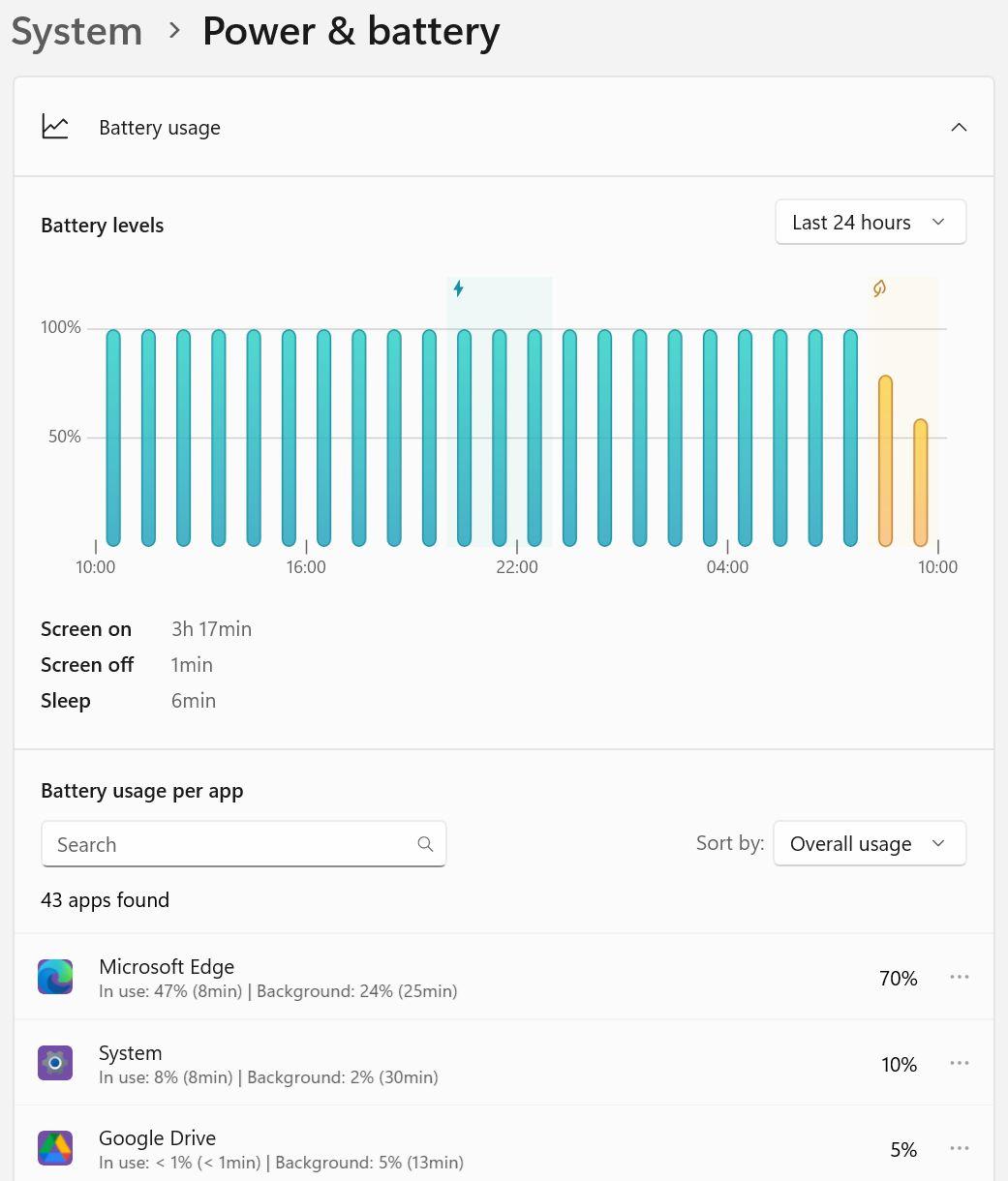
A large application usage share is not a battery-health score. It describes where energy was used during the selected period.
Windows, Driver and Lenovo Firmware Updates
- Install pending Windows updates through Windows Update. Use a reliable power connection and restart when requested. Installation and background cleanup can temporarily increase consumption, so assess runtime only after that activity has settled.
- Review model-specific Lenovo updates. Use official Lenovo support documentation or Lenovo Vantage, if available for your device, to identify relevant driver or power-management updates. Features vary by model. If no applicable update is offered, do not install packages intended for another laptop.
- Treat BIOS and firmware updates as model-specific procedures. Follow Lenovo’s instructions and prerequisites, with the correct adapter connected and stable power. Do not begin if charging is intermittent or the laptop shuts down unexpectedly. An unsafe power situation calls for diagnosis before firmware work.
- Reassess after restarting and settling. Compare the same light workload used earlier. Improved idle behaviour may indicate a software or driver contribution; unchanged runtime makes battery health and physical conditions more important.
- Seek assistance if an update fails or instability begins. Record the error and recent changes. A supported driver rollback may be appropriate with guidance, but repeated forced installations or improvised BIOS downgrades are not safe troubleshooting shortcuts.
Heat, Ventilation, Charging and Shutdown Behaviour
- Test on a hard, clear surface. Keep external vents unobstructed and avoid hot surroundings. If temperatures and drain improve during comparable work, ventilation contributed. Persistent unusual heat during light use needs assessment; opening the laptop is not required for this check.
- Remove nonessential peripherals. Disconnect docks, external displays, USB accessories and unused devices. A clear improvement identifies an accessory-related load or interaction. Reconnecting one device at a time can narrow the cause.
- Inspect the external charging equipment visually. Look for cable damage, exposed wires, melting, port damage or visible contamination without inserting tools. Charging that works only at an angle suggests a connection problem. Do not bend the connector repeatedly or continue using damaged equipment.
- Confirm adapter suitability and charging behaviour. Check the exact model’s Lenovo documentation for the required charger type and rating. Observe whether Windows consistently recognises external power and whether charge rises during light use when charging is expected. A configured charge limit can pause charging normally; continued percentage loss needs further assessment.
- Compare sleep, hibernation and full shutdown. Save work, disconnect accessories and record charge before and after equal idle periods under similar conditions. Use hibernation only if available. For a full-shutdown comparison, use Windows’ documented full-shutdown method rather than simply closing the lid; holding Shift while selecting Shut down bypasses Fast Startup. Much greater loss in sleep points toward sleep activity. Repeatable substantial loss after full shutdown warrants battery and power-path assessment.
- Stop testing if physical warning signs appear. Do not continue charging or handling a swollen, leaking, damaged or abnormally hot battery. Disconnect mains power only if safe. Smoke or sparks require moving away and obtaining emergency assistance rather than trying another diagnostic test.
Safety boundary: a lifted case or trackpad can indicate swelling. Pressure, puncturing, cell-level repair and attempts to flatten the battery are unsafe.
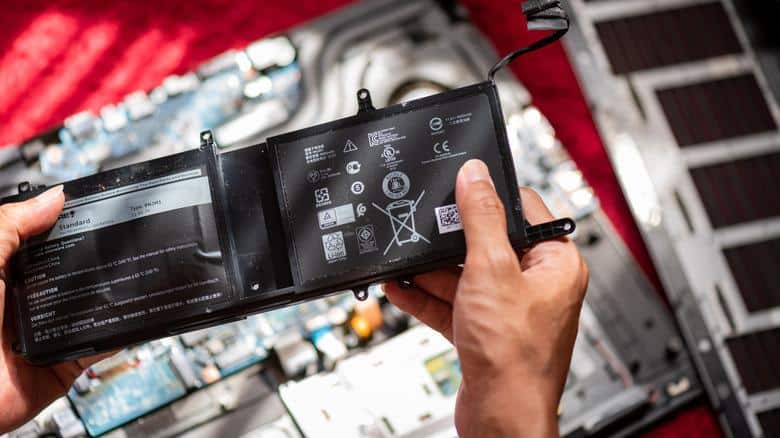
Liquid exposure, burning smells, exposed wires and visibly damaged ports also make continued DIY testing inappropriate.
IndiRepair has completed 500+ laptop repairs and has practical experience diagnosing laptop problems. The useful distinction here is between energy being consumed unusually quickly, a battery storing less energy and a charging system failing to replenish it.
If the safe checks have not clarified the cause, you can book your Lenovo laptop battery replacement with IndiRepair for professional assessment.
How to Check Lenovo Battery Health
The current charge percentage tells you how full the battery is relative to its estimated usable capacity—not how much capacity remains compared with new. Battery-health information helps separate reduced storage capacity from increased power use.
However, a report is not a complete electrical test. It cannot rule out every weak cell, intermittent charging fault or motherboard issue.
Windows Battery Report
- Open Command Prompt or Windows Terminal. Use administrator permissions if Windows requires them. This report uses a built-in Windows command; downloading a third-party battery utility is unnecessary.
- Run
powercfg /batteryreport. Windows should display the saved HTML report location. If it reports an error, record that message and check permissions rather than treating the failed command as evidence of battery failure. - Open the generated file in a browser. Review installed battery information, recent usage, battery usage and capacity history where available. Missing fields can reflect reporting limitations and do not independently confirm a faulty battery.
- Compare design capacity with full-charge capacity. A substantially lower full-charge capacity supports wear, especially alongside gradually declining runtime. Match the figures with recent usage and repeated observations; one estimate does not establish the complete diagnosis.
- Save the report for comparison. A later report can show whether estimates remain consistently low or fluctuate. Share it privately with support when needed, as it may contain device-identifying information.
Design capacity describes the battery’s intended energy storage when new. Full-charge capacity is the system’s current estimate of what it can hold.
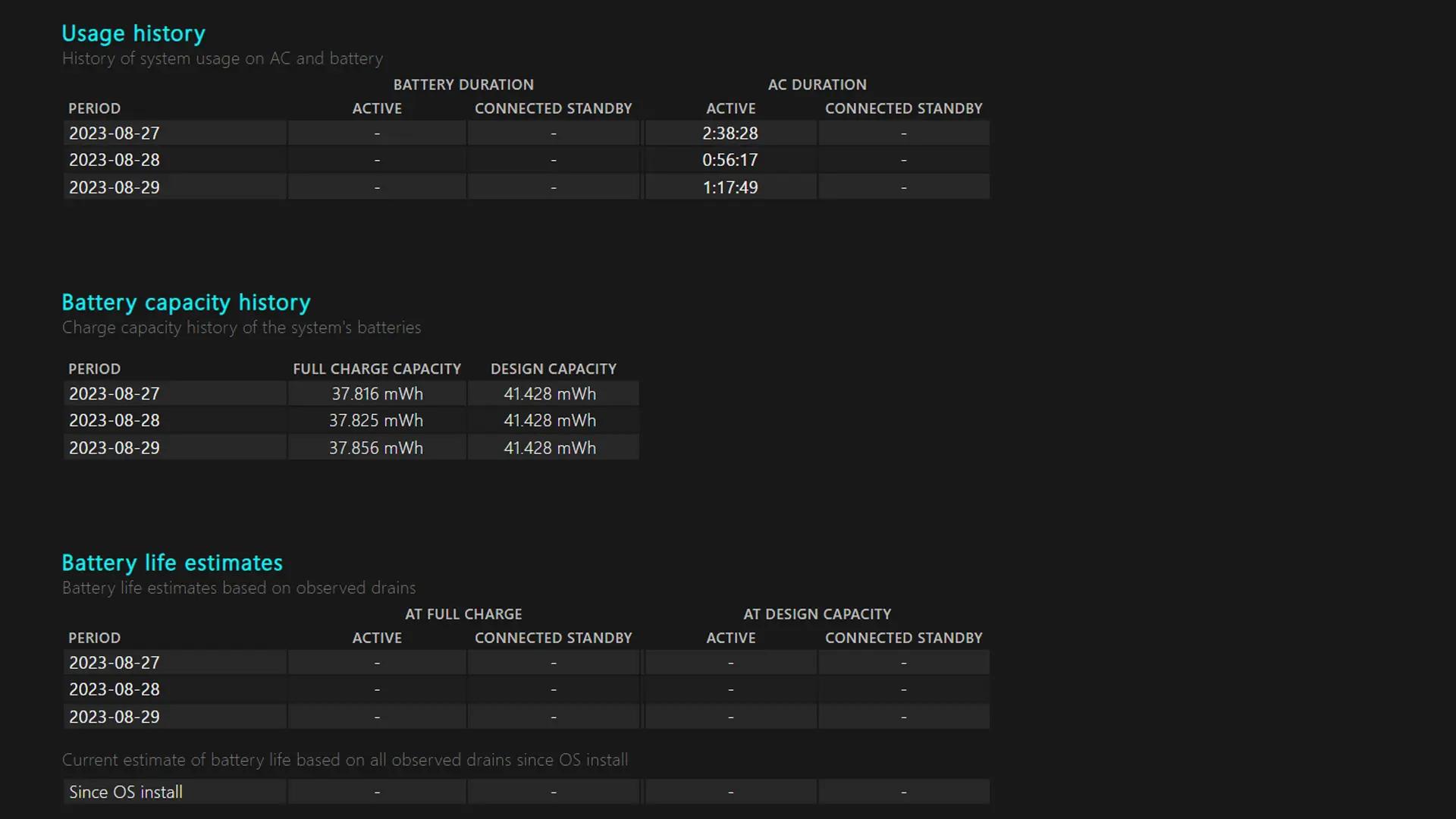
A battery may show 100% charge while holding much less energy than it originally could. Conversely, near-design capacity does not guarantee long runtime during demanding work.
Lenovo Diagnostics, Where Available
- Check the tools supported by your exact model. Open Lenovo Vantage or the applicable Lenovo support tool if installed. Confirm available features against official Lenovo documentation; absence of a battery-health page is not itself an error.
- Use an available battery or hardware diagnostic. Look for battery status, health or hardware-scan options without assuming identical labels across models. A completed test can provide supporting evidence, while an unavailable test leaves the Windows report and observed behaviour important.
- Record the result accurately. Preserve any warning, error code or reduced-capacity message. A passing result does not exclude intermittent faults, so unexpected shutdowns or unstable charging still deserve attention.
- Use model information when seeking support. Match documentation to the laptop’s model and provide serial information privately when arranging service. This helps avoid advice or replacement parts intended for a different device.
Health Results, Calibration and Capacity Loss
Calibration may improve the accuracy of the charge estimate. It cannot restore energy-storage capacity that battery cells have physically lost.
- Erratic readings without clear capacity loss: model-supported calibration may be relevant, but only according to Lenovo’s instructions. Repeated deliberate deep discharges are not a general battery-drain remedy.
- Consistently reduced capacity and poor runtime: battery wear becomes more likely, particularly when lighter workloads and power-setting changes do not restore useful runtime.
- Near-design capacity but rapid drain: workload, background activity, sleep behaviour and charging remain important suspects. The report also cannot exclude every internal battery fault.
- Swelling, leakage, abnormal heat or damage: these are safety concerns, not reasons to attempt calibration.
For an IndiRepair assessment, the report is supporting evidence rather than automatic proof that one component has failed. Capacity history, shutdown behaviour and charging stability together provide a stronger basis for a repair decision.
If the results conflict or the problem persists, get your Lenovo laptop battery checked by IndiRepair before committing to replacement.
When Should You Replace the Battery or Seek Professional Repair?
Battery replacement is more appropriate when health evidence and symptoms agree. Software changes are less likely to help when usable capacity is consistently low, shutdowns persist under light use or physical damage is present.
- Replacement may be appropriate: clearly reduced capacity and persistently short runtime remain after reversible checks, or diagnosis identifies an internal battery fault.
- Diagnosis should come first: charging is intermittent, charge falls while connected, the battery disappears from detection or a hardware scan reports an error. These symptoms can involve more than the battery.
- DIY testing is inappropriate: swelling, leakage, extreme heat, odor, smoke, sparks, liquid exposure or damaged charging equipment is present.
- The final decision is model- and fault-dependent: battery condition, adapter compatibility, charging-port condition and diagnostic findings determine whether replacement or another repair is justified.
Evidence and the Next Decision
- Software or settings pattern: clear improvement after reducing application activity, brightness or performance settings supports continued use with those changes.
- Heat or workload pattern: drain concentrated during demanding work, with improvement during cooler light use, supports workload and cooling management.
- Reporting pattern: erratic percentage readings without convincing capacity loss may justify manufacturer-guided calibration or further assessment.
- Battery deterioration pattern: consistently low capacity, poor light-use runtime and early shutdowns make battery replacement more plausible after confirmation.
- Charging or power-path pattern: inconsistent adapter recognition or repeatable drain while plugged in needs charging-path diagnosis. A motherboard fault should not be assumed from symptoms alone.
Frequently Asked Questions About Lenovo Battery Drain
Q: Does fast Lenovo laptop battery drain always mean the battery needs to be replaced?
A: No. Fast drain can mean the laptop is using more power, not necessarily that the battery stores less. Background activity, high brightness, heavy workloads and sleep behaviour can shorten runtime even with reasonable battery capacity. Replacement becomes more likely when capacity history and poor runtime agree after reversible checks. A charge percentage alone cannot make that distinction. Swelling, leakage or abnormal heat is different: those signs require stopping use and arranging safe assessment rather than continuing software experiments.
Q: Why do Lenovo laptops die so fast even when the battery health report does not show an obvious fault?
A: A health report estimates energy-storage capacity; it does not guarantee low power consumption. Games, video calls, graphics work, background syncing and bright displays can drain a healthy battery quickly. Sleep activity can also consume energy between sessions. Additionally, the report does not rule out every intermittent battery or charging fault. A comparison between light use and demanding work is useful evidence. Strong differences suggest consumption, while abrupt shutdowns during light use deserve further diagnosis even when capacity looks reasonable.
Q: How can I check Lenovo battery health in Windows 11?
A: Windows’ built-in battery report provides design capacity, estimated full-charge capacity and usage history where the device supplies those fields. The alphabetical report procedure above explains how to generate it with
powercfg /batteryreport. Lenovo Vantage or another supported Lenovo tool may offer additional health information, depending on the model. The strongest assessment combines these results with actual runtime and charging behaviour. Missing fields, a single low estimate or a passing scan should not be treated as a complete diagnosis.Q: Can calibrating a Lenovo laptop battery fix rapid drain?
A: Calibration can sometimes improve an inaccurate percentage estimate, but it cannot rebuild worn cells or restore physically lost capacity. It is more relevant when readings jump unexpectedly than when capacity history consistently shows deterioration. Even jumping readings can have other causes, including internal battery weakness. Any calibration should follow Lenovo’s instructions for the exact model rather than an improvised deep-discharge routine. A swollen, damaged, leaking or unusually hot battery is not a calibration candidate and should not undergo further testing.
Q: Why is my Lenovo laptop battery draining overnight?
A: The laptop may be sleeping rather than fully off. Depending on its configuration, background activity, wake events and connected devices can consume power during sleep. Closing the lid does not establish that shutdown occurred. The sleep, hibernation and full-shutdown comparison above helps separate these situations. Much greater loss in sleep points toward sleep-related consumption. Similar substantial loss after confirmed shutdown needs further assessment. There is no single expected overnight percentage loss that applies to every Lenovo model and battery condition.
Q: Why does my Lenovo laptop battery drain when it is shut down?
A: Some models can supply power to certain connected devices while off, depending on their settings. Battery deterioration, reporting variation or an internal power-path fault can also contribute. First, the apparent shutdown must be distinguished from sleep and Windows’ hybrid shutdown behaviour. Small changes over storage are not equivalent to repeated large overnight losses. The controlled shutdown comparison above provides better evidence than a single reading. Persistent substantial loss with accessories disconnected warrants assessment rather than an automatic battery or motherboard replacement.
Q: Is it safe to use a Lenovo laptop while it is charging?
A: Generally, yes, when the laptop and battery are in good condition, the charger is appropriate for the model and ventilation is clear. Demanding work can increase heat and reduce the power available for charging, so charging may be slower. A configured charging limit can also pause charging normally. Continued percentage loss during light use, unreliable adapter recognition or a connector that works only at an angle deserves diagnosis. Damaged cables, swelling, burning smells, smoke or unusual heat make continued use inappropriate.
Q: Why does my Lenovo laptop shut down suddenly even when the battery percentage is not zero?
A: The displayed percentage is an estimate. A worn or weak battery may be unable to maintain the required voltage under load even when the estimate shows charge remaining. Inaccurate reporting, overheating and other hardware faults can also cause shutdowns. Shutdowns concentrated during heavy work suggest a different pattern from failures during light use. A health report and temperature observations help, but neither identifies every fault. Repeated shutdown testing risks lost work and is less useful than professional assessment when the pattern persists.
Q: When should I replace a Lenovo laptop battery instead of changing software or power settings?
A: Replacement becomes a reasonable option when usable capacity is consistently reduced, runtime remains inadequate during light use and reversible software checks do not explain the problem. Early shutdowns may strengthen that case, but charging and thermal faults still need consideration. A battery detection problem also does not automatically prove the battery itself is defective. Physical warning signs require stopping use rather than attempting more settings changes. The final decision should reflect the battery’s condition, model compatibility and diagnostic findings, not age or percentage alone.
Conclusion
Lenovo laptop power drain is a symptom, not a diagnosis. Application activity, settings, workloads, heat, charging problems, inaccurate readings and battery wear can produce similar complaints.
The most useful evidence comes from comparable usage tests, stable charging observations and battery-health history. Calibration only addresses estimation problems; replacement addresses confirmed battery deterioration or failure. Swelling, leakage, unusual heat, odor, smoke, sparks or damage means further DIY testing is inappropriate.
If safe troubleshooting leaves the battery weak or charging unstable, Lenovo laptop battery replacement with IndiRepair offers a next step toward diagnosis. The aim is to identify the cause before deciding whether battery replacement or another repair is needed.
About the Author: Khan Rahil is a diploma holder in Computer Hardware with over 5 years of hands-on experience in laptop repairs and Senior Technician at IndiRepair. He has overseen hundreds of screen replacements, ensuring quality and customer satisfaction.