
If your Lenovo touchpad is not working, the pointer may stop moving, clicking may fail, scrolling may disappear, or the entire touch surface may become unresponsive. The problem can result from a disabled setting, keyboard lock state, Windows or driver issue, external-device conflict, loose connection, or physical damage. The symptom does not automatically prove that the touchpad hardware has failed.
The safest approach is to record exactly what works, check reversible settings first, isolate external devices, review software evidence, and inspect only for safe external warning signs. This process helps distinguish a configuration problem from a fault that needs professional diagnosis.
What Does a Lenovo Touchpad Problem Mean?
A Lenovo touchpad problem can affect different functions independently. Pointer movement, physical clicking, tap-to-click, scrolling, and multi-finger gestures do not always fail for the same reason. A Lenovo trackpad that moves the pointer but will not click should be assessed differently from a touchpad that produces no response at all.
An external mouse working normally confirms that the laptop can receive pointer input through another device, but it does not confirm whether the built-in touchpad is disabled, misconfigured, affected by a driver problem, or physically damaged. Similarly, a touchpad that works at the sign-in screen but stops after Windows loads may point toward settings or software, although that observation alone is not a confirmed diagnosis.
Model-specific behavior matters. A Lenovo Yoga convertible, for example, may change input behavior according to its mode, hinge position, firmware, or Windows state. Menu names and keyboard symbols also vary between Lenovo models and Windows versions.
| Observed symptom | What it may suggest | What it cannot confirm |
|---|---|---|
| No pointer movement or touch response | A disabled touchpad, driver problem, connection issue, or hardware fault may be involved. | The symptom alone cannot identify whether the cause is software or hardware. |
| Pointer movement works, but clicking does not | Click settings, the click mechanism, or a physical touchpad problem may need review. | It does not prove that the complete touchpad assembly has failed. |
| Scrolling or gestures do not work while movement works | Gesture settings or a related driver feature may be disabled. | Basic touchpad hardware health cannot be confirmed from gestures alone. |
| Intermittent response | A sleep-resume state, software conflict, loose connection, hinge-related issue, or physical fault may be possible. | A temporary recovery does not prove that the issue is permanently resolved. |
| Touchpad works at sign-in but fails on the Windows desktop | Windows settings, a driver, or software loaded after sign-in may be involved. | It does not completely rule out firmware or hardware problems. |
If safe checks do not restore reliable operation, IndiRepair can help determine whether the issue is related to the touchpad, connection, software, or another internal component through a Lenovo laptop screen replacement service.
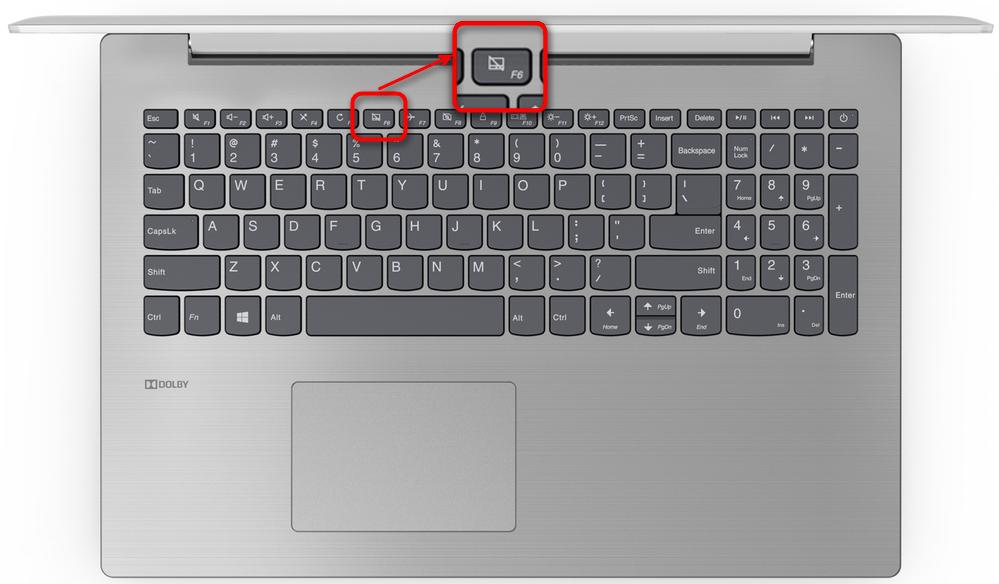
The image description above is model-dependent because Lenovo does not use one identical touchpad layout across every laptop series.
Record the Symptoms Before Changing Anything
Recording the original behavior creates useful diagnostic evidence. Settings changes, restarts, updates, and external-device removal can alter the symptom, so note what happens before making several changes at once.
- Record whether the pointer moves at all and whether the response is consistent or intermittent.
- Test physical clicking, tap-to-click, scrolling, and gestures separately rather than treating them as one function.
- Note whether an external USB or Bluetooth mouse works normally.
- Record whether the problem began after a restart, Windows update, driver change, spill, drop, pressure, cleaning, or repair.
- Note whether the touchpad works at the sign-in screen or only after restarting the laptop.
- Write down the Lenovo model and Windows version if those details are available.
Check Whether the Problem Is Limited to Windows
Sign-in behavior and external-mouse behavior can narrow the diagnostic path, but neither observation is conclusive by itself. Compare the same touchpad functions after each meaningful change so that a temporary improvement is not mistaken for a confirmed repair.
- Test the touchpad at the sign-in screen. If the pointer works before Windows fully loads but stops after sign-in, record that difference. The result may suggest a Windows setting, driver, or software interaction, so the next step is to review configuration and device evidence rather than immediately replace hardware.
- Test an external mouse if available. Normal mouse control confirms that the laptop can accept pointer input through another device. It does not identify why the built-in touchpad is inactive, so continue by separating touchpad settings from external-device behavior.
- Compare movement, clicking, scrolling, and gestures. If only gestures fail, settings or a feature-specific driver component may be involved. If every function fails, broader setting, connection, or hardware checks become more important.
- Perform a normal restart and record the result. A restart can clear a temporary sleep-resume or input-service state. If the touchpad works briefly and then fails again, the temporary recovery is evidence of an intermittent condition, not proof that the underlying problem has disappeared.
Possible Causes of a Lenovo Touchpad Not Working
The following categories cover common diagnostic possibilities, but the exact cause depends on the Lenovo model, Windows configuration, timing, and physical condition. A symptom becomes a confirmed diagnosis only when testing provides supporting evidence.
1. Disabled Touchpad Setting or Keyboard Lock State
The touchpad may be disabled in Windows settings, through a model-specific keyboard toggle, or through a Lenovo control. A touchpad that returns immediately after the correct setting is enabled points more toward configuration than component failure, although intermittent problems may still require further testing.
2. Windows or Touchpad Driver Problem
A driver is software that allows Windows to communicate with the touchpad hardware. An update, damaged installation, incompatible driver, or device-status error can prevent normal operation. A normal-looking device entry does not completely rule out a connection or hardware fault.
3. External Mouse or Pointer-Device Interaction
A USB mouse, Bluetooth pointer, receiver, hub, or docking station may interact with a setting that disables the touchpad when another pointing device is connected. Improvement after removing an accessory identifies a possible interaction, but it does not automatically prove that the accessory or touchpad is defective.
4. Recent Update, Sleep-Resume, or Software Conflict
A recent Windows change, sleep-resume issue, or software conflict can affect touchpad behavior without indicating permanent physical failure. Timing is useful evidence, but an issue that appears after an update may still be coincidental and should be checked against device status and physical symptoms.
5. Loose or Damaged Touchpad Cable or Connector
A touchpad cable or connector may be affected by impact, pressure, chassis movement, or previous repair work. Intermittent behavior that changes with hinge movement or case flexing raises the importance of hardware inspection, but the laptop should not be twisted or pressed to reproduce the fault.
6. Liquid Exposure, Swelling, or Touchpad Hardware Failure
Liquid, contamination, a raised touchpad, a failed click mechanism, damaged electronics, or another internal fault can cause a Lenovo laptop touchpad not working symptom. These conditions require caution because opening or continuing to use the laptop may worsen damage or create a safety risk.
7. Convertible or Model-Specific Input Behavior
A Lenovo Yoga or other convertible model may use model-specific tablet modes, hinge states, firmware behavior, or input controls. Instructions from another Lenovo model may not apply, so the exact model and its official documentation should be verified before changing firmware or device-specific settings.
How the Cause Categories Differ
Individual observations make some causes more plausible, but they do not replace a complete diagnosis.
- A touchpad that returns after enabling a setting points more toward a configuration state.
- A touchpad that disappears from device listings or changes after an update may require driver or operating-system investigation.
- A problem linked to hinge movement, pressure, liquid, or a visible chassis gap increases the importance of hardware inspection.
- A Lenovo Yoga touchpad problem should be assessed with model-appropriate input-mode information rather than instructions copied from another convertible model.
Safe Troubleshooting Checks Before Advanced Changes
Start with reversible checks before removing drivers, changing firmware, opening the laptop, or ordering replacement parts. Keyboard symbols, menu names, and touchpad options vary by Lenovo model and Windows version, so an absent option is not automatically evidence of a failed component.
- Save open work and perform a normal restart. Avoid repeatedly forcing the laptop off unless it is unresponsive and no safer option is available. If the touchpad resumes afterward, record how long it remains functional and whether every function returns.
- Look for a touchpad-toggle symbol on the function row. Use the model’s documented function-key combination only when the symbol or documentation identifies it. If the toggle restores movement, check the setting again later because an accidental key press may recur.
- Open Windows touchpad settings with an external mouse or keyboard navigation. Confirm that the primary touchpad option is enabled. If the setting is already enabled but the touchpad remains inactive, continue to driver and physical checks rather than repeatedly toggling the same option.
- Check the setting for disabling the touchpad when an external mouse is connected. Disconnect unnecessary pointing devices and retest the built-in touchpad alone. Improvement suggests a configuration or device interaction, not necessarily a damaged touchpad.
- Disconnect nonessential USB, Bluetooth, docking, and receiver devices. Test the touchpad without those devices connected, then reconnect them one at a time only after recording standalone behavior. If one device changes the symptom, investigate its setting or connection separately.
- Clean only the external touchpad surface with the laptop powered down. Use a dry, lint-free method appropriate for electronics and do not force material or liquid into gaps. Surface contamination may affect touch response, but cleaning cannot repair an internal cable or electronic fault.
- Test movement, clicking, scrolling, and gestures separately after each meaningful change. A restored pointer does not prove that clicking or gesture functions are also fixed. Record which functions return and which remain unavailable.
A restored response after this sequence suggests a reversible setting, state, or device interaction. It does not always prove that the touchpad hardware is permanently healthy, especially when the symptom returns after sleep, restart, hinge movement, or reconnection of an accessory.
Review Touchpad Settings and Keyboard Lock States
Settings and keyboard lock states are among the safest areas to check because they can usually be changed without opening the laptop. Lenovo models may expose different controls, so use the options actually shown on the device.
- Use Windows Settings to locate the touchpad controls. Verify that the main touchpad option is enabled. If the menu is missing or behaves differently from another Lenovo model, check the exact model documentation instead of assuming the hardware has failed.
- Review options for clicking, scrolling, gestures, and external-mouse behavior. If pointer movement works but scrolling or gestures do not, feature-specific settings are more relevant than a complete touchpad replacement.
- Inspect the function keys for a touchpad icon. Use only the combination appropriate to the laptop when the symbol or model documentation makes it identifiable. A wrong key combination may change another laptop function without addressing the touchpad.
- Check Lenovo software controls only when they are available on that exact machine. If Lenovo Vantage or another Lenovo utility presents an input setting, record the existing state before changing it and retest the same functions afterward.
Test Without External Pointing Devices
An external device can alter touchpad behavior through Windows settings or a connection state. Testing without accessories isolates the built-in touchpad without assuming that another device is faulty.
- Unplug nonessential USB mice, receivers, hubs, and docking accessories. Leave only the input device needed to control the laptop during testing. If the touchpad begins working, document which accessory was removed before drawing a conclusion.
- Temporarily disconnect Bluetooth pointing devices. Use an available mouse or keyboard to control Windows while disconnecting the device. A change after Bluetooth removal suggests an interaction that should be investigated through settings and reconnection testing.
- Restart or sign out if required, then test the built-in touchpad alone. Compare pointer movement, clicks, scrolling, and gestures with the original symptom record. If only one function returns, the problem may be narrower than a complete touchpad failure.
- Reconnect devices one at a time after recording standalone behavior. If the symptom returns after a particular accessory is connected, preserve that observation for further software or compatibility checks.
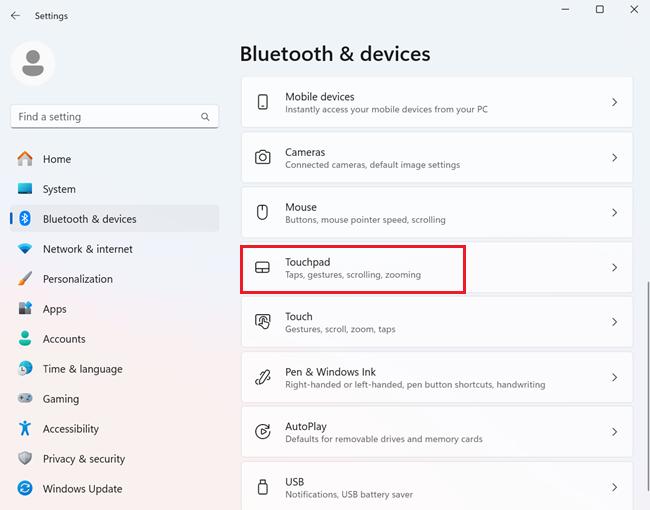
Do not treat one screenshot or menu path as universal because Lenovo laptops and Windows releases can present different touchpad controls.
Check Windows, Drivers, and Lenovo Software
Software checks become more useful after reversible settings and external-device isolation have been completed. The goal is to collect evidence about communication between Windows and the touchpad without making disruptive changes prematurely.
- Check Windows Update for pending updates and record update timing. If the Lenovo touchpad stopped working immediately after an update, the timing is a useful clue. It is not proof that the update caused the problem because a hardware or connection fault may have appeared at the same time.
- Open Device Manager with an external mouse or keyboard. Look for entries associated with touchpads, HID devices, mice, pointing devices, or related hardware without assuming every Lenovo model uses the same name.
- Review device status and warning indicators. Record the device name, any error message, and the presence of a warning icon before changing the device. This information can help distinguish a software recognition issue from a touchpad that is present but not responding.
- Create a recovery plan before considering driver updates, rollback, removal, or reinstallation. Use Lenovo or Microsoft resources appropriate to the exact model and operating system. An incorrect driver can create additional input problems, so do not remove a driver solely because the touchpad is unresponsive.
- Restart after a supported software change and retest the original functions. Compare movement, clicking, scrolling, and gestures separately. If the driver change restores operation, the result supports a software explanation but does not prove the hardware has no intermittent fault.
- Check Lenovo’s model-specific support resources or diagnostic utilities when available. Confirm the exact machine before using a diagnostic tool or firmware-related instruction. Do not apply another model’s firmware procedure because the brand is the same.
Use Device Manager Without Removing Drivers Prematurely
Device Manager can provide useful evidence, but a normal device listing does not certify that the physical touchpad and its connection are healthy. Record information first so that later changes remain traceable.
- Expand relevant device categories. Look for entries associated with touchpads, HID devices, mice, or pointing devices. The exact label may vary, so absence of an obvious word such as “touchpad” does not by itself confirm a missing component.
- Record the device name, status message, and warning icon. An error message may indicate a software recognition problem, while a normal status still leaves open the possibility of a connection or physical fault.
- Compare the device list after a restart only when the change can be documented safely. A device that appears or disappears between states provides evidence about recognition, but it still needs interpretation alongside the symptom and model information.
- Avoid deleting or replacing a driver without an appropriate recovery path. Keep an external input method available because an incorrect change can make navigation more difficult until the original software is restored.
Consider Lenovo and UEFI Diagnostics Only When Model-Appropriate
Some Lenovo laptops provide model-specific diagnostics or firmware input settings, while others may expose different tools. Official Lenovo documentation for the exact machine is the appropriate source for menu names, diagnostic codes, and firmware behavior.
- Identify the exact Lenovo model. Use the model information shown on the laptop or in Windows and compare it with the official documentation. Avoid relying on a similar-looking Yoga or ThinkPad instruction.
- Run only a documented touchpad or input test that matches the machine. Record the result and any displayed message rather than treating a test label as a replacement recommendation.
- Compare firmware-level and Windows-level behavior when the documented test permits it. A difference between those environments may help separate software behavior from broader recognition or hardware concerns.
- Use the result as evidence for a repair discussion. A diagnostic result can support further investigation, but it does not automatically prove that a particular part must be replaced.
IndiRepair approaches the result as diagnostic evidence rather than automatic proof of one failed component. After meaningful checks, you can get your Lenovo laptop checked by IndiRepair with the model, symptom history, device observations, and any documented test results.
Inspect Hardware, Liquid Exposure, and Physical Condition
External inspection becomes important when the Lenovo touchpad problem follows a drop, pressure, liquid exposure, swelling, hinge movement, or previous repair. Limit the inspection to safe observations unless you have the correct model documentation, tools, skills, and repair environment.
- Power the laptop down normally if possible and disconnect the charger. Do not continue testing a device that is becoming unusually hot, producing an odor, or showing signs of electrical damage.
- Look for a raised touchpad, uneven palm rest, chassis separation, cracks, missing parts, or an abnormal click mechanism. A new gap or lifted surface can indicate swelling or structural damage and should not be pressed down.
- Check for visible liquid, residue, corrosion, or unusual odor. Do not probe inside the laptop or use improvised tools to investigate. Liquid exposure can cause damage that is not visible from the outside.
- Observe hinge movement only through its normal range. Stop immediately if the chassis flexes, separates, or behaves dangerously. A symptom that changes with hinge movement is useful evidence of a possible connection or structural issue, not an invitation to repeat the movement.
- Record physical findings and stop if the laptop shows swelling, liquid damage, heat, odor, or structural damage. A normal-looking exterior does not rule out a loose cable, connector fault, or internal component failure.
Recognize Signs That Need Immediate Caution
Some symptoms make continued home troubleshooting unsafe. Stop using the laptop and seek appropriate assistance if any of the following conditions are present:
- A visibly raised touchpad or swollen battery area near the palm rest.
- Recent liquid exposure or evidence of moisture inside the laptop.
- Burning smell, unusual heat, smoke, sparking, or repeated unexpected shutdowns.
- A cracked, lifted, or physically displaced touchpad or palm rest.
- A symptom that changes when the case is pressed or twisted.
Do not press a raised touchpad, squeeze a swollen area, power on a liquid-affected laptop, use a damaged charger, or attempt to disconnect internal cables without appropriate repair knowledge.
Interpret the Test Results Before Choosing a Repair
Test results should be interpreted as clues that increase or decrease the likelihood of a cause. A single observation rarely confirms a touchpad replacement, cable repair, board-level fault, or software solution.
| Observed result | What it may suggest | What it cannot confirm | Appropriate next action |
|---|---|---|---|
| Enabling a setting restores function | A disabled setting or keyboard state was involved. | It cannot prove that intermittent hardware problems are absent. | Retest after restart and record whether all functions remain reliable. |
| Restart restores the touchpad temporarily | A sleep-resume, software, driver, or intermittent connection state may be involved. | Temporary recovery does not prove permanent resolution. | Record when the failure returns and preserve update or sleep timing. |
| Removing an external device helps | A pointer setting or device interaction may be affecting the touchpad. | It does not prove the accessory or touchpad is defective. | Reconnect devices one at a time and check the related setting. |
| A supported driver change restores operation | Windows communication or driver state may have contributed. | It cannot rule out an intermittent physical fault. | Retest every touchpad function and monitor for recurrence. |
| The touchpad works at sign-in but fails in Windows | A Windows setting, driver, or loaded software may be involved. | It does not completely rule out firmware or hardware concerns. | Review settings and device evidence using the exact model information. |
| The touchpad is absent from relevant software listings | Recognition, driver, connection, or hardware issues may be possible. | Absence of an obvious name does not by itself identify a failed part. | Record the listing and seek model-appropriate diagnosis if it persists. |
| Visible physical damage is present | Swelling, impact, liquid, or internal damage may be involved. | The exact failed component cannot be confirmed from appearance alone. | Stop unsafe testing and arrange professional assessment. |
Use a Conditional Diagnosis Path
A conditional diagnosis combines symptom behavior, reversible checks, software evidence, physical observations, and model-specific information rather than relying on one result.
- Start with the symptom record. Identify whether the problem affects movement, clicks, gestures, or every touchpad function. A narrow failure may require different investigation from complete inactivity.
- Confirm whether reversible settings, keyboard states, restart behavior, or external-device removal change the symptom. Each result should be recorded with the exact function that returned or remained unavailable.
- Review Windows and driver evidence. A warning, missing device, or update-related change can support a software investigation, while a normal listing does not prove physical health.
- Weigh physical signs, update timing, intermittent behavior, and model-specific diagnostic results together. Only an appropriate qualified assessment can confirm an internal connector fault, touchpad component failure, or another board-level problem.
Know When to Stop DIY Troubleshooting
Stop home troubleshooting when safety conditions appear, when the laptop would need to be opened, or when repeated software changes are producing unclear results. Continuing to change settings or reinstall drivers can make the original evidence harder to interpret.
- Stop using the laptop and seek assistance if there is swelling, liquid exposure, smoke, sparking, burning odor, or dangerous heat.
- Stop external testing if the chassis separates, the touchpad is visibly raised, or hinge movement causes unusual flexing.
- Avoid opening the laptop, disconnecting internal cables, or replacing parts without the correct model documentation, tools, skills, and safe workspace.
- Do not repeatedly reinstall drivers or change firmware settings when the evidence is unclear.
- Back up important data using a working external mouse, keyboard, or another safe method before advanced repair work.
- Seek professional assessment when the touchpad remains inactive after appropriate reversible and software checks or when the issue is intermittent and difficult to reproduce.
What DIY Troubleshooting Should Not Attempt
- Do not press down on a swollen or raised touchpad.
- Do not power on a laptop that may still contain liquid unless it has been assessed and safely handled by a qualified professional.
- Do not use improvised tools to pry the touchpad or palm rest.
- Do not assume that a replacement touchpad will fix a cable, motherboard, firmware, or software problem.
Move From Troubleshooting to Professional Repair Assessment
Professional assessment becomes appropriate when safe settings and software checks do not restore reliable operation, when physical damage is present, or when internal access would be required. Diagnosis should distinguish a touchpad surface or click mechanism issue from a cable, connector, battery, palm-rest, motherboard, firmware, or software issue before parts are ordered.
IndiRepair has practical experience diagnosing laptop problems across 500+ laptop repairs. That experience supports a diagnosis-first approach: document the symptom, test the likely causes, and recommend work based on confirmed findings rather than assuming every Lenovo touchpad problem requires the same replacement.
book your Lenovo laptop repair with IndiRepair
Provide the exact Lenovo model, operating system, symptom timeline, external-mouse result, driver observations, diagnostic results, and any history of impact, liquid, swelling, hinge movement, or previous repair. This information helps a technician reproduce the fault and avoid treating a symptom as a confirmed component failure.
- Ask what evidence supports the proposed fault and whether software and connection causes were checked first.
- Ask whether the proposed work is diagnosis, connector or cable repair, component replacement, or broader board-level repair.
- Ask whether important data should be backed up before service.
- Ask which model-specific part or procedure is being considered and whether the exact Lenovo model has been verified.
- Ask what additional findings would change the repair recommendation.
Frequently Asked Questions
Q: Why is my Lenovo touchpad not working but my external mouse is?
A: An external mouse proves that Windows can receive pointer input through that device, but it does not identify the touchpad fault. The built-in touchpad may be disabled by a Windows setting or keyboard toggle, affected by an external-mouse preference, blocked by a driver problem, or affected by a loose connection or physical failure. Check the touchpad setting, inspect the model-specific keyboard toggle, disconnect unnecessary pointing devices, and review device status. If the mouse works while the touchpad remains inactive after these checks, preserve the model and symptom information for professional diagnosis rather than assuming that a touchpad replacement is automatically required.
Q: Why did my Lenovo touchpad stop working after a Windows update?
A: The update timing may indicate a driver, setting, or Windows communication change, but it does not prove that the update caused the failure. Record the update timing and any error message, then check touchpad settings and the relevant Device Manager status. Use a rollback or reinstall path only when it is supported for the exact Lenovo model and Windows version, and keep an external input method available. Retest movement, clicking, and scrolling separately after restarting. A coincidental connection or hardware problem remains possible if software checks show no useful change.
Q: How do I know whether my Lenovo touchpad is disabled or broken?
A: A touchpad that returns immediately after enabling a Windows setting or model-specific keyboard toggle is more consistent with a disabled state, although recurrence still deserves attention. A touchpad that remains inactive across restart, sign-in, settings checks, external-device isolation, and appropriate software review may require hardware diagnosis. Physical signs such as swelling, a raised surface, liquid exposure, unusual odor, or hinge-related changes increase the need for professional assessment. No single observation confirms a broken component, so avoid ordering a replacement until the exact fault has been identified.
Q: Why is my Lenovo Yoga touchpad working only intermittently?
A: Intermittent behavior can be associated with input-mode changes, sleep or resume states, settings, driver behavior, hinge-related symptoms, or a connection that is not stable. Record whether the failure changes after restart, sign-in, display-position changes, external-device removal, or Windows updates. Do not repeatedly flex the hinge or press the chassis to reproduce the issue. If the symptom changes with normal hinge movement, the case flexes, or the touchpad becomes unreliable despite software checks, professional assessment is safer because an internal connection or physical fault may be involved.
Q: Can a loose touchpad cable cause a Lenovo trackpad to stop working?
A: A loose or damaged cable or connector can cause complete or intermittent loss of touchpad input, particularly after impact, pressure, chassis movement, or previous repair. However, similar symptoms can come from settings, drivers, firmware, or the touchpad assembly itself. A symptom that changes when the case is pressed or twisted should not be deliberately reproduced because flexing can worsen damage. Record the behavior and arrange an inspection if software checks do not explain it. Internal cable work should be performed only with appropriate model documentation, tools, and repair experience.
Q: Should I replace the Lenovo touchpad immediately?
A: No. A disabled setting, keyboard lock state, driver problem, external-device interaction, loose cable, connector issue, firmware condition, or motherboard fault can produce the same symptom. A replacement should be considered only after the exact Lenovo model and failed component have been confirmed. A technician should compare the symptom record with software evidence and physical findings before recommending a part. Replacing the touchpad without checking the connection or operating-system cause may not resolve the problem.
Q: When should I stop troubleshooting a Lenovo touchpad at home?
A: Stop when the laptop shows swelling, liquid exposure, smoke, sparks, burning odor, dangerous heat, chassis separation, or a visibly raised touchpad. You should also stop before opening the laptop or changing firmware when you do not have model-specific instructions and a safe repair environment. If reversible settings, external-device isolation, and appropriate software checks do not restore reliable operation, professional diagnosis is more useful than repeated driver changes. Back up important data with an external mouse or keyboard when possible, then provide the technician with the model, timeline, test results, and physical observations.
Conclusion: Treat the Symptom as a Diagnostic Clue
A Lenovo touchpad not working is a symptom, not proof of failed hardware. The cause may be a setting, keyboard lock state, Windows or driver issue, external-device interaction, loose connection, physical damage, or model-specific input behavior.
- Record the exact functions that fail.
- Check reversible settings, keyboard states, and external devices.
- Review Windows and driver evidence without removing software prematurely.
- Inspect only for safe external warning signs.
- Move to professional diagnosis when the problem persists, recurs, follows physical or liquid damage, or would require opening the laptop.
If the Lenovo touchpad remains unreliable after safe checks, IndiRepair can help assess the evidence before repair work is selected. A diagnosis-led Lenovo laptop repair with IndiRepair is preferable to assuming that one replacement part will solve every touchpad symptom.