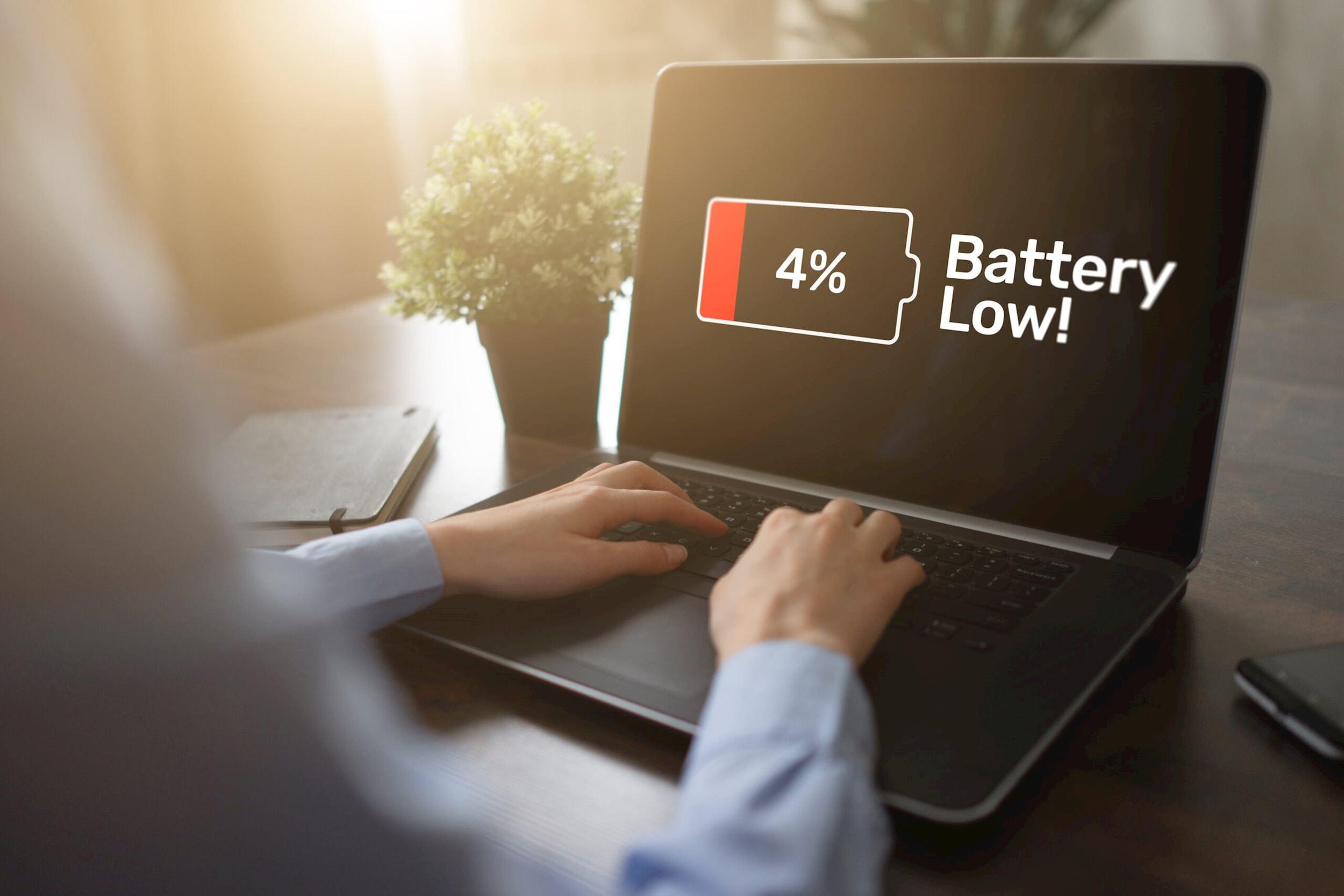
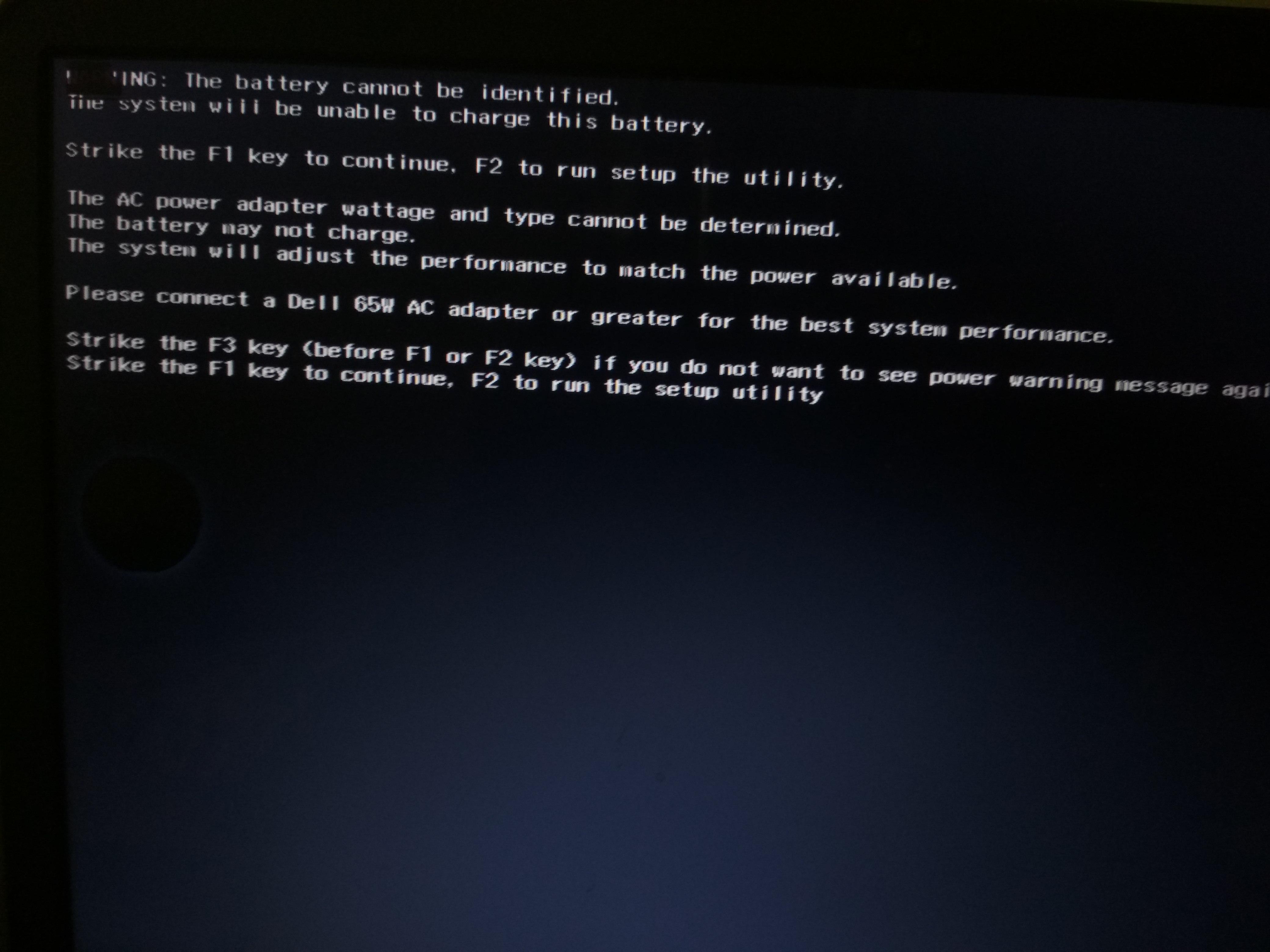
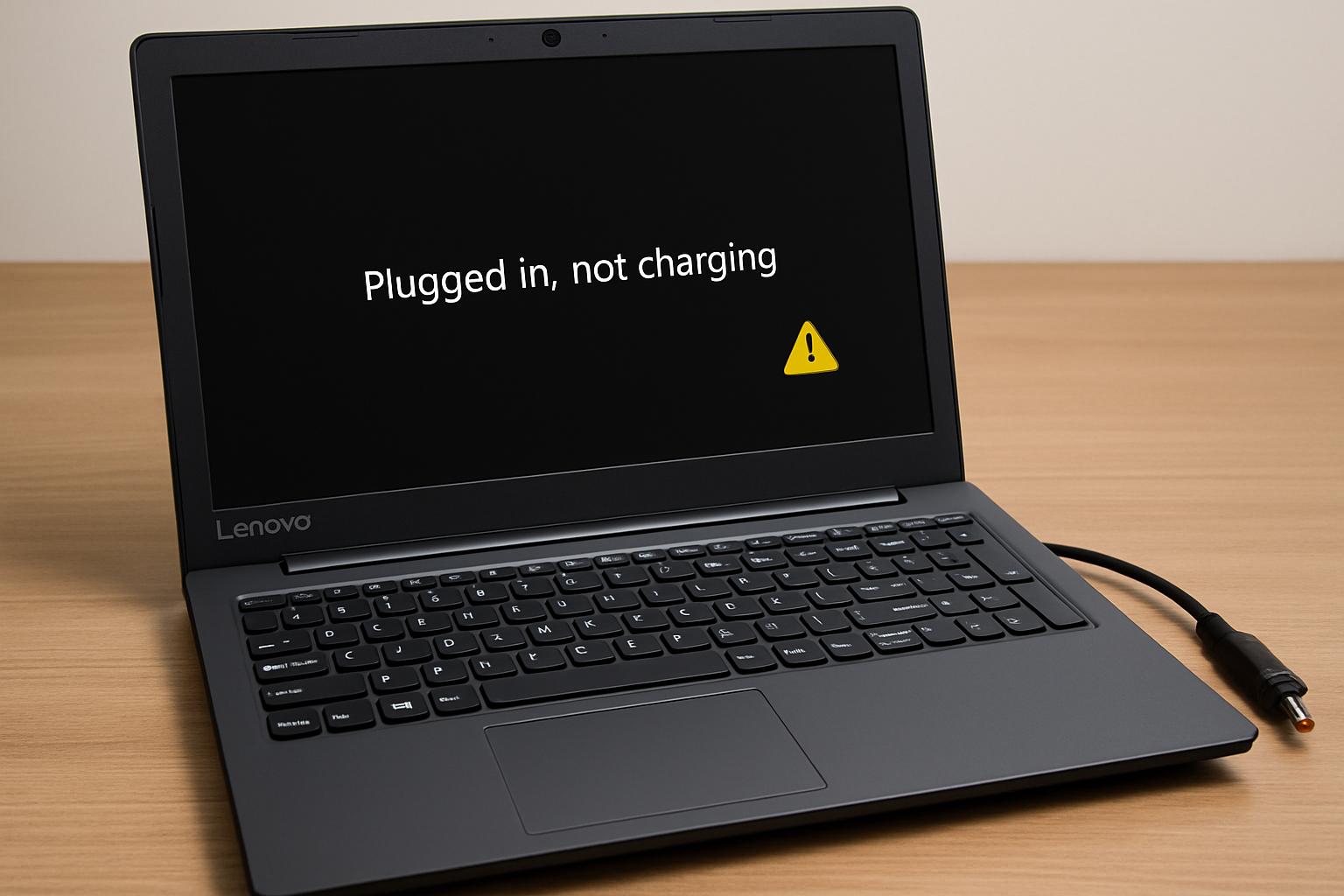
If your ASUS laptop is plugged in but the battery percentage does not increase, the charging light is off, or Windows says it is plugged in but not charging, the battery may not be the only possible cause. An ASUS laptop not charging can result from the wall outlet, adapter, cable, charging port, power-management settings, drivers, firmware, heat, battery wear, or an internal charging fault.
Start with safe external checks before buying a replacement battery. The steps below explain how to interpret the symptom, test the charging path, review software and battery health, recognize safety warnings, and decide when professional diagnosis is more appropriate.
After the initial checks, readers who need battery-focused assistance can review Asus laptop battery service without assuming that the battery is definitely the failed component.
What Does It Mean When an ASUS Laptop Is Not Charging?
The phrase “not charging” can describe several different situations. The laptop may not be receiving power at all, it may detect the adapter but fail to send power to the battery, or it may intentionally stop charging at a configured limit. These situations can look similar on screen but require different checks.
A plugged-in message usually proves only that the laptop detects some connection or adapter activity. It does not, by itself, confirm that the adapter is delivering suitable power, that the port is stable, that the battery can accept a charge, or that the internal charging circuit is working correctly.
Charging symptoms to compare
Note exactly what happens when the adapter is connected and when it is removed. Useful observations include:
- The battery percentage remains unchanged or decreases while the adapter is connected.
- The laptop runs normally on the adapter but shuts down soon after the adapter is removed.
- The charging icon, indicator light, or operating-system message changes when the connector moves.
- The battery consistently stops at a particular percentage, which may indicate a charge limit or battery-care setting rather than a failed battery.
- The adapter becomes unusually hot, emits a smell or noise, or shows visible damage.
These observations help narrow the fault, but none of them alone is a confirmed diagnosis. For example, a laptop that works only while plugged in may have a worn battery, a disconnected battery, or a problem elsewhere in the charging path.
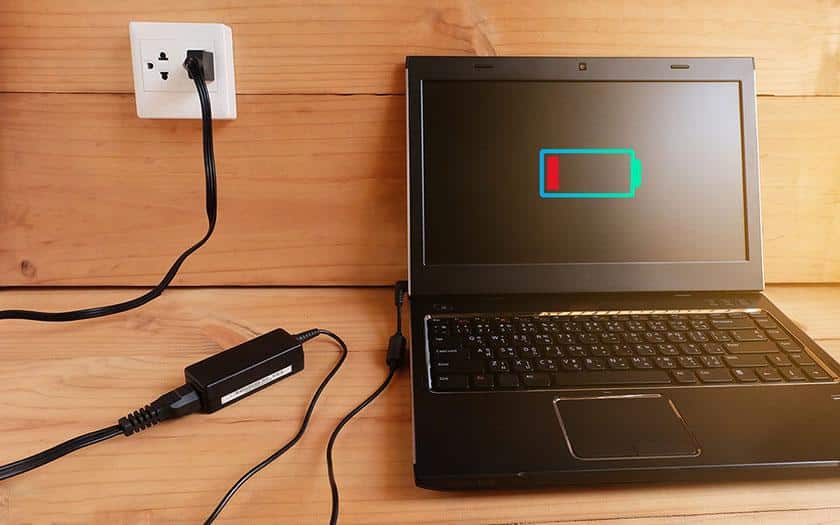
Use the exact ASUS model and operating-system version when checking menus or diagnostic tools. Charging indicators and battery messages can vary between models, so a menu name or icon seen on one ASUS laptop may not appear on another.
What the symptom can and cannot prove
An ASUS laptop battery that will not charge may be worn, deeply discharged, limited by software, or unable to receive power because of an adapter, port, firmware, or internal hardware issue. Similarly, a laptop that does not turn on with the adapter connected may have an external power problem, a damaged port, a system-board fault, or another issue unrelated to battery health.
Do not treat a single percentage reading as proof that a replacement is needed. A charge limit can hold the battery below full capacity by design, while an inaccurate reading can also result from software or battery-management problems. The most useful diagnosis combines the observed symptom with adapter detection, battery-health information, physical inspection, and model-appropriate testing.
What Are the Most Likely Problems or Causes?
The following possible causes move from simple external issues to faults that may require repair. They are possibilities, not confirmed findings. Each troubleshooting section later in this article is designed to test one or more of them.
1. Adapter, cable, outlet, or connector problem
A loose wall connection, faulty power strip, damaged cable, failing adapter, or unsuitable replacement adapter can prevent stable power from reaching the laptop. A connector can also look physically correct while having the wrong electrical specifications. Connector shape alone does not prove compatibility.
USB-C charging requires extra caution because not every USB-C port on every ASUS model accepts laptop power input. The specific model, port capability, adapter, and cable must be verified before USB-C is used as a replacement charging method.
2. Battery wear, deep discharge, or charging-limit setting
The battery may have reduced capacity, an abnormal health reading, a disconnected internal connection, or a state that prevents normal charging. A configured battery-care mode or charging limit can also make the ASUS battery appear not charging when it is intentionally being held below a selected percentage.
A swollen battery is a safety issue, not a routine battery-health problem. Do not press, puncture, squeeze, heat, or attempt an uncertain removal of a swollen battery.
3. Operating-system, driver, utility, or firmware state
A temporary power-management state, battery driver issue, ASUS power utility setting, or firmware behavior can affect adapter detection and charging control. The laptop may recognize that an adapter is connected while failing to manage charging normally.
BIOS, firmware, MyASUS features, and menu names vary by model and version. Use official ASUS support information for the exact model rather than relying on unidentified third-party driver or firmware sources.
4. Charging-port or battery-connection problem
A loose port, contamination, physical damage, or an unstable connector can interrupt charging. If the charging status changes whenever the plug moves, the port or connector deserves particular attention. Do not force the plug, insert metal objects, or repeatedly bend the cable to keep it working.
5. Heat, liquid exposure, impact, or internal charging-hardware fault
Excessive heat, liquid exposure, impact, a damaged battery connector, or a failed internal charging circuit can interrupt the power path. These faults are not usually resolved by changing a Windows setting. If there is visible damage, abnormal heat, a burning smell, smoke, sparks, or liquid exposure, stop using the device and seek qualified help.
IndiRepair has practical experience diagnosing laptop power and battery symptoms across 500+ laptop repairs. That experience supports a diagnosis-first approach: identify whether the adapter, battery, port, or internal charging path is responsible before recommending a part.
Book your Asus laptop battery replacement with IndiRepair
Adapter, cable, and outlet problems
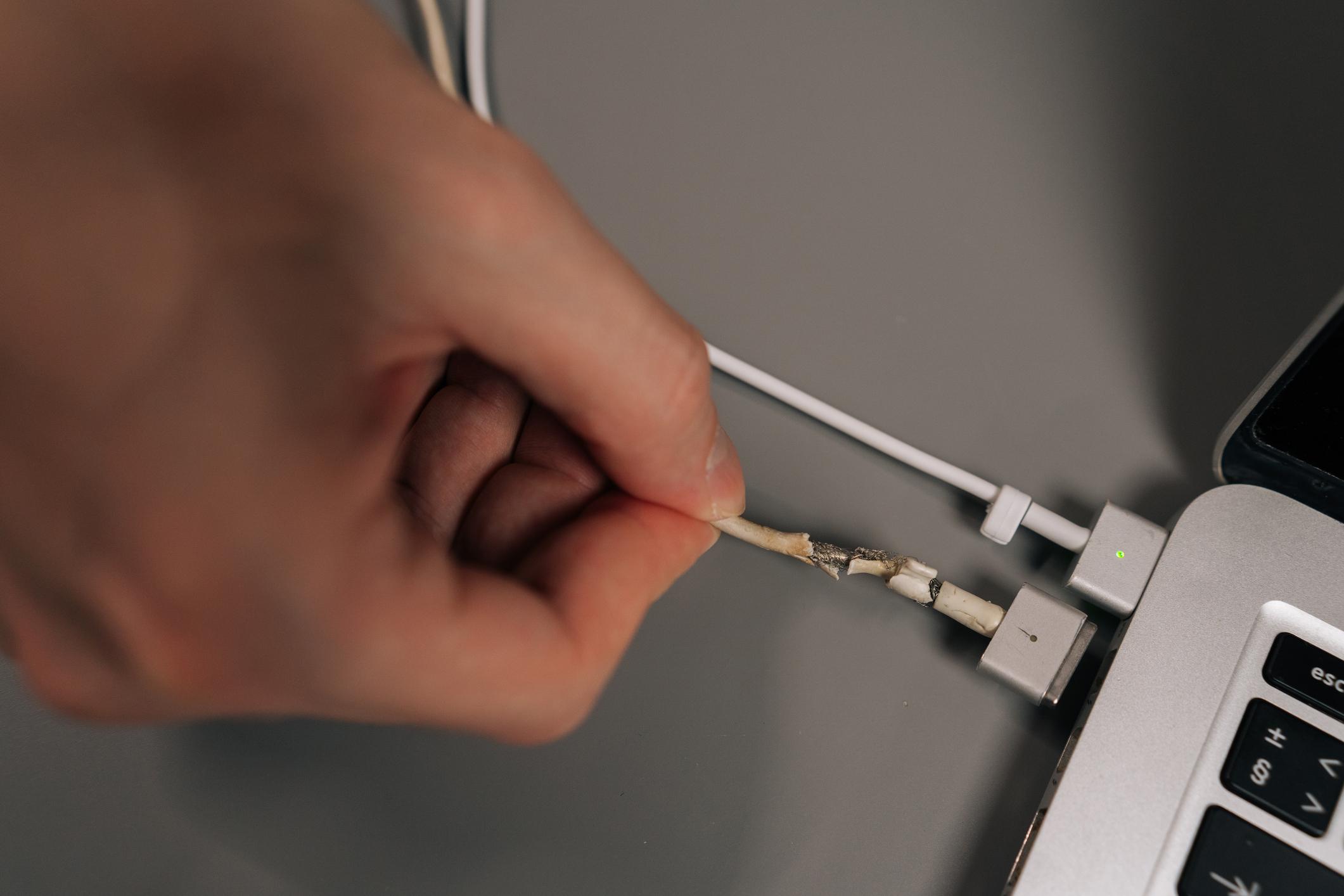
Check for loose connections, damaged insulation, bent connector sections, unusual heat, and signs that the adapter has failed. Avoid assuming that a substitute adapter is safe because its plug fits. The model’s required electrical specifications and charging method must be confirmed first.
- A power strip or extension may be introducing a connection problem.
- A cable can be damaged internally even when its outer insulation looks intact.
- A matching connector does not establish electrical compatibility.
- USB-C power input must be supported by the particular ASUS model and port.
Battery wear or charging-limit settings
Battery age, health, calibration state, and charge-limit settings can all affect the displayed percentage. If the battery stops at the same percentage every time but the laptop otherwise works normally, check for a battery-care or charging-limit feature before assuming the battery has failed.
- A health warning or sharply reduced runtime makes battery degradation more plausible.
- A fixed stopping percentage can point toward an intentional charging limit.
- A battery that works only briefly away from the adapter may need further health testing.
- A swollen battery requires safety-focused handling rather than ordinary troubleshooting.
Software, driver, or firmware state
A temporary power-management state can sometimes clear after a controlled shutdown and restart. Drivers or firmware may also affect how the system reports the adapter and controls the battery. Exact procedures differ by model, so do not assume that a BIOS menu, MyASUS option, or update applies to every ASUS laptop.
When a software change is necessary, use the exact model information and official ASUS support guidance. Do not interrupt a firmware update, and do not attempt one while power is unstable or the laptop is showing signs of hardware damage.
Charging-port or internal hardware damage
- The connector feels loose or cannot be inserted normally.
- Charging cuts in and out when the plug moves.
- The port shows visible damage, contamination, or signs of liquid exposure.
- The laptop fails to charge with a known-compatible adapter after safe external checks.
- Diagnostics suggest a battery connection, charging-circuit, or system-board problem.
How to Troubleshoot the Charging Path Safely
Work from the least risky checks toward more technical evidence. Record the battery percentage, adapter message, indicator-light behavior, and any error codes before changing a setting. This makes it easier to interpret what changed and to explain the issue if professional diagnosis becomes necessary.
Check the external power path
- Save your work and place the laptop in a safe power state. Shut it down where practical, or leave it idle while you inspect the connections. This reduces the chance of data loss and makes it easier to observe whether the laptop receives power when restarted.
- Connect the adapter directly to a known-working wall outlet. Bypass a power strip for this first test. If charging returns, the original outlet, strip, or connection may be the cause; if nothing changes, continue with the adapter and laptop connection.
- Inspect the adapter, cable, plug, and connector. Look for fraying, cracks, bent sections, looseness, unusual heat, smell, or other damage. Do not continue using a damaged or unstable adapter, even if it still charges intermittently.
- Reconnect the adapter firmly at both ends without forcing it. Check whether the charging light or operating-system status changes. A changed status may show that the original connection was incomplete, while no change suggests that further power-path checks are needed.
- Observe whether gently touching the cable changes detection. Do not bend or manipulate the connector repeatedly. If charging cuts in and out, stop using the unstable connection because the cable, connector, or port may be damaged.
Confirm adapter and port compatibility
- Compare the adapter with the exact ASUS model requirements. Verify the model’s required voltage, current, wattage, and connector specifications from official ASUS documentation or the original adapter information. Do not infer compatibility from connector shape alone.
- Check USB-C capability only when relevant. Verify that the specific ASUS port supports power input and that the adapter and cable meet the model’s requirements. Not every USB-C port charges an ASUS laptop.
- Test with a known-compatible adapter when one is available. A controlled comparison can help separate an adapter problem from a laptop problem, but avoid random adapters with matching physical connectors.
- Interpret a falling percentage carefully. If the laptop detects the adapter but the battery continues to fall, proceed to software and battery-health checks rather than repeatedly swapping unverified chargers.
USB-C charging compatibility
- Identify the exact ASUS model and charging port. Check the model documentation and port markings before treating USB-C as the charging input.
- Verify the required power-delivery capability. Confirm the adapter and cable requirements for that model; model-specific specifications must be checked rather than assumed.
- Test the original or officially compatible charging method. If USB-C behavior is uncertain, return to the documented charging method before concluding that the laptop has an internal fault.
Perform a safe power reset
- Shut down the laptop and disconnect the adapter and removable peripherals. This clears the normal operating state before the power reset.
- Follow model-specific guidance if the battery is removable. Do not force a sealed battery or open the chassis solely for this check.
- Use only the documented power-button procedure. The exact duration and method can vary, so verify the ASUS model’s official guidance rather than relying on a generic procedure.
- Reconnect the compatible adapter and start the laptop. Check the charging indicator and battery status. If charging returns, a temporary power-management state may have been involved; if it does not, continue with software and health checks.
- Stop instead of repeating the reset if the laptop is unusually hot or smells abnormal. Physical warning signs require safety assessment, not repeated restart attempts.
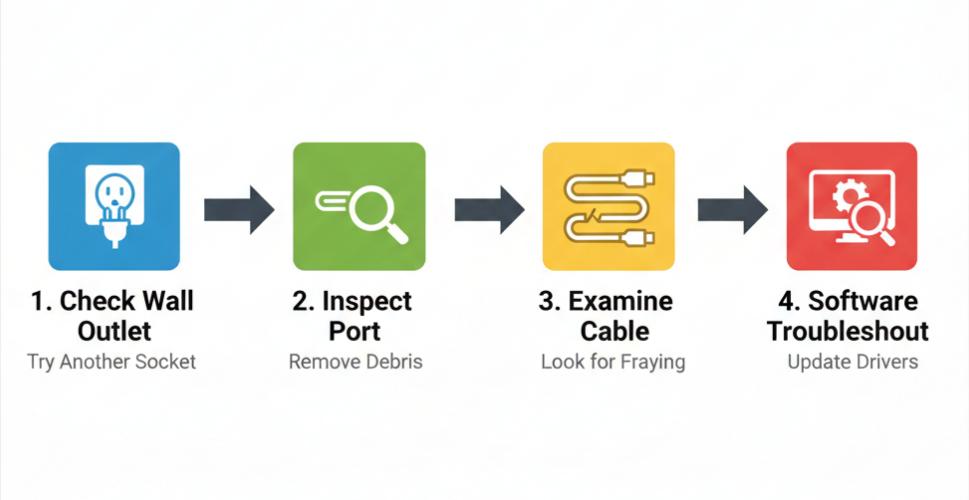
After each check, write down whether the adapter was detected, whether the percentage increased, and whether the result changed only when the connector moved. A consistent record can prevent an intermittent fault from being mistaken for a battery-only problem.
Check Software, Settings, Battery Health, and Firmware
Move to software checks after the external power path appears sound. Menu names, ASUS utilities, BIOS options, and diagnostic availability vary by model and operating-system version. Record the current status before changing settings, reinstalling drivers, or applying firmware updates.
Review operating-system and charging settings
- Connect the adapter and review the battery status. Note the battery icon, charging message, percentage, and any indicator light. “Plugged in” without an increasing percentage means the adapter is detected, but it does not prove that charging is functioning.
- Check for a charge limit or battery-care mode. If the laptop consistently stops at a particular percentage, review the ASUS utility or operating-system setting if supported by the model. Verify the exact utility and menu location rather than using an assumed path.
- Restart the laptop after recording the status. If the message disappears after restarting, a temporary software state may have been involved. If it returns, continue with battery-health and driver evidence.
- Install pending operating-system updates only when the laptop is stable and backed up. Retest charging after the update and note whether the result changed. Do not treat an update as a guaranteed fix for a physical fault.
Review battery health and generate diagnostic evidence
- Open the available battery report or supported ASUS diagnostic utility. Verify the current menu path for the operating-system version and exact model.
- Compare the available health information. Where provided, review battery health, design capacity, current full-charge capacity, cycle information, and charging status. Do not assume every model exposes all of these values.
- Look for supporting signs of battery degradation. A health warning, rapid capacity loss, unexpected shutdowns, or very short runtime away from the adapter makes a battery problem more plausible.
- Use the result as evidence rather than a complete diagnosis. A battery report cannot always rule out an adapter, port, battery-connection, or charging-circuit fault, so conflicting symptoms may require hardware testing.
Refresh drivers, firmware, and built-in diagnostics
- Check official ASUS support information for the exact model. Review relevant BIOS, chipset, power-management, or battery-related updates and verify which ones apply before installing anything.
- Review battery and AC-adapter entries in the operating system. Follow official guidance before removing or reinstalling a driver, and record the original status so the change can be evaluated.
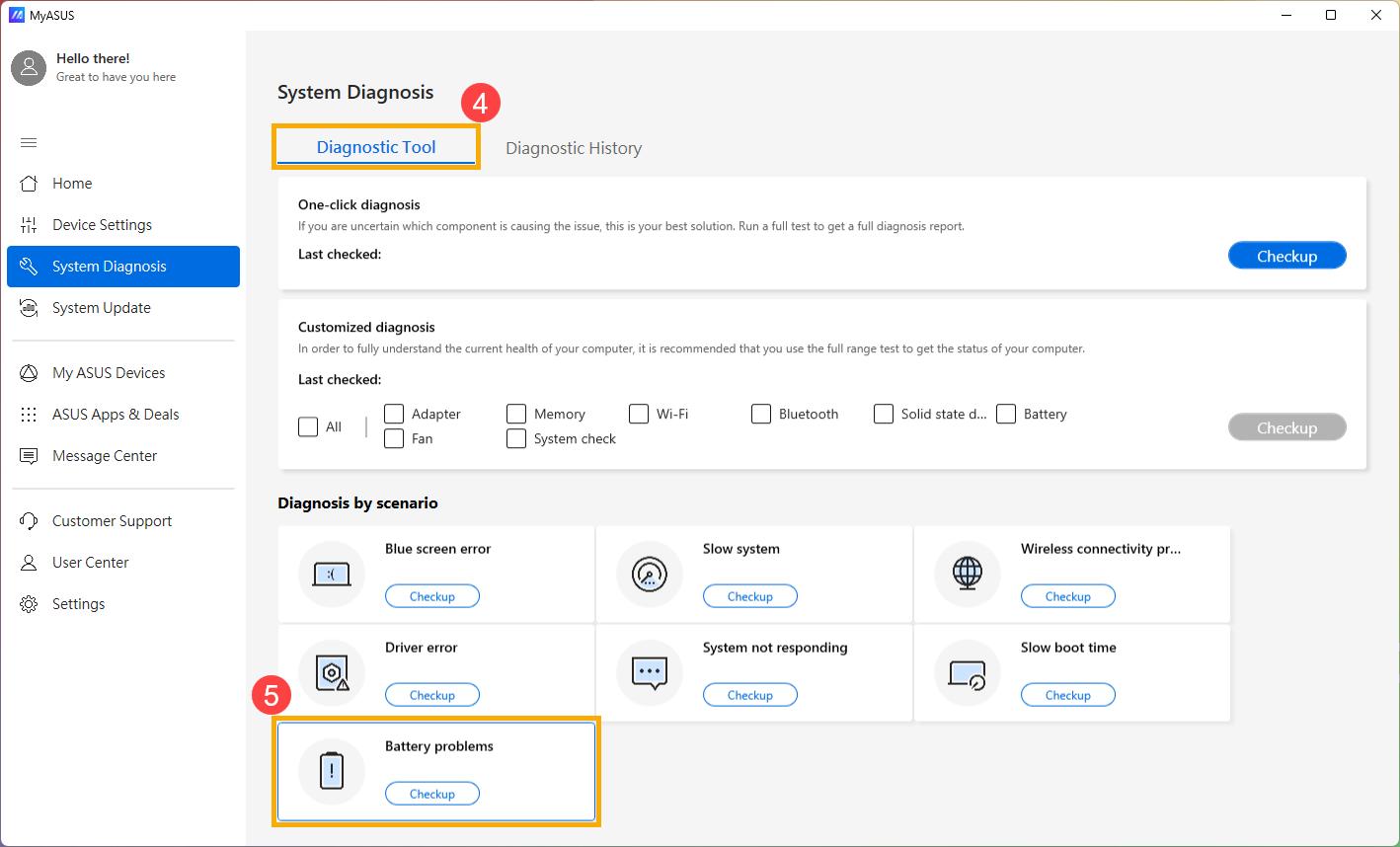
- Run a supported built-in diagnostic when available. MyASUS, BIOS, UEFI, or another diagnostic may be available on some models, but verify the name and navigation path for the particular device.
- Record every error code or result. Avoid repeated firmware attempts if power is unstable, the adapter is damaged, or the laptop is overheating.
- Retest charging after each controlled change. Testing one change at a time makes it easier to determine whether the result came from a setting, driver, firmware change, or unrelated coincidence.
IndiRepair recommends treating each result as a clue rather than automatic proof that one component has failed. For example, a poor battery-health result can support replacement, but an adapter-detection problem or unstable port may still need separate testing. Readers who want the charging path assessed can get your Asus laptop checked by IndiRepair.
When Should You Stop DIY Checks and Seek Hardware Diagnosis?
Stop using the laptop or charger and seek qualified assistance when there is a safety risk. Do not continue testing simply to obtain another software message.
- Battery swelling, smoke, sparks, a burning smell, liquid exposure, melting, or extreme heat.
- Exposed wires, a visibly damaged adapter, or a damaged charging port.
- A connector that feels loose, cannot be inserted normally, or causes repeated power interruption.
- A laptop that becomes abnormally hot while connected to power.
- A known-compatible adapter and safe external checks that produce no charging.
- A diagnostic result indicating a battery, connector, charging circuit, or system-board fault.
Do not puncture, squeeze, short, heat, or place a suspected damaged lithium-ion battery in ordinary household waste. Do not open a sealed laptop or disconnect an internal battery unless you have the required skills, tools, model-specific instructions, and a clear understanding of the safety and warranty implications.
How to interpret the remaining evidence
The following comparison can help organize the evidence. It identifies areas to test, not guaranteed diagnoses.
| Observation | Areas to investigate | What to do next |
|---|---|---|
| The laptop does not detect the adapter | Outlet, adapter, cable, connector, port, or internal power path | Test a known-compatible outlet and adapter, inspect for damage, and seek hardware diagnosis if detection does not return. |
| The adapter is detected but the percentage falls | Insufficient or incompatible adapter power, battery health, charging control, or internal hardware | Verify adapter compatibility, review battery health and settings, and escalate if the result persists. |
| Charging changes when the connector moves | Damaged cable, connector, or laptop port | Stop manipulating the connector and arrange inspection rather than continuing intermittent use. |
| Charging stops at a fixed percentage | Charge limit, battery-care mode, battery health, or reporting error | Review the model-specific setting and battery-health evidence before considering replacement. |
| The laptop shuts down soon after the adapter is removed | Reduced battery capacity, battery connection, or charging-path issue | Check battery-health information and have the battery and charging path tested if runtime is consistently poor. |
| A battery-health warning appears | Battery degradation or battery-management fault | Save important data, avoid assuming the result identifies every fault, and seek diagnosis for replacement or further testing. |
When Is Professional Repair or Battery Replacement Needed?
Professional diagnosis becomes useful when a known-compatible charger, safe power checks, software checks, or battery diagnostics do not restore charging or clearly identify the failed part. A technician may need to test the adapter, charging port, battery connection, battery condition, and internal charging circuit separately.
- Battery replacement is more plausible when health evidence is poor, runtime is sharply reduced, or the laptop shuts down soon after the adapter is removed.
- A replacement battery is not a complete solution if the laptop does not detect a known-compatible adapter or if the charging port is damaged.
- A swollen or physically damaged battery requires safety-focused handling and should not be treated as a routine do-it-yourself replacement.
- Provide the exact ASUS model, adapter details, charging behavior, diagnostic results, and any history of impact or liquid exposure.
Battery replacement decision guidance
Consider replacement only after the evidence supports a battery fault. If the battery-health report is poor and the laptop has very limited runtime away from the adapter, replacement may be appropriate. If the adapter is not detected, charging changes with connector movement, or the port is damaged, the battery may not be the part that needs replacing.
IndiRepair can help separate a battery concern from an adapter, port, or internal charging issue without promising a particular repair outcome. For the next step, readers can arrange Asus laptop repair with IndiRepair and provide the diagnostic observations collected above.
Conclusion
An ASUS laptop not charging does not automatically mean the battery has failed. The outlet, adapter, cable, connector, charging port, settings, drivers, firmware, heat, battery condition, or internal charging hardware may explain the symptom.
Follow the checks in order: observe the exact symptom, test the external power path, confirm adapter and port compatibility, perform a safe reset, review charging settings and battery health, and then use model-appropriate diagnostics. Stop immediately for swelling, liquid damage, burning smells, severe heat, sparking, unstable ports, or suspected internal faults.
When the evidence remains unclear, diagnosis before parts replacement is the safer decision. IndiRepair’s experience with 500+ laptop repairs supports checking the complete charging path so the appropriate repair can be considered rather than assuming that a new battery will solve every ASUS charging problem.
Frequently Asked Questions
Q: Why is my ASUS laptop plugged in but not charging?
A: A plugged-in status means the laptop detects some adapter connection, but it does not prove that the battery is receiving suitable charging power. Possible causes include an incompatible or failing adapter, a damaged cable or port, a battery-care limit, battery wear, a driver or firmware problem, or an internal charging fault. Check the outlet and adapter first, then review the battery percentage and charging settings. If the percentage continues to fall or the status changes when the connector moves, stop relying on the connection and arrange further diagnosis.
Q: Can an ASUS laptop stop charging because of a battery-care or charging-limit setting?
A: Yes. Some ASUS models and utilities can limit charging to a selected percentage as part of a battery-care feature. If the laptop consistently stops at the same percentage while otherwise working normally, review the supported ASUS utility or operating-system setting for the exact model. Menu names vary, so avoid following instructions for a different model. A fixed limit does not prove the battery is faulty, but a health warning, rapidly falling capacity, or very short runtime may indicate an additional battery problem.
Q: How can I tell whether the ASUS charger or the battery is causing the problem?
A: Compare several observations rather than relying on one symptom. If the laptop does not detect the adapter, investigate the outlet, adapter, cable, connector, and port first. If the adapter is detected but the percentage falls and the laptop has poor runtime away from power, battery degradation becomes more plausible. A battery-health report can provide supporting evidence, but it may not rule out a charging-circuit or connection fault. A known-compatible adapter comparison and professional testing may be needed when the results conflict.
Q: Will an ASUS laptop charge through any USB-C port?
A: No. USB-C is a connector type, not a guarantee that a port accepts laptop charging. The particular ASUS model and port must support power input, and the adapter and cable must meet the model’s requirements. Check official model-specific documentation before using USB-C as a charging method. If the laptop behaves differently with USB-C than with its documented original charging method, return to the known-compatible method for comparison rather than assuming that the USB-C port or battery has failed.
Q: Should I replace the battery if my ASUS laptop only works when plugged in?
A: Not automatically. This symptom can indicate a worn battery, but it can also result from a disconnected battery, a charging-path issue, or a problem that prevents the battery from being charged. Review battery-health evidence and confirm that the adapter is compatible and detected. If the laptop shuts down quickly after the adapter is removed and the health information supports degradation, replacement may be reasonable. If the port is unstable or the adapter is not detected, diagnose those issues before buying a battery.
Q: What should I do if the ASUS laptop battery or charger is swollen, hot, damaged, or smells unusual?
A: Stop using the laptop or charger and disconnect power only if it is safe to do so without touching a hazardous damaged area. Do not press, squeeze, puncture, heat, short, or repeatedly test a swollen or damaged battery. Do not use a charger with exposed wires, melting, smoke, sparks, or a burning smell. Keep the situation away from heat and seek qualified assistance for safe handling and diagnosis. These signs are safety warnings, not a reason to continue software troubleshooting.