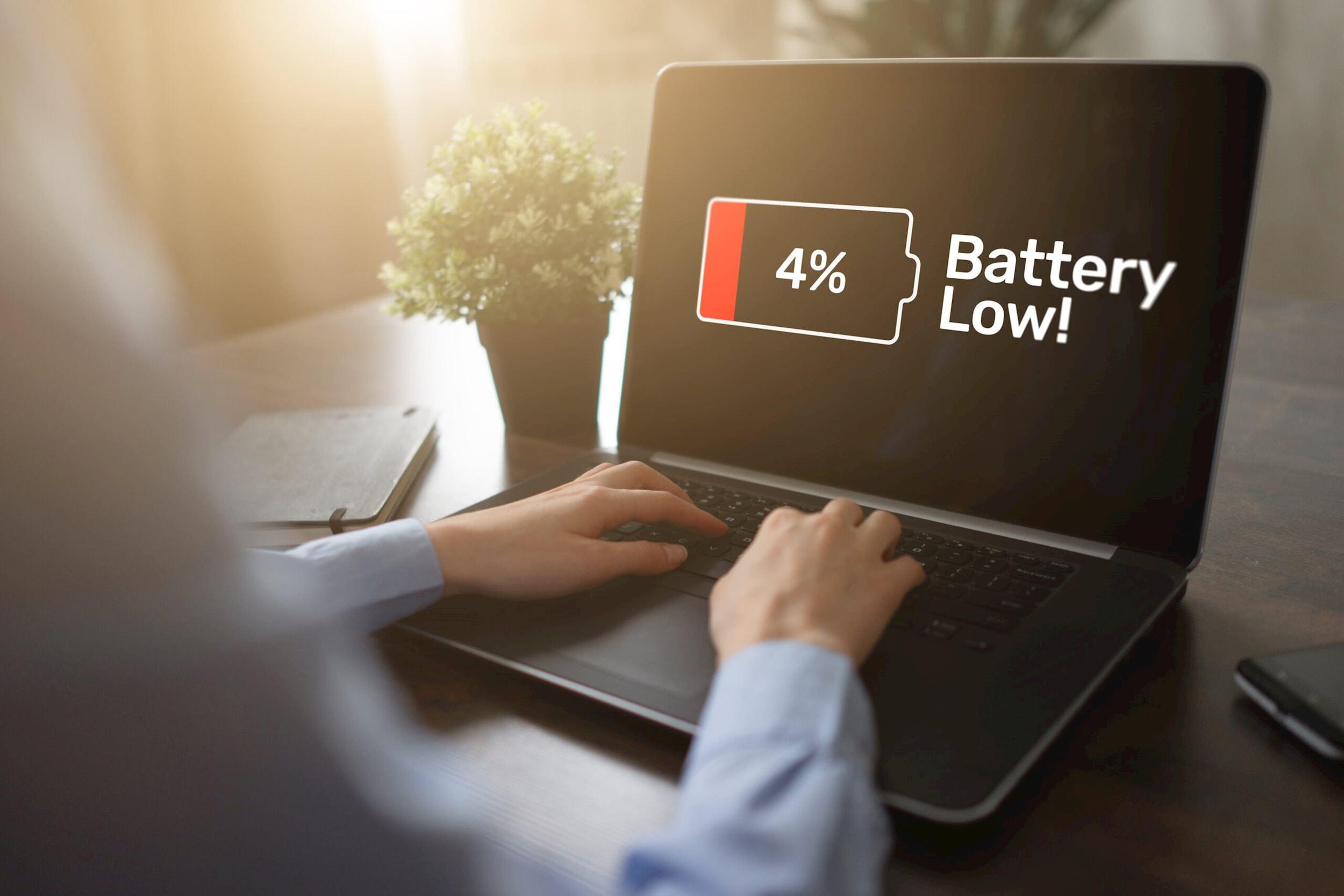
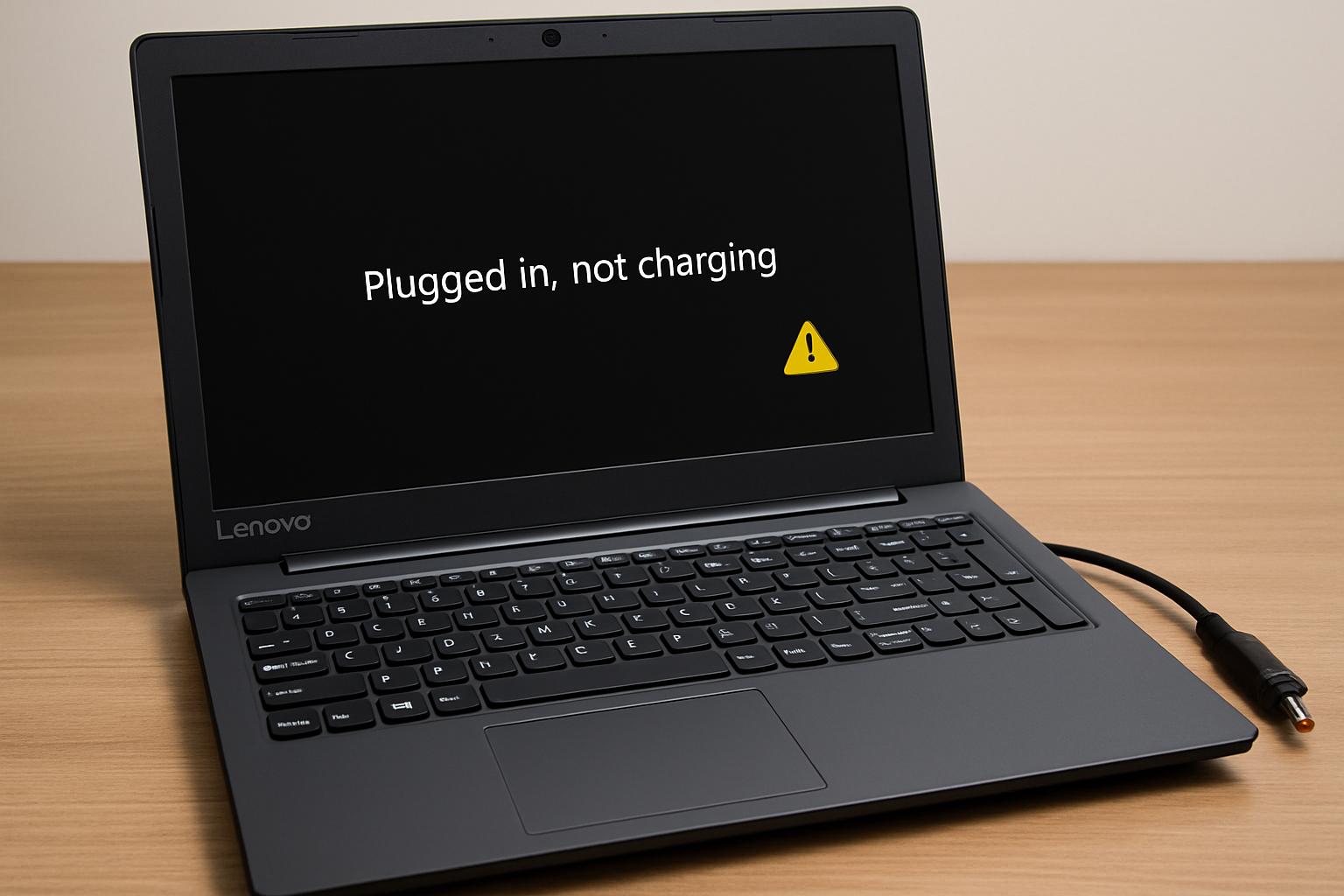
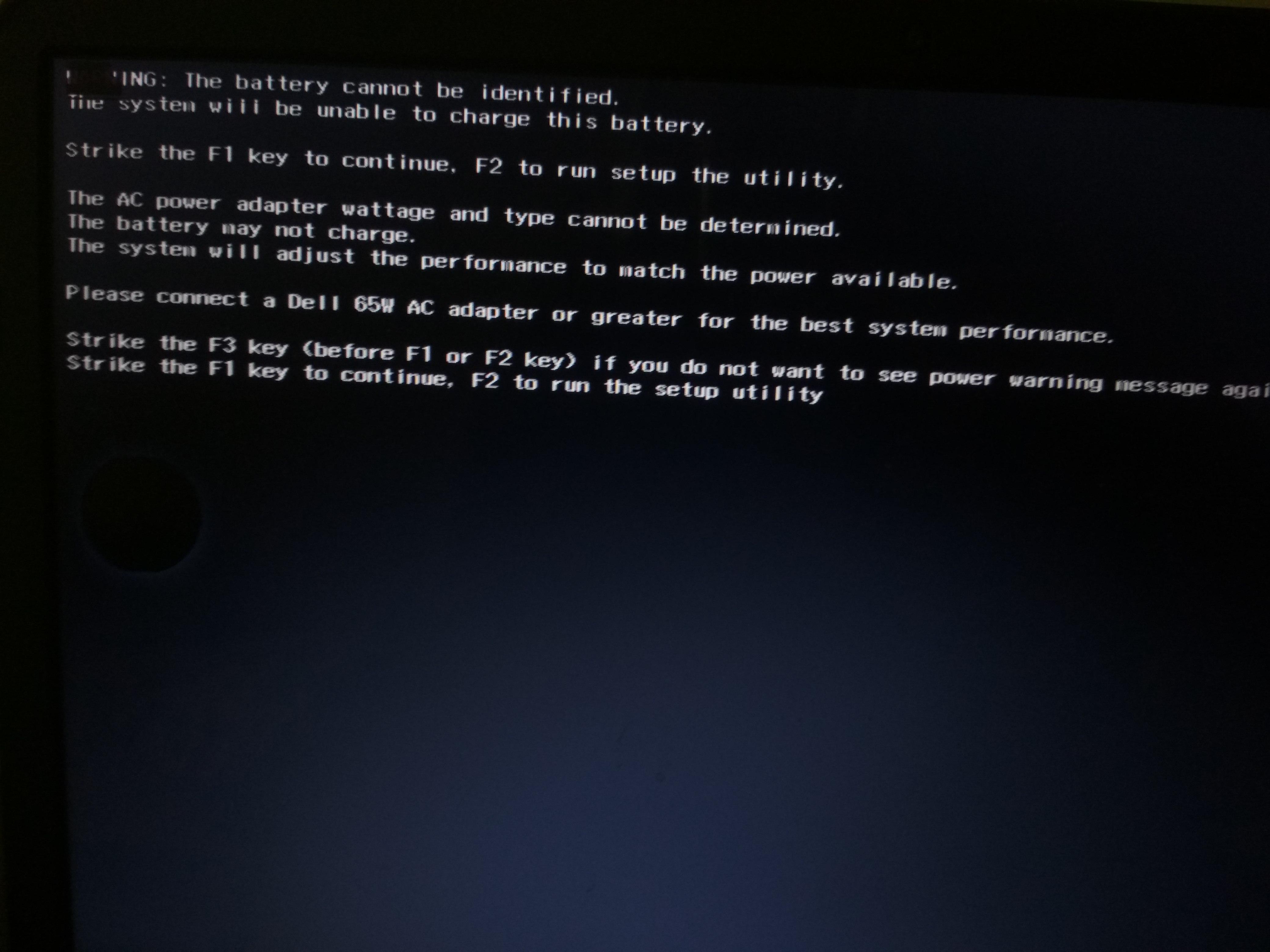
If your ASUS laptop battery is not detected, Windows may show no battery status, an unavailable percentage, or a message saying that no battery is present. The cause is not always the battery itself. Windows, battery drivers, BIOS or firmware, the charger, charging connector, battery contacts, charging circuit, or motherboard can produce similar symptoms.
Start with safe external and software checks before ordering a replacement battery or opening the laptop. A detection message is a symptom, not confirmation that the battery has failed.
What an ASUS Laptop Battery Not Detected Message Means
Battery detection means the laptop can communicate with the installed battery and obtain basic information, such as whether the battery is present and available to the operating system. When that communication fails, Windows may hide the battery icon, show an error, or report that no battery is detected.
An ASUS laptop battery not recognized in Windows does not automatically prove that the battery pack is defective. A driver problem may affect Windows while the battery is still visible at firmware level. Conversely, if the battery is absent in both Windows and BIOS, a connection, battery, firmware, charging-circuit, or motherboard issue becomes more plausible.
Diagnosis should come before replacement because installing another battery will not solve a damaged connector, incompatible charger, or laptop-side power fault. If you need help identifying the correct repair path, you can review the Asus laptop battery service after completing the initial checks.
Common Signs and Related Symptoms
These observations can help narrow the fault, but none independently confirms which component has failed.
- The battery icon is missing, unavailable, or replaced by an error message.
- Windows reports that no battery is present or shows no usable battery percentage.
- The laptop runs only while connected to the charger or shuts down immediately when external power is removed.
- Charging behavior does not change after reconnecting a compatible adapter.
- The battery appears in one interface but not another, such as Windows versus BIOS or an ASUS diagnostic tool.
- The laptop detects the battery intermittently, especially when the charging connector is moved.
Swelling, unusual heat, a burning smell, smoke, sparks, liquid exposure, exposed wires, melting, or a visibly damaged charger or port requires a safety-first response. Stop repeated testing and arrange professional inspection instead.
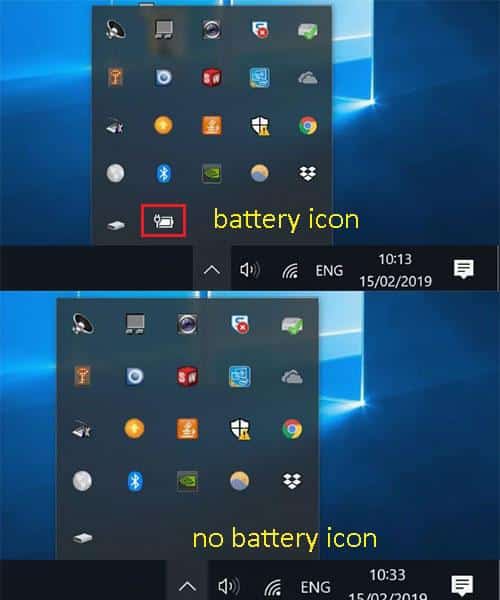
The exact Windows wording and battery display can vary by ASUS model and Windows version, so treat the visible message as evidence to interpret alongside charger behavior, firmware recognition, and physical condition.
Likely Problems or Possible Causes
1. Windows or Battery-Driver Recognition Problem
A temporary Windows problem, a missing battery entry, or a driver change can prevent the operating system from displaying a battery correctly. This is more likely when the battery is visible in BIOS or the laptop otherwise behaves normally on battery power.
2. Charger, Cable, or Charging-Connector Problem
An incompatible or damaged adapter, cable, wall outlet, or laptop charging connector may prevent proper power delivery or charging communication. A charger problem can look like an ASUS battery not detected issue, particularly when the laptop cannot maintain power or the charging indicator does not respond.
3. Battery Contact or Internal Connection Problem
Loose, contaminated, or damaged contacts can interrupt communication between the battery and laptop. This may cause intermittent detection, sudden shutdowns, or a battery that is absent in both Windows and firmware information.
4. BIOS, Firmware, or Power-Management Problem
A firmware or embedded-controller issue can affect battery recognition below Windows. If the problem began after a firmware or system change, model-specific support guidance becomes important. Do not assume that every ASUS model uses the same BIOS menus or recovery process.
5. Defective, Deeply Discharged, or Unsafe Battery
The battery may be internally defective, deeply discharged, aged, or affected by its own battery-management electronics. A battery that is swollen, leaking, unusually hot, or physically damaged should not be charged, pressed, opened, or reinstalled.
6. Charging-Circuit or Motherboard Hardware Fault
A motherboard power-management component or charging circuit can prevent a known-good battery from being detected or charged. The same symptom may result from more than one issue, so a replacement battery alone is not a confirmed solution.
Basic External and Connection Checks
These low-risk checks examine the external power path before you change drivers or open the laptop. Record what happens after each check so that a changed result can be connected to the action that preceded it.
Check the External Power Path
- Save your work and restart or shut down as appropriate. Reconnect the charger firmly at both the wall outlet and laptop ends. After Windows loads, check whether the battery icon, charging message, or indicator has changed. A temporary communication issue may clear after a complete restart; if nothing changes, continue with the external checks.
- Test a known-working wall outlet. Use another suitable outlet and inspect the adapter, cable, plug, and charging connector for cuts, looseness, bent parts, overheating, or visible damage. If the adapter or cable is damaged or unusually hot, stop using it rather than testing repeatedly.
- Confirm charger compatibility. Use the adapter intended for the exact ASUS model. Do not assume that every USB-C port supports charging, and verify USB-C charging support against the model documentation before treating a USB-C adapter as a valid test.
- Remove nonessential peripherals. Disconnect external devices, reconnect the charger, and observe whether the charging indicator or Windows status changes. A change may suggest a power-delivery or peripheral interaction, but it does not by itself confirm a battery fault.
- Check a removable battery only if the model supports it. Power the laptop off fully before checking that the pack is seated correctly. Do not force the battery, scrape contacts, or routinely open a laptop with an internal battery when the model-specific procedure is unknown.
- Compare charger and battery behavior. Note whether the laptop powers on with the charger, charges, and remains on after external power is removed. Immediate shutdown away from the charger is an important battery or power-path clue, but it is not conclusive proof that the battery alone has failed.
Interpret the External Check Results
- If the laptop charges normally after changing the outlet or adapter, the external power path becomes more likely than immediate battery replacement.
- A loose, damaged, unusually hot, or intermittent charging port is a reason to stop repeated plugging and arrange inspection.
- If the laptop powers on but the battery remains absent, continue with Windows and firmware checks rather than assuming the charger is the only cause.
- If the laptop cannot remain powered without the charger, treat that as a significant clue while keeping the battery, connector, charging circuit, and motherboard in consideration.
Software and Battery-Driver Checks in Windows
Device Manager and Windows power information are software views of the hardware. They can be affected by driver or operating-system recognition problems, but a missing Windows entry does not prove that the physical battery is disconnected.
Check Windows Battery Recognition
- Restart Windows fully. Wait for the desktop to load before checking the battery area, charging message, and percentage. If recognition returns after the restart, monitor whether the issue returns; recurring detection loss may still require driver or hardware investigation.
- Inspect the Windows battery area. Note whether the icon is missing, shows an error, or reports an unavailable percentage. Compare this with the physical charging indicator and whether the laptop continues running when unplugged.
- Inspect battery-related entries in Device Manager. Menu names vary by Windows version, so identify the battery category and record whether entries are present, absent, disabled, or marked with a warning. The phrase “ASUS battery not showing in Device Manager” describes an observation, not a confirmed diagnosis.
- Use only verified driver guidance. If a battery-related entry is present, follow current Windows or ASUS instructions for updating, reinstalling, or rolling back it. Avoid deleting unknown drivers or using third-party driver tools as a first response.
- Review recent software changes. If the problem started after a Windows, driver, or ASUS utility update, record the approximate date and update name before considering a verified rollback or recovery option.
- Recheck after each change. Make one controlled change at a time and check Windows, the charging indicator, and battery behavior again. This makes it easier to distinguish a software improvement from an unrelated temporary change.
Consider a Recent Windows Update
An ASUS battery not detected after a Windows update may reflect a driver or operating-system recognition change, but timing alone does not establish that the update caused the fault. A coincidental battery or connector failure can appear at the same time.
- Record when the battery disappeared. Note recent Windows, driver, and ASUS utility changes and compare them with the first missing battery status.
- Check verified support guidance. Identify the exact ASUS model and installed Windows version before using model-specific updates or recovery instructions.
- Use rollback or recovery only when verified. Protect important data and confirm that the available option applies to the system before proceeding. Do not interrupt a recovery or firmware process because the screen appears inactive.
- Move to firmware and hardware diagnosis if needed. If the battery remains absent after an appropriate software change, repeatedly reinstalling drivers is unlikely to resolve a physical connection or power-circuit fault.
IndiRepair approaches these results as diagnostic clues rather than automatic proof that a battery needs replacement. With experience across 500+ laptop repairs, the focus is on separating a Windows recognition issue from a battery, connector, or laptop-side power fault before recommending a part.
Book your Asus laptop battery replacement with IndiRepair
BIOS, Firmware, and ASUS Diagnostic Checks
BIOS or UEFI operates below Windows. If the battery appears in firmware but not Windows, software recognition becomes more likely. If it is absent in both firmware and Windows, a battery, connection, firmware, charging-circuit, or motherboard issue becomes more plausible.
Compare Windows and BIOS Recognition
| Where the battery appears | What the result may suggest | Next safe action |
|---|---|---|
| BIOS or firmware, but not Windows | Windows, a driver, or an operating-system recognition issue is more likely, although hardware causes remain possible. | Continue verified Windows and model-specific driver checks. |
| Absent in both BIOS and Windows | A connection, battery pack, firmware, charging circuit, or motherboard problem becomes more likely. | Seek hardware-focused assessment before purchasing a replacement battery. |
| Recognition changes intermittently | The connector, port, charger, internal power path, or battery-management electronics may be unstable. | Record the conditions and avoid repeated movement or plugging if the port is loose. |
Use ASUS Firmware or Diagnostic Tools Carefully
- Identify the exact ASUS model and firmware version. Model-specific instructions should match the laptop, operating system, and current firmware. Do not rely on a procedure written for a similar-looking model.
- Enter BIOS or UEFI using documented instructions. Look only for battery, adapter, power, or system-status information that the firmware actually provides. Some ASUS models may not show a detailed battery field.
- Run an ASUS diagnostic only when available for the exact model. Follow current manufacturer instructions and verify whether the test checks battery presence, health, adapter detection, or charging behavior.
- Record codes and messages. Save an error identifier or screenshot where appropriate, but do not treat a generic warning as proof that the battery alone requires replacement.
- Protect power and data before firmware work. Back up important files and use reliable external power during any verified firmware procedure. Stop if the adapter connection is unstable.
- Stop when the instructions do not match. Never force a BIOS update, use firmware intended for another model, or continue if the laptop loses power during the procedure.
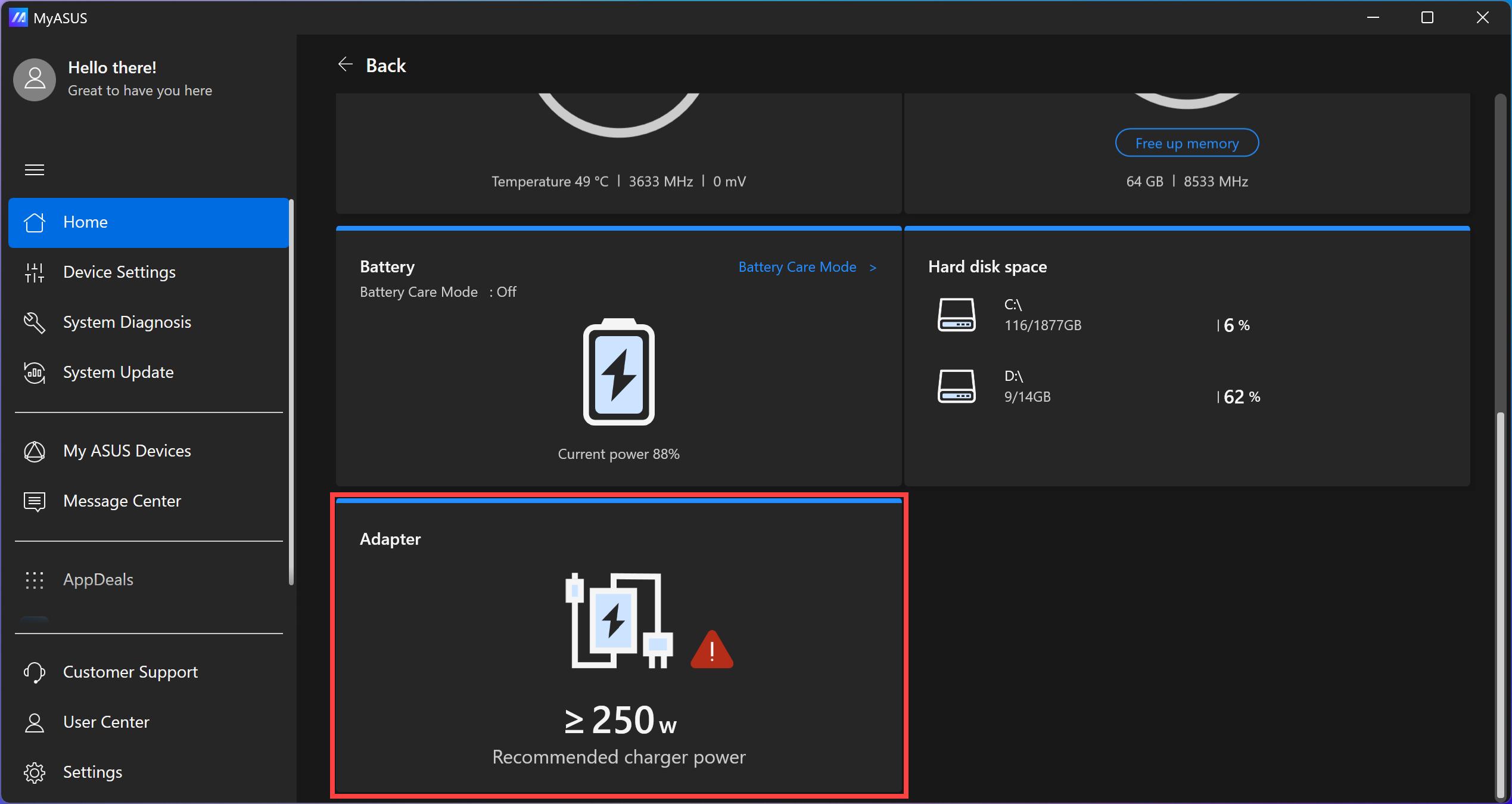
Firmware menus and diagnostic names vary between ASUS models. When exact instructions are needed, use current ASUS documentation for the identified model rather than assuming that a general online procedure applies.
After these checks, IndiRepair recommends treating the result as evidence to combine with charger behavior and physical symptoms. You can get your Asus laptop checked by IndiRepair when the battery remains absent or the result points beyond a Windows-only issue.
Hardware and Battery Safety Guidance
Internal diagnosis may require access to the battery connection, charging port, or motherboard. Only attempt model-specific work when the procedure and safety conditions are clear. Do not short battery contacts, probe electrical components, use an unverified replacement pack, or continue testing equipment that shows heat or electrical damage.
Signs That Point Beyond a Simple Driver Issue
- The battery is missing in both Windows and BIOS or equivalent firmware information.
- The laptop detects the battery only intermittently or loses detection when the charging connector moves.
- The system shuts down immediately when external power is removed.
- The battery or charging area shows swelling, unusual heat, odor, physical damage, or signs of liquid exposure.
- A compatible charger and basic software checks produce no change.
Battery Replacement Compatibility Considerations
- Match the replacement to the exact ASUS model and battery identification information, not only the laptop brand.
- Consider the connector, physical fit, electrical ratings, and source reliability. Verify compatibility against ASUS documentation or a qualified repair assessment.
- If a replacement battery is also not detected, suspect the connector, firmware, charging circuit, or motherboard rather than repeatedly buying batteries.
- Replace the battery only when evidence indicates that the pack is defective or unsafe.
Stop DIY work immediately if you notice swelling, smoke, sparks, burning smell, liquid exposure, exposed wires, melting, extreme heat, or a visibly damaged port or charger. Do not squeeze, puncture, charge, or reinstall a swollen or leaking battery.
When to Stop DIY Troubleshooting and Seek Professional Repair
Professional inspection is appropriate when the battery is swollen, hot, leaking, physically damaged, or associated with an unusual smell or smoke. It is also sensible when the battery is absent in BIOS and Windows, the charging port is loose or damaged, or the laptop shuts down as soon as the charger is removed.
Battery replacement is more appropriate when testing indicates that the battery is defective or unsafe and the replacement is verified as compatible. If an adapter, connector, charging circuit, or motherboard fault could be responsible, assessment should come before purchasing a battery. Repair cost depends on the confirmed fault, model-specific parts, access difficulty, and whether the issue involves the battery or laptop-side circuitry.
Choose Between More Testing and Battery Replacement
| Observed result | More likely direction | Recommended next action |
|---|---|---|
| Battery returns after a restart or verified software repair | Temporary Windows or driver recognition issue | Monitor the system and investigate further if the problem returns. |
| Battery remains absent only in Windows | Operating-system or driver recognition issue | Continue verified Windows or model-specific software diagnosis. |
| Battery remains absent in BIOS and Windows | Battery, connection, firmware, charging circuit, or motherboard issue | Seek hardware-focused assessment before purchasing a battery. |
| Battery is swollen, hot, leaking, or damaged | Battery safety fault | Stop using the laptop and arrange safe professional handling. |
| A compatible replacement is confirmed necessary | Defective or unsafe battery | Proceed through a suitable repair route using a verified compatible part. |
- Record the exact ASUS model. Include available product information where appropriate so that support or repair guidance can be matched correctly.
- Note where the battery appears. Record the results in Windows, Device Manager, BIOS, and any model-specific ASUS diagnostic.
- Record charger behavior and evidence. Include recent updates, visible damage, intermittent symptoms, and diagnostic codes.
- Back up important data. Avoid further use if there is swelling, heat, odor, smoke, liquid exposure, or another battery safety concern.
Frequently Asked Questions
Q: Why does my ASUS laptop say no battery is detected?
A: The message means that the laptop or Windows cannot currently communicate with the installed battery. Possible causes include a temporary Windows or driver issue, incompatible or damaged charger, loose connection, firmware problem, defective battery, charging-circuit fault, or motherboard issue. Restart the laptop, check the external power path, and compare Windows recognition with BIOS or available model-specific diagnostics. If the battery is missing in both Windows and firmware, avoid assuming that reinstalling a driver will solve it and arrange hardware-focused diagnosis.
Q: How can I tell whether the problem is the ASUS battery or the charger?
A: Check a known-working wall outlet and inspect the charger without using equipment that is damaged, loose, or unusually hot. Note whether the charging indicator responds and whether the laptop stays on after the adapter is removed. A laptop that will not power or charge correctly with a suitable adapter may have an external power or charging-port issue. A laptop that powers normally on the charger but shuts down immediately when unplugged may have a battery or laptop-side power fault. These observations narrow the possibilities but do not confirm the failed part without further testing.
Q: What should I do if my ASUS battery is not showing in Device Manager?
A: Restart Windows first and check whether the battery returns. Then inspect the battery-related area in Device Manager and record whether entries are missing, disabled, or marked with a warning. Menu names can vary by Windows version. Use only current, verified Windows or ASUS instructions before updating, reinstalling, or rolling back a driver, and avoid third-party driver tools. If the battery is also absent in BIOS or the laptop cannot run away from the charger, software checks alone may not be enough; a battery connection, pack, charging circuit, or motherboard should be assessed.
Q: Can a Windows 11 update cause an ASUS battery to stop being detected?
A: A Windows 11, driver, or ASUS utility update can affect how Windows enumerates battery hardware, so the timing is worth recording. However, a coincidental battery, charger, connector, or charging-circuit fault can produce the same timing. Identify the exact ASUS model and Windows version, check verified support guidance, and use rollback or recovery only when the procedure is appropriate and your data is protected. If the battery remains absent after a verified software correction, compare the result with BIOS recognition and move toward hardware diagnosis instead of repeatedly reinstalling drivers.
Q: What does it mean if the ASUS laptop battery is not detected in BIOS?
A: If the battery is absent in BIOS as well as Windows, the issue is less likely to be limited to a Windows display or driver problem. A loose internal connection, defective battery, firmware issue, charging circuit, or motherboard fault may be involved. BIOS menus do not provide the same battery information on every ASUS model, so first confirm that the relevant status field actually exists for your laptop. Do not force firmware changes or use instructions for another model. Persistent absence below Windows is a reason to seek hardware-focused assessment.
Q: Should I replace the battery if the laptop only works with the charger connected?
A: Not automatically. Immediate shutdown after removing the charger is consistent with a defective or deeply discharged battery, but it can also result from a poor battery connection, charging-circuit fault, or another laptop-side power problem. Check the charger and external connections, then compare Windows and BIOS recognition where available. If the battery is visible but cannot supply power, replacement may become more likely; if it is absent at every level, diagnosis should come before buying a part. Match any replacement to the exact ASUS model and battery identification information.
Q: Is it safe to keep using an ASUS laptop with a swollen or unusually hot battery?
A: No. A swollen, leaking, smoking, unusually hot, or physically damaged battery should not be pressed, punctured, charged, reinstalled, or repeatedly tested. Disconnect external power only when it is safe to do so, keep the device away from flammable materials, and arrange professional handling. Do not open the pack or short its contacts. A burning smell, smoke, sparks, melting, or liquid exposure is an immediate stop-use condition. Safety takes priority over confirming the battery status in Windows or BIOS.
Q: When should I seek professional repair for an ASUS battery detection problem?
A: Seek professional repair when basic external checks do not help, the battery is absent in both Windows and BIOS, the charging port is loose or intermittent, the laptop shuts down when unplugged, or the battery shows swelling, heat, odor, or physical damage. Professional diagnosis is also useful when a replacement battery might not be compatible or when a charging circuit or motherboard fault is possible. Provide the exact model, charger behavior, recent software changes, and any diagnostic messages so the fault can be assessed without assuming that the battery is the only problem.
Conclusion: Diagnose the Detection Failure Before Replacing the Battery
An ASUS laptop battery not detected message can originate from Windows, drivers, firmware, the charger, connector, battery, charging circuit, or motherboard. Begin with external power and connection checks, then compare Windows and BIOS recognition and use only verified model-specific software or ASUS diagnostic guidance.
Stop DIY work for swelling, heat, odor, physical damage, unstable charging ports, or suspected motherboard and charging-circuit faults. Replace the battery only after compatibility and failure have been established, rather than relying on the message alone.
When the problem persists, returns after software checks, or involves internal hardware or battery safety concerns, IndiRepair can help with diagnosis-first guidance. For a suitable repair route, consider Asus laptop battery replacement with IndiRepair without assuming the final fault until the laptop has been assessed.
About the Author: Khan Rahil is a diploma holder in Computer Hardware with over 5 years of hands-on experience in laptop repairs and Senior Technician at IndiRepair. He has overseen hundreds of screen replacements, ensuring quality and customer satisfaction.