Is your ASUS laptop battery draining fast even during light use? A rapidly falling percentage, short runtime, unexpected shutdown, or battery loss overnight can be frustrating. However, fast drain does not automatically prove that the battery has failed. Display brightness, background activity, demanding applications, heat, power settings, charging problems, inaccurate readings, and reduced battery capacity can all contribute.
The safest approach is to observe the pattern first, then check usage and software, review battery-health information, test sleep and shutdown behavior, and inspect the charging and thermal conditions. This process helps separate a temporary power-consumption issue from a battery or hardware problem.
Early observations can also show whether the problem is mainly active-use drain, ASUS laptop battery draining in sleep mode, or ASUS laptop battery drains when shut down. If the evidence points toward a battery or charging fault, you can arrange an Asus laptop battery replacement service after completing the safe checks.
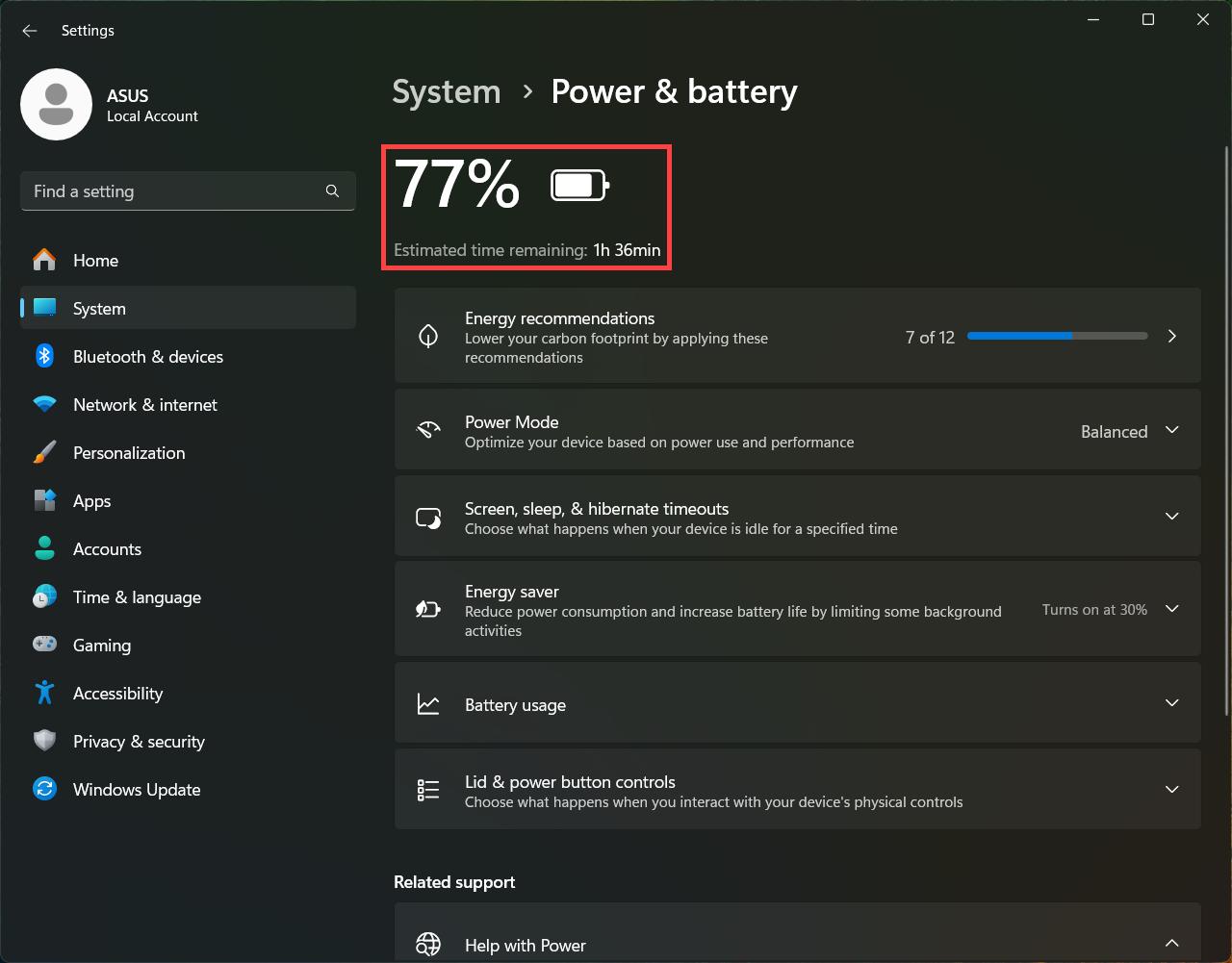
Before changing several settings at once, record what happens. This gives you a baseline and makes it easier to tell whether a change actually helped.
Why Is Your ASUS Laptop Battery Draining Quickly?
A laptop can lose charge quickly when its power demand rises, even if the battery remains usable. A bright display, high-performance mode, active wireless connections, browser tabs, synchronization, updates, or processor-heavy software may consume more energy than expected. A recent Windows update, new application, driver change, or altered power setting may also explain why ASUS laptop battery life suddenly decreased.
Drain while the laptop appears inactive needs separate observation. Sleep mode may allow some activity, connected devices may wake the computer, and shutdown behavior can vary with system settings. If the battery loses charge while fully shut down, that is a clue worth testing, not proof of one specific failed component.
Symptoms Worth Recording Before Troubleshooting
- Whether the drain happens during active use, sleep, shutdown, or charging.
- The approximate percentage change and the time period involved, without treating one universal threshold as a pass-or-fail test.
- Whether the laptop becomes hot, unusually noisy, slow, or prone to sudden shutdowns.
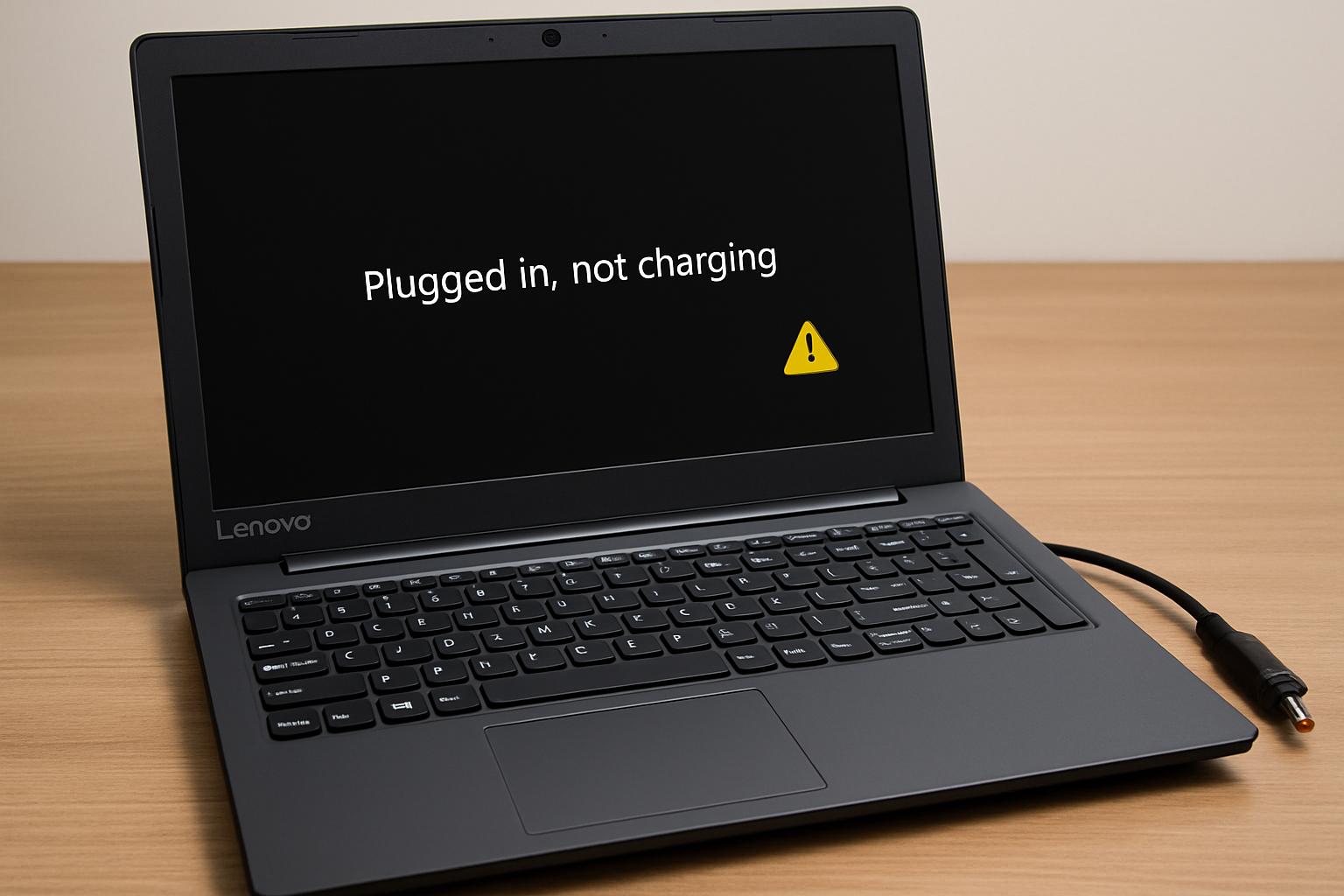
- Whether charging starts and stops, remains at one level, or fails to restore the battery normally.
- Recent changes such as Windows updates, driver changes, new applications, or altered display and power settings.
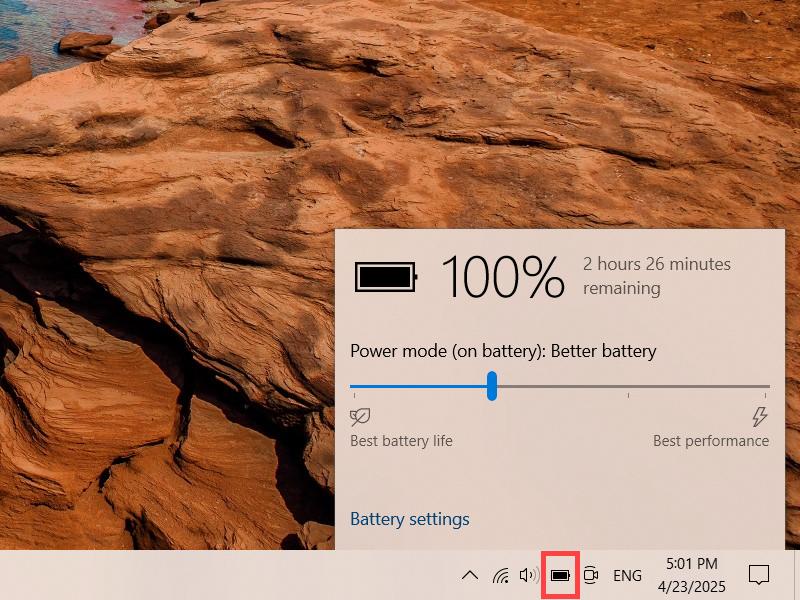
These observations help distinguish a high-power workload from a battery that is no longer storing energy reliably. A symptom is evidence to investigate, not a confirmed diagnosis.
Likely Problems or Possible Causes
The following are possible causes of an ASUS battery draining fast. More than one can exist at the same time, so use the troubleshooting checks later in the article to compare the evidence.
1. Battery Degradation or Reduced Usable Capacity
A battery percentage shows its current charge, while usable capacity describes how much energy the battery can store compared with its original design. If capacity has fallen, ordinary tasks may produce much shorter runtime. Rapid percentage changes, unexpected shutdowns, or poor runtime during light use can support this possibility, but a health report or hardware assessment is needed for confirmation.
2. Background Applications and Synchronization
Browsers with many tabs, cloud synchronization, security scans, launchers, updates, and applications that remain active can use processor, network, graphics, or storage resources. The laptop may therefore drain quickly even when the visible workload seems light.
3. Display, Keyboard Lighting, and Wireless Features
High brightness, keyboard lighting, a high refresh setting, wireless activity, external displays, and unused connected features can increase consumption. These settings may explain temporary drain and can often be adjusted without replacing a part.
4. Heavy Processing Workloads
Gaming, video editing, rendering, virtual machines, video playback, and sustained processor or graphics activity can drain a battery faster than ordinary document work. Fast drain during a demanding workload is not by itself evidence of battery failure.
5. Heat and Poor Ventilation
Blocked vents, soft surfaces, dust, or sustained workloads can keep the fan and processor active. Heat may occur alongside high power use, reduced performance, or instability. Thermal symptoms should be treated seriously, especially when the chassis becomes unusually hot.
6. Unsuitable Power Settings
A performance-focused profile may prioritize responsiveness over battery runtime. Power settings can also prevent lower-power behavior when the laptop is unplugged. If runtime improves after a reversible settings change, the battery may still be usable, although this does not rule out capacity loss.
7. Charging Adapter, Cable, or Port Problems
An unsuitable or damaged charging setup may fail to restore the battery normally. Connector shape alone does not prove compatibility. Charging interruptions, looseness, overheating, or a damaged port can indicate a charging-path issue rather than simple battery drain.
8. Windows, Driver, Firmware, or Power-Management Issues
Windows, ASUS utilities, firmware, chipset, graphics, or power-management software can affect power behavior or battery reporting. Exact menus and update procedures vary by model, so check current ASUS documentation for the specific laptop before applying model-dependent instructions.
9. Sleep, Shutdown, or Wake Behavior
Sleep mode can permit some background or wake activity, while connected USB devices, docks, network behavior, and startup settings may contribute to overnight loss. Shutdown drain should be tested separately from sleep drain because they are not the same operating state.
10. Battery, Charging-Circuit, or Other Hardware Failure
A hardware fault becomes more concerning when fast drain is combined with swelling, unusual heat, charging interruptions, abrupt shutdowns, physical damage, or instability. These symptoms require caution and may need professional diagnosis rather than more software adjustments.
Battery Health and Capacity Loss
Battery health is different from the percentage currently shown on screen. A laptop can report a full charge while that full charge represents substantially less stored energy than it did when the battery was new. Health information may show design capacity and current full-charge capacity, but the meaning of the result depends on the model and reporting method.
- Rapid changes in the displayed percentage.
- Unexpected shutdowns before the indicator reaches empty.
- Severely reduced runtime during light use.
- Swelling, unusual heat, or a lifted keyboard or trackpad.
Avoid treating an unverified health percentage or a general battery-age assumption as a diagnosis. Compare the report with real usage and charging behavior.
Background Activity and High-Power Workloads
When ASUS battery draining fast Windows 11 symptoms appear, check what the system is actually doing rather than relying only on the visible application. Browser video, synchronization, updates, security scans, launchers, and background services can keep the processor, graphics system, network, or storage active. Windows interface names and battery-usage views may change, so use the current instructions for your version.
- Browser tabs with video, interactive pages, or web applications.
- Cloud storage synchronization and file transfers.
- System updates, security scans, and application updates.
- Games, creative software, virtual machines, and video-conferencing tools.
Display, Power Settings, and Connected Features
Brightness, keyboard lighting, refresh behavior, external displays, wireless radios, and performance modes can affect runtime. Lowering unnecessary power demand is a useful optimization when the battery is otherwise healthy. Improvement after these changes suggests a consumption issue, but it does not prove that the battery has full original capacity.
Heat, Charging, and Hardware Conditions
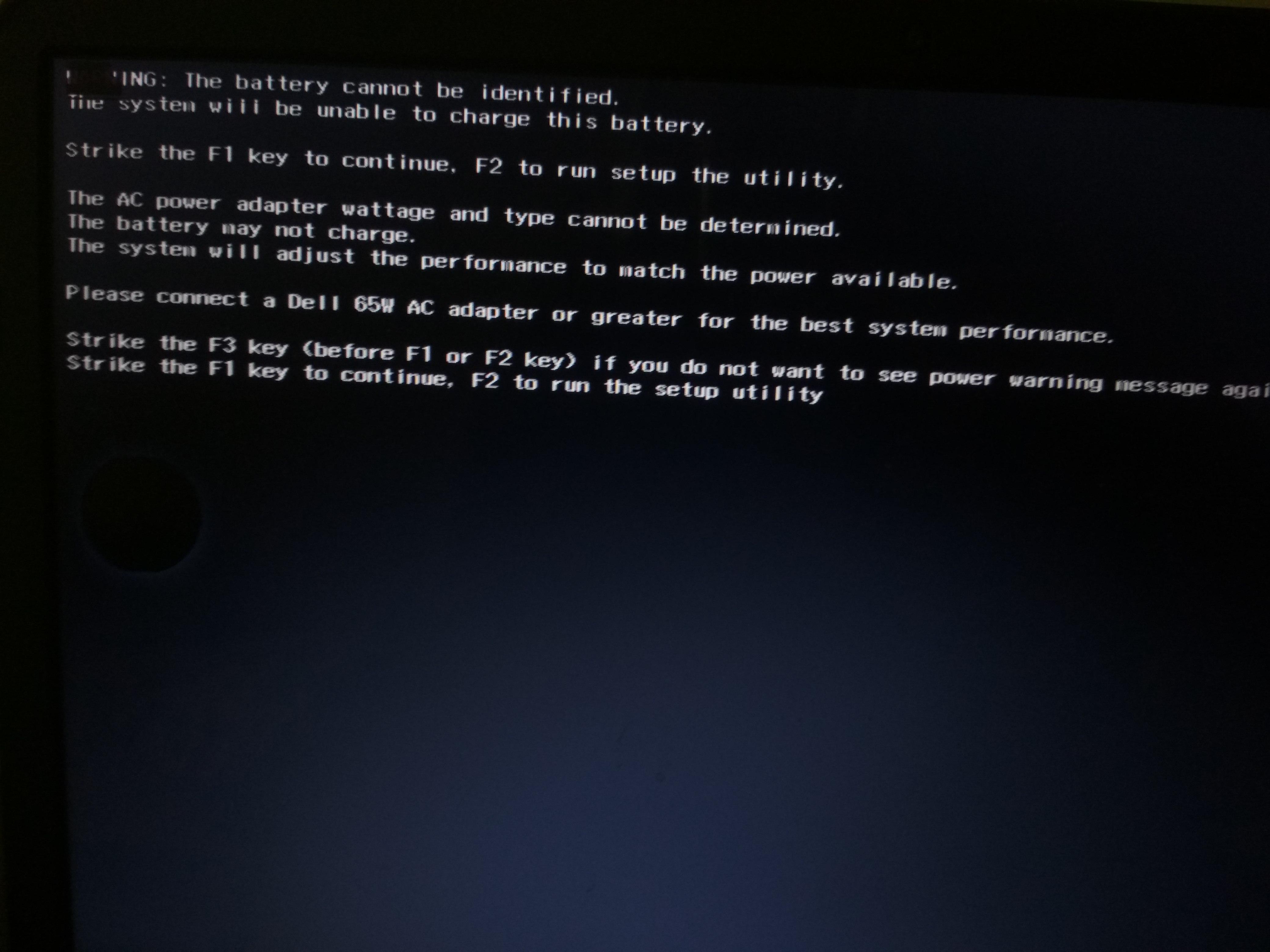
Heat and charging symptoms deserve more caution than ordinary software adjustments. A laptop that becomes unusually hot, charges intermittently, or loses power while connected may have a problem involving airflow, the adapter, the port, the battery, or another internal circuit.
- Do not continue using or charging a visibly swollen, leaking, smoking, or unusually hot battery.
- Do not use a damaged charger, exposed cable, melting plug, or visibly damaged port.
- Do not puncture, squeeze, open, or place a lithium-ion battery in household waste.
- Do not open the laptop or handle internal battery connectors unless you have the required skill and model-specific documentation.
How to Troubleshoot the Battery Drain Safely
Work through the checks in order and observe the result after each meaningful change. Start with usage and software, then examine sleep behavior, heat, and charging. Changing many settings at once can hide the real cause.
Check Current Power Use
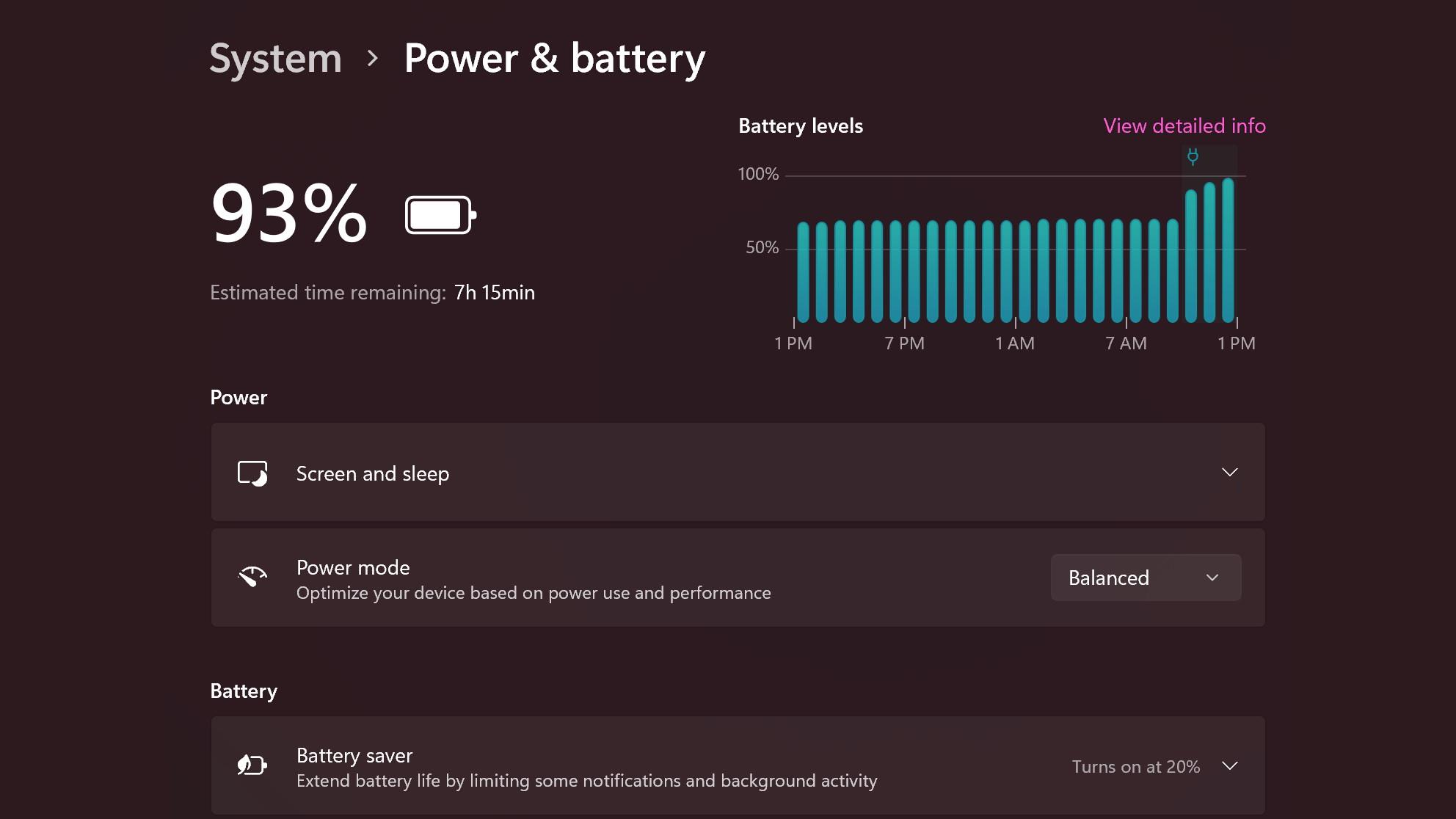
- Save work and close demanding applications that are not needed. Watch whether the discharge rate becomes less severe during light use. If the change is immediate, a workload or background process may be contributing; continue by identifying which application or task is responsible rather than assuming the battery is defective.
- Review the available Windows battery or power-usage view. Use current Windows 11 instructions for your version because menu names and layouts can change. Look for applications with unusually high activity and compare those entries with what you were using.
- Compare active applications with system activity. Use the operating system’s monitoring tools to observe processor, graphics, network, and disk activity. High activity while the laptop appears idle suggests background work; close or investigate the responsible software and retest.
- Record the result during a short period of light use. Keep the workload consistent and note whether the percentage falls more slowly. If drain remains rapid despite low activity, battery capacity, reporting accuracy, heat, or hardware conditions become more relevant.
Reduce Unnecessary Power Demand
- Lower the display brightness to a comfortable level. Observe whether runtime improves during the same type of work. A meaningful change points toward display power demand, while no change means other causes still need investigation.
- Select a suitable battery-saving or balanced power mode where available. Compare performance and discharge behavior after the change. If the laptop becomes cooler and drains more slowly, the previous profile may have prioritized performance over efficiency.
- Close unnecessary browser tabs, launchers, synchronization tools, and background applications. Check whether processor or network activity drops afterward. If it does, reopen software selectively to identify what was keeping the system busy.
- Disconnect unused external devices and disable features that are not needed. Keep essential connectivity enabled, then repeat the same light-use observation. Improvement suggests that a connected device or wireless feature was adding to consumption.
Check Sleep, Shutdown, and Overnight Drain
- Note the battery percentage before sleep or shutdown. Also record whether the laptop is warm, connected to accessories, or showing signs of activity. This baseline prevents an overnight observation from being interpreted without context.
- Disconnect unnecessary USB devices, docks, external displays, and accessories. Repeat the observation with the laptop in the same location. If drain changes, an accessory, wake event, or connected-device behavior may be involved.
- Test sleep and full shutdown separately. Do not treat ASUS laptop battery draining in sleep mode as identical to ASUS laptop battery drains when shut down. A difference between the two states is useful evidence about system behavior.
- Review wake, network, startup, and fast-start behavior using current Windows and ASUS documentation. Mark any model-dependent setting for verification before changing it. If the issue persists after a controlled setting review, save the observations for further diagnosis.
- Compare the result after a controlled observation period. Note whether the laptop is warm, awake, or unexpectedly active. A cool laptop with consistent shutdown drain may point toward reporting or hardware behavior, while warmth or wake activity suggests the computer may not have remained fully inactive.
Check Heat and Ventilation
- Place the laptop on a hard, clear surface during testing. This improves airflow compared with a bed or soft surface. If fan activity and temperature reduce, ventilation may have contributed to the drain.
- Observe the fan, chassis temperature, and performance during light use. Persistent fan activity or unusual heat when little is running may indicate background work, blocked airflow, or a developing hardware issue. Check activity first, then stop testing if the temperature becomes unsafe.
- Remove dust from accessible exterior vents without forcing objects into the laptop. Avoid opening the chassis solely to perform a routine check. If airflow remains restricted or internal cleaning is needed, arrange appropriate service.
- Stop testing if there is swelling, smoke, a chemical smell, severe heat, or physical damage. Disconnect power only when it is safe to do so and seek qualified assistance instead of continuing experiments.
Check the Charging Path
- Confirm that the charger is the correct type and is recognized by the laptop. Do not assume compatibility from connector shape alone. If the adapter is not recognized or charging does not begin normally, check model-specific guidance before trying another setup.
- Inspect the adapter, cable, plug, and charging port for visible damage, looseness, bent parts, or overheating. Stop using damaged equipment. A physical charging symptom is evidence for a charging-path assessment, not an instruction to manipulate the connector.
- Test a known-good compatible charging setup only when compatibility is verified. Observe whether charging becomes stable. Improvement may implicate the original adapter or cable, while continued failure points toward the port, battery, or charging circuitry.
- Observe whether charging starts and stops or changes when the connector moves. Do not repeatedly flex a damaged cable or port. Intermittent charging should be documented and professionally assessed if it continues.
With experience across 500+ laptop repairs, IndiRepair focuses on identifying the underlying fault before recommending a battery replacement or other service.
Book your Asus laptop battery replacement with IndiRepair
Battery-Health and Diagnostic Interpretation
Battery-capacity evidence and current power-consumption evidence answer different questions. A healthy battery can drain quickly during gaming or rendering because demand is high. A degraded battery may drain quickly during light use because its available capacity is reduced. Compare both types of evidence before deciding that replacement is necessary.
Review Battery Health Information
- Open the available Windows battery report, battery-usage view, or ASUS diagnostic utility using current instructions. Exact tools and menu paths should be verified for the laptop model and operating-system version. Save the report rather than relying only on a single displayed percentage.
- Compare design capacity and current full-charge capacity when both values are provided. A difference may support capacity loss, but it should be interpreted alongside runtime, charging behavior, and the report’s own limitations.
- Check for unusual discharge patterns, abrupt drops, or inconsistencies between percentage and observed runtime. These findings may indicate degraded capacity or inaccurate reporting. They do not independently confirm a particular failed component.
- Save the report or diagnostic result. Comparing it after software and usage checks can show whether the pattern remains consistent and gives a technician more useful evidence.
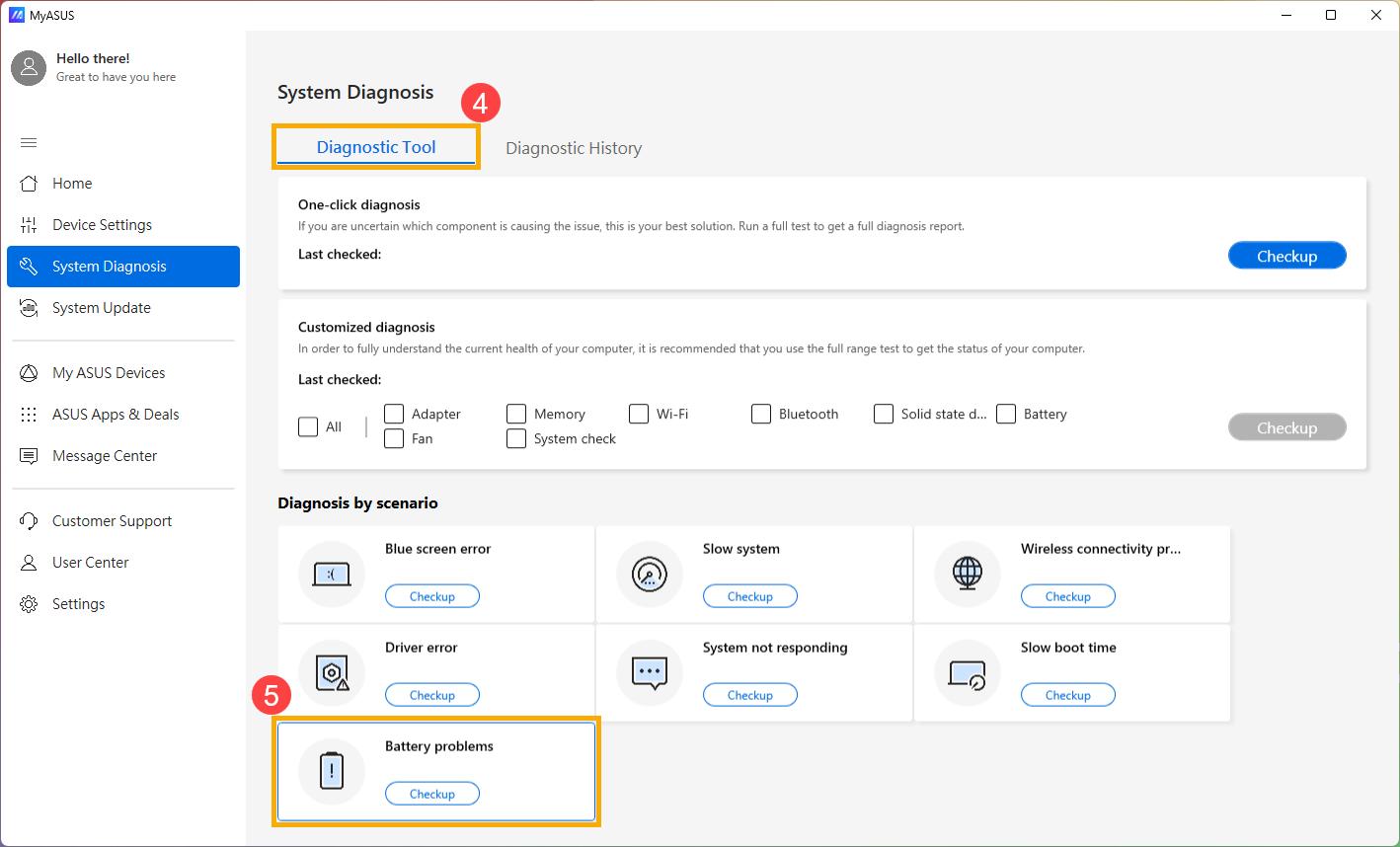
Use ASUS and MyASUS Diagnostics Where Available
- Verify the laptop model and the current ASUS support utility before following interface-specific directions. MyASUS features and diagnostic options can vary by model and software version.
- Run the available battery, charging, hardware, or system checks without interrupting the test. If the utility reports an error, record the result exactly as displayed rather than paraphrasing it.
- Save any diagnostic result, error code, or recommendation. This information can help distinguish a battery finding from a charging or system finding.
- Use the model’s official ASUS documentation to interpret the result. A diagnostic recommendation is valuable evidence, but the appropriate repair still depends on the model and the complete symptom pattern.
Interpret the Evidence
| Observed pattern | Supporting evidence | Likely next action |
|---|---|---|
| Fast drain during demanding work | High processor or graphics activity, heat, or fan use | Reduce workload or power demand and compare with light use. |
| Fast drain during light use | Low visible activity but poor runtime or rapid percentage changes | Review battery health and investigate background activity or capacity loss. |
| Drain during sleep or shutdown | Different results between sleep and full shutdown, or wake activity | Test each state separately and review connected devices and current settings. |
| Charging instability | Charging starts and stops, the adapter is not recognized, or the port is loose | Stop using damaged equipment and request charging-path diagnosis. |
| Rapid percentage changes | Displayed charge changes abruptly or the laptop shuts down early | Save battery-health information and arrange further assessment if persistent. |
| Physical battery warning signs | Swelling, smoke, chemical smell, leaking, or severe localized heat | Stop using and charging the laptop and seek prompt professional assistance. |
A controlled full charge and discharge observation may help clarify inaccurate reporting in some situations, but it is not a repair for a physically degraded or damaged battery. Avoid repeated deep-discharge testing when the battery is swollen, hot, unstable, or otherwise unsafe.
IndiRepair recommends treating each result as a clue rather than automatic proof that one component has failed. After meaningful software, sleep, thermal, and charging checks, you can get your Asus laptop battery checked by IndiRepair with the model details and saved observations available.
When DIY Troubleshooting Should Stop
Stop experimenting when the symptom creates a safety risk or when repeated software checks do not explain persistent instability. Lithium-ion batteries and charging circuits should not be handled casually.
- Stop using and charging the laptop if the battery is swollen, leaking, smoking, producing a chemical smell, or becoming dangerously hot.
- Stop repeated testing when the charging port, cable, adapter, or laptop body is physically damaged.
- Escalate when the laptop shuts down unexpectedly, cannot hold a charge after reasonable checks, or shows persistent charging interruptions.
- Do not puncture, squeeze, open, or dispose of a lithium-ion battery in household waste.
- Treat model-specific disassembly, battery-connector work, and board-level diagnosis as professional tasks unless you have the required skills and documentation.
Warning Signs That Need Prompt Attention
- Visible swelling or a lifted keyboard or trackpad.
- Smoke, fluid, chemical odor, crackling, or severe localized heat.
- A damaged charger, cable, connector, or charging port.
- Repeated unexpected shutdowns or severe instability during ordinary use.
Should You Optimize the Laptop, Replace the Battery, or Repair It?
The right next step depends on evidence rather than the battery percentage alone. Optimization is reasonable when runtime improves after reducing background activity, brightness, heat, or an unsuitable power mode and no warning signs remain. Battery replacement becomes more plausible when health evidence shows reduced capacity or runtime remains poor during light use. Broader diagnosis is appropriate when charging, the port, shutdown behavior, or another internal circuit may be involved.
Evidence-Based Repair Decision
| Evidence | Likely path | Information to provide |
|---|---|---|
| Runtime improves after settings or workload changes | Continue monitoring and keep the optimized configuration. | Record which change helped and under what workload. |
| Poor capacity or rapid drain during light use | Investigate model-specific battery replacement. | Provide the laptop model and battery-health report if available. |
| Swelling, severe heat, smoke, or physical damage | Stop use and seek prompt professional assistance. | Describe the safety symptom and avoid further charging tests. |
| Charging interruptions or port symptoms | Request charging-path and hardware diagnosis. | Note adapter behavior, connector symptoms, and when charging stops. |
| Unexplained sleep or shutdown drain | Provide observations and diagnostic reports if software checks do not resolve it. | State the battery level before and after each controlled test. |
The exact replacement part and installation method depend on the ASUS model. Verify model compatibility before ordering or fitting a battery, and do not assume that batteries or chargers with similar connectors are interchangeable.
Frequently Asked Questions
Q: Why is my ASUS laptop battery draining so fast?
A: Fast drain can result from high brightness, demanding software, background activity, performance settings, heat, charging problems, inaccurate reporting, or reduced battery capacity. First compare active and light use, then review battery usage and system activity. If the laptop drains quickly during light use, shuts down unexpectedly, or shows poor health information, battery degradation or another hardware issue becomes more likely. Swelling, smoke, severe heat, or physical damage requires stopping use and seeking professional help rather than continuing software experiments.
Q: Does fast battery drain always mean my ASUS laptop battery is bad?
A: No. A healthy battery can drain quickly during gaming, rendering, video editing, high-brightness use, or other demanding workloads. Fast drain that improves after closing background applications or changing a power mode may be usage-related. In contrast, poor runtime during light work, rapid percentage changes, unexpected shutdowns, and reduced full-charge capacity support a battery-health concern. Compare the workload, system activity, charging behavior, and health information before deciding that replacement is necessary.
Q: Why is my ASUS laptop battery draining in sleep mode?
A: Sleep is not always identical to a fully inactive state. Wake events, connected USB devices, docks, network behavior, startup settings, or model-specific power features may allow some activity. Record the percentage before sleep, disconnect unnecessary accessories, and test sleep separately from full shutdown. If the laptop is warm or appears awake, investigate wake activity. If it remains cool but loses substantial charge repeatedly, save the observation and battery report for model-specific troubleshooting.
Q: Why does my ASUS laptop battery drain overnight?
A: Overnight loss may happen during sleep, a partial shutdown state, or because an accessory or system setting allows activity. Test with unnecessary USB devices, docks, and displays disconnected, and record whether you used sleep or full shutdown. A cool laptop with minor loss may need settings review, while rapid loss, warmth, or unexpected activity deserves further investigation. If overnight drain continues after controlled checks, provide the timing and battery percentages to a qualified technician.
Q: Why does my ASUS laptop battery drain when shut down?
A: Shutdown drain should be tested separately from sleep drain because connected devices, startup behavior, firmware settings, reporting errors, or a battery that no longer holds charge can produce different patterns. Confirm that the laptop actually completes shutdown, disconnect accessories, and compare the battery level before and after a controlled period. If the battery continues to lose charge quickly while fully shut down, especially with charging or heat symptoms, professional battery and charging-path diagnosis is appropriate.
Q: How can I check the battery health of an ASUS laptop?
A: Use the battery report, battery-usage information, or ASUS diagnostic utility available for your specific Windows version and laptop model. Current menu names and MyASUS features can vary, so verify the instructions before following them. When available, compare design capacity with current full-charge capacity and look for abrupt discharge patterns. Save the report and compare it with real runtime. One percentage or diagnostic message is evidence, not necessarily a complete diagnosis.
Q: Can calibration fix an ASUS laptop battery that is draining quickly?
A: A controlled charge and discharge observation may help clarify inaccurate percentage reporting in some cases, but it cannot restore capacity to a physically degraded battery or repair a damaged charging circuit. Avoid repeated deep-discharge testing if the battery is swollen, unusually hot, unstable, or physically damaged. If the battery drains rapidly during light use or the laptop shuts down before the displayed percentage reaches empty, save the health information and arrange further assessment instead of treating calibration as a guaranteed fix.
Q: How long should an ASUS laptop battery last?
A: Runtime varies by ASUS model, battery capacity, display settings, workload, temperature, software, and battery condition, so there is no single useful runtime for every laptop. Compare the current result with the laptop’s previous behavior under the same type of work. A sudden decrease is more informative than a general expectation. If runtime remains poor during light use after software and settings checks, review battery health and consider model-specific professional assessment.
Q: What should I do if my ASUS laptop shuts down before the battery reaches zero percent?
A: An early shutdown can be associated with inaccurate reporting, reduced capacity, battery instability, or another power fault. Record the displayed percentage, workload, temperature, and whether the laptop was charging before the shutdown. Review battery-health information and avoid relying on repeated deep-discharge tests, especially if the battery is hot or swollen. If the behavior persists during ordinary use, professional diagnosis can help distinguish reporting calibration from a battery or charging problem.
Q: When should I stop troubleshooting and arrange professional battery repair or replacement?
A: Stop DIY testing if you see swelling, smoke, leaking, chemical odor, severe heat, exposed wires, melting, or physical damage to the charger or port. Professional assessment is also appropriate when charging remains intermittent, the laptop shuts down unexpectedly, the battery performs poorly during light use, or sleep and shutdown drain remain unexplained after safe checks. Provide the ASUS model, observed percentages, charging symptoms, and saved diagnostic reports so the next decision is based on evidence.
Conclusion
ASUS Laptop Battery draining fast is a symptom, not a diagnosis. Settings, software, workload, heat, charging conditions, inaccurate readings, reduced battery capacity, and other hardware problems can all produce similar results. Start by recording when the drain occurs, then check power use, reduce unnecessary demand, review sleep and shutdown behavior, inspect thermal and charging conditions, and review available battery-health information.
Optimize the laptop when the evidence points to power use or settings. Choose model-specific battery replacement when capacity loss and poor light-use runtime remain, and seek broader repair when charging faults, physical warning signs, or persistent instability are present.
For readers who are not comfortable handling internal battery hardware, IndiRepair can help assess whether the next step is battery replacement or a wider charging diagnosis. When the evidence supports professional service, consider Asus laptop Battery replacement with IndiRepair and share the observations collected during troubleshooting.
About the Author: Khan Rahil is a diploma holder in Computer Hardware with over 5 years of hands-on experience in laptop repairs and Senior Technician at IndiRepair. He has overseen hundreds of screen replacements, ensuring quality and customer satisfaction.