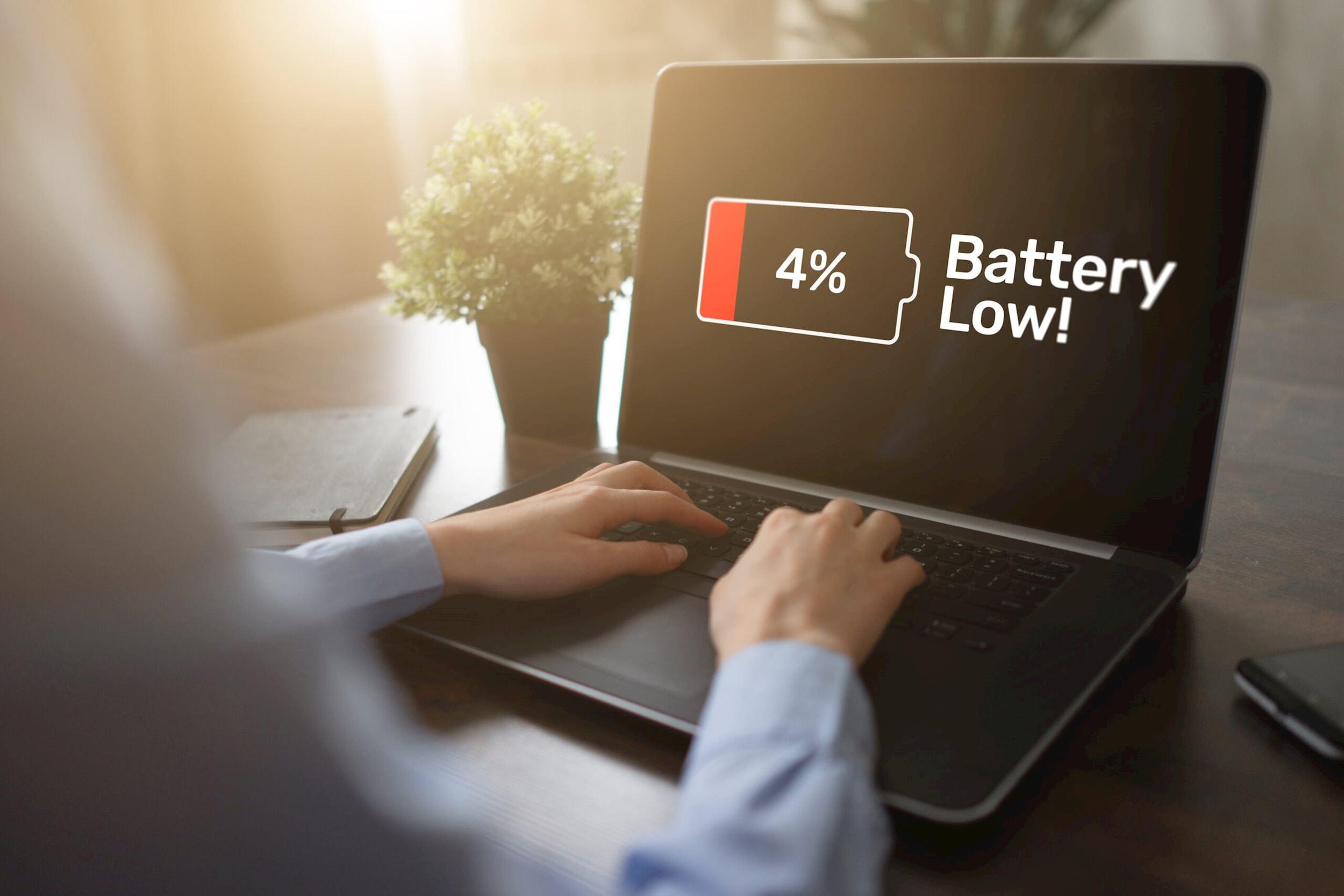
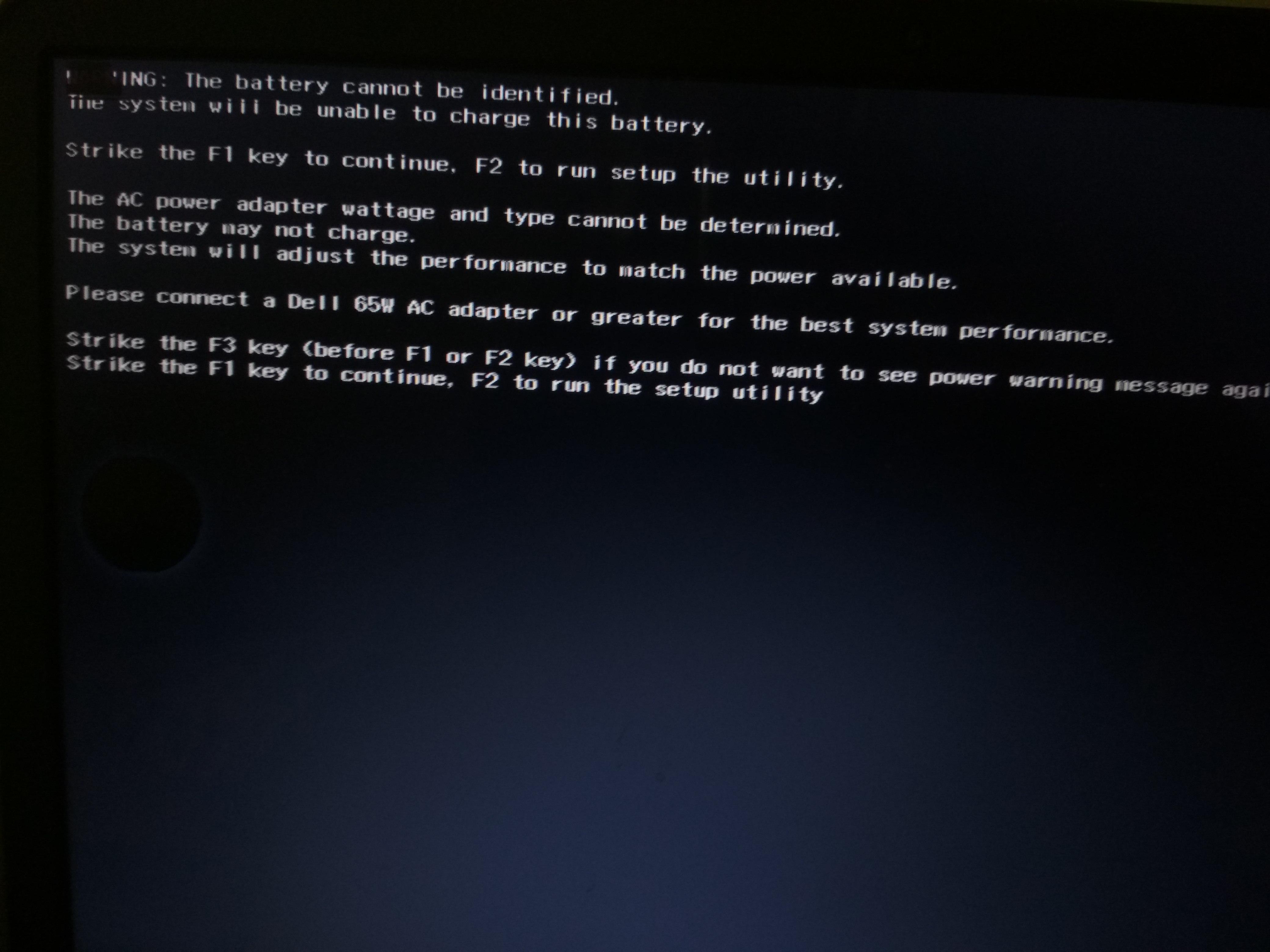
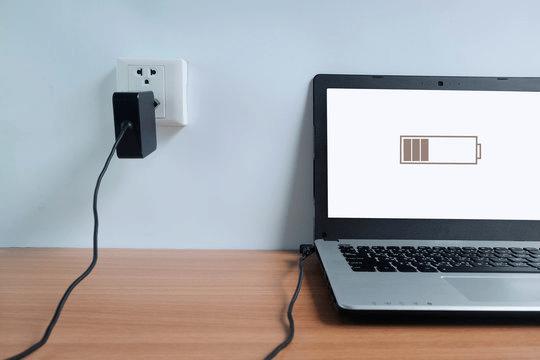
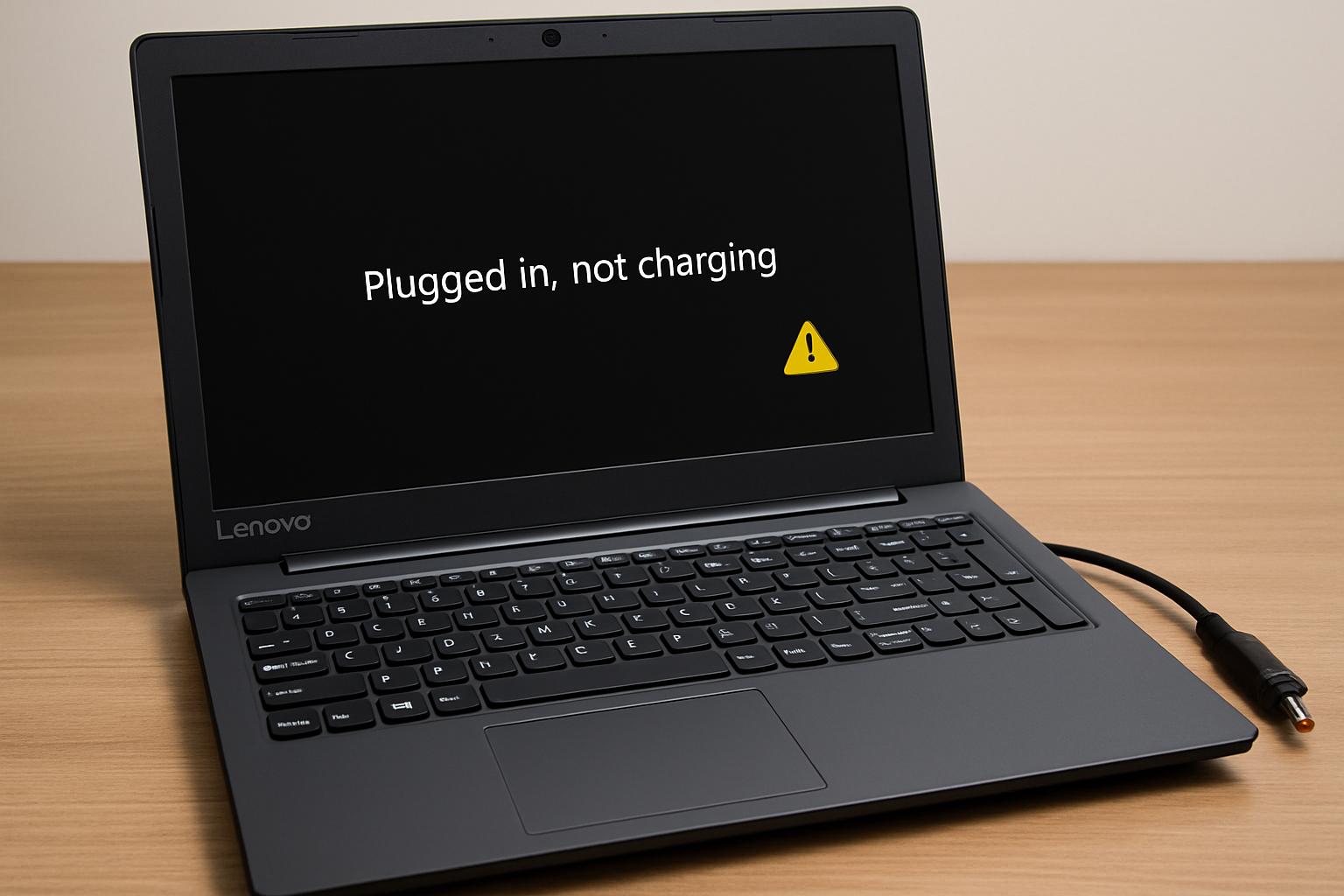
If your Lenovo laptop battery is not charging, the visible symptom may be a percentage that stays unchanged, charging that starts and stops, or a system that does not detect the charger at all. These signs do not automatically prove that the battery has failed.
A Lenovo charging problem can involve the wall outlet, power adapter, cable, charging port, battery-care settings, operating system, battery health, or an internal charging circuit. The safest approach is to diagnose the power path before buying a replacement. This guide explains what the symptoms may mean, which low-risk checks to perform, and when professional assessment is more appropriate.
What the Charging Symptom Means
“Lenovo battery not charging” can describe several different situations. A laptop may recognise external power but deliberately pause charging, or it may fail to recognise the adapter altogether. A battery percentage that remains at one level is useful evidence, but it is not a complete diagnosis on its own.
- The percentage may stay at the same level even though the laptop detects the charger.
- Charging may begin and stop when the cable, connector, or charging port is disturbed.
- The operating system may show that the laptop is plugged in but not charging.
- The laptop may run from external power while the battery level does not increase.
- The laptop may show no sign that an adapter is connected.
Some Lenovo models can limit or pause charging because of configurable battery-care behaviour. The exact feature and menu name can vary by model and operating system, so a charging pause should not automatically be treated as a failed battery. Start by separating external-power detection from battery charging: the first confirms that some power is reaching the laptop, while the second concerns whether the battery is being permitted and able to store that power.
After checking the basic symptoms, readers who need model-specific help can review the Lenovo laptop battery service options, but a diagnosis should come before ordering a part.
Safety Stop Conditions Before Troubleshooting
Only perform the external checks below when the laptop and charger appear physically safe. Stop using the equipment and arrange qualified assessment if you notice any of the following:
- A swollen, lifting, or visibly deformed battery or laptop base.
- Smoke, sparks, a burning smell, melting, or unusual heat.
- Liquid exposure, exposed wires, a split cable, or a damaged connector.
- A charging port that is visibly broken, loose, contaminated, or producing heat.
- Charging behaviour that becomes more dangerous when the connector is moved.
Do not puncture, open, squeeze, or attempt to repair an internal lithium battery. Do not keep reconnecting equipment that is hot, sparking, or visibly damaged. A physical safety warning takes priority over restoring charging.
Possible Causes of a Lenovo Battery That Will Not Charge
The following are possible problem categories, not confirmed diagnoses. The same symptom can be caused by more than one component, so use the later checks to gather evidence before deciding what needs repair.
Main Problem Categories
- Unstable external power. The wall outlet, power strip, adapter, cable, plug, or laptop connector may not be delivering stable power. This becomes more likely when charging is absent or intermittent.
- Adapter or port compatibility problem. A charger may physically fit without being appropriate for the specific Lenovo model. On some models, not every USB-C port supports charging, so the selected port also matters.
- Charging settings or power-management behaviour. A battery-care setting, charging threshold, operating-system state, firmware behaviour, or power-management issue may pause or interrupt charging without indicating a failed battery.
- Reduced battery health or internal battery fault. If the laptop consistently detects compatible external power but the charge level does not rise, battery health becomes one possible explanation. It still requires confirmation.
- Charging-port or internal hardware fault. Damage to the port, charging circuit, motherboard, or another internal component can prevent the battery from charging even when the adapter appears functional.
- Driver, update, or system-state problem. A recent software change or temporary system issue may interfere with charging recognition. Model- and operating-system-appropriate diagnostics are needed before treating this as the cause.
With experience across 500+ laptop repairs, IndiRepair focuses on identifying the underlying fault before recommending a battery replacement. The distinction matters because replacing a battery will not resolve a damaged charger, unsuitable adapter, faulty port, or internal charging-circuit problem.
Book your Lenovo laptop battery replacement with IndiRepair
Use the checks below to narrow the possibilities without opening the laptop or handling the internal battery.
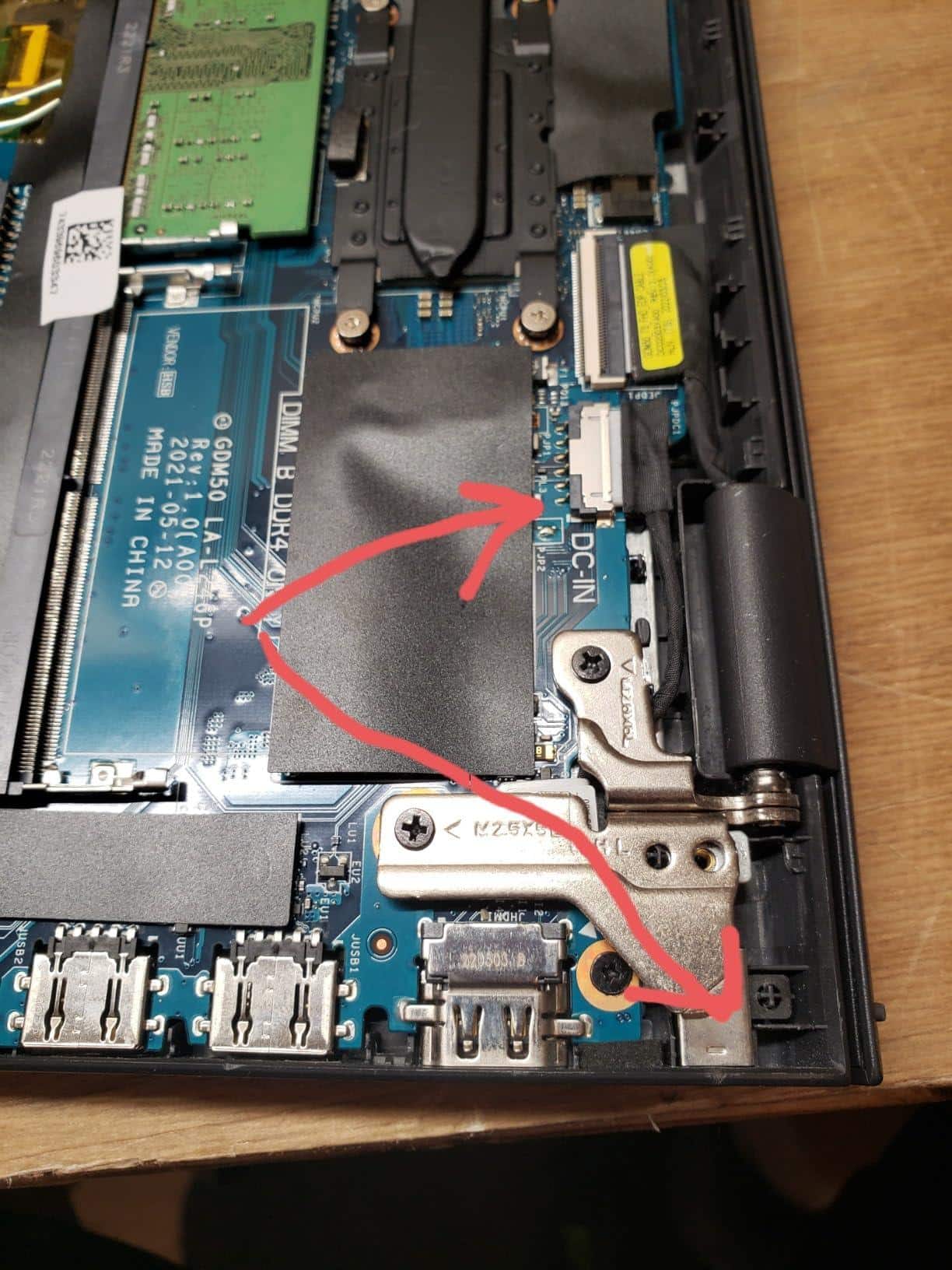
The charging path runs from the wall outlet and adapter through the cable and connector to the laptop’s charging port, power-management system, and battery. Testing that path in order helps prevent an incorrect battery diagnosis.
How to Troubleshoot Lenovo Charging Issues Safely
Work from the lowest-risk external checks toward model-appropriate settings and diagnostic information. Record what changes after each meaningful check. If any step reveals smoke, burning smell, swelling, liquid, exposed wiring, unusual heat, sparking, or physical damage, stop instead of continuing the sequence.
Check the External Power Path
These checks help establish whether the laptop is receiving stable external power before you investigate battery settings or health.
- Test a known-working wall outlet. Disconnect unnecessary accessories and connect the Lenovo charger directly to a wall outlet rather than relying on a power strip. If the charging response changes, the original outlet or strip may be involved. If there is still no response, continue with the charger and connector checks.
- Inspect the adapter and cable without forcing anything. Look for fraying, splits, bent parts, contamination, looseness, or other visible damage on the adapter, cable, plug, and laptop connector. Do not use a damaged charger. A physical defect or unusual heat is a reason to stop and seek assessment.
- Reconnect the charger firmly at both ends. Make sure each connection is fully seated without applying pressure. Observe whether the charging indicator, operating-system status, or power response changes. If the laptop begins detecting external power, the earlier connection may have been incomplete, but recurring interruptions still need investigation.
- Compare with a compatible known-good charger when available. Use only an adapter confirmed for the exact Lenovo model and connector system. If the known-good charger works consistently, the original adapter or cable becomes more likely as the source. A charger that physically fits is not automatically electrically appropriate.
- Observe whether the result changes during normal connector movement. Note whether charging is stable, intermittent, or absent, but do not bend, twist, or repeatedly flex the cable or port. If movement causes heat, sparking, a burning smell, or further damage, stop immediately. Intermittence linked to movement can point toward a connector, cable, or port issue rather than the battery alone.
Check Charger Compatibility and Charging Port Behavior
A Lenovo laptop may detect external power differently from how it charges the battery. This distinction is especially important on models that use different connector systems or have multiple USB-C ports.
- Confirm the adapter is intended for the exact model. Check the model information and the charger documentation or manufacturer guidance rather than relying only on a matching physical plug. If compatibility cannot be established, do not use the adapter as a test.
- Verify which port supports charging. If the laptop has more than one USB-C port, check the exact model’s documentation to identify the charging-capable port. Do not assume that every USB-C port accepts power just because the connector fits.
- Observe the port for looseness without applying pressure. A connector that feels unusually loose, sits unevenly, or only works when held in a particular position may indicate port or connector damage. Do not wedge the plug, hold it at an angle, or repeatedly flex the port.
- Separate adapter detection from battery charging. Record whether the operating system detects the adapter even when the battery percentage does not rise. Adapter detection directs attention toward battery settings or battery health, while no adapter detection keeps the outlet, charger, cable, port, and compatibility higher on the list.
Review Charging Settings and Power Management
Some charging behaviour is controlled by model-specific battery-care features. These options can be useful, but the exact names and availability vary, so do not assume that a setting found in one Lenovo model applies to another.
- Review the installed Lenovo power or battery-management utility. Look for charging thresholds, conservation modes, or battery-care options, and verify the menu names for the exact model. If a threshold or charging pause is active, the unchanged percentage may be intentional rather than proof of battery failure.
- Check the operating system’s battery status. Note whether it reports external power, charging, charging paused, plugged in but not charging, or no adapter detected. Treat the message as evidence about the current state, not as a complete identification of the failed component.
- Restart the laptop using the normal model-appropriate procedure. Save important work and perform a regular restart or shutdown-and-restart to clear a temporary power-management state. If charging returns afterwards, the earlier condition may have been software-related; if it does not, continue gathering evidence rather than repeatedly restarting.
- Check Lenovo’s model-specific support guidance. Look for instructions that match the exact model and operating system before considering firmware, BIOS, driver, or hardware diagnostics. Do not apply an update or procedure intended for a different model.
- Recheck after one meaningful change at a time. Changing several settings at once makes the result difficult to interpret. Record the setting changed and whether external-power detection, charging status, or battery percentage responds.
Assess Battery Health and Run Available Diagnostics
Battery-health information can help distinguish a charging-control issue from reduced battery capacity or a possible hardware fault. Availability and terminology differ between Lenovo models and operating systems.
- Compare the battery percentage under consistent conditions. Note the percentage before and after a consistent period connected to compatible external power, while keeping normal usage conditions similar. A stable percentage with external power detected is a clue, not automatic proof that the battery must be replaced.
- Review available battery and hardware information. Use the operating system’s battery information and any Lenovo-supported battery-health or hardware-diagnostic tool available for the exact model. Record health warnings or error messages, but verify what each message means before treating it as a confirmed fault.
- Compare normal operation with a normal shutdown. Observe whether the charging state is different while the laptop is running and after a normal shutdown. This may help identify a system-state issue, but it is not a substitute for professional inspection if the hardware shows unsafe symptoms.
- Record what the system detects. Note whether it detects the battery, detects the charger, reports a health warning, or shows no battery or adapter information. This evidence helps separate a battery-recognition problem from a power-path or charging problem.
- Save useful information for a repair assessment. Keep diagnostic messages, screenshots, the exact model details, charger observations, and notes about intermittent behaviour. Clear records can reduce repeated testing and help a technician assess the likely fault without opening the device unnecessarily.
IndiRepair recommends treating every result as a clue rather than automatic proof that one component has failed. For example, external power detection with a stationary percentage may point toward a threshold, battery-health concern, or charging-control issue, while no external-power detection shifts attention toward the adapter, cable, connector, port, or compatibility. After these checks, you can get your Lenovo laptop checked by IndiRepair if the result remains uncertain.
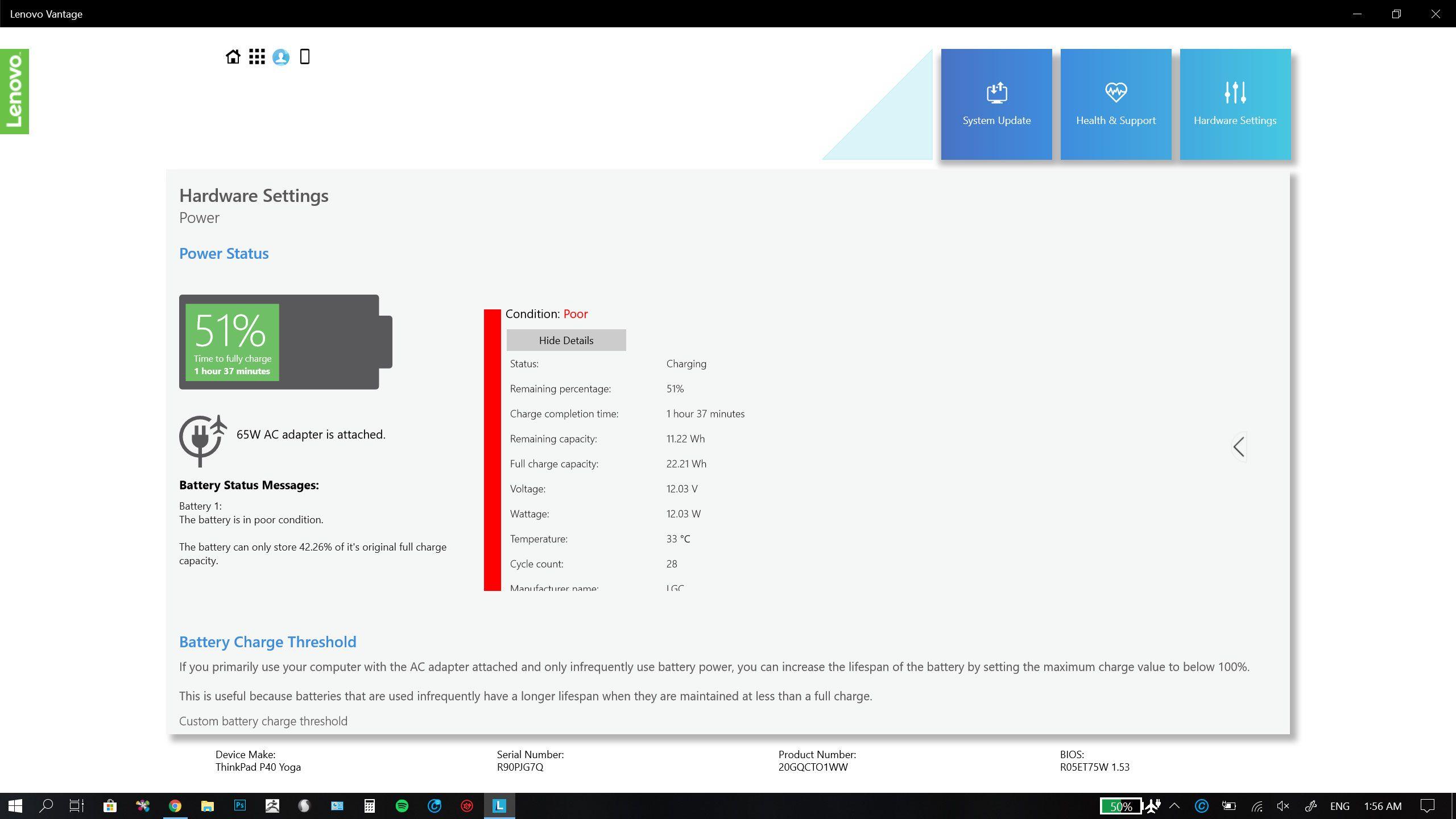
Keep the model number and any diagnostic message with your notes. Model-specific labels can differ, so a screenshot or exact wording is more useful than assuming that a general battery message has the same meaning on every Lenovo laptop.
Interpret the Results Before Replacing the Battery
The observation below should guide the next check, not be treated as a final diagnosis. A professional assessment may still be needed where multiple symptoms overlap.
| Observation | What it may suggest | Next appropriate check |
|---|---|---|
| No charging or adapter response | An outlet, adapter, cable, connector, port, or compatibility problem may be involved. | Check the safe external power path and verify the correct charger and charging port. |
| External power is detected but the percentage remains unchanged | A charging threshold, battery-care setting, battery-health issue, or charging-control fault may be involved. | Review model-specific settings and battery-health information before replacing the battery. |
| Charging starts and stops when the connector moves | The cable, connector, or charging port may be unstable or damaged. | Stop flexing the connection and arrange an inspection if the behaviour continues. |
| The battery is not detected | A battery-recognition issue, internal connection problem, battery fault, or system-state problem may be present. | Use model-appropriate diagnostics and seek professional assessment rather than opening the laptop. |
| Charging resumes after a compatible charger or setting change | The original charger, configuration, or temporary software state may have contributed. | Monitor for repeat symptoms and keep the confirmed-compatible setup. |
An unchanged percentage while external power is detected does not by itself confirm battery failure. Conversely, a laptop that does not detect the charger should not lead straight to battery replacement, because the battery may not be receiving a usable charging path in the first place.
When DIY Troubleshooting Should Stop
Low-risk checks are appropriate only while the device remains physically safe and the cause is still external or software-related. Stop and arrange qualified diagnosis when:
- There is swelling, smoke, a burning smell, liquid exposure, sparking, unusual heat, melting, or visible electrical damage.
- The charging port is loose, visibly damaged, or works only when the connector is held in a particular position.
- A compatible charger and safe external checks do not restore charging or adapter detection.
- Diagnostics suggest a battery, charging circuit, motherboard, or other internal fault.
- You would need to open the laptop, disconnect the internal battery, repair the port, or perform board-level work.
Do not continue testing a device that presents a physical or electrical hazard. Internal battery and charging repairs require appropriate tools, handling procedures, and model-specific knowledge.
Repair or Replacement: Choose the Next Appropriate Action
A battery replacement is appropriate only when the available evidence points toward reduced battery health or an internal battery fault. If the charger, cable, port, settings, or charging circuit is responsible, replacing the battery may not solve the Lenovo charging problem.
- A charger or cable issue should be addressed with the correct compatible component.
- A damaged or unstable charging port needs inspection rather than repeated connector movement.
- A battery-health warning should be interpreted alongside charger detection and the laptop’s physical condition.
- An internal charging or motherboard fault requires professional assessment.
- The exact Lenovo model, battery design, connector type, accessibility, and replacement requirements must be verified before ordering a part.
Before requesting repair, gather the exact Lenovo model, the observed charging behaviour, whether external power is detected, any diagnostic messages, and details about the charger used. This gives the repair provider useful evidence without requiring you to open the laptop.
What to Ask Before Authorising Repair
- Ask whether the likely source is the battery, charger, charging port, or another internal component.
- Provide the exact model information and explain whether the laptop detects external power.
- Share any safety warning signs or intermittent behaviour instead of continuing to test a potentially unsafe device.
- Confirm that any replacement part or repair approach is compatible with the exact Lenovo model.
IndiRepair can help with a diagnosis-led decision when safe checks do not identify why the Lenovo battery will not charge. The appropriate service depends on the evidence, so battery replacement should not be assumed before the charging path has been assessed.
Lenovo laptop battery replacement with IndiRepair
Frequently Asked Questions
Q: Why is my Lenovo laptop plugged in but not charging?
A: External-power detection and battery charging are separate states. Your Lenovo laptop may recognise the adapter while a battery-care setting, charging threshold, or model-specific power-management feature pauses charging. A compatible charger, charging port, battery health issue, or internal fault can also produce the same message. Check the exact model’s battery settings, confirm adapter compatibility, and review available battery-health information. If the system detects no adapter or charging remains intermittent, investigate the external power path before assuming the battery has failed.
Q: What should I do if my Lenovo laptop does not detect the charger?
A: Start with the safest external checks: try a known-working wall outlet, inspect the adapter and cable for visible damage, reconnect both ends firmly, and confirm that the charger is intended for the exact Lenovo model. If the laptop has multiple USB-C ports, verify which port supports charging for that model. Do not use a damaged adapter or repeatedly move a loose connector. If safe checks do not restore detection, arrange professional diagnosis rather than opening the laptop.
Q: Should I replace the battery if the percentage stays the same?
A: Not necessarily. A stationary percentage can result from a charging threshold, battery-care setting, inaccurate status information, reduced battery health, or a charging-control fault. First establish whether the laptop detects compatible external power and whether the battery is recognised. Then review model-appropriate settings and battery-health information. If the percentage remains unchanged despite stable external-power detection and the available evidence points to battery health, a professional can confirm whether replacement is justified.
Q: Can a Lenovo battery-care setting pause charging?
A: Some Lenovo models provide battery-care or charging-threshold behaviour that can limit or pause charging at a selected level. The exact feature, setting name, and available options depend on the model and operating system, so it should not be assumed to work identically across Lenovo laptops. Review the installed Lenovo power or battery-management utility and compare its status with the operating system’s battery message. If no such setting explains the behaviour, continue with charger, port, and battery-health checks.
Q: When should I stop troubleshooting and seek professional help?
A: Stop immediately if you notice swelling, smoke, sparks, a burning smell, liquid exposure, exposed wires, melting, unusual heat, or visible damage to the laptop, charger, cable, or port. Professional help is also appropriate when the port is loose, charging works only at a particular angle, a compatible charger is not detected, or safe external and software checks do not resolve the issue. Do not open the laptop or attempt internal battery, port, or board-level repair as a home troubleshooting step.
Conclusion
A Lenovo laptop battery that will not charge may be affected by the charger, cable, outlet, port, compatibility, settings, software, battery health, or internal charging hardware. Begin with safety, then check the external power path, verify the correct charger and port, review model-specific charging behaviour, and interpret battery diagnostics before deciding that a replacement is needed.
When the cause remains uncertain or the evidence points to the battery, charging port, or internal circuit, diagnosis is safer than guesswork. IndiRepair uses the available symptoms and test results to guide the repair decision rather than treating every Lenovo Battery not charging message as proof of battery failure. For a model-specific assessment, consider IndiRepair’s Lenovo laptop battery replacement service.
About the Author: Khan Rahil is a diploma holder in Computer Hardware with over 5 years of hands-on experience in laptop repairs and Senior Technician at IndiRepair. He has overseen hundreds of screen replacements, ensuring quality and customer satisfaction.