Lenovo laptop battery error codes can appear during startup, in a diagnostic tool or alongside a Windows charging message. They do not all mean the same thing—and a warning alone does not prove that the battery needs replacing.
The underlying issue may involve external power, battery communication, Windows reporting, firmware or battery hardware. The most useful starting point is the exact message, where it appears and which Lenovo model is affected.
This guide explains those distinctions, safe troubleshooting and when professional diagnosis becomes appropriate. Code definitions and reset procedures must match your model’s Lenovo documentation, not just a similar-looking laptop.
How to Identify and Interpret a Lenovo Battery Error
A numeric startup code, a Windows status message and a failed hardware test are different kinds of evidence. The same phrase—such as “not charging”—can describe a normal charging limit or a genuine power problem.
A useful error record includes the exact wording or a photograph, Lenovo model or machine type, Windows version, battery percentage, charger connection status and whether the warning returns after a restart. These details help prevent an unrelated code definition from being applied to your laptop.
Message Sources: Startup, Windows and Lenovo Diagnostics
| Message source | Details to record | What it may indicate | What needs verification |
|---|---|---|---|
| Startup or BIOS/UEFI | Complete code, warning text and whether startup stops | A condition detected before Windows loads | The code definition in the exact model’s Lenovo documentation |
| Windows battery icon or notification | Percentage, charging status and exact notification | Reported charge level, charging behavior or missing battery information | Whether this is ordinary status text, a setting or a reporting fault |
| Windows Device Manager | Affected device, warning indicator and device-status text | A device-recognition or driver-related problem | The meaning of that device’s status, rather than a Lenovo startup-code definition |
| Lenovo support utility or hardware diagnostic | Tool name, complete result and reference code | A battery-health, communication or hardware-test finding | Tool support for the model and Lenovo’s interpretation of that result |
A warning that appears before Windows starts cannot be explained solely by the Windows battery icon. Conversely, Windows saying “plugged in, not charging” is not automatically a firmware diagnostic code.
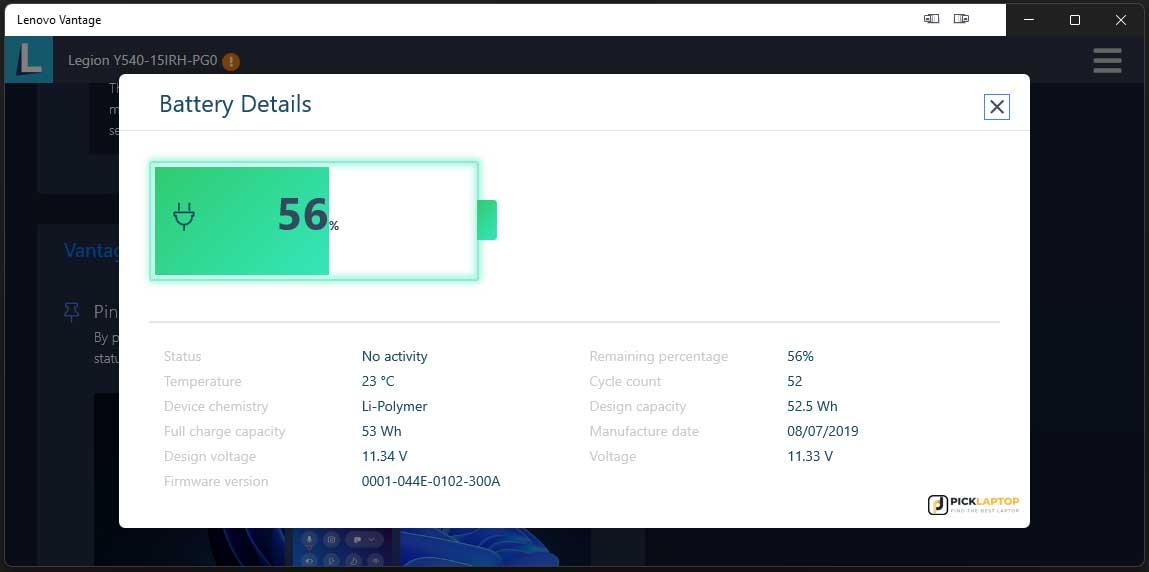
The source of the message determines which documentation and troubleshooting branch are relevant.
Code and Warning Meanings Depend on the Model
Lenovo battery error 0190 is associated with the wording “Critical low-battery error” in documentation for some Lenovo models. Where that definition applies, it is a startup warning about insufficient battery charge, not a standalone verdict that the battery has failed. Startup may stop until adequate power is available.
No model has been supplied here, so this is not confirmation that the same definition applies to every Lenovo laptop. The exact model’s current Lenovo user guide or hardware maintenance documentation remains the reference for a numeric code.
| Displayed code or wording | Interpretation boundary | Model-specific verification |
|---|---|---|
| 0190 accompanied by “Critical low-battery error” | The accompanying text describes a critical low-charge condition at startup. It does not identify why charge is low. | Confirm that the model’s Lenovo documentation lists this code and its prescribed response. A bare 0190 code without matching wording needs verification before interpretation. |
| Windows low-battery notification | Windows reports that available charge has reached a notification threshold. | This is not automatically equivalent to a Lenovo startup code or failed battery-health test. |
| “Battery not detected” or similar wording | The reporting system cannot currently identify the battery. | The source matters: Windows recognition failure and detection failure in a supported hardware diagnostic are different evidence. |
| “Plugged in, not charging” or similar wording | External power is reported, but battery charging is not occurring at that moment. | Charging limits, temperature conditions, adapter compatibility and hardware behavior need consideration. |
A critical low-charge condition, poor battery health and failed battery detection are separate problems. They can occur together, but one message does not establish all three.
Symptoms That Accompany the Message
- The battery percentage stays fixed, falls on AC power or changes abruptly.
- The laptop runs only with the charger connected or shuts down soon after disconnection.
- Windows no longer displays the battery, or a battery-related device has an error indicator.
- The charging light remains off or charging has previously changed when the connector moved.
- The warning appeared once after full depletion or returns on every startup.
- The battery area, case or charger shows swelling, damage, unusual heat or an odor.
These are observations, not confirmed diagnoses. If assessment becomes necessary, Lenovo laptop battery replacement service is a relevant route for discussing a persistent warning without assuming replacement is the answer.
Safety Checks Before Troubleshooting a Battery Warning
Physical damage takes priority over every software check. Stop using and charging the laptop if the battery or power hardware appears unsafe. Disconnect external power only if you can do so safely. A smoking or dangerously hot device should not be handled; move away and contact local emergency services if there is a fire risk.
- Never press on, puncture, bend, open or attempt to repair a lithium-ion battery.
- Do not keep charging damaged hardware while testing drivers or settings.
- Internal battery removal and electrical probing are not routine user troubleshooting.
- File recovery is secondary to safety. A backup is appropriate only while the laptop remains safe and stable; otherwise, discuss recovery with a professional.
Stop Conditions That Override Routine Checks
- Swelling, case separation, leakage or visible battery damage.
- Smoke, burning smell, melting or extreme or repeated abnormal heat.
- Liquid exposure, exposed wires or a damaged adapter, cable or wall plug.
- Sparks, crackling, a burnt connector or a visibly damaged charging port.
- A loose power connection or shutdowns and restarts whenever power is connected.
A loose or burnt connector needs assessment, not repeated wiggling to find a charging position.
Likely Causes of Lenovo Battery Error Codes
Several faults can produce overlapping warnings. The following categories describe possible causes; confirmation requires evidence that separates the battery from the equipment supplying and managing its power.
1. External Power and Charging Path Problems
A faulty outlet, power strip, adapter or cable may leave the battery depleted even when the charger appears connected. An incompatible or insufficient power source can also fail to provide the power the model requires.
Connector shape alone does not establish compatibility. For USB-C charging, the laptop’s supported charging port, power-source requirements and cable capability all matter. Those requirements must come from the exact model’s documentation.
No charging indication, falling charge on AC power or a connection sensitive to movement makes the external power path worth investigating. A known-good, model-compatible power source is useful comparative evidence; appearance alone cannot confirm an adapter works.
2. Battery Communication, Health or Hardware Faults
The battery may not communicate reliably with the laptop because of a connection problem, internal battery electronics or laptop-side circuitry. A degraded or faulty battery may also accept little charge or fail to sustain operation.
Impact, liquid exposure and overheating can affect the battery, connector or charging circuit. Repeated missing-battery reports across supported diagnostic environments make hardware assessment more appropriate, but still do not identify the failed component by themselves.
A compatible-power comparison and model-supported diagnostics help narrow the issue. Internal connection checks should be left to someone with the appropriate skills and safety controls.
3. Firmware, Windows, Driver or Power-Management Problems
A Windows battery-reporting problem can follow a system, driver or firmware change. A malfunctioning model-specific power-management component may also affect recognition or status reporting.
Charging conservation settings can be mistaken for a Lenovo battery not charging error: a supported charge limit may intentionally pause charging below full capacity. A temporary reporting state after deep depletion is another possibility.
A warning limited to Windows makes software reporting more plausible than a warning also present before Windows starts. Neither pattern is conclusive, and a driver reinstall cannot repair damaged battery cells or a broken charging connector.
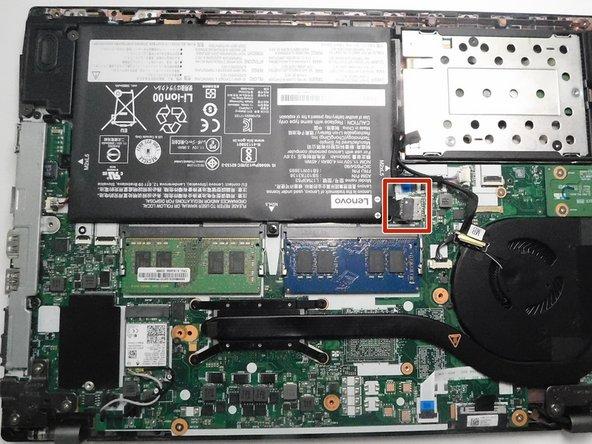
These layers explain why replacing the battery solely because of a warning can leave the original problem unresolved.
IndiRepair has completed 500+ laptop repairs and has practical experience diagnosing laptop problems. That experience provides context for an evidence-led assessment—not proof that any particular warning requires a new battery.
If you need help distinguishing the possible causes, you can book your Lenovo laptop battery replacement with IndiRepair.
Safe Troubleshooting by Diagnostic Topic
Begin with external observations. Software checks are appropriate only if the laptop can run safely and reliably. None of the following checks requires opening the case.
External Power and Charging Behavior
- Preserve the original warning. Photograph or copy the exact message and record the model, battery percentage and AC status. Save work and shut down normally if the laptop is stable. This creates a baseline for deciding whether later checks actually changed the problem.
- Inspect the power equipment without opening it. Look for cable damage, discoloration, a damaged connector or unusual heat. If everything appears normal, try a known-working wall outlet rather than a suspect extension or power strip. Charging that returns suggests an external supply issue; any damage ends the test.
- Reconnect the documented compatible power source. Seat the connector normally without forcing it. For USB-C models, use the charging-capable port identified in Lenovo documentation. A charging light is useful evidence, but its absence or presence alone does not confirm battery health.
- Compare with a known-good compatible charger, if available. Compatibility must include the model’s electrical requirements, not merely the plug. If the warning disappears and charging resumes, the original adapter or cable becomes suspect. If nothing changes, continue only with safe reporting checks.
- Observe charging while the laptop is idle or shut down. If the battery was depleted, allow the charging interval recommended by Lenovo before attempting startup again. A rising percentage supports successful charging; a fixed level may reflect a charge limit, while continued discharge needs further assessment.
- End testing if new safety symptoms appear. Odor, arcing, swelling, abnormal heat or connection instability overrides any apparent improvement. Disconnect power if safe and arrange assessment rather than trying another charger repeatedly.
Windows Battery and Power Reporting
- Record what Windows actually reports. Note whether a battery icon, percentage and charging state are present; remaining-time estimates may not always appear. Compare the wording with the startup warning. Different messages should remain separate entries in your notes.
- Inspect battery-related device status. Use Windows search to open Device Manager and inspect the battery and AC-adapter entries where present. Record any warning symbol and complete status text. A missing entry or device error supports a recognition problem, not an automatic battery-replacement decision.
- Restart once if power is stable. Save your work first, then compare detection and charging with the baseline. Recognition that returns may indicate a temporary reporting state. Recurrence or continuing discharge means the issue is not adequately resolved.
- Check supported charging-limit settings. If the model offers battery conservation or charging thresholds, compare the current setting with the level where charging stops. A matching limit may explain the behavior. A missing battery or critical-low startup warning needs separate investigation.
- Use targeted driver guidance rather than blind removal. Match any Lenovo-supported driver or power-management procedure to the exact model and Windows version. If the relevant check changes nothing, retain the original device status and continue toward diagnostics instead of repeatedly uninstalling devices.
Model-Appropriate Lenovo Software and Firmware
- Confirm the model and operating system before selecting software. Use the machine type or exact product identification with Lenovo’s official support resources. If applicability is unclear, do not install the package; similar model names do not guarantee compatibility.
- Look for guidance addressing the observed condition. Review applicable battery, power-management, chipset or firmware information. A documented correction relevant to the symptom supports a targeted update. An unrelated update is not evidence that it will resolve the warning.
- Run a supported battery or hardware diagnostic when safe. Use only a tool documented for the model, and save the complete result and reference code. A failed test strengthens the case for assessment; a pass does not rule out an intermittent connector or load-dependent fault.
- Consider firmware only when its prerequisites are satisfied. Follow Lenovo’s exact instructions, including power and minimum-charge requirements. Do not start with unstable charging, bypass a battery requirement or interrupt an update. If the laptop cannot meet the requirements, professional assessment comes first.
- Compare the original symptom after an applicable change. Check the same message source, battery detection and charging behavior. A disappearing warning supports improvement, but it never makes a swollen or damaged battery safe.
Safe Reset and Battery-State Procedures
- Find the documented reset procedure for your model. Use a power or battery reset only when Lenovo’s instructions support it for the condition. Different laptops have different procedures; a generic key-hold duration or unidentified pinhole is not a safe substitute.
- Follow the documented shutdown and power-disconnection instructions. Do not remove an internal battery, short contacts or improvise a reset. If the procedure requires access or work beyond your skills, stop and seek assistance.
- Compare the result after restarting. Note whether the original warning, battery detection and charging behavior changed together. A temporary improvement followed by recurrence is useful diagnostic evidence, not a reason to keep repeating resets.
- Stop when the applicable low-risk checks are exhausted. Persistent warnings, missing detection or abnormal heat call for assessment. Repeating the same reset is unlikely to distinguish a failed battery from a connector or charging-circuit problem.
The sequence is designed to collect evidence while avoiding unnecessary driver changes and internal battery handling.
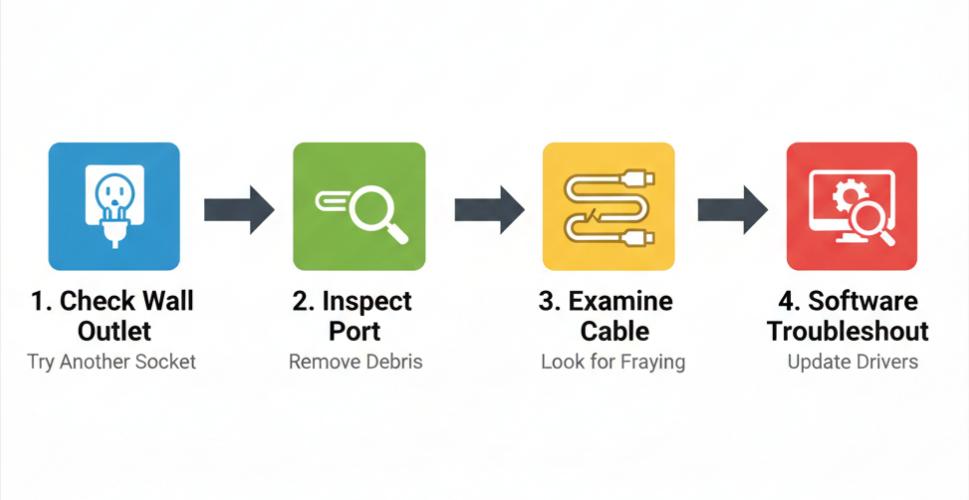
A laptop that cannot boot past a startup warning does not need Windows driver experiments first. Its immediate priority is safe, compatible power and the model-specific meaning of the startup message.
How to Interpret Diagnostic Results and Choose the Next Action
A result points toward a category of problem; it is not always a complete component-level diagnosis. Health percentages and diagnostic statuses also need the reporting tool’s model-specific interpretation.
| Observed result | What it suggests | What it does not prove | Appropriate next action |
|---|---|---|---|
| Charging resumes with a known-good compatible adapter | The original adapter, cable or supply path may be faulty | That the battery has normal capacity or that every port fault is excluded | Assessment of the original power equipment and confirmation of stable charging |
| Battery detection returns after a restart or supported software correction | A temporary recognition or reporting issue is plausible | That intermittent hardware trouble cannot recur | Comparison with the original warning during normal use |
| Charging stops at the configured conservation threshold | A supported setting may explain the status | That an unrelated startup code is harmless | Confirmation against the model’s charging-setting documentation |
| A supported diagnostic reports a battery-health concern | The battery warrants assessment | That the warning text alone establishes the required replacement | Review of the complete result and reference code |
| Battery remains undetected in Windows and a supported hardware diagnostic | Battery communication or hardware trouble is more plausible | Whether the battery, connection or laptop-side circuitry has failed | Professional battery and charging-system diagnosis |
| Charge falls on known-compatible power or the connection is unstable | An unresolved power-delivery or hardware issue remains | That the battery is the only possible fault | Assessment of adapter output, port, battery and charging circuitry |
Results That Point Toward Power, Software or Settings
- Confirm the improvement beyond a single icon change. After correcting external power, observe whether charge rises when expected and the original warning stays absent. A charging symbol without actual charge recovery is incomplete evidence.
- Compare Windows with supported pre-Windows diagnostics. Normal hardware detection alongside a Windows-only error makes targeted software guidance more relevant. A startup warning that remains needs its own model-specific investigation.
- Recheck after the supported correction. Compare the original wording and behavior rather than assuming an installed update solved the issue. Continuing discharge, renewed detection failure or a hardware-test concern is a reason to escalate.
Results That Point Toward Battery or Hardware Diagnosis
- Repeated battery-not-detected messages after compatible-power and relevant software checks.
- A supported diagnostic result identifying a battery or charging-system concern.
- Continued discharge during light use or while idle on known-compatible power.
- A loose, damaged or movement-sensitive charging connection.
- Physical damage, swelling or abnormal heat, regardless of software results.
In an IndiRepair assessment, these observations are useful evidence for separating possible causes. For example, operation on AC power alone does not distinguish a failed battery from a battery connection or charging-circuit problem. A confirmed diagnosis needs findings that support that distinction.
If the results remain ambiguous, you can get your Lenovo laptop battery checked by IndiRepair with the original message and test results available.
When to Stop DIY Troubleshooting and Seek Lenovo Battery Repair
Professional diagnosis becomes useful when safe checks cannot separate a battery fault from an adapter, port or board-level problem. Battery replacement may not resolve those other causes.
Professional Assessment Is Appropriate When
- The same code returns after a restart and the applicable model-specific checks.
- Battery detection is inconsistent or the laptop works only on AC power.
- The outlet and adapter appear functional, but charging still fails.
- A supported diagnostic reports a battery or charging hardware concern.
- The battery, case, connector or charger has damage, unusual heat or an odor.
The most useful handover includes the exact code, model, charger details, symptoms, diagnostic reference codes and checks already attempted. Internal battery removal, connector repair and board-level work require appropriate skills and safety controls.
What to Ask for During Diagnosis or Replacement Assessment
- Evidence supporting the battery, adapter, port and charging-circuit findings.
- The model-specific source used to interpret a Lenovo diagnostic code.
- A clear distinction between battery replacement, adapter replacement, port repair and further hardware investigation.
- Advice about whether continued use or charging is safe while awaiting service.
- A repair recommendation based on the findings, rather than the warning text alone.
Frequently Asked Questions About Lenovo Battery Error Codes
Q: What does Lenovo battery error 0190 mean?
A: On Lenovo models whose documentation defines it that way, 0190 means “Critical low-battery error” and appears during startup. It describes insufficient battery charge for startup, not necessarily defective battery hardware. The exact model’s Lenovo documentation must confirm applicability, especially if the screen shows only a number. With undamaged hardware, the relevant next step is the compatible-power and charging procedure specified for that model. Recurrence despite suitable power calls for diagnosis of the adapter, charging path and battery rather than repeated startup attempts.
Q: Why does my Lenovo laptop say the battery is not detected?
A: The reporting system cannot currently identify or communicate with the battery. Possible explanations include Windows recognition trouble, battery electronics, a connection problem or laptop-side circuitry. A Windows-only message differs from missing detection in a supported hardware diagnostic. The external-power, Windows-reporting and model-supported diagnostic checks above help separate those possibilities without opening the laptop. Persistent detection failure needs professional assessment, particularly after an impact or liquid exposure. Swelling, damage or unusual heat means further testing should stop, even if detection briefly returns.
Q: Can a Lenovo battery driver error in Windows 11 mean the battery needs replacing?
A: It can occur alongside a hardware fault, but a driver error alone does not establish that replacement is needed. Windows may report a device-recognition problem after an update, while a battery or communication fault can produce similar symptoms. The affected device’s complete status text and whether the battery is detected outside Windows are more useful than a generic “driver error” description. Model-specific Lenovo guidance is the appropriate basis for software changes. Continued missing detection, abnormal charging or a supported failed hardware test warrants diagnosis instead of repeated driver removal.
Q: Why is my Lenovo battery not charging even though the charger is connected?
A: A connected plug does not guarantee usable charging power. The adapter, cable or port may be unsuitable or faulty, while a supported conservation setting may intentionally pause charging. Battery temperature, software reporting and battery or charging-circuit faults are other possibilities. A stable percentage at a configured limit differs from charge falling toward empty on AC power. The safe external-power checks above come before replacement decisions. Continued discharge on a known-good compatible source, or charging that changes with connector movement, requires assessment rather than more software experiments.
Q: Should I keep using a Lenovo laptop that shows a critical battery warning?
A: Continued use depends on the warning’s meaning and the hardware’s condition. An ordinary low-charge notification on an otherwise normal laptop is different from a repeated startup error or a damaged battery. Safe, stable operation may allow you to save work before following the model’s charging guidance. Swelling, leakage, smoke, burning odor, extreme heat or connector damage makes continued use and charging inappropriate. A recurring warning despite compatible power also deserves assessment. A temporarily disappearing message does not establish that damaged hardware is safe.
Conclusion
Lenovo laptop battery error codes are starting points for diagnosis, not automatic replacement instructions. The exact wording, message source and model-specific definition determine which safe checks are relevant.
Compatible external power, Windows reporting and supported diagnostics can help narrow the cause. Persistent warnings, failed detection, hardware-test concerns or physical damage justify professional assessment rather than repeated resets.
For a diagnosis-led next step, consider Lenovo laptop battery replacement with IndiRepair. The aim is to establish whether the battery, power source, connection or another part of the charging system needs attention before deciding on a repair.
Lenovo Laptop Battery Says Plugged In Not Charging