Is your Lenovo laptop plugged in not charging, with the battery percentage stuck or Windows showing that charging has stopped? The laptop may detect external power without sending charge into the battery.
This does not automatically mean the battery has failed. Charging limits, an unsuitable power supply, temperature protection, and hardware faults can produce similar symptoms. The checks below help distinguish normal behavior from a problem—without opening the laptop or buying a battery as an experiment.
What Does “Plugged In, Not Charging” Actually Mean?
External-power detection and battery charging are separate states. Your laptop can recognize a connected adapter while charging is intentionally paused, insufficient power is available, or a fault prevents charging. The message describes a symptom, not the failed component.
A percentage that stays near a configured charging limit is different from a low battery that never rises. A battery that steadily falls while connected is another important pattern: the available external power may not cover the laptop’s demand, although other faults remain possible.
Some Lenovo models offer battery-preservation settings that restrict charging. Their availability, names, and thresholds depend on the model and installed software. There is no single stopping percentage that proves normal behavior across all Lenovo laptops.
Safety warning: Swelling, a lifted trackpad or case, smoke, unusual odor, scorching, or abnormal heat means troubleshooting should stop. Stop using the laptop and disconnect external power if safe. Do not press the case flat, puncture the battery, or open the laptop to inspect it. Smoke or fire requires moving away and seeking emergency assistance rather than handling the device.
Possible Causes and the Clues That Separate Them
A Lenovo battery charging problem can originate anywhere between the wall supply and the battery’s internal controls. These are possible explanations; the clues help narrow the investigation but do not confirm a diagnosis.
- Intentional charging limits or normal charge management. The percentage remains near a configured limit, while operation and unplugged runtime are otherwise normal. Some settings also prevent charging from restarting until the battery drops below a separate start threshold.
- Inadequate or incompatible external power. The battery may fall under workload, or charging may work directly from a compatible adapter but not through a dock. Recognizing external power does not prove that enough usable power is available.
- Adapter, cable, or charging-connector damage. Intermittent power detection, visible damage, or a history of charging only at a particular cable angle suggests a power-path problem. These observations do not identify which part has failed, and repeatedly moving the connector can worsen damage.
- Temperature-related charging protection. Charging may pause when the battery is outside its permitted temperature range. Ordinary warmth after demanding use is different from extreme heat, swelling, or an unusual smell, which require an immediate safety stop.
- Software reporting, power-management, or firmware problems. An inconsistent status display or symptoms following an update can justify supported software checks. The timing of an update alone does not establish that it caused the problem.
- Battery deterioration, communication faults, or internal charging faults. Poor runtime, diagnostic errors, or persistent failure with suitable external power can point toward hardware assessment. The battery, its communication path, and charging circuitry remain separate possibilities.
The charging path contains several components. A charging-status message cannot isolate one of them by itself.
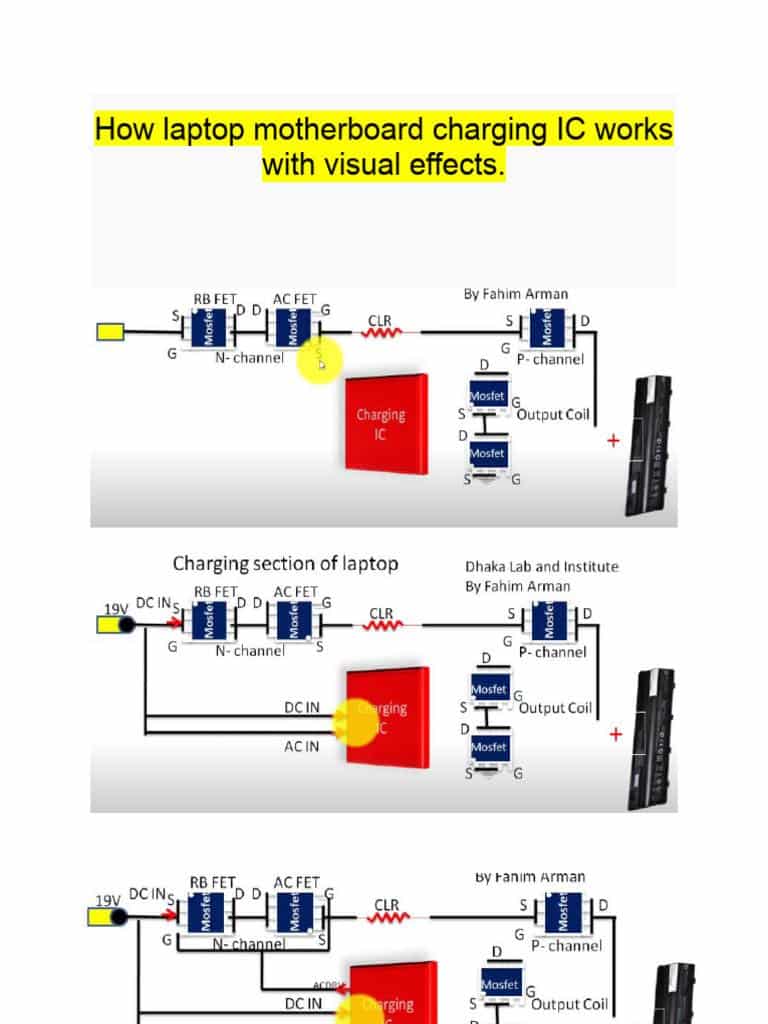
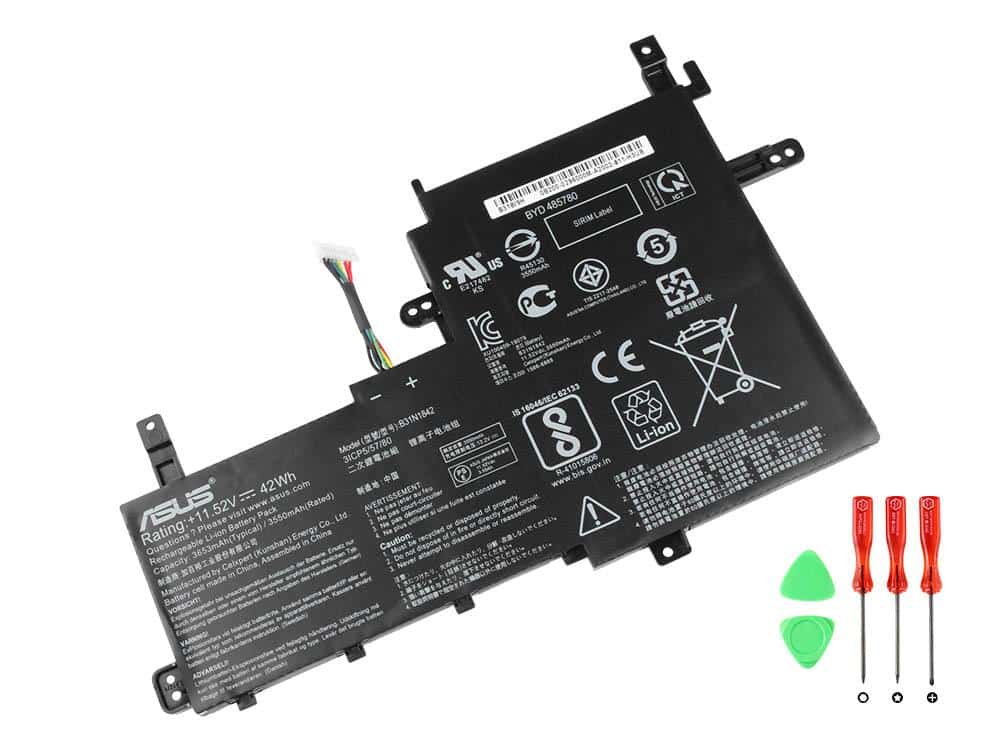
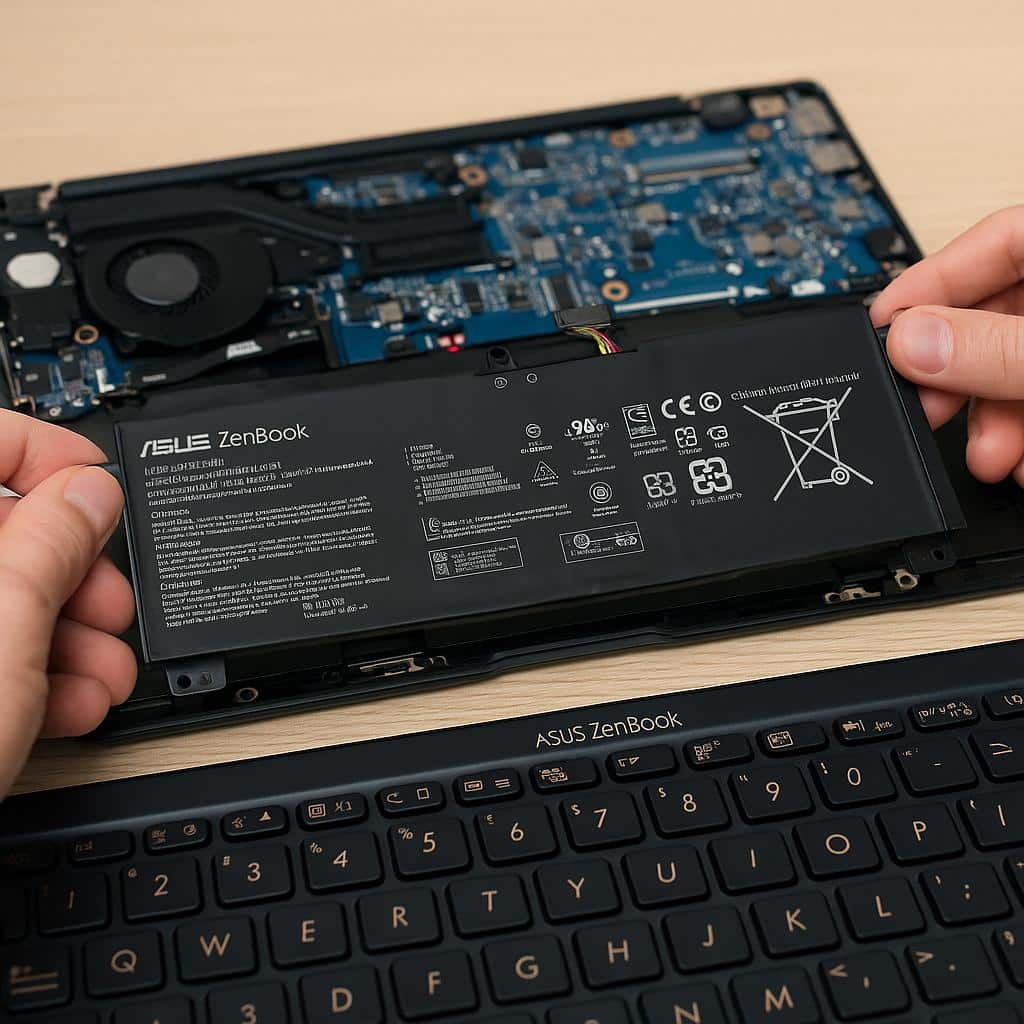
If the evidence eventually points to the battery, Lenovo laptop battery service may be relevant. An adapter or connector fault needs a different solution, so replacement should follow diagnosis.
Safe Troubleshooting: From External Power to Battery Diagnostics
Work through the external checks before changing software settings. Record what changes after each check; changing several things at once makes the result harder to interpret. Model-specific procedures should come from official Lenovo documentation for the exact laptop.
IndiRepair has completed 500+ laptop repairs and has practical experience diagnosing and repairing laptop problems. For a charging complaint, the useful starting point is separating the observed symptom from evidence of a particular fault—not assuming that the battery needs replacement.
If you would prefer help with that assessment, you can book your Lenovo laptop repair with IndiRepair.
External Power, Adapter Compatibility, and Connections
Before testing: Do not reconnect equipment with exposed wires, scorching, melting, liquid exposure, unusual heat, or visible connector damage. Do not force a plug or repeatedly wiggle a loose connection.
- Record the starting conditions. Note the exact laptop model, battery percentage, displayed charging status, and adapter identification. Record whether the percentage stays steady or falls during normal use. This baseline helps distinguish a repeatable charging issue from an intermittent display change and guides the comparisons below.
- Check the outlet and accessible connections. With undamaged equipment, try a known-working wall outlet and securely reseat the accessible power connections. If charging resumes, the original outlet or a poorly seated connection becomes more suspect. Persistent or recurring interruptions still need investigation.
- Visually inspect the disconnected power path. Disconnect external power before looking for cable splits, bent connectors, discoloration, or a visibly damaged laptop port. Do not insert tools or liquids into the port. Damage means further charging tests should stop; a normal appearance does not rule out an electrical fault.
- Compare the adapter with the model’s requirements. Use the exact model’s official documentation to compare the specified adapter type and electrical requirements with the adapter label. A plug that fits is not proof of compatibility. If suitability is uncertain, establish the correct requirements before proceeding.
- Confirm connector-specific requirements. On a USB-C charging model, verify that the chosen port accepts charging and that both the adapter and cable support the required power delivery. For a proprietary connector, verify the specified adapter type. An unsupported port or inadequate cable can prevent charging even when the connection looks correct.
- Compare direct power with the existing setup. Where supported, bypass a dock or hub using a verified compatible adapter connected directly to the laptop. If available, compare with a known-good compatible adapter. Charging that resumes makes the original adapter, cable, or dock path more suspect, but the changed setup may involve more than one component.
- Compare charging under lighter demand. If there are no safety warning signs, record the percentage before and after a short, timed period of light use, or shut the laptop down while connected and compare after restarting. A rise only during shutdown suggests that workload, available power, temperature, or software behavior matters. No rise is meaningful only after charging limits and starting percentage are considered; there is no universal charging rate.
Charging Settings and Power-Management Software
A Lenovo ThinkPad not charging when plugged in may be following a deliberate charge threshold, but the same controls are not available on every ThinkPad or consumer Lenovo model.
- Inspect the supported Lenovo battery settings. Depending on the model and installation, charging controls may appear in Lenovo Vantage, Commercial Vantage, or another documented interface. Use official model guidance rather than assuming a menu path. If no charging control is available, do not treat its absence as a fault; continue with the other checks.
- Compare the percentage with the configured charging range. Look for any documented start and stop thresholds. A battery slightly below the stop threshold may remain intentionally idle until it reaches the start threshold. A matching pattern supports normal charge management; a battery well below the start threshold that never rises needs further checking.
- Adjust a documented user-accessible limit only if needed. If you need fuller charging, temporarily change the supported setting and observe whether the percentage increases. Resumed charging supports the setting as the explanation. An unchanged result means the limit was not the complete explanation. Keeping a deliberate preservation limit is also a valid choice.
- Save your work and restart Windows. Compare both the status display and the battery percentage afterward. A restart can refresh reporting or clear a temporary software state, but a changed icon alone does not establish restored charging. A sustained percentage increase is more useful evidence.
- Review relevant model-specific software updates. Use official Lenovo support tools or documentation for applicable power-management and driver updates. Follow the stated prerequisites and compare charging behavior afterward. Avoid third-party driver packages and blanket battery-driver removal advice. If no relevant update is identified, repeated software changes are unlikely to clarify the fault.
A charging-limit screenshot is useful only when its model and software context are clear. Your laptop may show different controls or no equivalent option.
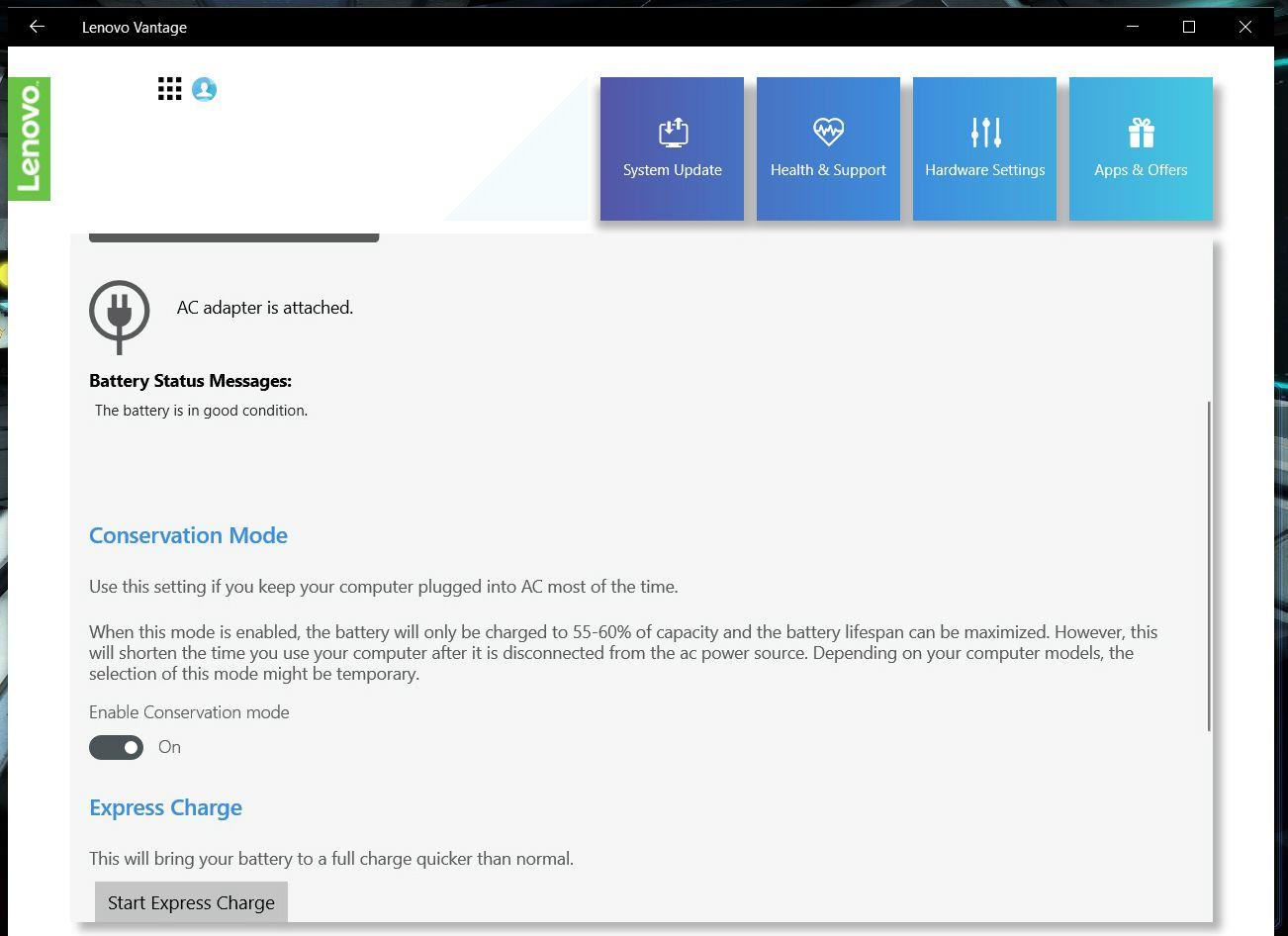
The important comparison is between your battery percentage and your own documented settings—not a percentage shown in another laptop’s screenshot.
Battery Health, Temperature, and Model-Specific Diagnostics
Safety comes first: Ordinary warmth after use is not the same as abnormal heat. Swelling, casing distortion, scorching, or unusual odor overrides every diagnostic step below.
- Allow ordinary operating warmth to settle. If the laptop is merely warm and has no warning signs, shut it down, disconnect external power, and let it return to normal ambient conditions with ventilation unobstructed. Do not refrigerate or forcibly chill it. If charging resumes after cooling, temperature may have contributed; recurring overheating deserves assessment rather than repeated charge attempts.
- Run supported battery or power diagnostics. Use the diagnostic tool and tests documented for the exact model. Record the full result or error code. An error provides evidence for further assessment, while a pass does not exclude an intermittent problem. Interpret the result using the matching documentation.
- Generate a Windows battery report where supported. Open Command Prompt and run
powercfg /batteryreport, then open the report at the location shown. Compare design capacity, full-charge capacity, and recent charge history. A substantially lower reported full-charge capacity can indicate wear, but the values are estimates. If entries are missing or the command fails, retain that observation and use supported diagnostics instead. - Compare the report with real behavior. Relate the findings to short unplugged runtime, unexpected shutdowns, or charging only when powered off. Low reported capacity together with poor runtime supports battery deterioration more strongly than either finding alone. It still does not prove that deterioration explains the current charging failure.
- Consider a power-controller reset only when documented. Follow a reset procedure only if official instructions explicitly support it for the exact model. Do not improvise a button-hold duration, use an unidentified pinhole, or disconnect an internal battery. If a supported reset changes nothing, repeated resets are unlikely to identify the underlying fault.
- Treat firmware updates as conditional, not routine. Consider a BIOS or firmware update only when official model-specific guidance makes it relevant and all power and update prerequisites are satisfied. Interrupted firmware updates can leave the laptop unusable. If charging instability prevents reliable power or required battery charge, defer the update to a qualified technician.
What the Results Mean—and When Professional Repair Makes Sense
The checks above can narrow the likely fault area without producing a component-level diagnosis. Persistent failure under suitable power and normal conditions is a reason for assessment, not automatic proof that a new battery will solve it.
Interpreting the Charging Pattern
These outcomes are useful clues, especially when the result is repeatable and only one part of the setup changed.
| Observed result | Likely interpretation | Limits of the conclusion |
|---|---|---|
| Charge stays near a configured threshold. | Consistent with intentional charge management. | This is not evidence of battery failure by itself; the configured start threshold also matters. |
| Charging works with a verified compatible alternative adapter or direct connection. | The original adapter, cable, or dock path becomes more suspect. | Changing several components together does not isolate which one caused the issue. |
| Charging occurs only while shut down. | Available power, workload, temperature, or software behavior may be involved. | This does not identify one failed part or prove that the battery is healthy. |
| Low reported capacity accompanies poor unplugged runtime. | Battery deterioration becomes more plausible. | The external charging path may still have a separate problem. |
| No improvement with suitable power, understood settings, and normal temperature. | A battery, connector, controller, or board-level fault remains possible. | Further software experimentation may add little; hardware assessment is needed to distinguish these possibilities. |
| A supported diagnostic reports an error. | There is stronger evidence for targeted assessment. | The error must be interpreted using documentation for that model and test. |
In the context of IndiRepair’s practical laptop-repair experience, these results are best treated as evidence rather than automatic replacement instructions. Charging successfully with another power setup, for example, points toward the original power path without proving that every other component is healthy.
If the cause remains unclear after safe checks, you can get your Lenovo laptop checked by IndiRepair.
DIY Limits and Replacement Decisions
Software checks are unlikely to resolve physical damage or a connection that repeatedly loses power. The appropriate repair depends on what assessment establishes.
- Immediate stop conditions: Swelling, case distortion, smoke, sparks, scorching, unusual odor, abnormal heat, liquid damage, exposed wiring, or melting make repeated charge tests unsafe. Disconnect power only if safe.
- Professional-only investigation: A loose or damaged charging port, persistent intermittent power, or any need for internal electrical testing belongs with a qualified technician.
- Battery replacement evidence: Physical battery damage, relevant health findings, or confirmed battery failure may justify replacement. A charging-status message alone does not.
- Other repair paths: Adapter, connector, and charging-circuit faults require attention to those components. A new battery may leave the original fault unchanged.
- Useful assessment details: The exact model, adapter identification, charging-limit settings, symptom history, and diagnostic results help explain what has already been ruled out.
- Replacement considerations: Exact battery-part compatibility and any applicable manufacturer service coverage matter before parts are purchased or internal work begins.
Frequently Asked Questions About Lenovo Charging Behavior
Q: Why does charging not restart as soon as the battery drops below its charge limit?
A: Some charging controls use separate start and stop thresholds. Charging stops at the upper threshold but does not resume until the battery falls below the lower threshold. This avoids frequent small top-ups, so a slight drop below the upper limit can be normal. The relevant evidence is whether the percentage matches the documented range, not simply whether it is below the maximum. Your model’s supported charging settings are the reference point. A battery below the configured start threshold that still never charges needs further power-path or battery checks.
Q: Can a USB-C dock power my Lenovo laptop without charging its battery adequately?
A: Yes. A dock can provide detectable external power without delivering enough usable power for the laptop’s current workload and battery charging. The dock’s own power supply, supported laptop power delivery, cable, and chosen laptop port all matter. Physical USB-C compatibility alone is insufficient. Charging that works through a verified compatible direct adapter but not through the dock makes the dock setup more suspect. It does not necessarily identify the dock itself as faulty: the power supply or cable may be the limiting part. Exact compatibility must be checked against the relevant documentation.
Q: Can a Windows battery report prove that the battery needs replacement?
A: No. A battery report summarizes information supplied by the battery and system, including estimated capacity and charge history. Low full-charge capacity alongside consistently poor runtime supports deterioration, but neither capacity reporting nor a charging-status message fully tests the adapter, connector, or internal charging circuitry. Reporting can also be incomplete or inaccurate. Replacement decisions are stronger when supported diagnostics and real operating behavior agree. Physical swelling is a separate safety concern: it calls for stopping use and professional handling, not generating more reports or repeatedly charging the battery.
Conclusion: Diagnose the Charging Path Before Replacing the Battery
A Lenovo laptop not charging when plugged in may be following a deliberate charging limit—or it may have a power-supply, battery, or internal hardware problem. Safety, compatible external power, understood charging settings, and model-specific diagnostics provide a more reliable decision path than the status message alone.
For unresolved symptoms, Lenovo laptop repair with IndiRepair is an option for professional assessment. Battery replacement should follow evidence that supports it; persistent power-path faults and safety warning signs should not lead to repeated DIY experiments.